
Picture this: your big announcement airs at 9 AM in New York and 2 PM in London, and you're nowhere near a camera. No shaky internet, no flubbed lines, no panic. That's the promise of simulated live streaming: you record once, schedule it, and it airs like a live broadcast.
Pre-recorded live streaming is a powerful tool for creators seeking flexibility, better production quality, and real engagement. In this guide, you'll learn what simulated live streaming is, how it compares to simulive webinars and YouTube Premiere, and how to upload and schedule your first one with OneStream Live. You'll also get practical tips to make a recorded video feel genuinely live.
Key Takeaways:
- Simulated live streaming airs a pre-recorded video at a set time as a live broadcast.
- Simulive is the webinar world's name for the same idea.
- YouTube Premiere works only on YouTube. A simulated live stream can air on several platforms.
- OneStream Live lets you schedule pre-recorded streams up to 60 days ahead.
- Being active in the chat is what makes a recorded stream feel live.
What Is Simulated Live Streaming?
Simulated live streaming is when you schedule a pre-recorded video to play at a set time as a live broadcast. Viewers see it go live, watch together, and chat in real time, just like a regular stream. The difference is that you recorded, edited, and approved the video before it ever aired.
"Pre-recorded live streaming" may sound like a paradox, but it simply means the content was recorded ahead of time and presented in a way that simulates a live stream. This approach is often used to ensure content quality, reach viewers in different time zones, or deliver a polished presentation.
Is Simulive the Same as Simulated Live?
Yes. Simulive is short for simulated live, and it's the term most webinar platforms use. A simulive webinar plays a recorded presentation at a scheduled time while hosts answer questions in the chat. It's the same idea with a different audience: marketers usually say simulive, while creators often just call it streaming a recorded video.
Read More: Scheduling Pre-recorded Videos: Your Ultimate Guide
Benefits of Pre-Recorded Live Streaming
Simulated live streaming gives you the reach and buzz of a live event with the control of a recorded video. That combination is catching on. Goldcast's 2026 B2B Webinar Benchmark Report, which analyzed 26,190 webinars hosted by 522 B2B organizations in 2025, found that 21.5% were pre-recorded, up from 18.8% the year before.
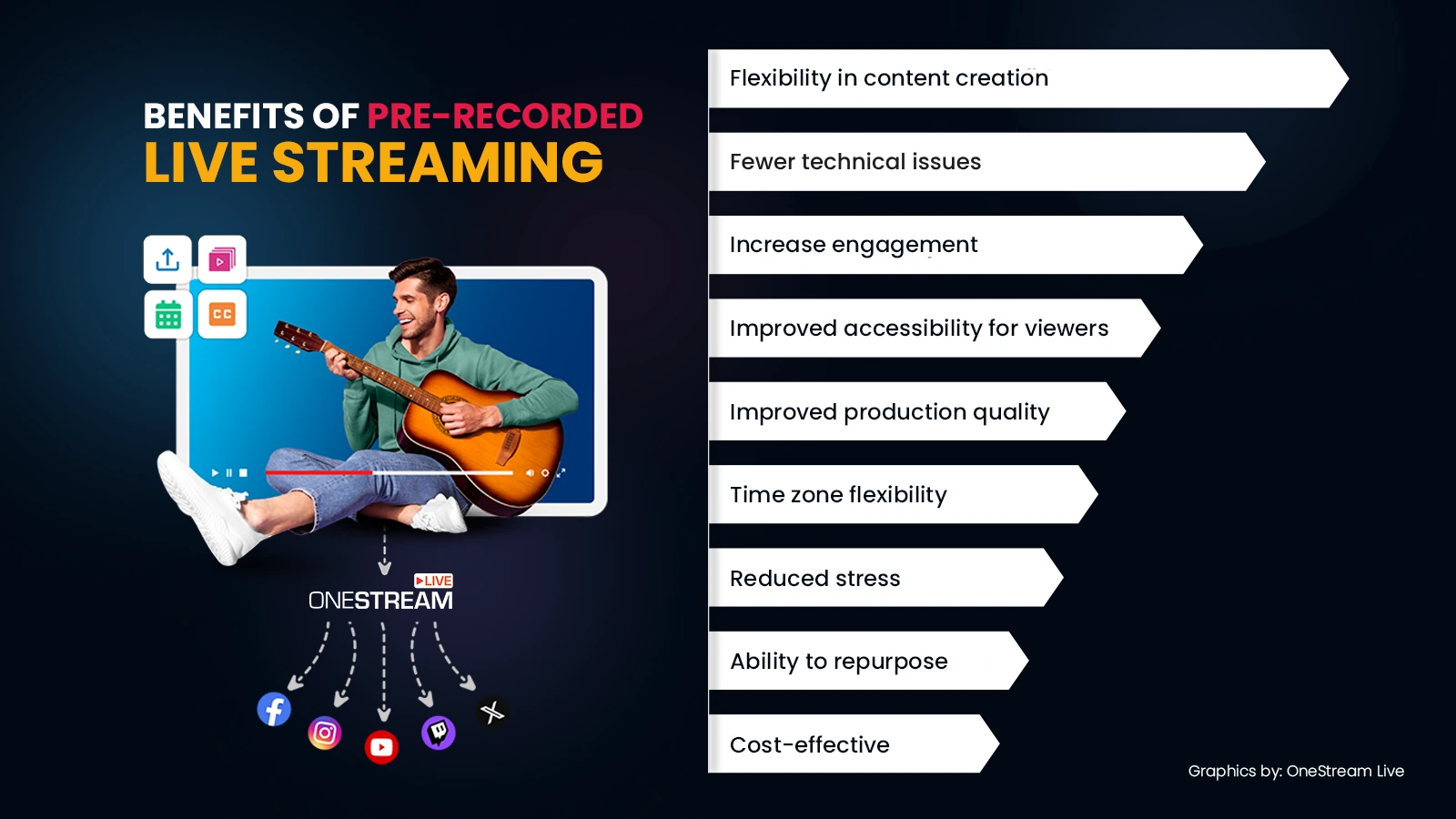
Flexibility in Content Creation and Presentation
Pre-recorded live streaming lets you craft and refine your content in advance. That leaves room for careful planning and a well-structured presentation that matches your vision.
Fewer Technical Issues on Air
Technical glitches are a real worry in live broadcasts. Recording ahead removes on-camera risks such as a frozen webcam, dropped audio, or a speaker who forgets the demo login. You check the file once, and it plays the same way every time.
Real-Time Engagement and Viewer Interaction
Despite being pre-recorded, creators can engage with the audience in real time through Live Unified Chat, comments, or white label chat softwares. This interactive element boosts viewer participation and builds a sense of community.
Improved Production Quality
Pre-recording allows for careful editing and post-production. You can cut mistakes, add graphics, and polish the audio before anyone presses play.
Time Zone Flexibility
Simulated live streaming makes it easier to serve a global audience. Record once, then schedule the same session at a friendly hour for each region you serve.
Improved Accessibility for Viewers
Pre-recorded content can be made available for replay, so viewers who miss the scheduled time can still watch at their convenience.
Reduced Stress
Live streaming can be stressful because live events are unpredictable. Pre-recording gives you a controlled environment, so you can focus on your message without the pressure of performing live. It also means busy speakers can record when they're free, and the event still starts on time.
Ability to Repurpose Content
Pre-recorded content is easy to reuse. Air it again next month, add it to a playlist, or clip highlights for social media to extend its life.
Cost-Effective
Live events can need extra people and equipment for real-time support. Pre-recorded live streaming can be a more cost-effective option, because most of the work happens before the stream starts.
Read More: Using Pre-recorded Live Videos for Business Growth
Simulated Live Streaming vs YouTube Premiere
YouTube Premiere is a free YouTube feature that debuts an uploaded video at a scheduled time with a countdown and live chat. Simulated live streaming does a similar job, but it can air the same video as a live broadcast on several platforms. Use Premiere for a YouTube-only debut. Use simulated live when your audience watches in more than one place.
According to YouTube Help, you set up a Premiere when you upload a video: choose Schedule, set a date and time, and check Set as Premiere. Shorts, 360° and VR180 videos, and outputs above 1080p aren't supported.
| Feature | YouTube Premiere | Simulated Live Stream with OneStream Live |
|---|---|---|
| Where it airs | YouTube only | The destinations you choose from 45+ integrations, depending on your plan |
| How viewers see it | A Premiere with a countdown | A live broadcast on each platform |
| Live chat | YouTube live chat, plus Super Chat if turned on | Each platform's chat, plus Unified Chat for YouTube, Facebook Pages, Twitch, LinkedIn Pages and Kick |
| Scheduling | One date and time | Up to 60 days ahead, with repeat options |
| Playlists and loops | No | Yes |
| After it ends | Stays on your channel as a regular video, with chat replay | Follows each platform's replay settings |
| Cost | Free | Free plan available; paid plans add more destinations |
If your audience spans YouTube, Facebook, LinkedIn, and your website, a Premiere reaches only one of them. Simulated live lets you multistream the same recorded video to all of them at the same moment.
How to Set Up Simulated Live Streaming on OneStream Live
To set up simulated live streaming, upload your finished video, choose where it should air, and schedule the start time. Here's how it works with OneStream Live's pre-recorded streaming:
1
Open Pre-recorded Stream
Log in to your OneStream Live account. From your dashboard, click Pre-recorded Stream.
2
Add Your Video
Click Add Videos and choose a source: Device to upload from your computer, OSL Storage for videos already in your OneStream Live library, or Cloud Storage for services such as Google Drive and Dropbox. Supported formats are MP4, MOV and M4V. Select your video and click Continue.
3
Choose Your Destinations
Select the social destinations where you want the stream to air, such as YouTube, Facebook, and LinkedIn, then click Continue.
4
Add Your Stream Details
Add a title and description that give viewers a clear reason to tune in. Add a thumbnail and tags, then click Continue.
5
Schedule Your Broadcast
Set the date, time, and time zone for your video to go live automatically. To run it again, turn on Repeat Stream and set how often it repeats. Then click Schedule Broadcast.
How to Live Stream a Pre-Recorded Video on YouTube
YouTube doesn't offer a built-in way to stream an uploaded video as a live broadcast. To do it, upload your video to OneStream Live, select YouTube as your destination, and set your stream time. OneStream Live then sends your video to YouTube as a live stream at the time you choose. Our guide on how to live stream a pre-recorded video covers more detail.
How to Schedule a Pre-Recorded Video on Facebook Live
Facebook works the same way. Connect your Facebook account as a destination, select it when you choose your destinations, and set your time. Your video then goes out to Facebook as a live broadcast at that exact moment, alongside any other platforms you picked.
Features of Pre-Recorded Streaming with OneStream Live
OneStream Live includes several features that make simulated live streaming easier to plan and run.
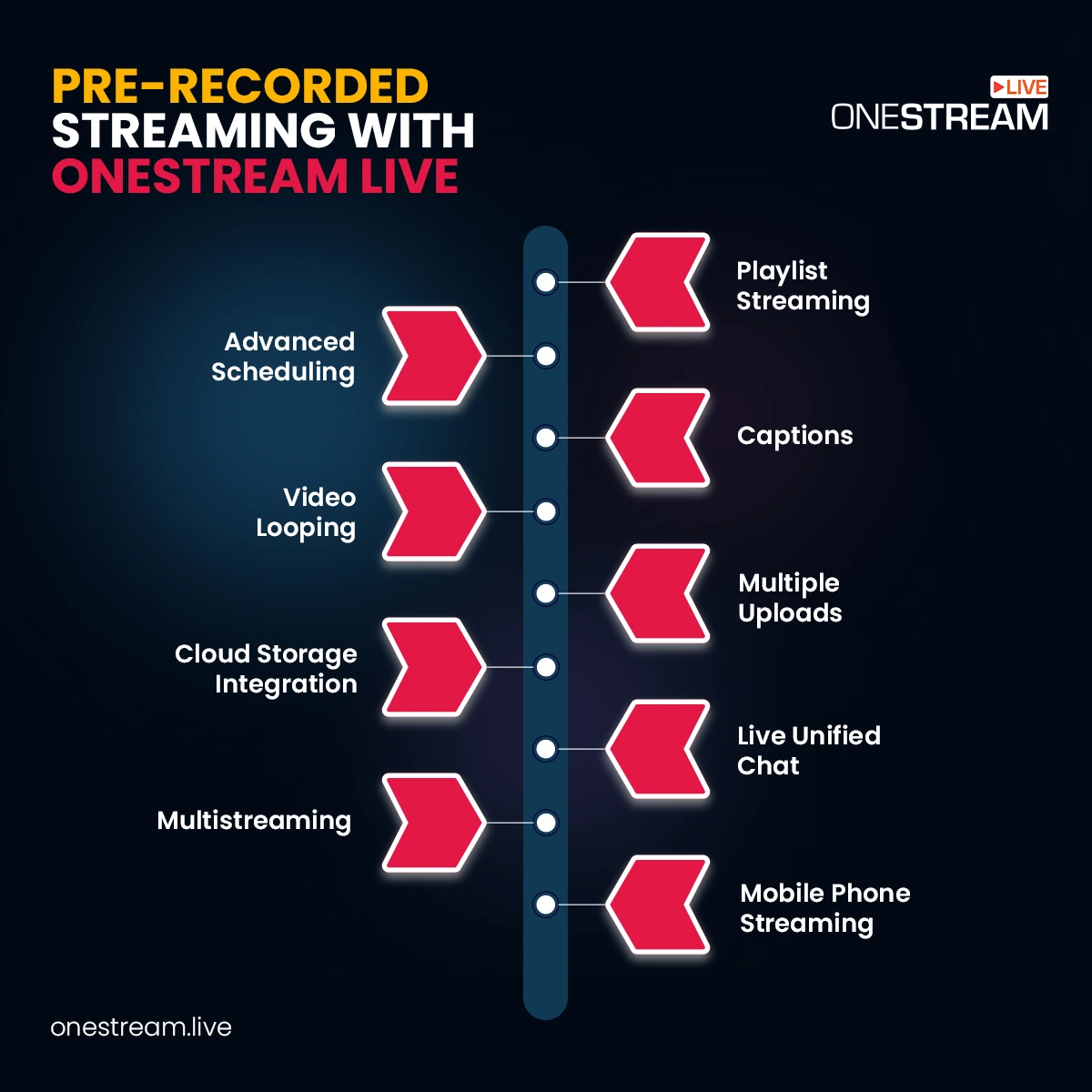
Playlists
Playlists let you select several pre-recorded videos and broadcast them in order as one stream. They're available on the Professional and Enterprise plans.
Advanced Scheduling
Schedule pre-recorded videos up to 60 days ahead, and they stream automatically at the date and time you set. With Repeat Stream, you can choose how often a stream repeats, in days or weeks, and how many times it runs. Learn more about advanced scheduling.
Captions
Add captions to pre-recorded videos using SRT files or manual text. Captions make your content easier to follow for a wider audience, including viewers who are deaf or hard of hearing. Learn how to make an SRT file for pre-recorded live streaming.
Video Looping
Loop your videos for continuous streaming. When you stream a playlist, you can also choose how many times each video repeats, so your stream keeps running without you going live again.
24/7 YouTube Streaming
For a channel that never goes offline, OneStream Live’s 24/7 live streaming runs your recorded videos on YouTube as a continuous live stream for up to 30 days per broadcast. It’s a separate add-on for the Basic, Standard and Professional plans, and it’s included in the Enterprise plan.
Multiple Uploads
When you add videos, you can select the number of videos you need from your device, OSL Storage, or cloud storage, which makes it easy to build a content library or a playlist.
Cloud Storage Integration
Import videos straight from cloud storage services such as Google Drive and Dropbox, so you don't have to download and re-upload large files.
Live Unified Chat
Live Unified Chat brings comments from YouTube, Facebook Pages, Twitch, LinkedIn Pages and Kick into one window, so you can reply to viewers while your recorded video plays.
Multistreaming
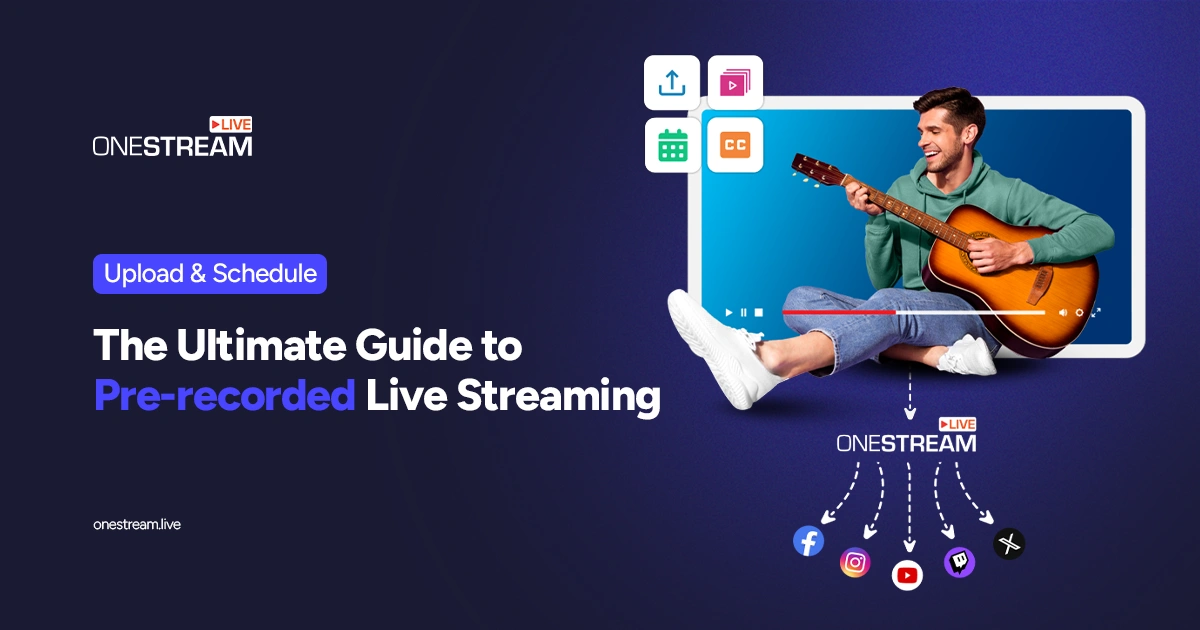
Stream the same pre-recorded video to the destinations you choose from 45+ integrations, so you reach every audience at the same moment.
Mobile Phone Streaming
The OneStream Live mobile app for iOS and Android lets you upload a video or playlist and schedule pre-recorded streams up to 60 days ahead, right from your phone. It’s a full streaming app too, so you can go live from your phone camera, host a Live Studio session, and reply to chat on the go.
How to Host a Pre-Recorded Webinar
A pre-recorded webinar follows the same flow as any simulated live stream:
- Record and edit the presentation.
- Schedule it to air at a set time.
- Staff the chat with a host who answers questions in real time.
- Add a short live Q&A afterward, so attendees get time with the speaker.
Goldcast's report says pre-recording works well when consistency, compliance, or speaker availability is a concern. It also suits regulated industries, where content often needs several rounds of approval before it airs.
Other Smart Uses
Simulated live streaming fits many other formats too:
- Product launches and announcements: Every word gets approved before it airs.
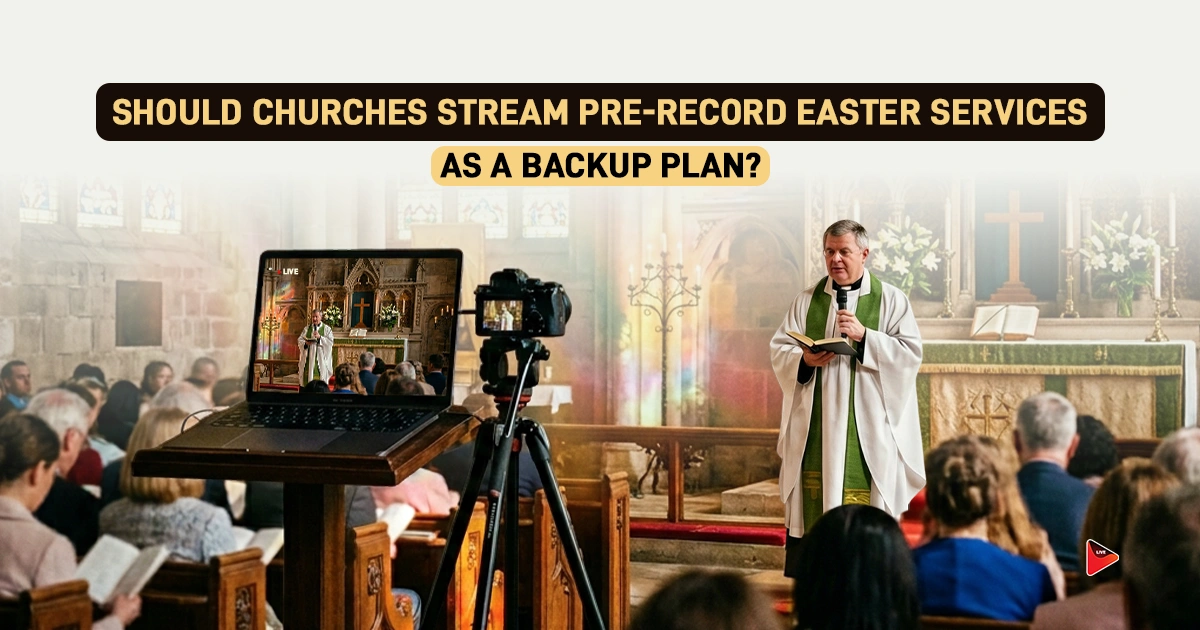
- Church services and events: A recorded service can air on time even if something goes wrong on the day.
- Music, podcasts, and talk shows: Release episodes as watch-together moments instead of silent uploads.
- Always-on channels: Line up several videos in a streaming playlist, or loop them for a nonstop channel.
Tips for Pre-Recorded Streaming
Use these tips to get more viewers and keep them engaged while your recorded video plays.
Create Engaging Thumbnails
Thumbnails are your first impression. Design ones that represent your content accurately and give viewers a reason to click. A strong thumbnail helps your stream stand out in a crowded feed.
Optimize Your Content Using Live Video SEO
Search engine optimization isn't limited to written content. Use live video SEO by adding relevant keywords to your video title, description, and tags, so more people can find your stream.
Use Social Media to Generate Buzz
Build anticipation before the stream. Share teasers, behind-the-scenes clips, or short snippets on platforms like Instagram, X, and Facebook, and post a reminder shortly before you go live.
Collaborate with Influencers for Cross-Promotion
Partner with influencers or creators in your niche. Cross-promotion introduces your stream to their audience and helps both of you grow.
Be Active in the Chat
While your content may be pre-recorded, the interaction doesn't have to be. Answer questions by name while the video plays, and engage with your audience the way you would during a live show.
Be Honest About the Format
Tell viewers the video is recorded and that you're live in the chat. Being upfront builds trust, and it still gives people a reason to show up at the scheduled time.
Edit for the Best Viewer Experience
Trim slow sections, improve visuals and sound, and make sure the video flows well. A well-edited stream keeps viewers watching longer.
Add Captions
Captions make your stream easier to follow, whether viewers have the sound off or are deaf or hard of hearing. They help more people stay with your content from start to finish.
Pro Tips
OneStream Live's Udemy course covers all you need to know, from the basics to advanced techniques. Enroll Now
Conclusion
Simulated live streaming gives you the best of both worlds: the shared, scheduled moment of a live event and the control of a recorded video. Record once, polish it, and schedule it to air wherever your audience already watches.
Start with one use case, like a webinar or a product announcement. Show up in the chat, be upfront that it's recorded, and see how much smoother event day feels.
Frequently Asked Questions
What is a prerecorded video?
A prerecorded video is any video you record and finish before your audience sees it, as opposed to footage broadcast as it happens. You can upload it as a regular video, or schedule it to air as a simulated live stream so viewers watch and chat together at a set time.
Can you live stream a pre-recorded video for free?
Yes. YouTube Premiere is free for scheduled debuts on YouTube. OneStream Live's Free plan lets you stream pre-recorded videos to 2 destinations at 720p, with streams up to 15 minutes, 3 scheduled events, and 1 GB of storage. Paid plans add more destinations, up to 1080p, and more storage.
How do you live stream a pre-recorded video on YouTube?
YouTube doesn't have a built-in option to stream an uploaded video as live. Upload your video to OneStream Live, select YouTube as your destination, and set your stream time. OneStream Live then sends your video to YouTube as a live stream at the exact time you choose.
Can you chat with viewers during a simulated live stream?
Yes. Each platform's live chat stays open while the video plays, so you can answer questions and share links in real time. OneStream Live's Unified Chat brings comments from YouTube, Facebook Pages, Twitch, LinkedIn Pages and Kick into one window.
How far in advance can you schedule a simulated live stream?
With OneStream Live, you can schedule pre-recorded videos up to 60 days in advance, and they go live automatically at the time you set. Scheduling early gives you time to share the link and build an audience before the stream starts.
OneStream Live is a cloud-based live streaming solution to create, schedule, and multistream professional-looking live streams across 45+ social media platforms and the web simultaneously. For content-related queries and feedback, write to us at [email protected]. If you have a story to share about your live streaming experience with OneStream Live, we would be glad to feature it. You're also welcome to Write for Us!