You asked, and we rebuilt it. Rescheduling is officially back, and this time it’s built to save you the exact busywork that made everyone miss it in the first place. No more reuploading a video that hasn’t changed. No more retyping a description you already got right. No more reticking every destination one by one, hoping you didn’t forget one. Reschedule a prerecorded stream now, and OneStream Live pulls in everything from the original broadcast automatically. Stay with us to learn how the feature works, plus two details worth a second look before you hit confirm.
Key Takeaways:
Rescheduling a prerecorded stream reuses the original video, title, description and destinations, so you only pick a new date.
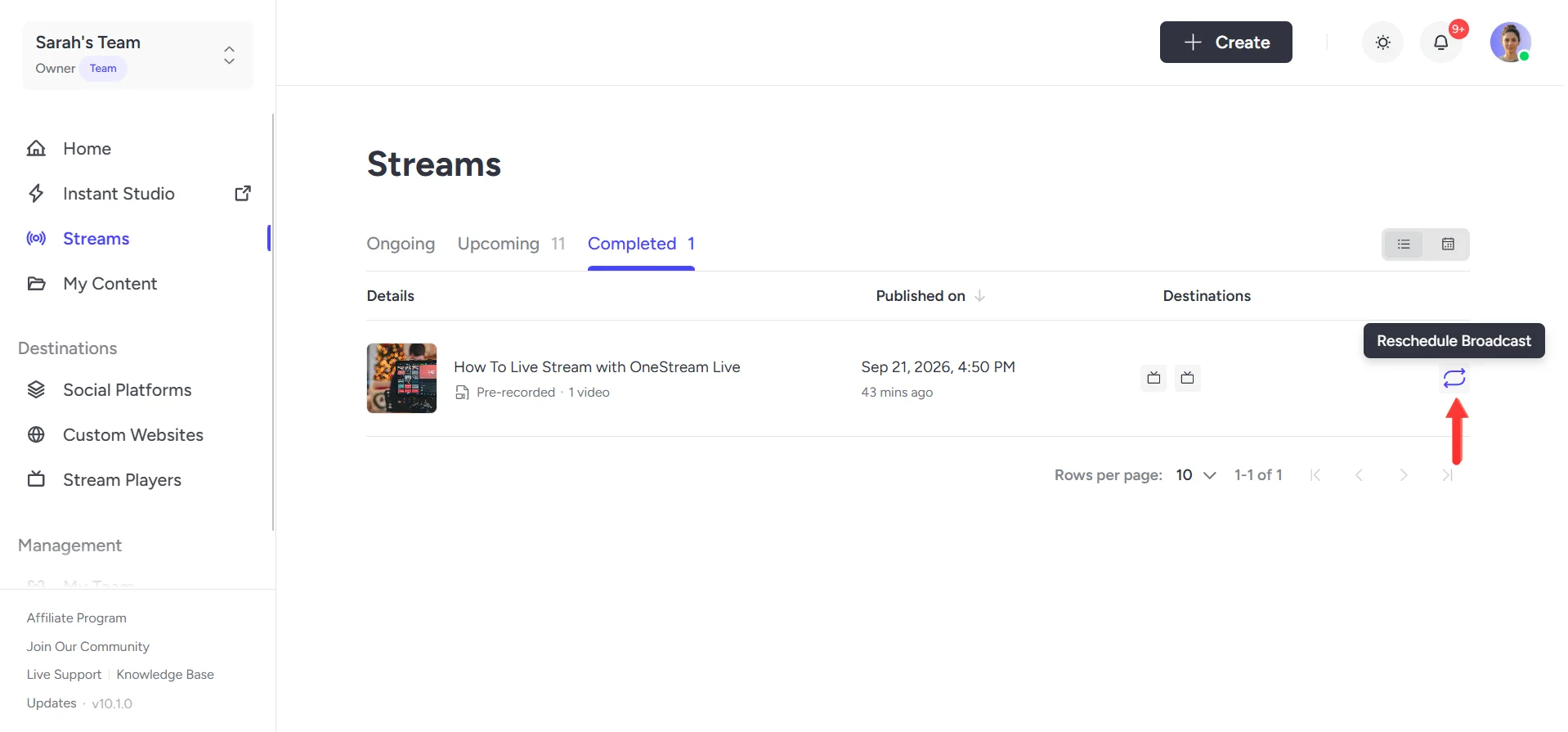
The Reschedule Broadcast option lives under the Completed tab in Streams, next to each finished broadcast’s destinations.
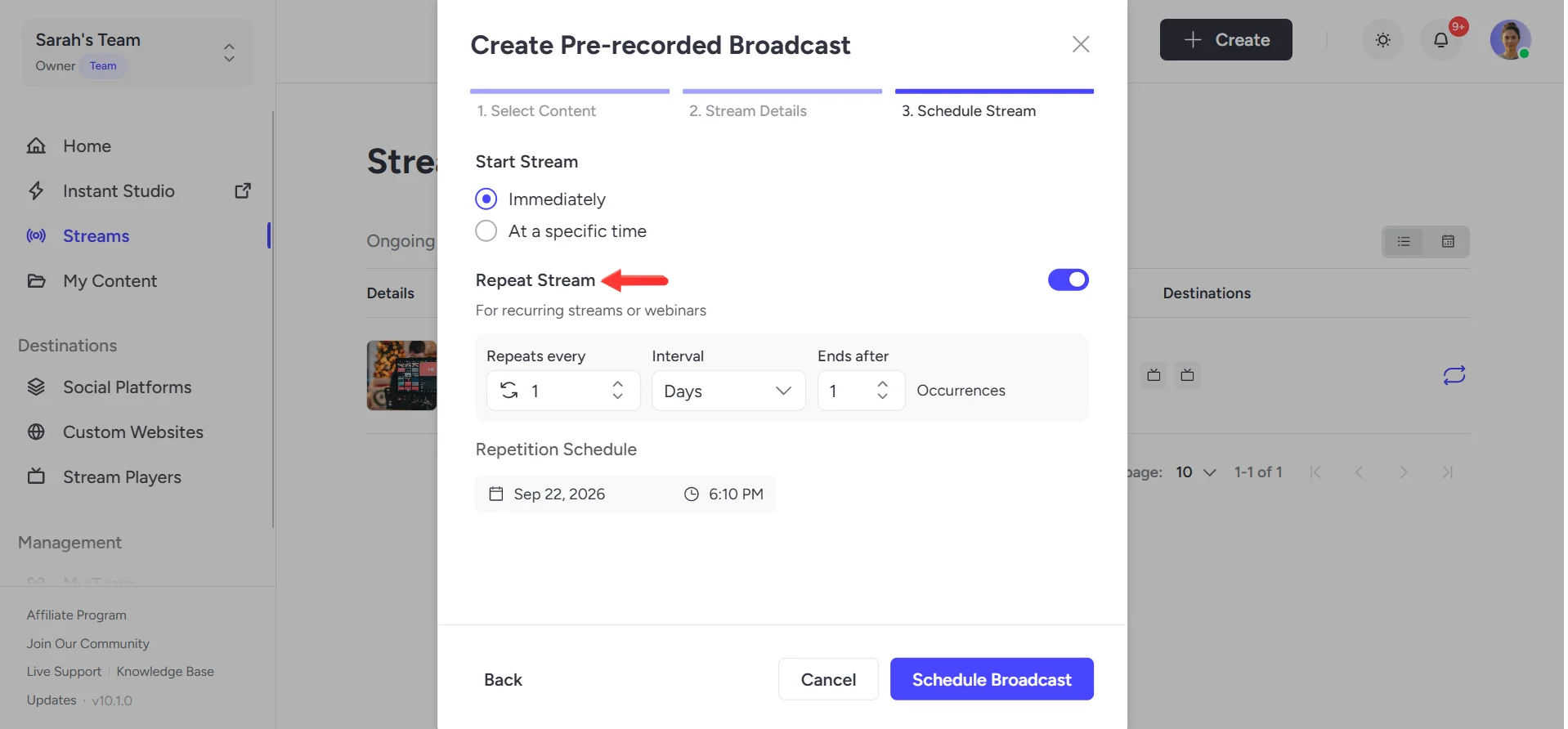
Toggle on Repeat Stream during scheduling to put recurring content, like weekly recaps or monthly training videos, on autopilot.
Two details still need a manual check before confirming: any date mentioned in the description, and any destinations added or removed since the last run.
Why Rescheduling Beats Starting Over
Rebuilding a broadcast means doing the same work twice for no reason. The video is already uploaded. The destinations are already picked. The title and description are already written. None of that changes just because the first run finished.
Retyping things also invites mistakes that a reused broadcast avoids entirely. A description gets reworded slightly and now says something different. A destination gets missed because nobody remembers all five were ticked last time. Reschedule the original and everything carries over exactly as it was, so the only thing you are actually doing is picking a new date.
This is most useful for anything you run on repeat. A weekly highlights reel, a looped service recording, a training video that goes out every month. Rescheduling puts it straight back on the calendar instead of making you rebuild it from scratch every single time.
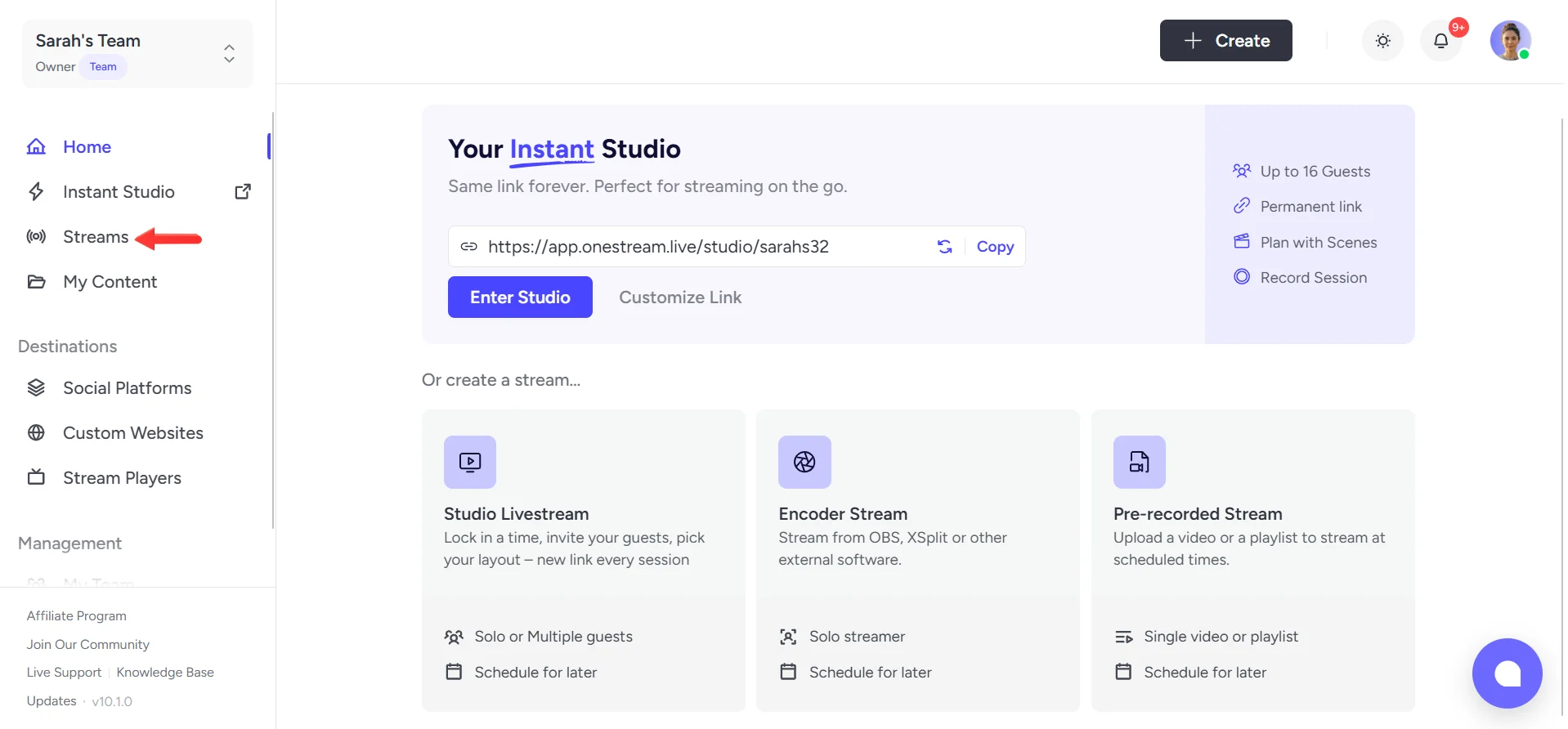
Log in to OneStream Live and click Streams in the left panel.
2
Locate the pre-recorded stream you want to run again. Hover over it and click the Reschedule Broadcast icon next to its destinations.
3
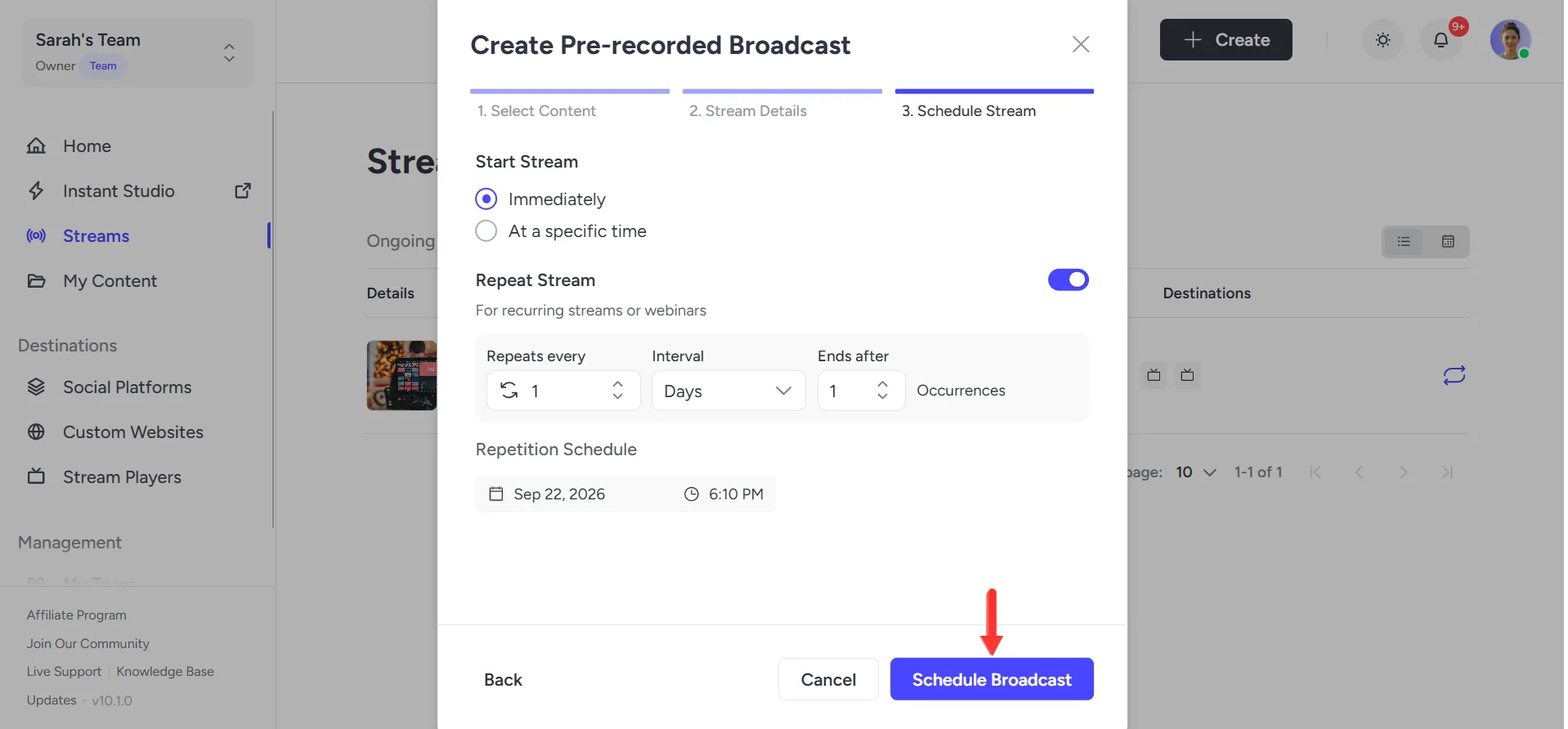
Select your video, update the title and description if needed, choose where to stream, set the date and time, and click Schedule Broadcast.
4
You can also turn on Repeat Stream for recurring broadcasts.
Two Things Worth Checking Before You Confirm
Everything carrying over is the whole point of rescheduling, but two details are easy to miss because they carried over unchanged.
If your description mentions a date or anything time specific, it still says what it said the first time. Update it before you schedule, not after somebody points it out.
And if you have disconnected or added a platform since the original broadcast ran, the destinations list will not know that on its own. Give it a glance before confirming.
How do I reschedule a pre-recorded stream in OneStream Live?
Open Streams, go to the Completed tab, find the broadcast, and click Reschedule Broadcast. Confirm or update the video, details and destinations, then set a new date and time.
Do I need to re-upload my video to reschedule a broadcast?
No. The original video stays attached unless you choose to replace it during the Select Content step.
Will my title, description and destinations carry over automatically?
Yes. All three carry over from the original broadcast, and you can edit any of them before confirming the new schedule.
Can I reschedule a broadcast to repeat automatically?
Yes. Turn on Repeat Stream during the scheduling step for anything that runs on a regular cycle, so you do not need to reschedule it manually each time.
Where do I find broadcasts I can reschedule?
Under the Completed tab in Streams. Only broadcasts that have already run appear there, ready to be scheduled again.
OneStream Live is a cloud-based live streaming solution to create, schedule, and multistream professional-looking live streams across 45+ social media platforms and the web simultaneously. For content-related queries and feedback, write to us at [email protected]. If you have a story to share about your live streaming experience with OneStream Live, we would be glad to feature it. You’re also welcome to Write for Us!
We use cookies to enhance your browsing experience, serve personalized content, and analyze our traffic. By clicking "Accept All", you consent to our use of cookies.
Cookie Preferences
Strictly NecessaryRequired
Essential for the website to function properly.
Functional
Enable enhanced functionality and personalization.
Analytics
Help us understand how visitors interact with our website.



![How to Record Google Meet [2026 Complete Guide]](https://media-assets.onestream.live/wp-content/uploads/2026/02/how-to-record-google-meet-sessions-for-live-streaming.webp)