
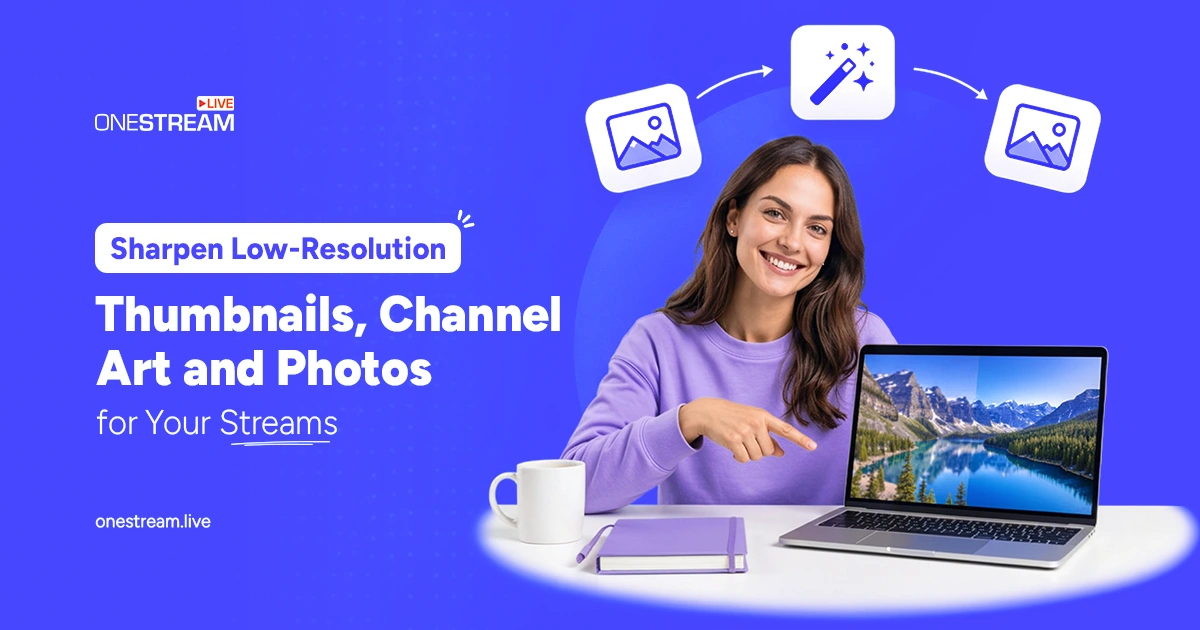
Long before anyone hears your intro music, they judge your stream by its pictures. The thumbnail in a feed, the banner on your channel page and the headshot of tonight's guest all set expectations in a split second. When those images look soft or pixelated, viewers quietly assume the stream will feel the same way.
Most streamers do not have a design team, and plenty of the images they work with arrive in poor shape. Getting the YouTube thumbnail resolution right is a good place to start, and the other fixes are usually simple once you know where quality slips.
Key Takeaways:
- Viewers judge your stream by its thumbnail, banner and guest photos before it starts, so soft or pixelated images set the wrong expectations.
- The recommended YouTube thumbnail resolution is 3840 x 2160 pixels in a 16:9 ratio. Other platforms set their own sizes, so keep a note of the ones you stream to.
- Stretching a small image only spreads the same pixels further apart. Upscale the raw image first, then build the design on top and add text last.
- Ask guests for the largest photo they have, crop with space around the head, and check eyes and hairlines at full size.
- Keep large master files of your logo, banner, backgrounds and cohost photos, export a copy for each platform, then stream to all of them at once with OneStream Live.
Why Do Viewers Notice Image Quality Before You Go Live?
Live content competes in crowded feeds. A scheduled stream or replay shows up next to polished uploads from big channels, and the thumbnail is often the only thing people see before deciding to click. Blurry text, smeared faces and jagged edges send a message that the production behind the camera might be rushed too.
Image quality also follows you across platforms. If you multistream, one banner or promo card may appear on several sites at once, each displaying it differently. An image that barely passes on one can look rough on another.
What Is the Right YouTube Thumbnail Resolution?
YouTube's help page for custom thumbnails recommends a resolution of 3840 x 2160 pixels in a 16:9 ratio, with a minimum width of 640 pixels. Upload it as a JPG or PNG. Starting at full size gives YouTube a sharp source for phones and TV screens alike, which is a big jump from a small webcam screenshot.
Every other destination has its own banner sizes, avatar crops and safe areas where text will not be hidden behind buttons. Instead of memorizing them, keep a simple note with the current sizes for the channels you actually stream to, and check the official help pages every few months. If you also stream vertically for mobile viewers, plan a separate portrait version rather than cropping the wide one at the last minute.
How to Fix Low-Resolution Thumbnails and Channel Art
The quickest win is to stop stretching small images in your editor. Basic resizing just spreads the same pixels further apart, which is why enlarged screenshots turn soft. A better route is to boost photo resolution online with an AI upscaler before you design anything. Most free browser tools keep it to three steps, where you drop in a file, run the upscale and save the new version, with no installation needed.
Run that step on the raw ingredients, not the finished design. Upscale the screenshot, the logo file or the product shot first, then build your thumbnail on top of it and add text last. Text added at full size stays sharp, whereas text that gets enlarged along with the background tends to blur.
Be realistic about what an upscaler can do. How well it works depends on how good the starting image is, so use this table to pick the right fix. Our guide to AI image upscaling explains how these tools work.
| Starting image | What to do | Why it works |
|---|---|---|
| Slightly soft webcam frame | Upscale it, then design on top | Upscalers clean up mild softness well |
| Small screenshot or logo file | Upscale it before adding any text | Text added at full size stays sharp |
| Tiny, heavily compressed image | Replace it with a new source | Upscaling cannot bring back detail that is gone |
| Finished thumbnail with text | Rebuild it from the raw files | Text enlarged with the background blurs |
Pro Tips
If you schedule recorded videos to go live with OneStream Live, you can upload a custom thumbnail during setup. Use the full size master from your design folder rather than a compressed copy.
How to Make Guest Photos Look Professional on Screen
Interview streams and panels bring a special headache: guest photos. People send whatever they have, and that often means a cropped social media avatar or a headshot pulled from an old email signature. On a starting soon screen or a lower third, those images sit right beside your crisp branding, and the difference is obvious.
Ask guests for the largest photo they have, and upscale anything that falls short before it goes into your scene. Crop with the face centered and some space around the head, since overlays and circular frames cut into the edges. Check eyes and hairlines at full size, because those are the first places viewers notice something odd.
Get permission before you edit a guest's photo beyond basic cropping and enhancement, and never change how someone looks in a way they would not expect. Upscaling should make people look like themselves at a larger size, nothing more.
How to Build a Reusable Stream Graphics Kit
The easiest way to keep quality high is to prepare assets once and reuse them. Create a folder with large master files of your logo, channel banner, recurring backgrounds and regular cohost photos. Export a copy sized for each platform from those masters instead of reworking the same small file again and again. Name each copy after the platform and size it was made for, so you can grab the right one in seconds when a stream is about to start.
Saving in the right format helps too. Use PNG when an image has text or a transparent background, which covers most overlays and logos, and JPEG for photographs. Keeping that rule in your head prevents the fuzzy halos that appear when a logo with transparency is saved the wrong way. Our guide to image file formats for live stream thumbnails covers the options in more detail.
A short checklist before each show keeps things tidy:
- Thumbnail checked at full size and on a phone screen
- Guest photos upscaled, cropped and approved
- Channel art matches the current platform sizes
- Text added after any upscaling, never before
Final Thoughts
Viewers forgive a lot during a live show, from a dropped frame to a cat walking across the keyboard. They are less patient with a blurry first impression. A few minutes spent on sharper images before you hit go live means your stream starts looking as good as the content you put into it.
If you stream to more than one place, OneStream Live lets you broadcast a single stream to 45+ social media platforms at once, so the preparation you put into one show reaches every audience you've built.
Frequently Asked Questions
What YouTube thumbnail resolution should I use for a live stream?
Use 3840 x 2160 pixels in a 16:9 ratio, which is YouTube's current recommendation for video thumbnails. The minimum width is 640 pixels, so very small images are not accepted. Build the thumbnail at full size, add text last, and upload it as a JPG or PNG so it stays sharp on phones and TVs.
How do I fix a blurry thumbnail without stretching it?
Go back to the raw image and run it through an AI upscaler instead of stretching it in your editor. Stretching only spreads the same pixels further apart. Once the base image is sharp, build the design on top and add your text last, because text enlarged along with the background tends to blur.
Should I save stream graphics as PNG or JPEG?
Use PNG for anything with text or a transparent background, such as overlays, logos and lower thirds. Use JPEG for photographs, where a smaller file matters more than crisp edges. Saving a transparent logo as a JPEG causes the fuzzy halos that make graphics look cheap, so match the format to the image.
How can I make guest photos look sharp on screen?
Ask each guest for the largest photo they have and upscale anything that falls short. Crop with the face centered and some space around the head, because overlays and circular frames cut into the edges. Check the eyes and hairline at full size, and get the guest's approval before the stream.
Can I use one thumbnail on every platform?
You can use one design, but not always one file. Each platform sets its own sizes, crops and safe areas, so export a separate copy for each one from a large master file. If you multistream, check how every version looks on each destination before you go live, not after viewers see it.
OneStream Live is a cloud-based live streaming solution to create, schedule, and multistream professional-looking live streams across 45+ social media platforms and the web simultaneously. For content-related queries and feedback, write to us at [email protected]. You’re also welcome to Write for Us!