
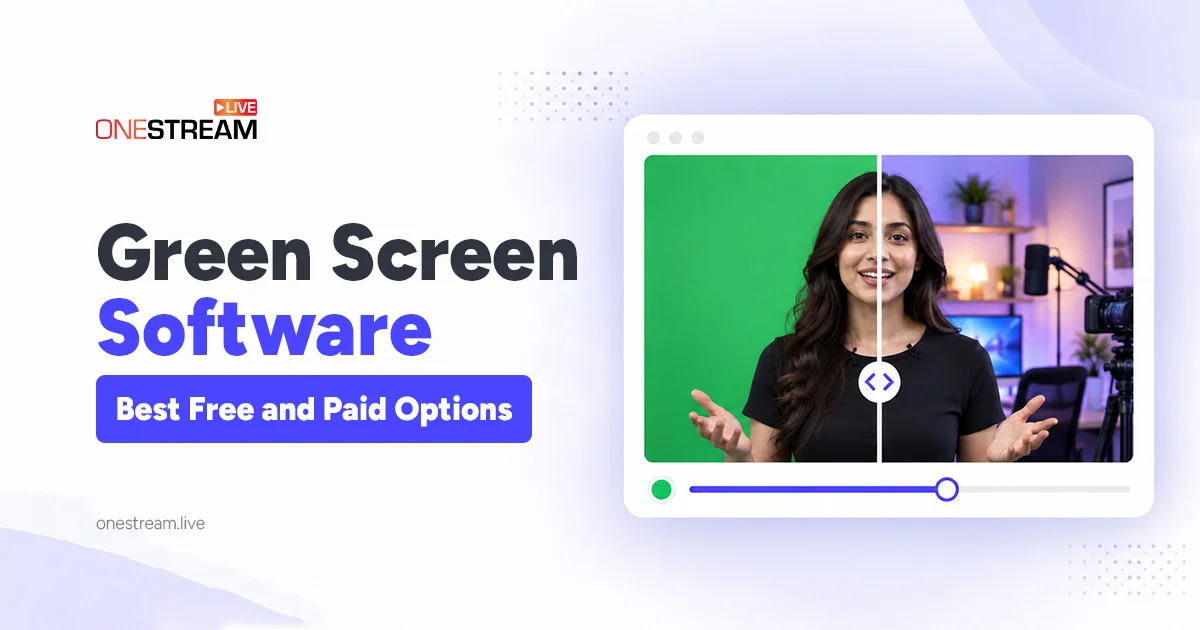
Every polished green screen video has the same secret: the right green screen software. Pick well and your background swaps cleanly every time: DaVinci Resolve for free pro editing, CapCut for the easiest edits, Premiere Pro for paid editing, and OneStream Live Studio for keying live in your browser.
Each tool below gets a straight answer on price, platforms, and the steps to key your footage. You’ll also find the live streaming options most roundups skip, an honest look at AI background removal, and a simple home setup that makes any keyer look better. YouTubers, product demo makers, and weekly live streamers will all find an option that fits their budget.
Let’s start with what this software actually does.
Key Takeaways:
- DaVinci Resolve is the best free editing pick, with the 3D Keyer and Delta Keyer at no cost.
- CapCut is the easiest free chroma key tool for beginners, on desktop and mobile.
- Premiere Pro’s Ultra Key suits Creative Cloud users, at $22.99 a month on an annual plan.
- For live streaming, OneStream Live Studio keys your green screen in the browser and multistreams it to the destinations you choose from 45+ integrations.
- Even lighting beats any software slider: a smooth, shadow-free backdrop gives every keyer a cleaner edge.

What Is Green Screen (Chroma Key) Software?
Green screen software, also called chroma key software, removes one solid color from your video, usually green, and makes it transparent. You can then drop any image, video, or virtual set behind you. Video editors apply the key after you film, while live streaming tools like OneStream Live Studio and OBS Studio key your camera in real time.
The category covers two kinds of tools. Video editors like DaVinci Resolve, Premiere Pro, and CapCut key your footage after you film it, so you can fine tune every frame. Live tools like OneStream Live Studio and OBS Studio key your camera feed as it happens, so your audience sees the new background instantly.
Every keyer works on the same idea. You pick a key color, set how much of that color to remove (often called similarity or tolerance), soften the edge, and suppress any green that bounces onto your skin or hair. That last step, spill suppression, is what separates a clean key from a cardboard cutout look.
Chroma Key vs Luma Key
Chroma key removes pixels by color. Luma key removes pixels by brightness instead, which helps when you need to drop out a pure black or pure white background, like a logo filmed on black.
For people on camera, chroma key wins almost every time. Skin, hair, and clothes vary too much in brightness for a luma key to separate them cleanly.
Now that you know what to look for, here’s how the top tools stack up side by side.
Best Green Screen Software Compared (2026)
The best green screen software for most people is DaVinci Resolve if you want free pro results, CapCut if you want speed, and OneStream Live Studio if you go live. The table below compares 11 options on price, platform, and keying tools.
| Tool | Price | Runs on | Editing or live | Keying tool | Best for |
|---|---|---|---|---|---|
| DaVinci Resolve | Free; Studio $295 one time (on sale for $236) | Windows, macOS, Linux | Editing | 3D Keyer, Delta Keyer | Pro results for free |
| CapCut | Free; paid Pro plan | Windows, macOS, iOS, Android | Editing | Chroma key, AI background remover | Beginners and mobile |
| iMovie | Free | macOS, iOS, iPadOS | Editing | Green/Blue Screen effect | Apple users |
| Shotcut | Free, open source | Windows, macOS, Linux | Editing | Chroma Key: Simple and Advanced | Older or budget PCs |
| Adobe Premiere Pro | $22.99/month (annual plan) | Windows, macOS | Editing | Ultra Key | Creative Cloud users |
| Final Cut Pro | $299.99 one time, or $12.99/month via Apple Creator Studio | macOS, iPadOS | Editing | Green Screen Keyer | Mac editors |
| Filmora | From $49.99/year; $79.99 perpetual | Windows, macOS | Editing | Chroma Key; AI Portrait (Advanced and Perpetual plans) | Easy paid editing |
| PowerDirector | From $79.99/year; $139.99 one time | Windows, macOS | Editing | Multi color chroma key | Budget editors |
| OneStream Live Studio | Included in OneStream Live plans | Any modern browser | Live | Green Screen camera effect | Browser streaming, 45+ integrations |
| OBS Studio | Free, open source | Windows, macOS, Linux | Live and recording | Chroma Key filter | Live streamers |
| NVIDIA Broadcast | Free (needs an NVIDIA RTX GPU) | Windows | Live | AI background removal | Streamers with no backdrop |
Prices checked November 6, 2026, in US dollars. Software pricing changes often, so confirm on each vendor’s site before you buy.
One note on the OneStream Live Studio row. If you already stream from your browser, OneStream Live Studio includes a Green Screen camera effect, so you can key a physical backdrop without installing anything.
Free tools come first, because you may not need to pay at all.
Best Free Green Screen Software
The best free green screen software is DaVinci Resolve for pro results, CapCut for speed, iMovie for Apple users, and Shotcut for older or budget PCs. All four can key a green screen without a paid upgrade.
OBS Studio is free too, but it shines live, so you’ll find it in the streaming section below.
DaVinci Resolve
DaVinci Resolve from Blackmagic Design gives you the same keying tools professional colorists use, and the free version covers most creators, handling 8-bit video at up to 60fps in Ultra HD (3840 x 2160). You get the 3D Keyer for fast, accurate keys and the Delta Keyer inside Fusion for tricky shots, plus matte controls for hair and soft edges.
How to chroma key in DaVinci Resolve: drag the 3D Keyer from Effects, Resolve FX Key, onto your clip. Use the pick tool to draw a line across the green in the viewer, then place your new background on the track below.
The catch is the learning curve. Resolve also needs a decent GPU, so if your laptop struggles with 4K timelines, start with CapCut. When you outgrow the free version, DaVinci Resolve Studio costs $295 one time (on sale for $236 at the time of writing).
CapCut
CapCut is the fastest way to remove a green screen if you’ve never keyed footage before. It runs on Windows, macOS, iPhone, and Android, and its chroma key sits only a few clicks away.
How to use chroma key in CapCut: select your clip, open the background removal options, and choose Chroma key. Pick the green with the color picker, then raise the Strength (Intensity on mobile) and Shadow sliders until your edges look clean.
CapCut also includes an AI background remover for shots with no green screen at all. Some effects sit behind CapCut Pro, so check what your plan includes before a big project, and keep a stable internet connection while you edit. For more ways to polish your edit, see our CapCut video editing tips.
iMovie
iMovie is free on every Mac, iPhone, and iPad, and its Green/Blue Screen effect handles simple talking head shots well.
How to key it: drop your background clip on the timeline, drag your green screen clip above it, open the video overlay settings, and choose Green/Blue Screen. Controls are basic, so shots with flyaway hair or fast motion may need Resolve instead.
Shotcut
Shotcut is a free, open source editor for Windows, macOS, and Linux, and it runs well on older hardware.
How to key it: put your green screen clip on a track above your background, add the Chroma Key: Simple filter, choose the key color, and adjust the distance slider. Switch to Chroma Key: Advanced when you need finer control over edges.
Green Screen Apps and Online Tools
Want to key on your phone or skip installs completely? A green screen app like CapCut or PowerDirector handles chroma key on both iOS and Android, and iMovie covers iPhone and iPad.
For chroma key online, browser editors such as Microsoft Clipchamp let you remove a green screen without downloading anything. Mobile and browser tools trade precision for speed, so use them for social clips and move to a desktop editor when the edges really matter.
If you need more control or official support, paid editors are worth a look.
Best Paid Green Screen Software
The best paid green screen video editor for most pros is Adobe Premiere Pro, while Final Cut Pro is the smarter buy for Mac users who want to skip subscriptions. Filmora and PowerDirector cost less and keep things simple.
Adobe Premiere Pro
Adobe Premiere (formerly Premiere Pro) uses Ultra Key, the standard keyer for editors who already work in Creative Cloud. The single app plan costs $22.99 a month on an annual commitment. There’s no free tier, but Adobe offers a 7-day free trial.
How to chroma key in Premiere: open the Effects panel, go to Video Effects, then Keying, and drag Ultra Key onto your clip. Use the Key Color eyedropper in Effect Controls to sample the green, set Setting to Aggressive, then fine tune Matte Cleanup and Spill Suppression.
Final Cut Pro
Final Cut Pro’s Green Screen Keyer effect often removes a green screen the moment you apply it, which makes it one of the fastest paid options on a Mac. You can buy it once for $299.99 on the Mac App Store, or get it through Apple’s Creator Studio bundle for $12.99 a month or $129 a year, which also adds the iPad version.
How to key it: in the Effects browser, type “green screen” in the search field and drag the Green Screen Keyer onto your green screen clip, placed above your background. Adjust Strength and Spill Level until the edges look natural.
Filmora
Filmora is a friendly paid editor for Windows and Mac with a simple Chroma Key switch. Plans start at $49.99 a year, and the $59.99-a-year Advanced plan adds an AI Portrait cutout for shots with no green screen. The $79.99 perpetual license also includes AI Portrait, but it only gets Filmora 16 updates and works on one platform, Windows or Mac.
How to key it: select your green screen clip, open the Video settings, and turn on Chroma Key (on Windows, it sits under AI Matting). Pick the green with the color picker, then adjust Tolerance until the edges look clean.
The free version adds a watermark to every export, so plan on paying before you publish.
PowerDirector
PowerDirector from CyberLink is a budget pick with a smart twist. Its chroma key can sample more than one key color, which helps when your backdrop has uneven patches.
How to key it: open your green screen clip in PiP Designer and use its Chroma Key tool. Its multi-sample chroma lets you pick more than one key color, which helps with uneven backdrops.
PowerDirector 365 costs $79.99 a year, and PowerDirector 2027 costs $139.99 one time. Windows and Mac subscriptions are sold separately. It’s a solid choice if you want more control than Filmora without paying Adobe prices.
Edited a green screen intro, promo, or tutorial? You can stream your finished video as a scheduled live event to the destinations you choose from 45+ integrations, up to 60 days ahead.
Editing is only half the story. Live streaming is where most guides stop, and where the right tool matters most.
Green Screen for Streaming: The Best Live Tools
The easiest green screen software for streaming is OneStream Live Studio, which keys your backdrop in the browser and multistreams it to the destinations you choose from 45+ integrations, all from the same tab. OBS Studio is the best free desktop option if you want deeper control, and NVIDIA Broadcast works if you have no backdrop at all.
OneStream Live Studio
OneStream Live Studio runs in your browser, so there’s nothing to install. Its Green Screen camera effect gives you the same core controls as desktop keyers: similarity, smoothness, and spill suppression. The Effects panel also includes background blur, low light correction, and color correction.
How to set it up: open Effects in one of two ways. Before you join, click Effects under your camera preview on the “Create a studio session” screen. Once you’re inside the Studio, click Settings, then Effects. Choose Green Screen and turn on I have a green screen. Pick Green, Blue, or Custom as your key color. With Custom, click Pick from video and click your backdrop to sample the exact shade. Open Advanced Options and raise Similarity until the backdrop disappears, add Smoothness to soften the edges, and raise Spill Suppression to remove green glow from your hair and shoulders.
When it looks clean, go live to the destinations you choose from 45+ integrations, with up to 16 guests in the same studio on higher plans.
OBS Studio
OBS Studio’s free Chroma Key filter uses the same similarity, smoothness, and spill sliders, but it adds opacity, contrast, brightness, and gamma controls. You can also stack it with other filters like crop, masks, and color correction, and it works for recording too. Choose it if you want that extra control and don’t mind installing desktop software.
How to set up an OBS green screen: right click your camera source, choose Filters, click the plus under Effect Filters, and add Chroma Key. Start with the defaults, which OBS’s official Chroma Key filter guide lists as 400 for similarity and 80 for smoothness. Then nudge similarity up until the green disappears without eating into your hair.
Next, point OBS at OneStream Live’s Encoder Streaming with your server URL and stream key, choose your destinations, and go live on all of them from one feed. Prefer to run the rest of your show in the browser? Feed your keyed OBS output into OneStream Live Studio as a virtual camera.
NVIDIA Broadcast
NVIDIA Broadcast uses AI to remove or replace your background with no green screen at all. It’s free, but it needs an NVIDIA RTX graphics card.
How to set it up: open NVIDIA Broadcast, choose your camera, and turn on Background Removal or Replacement. Then select NVIDIA Broadcast as the camera in your streaming app.
OBS Studio also has its own NVIDIA Background Removal filter on Windows, added in version 28, which needs NVIDIA’s Video Effects SDK runtime, as the OBS 28 release notes explain.
AI Background Removal vs a Real Green Screen
A real green screen still gives cleaner, more predictable edges, while AI background removal wins on convenience.
That convenience is why more creators now skip the backdrop entirely, using tools like CapCut’s background remover and NVIDIA Broadcast. The tradeoff shows up in the details.
| Factor | Real green screen + chroma key | AI background removal |
|---|---|---|
| Setup | Backdrop, lights, and some space | Just your camera |
| Cost | A backdrop and lights | Free in many apps |
| Hair and fine edges | Clean and predictable | Can blur, flicker, or clip |
| Fast movement | Holds up well | Hands and props may vanish |
| Computer load | Light | Heavier, often needs a strong GPU |
| Best for | Polished videos and regular shows | Quick calls and casual streams |
Our take: if you film or stream on a regular schedule, a basic collapsible backdrop is worth it for cleaner edges every time. For quick calls or casual streams, AI removal works fine.
How to Set Up a Green Screen at Home
These steps work whether you edit later or go live. Follow them in order, because each one makes the next easier.
1
Choose a smooth backdrop: Pick a matte green fabric, painted wall, or collapsible panel. Stretch or steam out wrinkles, since every fold creates a shadow your software has to fight.
2
Light the screen evenly: Aim two soft lights at the backdrop from either side so the green looks like one flat color. Hot spots and dark corners force you to push similarity too far.
3
Step away from the screen: Stand at least 6 feet in front of it if your room allows. Distance cuts green spill on your shoulders and keeps your shadow off the backdrop.
4
Light yourself separately: Add a key light on your face and, if you can, a small light behind you. That back light helps separate your hair from the green. For exact placement, see our guide to three-point lighting for live streaming.
5
Lock your camera settings: Where your camera allows it, turn off auto exposure, autofocus, and auto white balance so the green stays constant. Skip green clothing and shiny jewelry, and run a quick free webcam test to check framing and light.
6
Key, test, then go live: Apply your chroma key, record a 30 second test, and check your hair and hand edges. When it looks clean, start recording for your edit, or send your feed to OneStream Live and multistream it.
So which tool should you pick? Here’s the short version.
Conclusion: Which Green Screen Software Should You Use?
Pick the tool that matches how you work. Want pro results for free? Start with DaVinci Resolve. Need something fast? CapCut gets you there in minutes. Already pay for Creative Cloud or own a Mac? Premiere Pro or Final Cut Pro is your natural upgrade. Going live? OneStream Live Studio keys your backdrop in the browser and multistreams it to the destinations you choose, and OBS Studio gives you deeper control on desktop.
Whatever you choose, green screen software can only work with what your camera sees, so light your backdrop evenly first. Then take that clean, keyed feed wherever your audience watches. With OneStream Live, one stream reaches YouTube, Facebook, LinkedIn, Twitch, and more, chosen from 45+ integrations.
Frequently Asked Questions
What is the best green screen software?
The best green screen software depends on how you work. DaVinci Resolve gives you the most professional chroma key tools for free, Adobe Premiere Pro’s Ultra Key suits editors already on Creative Cloud, and CapCut is the easiest free option for beginners. For live streaming, OneStream Live Studio keys your green screen right in your browser and multistreams it.
Is there a free green screen editor?
Yes. DaVinci Resolve includes a professional keyer in its free version, and CapCut offers a free chroma key tool on desktop and mobile. iMovie adds a Green/Blue Screen effect on Apple devices, while Shotcut and OBS Studio are free on Windows, macOS, and Linux.
Can I use a green screen while live streaming?
Yes. OneStream Live Studio keys a physical green or blue screen right in your browser with its Green Screen camera effect, using controls for similarity, smoothness, and spill suppression, then multistreams the result to the destinations you choose from 45+ integrations. OBS Studio’s free Chroma Key filter does the same on desktop, with extra filters for fine-tuning, and you can send its keyed feed to OneStream Live too.
Can I remove a background without a green screen?
Yes. AI background removal tools, such as CapCut’s background remover for edited video and NVIDIA Broadcast for live video, can cut you out with no green screen at all. They work well for simple shots, but a real green screen with chroma key still gives cleaner, more predictable edges around hair and fast movement.
Can I do a green screen at home?
Yes. You need an evenly colored green backdrop, such as a fabric screen, painted wall, or collapsible panel, plus soft light that hits it evenly with no shadows. Smooth out wrinkles, stand several feet in front of the screen to cut green spill, then use chroma key software to add any background.
OneStream Live is a cloud-based live streaming solution to create, schedule, and multistream professional-looking live streams across 45+ social media platforms and the web simultaneously. For content-related queries and feedback, write to us at [email protected]. If you have a story to share about your live streaming experience with OneStream Live, we would be glad to feature it. You're also welcome to Write for Us!