Every live stream has a second conversation running alongside it. Yours, and the one your viewers are having with each other in the chat. Chat moderation is what keeps that second conversation working for you.
That second conversation decides a lot. It is where someone asks the question that makes your stream useful. It is also where one person with a scam link can undo an hour of good work. With the right setup, you do not have to keep it on the right side of that line alone.
- Live chat moderation keeps the conversation useful while it happens: removing spam, handling disruptive viewers and surfacing the questions worth answering.
- An unmoderated chat costs you new viewers and can put your account at risk, since platforms expect streamers to manage what appears under their streams.
- Multistreaming splits your audience across several chats, so you need one feed to see the whole conversation.
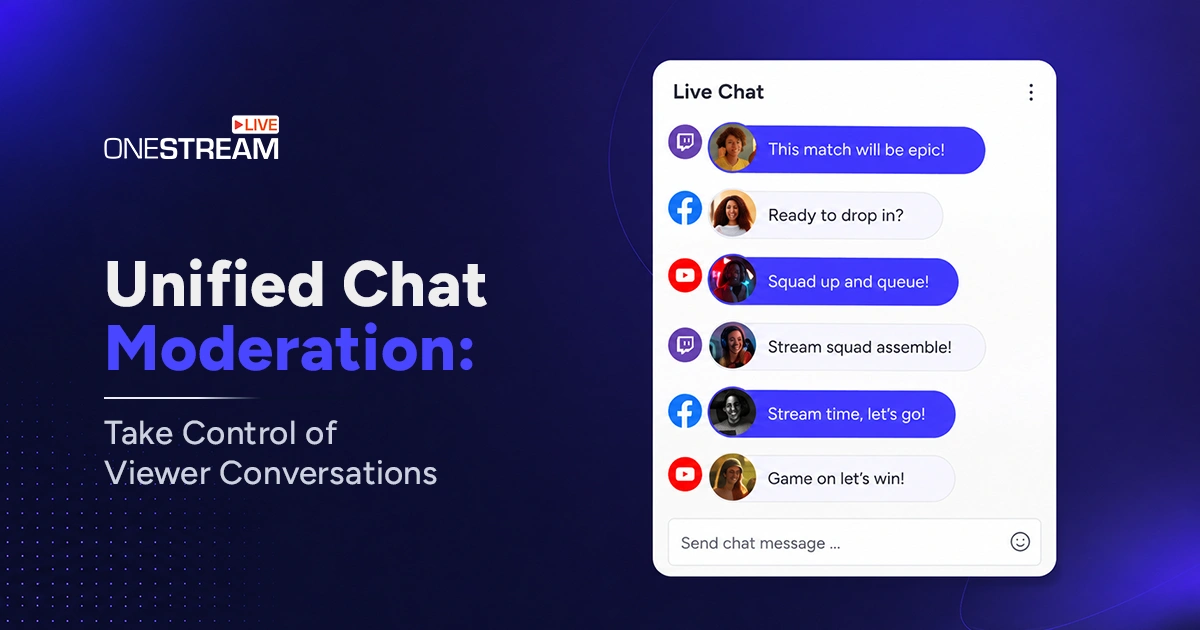
- OneStream Live brings comments from your supported platforms into one Live Chat feed, with Slow Mode, filters, on-screen banners and pinned messages built in.
- Invite a cohost to moderate for you without giving them access to your stream keys, connected platforms or billing.

What is Live Chat Moderation?
Live chat moderation is the work of keeping a live conversation useful while it is happening. Spam gets removed. Disruptive people get handled. The good questions get pulled out of a feed nobody can read at full speed.
It has little to do with being strict. A well-moderated live chat is simply one where a new viewer feels able to ask something basic without being buried or mocked.
The hard part is that all of it happens live. You cannot edit a chat afterward and pretend it went differently.
Why Instagram Social Proof Matters
Live chat moderation decides whether new viewers stay or leave. A viewer arrives, reads a few messages, and works out what kind of room they have walked into. If the first thing they see is spam, abuse or a wall of repeated links, many of them will leave before they hear what you have to say.
This is not rare. In 2026, researchers analyzing toxicity in Twitch chats across 4,452 streams classified 2.4% of roughly 20 million messages as toxic, with harassment the most common type. That is about one message in every forty. In a chat moving at 200 messages a minute, that is around five problem messages every minute.
The good news is that behavior in chat spreads in both directions. Carnegie Mellon researchers studying how moderation and example-setting shape behavior on Twitch found that viewers copy the behavior they see, especially from high-status users. They also found that restrictive chat modes discourage spam. What you allow to stay visible sets the tone for everything that follows.
There is a practical cost too. Platforms expect broadcasters to manage what appears under their streams. Twitch’s Community Guidelines state that streamers are responsible for the content on their stream and are expected to use moderators and moderation tools to deal with harassment and hateful conduct. Leaving chat unmoderated is a risk to the account, not just to the mood.
Multistreaming Makes Live Chat Management Harder
Going live to more than one platform is the easiest way to grow your reach. It also gives you more than one chat.
Someone asks a question on YouTube. A viewer on Facebook answers it. Ten minutes later, someone on Twitch asks the same thing because they never saw either message. Meanwhile, a spammer works through your LinkedIn comments, and nobody notices until the damage is done.
This is the hidden cost of multistreaming. Every platform you add brings its own chat, its own regulars and its own spammers, and none of them can see each other. More reach means more conversations to moderate, not fewer. That is the trade-off of being everywhere at once.
You cannot moderate a conversation you cannot see. So the first step is getting every chat onto one screen.
See your YouTube, Facebook, Twitch, LinkedIn and Kick comments in one live feed, and reply to all of them from one place.
Unified Chat Moderation With OneStream Live
Everything above comes down to two problems: you can’t see every chat at once, and you can’t host and moderate at the same time. OneStream Live solves both. It brings comments from your supported platforms into one feed and gives you the tools and team roles to keep that feed clean while you stay focused on your stream.
Every Platform in One Live Chat Feed
Live Chat in OneStream Live connects to your destinations and brings their comments into a single panel. You read one feed and reply from one box. Each message is tagged with the platform it came from, and your reply goes back to the right place. No more tab switching, no second monitor, no question left sitting unanswered on a platform you forgot to check.
One feed for YouTube, Facebook, Twitch, LinkedIn and Kick. Live Chat works with YouTube, Facebook Pages, Twitch, LinkedIn Pages and Kick. A viewer on YouTube and a viewer on Twitch land in the same list, each message tagged with the platform it came from. Streams to your other destinations still run normally. Their comments simply stay on those platforms.
Reply once, from one place. You answer from one reply box, and each reply goes back to the platform the comment came from. Reading a question and replying to it takes a few seconds, not a hunt through five tabs.
Works however you go live. It also does not matter how you go live. Live Chat works the same way whether you broadcast from OneStream Studio in your browser, stream through an encoder like OBS, or schedule a pre-recorded video.
Bring your website viewers into the same feed. And it is not limited to social platforms. If you stream to your own Custom Website or embed a Stream Player on your site, comments from those viewers land in the same Live Chat feed. Your website viewers get answered right alongside everyone else.
Chat connects once your stream is live. Click Go Live, then Connect Chat, and messages start flowing in. Our step-by-step Unified Live Chat guide walks through the full setup.
Moderation Tools That Stop Spam Early
Open Chat Settings in the Live Chat panel and you get the controls that do most of the quiet work:
- Slow Mode puts a two-second gap between messages. That is enough to stop a flood and keep a busy chat readable without making normal viewers wait.
- Profanity Filter flags messages containing banned words for you, rather than showing them to everyone.
- Custom Filter Words lets you add your own list, separated by commas, and flags those messages the same way. Use it for competitor names, known scam phrases, spoilers or anything off-limits for your stream.
Beyond the settings, you can delete individual comments that slip through, and manage blocked users in their own tab, so you always know who has been removed.
One honest note: each platform also keeps its own moderation rules. If you block someone directly on YouTube, that block is managed in YouTube Studio, not in OneStream Live. For a second layer of protection, set up your YouTube live chat moderation settings as well. In YouTube Studio, go to Settings → Community moderation → Content controls, turn on holding for potentially inappropriate live chat messages, and add your own Blocked words.
Put the Best Comments on Screen
Moderation is not only about removing the bad. It is also about rewarding the good.
The Banner Queue turns a viewer’s comment into an on-screen banner. Hover over a message in the Chat tab and a row of icons appears, including one that sends it to the queue. The tab header shows a count, so you always know how many are waiting.
The banner carries the commenter’s name and platform badge, so the credit goes to the right person on the right platform. You choose how banners behave:
- Show banners until removed keeps one up while you answer a question at length.
- Show next banner after moves on automatically after a set time, which suits a run of quick shoutouts.
Pinning works from the same row of icons. The Pinned tab holds everything you have pinned, so an important question does not scroll away while you are mid-sentence.
This is moderation too, just a quieter kind. When viewers see thoughtful questions appear on screen with a name attached, they learn what good participation looks like. It rewards the behavior you want, which is often more effective than deleting the behavior you do not want.
Private Chat: Coordinate Without the Audience Watching
Moderating well needs a back channel. Your moderator spots a troll, a guest needs a cue, someone notices your mic is clipping. None of that belongs in the public chat.
Private Chat sits in the Studio right rail, next to Live Chat. It keeps a separate conversation between the people in your session, away from the audience. Your Cohost can flag a problem, suggest a question to pull on screen, or tell you to wrap up a segment, and viewers never see it.
Two things to know: Private Chat is cleared if the Studio page is refreshed, and stream chat is cleared when the stream ends. Treat Private Chat as a live walkie-talkie, not a record. Keep anything you need afterward somewhere else.
Hand the Job to a Live Chat Moderator, Safely
Here is the uncomfortable truth: you cannot host well and moderate well at the same time. Every glance at the chat is a moment you are not talking to your audience.
The usual fix has always been risky. You give someone your login, hope they do not touch anything important, and change the password afterward.
OneStream Live’s Team Management removes that problem. You invite a teammate and give them a role that matches the job.
Cohost: Built For Running the Room
A Cohost can manage their own streams, join your sessions and interact with live chat. They can reply to live comments and join Instant Studio. During a session, they can handle comments and on-screen elements while you stay focused on the camera.
They have no access to your stream keys, connected platforms, team settings or billing. Your moderator gets everything they need to run the chat, and nothing that could change where your stream goes.
“Everyone gets exactly the access their job needs and nothing more.”
Bilal Chaudhry, Co-Founder & COO, OneStream Live, in the platform upgrade announcement
Adding a Cohost takes a few clicks from the Members tab. Here’s how to add a team member.
Admin: Built For Running the Account
An Admin can create and manage streams, connect platforms, and look after Custom Websites, Stream Players and stream keys. Admins still cannot see billing or team settings, or enter the owner’s Studio session.
The simple rule: Admin for the account, Cohost for the conversation. If someone’s job is to be your live chat moderator, Cohost gives them everything they need and nothing they do not.
Bring in a moderator without handing over your account. Invite a Cohost in under a minute and let them run the chat while you run the show.
How to Moderate a Live Stream Chat: A Practical Routine
Tools help, but online community moderation works best with a simple routine. This one works for most streams:
1
Write the rules before you need them. Three or four short lines are enough. No links. No self-promotion. Be kind to each other. Stay on topic. Pin them at the start of every stream so nobody can say they did not know.
2
Set your filters before you go live. Turn on the Profanity Filter. Add your Custom Filter Words. Keep Slow Mode ready for busy moments. It is far easier to prevent spam than to clean it up.
3
Assign one person to the chat. Even on a small stream, one named live chat moderator is better than everyone half-watching. Invite them as a Cohost so they have the controls and none of the keys.
4
Agree the escalation in advance. Decide together what gets a warning, what gets deleted and what gets a block. Your moderator should never have to guess mid-stream.
5
Watch for patterns, not every message. One rude comment is noise. The same message from five accounts in a minute is a raid. Pattern-spotting is what a good moderator is really for.
6
Answer in public, handle trouble quietly. Read good questions out loud and put them on screen. Deal with trolls through delete and block, not on air. Arguing with a troll gives them exactly the attention they came for.
7
Use Private Chat to stay in sync. Your moderator flags, you decide, and the audience sees a calm, well-run stream.
Chat is Engagement, Not Overhead
Live stream engagement is the reason people choose live over recorded video. They want to be heard, answered and occasionally shown on screen.
Good live chat management protects that. Every spam message you remove makes the room safer, and every comment you read out loud makes the next person more likely to type.
When you know how to manage live stream comments across platforms from one feed, with a trusted Cohost beside you, chat stops being something you survive and becomes the best part of the show.
Frequently Asked Questions
What is live chat moderation?
Live chat moderation is the process of managing viewer messages during a live stream to keep conversations relevant, respectful and engaging. It covers removing spam and abuse, handling disruptive users, and bringing the best questions to the front so the host can answer them.
Why is chat moderation important for live streaming?
Chat moderation helps prevent spam, remove harmful comments and create a better viewing experience for audiences. New viewers judge your stream partly by its chat. A clean, friendly chat encourages them to stay and take part, and a messy one sends them elsewhere.
How do you moderate a live stream chat?
You can moderate a live stream chat by setting community guidelines, assigning moderators, filtering keywords and using moderation tools. In OneStream Live, that means pinning your rules, turning on the Profanity Filter and Custom Filter Words, using Slow Mode when chat gets busy, and inviting a teammate as a Cohost so they can moderate without access to your stream keys or connected platforms.
Can AI help with live chat moderation?
Yes. AI-powered moderation tools can help detect spam, inappropriate content and repetitive messages in real time. YouTube’s live chat moderation can hold potentially inappropriate messages so you decide whether to show or hide them, with Basic and Strict levels. Twitch’s AutoMod holds flagged messages for moderators to allow or deny. OneStream Live’s own tools are rule-based filters and human moderation through Cohosts. Many streamers combine automated filters with a human moderator.
What features should a live chat moderation tool have?
A good live chat moderation tool should include message filtering, user controls, spam detection, moderator permissions and real-time management options. For multistreamers, add one more: a unified chat that brings every platform into a single feed, so you are moderating one conversation instead of five.
OneStream Live is a cloud-based live streaming solution to create, schedule, and multistream professional-looking live streams across 45+ social media platforms and the web simultaneously. For content-related queries and feedback, write to us at [email protected]. If you have a story to share about your live streaming experience with OneStream Live, we would be glad to feature it. You’re also welcome to Write for Us!