Unified Live Chat collects comments from your supported platforms and puts them in a single window. No tab switching and no second monitor. A viewer on YouTube and a viewer on Twitch land in the same list, and you answer both from the same box. This guide covers what it does, which platforms it supports, and how to use it during a Studio session.
- Unified Live Chat brings comments from your connected platforms into one window, so you stop switching tabs mid-stream.
- In OneStream Live, it supports Facebook, LinkedIn, YouTube, Twitch and Kick.
- It works across Live Studio, encoder streaming and pre-recorded streams.
- You can put audience messages on screen as banners, with the commenter’s name and platform attached.
- The Connect Chat button only becomes available once your stream is live.

What is Unified Live Chat?
Streaming to several platforms at once creates a problem. Each one has its own chat, and each one is running a different conversation.
Say you are live on Twitch and YouTube together. Comments arrive in both, and keeping up with two feeds at the same time is difficult. Questions get missed. The two conversations often go in different directions, which makes following either one harder.
Unified Live Chat removes the switching. Every message lands in one panel, tagged with the platform it came from, and your reply goes back to the right place.
Which Platforms Are Supported?
Unified Live Chat in OneStream Live works with Facebook, LinkedIn, YouTube, Twitch and Kick.
Streams to other platforms still run normally. Their comments just stay on the platform rather than arriving in your unified window.
Benefits of Unified Live Chat
The gain is not only tidiness. Here is what changes once every comment arrives in one place.
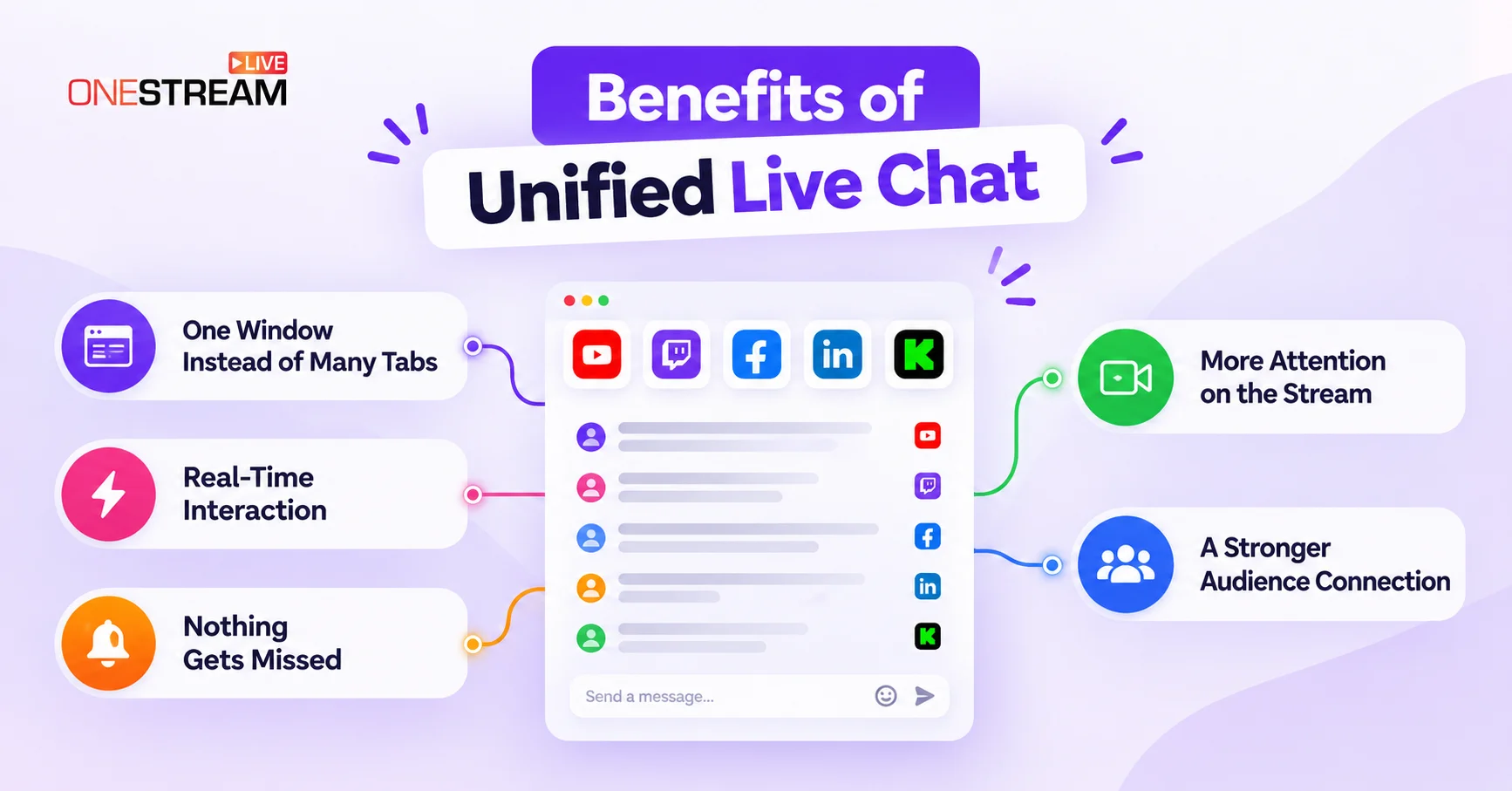
One Window Instead of Many Tabs
Every message from every connected platform arrives in the same panel. You stop hunting across browser tabs to find who asked what.
Real-Time Interaction
Comments, questions and reactions appear as they come in, so you can answer while the moment is still live. That immediacy is what makes a stream feel like a conversation.
Nothing Gets Missed
A question buried in one platform’s chat is easy to overlook when you are watching three. One list means everything is in front of you.
More Attention on the Stream
Chat management stops eating your focus. That attention goes back into the show, which is the reason people are watching.
A Stronger Audience Connection
Answering someone by name, in the moment, is what turns a viewer into a regular. Unified Live Chat makes that possible across platforms rather than just the one you happened to be watching.
How to Use Unified Live Chat in Studio
Chat connects after the stream starts, not before. Follow the steps below.
1
Open your session and set destinations
Log in to OneStream Live and start a Studio session. Click Set Destinations and switch on the platforms you want to reach.
2
Open the Live Chat panel
Click Live Chat in the right rail. Before you go live it reads Stream Not Live, and the Connect Chat button stays inactive. A Check eligible channels link sits there if you want to see which of your destinations qualify.
3
Go live
Click Go Live. The panel changes to Ready to Receive Messages? and confirms your channels are connected.
4
Click Connect Chat
Click Connect Chat to start pulling messages in. The panel then opens on three tabs.
5
Read and reply from the Chat tab
Incoming messages appear in the Chat tab. Type your reply in the box at the bottom, add an emoji if you want one, and send. Your reply goes back to the platform the message came from.
The same panel works whether you are running a Studio session, an encoder stream or a pre-recorded broadcast.
Put Audience Messages on Screen
This is the part people miss. Comments do not have to stay in the side panel. You can push them onto the stream itself.
Banner Queue
The Banner Queue tab builds a queue of on-screen banners from your audience’s live chat messages. Hover over a message in the Chat tab and a row of icons appears, including one that sends it to the queue. The tab header shows a count, so you always know how many are waiting.
The banner carries more than the text. Viewers see the commenter’s name and their platform badge alongside the message, so the credit goes to the right person on the right platform.
Two options control how they behave. Show banners until removed keeps a banner up until you take it down, which suits a question you are answering at length. Show next banner after advances automatically after a set time, which suits a run of quick shoutouts.
Pinned
Pinning also happens from that same row of icons on the message. The Pinned tab then holds everything you have pinned, so an important comment does not scroll away while you are mid-sentence.
Final Word
Unified Live Chat turns a scattered set of comment feeds into one conversation. Every platform in one window, every reply going back to the right place.
Put the good questions on screen through the Banner Queue and your audience stops being a list in a sidebar. They become part of the broadcast.
Ready to try it? Start a stream, go live, and click Connect Chat.
Frequently Asked Questions
What is Unified Live Chat?
It is a single window that brings comments from every platform you are streaming to into one place. You read and reply from that one panel rather than switching between platforms. In OneStream Live, Unified Live Chat supports Facebook, LinkedIn, YouTube, Twitch and Kick.
Which platforms does Unified Live Chat support in OneStream Live?
Facebook, LinkedIn, YouTube, Twitch and Kick.
Why is the Connect Chat button not working?
Chat connects after the broadcast starts. Before you go live the panel reads Stream Not Live and the button stays inactive. Click Go Live first, then Connect Chat.
Can I show audience comments on my stream?
Yes. The Banner Queue tab turns live chat messages into on-screen banners. You can hold a banner until you remove it, or have the next one appear automatically after a set time.
Can I reply to comments from the panel?
Yes. Type in the box at the bottom of the Chat tab and your reply goes back to the platform the message came from.
OneStream Live is a cloud-based live streaming solution to create, schedule, and multistream professional-looking live streams across 45+ social media platforms and the web simultaneously. For content-related queries and feedback, write to us at [email protected]. If you have a story to share about your live streaming experience with OneStream Live, we would be glad to feature it. You’re also welcome to Write for Us!