Imagine you’re at your favorite music festival; the energy is electric, and every beat echoes through the crowd. With OneStream Live, you can capture this special moment’s essence using the mobile live broadcasting feature and broadcast the exciting atmosphere to your audience.
Or perhaps you’re exploring a hidden gem of a café, its charm too delightful not to share. With a few taps on your phone, you’re live, inviting your followers to experience the cozy ambiance alongside you. So let’s look into it!
Key Takeaways:
Mobile live broadcasting lets you stream from your phone to 45+ social platforms, any custom destination and the web at once.
The app now runs the full Studio, so scenes, branding, guests and chat all work from a phone.
Instant Studio gives you a permanent link, so you can start a stream without setting anything up again.
Guests join by link and appear on your stage, up to the limit your plan allows.
Live session length depends on your plan, so check the pricing page before a long broadcast.
The Power of Mobile Live Broadcasting
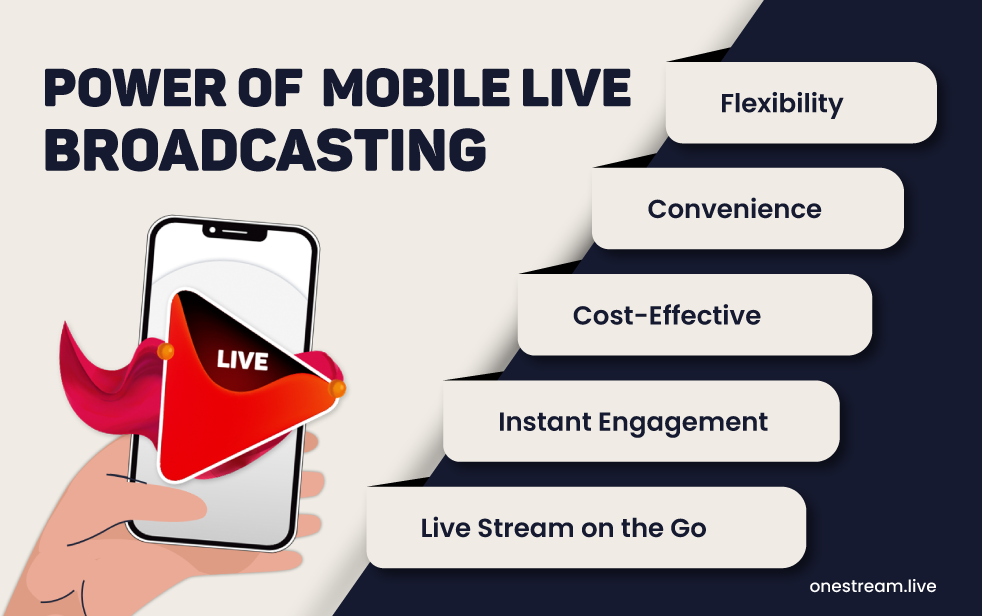
Mobile live streaming has revolutionized how we share content. In the past, you needed big, complicated gear and setups to go live. Now, you can reach your audience anytime, anywhere, with a sleek smartphone and the right mobile broadcasting software. This convenience makes live streaming on mobile a game-changer for content creators and businesses. These factors also contribute to the popularity of phone live-streaming:
Convenience: Stream from anywhere, whether on a hike, in a sermon, or in a café.
Instant Engagement: Connect with your audience in real-time and build stronger connections.
Flexibility: Adapt to changing circumstances and go live whenever inspiration strikes.
Cost-Effective: Save on expensive equipment while still producing high-quality content.
OneStream Live: Your Ultimate Mobile Broadcasting Software
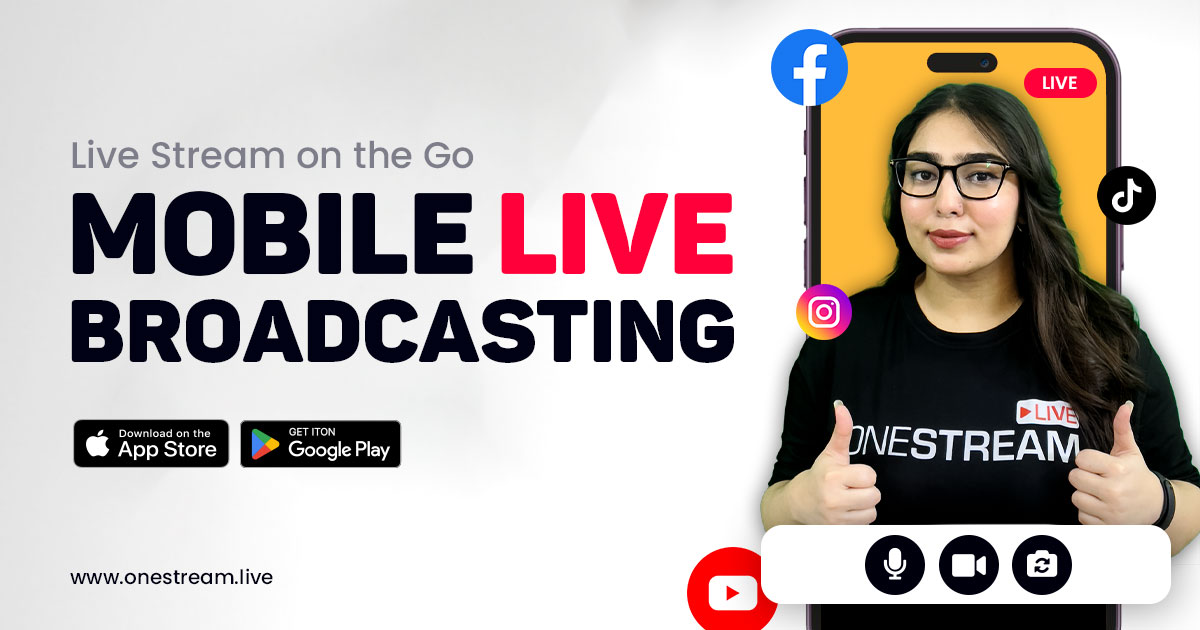
OneStream Live is a top choice for anyone looking to broadcast a live stream from their phone. The app used to be a simple camera screen with a few controls. It now runs the full Studio, so a phone handles a complete production on its own.
A corporate event, a product launch or a personal vlog all work the same way. Go live directly from your mobile camera and multistream to 45+ social media platforms, any custom destination, and the web, all at once.
Here is what you get on the phone.
A Full Studio on Your Phone
Open Studio from the bottom bar and you get a stage, a layout row and a control bar. Switch between desktop and vertical framing, choose your layout, and pick the frame shape for participants, including a circular option.
Guests Who Join by Link
Open the Attendees sheet and tap Invite Attendees, or copy the link beside it. Guests appear under On the call, and Add to stage puts them on the broadcast. Your plan sets how many can join.
Your Branding, Already Built
The Setup sheet carries your whole look across four tabs. Design holds your brand color, font and style preset. Media holds your stage backgrounds, logos and overlays. Banners and Tickers hold your on-screen text. Load a saved Setup and it all arrives at once.
Scenes Prepared in Advance
The Scenes sheet holds your running order, with Set Intro/Outro at the top and Instant Overlay for quick graphics during the show.
Camera Effects
Tap Settings, then Effects. You get blur and virtual backgrounds, green screen support, smart zoom, color filters, AI denoise, color correction and low light correction.
Chat and Guest Controls
Live chat pulls comments from YouTube, Facebook, Twitch, LinkedIn and Kick into the app. Under Guests in Settings you can turn on the Guest Lobby, play a sound when someone joins, require guests to sign in on a social platform, and manage anyone you have banned.
How to Start Mobile Live Broadcasting with OneStream Live
Getting started withmobile live streaming is straightforward. Follow the steps below to broadcast from your phone camera.
Sign up or log in. You can continue with Google or use your email address.
3
Tap Studio in the bottom bar. Tap Enter Studio to open your Instant Studio, which keeps the same link every time. Copy and share that link, and Customize Link makes it easier to read. Or you can enter the regular studio.
4
Tap Setup and load the look you want. Your Design, Media, Banners and Tickers all come with it.
5
Invite your guests from the Attendees sheet, then use Add to stage once they join.
6
Open Broadcast to using the icon at the top of the screen. Switch on Automatically record live event if you want a file afterward, connect the platforms you want to reach, then tap Save Changes.
7
Tap Begin to go live. Tap Schedule Broadcast instead if you want to book it for later.
Live session length depends on your subscription, so check thepricing page for the current limit on your plan before a long broadcast.
Final Words
Incorporating mobile live broadcasting into your content strategy can significantly enhance your reach and engagement. With OneStream Live’s mobile broadcasting software, you can effortlessly enable live streaming on mobile, ensuring you stay connected with your audience no matter where you are.
Embrace the future of mobile live broadcasting and take your content on the go with OneStream Live. Start your mobile live-streaming journey today and experience the convenience and power of live broadcasting from your phone.
Download the OneStream Live app now and take your content creation to the next level!
Download Now
Frequently Asked Questions
Can I really run a full live stream from my phone?
Yes. The OneStream Live mobile app runs the same Studio as the web app, so scenes, branding, guests, chat and layouts all work from a phone.
How do guests join a mobile broadcast?
You send them a link from the Attendees sheet. They join through the link, then you tap Add to stage to put them on the broadcast.
How many platforms can I stream to from mobile?
One stream reaches 45+ social platforms, any custom destination and the web at the same time.
Can I record a mobile broadcast?
Yes. Switch on Automatically record live event in the Broadcast to sheet before you go live.
Do I need extra gear for mobile live broadcasting?
No. A phone and a connection is enough. The effects in Settings handle background blur, low light and noise, which is what most people would otherwise buy equipment for.
OneStream Live is a cloud-based live streaming solution to create, schedule, and multistream professional-looking live streams across 45+ social media platforms and the web simultaneously. For content-related queries and feedback, write to us at [email protected]. If you have a story to share about your live streaming experience with OneStream Live, we would be glad to feature it. You’re also welcome to Write for Us!
We use cookies to enhance your browsing experience, serve personalized content, and analyze our traffic. By clicking "Accept All", you consent to our use of cookies.
Cookie Preferences
Strictly NecessaryRequired
Essential for the website to function properly.
Functional
Enable enhanced functionality and personalization.
Analytics
Help us understand how visitors interact with our website.