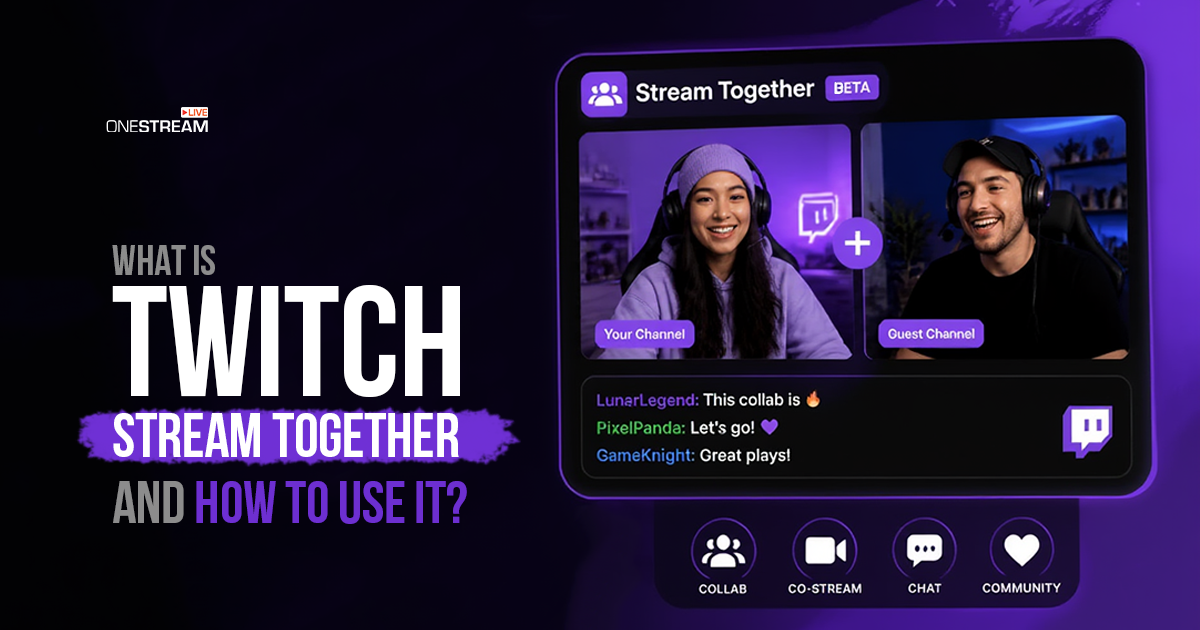
The best Twitch channels are not built by one person sitting alone in a room. Look at the creators growing fastest right now. They are not just going live and talking to one chat. They are teaming up. Bringing in guests. Sharing audiences. Turning one stream into a much bigger room. That is the whole idea behind Stream Together on Twitch.
Twitch built this feature so creators could collaborate live without messy third party tools. You can invite guests, connect two communities, and create shared live moments straight from Twitch.
But here is the catch. A lot of streamers still get confused about it. Is Stream Together the same as co stream? Is it the new Twitch Squad Stream? Can you do dual streaming, screen sharing, or group interviews with it? Does it replace your overlays and your live production tools?
This guide answers all of that. You will learn what Stream Together is, how to stream together on Twitch step by step, the features that matter most, and how Twitch Stream Together stacks up against OneStream Live Studio.
Let’s get into it.
What Is Twitch Stream Together?
Twitch Stream Together is Twitch’s built in live collaboration feature. It lets a host bring up to five guests into one live broadcast. Everyone shows up in the same stream window, with one shared chat and one combined viewership count.
Stream Together replaced the older Twitch Squad Stream, which Twitch retired in December 2023. Squad mode Twitch had two big problems. First, fewer than 1% of Twitch Partners actually used it. Second, viewers complained about the cramped four way layout. So Twitch built something better.
Stream Together is the upgrade. It works for any account, not just Partners. It is easier to set up. And it fits the way creators actually collaborate today.
Here is the part that trips people up. Stream Together does not need both creators to broadcast separately. Only the host runs the stream. Guests join through a call style interface inside Twitch. Then the host pulls that call into their broadcast using a browser source in OBS, Streamlabs, or any RTMP encoder they like.
So does Twitch allow multistreaming through this feature? Not exactly. Stream Together is for collaboration on one channel, not for streaming the same content to multiple platforms at once. We will cover that difference later.
How to Stream Together on Twitch: Step by Step
Here is a complete guide:
Step 1: Go Live on Twitch
Start your stream, either through Twitch or your streaming software.
Step 2: Open Your Stream Manager
Go to your Twitch Creator Dashboard and click Stream Manager.
Step 3: Go To the Stream Together Panel
Inside Stream Manager, look for Stream Together. You can also click the “+” button in your Quick Actions panel to add it. This is where you control invites, settings, and who can join your Twitch group stream.
Step 4: Invite a Guest
You have two ways to bring guests in.
The first is a direct invite. Click Invite Guests, search for the streamer’s username, and send. You can also copy an invite link if you want to share a Twitch link with someone outside your follow list. This is the easiest way to share a Twitch link for a quick collab.
The second is Drop Ins. If another creator has it turned on, you can “knock” on their channel while they are live. They get a private notification and choose to let you in or not.
Step 5: Set Up Your Audio
Audio is the part that ruins most collabs. Use headphones. Always. If someone listens to the stream through speakers, you get echo and feedback within seconds. Inside the Stream Together settings, you can choose to route audio through your desktop or through the browser source for separate mixing.
Step 6: Add the Video to Your Stream
To show your guests on screen, copy the browser source URL from the Stream Together settings. In OBS or Streamlabs, add a new Browser source and paste the URL. Set it to around 800 x 600 pixels and resize from there.
You can pull in one combined source for a quick setup, or individual sources for each guest if you want a custom layout.
Step 7: Turn On Shared Chat
Shared Chat blends both communities into one chat feed. The host turns it on from the Stream Together backstage window. You can do this before or after guests join, but guests must be live on their own channel for Shared Chat to work.
Step 8: Go Live and Manage the Flow
Once your guest is in, keep the format clear. Decide who leads the talk, who watches the chat, and how you will handle questions. A messy collab kills the vibe fast.
That is the full step by step process to start streaming together on Twitch.
Key Features of Twitch Stream Together
Stream Together is more than one button. It is a small toolkit built for creator collaboration. Here is what you actually get.
1. Guest Invites
Pull other Twitch creators or guests right into your live stream. This is your tool for interviews, podcasts, panels, and casual co streams. Up to five guests, plus you as the host.
2. Drop Ins
Drop Ins make collabs spontaneous. Eligible streamers can request to join your live stream with a quick knock. Great for surprise appearances, networking, and that messy, fun, “anything could happen” energy Twitch is known for.
3. Shared Chat
Both audiences chat in one place. Your viewers and your guest’s viewers can talk to each other live. It makes the stream feel like one big room instead of two small ones.
4. Shared Viewership
When Shared Chat is on, Stream Together pulls together unique viewers from all participating channels. That combined number shows up in Twitch discovery, which can push your stream higher in the rankings.
5. Screen Share
Share your screen during a collab. Useful for tutorials, gameplay reviews, reaction streams, coaching sessions, and product demos.
6. OBS Compatibility
Stream Together works with OBS and other RTMP encoders. So if you already use these tools, you can keep your scenes, overlays, alerts, and design.
7. Browser Source Setup
Bring the call into your streaming software through browser sources. From there, you can build any layout you want, side by side, picture in picture, or full group stream view.
8. Collaboration Permissions
You control who can knock on your door. Limit Drop Ins to creators you follow, your team, or trusted streamers. This stops random interruptions from breaking your flow.
9. Moderator Access
Assign your trusted mods to help manage the call. They can mute, remove, or report guests using a separate link.
10. Pause Drop Ins
Running a serious or sponsored stream? Pause Drop Ins so you are not interrupted. This gives you full control over when you are open for spontaneous collabs.
Best Ways to Use Twitch Stream Together
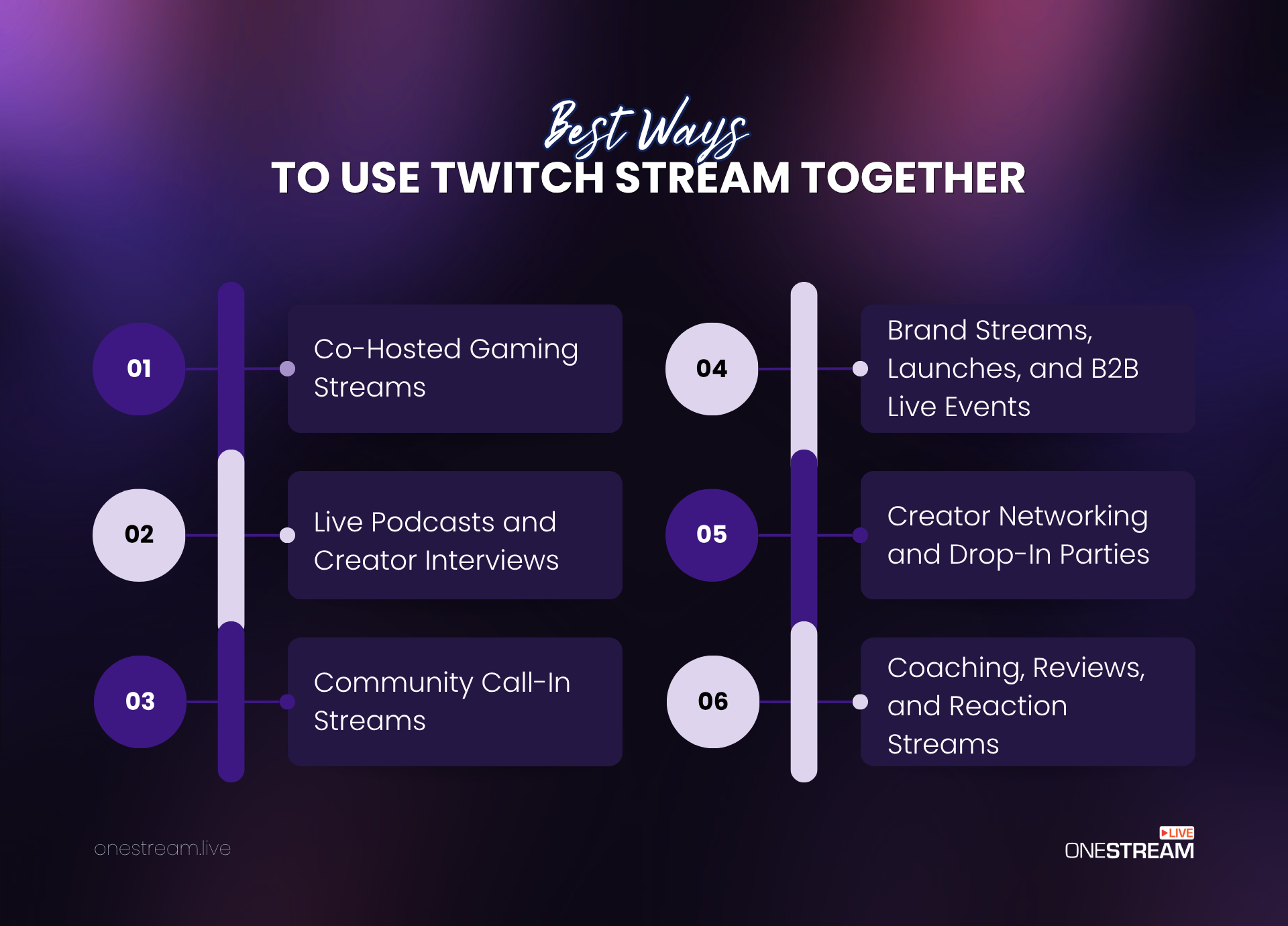
You know what the feature does. Now here is how to actually use it to grow.
1. Co Hosted Gaming Streams
Team up with another creator for multiplayer games, tournaments, or casual co op sessions. Two streamers playing Fortnite, Valorant, or a co op horror game pulls in both communities at once. The reactions, the wins, the fails, all happen in one shared stream.
2. Live Podcasts and Creator Interviews
Stream Together makes Twitch a real podcast platform. Invite a guest, set up a clean two camera layout, and talk about streaming growth, gaming trends, creator burnout, or anything your audience wants to hear about.
3. Community Call In Streams
Bring viewers or smaller creators on for Q&A sessions, advice rounds, or open chats. A few minutes per guest keeps it moving. People love being part of the show instead of just watching it.
4. Brand Streams, Launches, and B2B Live Events
For brand collabs, this feature works well. Bring a creator, a product expert, and the host into one stream. Demo a new headset, answer live questions, and let your audience react in real time during the launch.
5. Creator Networking and Drop In Parties
Host a “drop in night.” Let trusted streamers join one by one to introduce themselves, share what they stream, and meet new viewers. It is creator networking, on live, in front of an audience.
6. Coaching, Reviews, and Reaction Streams
Pull another creator in to review gameplay, react to community clips, or coach a newer streamer. The expert teaches. The newer creator learns. The audience watches the journey unfold.
OneStream Live Studio vs Twitch Stream Together: Detailed Comparison
Both tools help you go live with other people. But they solve different problems.
Twitch Stream Together is built for one job. Help Twitch creators bring guests onto a Twitch stream. That is it. If your audience is on Twitch and you only care about Twitch, it works.
OneStream Live Studio is a full live production studio in your browser. It is built for creators, brands, educators, coaches, churches, agencies, and event hosts who want a polished show that goes out across many platforms at once.
Here is the side by side breakdown.
Feature | Twitch Stream Together | OneStream Live Studio |
What both do | Helps creators collaborate live on Twitch through guest sessions, Drop Ins, and Shared Chat. | Helps creators host live sessions with guests, branding, screen sharing, chat, recordings, and multistreaming from the browser. |
Main purpose | Twitch creator collaboration and shared community moments. | Browser-based live production and multi-platform broadcasting. |
Guest capacity | Twitch announced Stream Together for up to six streamers collaborating together, which generally means host plus collaborators. | OneStream Live Studio states that users can invite up to 10 guests on screen, add up to 16 participants, and keep many more backstage depending on setup and layout. |
Multistreaming | Stream Together itself is not a multistreaming tool. It is mainly built for collaboration inside Twitch. | Yes. OneStream Live Studio can multistream to 45+ social platforms and custom RTMP destinations, including Twitch, YouTube, Facebook, Instagram, and more. |
Live chat | Shared Chat lets collaborating Twitch communities interact in a combined chat experience during Stream Together sessions. | Unified Chat lets hosts view, respond to, and manage comments from multiple platforms in one screen. Comments can also be shown on screen. |
Branding control | Good for casual Twitch-native collaboration, but custom branding usually depends on external tools. | Stronger branding control with logos, overlays, backgrounds, banners, tickers, fonts, colors, intros, intervals, and outros. |
Screen sharing | Can be part of the Stream Together workflow, but setup often depends on broadcast software and browser source management. | Built-in screen sharing for presentations, documents, webinars, tutorials, demos, and walkthroughs. |
Media sharing | Not the core purpose. Creators usually rely on OBS, browser sources, or other tools for media-heavy streams. | Supports external media sharing, including screen, audio, videos, and other media directly from the device. |
Camera setup | Supports webcam and microphone setup for collaboration. | Supports multiple camera sources and lets hosts switch between camera angles during streams. |
Multi-camera streaming | Possible with external tools, but not the core Stream Together use case. | Built-in multi-camera support. OneStream Live Studio states users can connect up to 4 cameras. |
Layout control | Often handled through OBS, Streamlabs, browser sources, or the collaboration feed setup. | Built-in layout options for solo shows, interviews, panels, picture-in-picture, grid, cinema, reels, highlight, and portrait formats. |
Recording | Twitch VODs depend on Twitch channel settings. Stream Together itself is focused on collaboration. | Studio sessions can be recorded and downloaded for repurposing. |
Best use case | Gaming collabs, Twitch group streams, shared community streams, creator hangouts, Drop In sessions. | Webinars, podcasts, virtual events, product launches, online classes, church services, branded shows, and multi-platform campaigns. |
Stream Together vs OneStream Live Studio: The Final Verdict
Stream Together is a smart feature for Twitch creators who want to collaborate live, bring in guests, and connect two communities through Shared Chat and Drop Ins. If your audience lives on Twitch and your goal is simple creator collaboration, it is a great tool to make your streams feel bigger and more interactive.
But Stream Together is still Twitch only. It is not a full live production studio. You do not get the same control over branding, overlays, scheduling, recording, or multi platform reach.
That is where OneStream Live Studio takes over.
With OneStream Live Studio you can:
- Go live from your browser, no installs needed
- Invite up to 14 guests, with 12 on screen
- Add custom overlays, logos, banners, and branded layouts
- Stream to 45+ platforms at once, including Twitch, YouTube, Facebook, Instagram, and LinkedIn
- Schedule your streams up to 60 days in advance
- Manage every platform’s chat from one unified screen
- Record everything for reuse later
Read More: A Walkthrough Of the OneStream Live Studio
So here is how to choose.
Use Twitch Stream Together when you want a quick collab with other Twitch creators inside Twitch.
Use OneStream Live Studio when you want to turn your stream into a professional live show that reaches audiences everywhere.
Ready to take your live streams further? Try OneStream Live and start streaming smarter today.

Frequently Asked Questions
Twitch Stream Together is a feature that allows multiple viewers to watch and interact with the same stream simultaneously in a shared viewing experience.
You can start a Stream Together session by clicking the “Watch Together” button on a Twitch channel while using a compatible device or browser.
A Stream Together session can accommodate up to 50 participants in a shared viewing room.
Yes, all viewers must be logged into their Twitch accounts to participate in a Stream Together session.
Yes, Stream Together is available on both desktop and mobile devices, though some interactive features may be limited on smaller screens.
OneStream Live is a cloud-based live streaming solution to create, schedule, and multistream professional-looking live streams across 45+ social media platforms and the web simultaneously. For content-related queries and feedback, write to us at [email protected]. You’re also welcome to Write for Us!