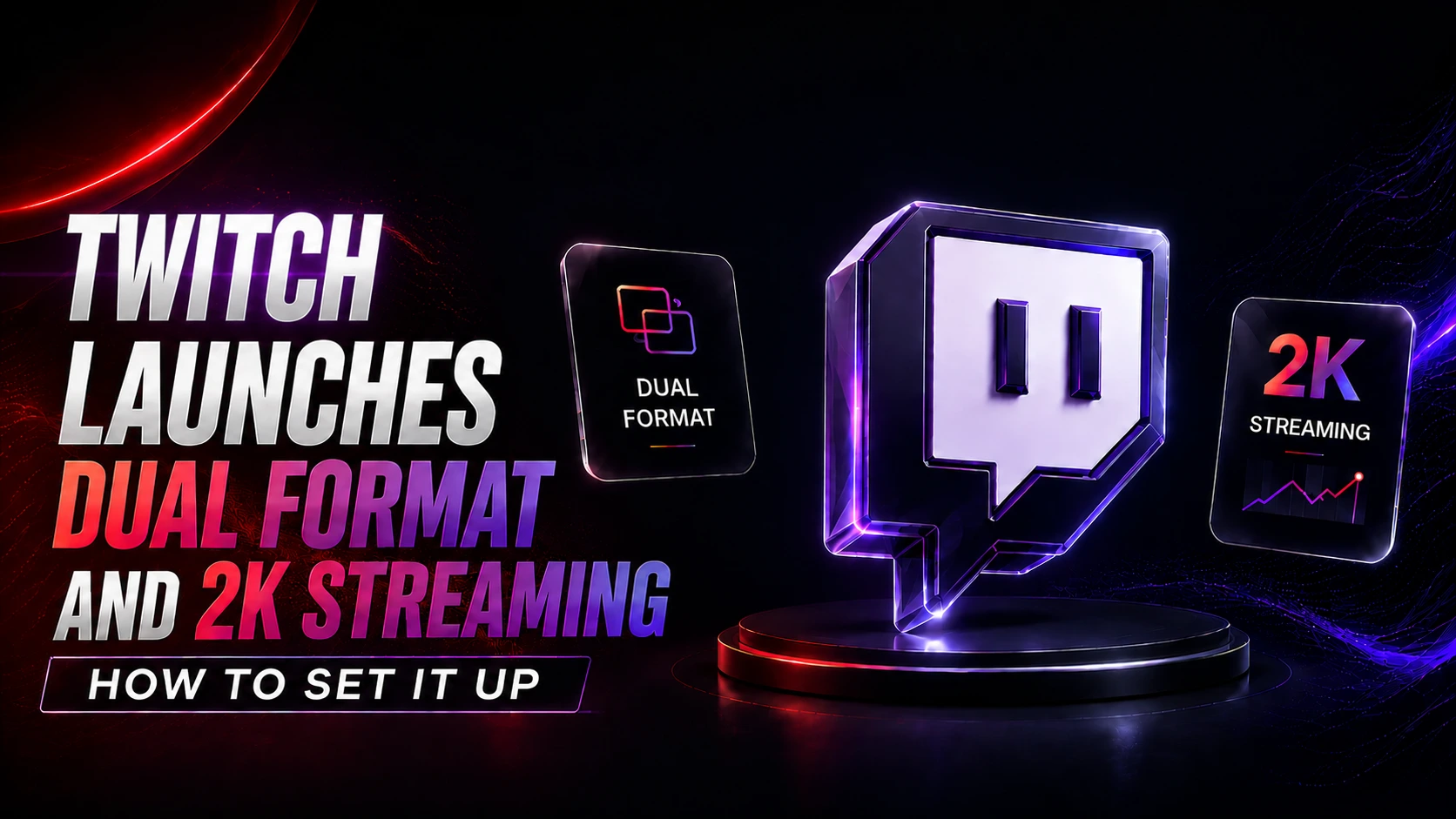
Mobile phones are where people spend most of their free time, and if you watch live streams on your phone, you already know the desktop horizontal format looks cramped on a small screen. Twitch just fixed that. On June 17, 2026, Twitch rolled out Dual Format streaming for every streamer and Twitch 2K streaming at 1440p for Partners and Affiliates. This is one of the biggest quality upgrades the platform has shipped in years. Below, you get the news, who qualifies, and the exact steps to go live.
What Twitch Just Announced
Twitch confirmed two upgrades in a single announcement. Dual Format streaming is now available to all streamers, and 2K (1440p) streaming is open to Partners and Affiliates. Both features run on Twitch’s Enhanced Broadcasting technology, which manages the encoding work in the background so your system stays free.
If we look at the viewers on Twitch, the reason behind this move becomes clear. Twitch reports that 70% of new viewers now arrive on mobile, and existing audiences are checking in from their phones more than ever. The platform wanted streamers to reach that mobile crowd without scrapping their current desktop setup. Both upgrades aim straight at sharper quality and wider reach.
What is Dual Format Streaming on Twitch
Dual Format streaming lets you broadcast in horizontal and vertical at the same time. Desktop and TV viewers see your classic horizontal layout. Mobile viewers holding their phone upright get a full screen vertical view built for that screen.
The format adapts to how people watch videos on Twitch. A mobile viewer can switch to the classic split view if they prefer it, and turning the phone sideways brings back the full screen horizontal feed.
There is a bonus for content beyond the live broadcast. Every Dual Format stream produces both a horizontal and a vertical version of your Clips and VODs. That means less editing when you share moments to other platforms, and your mobile clips look native wherever they land.
Why Dual Format Matters for Your Reach
Every major platform is chasing mobile views right now, and most watch time already happens on phones. People even watch YouTube Shorts on their TVs these days, so the shift is clear. Mobile is the front door to Twitch now. Vertical streaming meets viewers in the feed where they already spend their time, and Twitch testing shows vertical layouts pull more clicks into a stream. More clicks mean more eyes on your content.
The engagement angle is just as strong. A vertical layout fills the whole mobile screen, so your camera, alerts, and overlays get full attention instead of squeezing into a small box. You capture a growing mobile audience on their terms. Creative control over that vertical canvas is yours from the start.
How to Set Up Dual Format Streaming on Twitch
Twitch built Dual Format around three steps using OBS and the Aitum Vertical plugin. Check the minimum system requirements first, since most modern GPUs handle it fine. Here is the exact process.
Step 1: Install the Aitum Vertical Plugin and Adjust OBS
Download and install the latest Aitum Vertical Plugin, then exit and reopen OBS before you start.
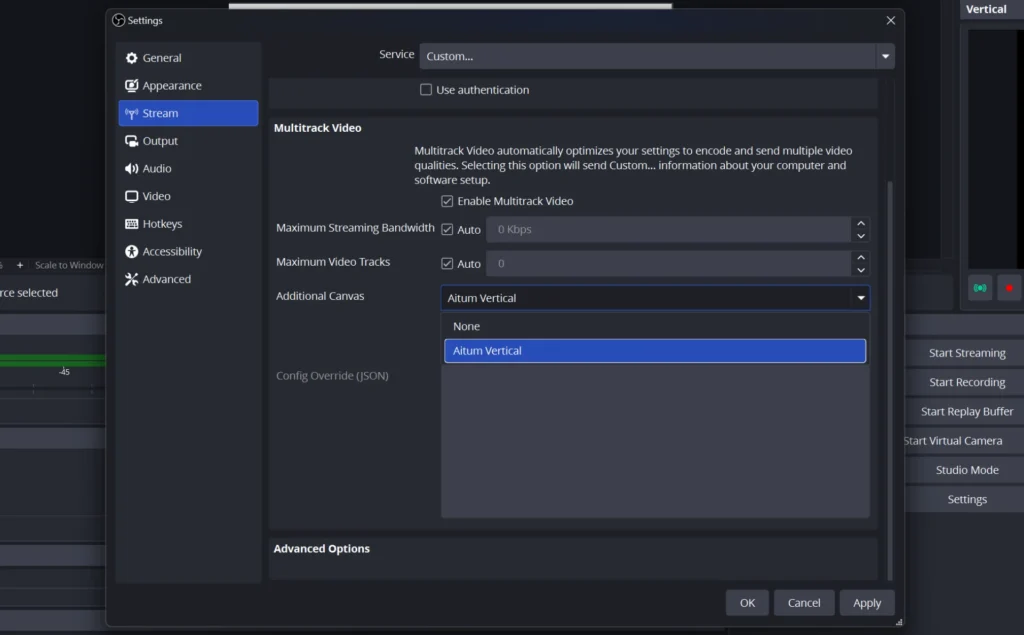
Inside OBS, open Settings, then Stream, and check the “Enhanced Broadcasting” box under Multitrack Streaming.
Select Aitum Vertical as your Additional Canvas in that same window and click OK.
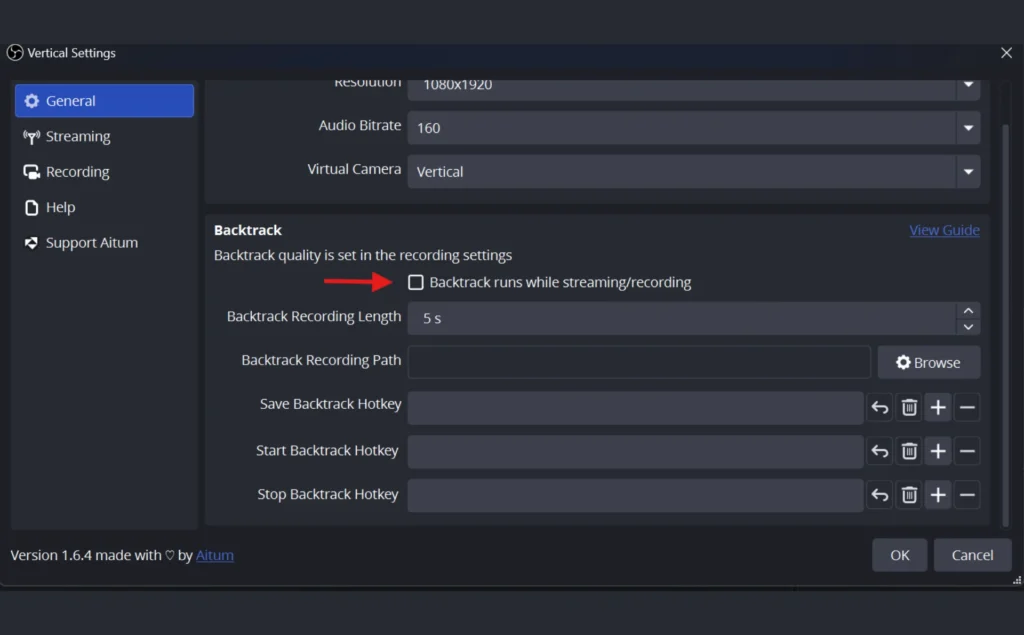
Next, turn off Backtrack, but note this setting lives in the Aitum Vertical panel, not in the main OBS settings. Click the gear icon at the bottom of the Aitum Vertical dock to open Vertical Settings, go to the General tab, and uncheck “Backtrack runs while streaming/recording.” Click OK and you are ready for step two.
Step 2: Build Your Vertical Layouts and Link Your Scenes
You should now see the Aitum Vertical dock in OBS. Add your vertical scenes and sources, but you do not need to rebuild every horizontal scene. Pick a couple of your most-used scenes to start, then reuse existing assets or design custom vertical layouts for mobile. Preview the layout so your camera, overlays, and alerts fit the vertical frame, and link your vertical and horizontal scenes so they switch together.
Step 3: Press Start Streaming
Press “Start Streaming” in OBS to go live in both formats at once. You do not need to hit the green “go live” button in the vertical canvas. Run a test stream and watch on a mobile device to confirm every key element displays correctly. Use Twitch Inspector to check your stream health, and click the orientation icon in your Stream Preview to see the vertical feed from desktop.
What is 2K Streaming on Twitch
The dual stream Twitch upgrade pairs nicely with the platform’s new resolution boost, so let us talk about quality next. Twitch 2K streaming means going live at 1440p resolution, a clear step above standard 1080p. The result is richer detail, cleaner clarity, and steadier performance during fast gameplay.
What is 2K Resolution
2K resolution refers to a display width of roughly 2,000 pixels, and on Twitch that specifically means 1440p, or 2560×1440. It sits between Full HD 1080p and 4K, giving you a real sharpness jump without the bandwidth demands of full Twitch 4K. For most streamers, a 2K stream hits the sweet spot of quality and stability.
Twitch also raised bitrates across the board to support the new quality. Streams now reach up to 9 Mbps for 1440p and 7.5 Mbps for 1080p, so the picture stays sharp even when the action speeds up. Higher quality streams also unlock 2K Clips and VODs for you and your community.
Higher Twitch Stream Quality Without the Higher Risk
Better resolution usually means more strain, but Twitch built in a safety net. 2K streaming on Twitch uses Enhanced Broadcasting, which automatically adjusts stream quality for viewers on limited bandwidth. That keeps lagging and buffering away, so everyone watches the best version their connection allows.
The codec change does real work here. 2K streaming uses HEVC, a next generation video codec that delivers higher quality at lower bitrates than the older AVC codec used for 1080p and below. In practice, HEVC pushes better looking video at 9 Mbps than you could squeeze out of AVC even at higher manual settings.
Partners and many Affiliates also get server side transcode support. Twitch uses your GPU to encode the highest resolution feed, then fills in the lower qualities on its own servers. This cut required upload bandwidth roughly in half during testing and improved performance noticeably.
How to Set Up 2K (1440p) Streaming on Twitch
Twitch 2K streaming also takes three steps, and it requires Enhanced Broadcasting plus Partner or Affiliate status. Streaming 2K without Enhanced Broadcasting will give your viewers a worse experience, so confirm it is on. Here is how to get going.
Step 1: Confirm Your System Requirements
You need OBS Studio 32.0 or newer and a qualifying GPU. That means an NVIDIA GeForce 2000 series or newer with driver 550 or newer, an AMD Radeon RX 6000 series or newer with Adrenalin 24.4.1, an Apple M4 or M1 to M3 Max chip, or an Intel Arc A580 or newer. You also want a 2560×1440 display at 60fps and enough upstream bandwidth, which is 9 Mbps with server side transcode support or 20 Mbps without it.
Step 2: Adjust Your OBS Settings
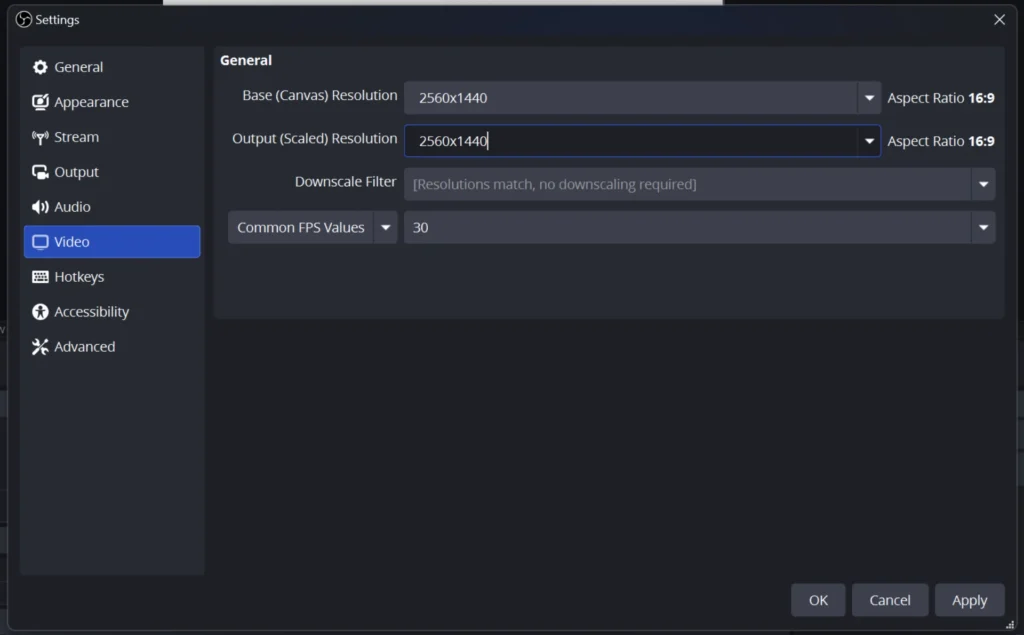
Open OBS 32.0 or newer and go to Settings, then Video, and set both your canvas and output to at least 2560×1440.
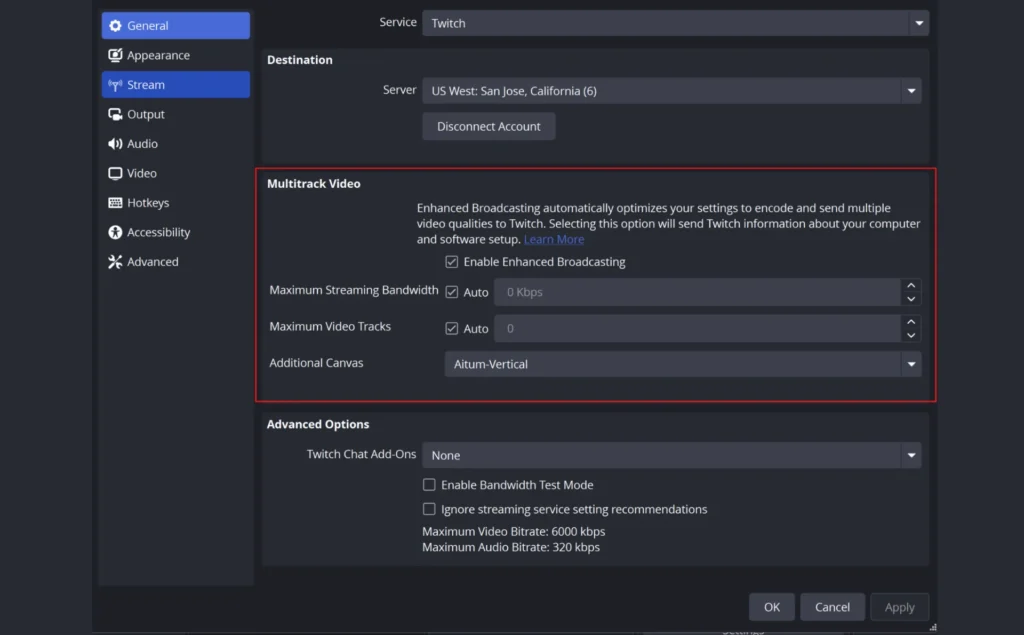
Next, open Settings, then Stream, and check the “Enhanced Broadcasting” box under Multitrack Streaming to turn it on. These two changes prepare your stream for full 1440p output.
Step 3: Run a Test and Go Live
You are ready to stream in 2K. Run a test stream during off hours to fine tune your video settings and adjust your existing scenes as needed. Once everything looks clean, go live and let Enhanced Broadcasting manage quality for every viewer.
Who Can Use Twitch 2K and Dual Format Streaming
Access depends on your status. Dual Format streaming is open to all streamers on Twitch, so anyone can broadcast horizontal and vertical together. 2K (1440p) streaming is limited to Partners and Affiliates, since it leans on Enhanced Broadcasting and higher bitrates.
Server side transcode support adds another layer. All Partners and select Affiliates get this support for Dual Format and 2K streams, which lowers system strain and improves performance. Check the Advanced Broadcast Settings on the Stream Settings page in your Creator Dashboard to see your eligibility.
How to Multi Stream on Twitch and Beyond With OneStream Live
Dual Format covers two formats inside Twitch, but plenty of streamers want their content live on YouTube, Facebook, and other platforms at the same moment. To grow their reach, streamers turn to multistreaming, and OneStream Live makes it simple to multi stream on Twitch without burning your CPU on extra encoding.
The setup in OneStream Live is straightforward, and you can multistream to more than 45 platforms and destinations at once. Because the encoding happens in the cloud rather than on your machine, your local system stays free to run your game and scenes smoothly. You connect Twitch once and broadcast everywhere your audience watches.
The workflow is friendly for creators at any level. You can go live directly, schedule streams ahead of time, or even pre-record content and stream it as a live broadcast. So now you can reach the widest possible audience across every platform at once.
Final Thoughts
Twitch just handed streamers two tools that match how audiences actually watch in 2026. Dual Format puts you on every screen at once, and Twitch 2K streaming sharpens every frame for the viewers who can see it. Both ride on Enhanced Broadcasting, so the setup stays light on your system.
Get your formats and resolution dialed in on Twitch, then take that polished stream further. With OneStream Live, you can multistream high quality broadcast across every platform your community calls home, all from one cloud based dashboard.

Frequently Asked Questions
A 2K stream runs at 1440p resolution, while Twitch 4K would run at 2160p. Twitch currently offers 2K (1440p) to Partners and Affiliates as its top tier, so 2K is the highest standard resolution most streamers will set up right now.
Yes. Both features run on Enhanced Broadcasting, and Partners and many Affiliates can combine a Twitch split into vertical and horizontal formats while streaming in 2K, all backed by server side transcode support.
A few reasons exist. Some regions restrict higher resolution viewing, certain older devices and browsers cannot support it, and logged out viewers are capped at 1080p. Those viewers will still watch your stream, just at a standard quality.
Yes. Twitch 2K streaming requires Enhanced Broadcasting. Streaming in 1440p without it will deliver a worse experience for your viewers, so turn it on before you go live.
OneStream Live is a cloud-based live streaming solution to create, schedule, and multistream professional-looking live streams across 45+ social media platforms and the web simultaneously. For content-related queries and feedback, write to us at [email protected]. You’re also welcome to Write for Us!