
You want to start a podcast. But the moment you Google what is RSS, you're sucked into a black hole of tech jargon, XML files, and diagrams that look like they belong in a NASA control room. Pair that with YouTube's podcast tools, and suddenly this feels less like creative freedom and more like a trapdoor into Geeksville.
Here's the secret: you don't need to know how RSS works, or even care. It's the plumbing under the internet. Silent, invisible, and absolutely essential.
Get it set up once, and every podcast episode you release will beam itself onto Spotify, Apple Podcasts, YouTube, and anywhere else listeners hang out. You do the talking; RSS does the schlepping.
This guide walks you through the whole thing, from what RSS feeds are and why they matter to YouTube's podcasting tools, so you can launch your show without needing a PhD in computer science.
Let's start with the big question: what is RSS, and why does it still run the podcasting universe in 2026?
Key Takeaways:
- What is RSS? It stands for Really Simple Syndication, a feed format that delivers new posts and podcast episodes to subscribers automatically, so nobody has to keep checking your site.
- A podcast RSS feed lists every episode's title, description, audio file, and artwork. Apps like Apple Podcasts and Spotify read it to publish your show.
- You don't need an RSS feed to start a podcast on YouTube. You can upload episodes as videos, then add podcast features to a playlist in YouTube Studio.
- YouTube's RSS tool turns each audio episode into a static image video. It only publishes to YouTube and YouTube Music, not to other podcast apps.
- Every YouTube channel and playlist has a public RSS feed at youtube.com/feeds/videos.xml, which feed readers use to track new uploads.
What is RSS and What is an RSS Feed?
What does RSS stand for? RSS stands for Really Simple Syndication. It's a web feed format that websites, blogs, and podcast platforms use to send content updates to subscribers automatically.
Here's the RSS feed meaning in plain English: an RSS feed is a content delivery pipeline. It's a special XML file that holds a stream of a website's or podcast's latest posts or episodes, along with metadata (titles, descriptions, dates, and so on).
Users or apps subscribe to this feed to get new content without having to check the site manually. When a blog publishes a new article or a podcaster uploads a new episode, the RSS feed updates, and subscribers see the new content in their feed reader or podcast app. No more refreshing websites: the content comes to you automatically.
How Does RSS Work?
Once you know what is RSS at a basic level, the mechanics are simple. RSS works on a publish-and-check loop: your platform updates the feed, and every subscribed app checks it for anything new.
1
You publish. A new blog post or podcast episode goes live on your site or podcast host.
2
The feed updates. Your platform adds the new item to the XML file with its title, description, date, and media link.
3
Apps check the feed. Feed readers and podcast apps revisit the feed on a regular schedule to look for new items.
4
Subscribers get it. The new post or episode shows up in their app, with no extra upload from you.
That's the theory. Now let's look at why this matters so much for podcasters.
What is a Podcast RSS Feed and Why Does It Matter?
If the answer to what is RSS is a delivery pipeline, a podcast RSS feed is the pipeline for your show. It's the XML file your podcast host creates to list every episode's title, description, audio file, and cover art. Apple Podcasts, Spotify, and other apps read that feed to show your episodes. That makes RSS feeds the backbone of how podcasts reach listeners across the internet.
When you host your show on a podcast hosting platform like Buzzsprout, Spotify for Creators, or Libsyn, that platform generates an RSS feed URL for you. Not sure which host to pick? Compare the options in our guide to the best podcast hosting platforms. You then submit the feed to directories and apps such as Apple Podcasts, Spotify, Amazon Music, and YouTube.
Those apps use RSS to pull your episodes automatically. Whenever you publish a new episode, your host updates the feed, and the apps list the new episode for your subscribers.
In short, the purpose of RSS feeds is to let you publish once and have your content update everywhere you've submitted it. Without an RSS feed for podcasts, you would have to upload every episode separately to every platform, which would be a nightmare.
For listeners, RSS feeds mean they can use their favorite podcast app to follow many shows at once. The app checks each feed and fetches new episodes automatically, so listeners never miss a new release.
How to Add Your RSS Feed for Podcasts on Spotify
Spotify is a good example of how simple submission is. In Spotify for Creators, choose Find an existing show, then Somewhere else, and paste your RSS feed URL. Spotify then sends an 8-digit code to the email address in your feed to confirm the show is yours. Apple Podcasts and Amazon Music work the same way: submit the feed once, and new episodes keep flowing in.
How Do You Use RSS Feeds?
Knowing what is RSS is one thing, but if you're new, you might be asking how to use RSS feeds in practical terms. Don't worry, you don't need to know any coding or technical details. Here's how it looks from both sides.
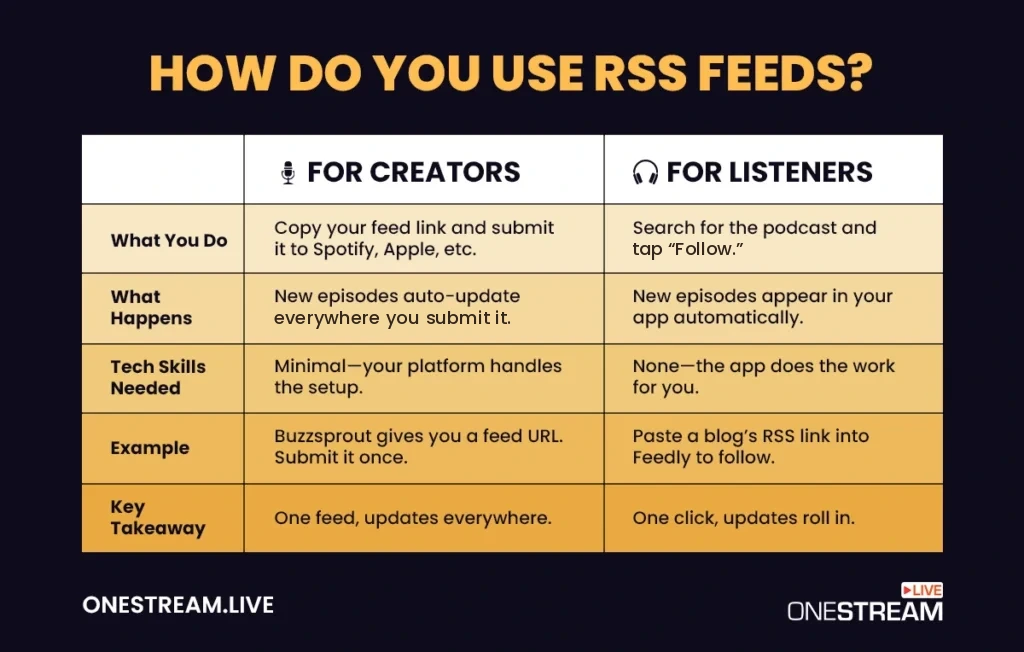
For content creators (podcasters and bloggers): Choose a platform that generates the feed for you. When you start a podcast on a hosting service, it gives you your show's RSS feed URL, usually right away or once you publish your first episode. Copy that URL and submit it to each podcast directory one time. After that, every new episode you upload on your host reaches subscribers everywhere you've submitted it. Some modern hosts even handle directory submissions for you.
For listeners: Using RSS is usually as easy as tapping Follow in a podcast app. If you love a niche blog, you can paste its RSS link into a reader like Feedly. And if your podcast app doesn't list a show, you can usually add it by pasting the RSS feed URL. Truth be told, most people in 2026 never copy RSS links by hand. They search for the show, and the app manages the RSS behind the scenes.
Example: Imagine you have a travel podcast hosted on Buzzsprout. Buzzsprout lists your podcast RSS feed on its Directories page, under the RSS Feed tab. You submit that link once to Apple Podcasts, Spotify, and other directories. From then on, every new episode reaches listeners on those apps the next time each app checks your feed.
Do You Need an RSS Feed to Start a Podcast on YouTube?
No, starting a YouTube podcast doesn’t require an RSS feed. Now that you know what is RSS used for, here’s how YouTube fits in. YouTube Studio has podcast tools that work with or without a feed, so you can choose one of two routes.
1. Upload videos directly to YouTube. Upload episodes to your channel, then turn a playlist into an official podcast. It needs no RSS feed, so it’s ideal for beginners. YouTube can’t turn a bare MP3 into an episode, though, so audio-only shows need a simple video with a static image or waveform. You get full control over titles and thumbnails, but episodes live only on YouTube unless you also use a podcast host.
2. Use YouTube’s RSS feed tool. Already host your podcast elsewhere? Submit its feed in YouTube Studio, and YouTube turns each episode into a static image video using your cover art. You verify ownership through the email address in your feed. RSS content can’t contain advertisements, and host-read sponsorships must be disclosed. YouTube’s guide to delivering podcasts with an RSS feed covers the full rules, and the tool works in 118 countries and regions.
So, which route should you take? If you're starting fresh and focusing on YouTube, upload directly and don't worry about RSS yet. If you already run a podcast elsewhere, use RSS to save time and reach YouTube's audience. YouTube says it has more than 1 billion monthly podcast viewers, which is huge.
Does YouTube Have an RSS Feed?
If you're wondering what is RSS on YouTube, the answer is simple: every YouTube channel and playlist has a public YouTube RSS feed, even though YouTube doesn't show the link in its interface or document these feeds officially. The feeds are XML files that list recent uploads, and feed readers and newsletter tools use them to track new videos automatically. You can build the feed URL yourself:
| Feed type | Feed URL format | Where to find the ID |
|---|---|---|
| YouTube channel RSS feed | youtube.com/feeds/videos.xml?channel_id=YOUR_CHANNEL_ID | The 24-character ID that starts with “UC”, shown in channel URLs that use /channel/ |
| YouTube playlist RSS feed | youtube.com/feeds/videos.xml?playlist_id=YOUR_PLAYLIST_ID | The text after “list=” in the playlist URL |
A YouTube playlist RSS feed is handy for podcasters. Point a feed reader or newsletter tool at your podcast playlist, and every new episode shows up there on its own. Keep two limits in mind: these feeds only show about your 15 most recent uploads, and podcast apps like Apple Podcasts can't use them because they don't contain audio files.
Can I Have an Audio-Only Podcast on YouTube?
Yes. Many podcasters run audio-only shows on YouTube, and YouTube's RSS feed tool is built specifically for audio-first podcasts. It creates static image videos for each episode, so you never have to appear on camera. A few pointers:
- Use good cover art. Your cover image shows for the whole episode, so make it high quality. Some creators add the episode title or a waveform animation to make it more engaging.
- Turn on captions. YouTube can generate captions automatically, even for audio content. That helps accessibility and turns your dialogue into searchable text.
- Don't stress about length. Verified YouTube accounts can upload videos up to 12 hours long (or 256 GB, whichever is less), so a 2-hour episode plays fine. Episodes longer than 15 minutes need a verified account first.
- Cut highlight clips. Shorter clips attract new listeners who might not commit to a full 90-minute episode yet. Shorts won't appear in YouTube Music, but they're great for pulling viewers toward the full episode.
- Promote and interact. Ask listeners to subscribe and like, and reply to comments to build a community around your show.
Ready to set up the real thing? Here's the full walkthrough.
How to Start a Podcast on YouTube in 2026 (Step by Step)
Whether you have mastered RSS or not, you can launch a YouTube podcast today, and 2026 is a great time to tap into YouTube's massive audience. YouTube says it's now the most frequently used service for podcast listening in the U.S. You can take one of two routes: create a video podcast, or bring in an audio podcast through RSS.
Option 1: Create a Video Podcast in YouTube Studio
This is the simplest answer to how to make a podcast on YouTube. You don't need a special account or payment, because the podcast tools are part of standard YouTube Studio.
1
Record your podcast. Film yourself and your cohosts, or record audio and add a static image or waveform. OneStream Live Studio works well for interview-style shows recorded in the browser.
2
Create a YouTube channel. It's free with a Google account. Pick a channel name that reflects your podcast brand.
3
Create your podcast. In YouTube Studio, click Create, then New podcast, and choose Create a new podcast. Add a title, description, visibility, and a square podcast thumbnail (YouTube recommends 1280 x 1280 pixels). Already have a playlist of episodes? Go to Content, then Playlists, hover over it, and click Options, then Add podcast features.
4
Upload your episodes. Open your podcast from Content, then Podcasts, and click Add videos. Use a descriptive title (for example, "Episode 1: Understanding Tech Trends"), a detailed description, and timestamps. Episodes longer than 15 minutes need a verified YouTube account.
5
Keep the playlist clean. Only add full episodes to your podcast playlist. YouTube recommends keeping clips and seasons in separate playlists without podcast features.
6
Promote and stay consistent. Use an eye-catching thumbnail, a clear channel banner and avatar, and a regular upload schedule so viewers know when to expect new episodes.
Option 2: Add Your YouTube Podcast RSS Feed (Audio Podcasts)
This is where knowing what is RSS pays off. If you already have an audio podcast hosted elsewhere, a YouTube podcast RSS feed setup brings your whole catalog over without manual uploads.
1
Have your podcast RSS feed ready. It's the same feed you submit to Apple Podcasts or Spotify.
2
Start a new podcast in YouTube Studio. Click Create, then New podcast, then choose Submit RSS feed.
3
Paste your feed and accept the terms. Enter your RSS feed URL and accept YouTube's RSS ingestion terms.
4
Verify ownership. YouTube sends a code to the email address listed in your feed. Enter it to confirm the podcast is yours.
5
Choose episodes and visibility. Pick which episodes to bring in (all existing episodes, those since a specific date, or only future ones), and review the visibility settings. YouTube creates a static image video for each episode using your cover art. Uploads can take a few days.
6
Publish your podcast. Go to Content, then Podcasts, and click Publish. New episodes then upload automatically whenever you release them through your feed, and they also appear in the YouTube Music app.
Already have a podcast on YouTube? Open it from Content, then Podcasts, click Details, and choose Connect to RSS feed under RSS settings. One heads-up: if you edit an episode's details in YouTube Studio, YouTube blocks future edits to that episode from your RSS feed. YouTube's help page on creating a podcast walks through every setting.
How OneStream Live Helps You Start a Podcast on YouTube
OneStream Live is a cloud-based live streaming platform. It isn't a podcast host and doesn't generate an RSS feed, but it gives you tools that make recording and publishing video podcasts much easier:
- Live Studio for recording: OneStream Live Studio runs in your browser with no download and puts up to 16 guests on screen, which is perfect for interview-style podcasts. Connect up to 4 cameras, share your screen, add logos and overlays, and read from the built-in teleprompter. Turn on Record as You Stream to save the session and download it later for editing.
- Multistreaming: Stream your podcast live to YouTube and other platforms at the same time. Multistreaming with OneStream Live lets you go live on the destinations you choose from 45+ integrations, without juggling stream keys on every site.
- Pre-recorded streaming: Want to premiere an episode live? Upload your recorded video and use pre-recorded live streaming to schedule it to YouTube, Facebook, and more. Your audience watches and chats together, and you can join the chat without performing live.
- Custom Websites and Stream Players: Build a branded live page for your episodes with live chat, or embed your live stream on any website or blog with Stream Players.
- Team Management: As your show grows, team management features let you add cohosts and producers as Admins or Cohosts, so the whole team can run your streams.
Want to run the whole show live? See how live podcasting works on OneStream Live.
Conclusion: Start Your YouTube Podcast Journey Today
Starting a podcast on YouTube in 2026 is a smart move. You're tapping into the world's largest video platform and a massive audience that increasingly uses YouTube for podcasts. You now know the answer to what is RSS, when you need a feed, and when you can skip it entirely. The myth that you need to be tech-savvy to podcast has been busted.
The best part is that it's all very accessible now. User-friendly platforms do the heavy lifting, from YouTube's own tools to OneStream Live, so you need very little technical skill.
So brew yourself a cup of coffee, jot down that outline for episode one, and get started. The mic is yours and the camera's rolling. Go create your podcast and have fun with it!
Frequently Asked Questions
What is RSS in simple terms?
It's a feed that automatically sends new content from a website or podcast to the apps you use, so you never have to check for updates. Your podcast host creates the feed, and apps like Spotify and Apple Podcasts read it to show your latest episodes.
What is RSS used for besides podcasts?
RSS is used for news alerts, blog subscriptions, and following YouTube channels without an account. Feed readers like Feedly pull headlines from many sites into one place, and newsletter tools use RSS to drop new posts into emails automatically. Every YouTube channel and playlist also has its own public RSS feed.
Do I still need an RSS feed to have a podcast on platforms other than YouTube?
Yes, you need an RSS feed for Apple Podcasts, Spotify, Amazon Music, and most other podcast apps, because that feed is how they pull your episodes. YouTube's RSS tool only publishes to YouTube and YouTube Music, so you need a podcast host that generates a feed to get listed everywhere else.
How do podcasts make money on YouTube?
Podcasts make money through the YouTube Partner Program. With 500 subscribers, 3 uploads in 90 days, and 3,000 watch hours (or 3 million Shorts views), you unlock fan funding like memberships. Ad revenue currently needs 1,000 subscribers plus 4,000 watch hours in 12 months or 10 million Shorts views in 90 days. From February 1, 2027, new applicants need 8,000 watch hours or 20 million Shorts views.
How do I find a podcast RSS feed?
To find a podcast RSS feed, check your host's dashboard first. Buzzsprout, for example, lists it on the Directories page under the RSS Feed tab. For someone else's show, look on its website or search "show name RSS feed." On WordPress sites, adding /feed to the end of the site URL usually opens the feed.
OneStream Live is a cloud-based live streaming solution to create, schedule, and multistream professional-looking live streams across 45+ social media platforms and the web simultaneously. For content-related queries and feedback, write to us at [email protected]. If you have a story to share about your live streaming experience with OneStream Live, we would be glad to feature it. You're also welcome to Write for Us!