
What happens if a stranger grabs your stream key ten minutes before a big launch? They can broadcast anything they want to your channels, with your name on top. That's why secure video streaming starts with you, long before any server gets involved.
More and more businesses and creators now use live streaming to engage audiences and build brand awareness. With that popularity come new challenges, including security breaches and technical glitches that can ruin a broadcast. Plenty of these problems start somewhere simple: a reused password, a stream key pasted into a group chat, or a browser tab you forgot to close before sharing your screen.
This guide covers 10 practical ways to protect your live streams, from locking down your accounts and stream keys to keeping private events private and staying online when trouble hits.
Key Takeaways:
- Secure video streaming protects your accounts, who can watch, and how your video travels.
- Your stream key works like a password, so keep it private and regenerate it if it leaks.
- Turn on two-factor authentication for every account in your streaming setup.
- Password protection and geoblocking keep private live streams limited to the right audience.
- Encrypted protocols like RTMPS and SRT, plus HTTPS delivery, protect your stream in transit.
What Is Secure Video Streaming and Why Does It Matter?
Secure video streaming is the set of controls that keeps your live or recorded video safe from unauthorized access, piracy, and disruption. It covers who can log into your accounts, who can watch your stream, and how your video is protected as it travels from your encoder to every viewer's screen.
Getting it wrong can be expensive. IBM's Cost of a Data Breach Report 2026 puts the global average at $4.99 million, a record high and 12% more than the year before.
You probably won't face a bill that size. But a hijacked channel, a leaked paid event, or a stream knocked offline during a launch still costs you money, trust, and viewers. The good news is that strong video streaming security doesn't need a big budget. Pairing platform-level security features with dedicated cyber protection tools gives streamers the most comprehensive defense against both external attacks and account-level threats.
What You're Protecting Against
Here are the main threats to your live streams, and the quickest way to prevent each one:
| Threat | What It Looks Like | How to Prevent It |
|---|---|---|
| Account takeover | Someone logs in and posts, streams, or deletes content | Turn on 2FA and give each teammate their own access |
| Stream key theft | A stranger broadcasts their own video to your channels | Keep your key private and regenerate it if it leaks |
| Interception | Your video is captured on its way to the server or to viewers | Use RTMPS or SRT, and HTTPS on your pages |
| Unauthorized viewing | People share the link to your private or paid event | Add password protection and geoblocking |
| Piracy | Your premium stream is recorded and reposted | Use DRM and a visible watermark |
| Accidental leaks | Private information shows up on your screen or in chat | Check your screen and moderate your chat |
| DDoS attacks and outages | Your stream goes down when traffic spikes | Use a CDN with DDoS protection and keep a backup stream |
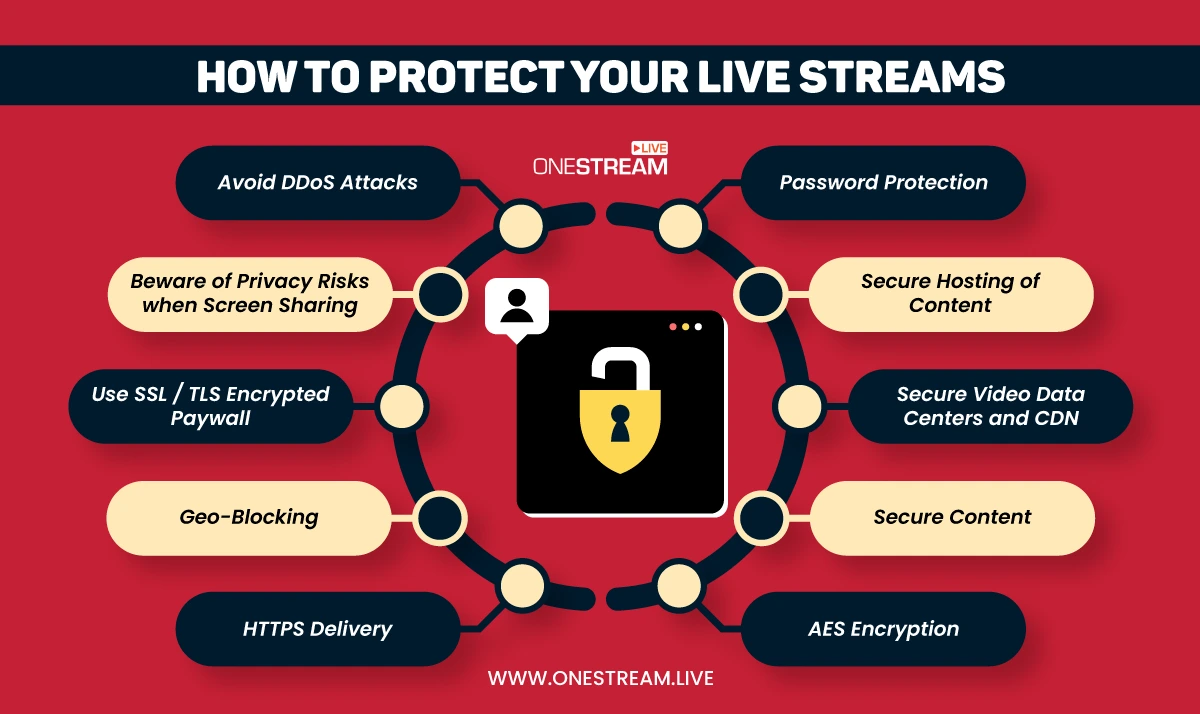
10 Ways to Protect Your Live Streams
Secure live streaming starts with access. If someone can log into your accounts or copy your stream key, every other protection stops mattering. So the first ways below lock down your accounts and keys, and the rest cover who can watch, how your video travels, and what to watch for while you're live.
1. Turn On Two-Factor Authentication Everywhere
Two-factor authentication (2FA) asks for a second proof after your password, like a code from an authenticator app. So a stolen password alone won't get anyone in. When CISA launched its "More Than a Password" campaign, its director said this simple step can make you 99% less likely to get hacked.
Turn it on for every account in your streaming chain that offers it: your streaming platform, each destination like YouTube or Twitch, and the email address that can reset them all. Any 2FA is better than none, but an authenticator app or security key is stronger than codes sent by text message. Our guide on how to avoid identity theft covers more ways to protect your creator accounts.
2. Treat Your Stream Key Like a Password
Your stream key tells the server that a broadcast belongs to you. Anyone who has it can go live on your channels without ever logging in.
Picture this: you record a quick OBS setup tutorial, and the stream key field shows on screen for two seconds. That's enough for a viewer to pause, copy it, and hijack your next broadcast.
Keep your key out of screenshots, tutorials, shared docs, and group chats, and store it in a password manager instead. If you ever suspect a leak, regenerate it right away and update your encoder with the new one. In OneStream Live, click Stream Keys on your dashboard, then click the three dots next to the key and select Regenerate Key.
3. Give Your Team Their Own Access, Not Your Password
Sharing one login with an editor, a moderator, and an agency is a breach waiting to happen. You can't tell who changed what, and you can't remove one person without resetting everything.
Give each person their own access instead. With OneStream Live's Team Management, you can invite each person with their own login and give them a role. Admins can manage streams, platforms, and content, while Co-hosts can manage streams and chat without access to your connected platforms. Review your team list regularly and remove anyone who has moved on.
4. Send Your Feed Over an Encrypted Protocol
Plain RTMP sends your video unencrypted between your encoder and the server. RTMPS wraps that same connection in TLS encryption, while SRT adds AES encryption and copes well with unstable networks.
If your encoder supports either one, switch. OneStream Live's Encoder Streaming accepts RTMP, RTMPS, SRT, and WHIP, so you can connect OBS or another external encoder over an encrypted protocol. Our RTMP vs SRT guide explains which one fits your network.
5. Password Protect Private Streams
To make a live stream private, host it somewhere you control, then add a password, a viewer restriction, or both. Social platforms offer basic private or unlisted settings, but a branded page or embedded player gives you far more control over private live streaming.
Password protected video streaming is one of the most basic ways to protect your live streams. Viewers must enter a password to access your broadcast, which keeps internal town halls, paid workshops, and members-only services private.
With OneStream Live, you can password protect Custom Websites, which you can connect to your own domain, or lock down an embedded Stream Player with a password and restrict it to approved domains. A few habits make passwords work harder:
- Change the password for every event.
- Share it through email or a ticket confirmation, never in a public post.
- Remember that passwords get forwarded, so add another layer, like geoblocking, for high-value events.
If you're comparing tools, look for a private streaming platform that combines password protection, custom domains, and multistreaming in one place. For classrooms, our guide to privacy and security in educational streaming covers extra safeguards.
6. Restrict Viewers by Region With Geoblocking
Geoblocking restricts access to your live streams based on each viewer's location, usually worked out from their IP address. It's useful when you hold the rights to a match or concert in one market only, or when a private company event should stay inside one country.
Check that your player, CDN, or host supports it before you sell regional access. VPNs can get around basic geoblocking, so treat it as one layer, not the whole wall.
7. Encrypt Delivery With HTTPS and AES
To secure video streaming from server to viewer, encrypt the video and every page around it, then add DRM if your content is worth stealing. Your secure video streaming platform should handle most of this for you, so check how it stores and delivers video before you commit.
HTTPS encrypts the connection between your website and each viewer, which protects logins, chat messages, and payment details. Viewers see a padlock icon next to your website address, which builds trust in your brand. To set it up, you'll need an SSL/TLS certificate from a reputed authority, such as RapidSSL, Sectigo, or Comodo SSL Certificates, and a hosting provider that supports it.
Running a paid stream? That's the core of a secure paywall. Using an SSL certificate on your checkout page encrypts viewers' payment and personal data, so they can pay with confidence.
For the video itself, the Advanced Encryption Standard (AES) scrambles your data so it can only be read with the correct key. AES is a U.S. government standard published by NIST as FIPS 197, with 128, 192, and 256-bit keys, and many streaming setups use AES-128 or AES-256 to encrypt video.
8. Add DRM to Premium Content
DRM, or digital rights management, encrypts your video and only lets approved players decrypt it with a license. It's one of the strongest defenses against people downloading and reposting your stream.
The main systems are Google Widevine, Apple FairPlay, and Microsoft PlayReady, and many DRM streaming setups support all three to cover the major browsers and devices.
Is it worth it? For a weekly podcast, probably not. For a ticketed concert, a premium course, or a sports broadcast, it often is. Add a visible watermark too, so any leaked copy points back to its source.
9. Check Your Screen and Chat Before You Share
Screen sharing can accidentally reveal sensitive information you didn't intend to share. Email previews, open tabs, desktop files, and notification pop-ups can flash on screen for a second, and a second is enough for a screenshot.
Before you share your screen:
- Close every app and tab you don't need.
- Turn on Do Not Disturb to block notifications.
- Share a single window instead of your whole desktop.
- Blur or mask anything sensitive in your scene.
Your chat needs guarding too, since spam floods and raids can derail a stream in seconds. OneStream Live's Live Chat brings comments from YouTube, Facebook Pages, Twitch, LinkedIn Pages, and Kick into one place, with moderation tools like a profanity filter, custom filter words, slow mode, and a blocked users list.
10. Prepare for DDoS Attacks and Outages
Picture this: you're in the middle of a live stream, and suddenly it goes down. It could be a DDoS attack. A distributed denial-of-service attack floods a server with fake traffic until real viewers can't connect. CISA's guide to understanding denial-of-service attacks explains how they work.
Protect your broadcast three ways:
- Choose secure hosting: Use a streaming platform or host that delivers over a content delivery network (CDN) with built-in DDoS protection, firewalls, and regular security updates.
- Keep a backup ready: OneStream Live's backup stream key takes over automatically if your primary stream disconnects.
- Go wide: Multistream to the destinations you choose from 45+ integrations, so one outage never takes your whole audience with it.
Your 5-Minute Preflight Security Checklist
Run through this list before every broadcast:
Before You Go Live
Tick off each item:
- Check your logins: Confirm 2FA is on for every account in your stream chain.
- Hide your stream key: Make sure it isn't visible in your encoder window or scene.
- Pick an encrypted protocol: Set your encoder to RTMPS or SRT where it's supported.
- Set access: Update the event password or player restrictions for this stream.
- Clean your screen: Close extra tabs, apps, and notifications.
- Arm your moderation: Add filter words and assign a moderator.
- Test your backup: Make sure your backup stream or second destination is ready.
If you run a streaming business, a regular security audit helps you catch the gaps this checklist can't.
Final Thoughts
Secure video streaming comes down to three questions: who can get into your accounts, who can watch, and how your video travels. Answer those well, and you've blocked most of what can go wrong.
Start with the quick wins today. Turn on two-factor authentication, move your stream key into a password manager, and switch your encoder to RTMPS or SRT. Then add password protection, DRM, and a backup stream as your broadcasts grow more valuable. Securing your live streams should be a top priority for any business that wants to succeed online.
Frequently Asked Questions
What is the best platform for private streaming?
The best platform for private streaming depends on how much control you need. Look for password protection, custom domains, access restrictions, and encrypted ingest like RTMPS or SRT. OneStream Live, for example, combines password-protected Custom Websites and Stream Players with multistreaming, so private and public audiences can watch the same broadcast.
What happens if someone steals my stream key?
They can broadcast their own video to the channel linked to that key, with no login required. Regenerate the key immediately, update it in your encoder, and check your connected accounts for changes. Then store the new key in a password manager, not in notes or chats.
Is RTMPS more secure than RTMP?
Yes. RTMPS encrypts the connection between your encoder and the streaming server with TLS, while standard RTMP sends video unencrypted, so it can be intercepted on shared or public networks. If your encoder and platform support RTMPS or SRT, use them for every broadcast.
Do I need DRM for live streaming?
You need DRM when your content has direct commercial value, like ticketed concerts, sports, or paid courses. DRM encrypts video so only licensed players can decrypt it, which makes downloading and reposting much harder. For free community streams, password protection and HTTPS usually give enough protection at a lower cost.
Can you have secure video streaming on YouTube or Facebook?
Yes, but your part is access, not delivery. You control account security, stream key safety, and visibility settings, such as YouTube's private and unlisted options. For paid or members-only events, host the stream on a password-protected page you control.
OneStream Live is a cloud-based live streaming solution to create, schedule, and multistream professional-looking live streams across 45+ social media platforms and the web simultaneously. For content-related queries and feedback, write to us at [email protected]. If you have a story to share about your live streaming experience with OneStream Live, we would be glad to feature it. You're also welcome to Write for Us!