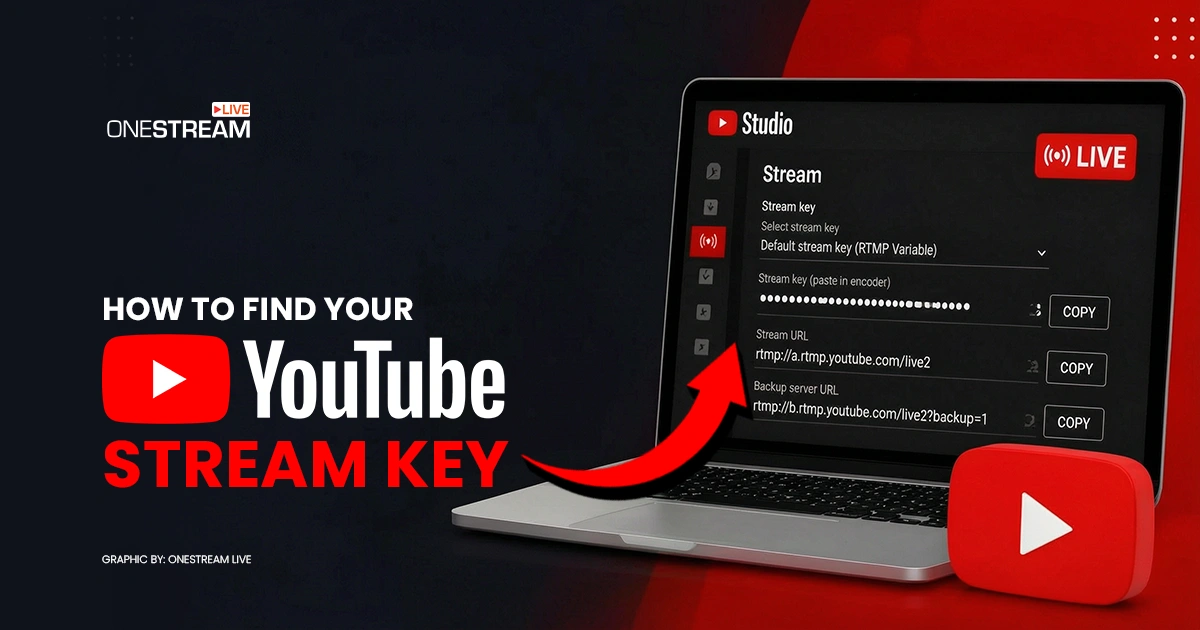
If you want to live stream to YouTube using software like OBS, Streamlabs, or OneStream Live, you’ll need your YouTube stream key first. It’s the small piece of code that connects your encoder to your channel, and without it, your software has no way to send video to YouTube. The tricky part is that YouTube doesn’t make it obvious where to find it. Most beginners spend more time hunting for the key than actually setting up their stream.
In this guide, we’ll show you exactly how to find your YouTube stream key, step by step, on both desktop and mobile.
So let’s get started.
What Is a YouTube Stream Key (and Why Do You Need One)?
A YouTube stream key is a unique alphanumeric code that tells YouTube, “hey, this video feed belongs to my channel.” Think of it as a password for your live stream. When you plug it into software like OBS, Streamlabs, or a multistreaming tool like OneStream Live, that software can push your video straight to your YouTube channel.
You’ll need a YouTube live stream key any time you’re streaming through external software instead of YouTube’s built-in webcam tool. So if you’re using a real encoder, gaming setup, or a platform like OneStream Live, this little code is what makes it all work.
Treat it like a password too. Anyone who has your stream key can broadcast to your channel, so don’t share it on screen, in screenshots, or with people you don’t trust.
Before You Start: YouTube Live Streaming Requirements in 2026
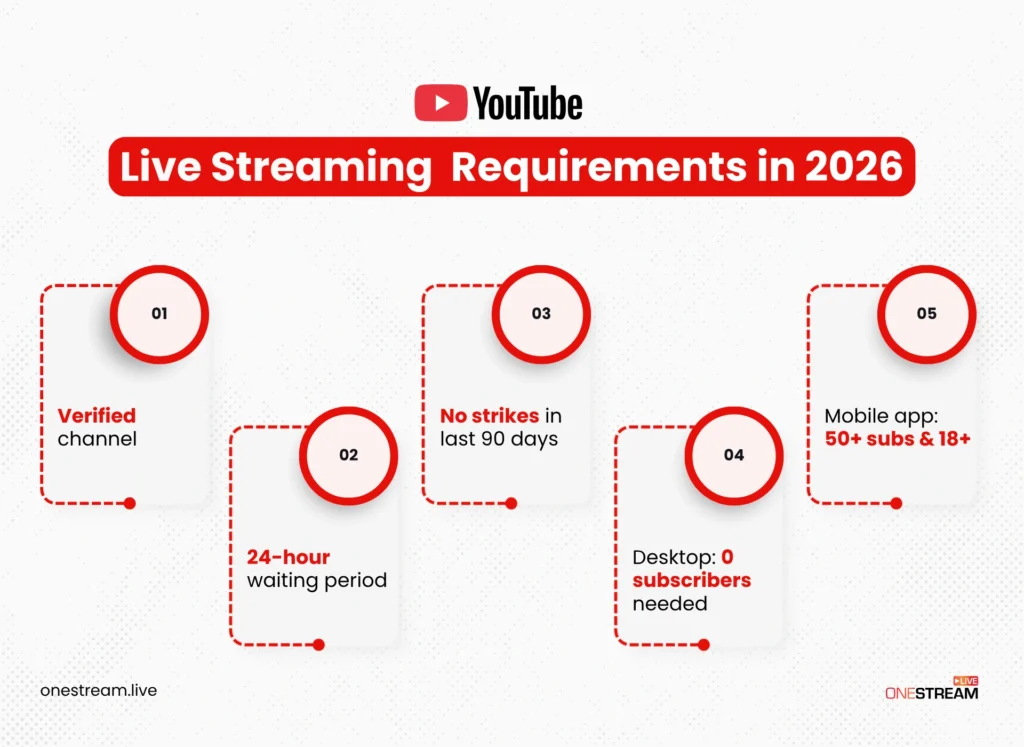
Before we get to where to find my stream key, let’s quickly cover what YouTube expects from your account. Skipping this part is the number one reason beginners can’t find the option at all.
You Must Verify Your Channel First
To verify your channel, go toyoutube.com/verify and confirm your account using your phone number. It is quick, and you only do it once. Without verification, the live streaming option simply will not show up in your dashboard.
There's a 24-Hour Waiting Period
Here’s the part most tutorials forget to mention. According toYouTube’s official Help Center, after you enable live streaming for the first time, you may need to wait up to 24 hours before you can start your first broadcast. So if you’re planning a big event, don’t try to set things up an hour before. Do it the day before, at minimum.
Your Account Must Be in Good Standing
YouTube requires no live streaming restrictions on your channel within the past 90 days. That means no Community Guideline strikes, no active copyright issues, and no existing penalties on live streaming. If you’ve had a strike recently, you may need to wait it out before the option becomes available again. (YouTube Help — Mobile live streaming requirements)
Subscriber Requirements Depend on Your Method
This part trips people up, so pay attention.
To get YouTube stream key access on desktop (through YouTube Studio’s Live Control Room) or through live streaming software like OBS or OneStream Live, you need zero subscribers. None. Anyone with a verified channel in good standing can do it though this method.
To stream directly through the YouTube mobile app, you will need:
One more thing worth flagging: even once you cross the 50-subscriber line, if you’re under 1,000 subs, YouTube may cap your mobile live stream’s viewer count, and your archived stream will default to private. Full mobile streaming opens up at 1,000 subscribers.
If you are under 50 subs and want to stream from your phone anyway, the workaround is to open YouTube Studio in your mobile browser instead of the app, which counts as desktop streaming and bypasses the subscriber rule entirely.
Once you are set on all of these, you are good to go.
How to Find YouTube Stream Key on Desktop (Step-by-Step)
This is the section you came for. Here is exactly how to get YouTube stream key access through YouTube Studio on your computer. I will walk you through every click.
1. Open YouTube Studio
Go to studio.youtube.comand sign in. Double-check that you are on the correct channel if you manage more than one. The little profile picture in the top right shows which account you are on.
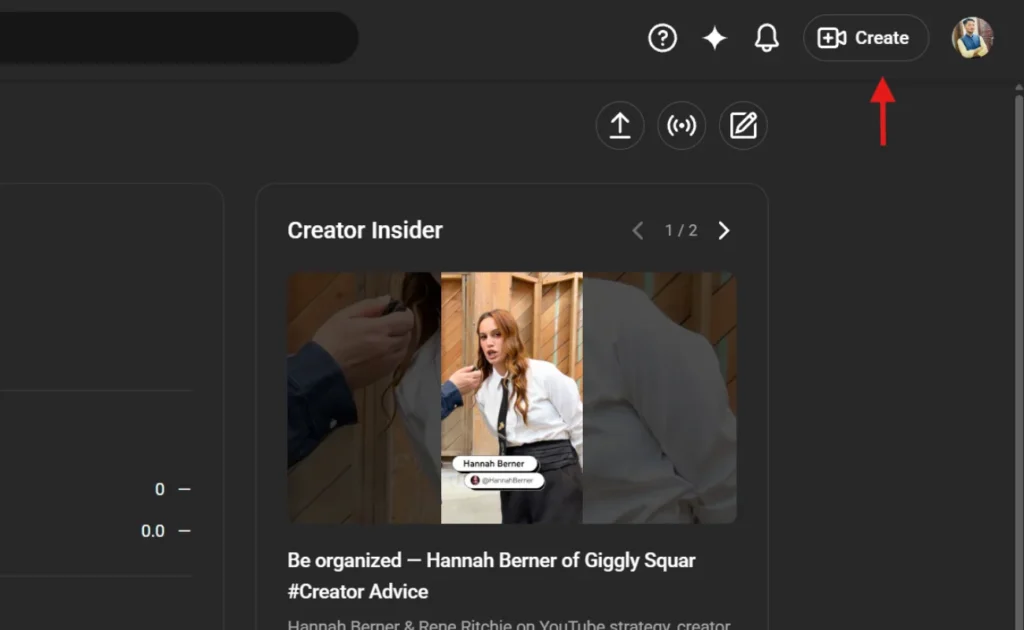
2. Click the Create Button
In the top-right corner of YouTube Studio, you will see a camera icon with a plus sign. That’s the Create button. Click it.
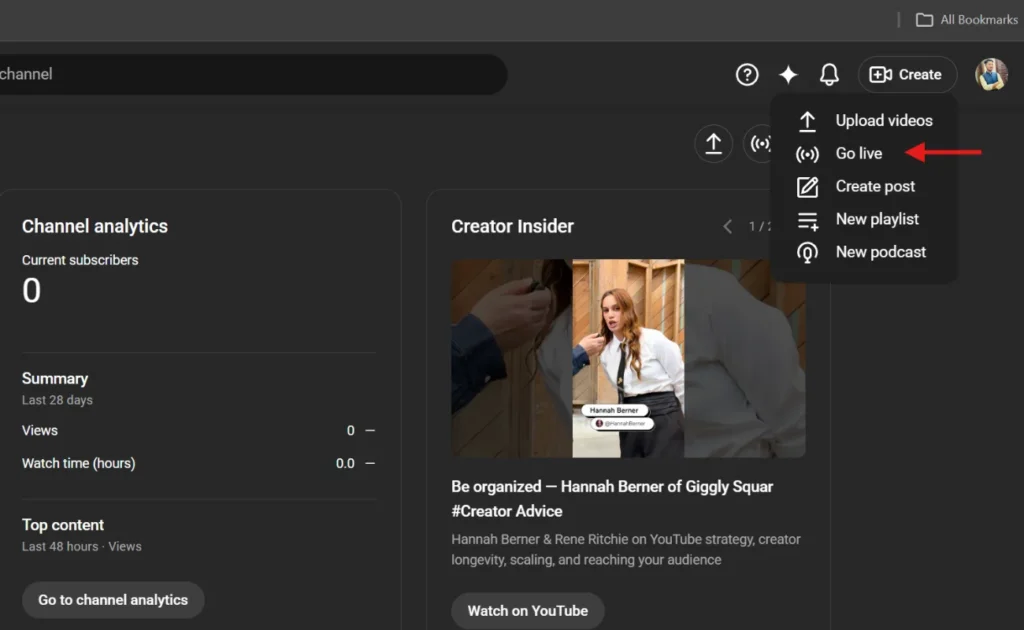
3. Select Go Live
A small dropdown appears with multiple options. Click Go Live. This opens the Live Control Room, which is YouTube’s home base for everything live streaming.
4. Choose When to Go Live
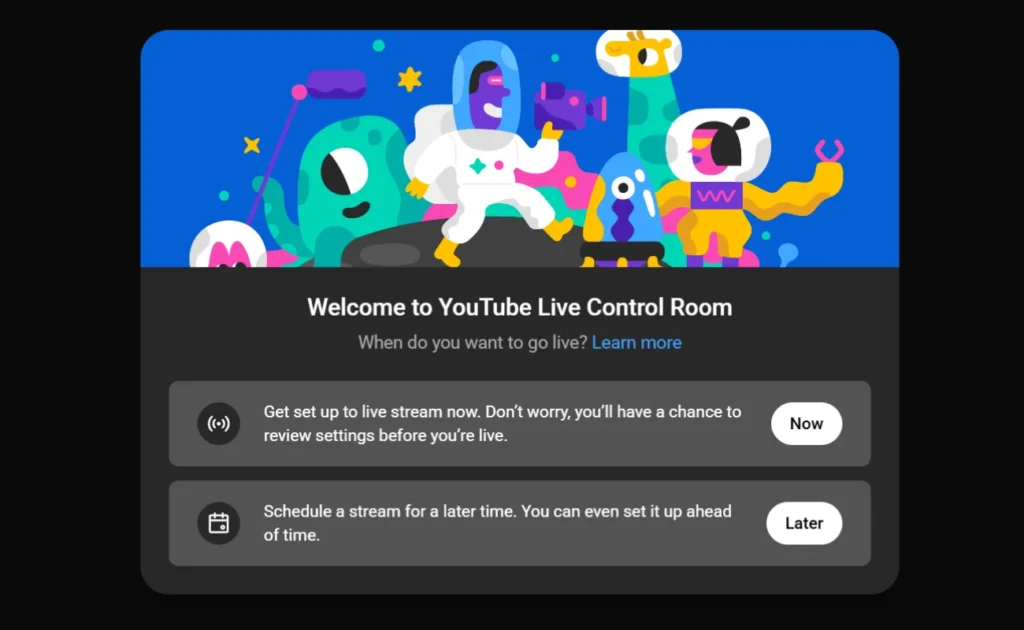
After clicking Go Live, you will see the “Welcome to YouTube Live Control Room” pop-up with two options:
Now — Get set up to live stream right away (you’ll still get to review settings before you’re actually live).
Later — Schedule a stream for a future date and time.
Click Now next to “Right now” if you’re streaming today, or click Later to schedule it ahead of time.
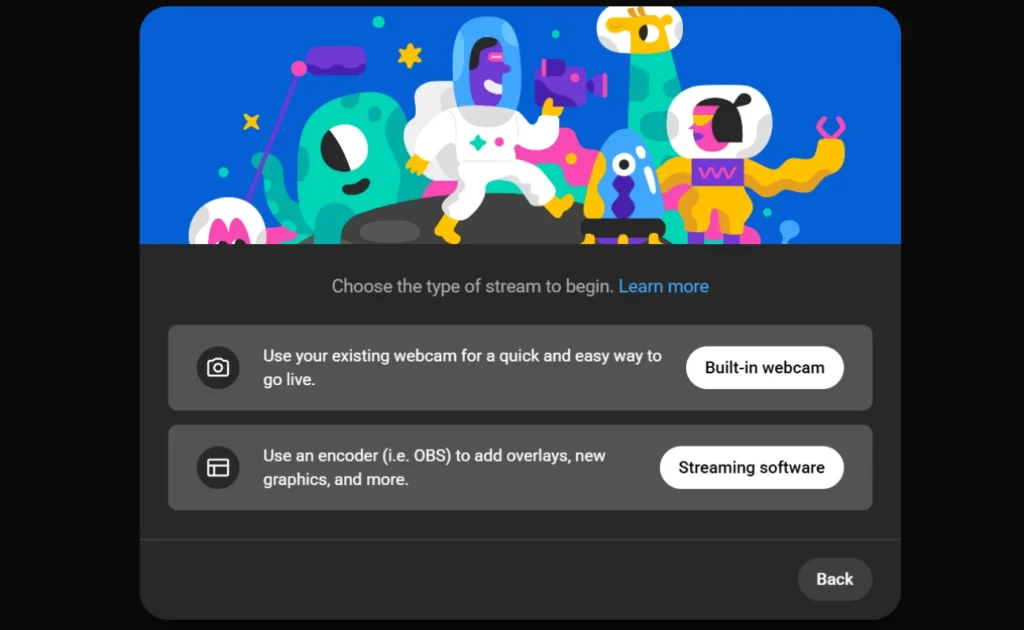
5. Pick Your Streaming Method
YouTube will ask how you want to stream. Click Streaming software if you are using an encoder like OBS, Streamlabs, or OneStream Live. This is the option that unlocks your stream key.
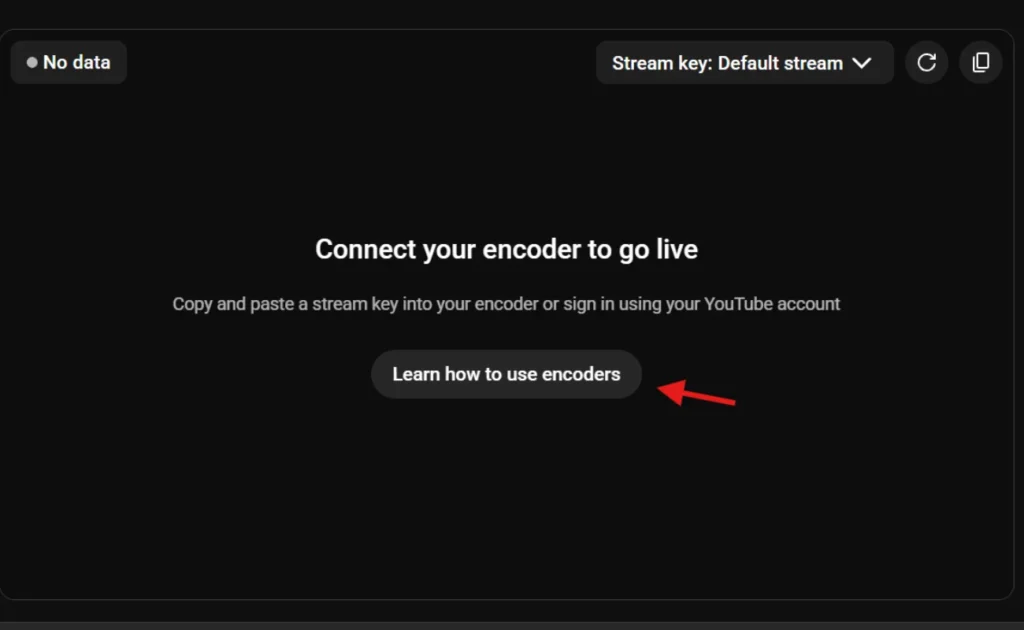
6. Open Stream Setup Help
On the main encoder screen, click Learn how to use encoders (the button under “Connect your encoder to go live”). A Stream setup help pop-up will open with your stream key inside.
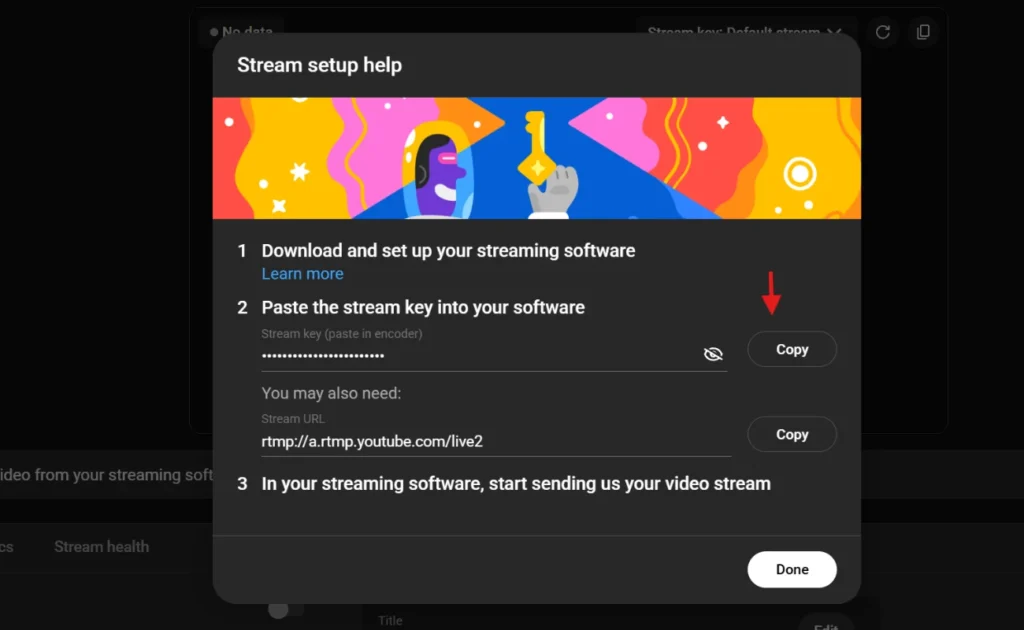
7. Reveal and Copy Your Stream Key
In the pop-up, you will see Stream key (paste in encoder) hidden behind dots. Click the eye icon to reveal it, then hit Copy. You will also find your Stream URL (rtmp://a.rtmp.youtube.com/live2) right below it. Grab that too, your encoder needs both.
Don’t try to type the key by hand. It’s long, random, and one wrong character means a “failed to connect” error later. Copy-paste only.
That’s it. Drop the stream URL and stream key into OBS, OneStream Live, or whatever encoder you’re using, and you are ready to broadcast.
Mobile is a slightly different story because the YouTube app handles most of the work for you behind the scenes.
If you’re streaming directly through the YouTube mobile app on iPhone or Android, you don’t actually need to find a stream key at all. Just tap the + (Create) button at the bottom of the app, choose Live, fill in your title and details, and start streaming. YouTube handles the stream key automatically. The catch is you’ll need at least 50 subscribers and you must be 18 or older.
But what if you’re under 50 subs, or you want the freedom to stream from your phone without those restrictions? Here’s the workaround.
Open Chrome or any search engine on your phone, and go to studio.youtube.com. From there, follow the exact same seven steps from the desktop section above. It works the same way, and it bypasses the 50-subscriber rule completely.
Even better, once you’ve got your stream key, you can pair it with the OneStream Live mobile app and broadcast from anywhere. No subscriber minimum, no laptop needed, and you’re streaming to YouTube plus every other platform you’ve connected, all from your phone.
This is honestly a lifesaver for new creators. You can get your stream key on day one, with zero subscribers, and go live across 45+ platforms straight from your pocket.
How to Connect Your YouTube Stream Key with OneStream Live
Now that you know how to get stream key access and have it in your hands, here’s where things get really interesting. Instead of streaming only to YouTube, you can broadcast to YouTube and 44 other platforms at the same time using OneStream Live. Same stream, way more reach.
There are two ways to do it.
The easiest method is direct integration. Log in to your OneStream Live dashboard, click Add Social Platforms, pick YouTube, and authorize the connection. OneStream Live handles the stream key exchange for you. No copy-pasting needed. Schedule your stream or go live, and you’re broadcasting.
The custom RTMP method is what you want if you’ve already set up a YouTube Live event with specific settings you don’t want to recreate. In OneStream Live, click Add Social Platform, choose Custom RTMP, and paste in the YouTube stream URL and stream key you just copied from YouTube Studio. Set your keyframe interval to 2 seconds (this part matters, don’t skip it), and click Connect.
Either way, you’re live on YouTube plus every other platform you’ve added, all from one place.
Why Creators Are Switching to OneStream Live
I won’t pretend there aren’t other ways to live stream, but here is why OneStream Live keeps showing up in creator workflows in 2026.
Stream to 45+ Platforms at Once
This is the headline feature. With one broadcast, you can go live on YouTube, Facebook, Instagram, LinkedIn, Twitch, X, TikTok, Kick, Rumble, and dozens more. Your audience is not all on one platform anymore, so why limit yourself?
Pre-Recorded Videos That Stream Like Live
Got a polished video sitting on your hard drive? Upload it to OneStream Live and stream it as if it were live. Your viewers see a live chat, a live indicator, everything. You don’t even have to be at your desk. Schedule it up to 60 days ahead and walk away.
24/7 YouTube Channel Streaming
Want a channel that never stops broadcasting? Upload your videos to OneStream Live, turn on automatic looping, and stream non-stop for up to 30 days. Great for music channels, news tickers, study-with-me streams, or any always-on content.
Cloud-Based, No Software to Install
Everything runs in your browser. Chrome, Edge, Firefox, whatever. No heavy downloads, no CPU overload, no encoder configuration headaches. You send one stream to the cloud, and OneStream Live distributes it everywhere for you.
Unified Chat
When you’re streaming to YouTube, Facebook, and Twitch at the same time, you don’t want three tabs open trying to keep up. OneStream Live pulls all the comments into one dashboard so you can reply to everyone from the same screen.
Studio Tools Built In
OneStream Live includes its own browser-based production studio with up to 4 cameras, 16 guest slots, screen sharing, overlays, intros, outros, and even a teleprompter. So if you’re hosting interviews, panels, or webinars, the whole production stays in one tab.
Wrapping Up
That’s really all there is to it. A few clicks inside YouTube Studio and your YouTube stream key is ready to go. Paste it into your encoder, hit go live, and you’re broadcasting.
And if you ever feel like one platform isn’t enough, OneStream Live lets you take the same stream to YouTube, Facebook, Instagram, LinkedIn, Twitch, and 40+ more, all at once. Sign up for free and start streaming today.
Your old key stops working right away, so just remember to update it in every piece of software you use before your next stream.
OneStream Live is a cloud-based live streaming solution to create, schedule, and multistream professional-looking live streams across 45+ social media platforms and the web simultaneously. For content-related queries and feedback, write to us at [email protected]. You’re also welcome to Write for Us!
We use cookies to enhance your browsing experience, serve personalized content, and analyze our traffic. By clicking "Accept All", you consent to our use of cookies.
Cookie Preferences
Strictly NecessaryRequired
Essential for the website to function properly.
Functional
Enable enhanced functionality and personalization.
Analytics
Help us understand how visitors interact with our website.