Operating more than one Twitch account may sound easy until it all falls apart. Most of the time, users are unaware of the reasons why their accounts are flagged, banned, or disconnected. A single mistake can expose all of your Twitch accounts, and Twitch has safeguards in place to detect and restrict multi-account activity.
In this guide, you will find all you need to know. Why Twitch blocks several accounts, why IP overlap is an issue, and what you can do to ensure that each account is independent and stable over the long run.
- Twitch allows multiple accounts. What gets you banned is using them for ban evasion, fake engagement, or coordinated self-promotion.
- Twitch links accounts through IP addresses, device fingerprints, cookies and behavior patterns.
- Linked accounts aren’t a problem by themselves. They become one when the accounts break policy together.
- Cross-interacting between your own accounts, by following, raiding or hosting, is what behavioral detection is built to catch.
- Keep registration details unique per account, and don’t run them from the same browser session.

Why Twitch Restricts Multi-Account Activity
Twitch gives users the option of multiple accounts. However, it forbids using those accounts to break its policies. Most people get into trouble there.
The most common ones are coordinated self-promotion, artificial view boosting, and ban evasion. Twitch may ban all accounts associated with the same user if it detects that two or more accounts are connected and being used for any of these purposes.
Twitch connects accounts by using IP addresses, device fingerprints, browser cookies, and behavioural patterns.
How IP Overlap Leads to Account Linking
The most obvious indicator that Twitch uses to identify accounts is your IP address. Twitch can detect that when two or more accounts are logged in using the same IP. It does not necessarily impose a ban, but it places such accounts under the same profile within Twitch’s system.
The issue becomes worse with time. The more you switch between accounts on the same network, the stronger the link becomes. Add the same browser, the same device or the same cookies, and Twitch has a very clear picture of who owns all those accounts.
That is why it is not enough to simply log out and log in using another account. The IP stays the same. The device stays the same. Nothing is actually separated.
Common Mistakes When Running Multiple Twitch Accounts
The majority of those who end up being flagged are not necessarily those who have done something wrong; they just failed to do things the right way to begin with. These are the most widespread errors.
Using the Same IP for All Accounts
This is the biggest one. The fastest way to get them registered on Twitch is to use the same network to log in with multiple accounts.
Using the Same Browser
When you switch browser sessions, cookies, cached data, and browser fingerprints are still there. Changing accounts within the same browser leaves a trail each time.
Reusing the Same Email or Phone Number
Twitch records registration information. It does not take much effort to be able to notice variations of the same email or the same phone number between accounts.
Read More: How to Verify Twitch Account for Live Streaming Without Phone Number
Interacting Between Accounts
This is a clear indication of following, hosting, or raiding your own accounts using various names. This is soon picked up by behavioural analysis of Twitch.
Not Separating Accounts From Day One
Users attempt to resolve the issue when the accounts are already connected. By that time, the damage is done. Separating must occur at the beginning and not the end.
Using Twitch Proxy for Account Separation
The ideal method of network separation of Twitch accounts is to give each a different IP. That is exactly what a proxy does.
By sending each account through its own Twitch proxy, you will have a different IP per account. No overlap, no connection between them. To Twitch, each account appears to be an entirely new user on an entirely new network.
This is best done by residential proxies. They employ real IPs that are associated with real devices, so they appear like ordinary home internet connections. Datacenter proxies are less expensive, and Twitch can more easily flag them as non-human traffic.
A few things to keep in mind. One proxy is used in each account, and there is no need to rotate the same IP address across different accounts. Always use the same proxy with each account. Consistency prevents accounts from getting linked.
Combining Network and Browser Isolation
A proxy handles the IP side. But IP alone isn’t enough. Twitch also records browser fingerprints, cookies and device information. You need to isolate those too.
The most viable method of doing this is to have a separate browser profile per account. The majority of browsers have several profiles as the default. All the profiles have their cookies, history, and login sessions, and are entirely independent of one another.
To be more isolated, a separate browser by account or an anti-detect browser can be used. Anti-detect browsers also take it a step further by hiding your device fingerprint, so that each profile appears to be an entirely different device to Twitch.
How to Stream to Multiple Social Accounts
If you want an easier way to stream to multiple social accounts, OneStream Live can help. Instead of switching between accounts or setting up different streams, you can stream to multiple Social media platforms at the same time from one place.
OneStream Live lets you multistream beyond Twitch, so you can go live on platforms like YouTube, Facebook, and others at the same time. This makes it easier to reach a wider audience without extra effort.
Read More: How to Dual Stream on Twitch and YouTube?
Best Practices for Long-Term Twitch Account Stability
The first step is to get the setup right. The second step is to maintain it in the long term.
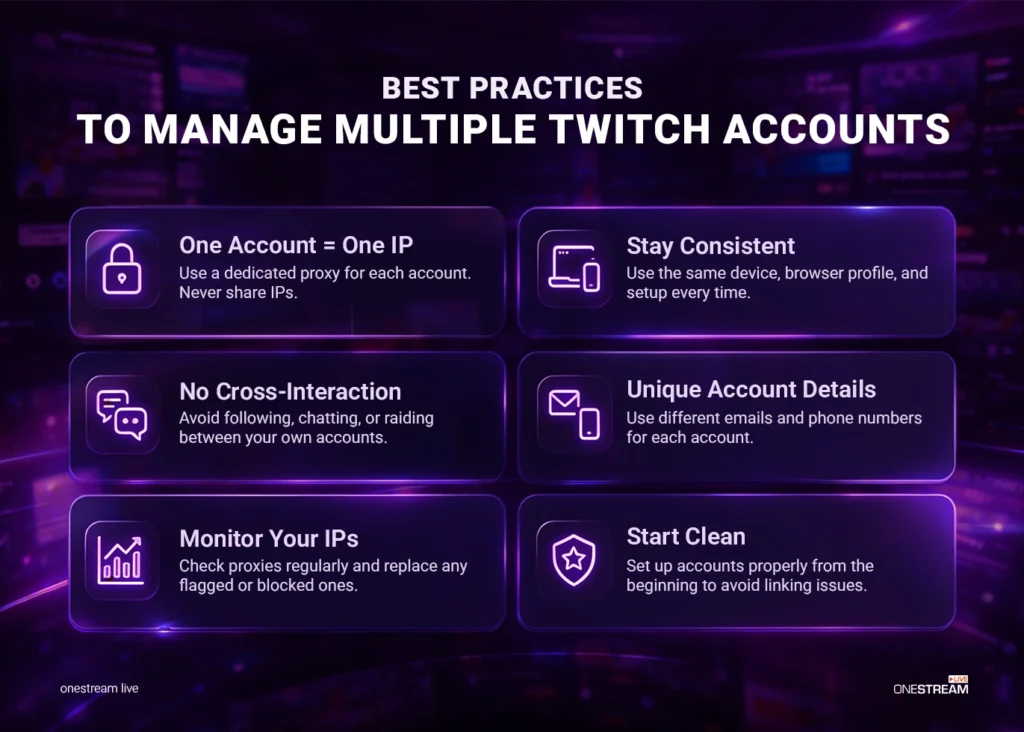
Assign a Dedicated Proxy to Each Account
Do not share IPs between accounts. One account, one IP, every time. The mid-way change of proxies may raise a flag.
Use the Same Device Setup Every Session
Consistency matters. Always use the same browser profile, the same proxy, and the same device. Any sudden change in behavior looks suspicious to Twitch.
Never Cross-Interact Between Accounts
Don’t follow, raid, host, or chat between your own accounts. Even minor interactions create a trend, which can be followed by the system of Twitch over time.
Keep Registration Details Unique
There should be an email address and phone number for each account. Do not use identical details or blatant variations across accounts.
Check Your Proxies Regularly
You may be unaware that your account is at risk due to a flagged or blacklisted IP. Periodically test your proxies and swap out those that appear on blocklists.
Start Clean
When creating new accounts, make sure to do so right away. Maintaining initially distinct accounts is much easier than trying to separate accounts that you have tried to maintain together.
Conclusion
Managing multiple Twitch accounts without interruptions comes down to proper setup, consistency, and using the right tools. By keeping each account separate and avoiding common mistakes, you can run multiple streams smoothly without risking restrictions.
If you want to simplify the process even further, OneStream Live gives you an easy way to stream to multiple platforms at the same time, without constant switching or complicated setups.
Frequently Asked Questions
Can you have multiple Twitch accounts?
Yes, Twitch allows users to have more than one account. The problem starts when extra accounts are used for ban evasion, fake engagement, spam, or other policy violations. Twitch also has systems that detect suspicious links between accounts.
Can Twitch detect multiple accounts on the same IP address?
Twitch does not publicly list every signal it uses, but it clearly states that it uses account signals and enforcement tools to detect ban evasion and suspicious linked activity. It also ties some enforcement to phone-verified accounts, which shows that linked-account detection is part of its safety system.
How do I switch between Twitch accounts without problems?
The normal way is to log out and log back in, or use separate browser profiles to keep sessions cleaner. For users managing multiple brands or channels, keeping each setup organized matters because repeated mix-ups between sessions can create account management issues over time. Twitch also lets you review connected apps and account settings from your dashboard.
Can you multistream to Twitch and other social media platforms at the same time?
Yes. Multistreaming tools let you send one live stream to Twitch and other platforms like YouTube, Facebook, and more at the same time. This is one of the main reasons creators use multistreaming services instead of managing each platform separately.
Will Twitch ban all my accounts if one gets banned?
It can. Twitch suspensions apply to the person, not just the username, so if it links your accounts and one is banned for a policy violation, the others are at risk. Creating a new account to get around an existing ban is itself a violation, which is the situation most likely to cost you everything at once.
OneStream Live is a cloud-based live streaming solution to create, schedule, and multistream professional-looking live streams across 45+ social media platforms and the web simultaneously. For content-related queries and feedback, write to us at [email protected]. You’re also welcome to Write for Us!