What separates a smooth live stream from a chaotic one? It is not your camera or your mic. It is how well you stay connected with your community without breaking your gameplay. Discord Overlay is the tool that makes this possible. It pulls your entire Discord experience onto your game screen, so you can chat, coordinate, and react while staying fully in the action. In this guide, you will learn how to turn on Discord Overlay in a few simple clicks, plus some pro tips to make it work flawlessly
- Discord Overlay works only on the Windows desktop app, not on browser or Mac.
- It shows voice chat, messages, and friend activity right on top of your game.
- The overlay only appears in borderless windowed or windowed fullscreen mode.
- It is completely free and built into Discord. No Nitro or paid plan needed.
- Perfect for live streamers, competitive gamers, and anyone who hates tabbing out mid game.
What Is Discord Overlay and Why You Need It
Discord Overlay is a feature that displays your Discord interface on top of any game you play on PC. It shows who is speaking, lets you read messages, and even reply without leaving your game. The new overlay launched in March 2025 and works through a widget based system instead of injecting into your game files.
This makes it lighter, faster, and friendlier to anti cheat software. You can move widgets around, pin your favorite channels, and customize everything to fit your screen.
Important Thing to Know Before You Start
You cannot use Discord Overlay on the web version of Discord. The overlay feature is only available in the desktop app. If you do not have the app yet, go to discord.com and click the download button on the homepage.
Install it on your PC, sign in with your account, and you are ready to go. This is the main reason most people think the overlay does not exist. They only use Discord in the browser.
Read Later: How to Stream PS5 to Discord Easily (Step-by-Step Guide)
How to Turn on Discord Overlay (Step by Step)
Now let us get to the main part. Follow these easy steps and your overlay will be ready in under a minute. I have tested this exact path in the latest Discord version for 2026.
Step 1: Open the Discord Desktop App
Launch Discord on your PC and let it fully load. Make sure you are signed in and on the main screen where you can see your servers and friends list.
Step 2: Go to User Settings
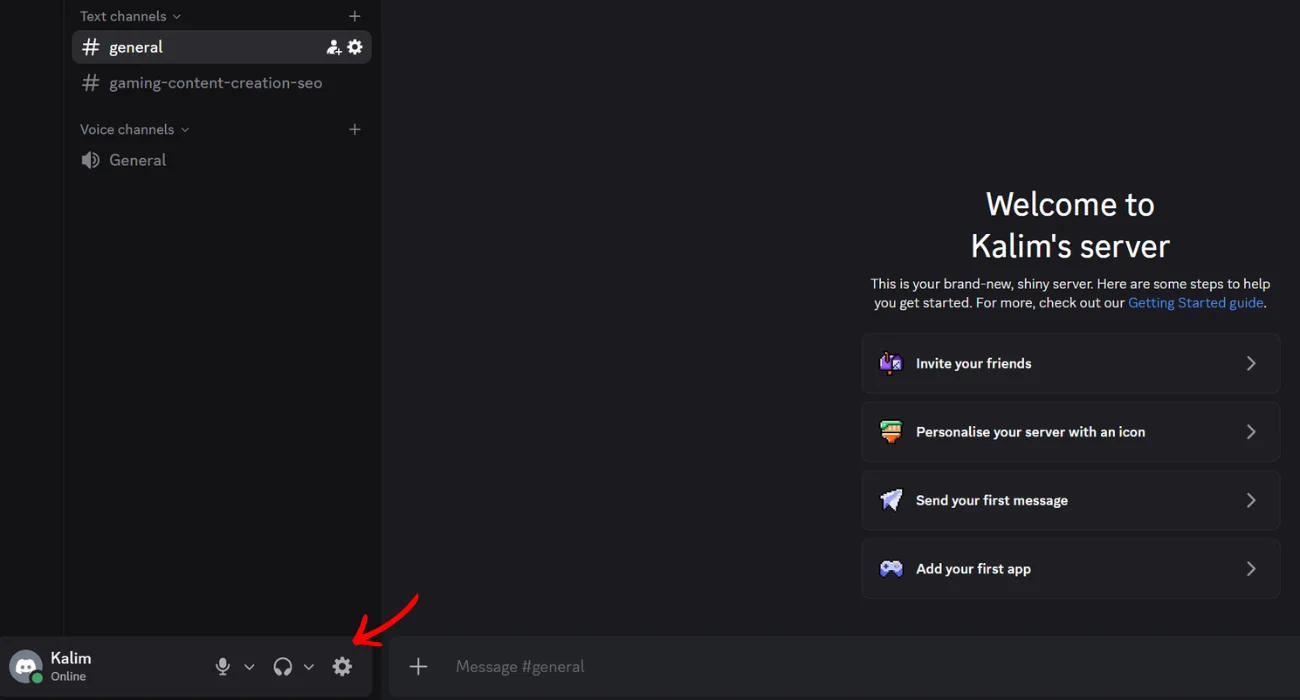
Look at the bottom left corner of the Discord window. Right next to your username, you will see a small gear icon (⚙️). Click on that gear icon to open User Settings.
Step 3: Scroll Down and Click on Overlay
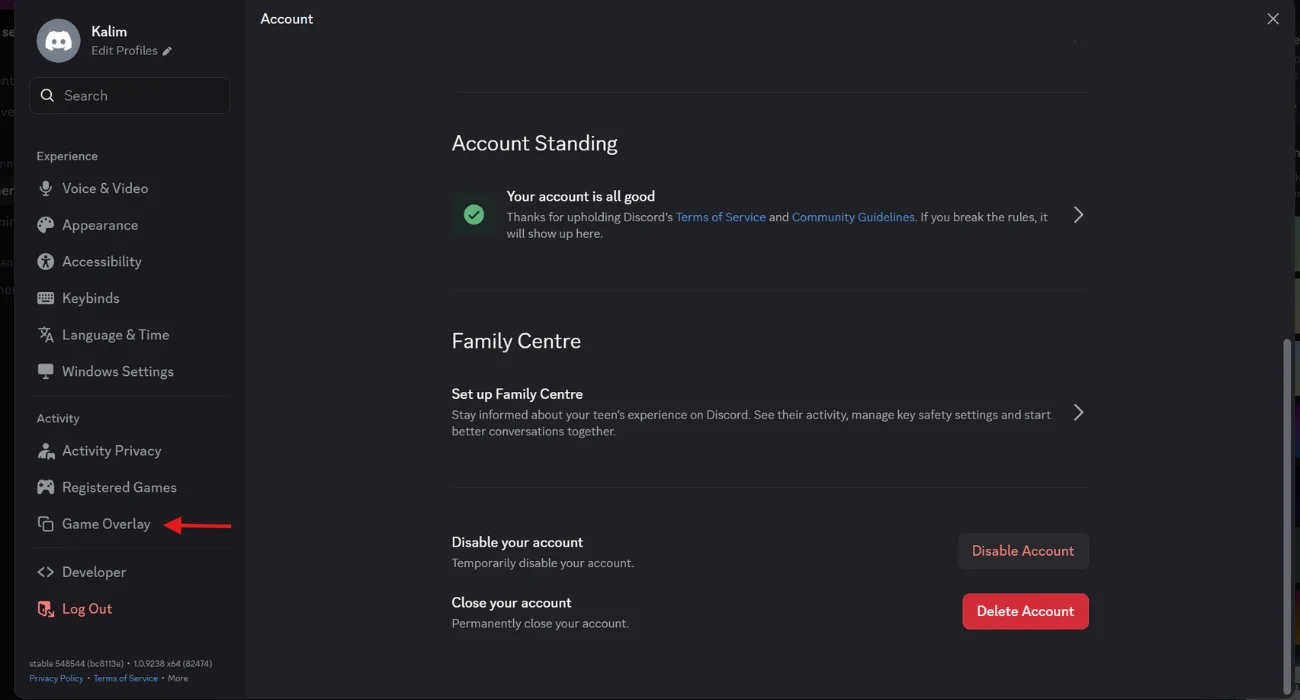
Inside User Settings, you will see a long sidebar on the left. Scroll down until you find the section called Activity Settings. Under that section, click on Game Overlay.
Step 4: Enable the Overlay Toggle
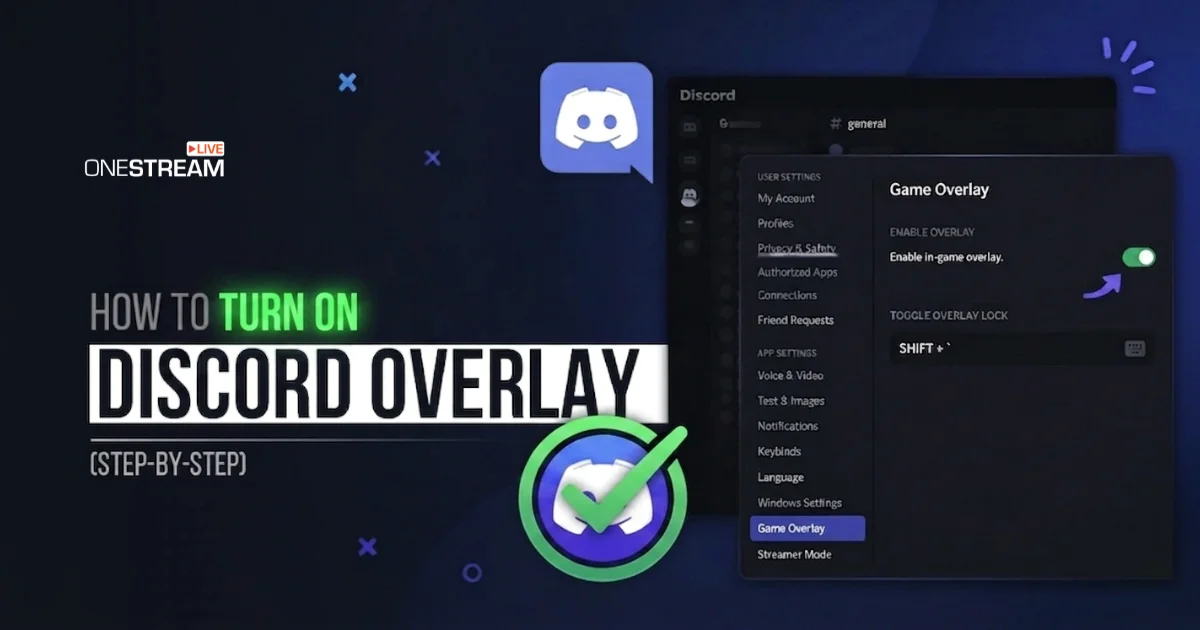
On the Overlay page, you will see two main toggles at the top. The first one is Enable Overlay. Click the toggle next to it and it will turn blue. That is it. Your Discord Overlay is now active.
If you want extra support for older games, you can also turn on Enable Legacy Overlay below it. That toggle helps the overlay show up in games where the new version does not work.

How to Customize the Voice Widget
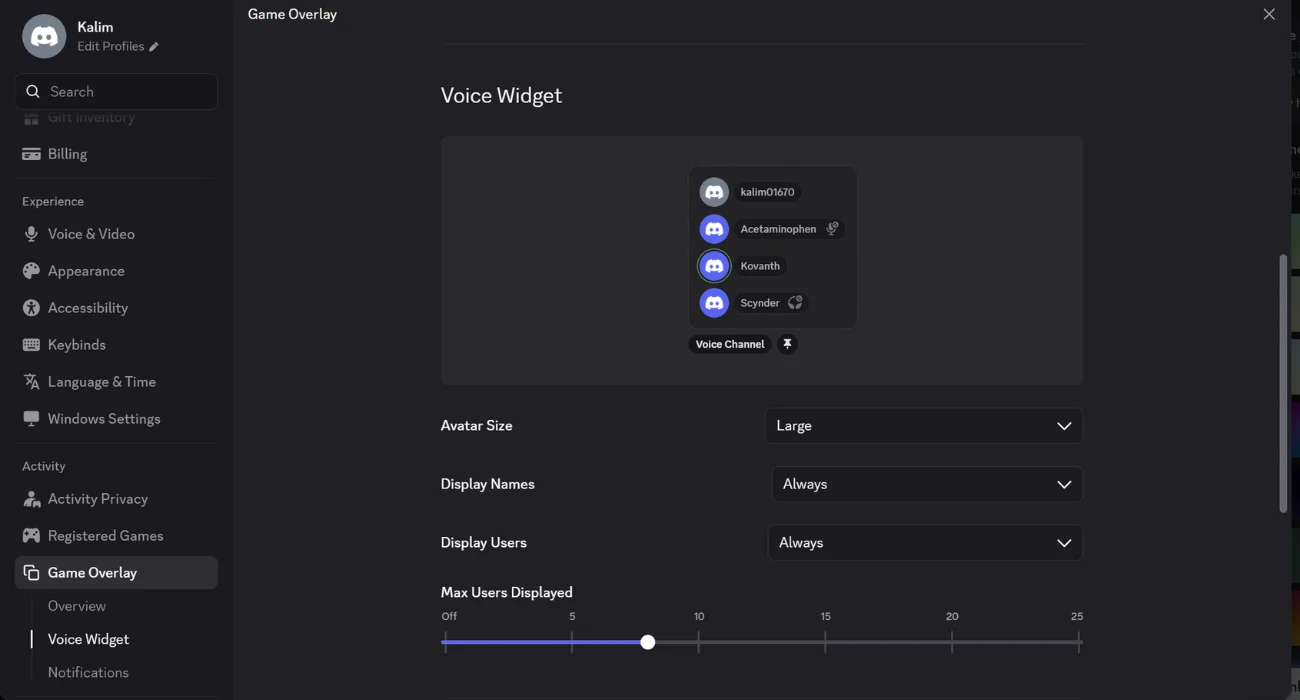
After you turn on the overlay, you can make it look and feel exactly how you want. Discord gives you a clean preview pane so you can see your changes in real time.
You will find three main settings here. Avatar Size lets you choose between Large and Small icons. Display Names controls when usernames appear, with options like Always or Only While Speaking. Display Users decides when people show up in the widget. There is also a Max Users Displayed slider where you can pick how many people appear at once.
For most players, Small avatars with Display Users set to Only While Speaking work best. It keeps your screen clean and shows only the active speakers.
How to Use the Overlay Lock Keybind
Discord gives you a default keybind to lock and unlock your overlay. The default combo is Shift plus the backtick key (`). When the overlay is unlocked, you can drag widgets around your screen. When locked, they stay in place during gameplay.
You can change this keybind anytime. Go to the Overlay page and click Edit Keybind next to Toggle Overlay Lock. Pick a combo that does not clash with your game controls.
If you want notifications to be clickable while the overlay is locked, turn on Enable overlay clickable regions. This lets you reply to messages or accept calls without unlocking anything.
How to Turn On Overlay Discord Notifications
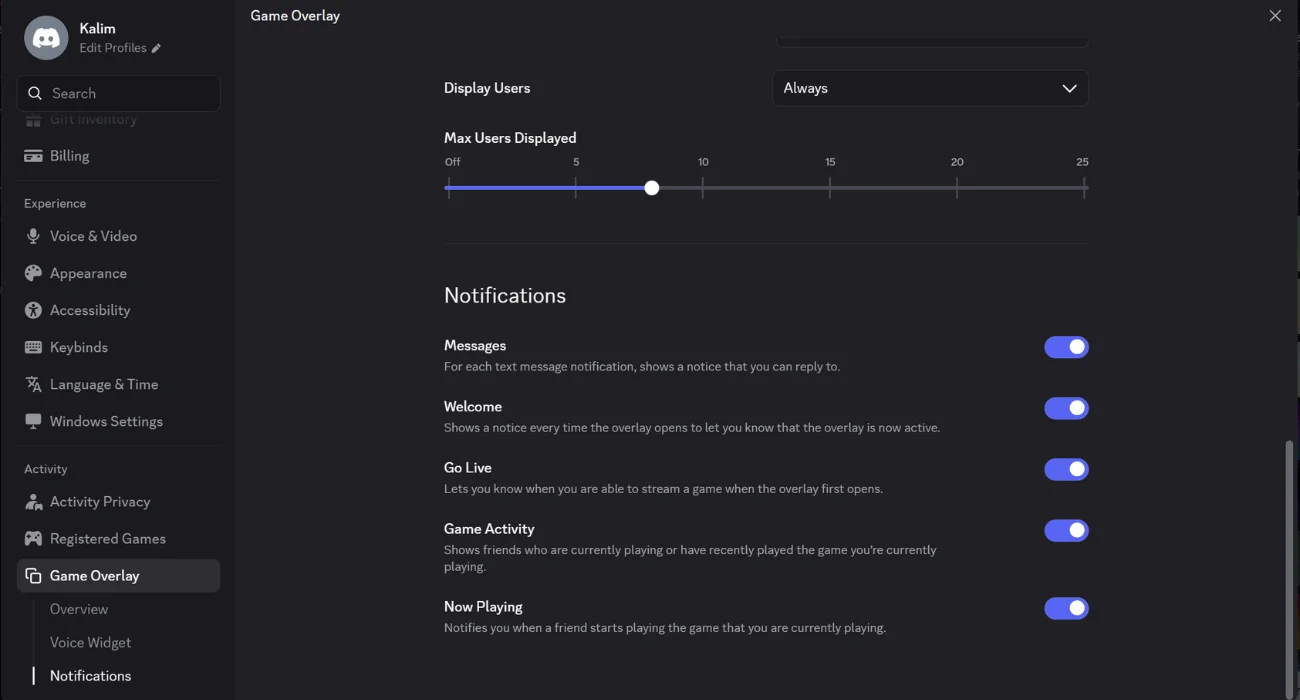
The overlay can also show pop ups for messages, friend activity, and more. Scroll down on the same Overlay page until you find the Notifications section. There you will see toggles for Messages, Welcome, Go Live, Game Activity, and Now Playing.
Turn on the ones you care about and switch off the rest. For competitive players, I suggest keeping only Messages on. That way, you stay updated without getting distracted by friend activity pop ups.
The Go Live notification is especially useful for streamers. If you have not started streaming yet, here is our complete guide on how to stream on Discord in 2026. Most Easy Steps.
How to Turn On Discord Overlay on Mac
Here comes the bad news for Mac users. Discord Overlay does not officially work on macOS as of May 2026. Discord has stated this clearly in their support documentation. The overlay feature is built only for Windows 10 and Windows 11.
Why Is My Discord Overlay Not Working?
Sometimes the overlay refuses to show up even after you enable it. Do not worry, this is a common issue with a few easy fixes. Try these in order until your overlay starts working again.
First, switch your game from true fullscreen mode to Borderless Windowed mode. The new Discord Overlay only works in borderless or windowed fullscreen. Second, run Discord as administrator by right clicking the app icon and choosing Run as administrator. Third, go to User Settings, then Advanced, and turn off Hardware Acceleration.
Other quick fixes include updating Discord to the latest version, restarting your PC, and turning off other overlays like Nvidia GeForce Experience or Xbox Game Bar. These often conflict with Discord and stop it from showing up.
On the other hand, if the overlay is causing more trouble than it is worth, you can always switch it off instead. Follow our step-by-step guide on how to turn off Discord overlay to disable it for all games or just specific ones.
How to Optimize Discord Overlay for Better Performance
A few smart settings can make your overlay feel smoother and stop it from hurting your frame rate. These tips are based on what most pro gamers use in 2026.
Turn off Hardware Acceleration in Discord. It alone can recover 20 to 40 FPS in heavy games. Disable the overlay in titles where you do not need it, like ranked shooters or strategy games. Set Display Users to Only While Speaking so the widget stays clean and quiet.
Avoid running too many overlays at the same time. Discord, Steam, and Nvidia overlays all stacked together can cut your FPS in half. Pick the one you actually use and disable the rest.
Final Thoughts
That is everything you need to know about how to turn on Discord Overlay in 2026. Open the desktop app, go to User Settings, click Overlay under Activity Settings, and flip the toggle on. From there, customize your widgets, notifications, and keybinds to match your style.
The overlay is one of the most underrated features in Discord. Once you get used to it, you will wonder how you ever played without it. Try it out in your next gaming session and let your friends know you finally figured it out.
And if you want to reach more viewers while you play, OneStream Live lets you stream your gameplay to Twitch, YouTube, Facebook, and 45 plus platforms all at once.
Frequently Asked Questions
What is Twitch Stream Together?
Twitch Stream Together is a feature that allows multiple viewers to watch and interact with the same stream simultaneously in a shared viewing experience.
How do I start a Stream Together session?
You can start a Stream Together session by clicking the “Watch Together” button on a Twitch channel while using a compatible device or browser.
How many people can join a Stream Together session?
A Stream Together session can accommodate up to 50 participants in a shared viewing room.
Do participants need a Twitch account to join?
Yes, all viewers must be logged into their Twitch accounts to participate in a Stream Together session.
Can I use Stream Together on mobile devices?
Yes, Stream Together is available on both desktop and mobile devices, though some interactive features may be limited on smaller screens.
OneStream Live is a cloud-based live streaming solution to create, schedule, and multistream professional-looking live streams across 45+ social media platforms and the web simultaneously. For content-related queries and feedback, write to us at [email protected]. If you have a story to share about your live streaming experience with OneStream Live, we would be glad to feature it. You’re also welcome to Write for Us!