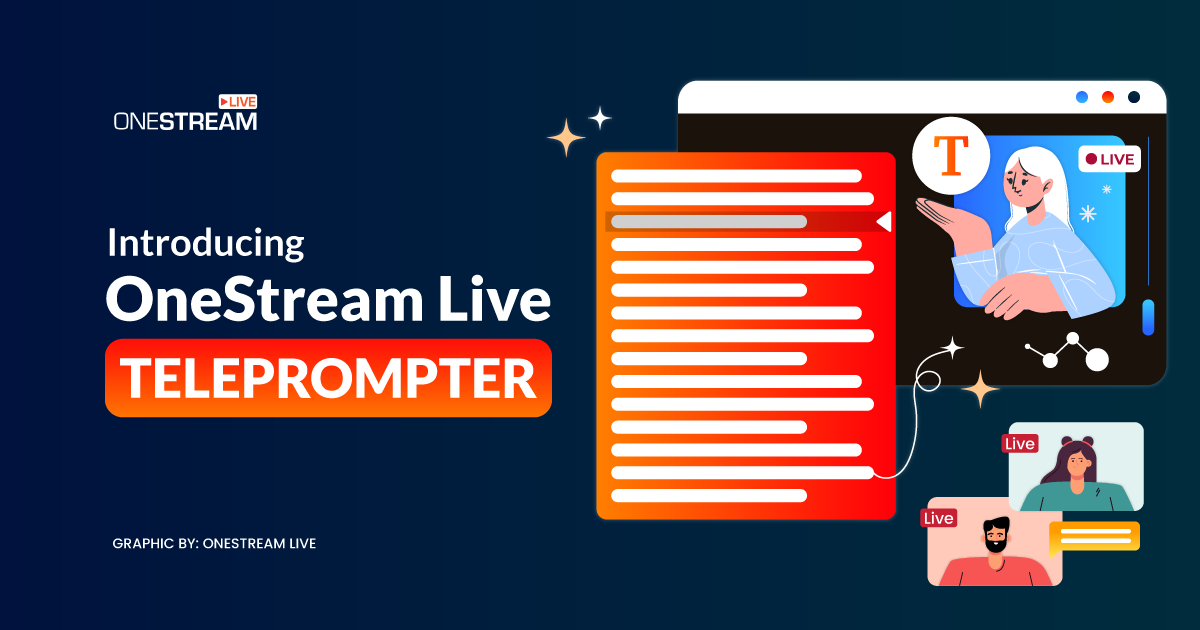
What if you could save time preparing for your live streams, feel more confident on camera, and eliminate the stress of forgetting your lines during live streaming? A teleprompter online can help you do just that.
You can use it anywhere, whether you’re live streaming, recording a YouTube video, or delivering a speech. A teleprompter helps you stay on track while keeping your eyes focused on the camera, creating a more natural connection with your audience.
In this blog, we will introduce you to OneStream Live’s teleprompter online feature, explain why it’s a game-changer for anyone looking to improve their live streaming, and show you how to use it. No more memorizing long scripts or reading from notepads; just smooth, confident delivery every time with the OneStream teleprompter.
- An online teleprompter shows your script on screen, so you can read it while looking straight at the camera.
- OneStream Studio has a teleprompter built in. Open Script in the right sidebar, with nothing to install.
- Only you can see the script. Viewers on every platform see just you.
- Change the scroll speed from 0.5x to 4x and the font size from 16px to 48px, right on the stage.
- Read from the focus line between the arrows to keep natural eye contact.

What is a Teleprompter Online?
The teleprompter feature in OneStream Live Studio helps you deliver a flawless live stream by displaying a script that only you can see on screen. A teleprompter online, which is also known as an autocue, is widely used in TV broadcasting during sports casts, live events, news programs, etc. It helps speakers stay on topic, hit key points, and maintain a smooth delivery.
You can use it in any situation. There might be complex terminology to remember, or perhaps there is no time to rehearse. Whether you teach online classes, stream a church service or host a podcast, you can read the text on screen while streaming and give a professional, confident presentation every time.
Learn More: What is a Teleprompter? Ultimate Guide for Streamers
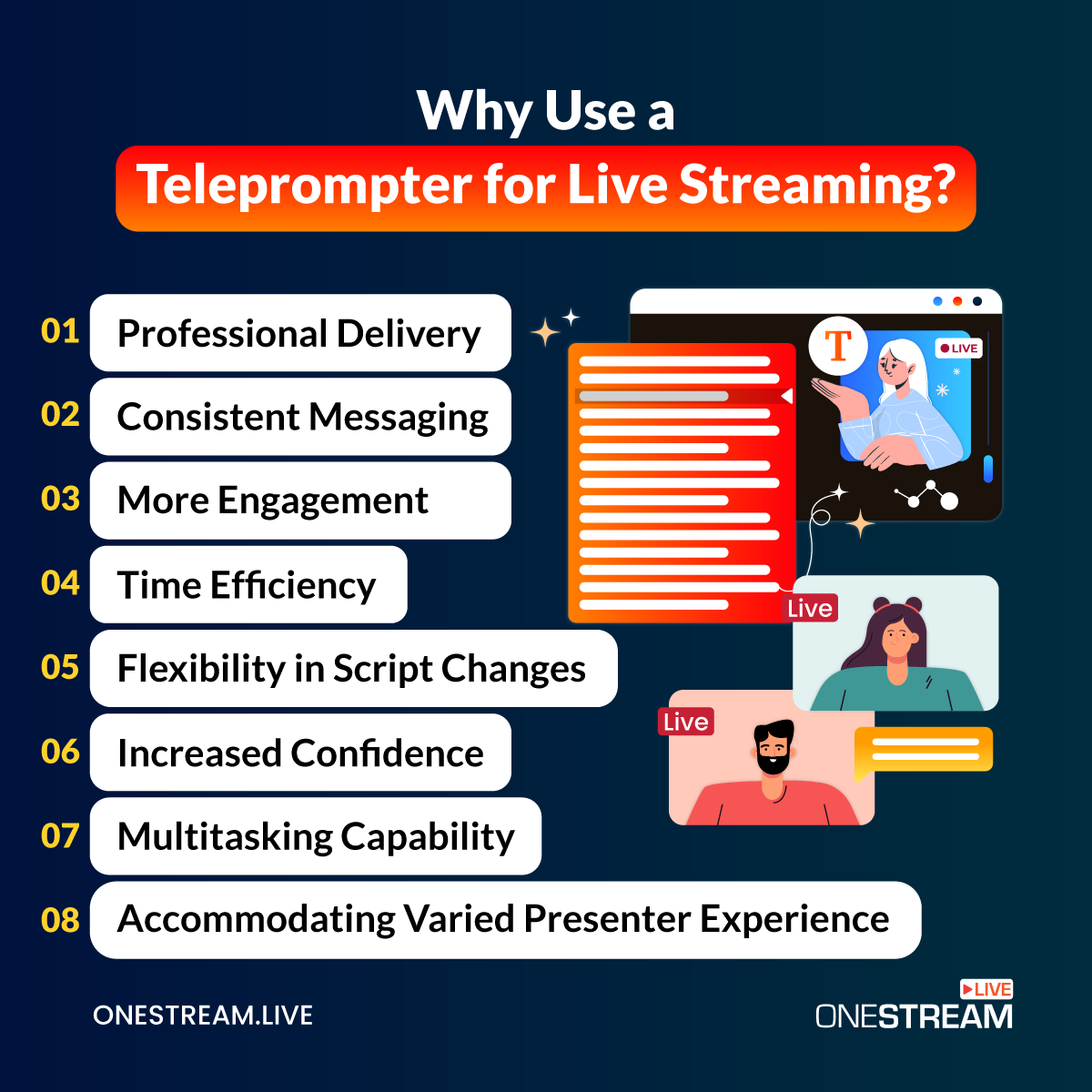
7 Benefits of Using OneStream Live's Teleprompter Online
The life of a creator is busy and demanding, and it requires hard work to achieve perfect streaming. However, this effort can be reduced with a solution like a teleprompter online.
It ensures you don’t have to compromise on the quality of your content while providing a smooth, professional, and easy live streaming experience.
1. Professional Delivery
A teleprompter keeps your delivery smooth and professional. It lets you read your live streaming script while keeping eye contact with the camera, so you never need to look down at notes or memorize long passages.
This results in a more polished, professional, and confident appearance, which also helps you connect with your audience and maintain a high level of professionalism throughout your livestream.
2. Consistent Messaging
Using an online teleprompter makes sure your message stays clear and consistent from beginning to end. This web teleprompter helps you focus on the main points of your presentation, so you’re less likely to forget important details or go off-topic.
This is especially helpful when you’re following a script or need to stick to specific messaging.
3. More Engagement
When you use a teleprompter, a script is already on the screen that you have to follow. This makes you confident about presenting while reading.
Moreover, you can maintain eye contact with the camera, which creates a more personal and engaging experience for your viewers. Reading directly from the screen keeps your attention focused on the audience and allows you to use body language and gestures effectively.
This helps keep your audience engaged, as they feel like you’re speaking directly to them rather than reading from a script.
4. Time Efficiency
Furthermore, using a screen prompter saves significant time by reducing the need for retakes, extensive editing, or frequent pauses. When you use the teleprompter, your script is right before you; you can deliver your live stream seamlessly in one go.
This boosts overall time efficiency and allows you to focus on creating more content without extensive prep or post-production.
5. Flexibility in Script Changes
Live streaming is spontaneous. Sometimes, you need to make last-minute changes to your script or adapt to real-time audience feedback.
A teleprompter mirror lets you adjust your script quickly without disrupting your flow. You can adapt anything, whether you are adding a new point, answering a question, or improvising based on viewer interaction. You can modify your script in real time while maintaining a smooth delivery.
6. Increased Confidence
Reading from a teleprompter takes away the stress of memorizing scripts or worrying about losing your place. Since your script is right in front of you, you can speak more confidently and naturally.
This boost in confidence makes your live stream more engaging and authentic, helping you stay focused on delivering your script and message without any distractions.
7. Accommodating Varied Presenter Experience
A teleprompter online is adaptable to presenters of all experience levels. For beginners, it provides reassurance and structure, which allows them to focus on content delivery without the stress of memorization. Pair it with our live streaming checklist and your first stream is covered.
For seasoned professionals, it makes sure a smooth flow, even when discussing complex topics. Regardless of experience, a teleprompter enhances performance and streamlines the live streaming process, making it a valuable tool for any creator.
How to Use the Teleprompter Online in OneStream Live
The teleprompter lives inside OneStream Studio, so there is nothing to download. Follow the steps below.
1
Open Script
Log in to OneStream Live, start a Studio session and click Script in the right sidebar. New to Studio? Our OneStream Studio walkthrough shows you around.
2
Add Your Script
Type or paste your script into the Script Content box. You can write up to 10,000 characters, and use bold, italic or underline to mark the lines you want to stress.
3
Turn On the Teleprompter
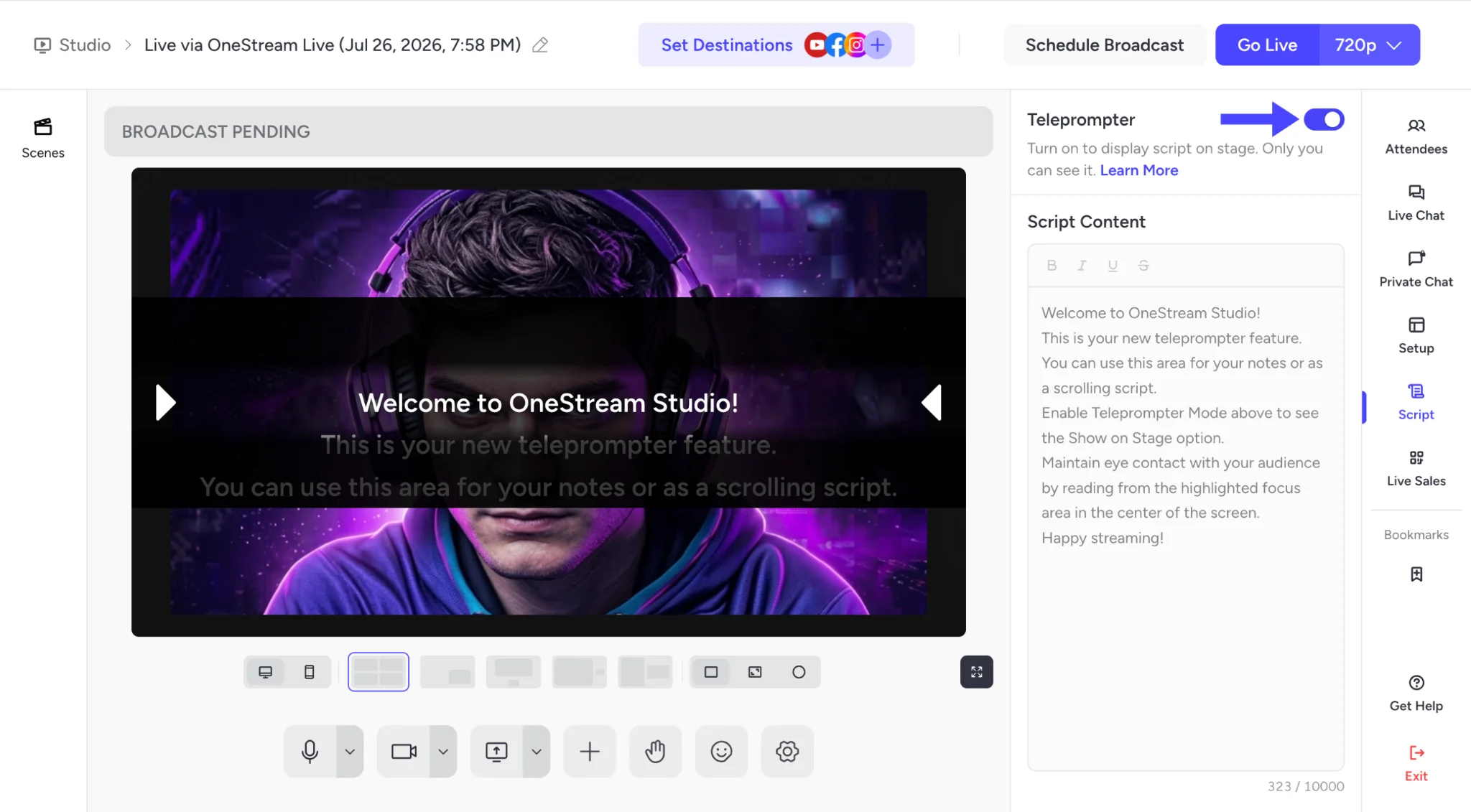
Switch on the Teleprompter toggle at the top of the panel. Your script appears on the stage, and only you can see it.
4
Set the Speed and Font Size
Use the toolbar above the script to set the scroll Speed, from 0.5x to 4x, and the Font Size, from 16px to 48px.
5
Press Play
Click Play and your script starts to scroll. Read the line between the two arrows to keep your eyes close to the camera. Use the restart button to jump back to the top, or the expand icon to view it full screen.
For more detail, read our helpdesk guide on how to use scripts in OneStream Live Studio.
Final Thoughts
The teleprompter online feature in OneStream Live brings simplicity and clarity to live streaming. It helps you deliver your message confidently while staying focused on your audience. This addition makes creating professional and engaging live streams easier than ever.
Try it today and see how it improves your live streams.
Frequently Asked Questions
What is a teleprompter online?
A teleprompter online is a browser-based tool that scrolls your script on screen while you speak. It works like a TV autocue, without any extra hardware.
Can my viewers see the teleprompter?
No. In OneStream Studio, the script shows only on your stage. Viewers on YouTube, Facebook and your other platforms see just you.
Do I need to install a teleprompter app?
No. The teleprompter is built into OneStream Studio and runs in your browser.
How do I change the scroll speed?
Use the Speed control in the toolbar above your script. You can set it anywhere from 0.5x to 4x.
How do I read from a teleprompter without looking like I am reading?
Keep the speed slow, make the font big enough to read at a glance, and read from the focus line between the arrows. A quick practice run before you go live helps too.
OneStream Live is a cloud-based live streaming solution to create, schedule, and multistream professional-looking live streams across 45+ social media platforms and the web simultaneously. For content-related queries and feedback, write to us at [email protected]. If you have a story to share about your live streaming experience with OneStream Live, we would be glad to feature it. You’re also welcome to Write for Us!