
Staying in sync as a remote team isn’t easy. When everyone’s scattered across home offices and time zones, you need more than group chats and email threads to create real connection. Running a private live stream can be a game-changer for teams determined to stay connected while working from home in 2025.
By using remote live streaming technology (and doing it securely), you can recreate the energy of in-person meetings and events, minus the eavesdroppers. In fact, a recent Slack study found that 85% of workers want to feel closer to their remote colleagues, and I think live video is one of the fun ways to stay connected when working remotely that can make it happen.
The key is keeping those streams private and exclusive to your team. After all, you wouldn’t invite the whole internet into your Monday stand-up or virtual happy hour, would you?
But how do you actually pull off a secure, members-only broadcast? That’s exactly what we’re tackling here.
Consider this blog as your roadmap to how to keep a remote team connected via private streaming. We’ll explore why privacy matters, how to set up your own locked-down live video, and best practices for keeping remote workers engaged (and content confidential).
By the end, you’ll see that working with a remote team doesn’t mean forfeiting the excitement of live interaction because you just need the right strategy and tools. Let’s dive in.
Why Remote Teams Need a Private Live Stream
When your team isn’t in the same physical room, maintaining cohesion and trust takes extra effort. Sure, regular video calls help, but there’s something special about a live broadcast that can rally everyone’s attention at once.
However, the challenge lies in doing it within a closed digital space. How to keep remote teams connected without spilling sensitive info publicly is a dilemma many organizations face.
Here’s why a private live streaming solution is essential for remote teams:
Confidentiality for Internal Meetings:
Company town halls, team strategy sessions, or training workshops often involve information that’s for internal eyes only. A private streaming service ensures only your employees can tune in.
You might stream a new product demo or discuss quarterly financials knowing competitors or clients can’t “accidentally” drop by. In other words, privacy keeps your business intel in-house.Enhanced Engagement Beyond Emails:
It’s tough to energize people with yet another long email thread. Live video, on the other hand, brings faces and voices into the mix.
It’s one of the fun ways to stay connected when working remotely because it feels immediate and human. Team members can react in real time via chat or even come on camera.Trust and Transparency:
Going live privately for your team encourages a culture of openness. People appreciate hearing news directly from leadership and seeing colleagues on screen.
As a result, transparency improves. And because the stream is private, there’s freedom to speak candidly.
Employees can ask sensitive questions in Q&A, or leaders can address workplace issues honestly, without worrying about “airing dirty laundry” in public. This psychological safety can bolster trust across your remote working teams.
Tips for Secure & Engaging Private Live Streams for Remote Teams
Private live streaming for your remote team is most effective when you follow best practices for security and engagement. Below are some pro tips on how to go live privately, keeping it both safe from leaks and lively for viewers.
1. Establish Clear Privacy Protocols
Treat an internal live stream like you would a confidential meeting. Decide who’s invited and how you’ll share access.
Use OneStream Live’s features like password protection, and don’t circulate the link in public channels. If you embed the stream on an intranet page, ensure that the page itself is behind a login if needed.

The idea is to create a secure live streaming environment with multiple checks. (It’s wise to have one person responsible for sending out stream links/passwords to avoid any confusion or unauthorized sharing.)
Remember, it’s not necessary to choose between secure live streaming and password-protected live streaming; if possible, implement both for optimal security. A strong password on the stream plus a restricted viewing domain is a one-two punch that keeps outsiders out.
Read Helpdesk on How to Secure Your Embed Player Using OneStream Live
2. Use a VPN on Untrusted Networks
If you or any presenters are streaming from a cafe, co-working space, or any network you don’t fully trust, consider using a VPN for that extra layer of security. A VPN encrypts your internet connection, making it much harder for attackers to snoop on your stream’s data.
It’s a smart precaution, especially if you’re handling sensitive info. For instance, you can download a VPN and have it running in the background while you broadcast. This ensures that even if someone is lurking on the public Wi-Fi, your stream stays shielded.
3. Set Expectations with Your Team
Not all employees may be familiar with live streaming etiquette or security. Brief your team on how to join the stream (and not to share links outside the group).
If it’s a meeting, remind them of mute/unmute protocols in the live chat, how to ask questions, etc. For engagement, encourage the use of reactions or comments, and call out that keeping remote workers engaged is a group effort; the more they interact, the better.
You might even designate a moderator to field questions or run polls during the stream. Having a bit of structure turns a one-way broadcast into a dynamic discussion.
Read Blog on How to Engage Remote Teams Through Live Streaming
4. Spice Up the Content & Keep It Interactive
A private stream doesn’t have to be a dry monologue. Use the tools at your disposal to create a two-way experience.
Enable the live chat for Q&A or shout-outs. OneStream Live’s unified chat feature will compile messages from your hosted page and any social media destinations as well.
Invite team members on camera for a roundtable segment. OneStream Live Studio lets you have multiple people on-screen, like a panel talk. Incorporate multimedia: roll a short video clip, show a funny meme, or share your screen to walk through a report.
These are fun ways to stay connected when working remotely because they break the monotony and invite participation. The more you treat it like an interactive TV show rather than a lecture, the more engaged your remote team will be.
5. Record and Repurpose (Securely)
One advantage of digital events is that you can capture them. OneStream Live can record your live streams automatically, which is very useful for team members in different time zones who couldn’t attend live, or for archiving important meetings.
Just be mindful of where those recordings go. If a stream was sensitive, you might not want the recording broadly accessible. OneStream Live stores recordings in your account (on paid plans), which you can then download and share through a controlled channel (like an internal drive or a private YouTube link if appropriate).
Explore Helpful Recording and Video Editing Tips for Beginners
The key is to password-protect a video archive or at least limit its access, similar to how live events are protected. Also, consider editing down long streams into highlight reels for easier viewing later. It can become a knowledge resource for onboarding or recaps.
Why OneStream Live Is Your All-in-One Private Streaming Platform
When it comes to keeping live streams private without sacrificing quality or reach, OneStream Live is in a league of its own. It’s a cloud-based streaming service designed for flexibility, allowing you to go live on 45+ social media platforms and your own custom webpage.
For remote teams craving a private streaming service, OneStream Live basically hands you the keys to your own private broadcasting station.
Here’s how OneStream Live makes private live streaming both simple and secure:
1. Hosted Live Pages for Team-Only Streams
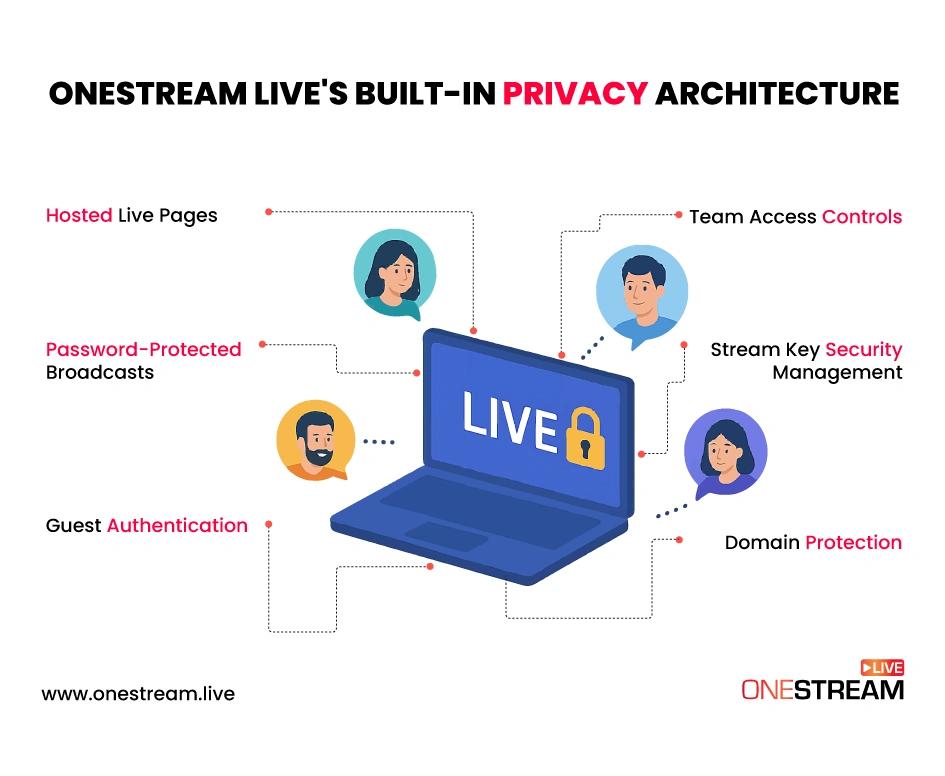
OneStream Live offers Hosted Live Pages, which are personalized landing pages for your streams. They’re your team’s exclusive channel on the web, made without any coding or separate hosting.
You get a unique URL (which can even be on your own domain), and you can stream content there in real time. Only people with the link can access it, and you can optionally lock it down further (more on that next).
This is perfect for streaming company meetings, training sessions, or private events without involving any third-party social network. You can customize the page with your branding, add a chat box, and even include interactive elements.
Essentially, Hosted Live Pages turn OneStream Live into a private streaming platform just for you.
For a detailed setup guide, check out how to live stream business meetings using Hosted Live Pages.

2. Password Protection
Privacy isn’t just about keeping the link semi-secret. OneStream Live gives you concrete tools for password protected live streaming.
You can password protect a video stream on your hosted page with a single click. Share that password with your team, and outsiders won’t get in without the code. Even if a link leaked, the stream stays locked behind the password.
By comparison, not many private streaming apps offer this level of control. OneStream Live effectively ensures that your “private” stream is truly private.
3. No Social Accounts Needed. Truly Anonymous Streaming
Unlike YouTube or Facebook, viewers of a OneStream Live hosted page don’t need an account or app. This is great for internal use because it allows an anonymous live stream viewing experience.
Your team members click the link (enter the password if you set one) and watch. They don’t need public profiles, no strings attached. It’s as anonymous and discreet as handing out a meeting invite.
Moreover, OneStream Live itself doesn’t list or index your hosted pages for others to discover; it’s a closed-door event unless you decide to share it publicly. You can even toggle the page off when not in use. This means you can run an internal broadcast confident that it won’t suddenly pop up on a public feed or search engine.
4. Interactive & Collaborative OneStream Live Studio
A concern with one-way streams is engagement, but OneStream Live addresses this. The built-in Live Studio allows you to host the stream with multiple presenters and guests.
The Studio also features real-time screen sharing, media injection (play videos during your stream), and a unified chat. That means your team can comment or ask questions in the page’s chat widget as you broadcast.
You can highlight comments or bring a viewer “on stage” if needed. Importantly, chat can be moderated or turned off as needed, and since it’s your private page, you won’t get random internet trolls. Still, only your invited team will participate because OneStream Studio also offers guest authentication.

5. Stream from Anywhere (Yes, Even Your Phone)
Remote work isn’t tied to desks, and neither are OneStream Live broadcasts. The platform’s flexibility extends to how you produce your live stream.
You can stream via the web studio on your laptop or use any RTMP encoder like OBS if you have a fancy setup. However, perhaps most convenient for remote teams is that OneStream offers mobile apps.
You can fire up a private live stream from your phone with the OneStream Live mobile app (available on iOS and Android). This is a big plus if you have team members out in the field or you want to give a quick office tour to remote employees.
The mobile app supports both real-time streaming and uploading pre-recorded videos to stream later. In essence, OneStream Live doubles as a private live stream app by enabling you to go live securely even when you’re on the move.
6. Free Plan and Scalability
Concerned about cost? You’ll be glad to know that OneStream Live offers a free tier. It’s a fully functional trial for basic use, as you can connect a couple of social accounts and do limited streaming.
This effectively makes OneStream a free private live streaming platform to get started with, especially for testing out team streams. (On the free plan, streaming to a custom hosted page might require an upgrade, but you can at least experiment with YouTube unlisted via OneStream Live to see how the scheduling and multistreaming work.)
As your needs grow, OneStream Live scales up with paid plans that unlock HD streaming, additional team member seats, and advanced features such as longer streams and password-protected embed players.
The Enterprise plan, for example, is ideal for businesses. The important part is you’re not locked into a huge expense to begin; OneStream Live can be as budget-friendly or as feature-rich as you need. It’s a private streaming platform that grows with your remote team.

7. Team Management and Collaboration
Speaking of team-member accounts, OneStream Live makes it easy to keep remote team members engaged not just as viewers but as collaborators. You can add colleagues to your OneStream Live account with role-based access.
They can log in, set up streams, and moderate, all within the same account ecosystem. Everyone stays on the same page (literally).
This “multiple cooks in the kitchen” approach is carefully managed so that you can collaborate without chaos. When it’s showtime, teamwork makes the stream work!
In summary, OneStream Live was built with the likes of you in mind: remote working teams that need a dependable, secure hub for live video. It combines the privacy controls of an enterprise tool with the ease-of-use of a consumer app.
You don’t have to compromise on quality or engagement to get security. With OneStream Live, your team can enjoy all the excitement of live streaming privately.
No unwanted guests, no prying eyes, no complicated IT setup. It’s just your content, your people.
Can You Stream Privately on YouTube or Twitch?
We’ve all thought it: Can’t I just use YouTube or Twitch and make my stream private? These platforms dominate public live streaming, but when it comes to keeping things invitation-only, they have limitations.
Here’s the lowdown on how to stream privately on YouTube and Twitch, and why a dedicated private streaming platform often wins out.
YouTube Private Stream Options and Limitations
YouTube is a household name for live video, and it does offer a form of closed streaming. You can create a private YouTube live stream by adjusting your stream’s visibility settings.
In fact, YouTube gives two relevant options: Private and Unlisted. A YouTube private stream is only accessible to specific people you invite (they’ll need to be logged in with the Google accounts you’ve approved).
An unlisted stream isn’t openly searchable; only those with the link can watch. In other words, you can make a YouTube live stream private to a degree, and it won’t blast out to all your subscribers or the public feed.
So why isn’t YouTube the perfect solution for remote teams? A few catches: First, truly private (invite-only) streams on YouTube require managing a list of Google account emails for every session, which gets unwieldy for large teams.
Unlisted streams are easier to share (just send the link), but anyone who gets that link can view, which is not exactly ironclad security. There’s also the branding and distraction issue: your team might be hit with YouTube ads or wander off to unrelated videos after your stream ends.
Finally, let’s not forget that using YouTube means entrusting internal content to a public platform. Even if the link is private now, the video file lives on Google’s servers, and you may not want confidential meetings stored there long-term.
Bottom line: Yes, you can do a private live stream on YouTube, but it’s a bit of a hack. It works for simple use cases (like a small club or a one-time event), but for regular company broadcasts, it’s cumbersome. YouTube was built to be an open network; bending it into an intranet tool has trade-offs.
Private Stream on Twitch – Is It Possible?
Twitch, beloved by gamers and creators, poses an even bigger challenge for private team streams. By design, Twitch is about public live broadcasts and building communities.
There is no built-in feature to make a Twitch stream completely private to a select audience. In fact, users often ask, “Can I stream privately on Twitch?” or “How to make a private stream on Twitch?”
The honest answer: not in the way you’d hope. Private streaming on Twitch essentially doesn’t exist. All Twitch channels are public by default, and while you can hide your stream from directories or turn on subscriber-only mode, there’s no way to restrict viewership to just your team or friends.
Let’s consider those workarounds: In subscriber-only streams, only paying subscribers (or VIPs/mods) can watch, but that model is aimed at creators monetizing content, not companies sharing internal updates. You wouldn’t ask your employees to “subscribe” (and even if you gifted subs, you probably don’t want your meeting on a platform where any subscriber globally could theoretically sub and peek).
Another trick streamers use is creating a secondary account with an obscure name, essentially a hidden channel, to test streams. But security through obscurity is risky; someone could still stumble on your private stream on Twitch if they have the link or search hard enough.
Bottom line: Twitch isn’t built for privacy. If you’re asking, “Can you make a private Twitch stream?”, the answer is effectively no. For a truly closed broadcast, you’ll need to look beyond mainstream social platforms.
Other Private Streaming Platforms and Apps
YouTube and Twitch aren’t the only games in town. There are enterprise-focused private streaming platforms like Vimeo (with Vimeo Live), Microsoft Teams Live Events, or Crowdcast that offer gated streaming for webinars and internal events.
Vimeo, for instance, allows password-protected live streaming. You can set a password that viewers must enter to watch your stream. It’s a solid option for some, though it typically comes with a hefty price tag and caps on audience size unless you spring for higher plans.
Microsoft Teams and Zoom webinars can broadcast to large audiences with access control, but those are more akin to video conferencing/webinar tools than open streaming platforms. Great for interactivity, less so for broadcasting a “show” with production value.
And then there’s private streaming apps like Facebook Workplace (for companies) or even unlisted Facebook group streams, which some small teams use. These can work if your whole team is on the same platform and you don’t mind Facebook knowing your business, but again, they’re not specialized for high-quality multi-destination streaming or branding.
In short, there are many ways to cobble together a private stream. But if you want a one-stop, purpose-built solution, you have already seen why OneStream Live shines.
Conclusion
By now, it’s clear that remote teams can have the best of both worlds: the agility and reach of live streaming, and the peace of mind that it all stays in the family. With OneStream Live as your partner and a savvy approach to content and security, a private live stream can become your remote team’s favorite way to sync up.
OneStream Live proves that keeping live streams private is absolutely achievable and actually quite effortless when you use the right tool for the job. So, the next time you plan an important virtual gathering, skip the public platforms and give your team something tailored to them.
In remote working, a little exclusivity goes a long way to keep people feeling united. Happy streaming, and here’s to staying connected, no matter the distance!
FAQs: Private Live Streaming for Remote Teams
Yes, YouTube allows non-public streams in two ways: Private (visible only to specific Google users you invite) and Unlisted (visible to anyone with the link, but not publicly listed).
To stream privately on YouTube, you’d start a live stream and set its privacy to Private or Unlisted in YouTube Studio. Keep in mind a private YouTube stream (invite-only) requires adding each viewer’s Google account to the allowed list, which can be cumbersome for large teams.
An unlisted YouTube live stream is easier to share (just send the URL), but it’s not 100% secure as anyone who obtains that URL can watch. But for truly confidential content, a platform like OneStream Live (with password protection) provides tighter control than YouTube’s private/unlisted modes.
Not really. Twitch doesn’t offer a true “private stream” option for small audiences. All Twitch streams are public by default, and there’s no built-in way to restrict a stream to specific people or a password.
The closest features are hiding your stream from the Twitch directory (which only obscures it, but anyone with the link or your channel name can still find it) or doing a subscriber-only stream (which limits viewers to your paid subscribers and is not applicable for internal team use).
A workaround is to use an alternate platform or tool. For example, you could use OneStream Live to broadcast a stream to a private webpage (instead of to Twitch’s servers). Another hack some users discuss is using Twitch’s “Just for Kids” category with a non-discoverable name, but this is not secure at all.
Password-protected live streaming refers to the practice of putting a password gate on your stream or video. Viewers must enter the correct password to access the content.
It’s a straightforward way to restrict access, and it keeps casual intruders out. However, it’s not foolproof security. Someone could share the password improperly, or use engineering tricks to snoop if other protections aren’t in place.
Secure live streaming, on the other hand, is a broader concept. It implies that multiple measures are taken to protect the stream’s integrity and privacy.
This includes password protection and other layers: encryption of the video data, using secure protocols (HTTPS, RTMPS), restricting embed or domain access, and ensuring the streaming platform itself is hardened against hacks. Think of password protection as one tool in the secure streaming toolbox.
A few, with some limitations. OneStream Live offers a free plan that can serve as a private live streaming platform for testing and small-scale streams. With the free tier, you can stream to social platforms and experiment with OneStream’s interface (though to use advanced private hosting features, you might need a paid plan).
YouTube and Facebook are technically free and allow semi-private streams (as discussed above), so they are often used because there’s no direct cost.
Vimeo has a free basic tier, but live streaming on Vimeo is a paid feature (no free lunch there).
Platforms like Zoom or Microsoft Teams may be available via your company’s subscription (not free, but no additional cost to you if the license is already covered).
If your budget is zero, using OneStream’s free plan to multistream to an unlisted YouTube (and perhaps an unlisted Twitch if you really want) could cover your bases.
It’s quick and simple:
- Create a OneStream Live account and go to Hosted Live Pages.
- Set up your page – choose a template, name it (e.g., “Team Streams”), and customize branding.
- Enable security – add Password Protection for secure live streaming.
- Schedule or go live – select your Hosted Live Page as the destination (or multistream if needed).
- Share the link + password with your remote team before the event.
- Go live via OneStream Live Studio (webcam, screen share, guests) or an external encoder.
- Team joins by entering the password and watching on the private streaming platform page.
OneStream Live is a cloud-based live streaming solution to create, schedule, and multistream professional-looking live streams across 45+ social media platforms and the web simultaneously. For content-related queries and feedback, write to us at [email protected]. You’re also welcome to Write for Us!