
A common question among YouTubers these days is how to stream on YouTube Shorts and tap into its massive audience. With over 2 billion monthly users and around 70 billion views every single day on Shorts, going live in the Shorts feed is a spectacular for creators.
In this comprehensive guide, we’ll walk you through how to go live on YouTube in vertical format using OneStream Live – an all-in-one streaming solution trusted by over 65,000 businesses. Let’s dive into the what, why, and how to stream on YouTube Shorts effectively.
Learn how to stream on YouTube Shorts and reach millions in the vertical Shorts feed.
Use OneStream Live to go live on YouTube with pre-recorded or real-time vertical streams.
No subscriber limits when streaming via computer or encoder; mobile app live requires 50+ subs.
Stream in 9:16 portrait mode to ensure your live video appears in the Shorts feed.
Set up YouTube Live with a custom RTMP stream key and connect it easily in OneStream Live.
Boost engagement using OneStream Studio’s overlays, captions, and guest features for mobile-friendly streams.
Ensure smooth streaming with stable internet (5 Mbps+) and optimized YouTube live stream settings.
Plan content with strong hooks to keep YouTube Shorts live viewers engaged and swiping for more.
What Is YouTube Shorts Live (Vertical Streaming)?
Can you live stream on YouTube Shorts?
Yes, YouTube now allows creators to broadcast in a vertical live format that appears in the Shorts feed on mobile. This Shorts live feature was introduced in late 2023 as a new full-screen viewing experience for live streams.
Unlike standard YouTube Live (which is horizontal with a separate chat section), a Shorts live stream fills the entire phone screen vertically, with comments overlaid, similar to TikTok or Instagram Live. Viewers can discover these vertical lives by swiping the Shorts feed. If they see a YouTube live video marked “Live”, they can tap it to watch full-screen and chat in real-time.
Notably, vertical live streams will be visible to people browsing Shorts on the YouTube app, offering a huge opportunity for exposure. However, scheduled live events or Premieres won’t appear in the Shorts feed until they’re actually live.
Requirements to Go Live on YouTube (Shorts or Otherwise)
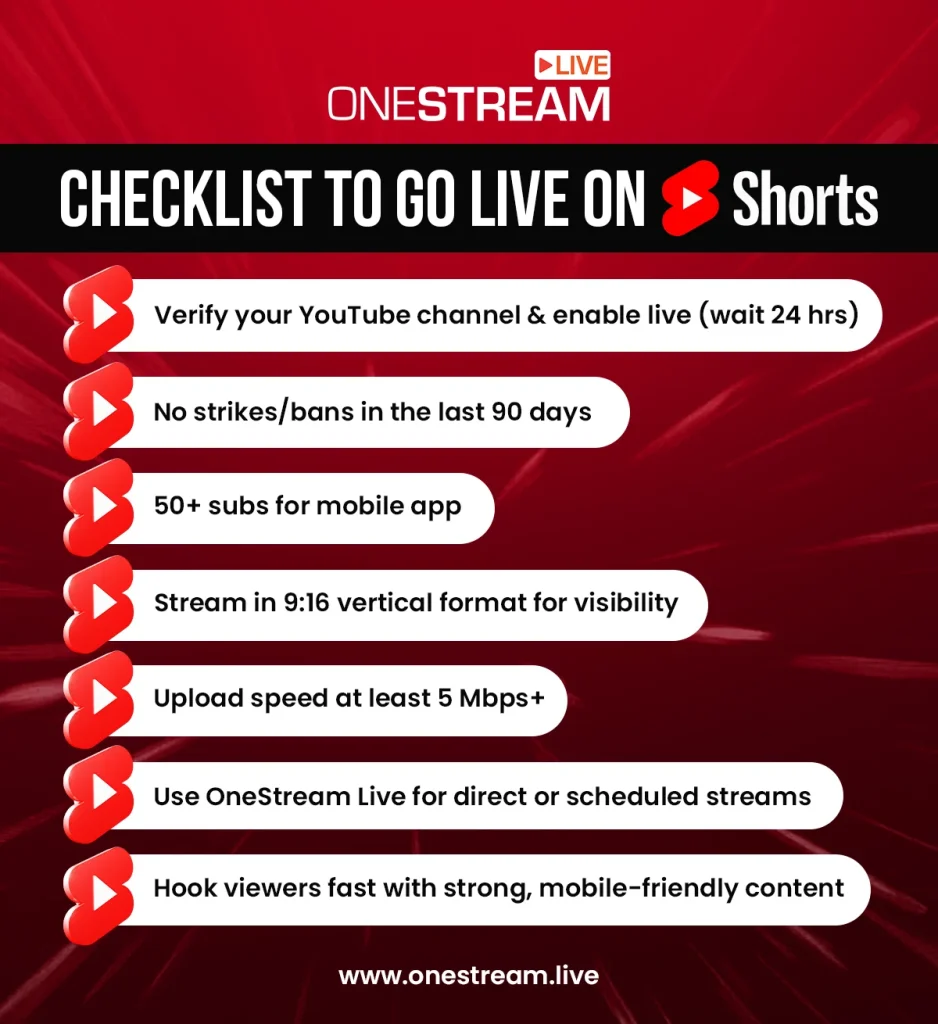
Before you go live on YouTube, make sure you meet the basic requirements. YouTube has some prerequisites for live streaming, and there are a few extra considerations for the Shorts feed:
YouTube Channel Verification:
Your channel must be verified and in good standing to live stream. If you’ve never gone live before, you’ll need to enable the live streaming feature on your YouTube account.This involves verifying your phone number and waiting up to 24 hours for live streaming to activate. (On OneStream Live’s dashboard, if live isn’t enabled, it will prompt you to request access and verify your account.)
No Recent Strikes or Restrictions:
YouTube won’t allow live streaming if your channel has had any live-streaming restrictions or strikes in the last 90 days. Make sure your account is in good standing with community guidelines.Subscribers (for Mobile App):
If you plan to go live directly from the YouTube mobile app, note that you typically need at least 50 subscribers (and be age 18+) to use mobile live streaming . However, there is no subscriber minimum when streaming via computer/encoder.A Vertical Video or Camera Setup:
Since Shorts feed streams are vertical, you must stream in a 9:16 aspect ratio (portrait orientation). This could mean using a phone camera held upright, or formatting your streaming software for a vertical canvas (1080×1920 or 720×1280 resolution).OneStream Live Studio, for example, has a Portrait Mode toggle to easily switch your broadcast into vertical orientation. Using the proper format is essential as it’s the only way YouTube recognizes it as a “Shorts” live.
Pro tip: Make sure your content is visually centered, as mobile viewers hold phones vertically. If you repurpose content, edit it into a vertical frame beforehand.
Stable Internet & Encoding Settings:
Live streaming always demands a stable internet connection. For vertical 720p or 1080p streaming, you’ll want a decent upload speed (at least 5-10 Mbps upload available for 1080p).Adjust your bitrate according to resolution – for example, ~3,000 Kbps is a good baseline for 720p 30fps, whereas ~6,000-8,000 Kbps suits 1080p 60fps. Also, use the recommended settings: H.264 video codec, AAC audio, and a stream key with RTMPS (YouTube’s secure streaming protocol).
OneStream Live Account:
Since our focus is on using OneStream Live for this process, you’ll need a OneStream Live account (you can start free).OneStream Live is a leading live streaming company and platform that allows multistreaming and pre-recorded streaming, simplifying even complex setups. OneStream Live will act as the middleman between you and YouTube, handling the RTMP streaming and distribution.
(If you’re not familiar, RTMP (Real-Time Messaging Protocol) is the standard for sending live video to streaming platforms via a stream server URL and stream key.)
Content Plan:
Since Shorts viewers have short attention spans, plan your stream content wisely. Have an engaging hook in the first few seconds – something visually interesting or a bold statement to stop the scroll.Also, prepare any overlays or on-screen text optimized for vertical (big enough to read on a phone). OneStream Live Studio lets you add branding and overlays (like logos, banners, tickers) even in portrait, which can make your live video look professional and on-brand.
By meeting these requirements, you set yourself up for a smooth Shorts streaming experience. Now, let’s get to the step-by-step of actually doing it!
How to Live Stream on YouTube Shorts Using OneStream Live (Step-by-Step)
Streaming to YouTube Shorts with OneStream Live is straightforward. Essentially, we will create a vertical live event on YouTube, then use OneStream Live to broadcast to it.
Follow these steps to get your YouTube Shorts live in no time:
1. Enable YouTube Live & Open the Shorts Stream Setup
Log in to your YouTube account on desktop. In YouTube Studio or on the channel dashboard, click the Shorts tab on the left menu (this is where YouTube lists Shorts content).
Then click the Create button (the camcorder icon with a plus, usually). From the create menu, select Go Live (you might see an option specifically for “Live feed” or similar under Shorts).
This will open the live stream setup for the Shorts feed. (If prompted to “Stream now or schedule for later,” you can schedule, but note that scheduled streams won’t show in the Shorts feed until you actually go live.)
2. Configure the YouTube Live Event (Vertical)
In the YouTube live control interface, set up your stream info just like a normal live: title, description, privacy, etc. Crucially, ensure your stream resolution/aspect is vertical (9:16).
YouTube might auto-detect based on the encoder input, but you may see settings to confirm it’s a portrait stream. (Some creators set the resolution manually by creating a custom stream key and selecting 1080×1920 or 720×1280 in the Stream Settings.) For simplicity, you can proceed with the default stream key, just be sure to output vertical video from OneStream Live in the next steps.
After entering basic info, click Create Stream (or if scheduling, set the time and save). You should now see Stream Settings with the Stream URL and Stream Key.
Copy the Stream URL and Stream Key provided by YouTube. We’ll need to paste these into OneStream Live.
Pro Tip: Each new Shorts stream uses a unique stream key. For each event, you’ll update the key in OneStream Live.
3. Add YouTube as a Custom RTMP Destination in OneStream Live
Log in to your OneStream Live account. In the dashboard, go to the Destinations or Social Accounts section.
Click Add Destination and choose Custom RTMP (since we have a custom stream key/URL from YouTube). When prompted, enter a name like “YouTube Shorts Live”, then paste the Stream URL and Stream Key you copied from YouTube into the fields on OneStream Live.
Save or add the new destination. OneStream Live is now linked to that specific YouTube Shorts stream.
4. Prepare Your Content (Live or Pre-Recorded)
This is where OneStream Live shines, offering two main approaches:
Go Live via OneStream Live Studio:
If you want to broadcast yourself or share your screen live, use OneStream Live Studio. OneStream Live Studio has a one-click portrait toggle. You can now stream in vertical format directly.Use Studio features like invite guests, add overlays/logos, use a background or even a teleprompter for scripts. The Studio also supports screen sharing and playing video clips. Any content you produce here will be sent to YouTube in the correct format.
Use a Pre-Recorded Video: OneStream Live is a pioneer of pre-recorded streaming. This means you can take a polished pre-made video (MP4, etc.) and broadcast it as a live stream.
This method is fantastic if you want a flawless presentation. You can edit a 1-minute engaging clip and then stream it live to Shorts, perhaps looping it continuously.
Note: Ensure the video’s aspect ratio is 9:16 vertical and ideally within a few minutes length (though you can stream longer; short loops perform well for Shorts feeds). OneStream Live even supports video looping and playlists, so you could stream a series of short videos back-to-back for, say, an hour of continuous content.
5. Go Live from OneStream Live
Double-check everything: your YouTube destination is added and selected, your content source (Studio or video file) is ready, and the stream key is correct. Now, simply click Go Live in OneStream Live.
If you scheduled a pre-recorded stream, OneStream Live will automatically start it at the set time. If you’re using Studio, the Go Live button will start the broadcast immediately.
6. End the Stream and Follow-Up
When you’re done, end the stream in OneStream Live (or it will end when the video file finishes if pre-recorded). YouTube will finalize the live video; it might be saved as a regular video on your channel (you can choose if it remains public or goes unlisted).
After the live, take advantage of the momentum. You likely gained some new subscribers. Consider posting a community post or Shorts clip saying “thanks for watching, see you next time.”
If you plan to do this regularly (say, every day at a certain time), let people know to build anticipation. Consistency can train the Shorts algorithm and your audience to look out for your lives.
That’s it! You’ve successfully streamed on YouTube Shorts using OneStream Live.
It might seem like several steps, but once you do it the first time, the next streams will be much quicker (especially since OneStream Live will save the RTMP destination for reuse, and you’ll have your vertical settings ready to go).
OneStream Live essentially removes much of the hassle. Instead of fiddling with multiple apps, you manage everything in one place.
Common Questions About Streaming on YouTube Shorts
Any creator can stream to YouTube Shorts via encoder as long as your channel is verified and live-enabled. There is no minimum subscriber count required when using a streaming tool like OneStream Live or OBS from a computer. (If you try to go live directly from the YouTube mobile app, you need at least 50 subscribers and to be over 18 years old)
From a viewer’s perspective, discovering vertical lives is simple but a bit hidden. While browsing Shorts on the YouTube app, if a live vertical stream is available, it might appear interspersed with other Shorts (you’ll see a “Live” icon on it).
You can also enter the vertical live feed by tapping a Short video to pause it, then tapping the “Live” button that appears at the top. This takes you into a scrollable feed of live vertical streams. Remember, these are only visible on the mobile app (not on desktop).
It can indirectly contribute, but with some nuances. Live stream watch hours do count toward YouTube’s 4,000-hour requirement for monetization after the stream ends (when the archive video is available) – live views themselves aren’t counted in real-time for that threshold.
If your Shorts live is saved as a public video, any replays people watch will count as normal watch time. However, Shorts views (for short-form videos) generally don’t count toward long-form monetization hours; but since a live stream is essentially treated as a normal video when archived, those should count.
Think of content that is immediately gripping and suited to a vertical frame. Some ideas:
Live Challenges or Demos: Quick tasks like a 60-second art challenge, a speedrun snippet of a game level, a fitness trainer doing a rapid workout – these create urgency.
Interactive Q&A or Trivia: Use the chat to have viewers send questions or vote on something, making them part of the stream.
Behind-the-Scenes & IRL Moments: Give a candid peek into your day – e.g., a musician showing their studio for a few minutes, or a chef prepping a single recipe step. This feels authentic and spontaneous, which suits Shorts.
News React or Trends: If something big just happened (game announcement, viral meme), hop on a vertical live and share your reaction or a hot take. Riding trending topics can draw viewers.
Looped Relaxation or Music Sessions: Some creators stream continuous music with visuals (lofi hip-hop style, but vertical), or a live view of a nature scene. These can attract long passive viewership. If you go this route, OneStream Live’s video looping and playlist features are your friend to run a smooth 24/7 feed.
Use OBS or OneStream Live. Set your canvas to 1080×1920 (portrait mode) and stream to YouTube accordingly.
Shorts doesn’t natively support livestreaming. Only vertical lives might appear in the Shorts feed and only on mobile.
Yes, but again, not directly to Shorts. Go live using the YouTube app in vertical mode. It may surface in the Shorts feed if it fits the format.
YouTube’s mobile algorithm favors vertical content, allowing vertical live streams to reach a wider audience, especially on the Shorts shelf.
Wrapping Up
Streaming on YouTube Shorts is an exciting way to improve your content strategy. By now, you should be able to confidently go live on YouTube in the Shorts feed and use this new format to grow your audience.
Remember, the key is to offer value quickly, captivate viewers in those crucial first moments and keep the energy up. OneStream Live, with its robust feature set and ease of use, is your ally in this endeavor, handling the technical side so you can focus on what you do best: creating content.
With the tips and steps outlined above, you’re well on your way to mastering how to stream on YouTube Shorts. Happy streaming, and may your vertical lives be lively!

OneStream Live is a cloud-based live streaming solution to create, schedule, and multistream professional-looking live streams across 45+ social media platforms and the web simultaneously. For content-related queries and feedback, write to us at [email protected]. You’re also welcome to Write for Us!