
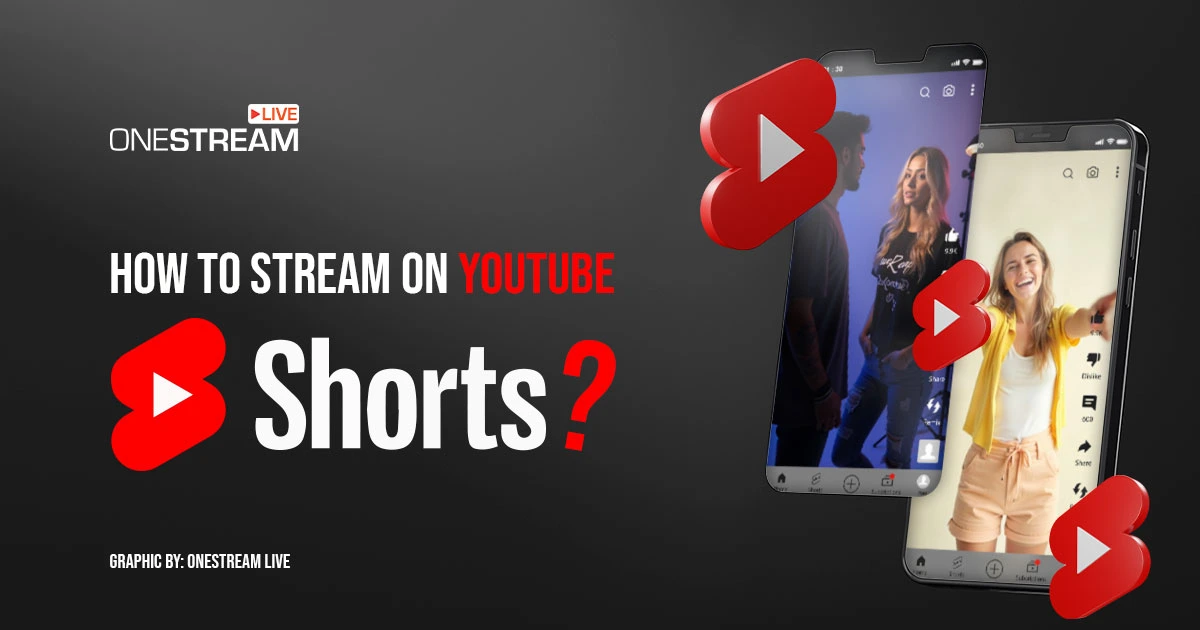
Want your next live stream in front of people who've never heard of you? That's the promise when you learn how to stream on YouTube Shorts. Your vertical live lands right in the Shorts feed, where viewers are already swiping for something new.
But Shorts live has changed a lot lately. YouTube now adds a vertical copy to Live Control Room streams by default, and a stream that isn't set up right may never reach the feed at all.
This guide fixes that. You'll learn what Shorts live is, what you need before you start, and how to go live in 9:16 with OneStream Live, either in real time with Studio or with a polished prerecorded video.
Key Takeaways:
- To stream on YouTube Shorts, send a 9:16 vertical live (1080×1920 or 720×1280), since only the vertical feed is discoverable in the Shorts feed.
- YouTube now turns on dual format streaming by default in the Live Control Room, so check the vertical preview before you go live.
- You need a verified channel, no live restrictions in the past 90 days, and you must be at least 16; going live from the YouTube mobile app also needs 50+ subscribers.
- The vertical feed has no preroll or midroll live ads and no clickable links, so earn through Super Chat, Super Stickers, and memberships instead.
What Is YouTube Shorts Live (Vertical Streaming)?
Can you go live on YouTube Shorts?
Yes. YouTube lets you broadcast a vertical live stream that shows up in the Shorts feed on the YouTube mobile app. When your stream is 9:16, mobile viewers watch it full screen and can scroll to more live streams, and people who don't subscribe to you can find it too.
YouTube first teased vertical live in 2023 and rolled it out the following year. Unlike a standard horizontal live with chat on the side, a vertical live fills the whole phone screen with comments on top of the video, much like TikTok LIVE or Instagram Live. According to YouTube's live streaming guide, viewers in this feed can still use Super Chat, Super Stickers, and channel memberships.
The audience is massive. YouTube says Shorts get over 200 billion daily views, a figure it repeated in its latest Partner Program update.
One catch: scheduled streams only appear in the Shorts feed once they're actually live, and Premieres don't show up there at all.
What's New in Shorts Live
Vertical live has grown up fast. Here's what matters before your next stream:
- Dual format is now the default. When you go live from YouTube Studio's Live Control Room, YouTube streams a horizontal (16:9) and a vertical (9:16) version under one link with one shared chat. The vertical version is a center crop unless you switch to Fit to phone width or Stacked. Our guide to YouTube dual format live streaming explains how it works.
- Encoders can send their own vertical feed. Third party encoders can now push a separate 9:16 stream to a second stream key, so you control the vertical framing instead of relying on YouTube's crop.
- You can rehearse in private. Live Practice Mode in the YouTube mobile app lets you test your setup with no audience before going public.
Here's how the two formats compare:
| Feature | Horizontal Live | Vertical Live Feed |
|---|---|---|
| Discoverable in the Shorts feed | No | Yes |
| Scroll to more live streams | No | Yes |
| Clickable links in chat and description | Yes | No |
| Preroll and midroll live ads | Yes | No |
| 4K broadcast on the YouTube app | Yes | No |
| Premieres and live redirect | Yes | No |
| Memberships and gifted memberships | Yes | Yes |
Requirements to Go Live on YouTube (Shorts or Otherwise)
Before you go live on YouTube, make sure you meet the basic requirements.
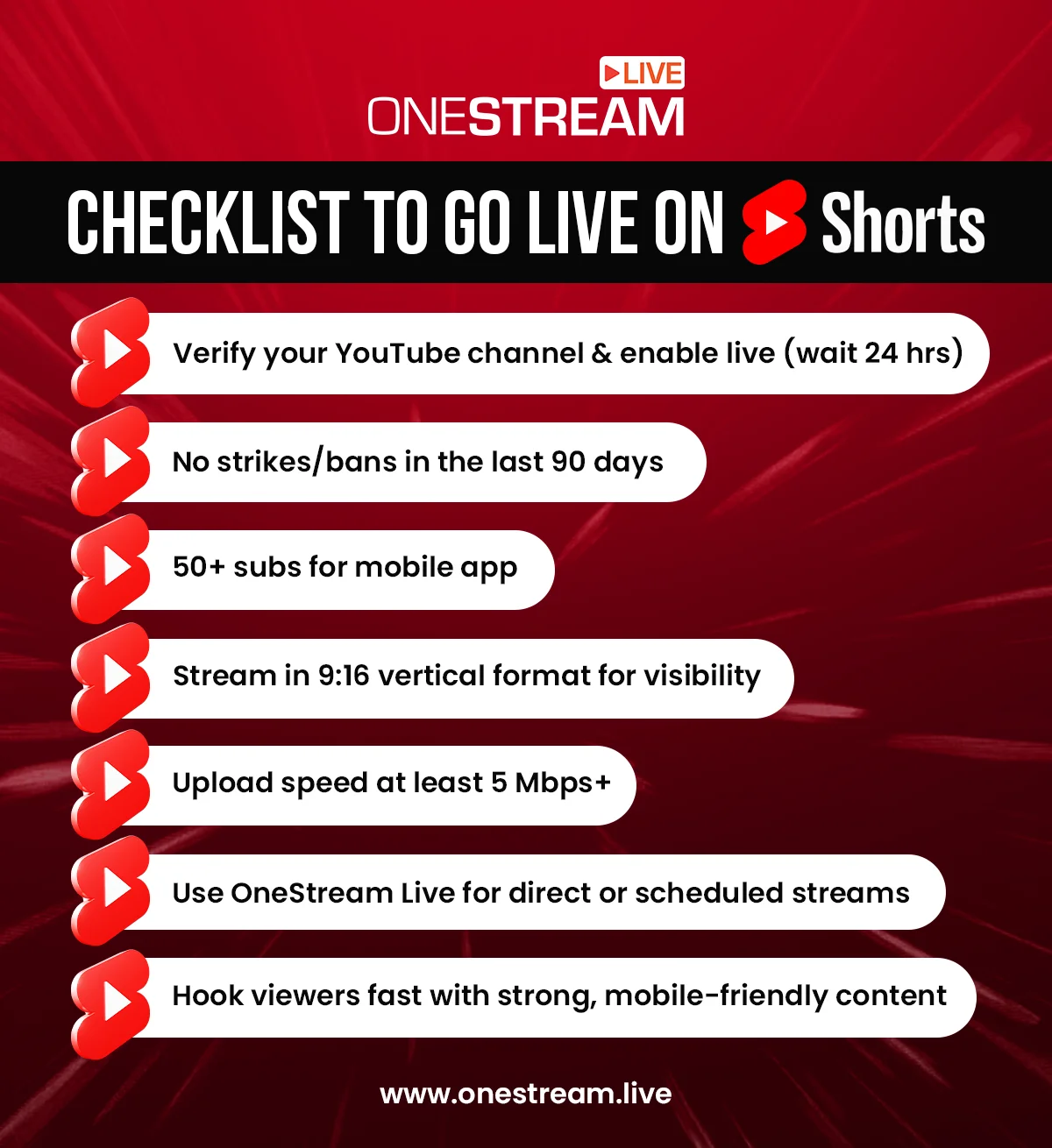
YouTube has some prerequisites for live streaming, and there are a few extra considerations for the Shorts feed:
- YouTube Channel Verification: Your channel must be verified and in good standing to live stream. If you’ve never gone live before, you’ll need to enable the live streaming feature on your YouTube account. This involves verifying your phone number and waiting up to 24 hours for live streaming to activate. (On OneStream Live’s dashboard, if live isn’t enabled, it will prompt you to request access and verify your account.)
- No Recent Strikes or Restrictions: YouTube won’t allow live streaming if your channel has had any live streaming restrictions or strikes in the last 90 days. Make sure your account is in good standing with community guidelines.
- Subscribers (for Mobile App): If you plan to go live directly from the YouTube mobile app, note that you typically need at least 50 subscribers to use mobile live streaming, and you must be at least 16 to go live on YouTube at all. However, there is no subscriber minimum when streaming via computer/encoder.
- A Vertical Video or Camera Setup: Since Shorts feed streams are vertical, you must stream in a 9:16 aspect ratio (portrait orientation). This could mean using a phone camera held upright, or formatting your streaming software for a vertical canvas (1080×1920 or 720×1280 resolution). OneStream Live Studio, for example, has a Portrait Layout to easily switch your broadcast into vertical orientation. Using the proper format is essential, as only the vertical feed is discoverable in the Shorts feed. Pro tip: Make sure your content is visually centered, as mobile viewers hold phones vertically. If you repurpose content, edit it into a vertical frame beforehand.
- Stable Internet & Encoding Settings: Live streaming always demands a stable internet connection. For vertical 720p or 1080p streaming, you’ll want a decent upload speed (at least 5 to 10 Mbps upload available for 1080p). Adjust your bitrate according to resolution. For example, about 3,000 Kbps is a good baseline for 720p 30fps, whereas about 6,000 to 8,000 Kbps suits 1080p 60fps. Also, use the recommended settings: H.264 video codec, AAC audio, and a stream key with RTMPS (YouTube’s secure streaming protocol).
- OneStream Live Account: Since our focus is on using OneStream Live for this process, you’ll need a OneStream Live account (you can start free). OneStream Live is a leading live streaming company and platform that allows multistreaming and prerecorded streaming, simplifying even complex setups. OneStream Live will act as the middleman between you and YouTube, and it can even take a feed from OBS or any other encoder through Encoder Streaming. (If you’re not familiar, RTMP (Real Time Messaging Protocol) is the standard for sending live video to streaming platforms via a stream server URL and stream key.)
- Content Plan: Since Shorts viewers have short attention spans, plan your stream content wisely. Have an engaging hook in the first few seconds, like something visually interesting or a bold statement to stop the scroll. Also, prepare any overlays or on screen text optimized for vertical (big enough to read on a phone). OneStream Live Studio lets you add branding and overlays (like logos, banners, tickers) even in portrait, which can make your live video look professional and on brand.
By meeting these requirements, you set yourself up for a smooth Shorts streaming experience. Now, let’s go through it step by step!
How to Stream on YouTube Shorts Using OneStream Live (Step by Step)
Streaming to YouTube Shorts with OneStream Live comes down to three moves: create the stream in YouTube Studio, connect its stream key to OneStream Live, and broadcast a 9:16 feed. Here's how to go live on YouTube Shorts, step by step.
1. Enable YouTube Live and Open the Live Control Room
Log in to YouTube Studio on desktop. Click Create in the top right, then Go live. This opens the Live Control Room, where every encoder stream starts.
First time streaming? YouTube asks you to verify your channel and turn on live streaming, which can take up to 24 hours. Do this a day before your first broadcast.
Note: You can schedule your stream here, but it only joins the Shorts feed once it's actually live.
2. Configure the YouTube Live Event (Vertical)
Open the Stream tab and add your title, description, and visibility like any normal live. Then set up the vertical format before you start, because YouTube won't let you add it once the stream begins:
- One 9:16 feed (recommended): Use your main stream key and send vertical video from OneStream Live. Check the preview first. If YouTube adds a cropped copy you don't want, switch off Dual stream in the Stream tab.
- Both formats at once (advanced): Choose Encoder in the vertical preview and assign a second stream key for a separate 9:16 feed. This means sending two streams, one horizontal and one vertical, at the same time.
Next, copy the Stream URL and Stream Key. You'll paste both into OneStream Live.
Pro Tips
Each time YouTube gives you a new stream key, update it in your Custom RTMP destination in OneStream Live before you go live.
3. Add YouTube as a Custom RTMP Destination in OneStream Live
Log in to OneStream Live. From the left sidebar, click Social Platforms, then Add Platform, and select Custom RTMP.
Enter an Account Name like "YouTube Shorts Live," paste the RTMP Server URL (rtmp:// or rtmps://) and the Stream Key, then click Connect. OneStream Live can't verify a custom destination for you, so double check both fields. Our custom RTMP streaming guide covers the setup in more detail.
On the go? The OneStream Live mobile app uses the same Social Platforms flow.
4. Prepare Your Content (Live or Prerecorded)
OneStream Live gives you two ways to fill your vertical stream:
- Go live with Studio: Open Studio in your browser and choose Portrait Layout. Your scene switches to 9:16, so overlays, logos, and lower thirds are framed for phones. Bring on up to 16 guests, share your screen, use virtual backgrounds, or read your script from the teleprompter.
- Stream a prerecorded video: With prerecorded streaming, you broadcast a polished video as a live stream. From your dashboard, open the prerecorded stream option, then click Add Videos from your device, OSL Storage, or cloud storage like Google Drive or Dropbox. Pick your YouTube destination, add stream details, and go live now or click Schedule Broadcast.
For prerecorded videos, export at 1080×1920 (9:16), 30 FPS, MP4, with H.264 video and AAC audio. Want hours of content? Loop the video or build a playlist to stream short clips back to back. Playlists are available on the Professional and Enterprise plans.
Pro Tips
Keep your face, text, and key action in the center of the frame. Comments overlay the bottom of a vertical live, so anything near the bottom edge can get covered.
5. Go Live from OneStream Live
Run a quick check: your YouTube destination is toggled on, your content is 9:16, and the stream key matches YouTube's. Then:
- In Studio, click Go Live in the top right corner.
- With a prerecorded video, the stream starts instantly or at your scheduled time.
Keep YouTube's Live Control Room open in another tab to watch stream health and chat. Want more reach from the same broadcast? Toggle on other vertical friendly destinations like TikTok, Instagram, or Facebook and multistream your 9:16 feed to all of them at once.
6. End the Stream and Follow Up
End the broadcast in Studio. A prerecorded stream stops when the video finishes, or you can open Streams, find it under Ongoing Streams, and click End Broadcast.
YouTube saves the stream as a video on your channel, and you choose whether it stays public or unlisted. You'll see combined metrics in the Live Control Room right away. For dual format streams, numbers for the vertical version alone arrive 24 hours later.
Then keep the momentum going:
- Clip the best moments into Shorts and point viewers to your next live.
- Post a quick thank you in your Community tab.
- Pick a fixed slot, like every Friday at 7 PM, so your audience knows when to show up.
That's it! Your first setup takes the longest. After that, OneStream Live saves your Custom RTMP destination, so your next vertical live takes just a few clicks. OneStream Live keeps everything in one dashboard instead of juggling multiple apps.
Wrapping Up
Streaming on YouTube Shorts puts your live content in front of viewers who are already swiping through one of the busiest feeds on the internet. Getting there comes down to three things: send a true 9:16 feed, check YouTube's dual format settings before you go live, and hook viewers in the first few seconds.
OneStream Live handles the technical side. Connect your stream key once as a Custom RTMP destination, then go live from Studio in Portrait Layout or schedule a polished prerecorded video, and send it to 45+ destinations at the same time.
Now you know how to stream on YouTube Shorts. Pick your first topic, set a time, and go vertical.
Frequently Asked Questions
Can anyone go live on YouTube Shorts, or do I need a certain number of subscribers?
You don't need any subscribers to stream on YouTube Shorts from a computer or a tool like OneStream Live. Your channel must be verified, have no live restrictions in the past 90 days, and you must be at least 16. Going live from the YouTube mobile app needs at least 50 subscribers.
How do I watch or find live streams on the Shorts feed?
Open the YouTube mobile app and swipe through Shorts. Vertical live streams appear in the feed marked as live. Tap one to watch full screen, chat in real time, and scroll to more live streams. This vertical live feed only exists in the mobile app, not on desktop.
Does streaming on YouTube Shorts help with watch time and monetization?
Partly. The vertical feed doesn't show preroll or midroll live ads, but viewers can still send Super Chats, Super Stickers, and join memberships. Shorts feed watch time doesn't count toward long form watch hours. From February 1, 2027, new Partner Program applicants need 8,000 watch hours or 20 million Shorts views (up from 4,000 or 10 million).
What content works best for YouTube Shorts live streams?
Content that grabs attention in the first few seconds and fits a vertical frame works best. Try live challenges or quick demos, Q&A or trivia with chat votes, behind the scenes moments, reactions to trending news, or looped music streams. Clickable links don't work in the vertical feed, so put your call to action on screen.
How do I go live on YouTube Shorts from my PC?
Here's how to stream on YouTube Shorts from a PC: open OneStream Live's Studio in your browser and choose Portrait Layout, or connect OBS through Encoder Streaming with a 1080×1920 canvas. Then add your YouTube stream key as a Custom RTMP destination, check the vertical preview in the Live Control Room, and click Go Live.
OneStream Live is a cloud-based live streaming solution to create, schedule, and multistream professional-looking live streams across 45+ social media platforms and the web simultaneously. For content-related queries and feedback, write to us at [email protected]. You’re also welcome to Write for Us!