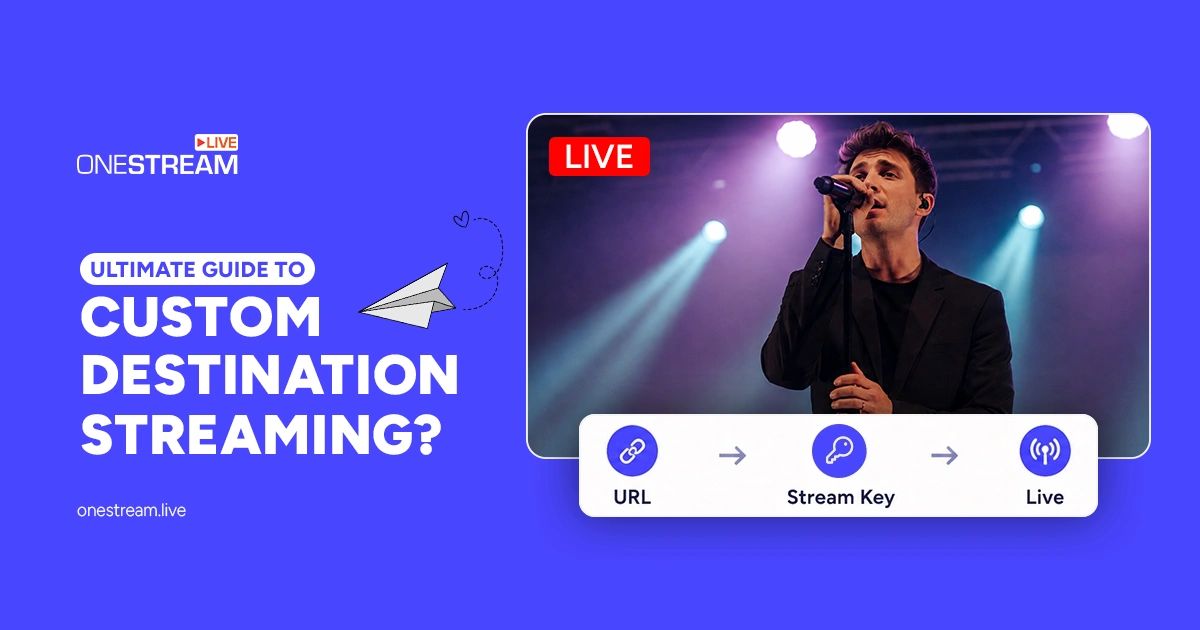
How do some content creators manage to stream seamlessly across multiple platforms that aren’t natively supported? The secret sauce is Custom RTMP Streaming.
If you’re scratching your head thinking, “What on earth is that?”—don’t worry, you’re in the right place. This guide will walk you through everything you need to know about setting up a custom RTMP server, using RTMP stream keys, and making the most out of RTMP streaming services.
- Custom RTMP streaming lets you send your live feed to any platform that accepts an RTMP URL and stream key, even ones your streaming tool doesn’t support natively.
- RTMP stands for Real Time Messaging Protocol. Adobe originally built it for Flash, but it still powers live stream ingest on YouTube, Twitch, and Facebook today.
- RTMP uses a persistent TCP connection, which keeps your audio, video, and metadata flowing reliably with low latency.
- Most platforms use RTMP only to receive your stream, then convert it to HLS or DASH to deliver it to viewers on any device.
- OneStream Live lets you add multiple Custom RTMP destinations and multistream to all of them at the same time from one dashboard.

What is RTMP Streaming?
First things first: RTMP stands for Real-Time Messaging Protocol. In simple terms, it’s a protocol developed by Adobe to stream audio, video, and data over the Internet between a server and a Flash player. While Flash is a thing of the past, RTMP streaming remains a staple in the live streaming.
In simpler terms, it’s like the highway your live streaming data travels on to reach your viewers.
But why should you care about RTMP URL, RTMP stream keys, or even setting up a custom RTMP server? Well, if you’re aiming for a smooth, low-latency streaming experience that’s compatible with various platforms, RTMP is your go-to protocol.
How Does Custom RTMP Streaming Work?
RTMP streaming acts like a dedicated highway for your live video and audio data, ensuring it reaches your audience smoothly and quickly.
Here’s the lowdown:
- Capture and Encode: You start by capturing video and audio using a camera and a microphone. This raw data is then fed into an encoder, which can be either hardware or software, such as OBS Studio. Here, your content gets compressed and prepared for streaming.
- Setting Up the Stream: In your streaming software, you input the RTMP live stream URL and the RTMP stream key provided by your streaming platform or your own custom RTMP server.
- Transmission to the Server: Once everything is set, your encoded data is sent to an RTMP streaming server using the RTMP protocol. This server could be part of an RTMP streaming service, such as YouTube or Twitch, or a server you’ve set up yourself.
- Distribution to Viewers: The server then redistributes your stream to your viewers. This could be through a custom live streaming platform you’ve created or existing platforms that accept RTMP feeds.
- Viewer Playback: Finally, your audience receives the live stream with minimal delay, thanks to RTMP’s low-latency capabilities.
Also Read: Top 5 RTMP Encoders for Content Creators
Why Use Custom RTMP Streaming?
You might be thinking, “With so many streaming protocols out there, why should I use RTMP for streaming” Great question! Here are some compelling reasons:
Low Latency Streaming
First off, let’s talk about latency. It is the delay between your live action and what viewers see on their screens. Nobody likes delays, right? With RTMP streaming, you get impressively low latency.
This means your audience experiences your content almost in real time. It’s just like having a face-to-face conversation without those awkward delays, which is what interactive streams like Q&As or live events are for.
Widespread Compatibility
One of the biggest perks of RTMP streaming is its compatibility. It is supported by various streaming software (like OBS Studio and Wirecast) and platforms (such as YouTube Live and Facebook Live), ensuring seamless integration.
Reliable Transmission
When it comes to live streaming, reliability is very important. The last thing you want is your stream dropping in the middle of a crucial moment.
RTMP streaming servers offer a stable and consistent connection. They use a persistent TCP connection, ensuring your data (audio, video, and even metadata) is delivered smoothly.
Support for Multiple Media Types
RTMP isn’t just about video. It supports multiple media types, including audio and data streams.
This versatility allows you to create rich, interactive experiences. Want to add live chat, real-time statistics, or synchronized slides? RTMP streaming has got you covered.
RTMP streaming servers offer a stable and consistent connection. They use a persistent TCP connection, ensuring your data (audio, video, and even metadata) is delivered smoothly.
Bandwidth Adaptation
RTMP can adjust to varying bandwidth conditions, ensuring that your stream doesn’t suffer from buffering or sudden drops in quality. It’s like your stream has its own personal traffic cop, keeping things flowing smoothly.
Integration with Modern Protocols
Even though RTMP is an older protocol, it seamlessly integrates with modern technologies. Many custom live streaming platforms use RTMP to ingest streams before transcoding them for delivery via protocols like HLS or DASH.
How to Set Up Custom RTMP Streaming with OneStream Live
If setting up your own server sounds like too much hassle, OneStream Live makes it easy to stream to multiple destinations using custom RTMP settings. Here’s how:
1
Log in to your OneStream Live account.
2
Navigate to the “Social Plaforms” section.
3
Select “Custom RTMP” from the list of platforms.
4
Enter the Account Name.
5
Paste the RTMP Server URL (rtmp:// or rtmps://).
6
Paste the Stream Key from your streaming platform.
7
Enable Advanced Settings to adjust video and audio bitrate, FPS, resolution, and keyframe settings, or leave the default if unsure.
8
Click Connect.
9
Schedule your stream or go live instantly.
Use OneStream Live to connect multiple Custom RTMP accounts and multistream to them simultaneously.
Final Words
So, in a nutshell, custom RTMP streaming works by establishing a persistent connection between your encoder and the streaming server (your RTMP destination). It continuously sends small chunks of data, allowing for real-time interaction.
This is why RTMP is still popular for live streaming: it’s reliable, efficient, and relatively straightforward to set up. Understanding how RTMP works can help you better use features like custom RTMP setups, stream keys, and multiple streaming destinations!
Use OneStream Live to make this complex process simple, easy, and quick!
Frequently Asked Questions
What is custom RTMP streaming?
Custom RTMP streaming means sending your live video to any destination that accepts an RTMP server URL and stream key. You paste both into your encoder, such as OBS Studio, and it pushes your feed there. This lets you reach platforms your streaming tool doesn’t list as a native integration.
Is RTMP still used now that Flash is gone?
Yes. Flash is gone, but RTMP remains the standard way to send a live feed from your encoder to a platform. YouTube, Twitch, and Facebook still accept RTMP ingest, then convert your stream to HLS or DASH so viewers can watch it smoothly on any device or browser.
What is the difference between an RTMP URL and a stream key?
The RTMP URL is the server address that tells your encoder where to send your stream. The stream key identifies your specific account or channel on that server. You need both: the URL gets your feed to the right platform, and the key makes sure it lands on your channel, not someone else’s.
How do I set up custom RTMP streaming on OneStream Live?
Log in to OneStream Live, open the Add Account section, and select Custom RTMP. Paste the RTMP server URL and stream key from your destination platform, then save. You can go live instantly or schedule your stream, and add several Custom RTMP accounts to multistream to all of them at once.
What is the difference between RTMP and RTMPS?
RTMPS is RTMP wrapped in TLS encryption, the same security layer HTTPS uses. It protects your stream key and video data while they travel to the server. Many platforms, including Facebook Live, now require RTMPS, so check whether your destination URL starts with rtmps:// before you go live.
OneStream Live is a cloud-based live streaming solution to create, schedule, and multistream professional-looking live streams across 45+ social media platforms and the web simultaneously. For content-related queries and feedback, write to us at [email protected]. If you have a story to share about your live streaming experience with OneStream Live, we would be glad to feature it. You’re also welcome to Write for Us!