
In hardware vs software encoding, most streamers should pick hardware. A modern hardware video encoder on your GPU or iGPU keeps OBS Studio responsive and cuts dropped frames when scenes get busy. Use a software encoder (x264) only when your CPU has room and you are chasing extra detail at low bitrates, including with OneStream Live.
This guide is written for everyday streamers, but it’s aimed squarely at OneStream Live users who either (a) send a live RTMP feed from OBS or a hardware box into OneStream Live, or (b) upload and schedule pre-recorded streams and want exports that look good without turning every session into a stress test. OneStream Live supports scheduling and multistreaming to 45+ platforms, so the “right encoder” depends on your workflow.
Important Definitions for the Discussion of Hardware vs Software Encoding
1. Live streaming hardware
Your camera, mic, capture card, lighting, and network set the ceiling. Encoding decides how close you get to that ceiling under real constraints, like a 6 Mbps upload and a laptop that also has to run your show.
2. Hardware encoder
It is a dedicated encoding engine (often inside a GPU or iGPU) that compresses video with minimal CPU involvement. Unlike a software encoder, hardware encoding offloads work from your CPU so the system stays responsive while you stream.
3. Software encoder
It is a CPU-based encoder implemented in software (example: x264). Unlike a hardware encoder, it can spend more CPU time to improve compression efficiency, which can mean better quality at a given bitrate if your CPU can keep up.
4. Encoder software
This is the application that captures sources, mixes audio/video, and sends output to a platform or server. If you’re asking what is encoder software, it’s the part of your setup that turns “camera + mic + scenes” into one outbound stream. Unlike a standalone hardware device, encoder software shares resources with everything else running on your machine.
5. Video encoding hardware
This is the physical silicon doing the compression work, either built into consumer chips or packaged as a dedicated device. Unlike pure software encoding, video encoding hardware is designed to do this one job efficiently, often with predictable latency.
What Actually Changes When You Switch Encoders
OBS is unusually candid: hardware encoders are generally recommended because they move work off the CPU to specialized components, and modern hardware encoders can deliver good quality with minimal performance impact. It also warns that older hardware encoders can look worse at the same bitrate than x264 veryfast. That “older” part matters more than people admit.
The visible differences usually show up in three places.
First, stability under load.
If you’re gaming, running browser sources, adding noise suppression, and swapping scenes all at once, CPU headroom disappears fast. That’s why many OBS support replies point people back to hardware encoding and the Auto-Configuration Wizard when they hit “encoding overload” symptoms.
Second, how much bitrate buys you.
Platforms publish guidance because they have to. YouTube recommends bitrate ranges by resolution and frame rate and calls out a 2-second keyframe interval (don’t exceed 4), with CBR as the baseline.
For a concrete example, YouTube’s table lists 1080p at 60 fps at 12 Mbps for H.264 ingestion. If you ignore those ranges, you end up blaming the encoder for a problem when really your bitrate is wrong for your target.
Third, where your bottleneck moves.
Hardware encoding rarely means “no CPU.” Your CPU still handles chunks of the pipeline: audio encoding, filters, some capture work, muxing.
Even documentation for NVENC inside HandBrake notes that high CPU utilization can still be normal because other steps remain CPU-bound. So if you flip to hardware and your CPU fan still screams, that may be your scene and filter stack, not the encoder choice.
When Software Encoding Is the Smart Choice
Let’s answer the question people keep typing: should I use software or hardware encoding?
Use a software encoder when your CPU can actually afford it and your content benefits from it.
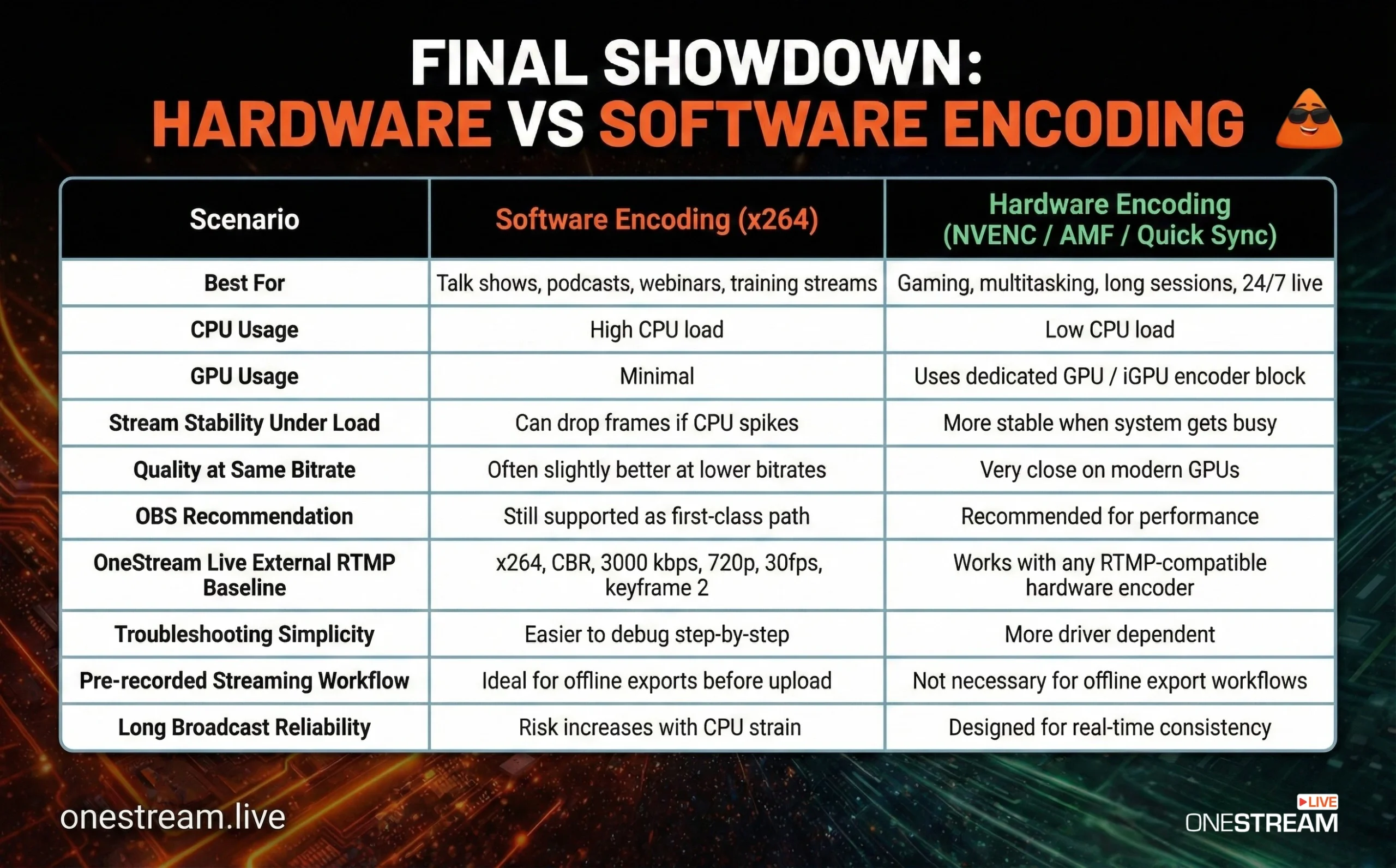
If your stream is a talk show, podcast video, training, or a webinar style broadcast, the CPU often has real headroom. In that situation, x264 can trade extra compute for fewer compression artifacts. OBS’s own x264 guidance exists because a lot of creators still use it, and the project treats x264 streaming as a first-class path.
Software encoding can also be a practical way to match platform baselines when you are troubleshooting. OneStream Live’s helpdesk baseline for External RTMP ingest is intentionally conservative: x264, CBR, 3000 kbps, 720p, 30 fps, keyframe interval 2, stereo audio.
If your goal is “stop the stream from breaking,” that is a sane starting point. Change one variable at a time once you’re stable.
There’s one more reason software encoding stays relevant for OneStream Live users: pre-recorded streaming. If you primarily upload and schedule content, you can encode offline, upload, then let OneStream Live play it out on a schedule.
The product flow is built around upload, scheduling (including looping), and even 24/7 playback for recorded content on YouTube. In that workflow, your export settings are the quality decision.
When Hardware Encoding Wins
Now the flip side: what is a hardware encoder in practice?
It’s the reason your stream doesn’t fall apart when your CPU gets busy. A hardware encoder for streaming is built for real-time compression with low CPU impact, which is exactly why OBS recommends modern hardware encoders for performance.
OBS recommends modern hardware encoders because they take workload off the CPU and move it to specialized components. Intel describes Quick Sync Video as using dedicated media processing capabilities so the processor can complete other tasks and improve responsiveness.
On consumer PCs, hardware encoding usually means one of three families.
1. NVIDIA GPU hardware encoding
NVIDIA’s own OBS guide positions NVENC as a dedicated encoder block for capture and streaming with minimal CPU impact, and it explains codec efficiency (HEVC and AV1 can deliver higher quality at the same bitrate than H.264, depending on platform support). It also includes the blunt reminder that streaming platforms may not support all codecs.
2. AMD GPU hardware encoding via AMF
AMD maintains the Advanced Media Framework SDK for multimedia processing on AMD GPUs, and OBS supports AMF with explicit driver and compatibility guidance. Quality and settings can vary by GPU generation and drivers, so verify with a short test recording and a short private stream before you trust any preset.
3. Intel iGPU encoding (Quick Sync)
Quick Sync is everywhere on Intel CPUs with integrated graphics, and it is often the best “free” hardware encoder on laptops that do not have a dedicated GPU.
————————————————————————————–
Hardware also wins when you need multiple encodes. Twitch has been pushing Enhanced Broadcasting and multiple encode ladders. Industry coverage has reported that Enhanced Broadcasting supports H.264 and HEVC ladders today while AV1 is not yet accepted for ingest, and that matters because multiple parallel CPU encodes are brutally expensive.
Finally, hardware is also the best choice when you want a dedicated solution with fewer failure points. If you’re shopping for video streaming encoder hardware or an encoder for live streaming, you’re looking at appliance encoders built around common streaming protocols like RTMP/RTMPS and common codecs like H.264/H.265.
- Magewell markets its Ultra Encode family with H.264/H.265 support and protocols including RTMP and RTMPS.
- Blackmagic Design sells standalone streaming processors described as H.264 and H.265 hardware encoders for live streaming to major platforms.
- OneStream Live ’s own External RTMP Encoder also treats “OBS or hardware encoders” as valid sources for sending one stream into OneStream Live for multistreaming.
OBS Settings and the Prefer Hardware Encoding Checkbox
The “Prefer Hardware Encoding” OBS checkbox appears in the Auto-Configuration Wizard and shows up in third-party setup guides. For instance, Cloudflare’s OBS setup guide tells you to select “Prefer hardware encoding” (if available) and run a bandwidth test. The goal is simple: bias the wizard toward a hardware encoder when your system supports it.
A useful mental model: it’s a preference signal, not an iron law.
OBS’s own hardware encoding entry makes it clear that the “right” hardware option depends on what’s actually installed and your GPU generation. It even calls out recommended generations for better results on some encoder families.
Also, if you are chasing new codec options, stay skeptical. YouTube’s help docs list H.264, H.265, and AV1 as ingestion codecs and provide bitrate guidance for each.
Google’s developer docs for ingestion protocols, however, still describe RTMP/RTMPS as H.264 and tie HEVC support to HLS ingestion. Meanwhile, coverage of OBS adding AV1/HEVC RTMP streaming notes that service-side support can be beta. Translation: pick the codec your destination actually accepts, not the codec your GPU happens to offer.
What is the OneStream Live Decision Path
Most encoder arguments are treated like identity. They should be treated like plumbing.
Start with how you use OneStream Live. If you are using pre-recorded streaming, your encoder choice is mostly about export and file handling.
OneStream Live emphasizes uploading, scheduling (including looping and 24/7 playback), and importing from cloud storage, with upload limits that differ by source, and they explicitly call out scheduling up to 60 days ahead for certain pre-recorded workflows. Encode for quality, keep file sizes reasonable, and let OneStream Live handle scheduling and distribution.
If you are using OneStream Live Studio in the browser, the encoder debate is mostly offstage. You’re choosing a browser production workflow with guest invites, branding tools, layouts, scheduling, and recording. Your “encoder” work is more about choosing a stable network and a clean camera feed than micromanaging x264 presets.

If you are using OneStream Live via an External RTMP Encoder, follow the platform baseline first, then improve quality stepwise. OneStream Live publishes recommended RTMP encoder settings as a baseline for interruption-free streaming.
Read the Guide to RTMP Streaming: Stream to Any Platform with OneStream Live
Start there, verify stability, then raise resolution, frame rate, and bitrate in that order. And if you are sending RTMP into OneStream Live, pick the nearest RTMP server region because proximity reduces network hops and can improve stream stability over persistent connections.
Learn How to Reach your Nearest RTMP Server
That’s the entire software vs hardware encoding decision in OneStream Live terms: pick the option that keeps your encoder stable for the workflow you are actually using.
Conclusion: So, Should You Use Hardware or Software Encoding?
One last reminder, from an actual OneStream Live customer quote, because creators care about outcomes:

Encoder choices are only valuable if they support that kind of reliability, consistency, and reach. So, the best live streaming encoder is the one that keeps your show on the air while you focus on the part viewers can actually feel.
The hardware vs software Encoding debate comes down to one thing: stability versus control.
Choose a software encoder if you have a strong CPU and want maximum tuning flexibility. Choose a hardware video encoder if you value lower CPU load, smoother performance, and long-session reliability.
For OneStream Live users streaming via OBS, external RTMP, or dedicated video encoding hardware, hardware encoding often wins for consistency. But test both. Watch dropped frames. Monitor CPU usage. Decide based on data, not forum hype.
Encoding handles your video.
OneStream Live handles your reach.
Pick the setup that keeps you live.

Frequently Asked Questions
Use hardware encoding in OBS when you game, run heavy overlays, or see dropped frames because the GPU or iGPU handles compression while the CPU keeps scenes stable. Use software encoding (x264) only if your CPU has real headroom and you want better detail at tight bitrates.
“Encoding overloaded” usually means your CPU cannot encode plus render scenes at the same time. Switch to a hardware video encoder (NVENC, Quick Sync, AMF), reduce output resolution or FPS, and simplify filters like noise reduction. Then re-test before raising bitrate or quality presets.
Yes, for long sessions it is often worth it because video encoding hardware keeps performance predictable and lowers CPU spikes that cause stutters. This matters even more for 24/7 streams where stability beats perfection. Pair the encoder with consistent bitrate and keyframe settings for fewer disconnects.
Bitrate, keyframe interval, and resolution matter more than brand debates. For OneStream Live external RTMP workflows, stable CBR, a 2-second keyframe interval, and realistic output resolution for your upload speed prevent hiccups. Pick the encoder after your stream is stable, not before.
Yes. OneStream Live supports External RTMP ingestion, so any encoder for live streaming that outputs RTMP can feed OneStream Live, which then handles multistream distribution. Common examples include hardware encoders from broadcast vendors and software encoders like OBS. The key is matching codec, bitrate, and keyframes to destination requirements.
OneStream Live is a cloud-based live streaming solution to create, schedule, and multistream professional-looking live streams across 45+ social media platforms and the web simultaneously. For content-related queries and feedback, write to us at [email protected]. You’re also welcome to Write for Us!