You capture a beautiful moment and record it on video. Suddenly the recording stops because your storage is full. Without storage, you cannot edit or share that video. For live streamers, this problem is even bigger. Limited space and long uploads often slow down streaming workflows. OneStream Live solves this by connecting directly with Frame.io. You can import videos from your Frame.io account to OneStream Live in just a few clicks. This approach saves time, clears storage issues, and keeps your focus on live streaming across multiple platforms.
What is Frame.io?
Frame.io is a cloud-based video review and collaboration platform. It lets teams upload video files and gather feedback instantly. Frame.io comes bundled with Adobe Premiere Pro in Creative Cloud. Editors get 100GB of cloud storage. This shows Frame.io has become essential for video workflows. You can access Frame.io from its web interface.
There is also a Frame.io app for mobile devices. Frame.io can integrate with many other tools. Creators can connect Frame.io to the apps they use daily. It also integrates with live streaming services. Frame.io offers over 1,000 app integrations. This broad support means it can fit into any workflow. All these integrations make your workflow smoother.
Why Integrate Frame.io with OneStream Live?
Integrating Frame.io with OneStream Live solves common pain points for streamers. First, it removes tedious download and re-upload steps. You can fetch videos straight from Frame.io into OneStream Live. This saves time and internet bandwidth.
This is especially helpful for large files. Cloud imports have no file size limit with OneStream Live. Second, it helps preserve storage space on your drives. You no longer need to keep duplicate videos.
How to Integrate Frame.io with OneStream Live Step by Step
Connecting Frame.io to OneStream Live is straightforward. Follow these simple steps to get started:
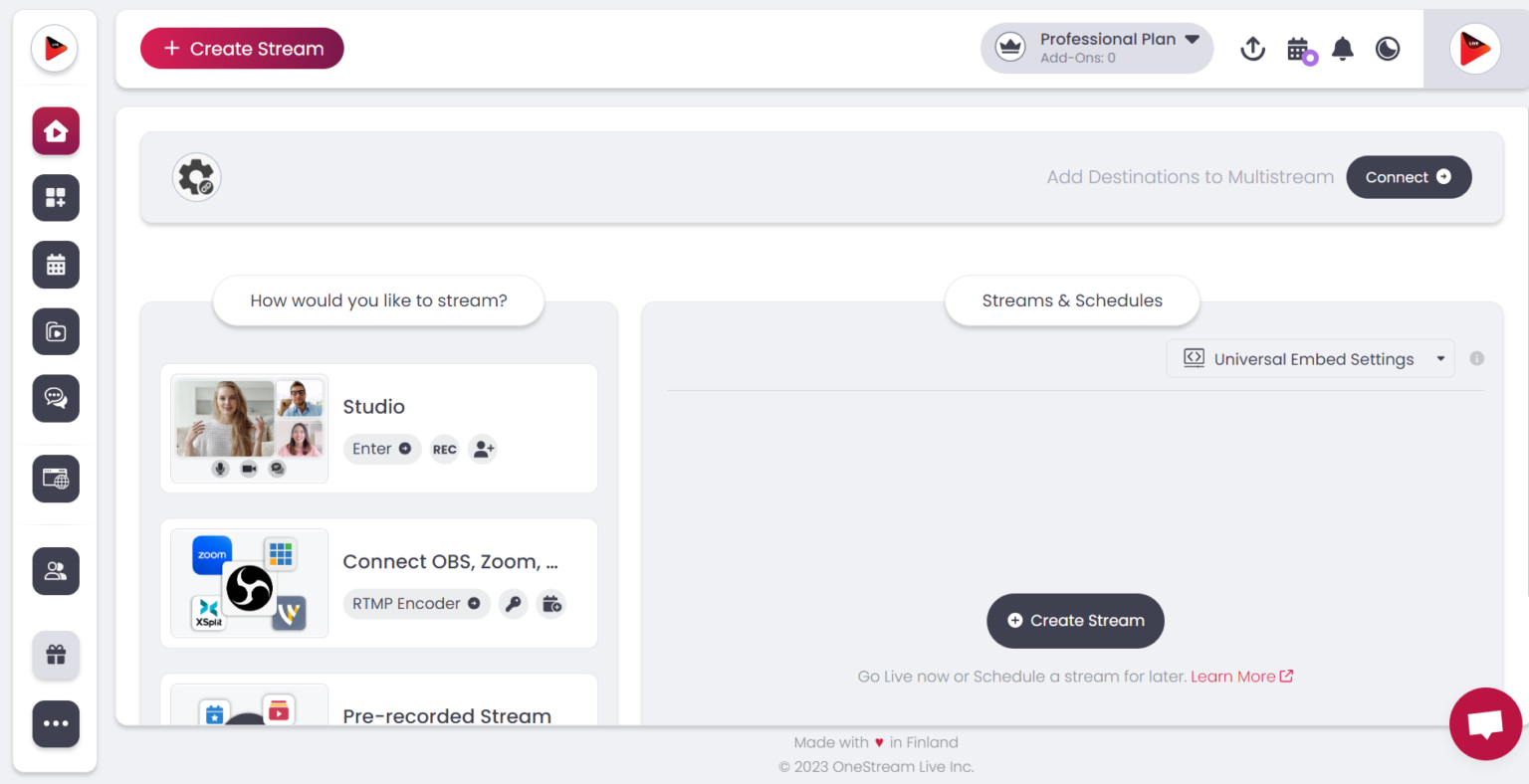
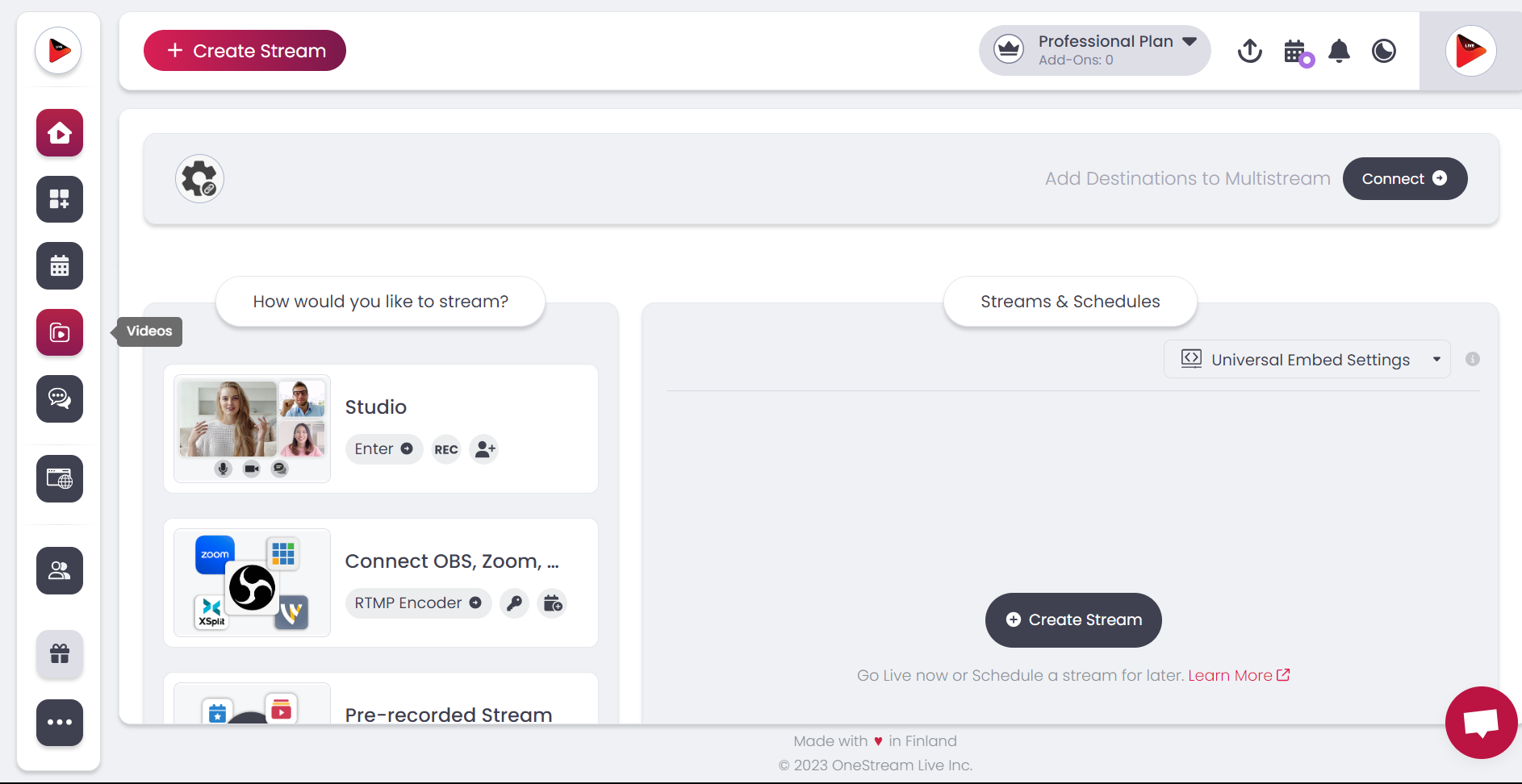
1. Open OneStream Live: Go to your OneStream dashboard and click Create Stream. Then choose Pre-recorded Stream as the stream type.
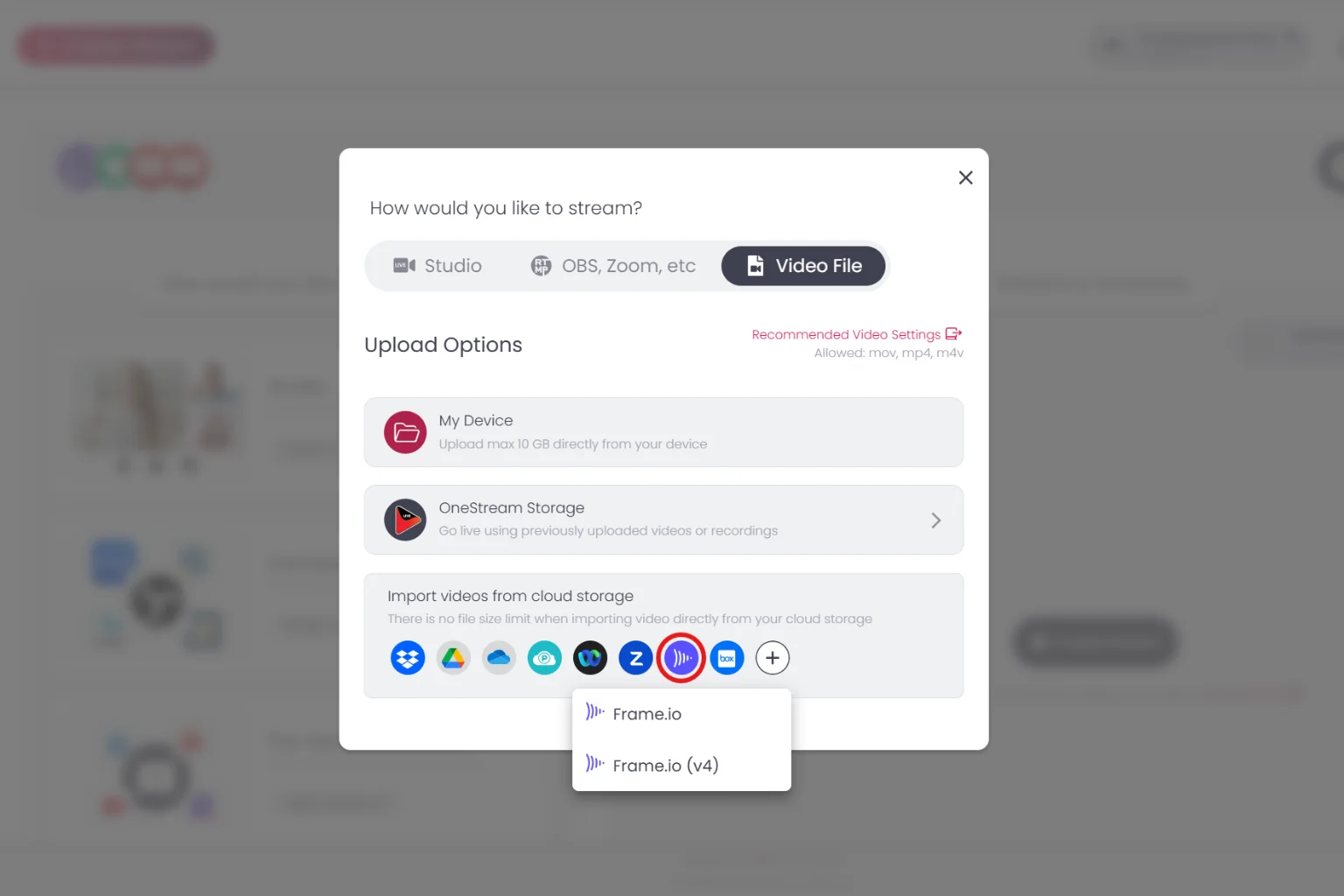
2.Choose Frame.io as Source: You will be prompted to choose a source for your video. Select Frame.io from the list of cloud storage platforms available (e.g., alongside Dropbox, Google Drive, etc.). OneStream will redirect you to authenticate with Frame.io.
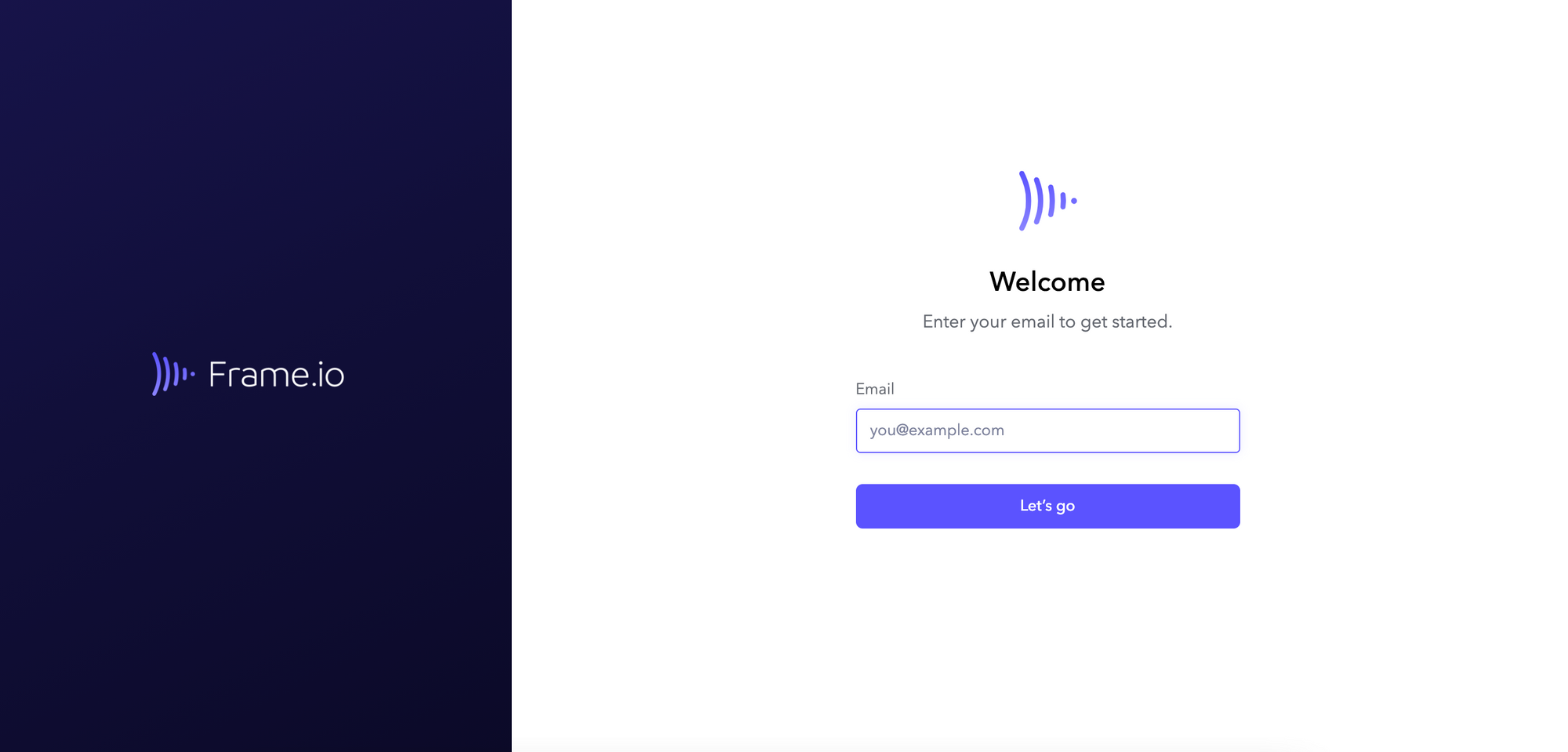
3.Sign in to Frame.io: A pop-up will appear for Frame.io login. Enter your Frame.io credentials (email and password) and authorize OneStream Live to access your Frame.io content. Once signed in, you’ll see your Frame.io workspace or folders. Navigate to the project and select the video file you want to stream.
4. Pick your video file from Frame.io: Browse your Frame.io projects. Select the video file you want to stream. Then click Choose File to import it. OneStream Live will fetch the video directly from Frame.io.
5. Configure and go live: Once the file is imported, fill in stream details. Add a title and description for your broadcast. Choose your destination platforms (Facebook, YouTube, etc.). Then schedule the stream or go live immediately. OneStream will handle transcoding automatically. You don’t have to worry about format or quality.
Pro Tip: You can edit your file name before scheduling the video.
Alternate Method: Using OneStream Storage
OneStream Live provides another route to import videos from Frame.io via the OneStream Storage section. Here’s an alternate method:
In the OneStream dashboard, go to Videos
Click the option to Cloud Storage, and then choose Frame.io from the list.
Sign in to your Frame.io account if prompted, then navigate and select the video file you wish to import.
Click Choose (or Import). The video will be fetched from Frame.io into your OneStream storage library, from which you can schedule it for streaming.
Both methods achieve the same result: your chosen Frame.io video gets imported into OneStream Live, ready to be scheduled as a live stream. Use the Create Event method if you want to set up a stream immediately, or the OneStream Storage method if you prefer to import files in advance.
Tips for Using Frame.io with OneStream Live
Use Frame.io Transfer for big files: For very large video files, use the Frame.io Transfer app. It can upload big files and folders much faster.
Check Frame.io status if something’s wrong: If your Frame.io files aren’t importing into OneStream Live, check your internet connection first. You can also check Frame.io’s status page. It will show if the service is running smoothly. This helps rule out any server issues.
Organize your Frame.io projects: Keep your Frame.io projects well-organized with clear titles and folders. You will then find files faster when using OneStream Live. Spend less time searching and more time streaming.
Take advantage of multi-platform streaming: You can stream to multiple platforms at once. OneStream Live supports streaming to 45+ social networks simultaneously. This maximizes your audience reach without extra effort. You only need to upload your video to Frame.io once. Then stream it through OneStream Live to go live everywhere.
Conclusion
Frame.io integration with OneStream Live makes live streaming easier. It cuts out extra steps and keeps your videos ready to stream. Your edits and reviews in Frame.io stay intact when you go live. This saves time and storage for creators and teams. It also helps you reach viewers on all major platforms.
No need to worry about storage. No need to worry about where to stream. Connect Frame.io to OneStream Live and go live across all channels.
Yes, you can easily stream pre-recorded videos from Frame.io on OneStream Live by selecting them from your integrated account.
OneStream Live is a cloud-based live streaming solution to create, schedule, and multistream professional-looking live streams across 45+ social media platforms and the web simultaneously. For content-related queries and feedback, write to us at [email protected]. You’re also welcome to Write for Us!
We use cookies to enhance your browsing experience, serve personalized content, and analyze our traffic. By clicking "Accept All", you consent to our use of cookies.
Cookie Preferences
Strictly NecessaryRequired
Essential for the website to function properly.
Functional
Enable enhanced functionality and personalization.
Analytics
Help us understand how visitors interact with our website.