Running a live stream alone means watching the chat, switching layouts, and presenting all at once. A cohost takes half of that off your plate. OneStream Live Studio lets you hand a teammate exactly the controls they need, without sharing your password or your billing details. This guide shows you how to add a cohost in OneStream Live Studio in six simple steps, so your next broadcast runs with two pairs of hands instead of one.
- A cohost in OneStream Live Studio helps you run live events without access to your password or billing details.
- Cohosts can edit scheduled events, reply to live comments, manage Studio layouts, and add or remove attendees.
- Cohosts cannot create, start, or stop broadcasts, so full control of your stream stays with you.
- Each cohost takes one team seat, and they switch into your team from the team switcher in their sidebar.
- With a cohost handling the chat and guests, you can focus on presenting while OneStream Live keeps your show running smoothly.

What is a Cohost in OneStream Live Studio?
A cohost is a team member you add with the cohost role. They sign in with their own OneStream Live account, switch into your team, and help you run your events.
Inside a live session, a cohost in OneStream Live Studio can manage on-screen elements like graphics, banners, guests, and comments. Outside the session, they can edit your scheduled events. They never see your billing or your subscription.
How to Add a Cohost in OneStream Live Studio
Here is the full process, exactly as it appears in your dashboard. Each step takes only a few seconds.
1
Open My Team From the Sidebar
Sign in to your OneStream Live dashboard. Look at the left sidebar and find the Management section. Click My Team to open the Team Management page.
2
Check Your Available Seats
Near the top of the page, you will see a seat counter, such as “0 of 6 seats used.” Each cohost takes one seat. If every seat is used, free one up or add more before you continue.
3
Click Invite Team Member
Click the + Invite Team Member button on the right side of the page. The Add New Member window opens. This is where you set the email and the role.
4
Enter Their Email Address
Type your cohost’s email address in the Email field. If they already have a OneStream Live account, use that same email. If they do not, they will get an invite to create one for free.
5
Select the Cohost Role
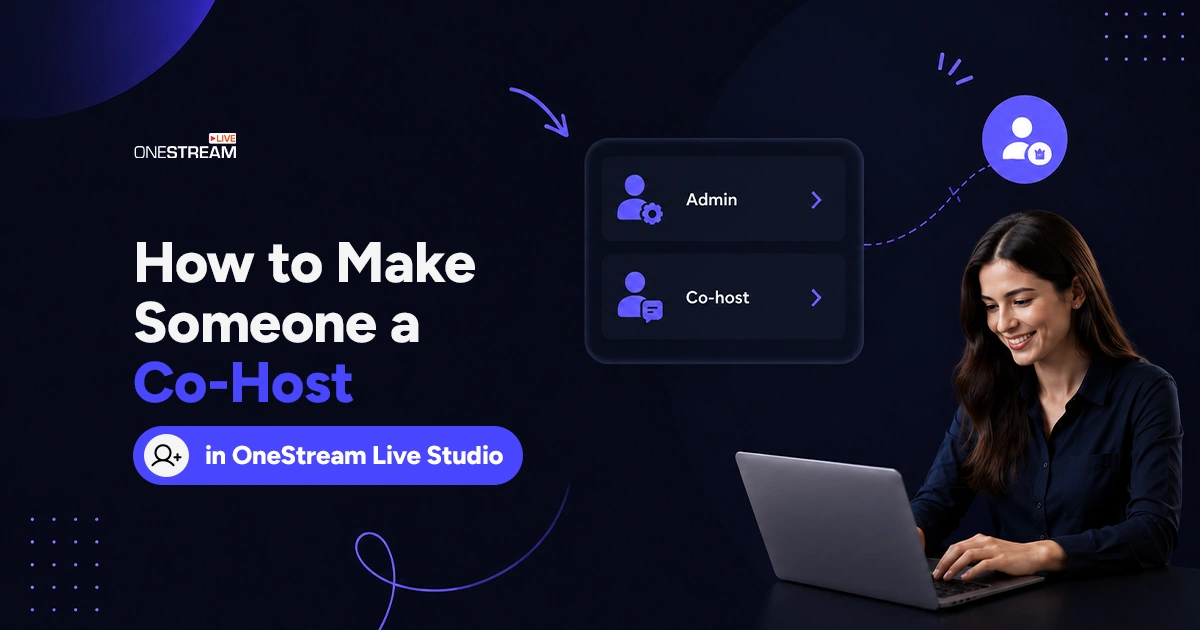
Two roles appear, Admin and Cohost, and Admin is selected by default. Click the circle next to Cohost to switch it. You can also click “View user roles” any time to compare what each role unlocks.
6
Click Invite User
The Invite User button turns active once both fields are set. Click it to send the invitation. Your cohost accepts the email, joins your team, and then shows up in your table with the Cohost badge next to their name. They can then switch to your team from the team switcher at the top of their sidebar and start helping you run your events.
What a Cohost Can and Cannot Do
The OneStream Live Studio cohost feature really shines once the session begins. The Cohost role is built for running shows, not for managing accounts. Here is the split at a glance.
What a Cohost Can Do
A Cohost can modify existing events, reply to live comments, manage layouts inside Studio, and add or remove attendees. That covers almost everything needed during a live broadcast.
What a Cohost Cannot Do
A Cohost cannot create, delete, start, or stop broadcasts. They also cannot connect social platforms, manage stream keys, edit custom websites or stream players, upload Studio media, or open My Content. Billing and team management stay with the owner only.
|
Capability |
Admin |
Cohost |
|---|---|---|
Streams: create, delete, start or stop broadcasts |
Yes |
No |
Streams: modify existing events |
Yes |
Yes |
Social Platforms: connect or disconnect |
Yes |
No |
Live Chat: reply to live comments |
Yes |
Yes |
Studio: upload media like overlays and backgrounds |
Yes |
No |
Studio: add or remove attendees |
Yes |
Yes |
Studio: manage layouts |
Yes |
Yes |
My Content: view, upload, rename or delete assets |
Yes |
No |
Billing, subscriptions and team management |
No |
No |
When to Choose Admin Instead
Pick Admin if the person also needs to create streams, connect accounts, and upload media. Admins can do everything except manage billing, add or remove members, and change the account owner.
How to Change or Remove a Cohost
Roles are easy to update. Open My Team, find the person in the list, and use the role option next to their name to switch them between Cohost and Admin.
To remove someone, use the delete option beside their name. Their seat opens up right away. If an invite has not been accepted yet, you can resend it or revoke it from the same page.
How to Add a Cohost to a Scheduled Meeting
There is no separate button to add a cohost to scheduled meeting sessions. Once someone holds the Cohost role, they can already open and edit every scheduled event on your team.
Create your event from the Studio Livestream card on the dashboard. Set your title, time, and destinations, then save it. Your Chost switches into your team, opens the same event, and joins you in Studio when it goes live. That is the whole live stream co host setup.
Cohost vs Guest: The Quick Difference
People mix these two up often, so here is the clear line between them.
A Cohost is on Your Team
A cohost holds the Cohost role, signs in to the dashboard, and helps produce the show. They can also prepare events before you go live.
A Guest Just Joins the Link
A guest opens your Studio invite link and appears on camera. No account, no download, and no dashboard access.
Why Co-Hosting is Worth Setting Up
Live video earns real attention, and a second set of hands helps you keep it. Here is what co-hosting brings to every broadcast.
1. Viewers Stay Longer
People give live content more of their time. According to live streaming statistics, viewers spend about 25.4 minutes per session on live video, compared with around 19 minutes on on-demand content. A cohost helps you hold that attention by keeping the show moving while you present.
2. Your Chat Gets Answered in Real Time
Live streams pull in far more conversation than recorded video. LinkedIn reports that live broadcasts get 24x more comments and 7x more reactions than regular video. LinkedIn even advises having someone on your team reply to comments during the stream. A cohost in OneStream Live Studio can do exactly that, so no question goes unanswered.
3. You Stay Focused on Your Audience
Presenting well is hard when you also have to switch layouts and watch the chat. Your cohost manages layouts inside Studio, so you can keep your eyes on the camera and your mind on the message.
4. Guest Segments Run Smoothly
Interviews and panels lose energy when guests wait too long to join. A cohost can add and remove attendees in Studio, bringing each speaker on at the right moment.
5. Prep Work Gets Shared
Your cohost can edit scheduled events before you go live. Two people can check titles, descriptions, and event details instead of one.
6. Your Account Stays Secure
When you add a cohost to live stream sessions, you do not share your password or billing details. Cohosts cannot start or stop broadcasts, manage stream keys, or touch your subscription. You get real help and keep full control.
Wrapping Up
That is how to add a Cohost in OneStream Live Studio, start to finish. Six steps, one role selection, and your next stream has a producer beside you.
Open your dashboard, head to My Team, and send the invite. Your cohost will be ready before your next broadcast begins.
Frequently Asked Questions
What's a cohost in OneStream Live?
A cohost is a team member with the Cohost role. They can edit scheduled events, manage Studio layouts, add or remove attendees, and reply to live comments.
How do I make someone a cohost in OneStream Live Studio?
Go to My Team, click + Invite Team Member, enter their email, select Cohost, then click Invite User. They accept the email invite and join your team.
Can a cohost start or stop my broadcast?
No. Starting, stopping, creating, and deleting broadcasts stay with the Admin and owner roles. A Cohost can modify existing events but cannot launch them.
Do I need a paid plan to add a Cohost to live stream sessions?
You need at least one open team seat. Your Cohost does not need a paid plan of their own, since they work under your team and your plan’s limits.
How many cohosts can I add?
That depends on your plan’s team seats. Extra seats are available through the team-seat add-on if you need more room.
OneStream Live is a cloud-based live streaming solution to create, schedule, and multistream professional-looking live streams across 45+ social media platforms and the web simultaneously. For content-related queries and feedback, write to us at [email protected]. If you have a story to share about your live streaming experience with OneStream Live, we would be glad to feature it. You’re also welcome to Write for Us!