Open. Get ready. Go live.
That’s the idea behind Instant Studio.
You get one always-ready studio and one link you can keep using. No repeated setup. No digging around for a fresh link.
In this post, we’ll show you how Instant Studio works, how to access it, what it offers, and how it differs from a Regular Studio session.
- Instant Studio gives you one permanent link and one saved setup, so there’s no new link or reconfiguration needed for every stream.
- Backgrounds, overlays, and your last used assets all carry over automatically between sessions.
- Going live takes just a few clicks: Enter Studio, add your Name/Title, pick destinations, and hit Start Broadcast.
- Customizing or regenerating your link retires the old one instantly, so update it anywhere you’d previously shared it.
- It’s built for recurring or spontaneous streams, not scheduled events. Regular Studio is still the right pick for one time, date specific broadcasts.

What Is Instant Studio?
With Regular Studio, every stream gets its own link, and you can set up your backgrounds, and overlays a little differently each time if you want to. That’s great when every stream is its own thing.
But sometimes you just need to go live immediately, with the same link and the same setup you always use. That’s what Instant Studio is for. Set it up once, and you get one permanent room, ready to go live in a click, every single time. Here’s what it offers:
- One link, forever: The same link works this week and next year. Set it once in your email signature or a recurring invite, and it just keeps working.
- Full control over that link: Copy it as is, customize the link, or regenerate it if you ever want a different one.
- The same setup, every session: Your backgrounds, and overlays stay exactly as you left them, no rebuilding required.
- A memory that carries over: Your last saved audio and images from the control bar are still there when you come back.
Getting Into Instant Studio: A Step-by-Step Process
Going live with Instant Studio takes just a few steps:
1
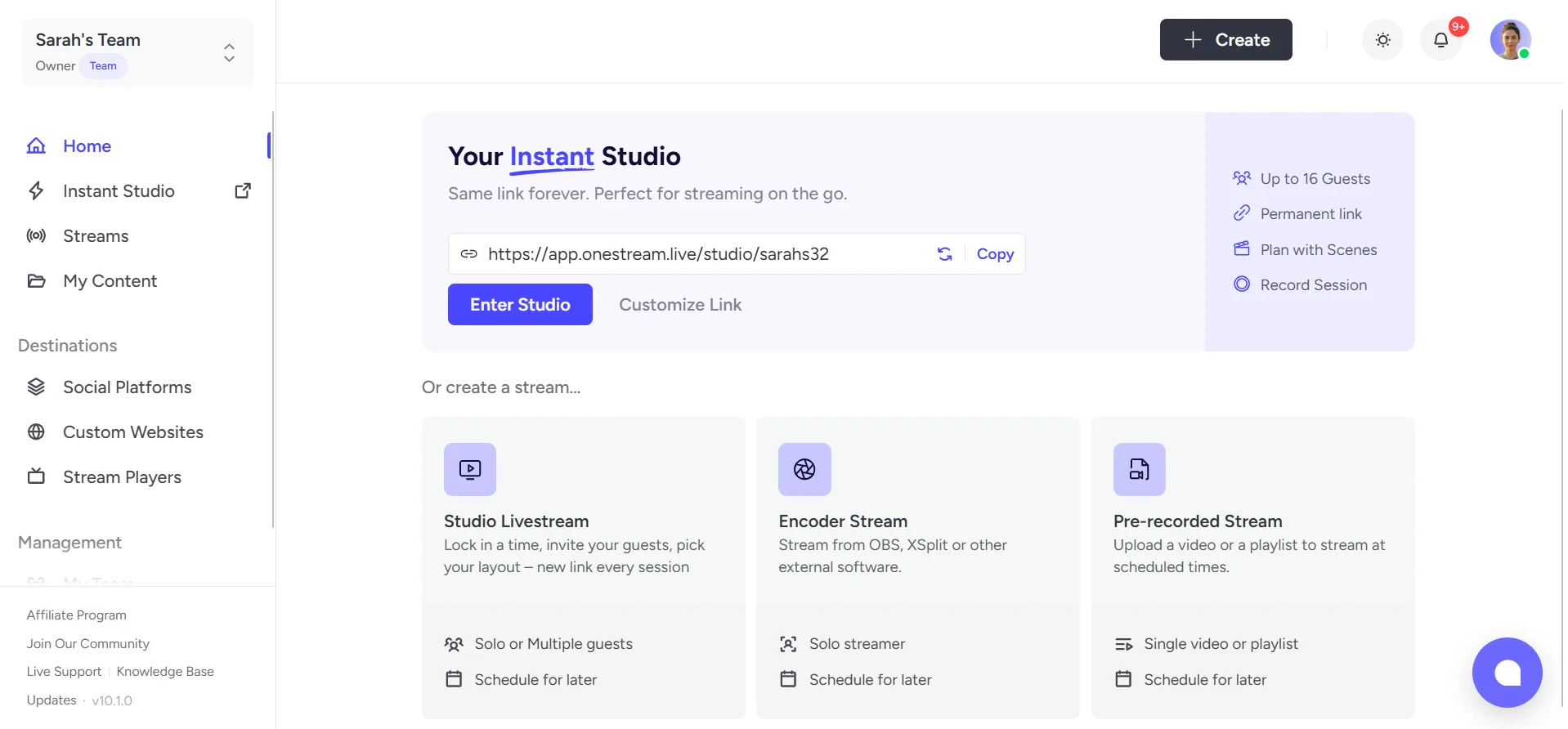
Log into your OneStream Live account, and from the dashboard, select Enter Studio on your Instant Studio card. This drops you straight into the room.
2
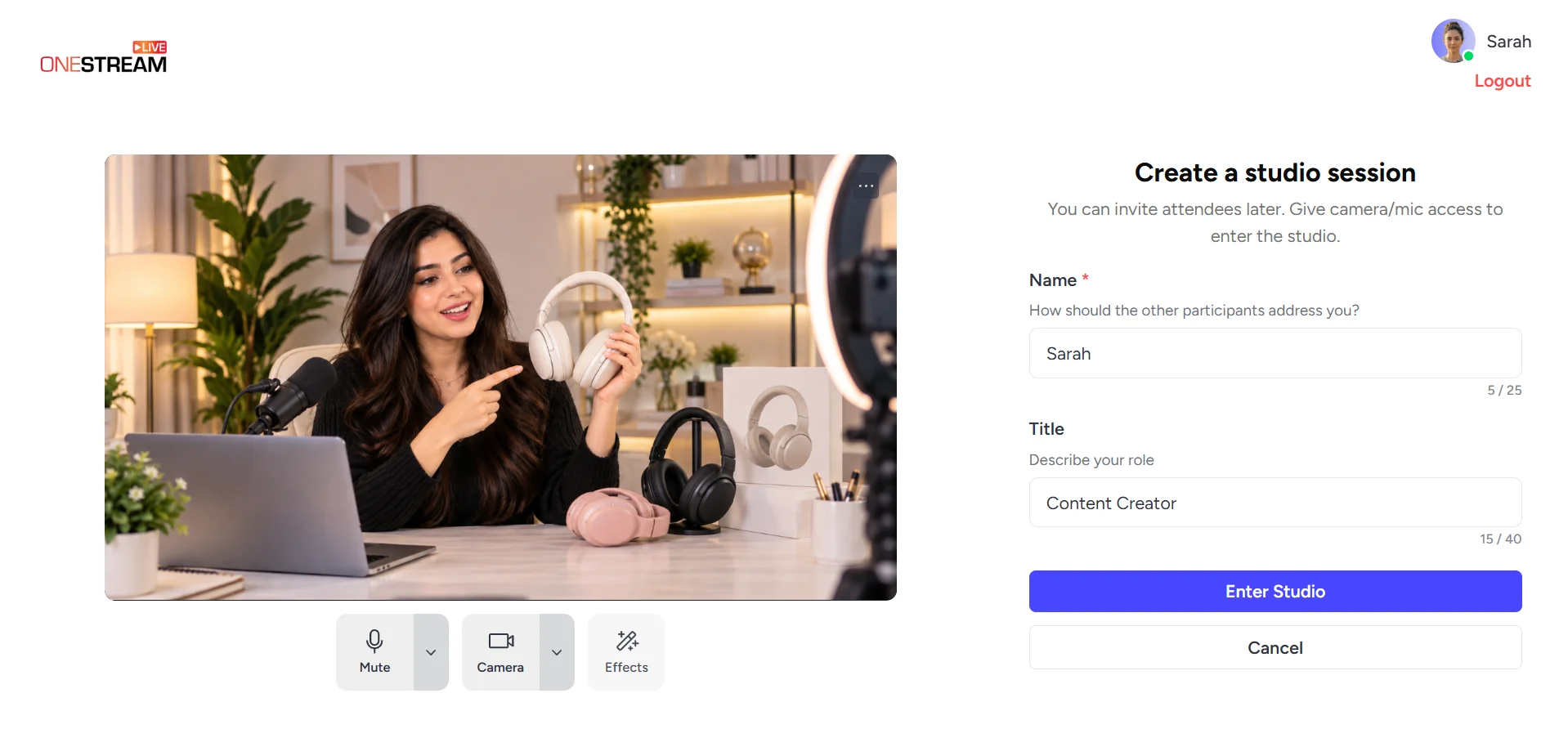
Next, enter your Name and Title, then click Enter Studio. These two fields are all it takes before you’re actually inside the room.
3
Once you’re in, you’ll find your broadcast settings, including the background, banner, ticker, and overlay, already intact, so you won’t need to set them again. Simply select your Social Destinations and go live.
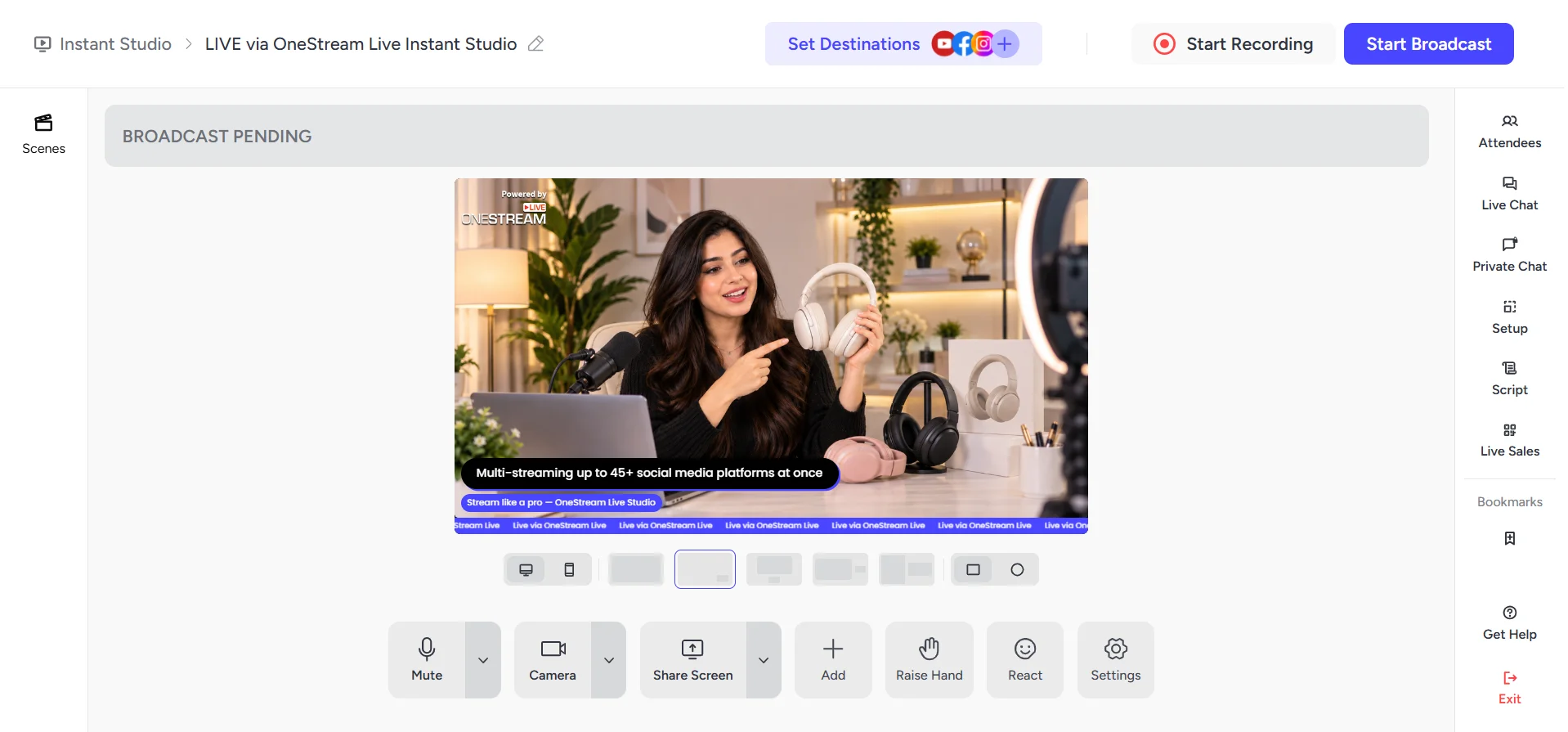
From here, it’s the full toolkit, scenes, intro and outro flows, recording, destinations, live broadcasting, and every studio control, same as Regular Studio. Share your screen, add media, bring in an extra camera or an RTMP source. Invite guests, run live chat with your audience, keep a private backchannel with your team going at once. Open Setup any time you want to touch your background, banners, tickers, logo, or overlays, mid-broadcast if the moment calls for it.
Walk away without ending the session, and your dashboard doesn’t lose the thread either. The card keeps your live status and recording indicator up until you close it out yourself.
Read More: OneStream Live Studio Walkthrough
How Do You Customize or Regenerate Your Instant Studio Link?
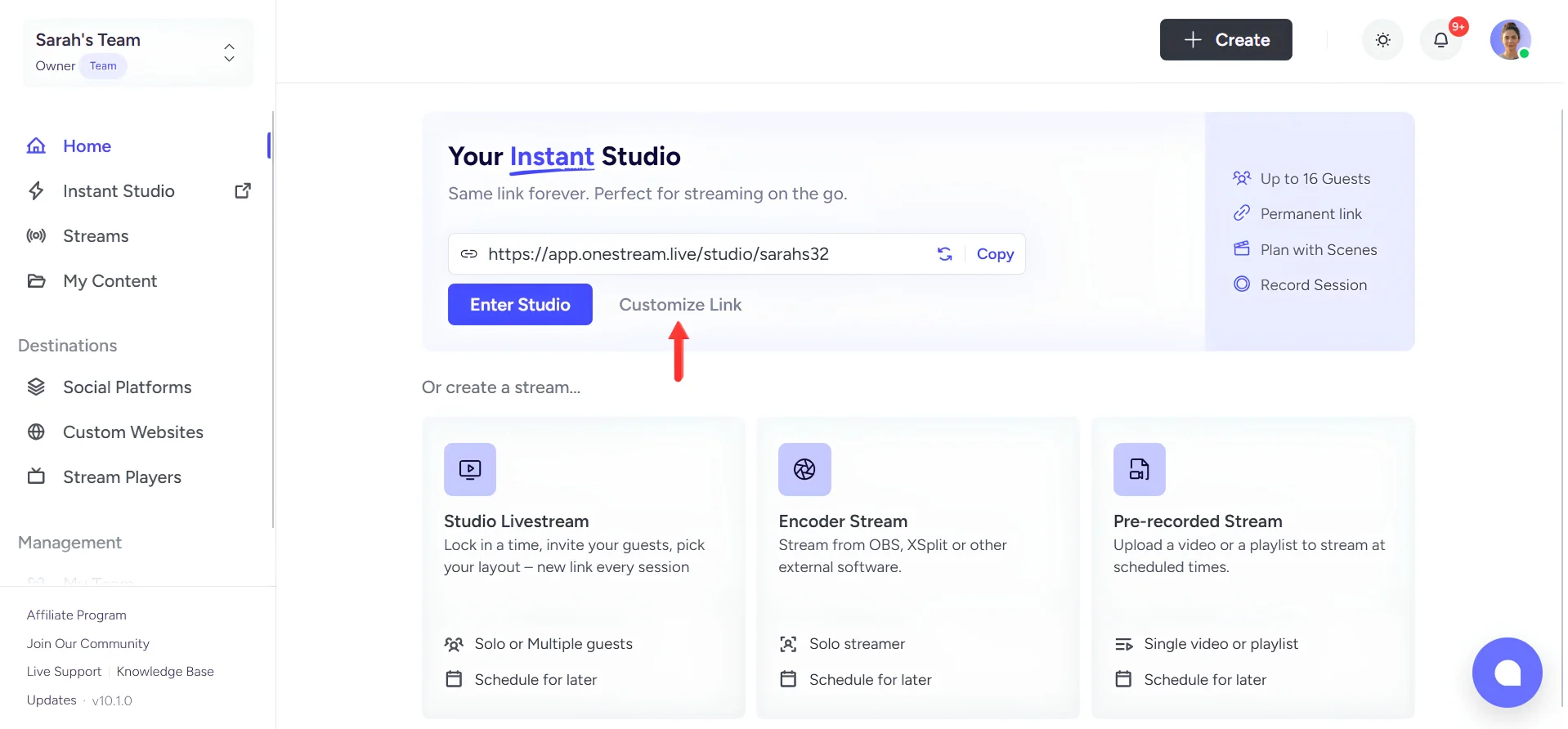
You customize your Instant Studio link from your dashboard by clicking Customize Link under the Instant Studio card, entering your new link, and saving. Saving a customized link replaces your old one immediately, so the previous link stops working the moment you confirm.
Here’s the full process for customizing your link:
1
From the Dashboard, under Instant Studio, click Customize Link.
2
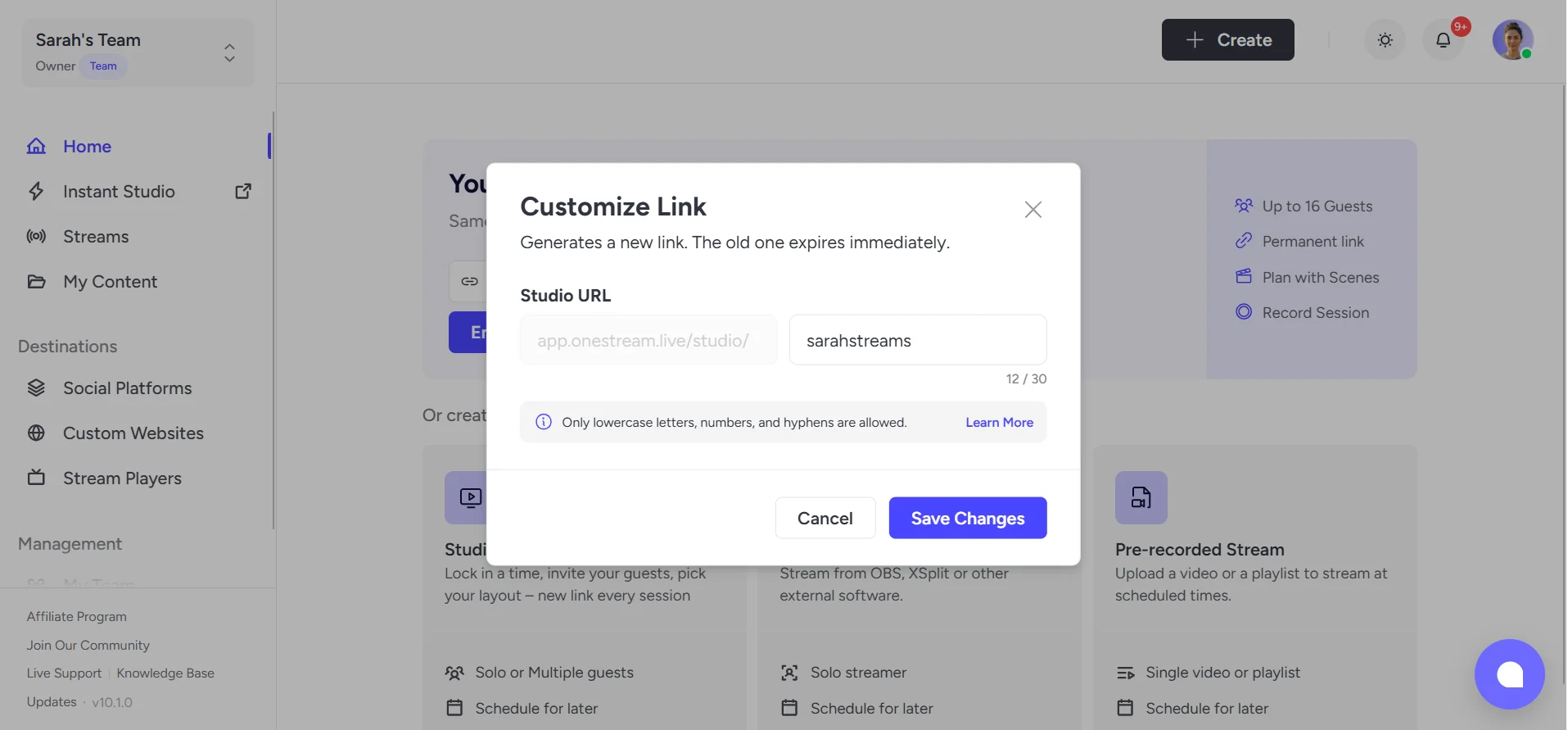
Enter your desired custom link in the Studio URL field and click Save Changes.
3
Copy your newly displayed Instant Studio link to share it with your guests.
A few rules apply here. Use only lowercase letters, numbers, and hyphens, spaces and special characters aren’t allowed. And because saving a new customized link generates a new Studio link immediately, the old one stops working the second you save, so update anywhere you’d previously shared it, your email signature, a recurring invite, or a pinned message.
Regenerating your link follows the same entry point, the Instant Studio card on your dashboard, and gives you a completely fresh link instead of a custom one. As with customizing, your previous link stops working once the new one is generated, so treat it the same way: update it wherever you’d shared the old one before regenerating.
Instant Studio vs. Regular Studio
Both let you start a session and go live, and once you’re inside, the tools don’t change. What changes is how you get there, and what you’re working with each time.
Regular Studio gives you a new link and a fresh setup for every stream, which makes sense for something you’re planning around a specific date. Instant Studio gives you one link and one setup that stay exactly the same, built for the streams you run over and over, or the ones that can’t wait for an event to get created.
|
Features |
Instant Studio |
Regular Studio |
|---|---|---|
Link |
Same link, every time |
New link, every session |
Setup |
Saved once, stays as you left it
|
Built fresh, or loaded, per session
|
Scheduling |
Not supported, by design
|
Fully supported |
Best For |
The recurring stream, the moment that can't wait |
The planned, one-off event |
Scenes, recording, destinations, controls |
Identical in both |
Identical in both |
When Should You Use Instant Studio Instead of Regular Studio?
Use Instant Studio for streams that repeat, or for moments that can’t wait for an event to be created. Use Regular Studio when you’re planning a stream around a specific date and want a dedicated link and setup built for that one occasion.
A few situations where Instant Studio is the better fit:
- A weekly or recurring show: Same host, same format, same time slot every week. Set your link and theme up once, and every episode reuses it without any prep.
- Breaking news or a spontaneous update: Something worth sharing just happened, and it can’t wait for you to create an event first. Open the dashboard, click in, and you’re live.
- A standing team broadcast: Daily standups, internal updates, or check-ins you run on your own schedule rather than a calendar invite.
- A link you want to keep using long term: Anything you’d rather put in an email signature or a recurring invite once, instead of sending a fresh link every time.
And where Regular Studio is still the right call:
- A one-time event with its own identity: A product launch, a webinar, a specific date people are marking on their calendar, something that benefits from its own dedicated link and setup.
- Anything you’re scheduling in advance: Instant Studio doesn’t support scheduling by design, so if the stream needs a date and time locked in ahead of it going live, Regular Studio is the one built for that.
Final Words
Instant Studio isn’t here to replace Regular Studio, and it doesn’t need to. It’s here for the streams that don’t need a new link or a new setup every time.
Open your dashboard, click your Instant Studio card, and go live. No rebuilding. No starting over. Just your studio, ready when you are.
Sometimes, the hardest part of going live is simply getting started. Instant Studio takes that part away.
Frequently Asked Questions
Do you have to schedule ahead, or can you just start?
You can start on the spot — an instant stream begins the moment you hit Go Live, while a scheduled one is tied to an event created in advance.
Is there anything to install before your first stream?
Nothing — the studio opens in a browser tab, so there’s no installer, no drivers, and no admin rights to chase before you can broadcast.
What connection do you need to go live on the spot?
Around 10 Mbps upload will hold a stable stream, with 25 Mbps or more if you want reliable full HD.
Does it matter which browser you open it in?
Any current Chrome, Edge, Firefox or Safari will run it, and because encoding happens server-side rather than on your machine, modest hardware and Chromebooks cope fine.
Can you pull someone else in at short notice?
Yes — a guest joins from a link you send, with no account or download needed on their end, so a last-minute co-host takes seconds.
OneStream Live is a cloud-based live streaming solution to create, schedule, and multistream professional-looking live streams across 45+ social media platforms and the web simultaneously. For content-related queries and feedback, write to us at [email protected]. If you have a story to share about your live streaming experience with OneStream Live, we would be glad to feature it. You’re also welcome to Write for Us!