Say a viewer likes what you’re showing and switches over to search for it themselves. That’s the moment you actually lose them. They leave your stream, land on a search results page full of competitors, get pulled toward something else entirely, and never come back. Uniqode’s 2026 research on QR code performance found that codes paired with strong creative average a 30% click through rate and a 22% conversion rate, a path that never requires anyone to leave the screen they’re already watching.
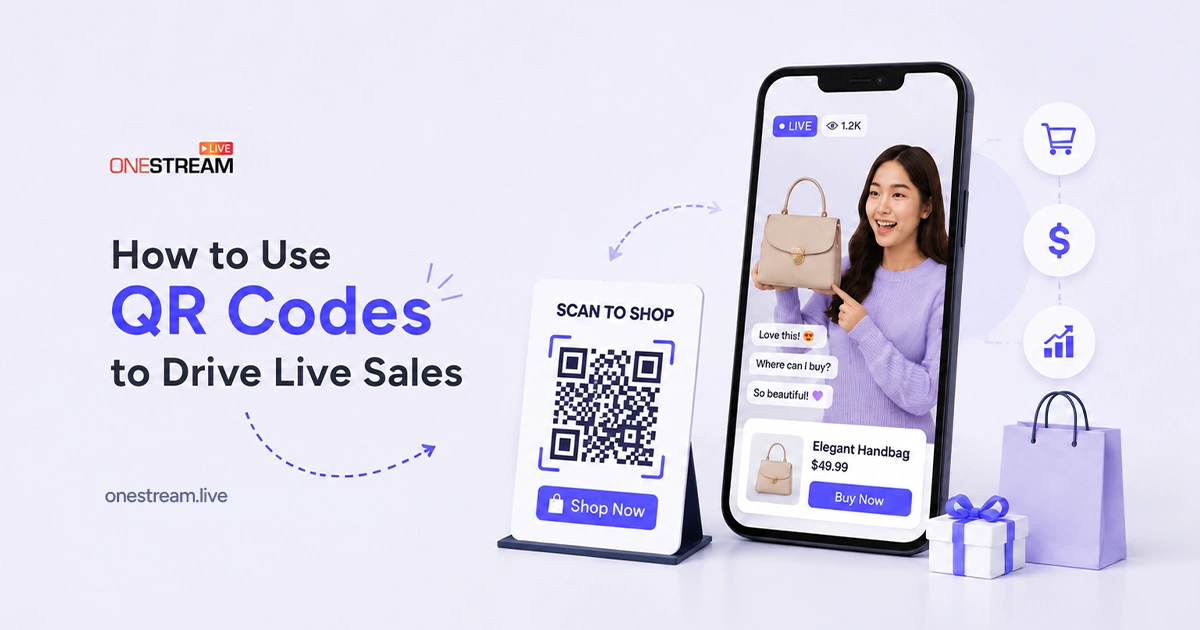
OneStream Live Studio builds that path directly into your broadcast. A scannable code sits on screen with the product, so viewers go straight from watching to buying without ever opening a new tab.
This guide covers how to use QR codes for live selling, set them up and track what’s working.
- QR codes for live selling remove the biggest drop off point in a stream, the moment a viewer leaves to search for you instead of buying on the spot.
- Codes paired with strong creative average a 30% click-through rate and a 22% conversion rate, according to Uniqode’s 2026 research.
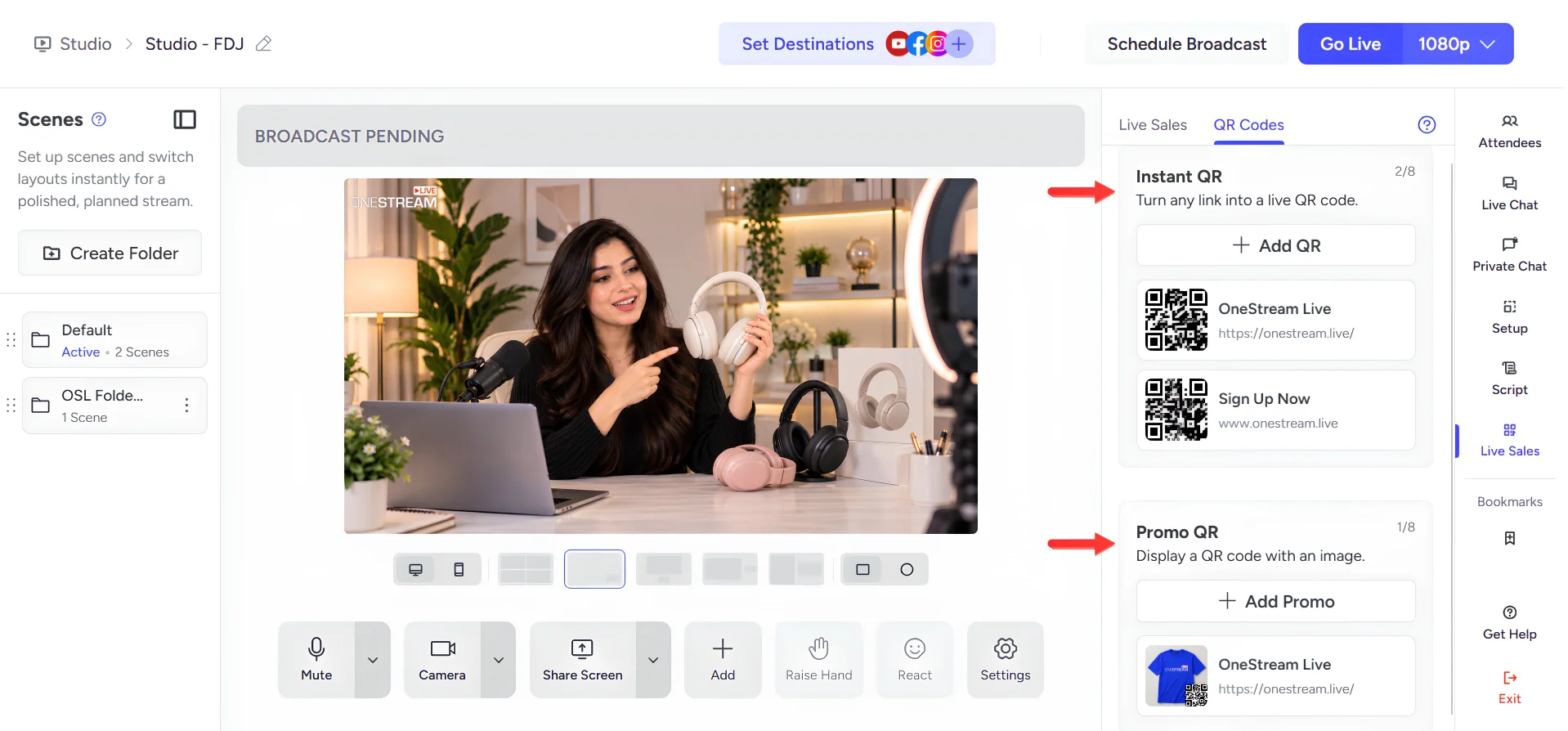
- OneStream Live Studio offers two code types: Instant QR for quick links and flash mentions, and Promo QR for featured products with images and descriptions.
- You can save up to 8 QR codes per session and switch which one’s live with a single click mid stream.
- Tagging each product link with a UTM parameter before saving it as a QR code is the simplest way to track which products actually convert.

What Are Shoppable QR Codes?
A shoppable QR code is a scannable code embedded directly into your live stream that sends viewers straight to a product page the moment they scan it. Instead of searching for your brand or hunting for a link in the comments, viewers point their camera at the screen and land on the exact page you want them to see. On OneStream Live, these codes live inside Studio’s Live Sales panel, so you can swap which product is “live” on screen without ever pausing the broadcast.
Why Use QR Codes on a Live Stream?
This happens on nearly every live selling stream: a host says “find link in the chat” or “find link in the description.” A viewer opens a new tab, types the brand name, and now they’re staring at a results page with three competitor ads above your actual site.
Maybe they find you. Maybe they get distracted by an ad instead, or by a notification, or by the fact that they’ve now left your stream entirely and have no reason to go back to it. Either way, the sale that felt certain thirty seconds ago is gone.
The problem isn’t that viewers don’t want to buy. It’s that every extra step between watching and buying gives them a chance to leave. A QR code removes those steps. Instead of searching, they scan. Instead of leaving your stream to find you, they stay on it, camera up, product page loading in a new tab while your broadcast keeps playing. Most people already say QR codes are helpful in daily life, and a large share call them essential, per Uniqode’s 2026 consumer survey.
OneStream Live’s QR code tools put that habit to work right where your product already is, so nobody has to go looking for you twice.
How to Set Up QR Codes for Live Selling in OneStream Live
1
Open a Studio session, click Live Sales on the right side panel, then choose Instant QR or Promo QR depending on what you’re selling in that moment.
2
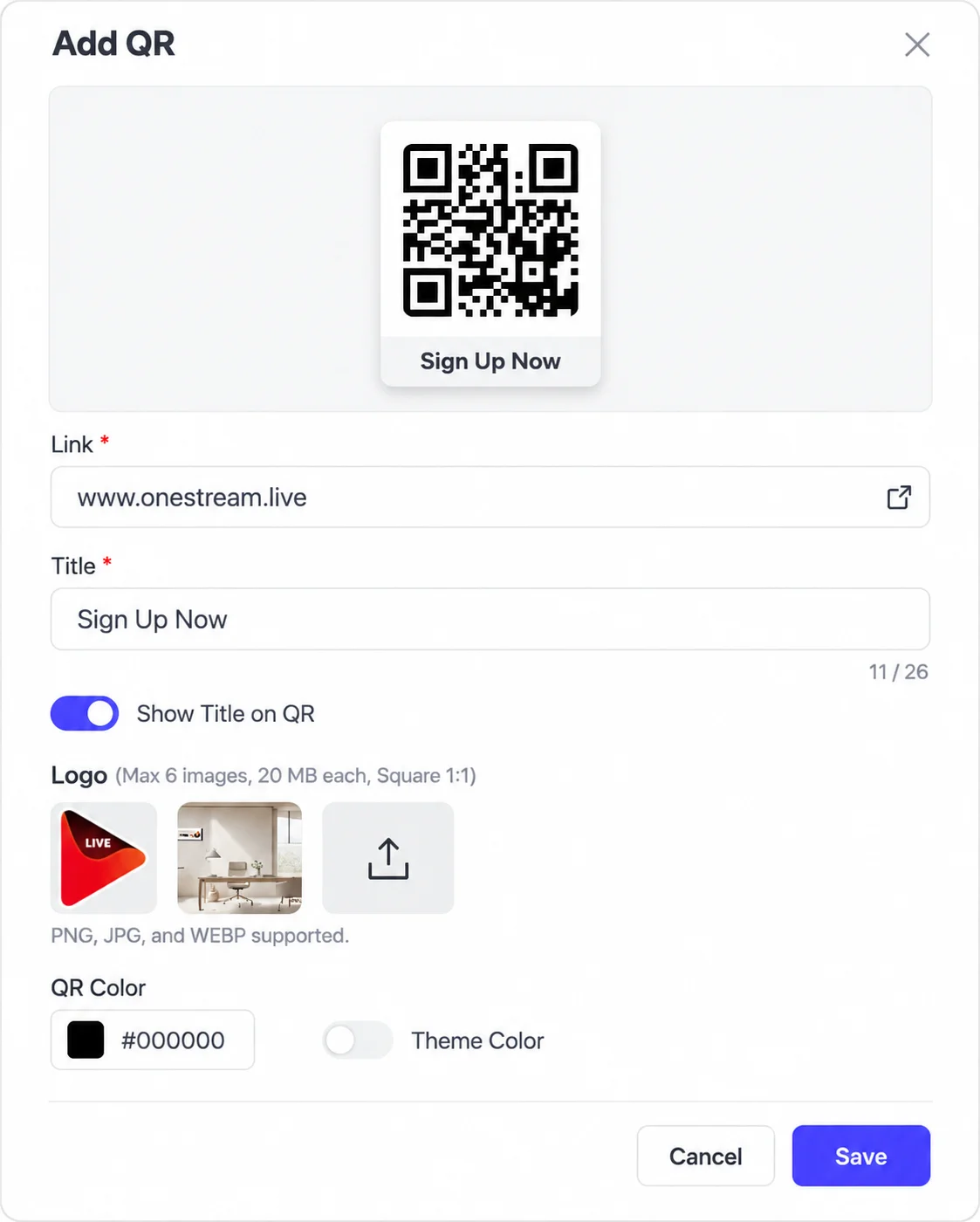
Instant QR: In the QR Code tab, click Add QR for Instant QR. Enter the URL you want viewers to land on. Add a title, logo, or color if you want it to match your stream. Click Save.
3
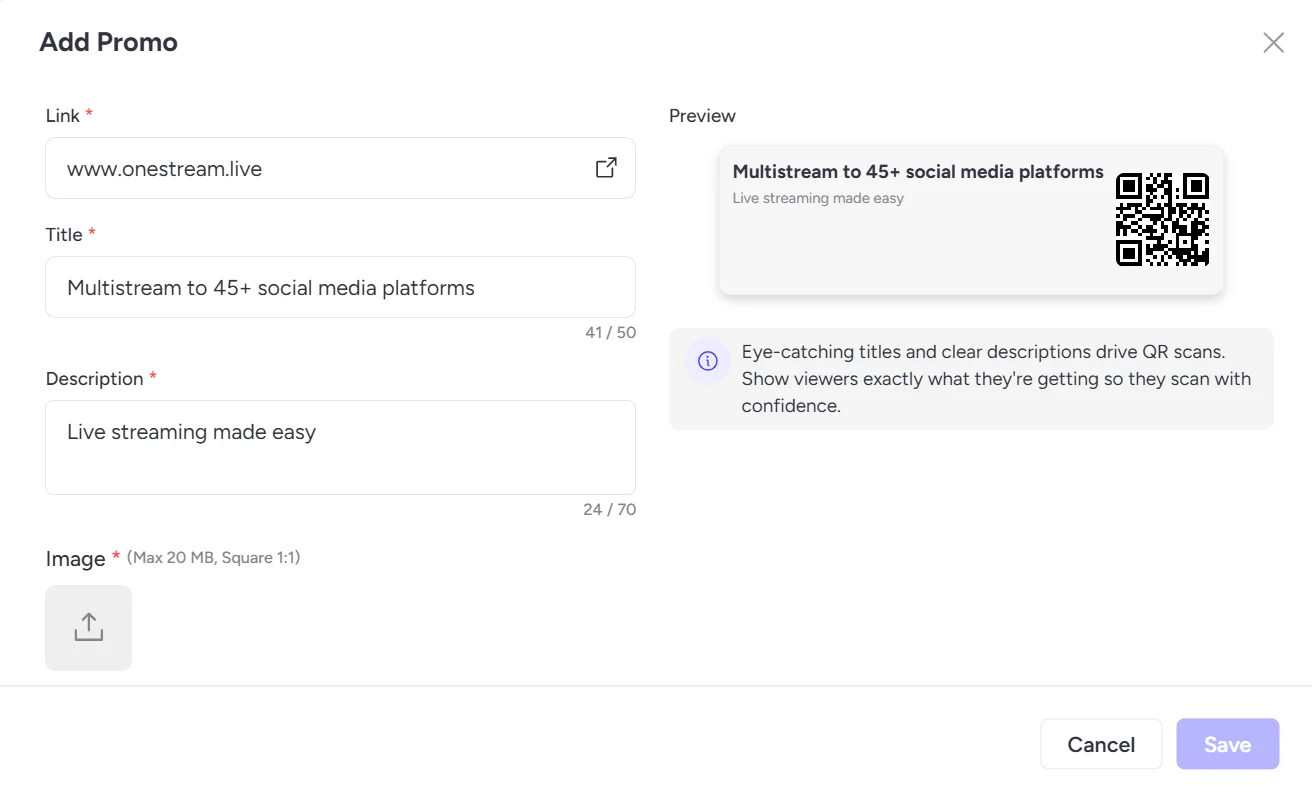
Promo QR: In the QR Code tab, click Add QR for Promo QR. Add Link. Add a title and description. Upload up to 6 product images. Click Save.
4
Hover over the QR code you want live and click Add to Stage. It appears on your video right away. To switch, remove the current one and click Add to Stage on the next. You can create and save up to 8 QR codes, but only 1 shows at a time, and the swap happens without pausing your stream.
Instant QR vs Promo QR: What Each One Is For
These two tools solve different moments in a stream, not the same job twice.
|
Difference |
Instant QR |
Promo QR |
|---|---|---|
Best For |
Quick mentions, flash discounts, giveaway links |
Featured products, bundles, anything worth a closer look
|
Images |
None |
Upto 6 |
Title & Description |
Only Title |
Included |
Setup Time |
Seconds |
1 or 2 Minutes |
No Separate Dynamic QR Tool Needed
A static QR code points to one link forever, which is a problem when your product lineup changes every stream. OneStream Live works around that without a separate QR code app.
Since you can save up to 8 codes ahead of time and switch which one’s live with a single click, you get the same flexibility a dynamic QR code normally provides: the ability to change what a scan leads to, without building a new code mid stream. Set up your codes before you go live, then move between them as your stream shifts from product to product.
QR Code Tracking: See What's Working
QR code tracking during a live stream is simpler than most marketers make it out to be, and it doesn’t require a separate dashboard. Add a UTM parameter to each product link before you save it as a QR code, one per product or promotion, so scans from your stream show up clearly in whatever analytics tool you already use.
This matters more than it sounds like. Analytics is the single most requested improvement among marketers working with QR codes, and only about 1 in 8 can currently connect a scan back to actual revenue. The teams that close that gap aren’t using fancier codes, they’re just tagging their links before they go live, then checking which product or segment pulled the most scans after the broadcast ends. Do that consistently across a few streams and a real pattern shows up fast: which products earn a scan, and which ones need a better pitch next time.
Final Words
Using QR codes on a live stream comes down to matching the right tool to the right moment: Instant QR for the quick mentions, Promo QR for the full sell, a tagged link so you can actually track what worked, and a switch between them that never slows your stream down.
Open a Studio session, build your first product card or QR code, and add it to stage on your next broadcast. See how much faster a sale moves when nobody has to go looking for you twice.
Frequently Asked Questions
Do viewers need an app to scan a code off their screen?
No — every current phone camera reads QR codes natively, though viewers watching on the same phone they’d scan with will need the code sent as a link instead.
Should the code be static or dynamic for a live sale?
Dynamic, always — it lets you redirect the destination mid-stream when a product sells out and it’s the only version that reports scans.
How do you tell which sales came from the code?
Point the dynamic code at a URL carrying its own UTM parameters, so scans land in analytics as a separate source rather than blending into direct traffic.
How big does the code need to be on screen?
Roughly a tenth of the frame height, held in place for at least fifteen seconds, with clear space around it — codes that flash past for three seconds get almost no scans.
When during the stream should the code appear?
Put it up as you introduce each product and leave it there through the demo, since scan intent peaks while someone is still deciding rather than after you’ve moved on.
OneStream Live is a cloud-based live streaming solution to create, schedule, and multistream professional-looking live streams across 45+ social media platforms and the web simultaneously. For content-related queries and feedback, write to us at [email protected]. If you have a story to share about your live streaming experience with OneStream Live, we would be glad to feature it. You’re also welcome to Write for Us!