Not long ago, going live on Facebook meant instant visibility. The platform handed out reach like candy. Now, competition is fierce, attention spans are brutal, and a Facebook live stream that feels boring will lose viewers in seconds. That’s why creators, brands, and even small businesses are chasing sharper Facebook Live tips.
What separates a watchable broadcast from another forgettable scroll? Preparation, yes. But also timing, structure, and the ability to turn glitches into moments of connection.
Smart streamers rehearse, storyboard, and know precisely when to drop a poll, how to reintroduce themselves for latecomers, and how to pivot when tech inevitably hiccups. In this blog, we’ll set up a lean run-of-show, stress-test your first ten seconds, and use OneStream Live to remove friction: schedule events, push announcements, pull a Facebook stream key, hand off to the Facebook Live producer, and keep comments under control with Unified Chat.
Let’s help you build a broadcast you can trust, week after week.
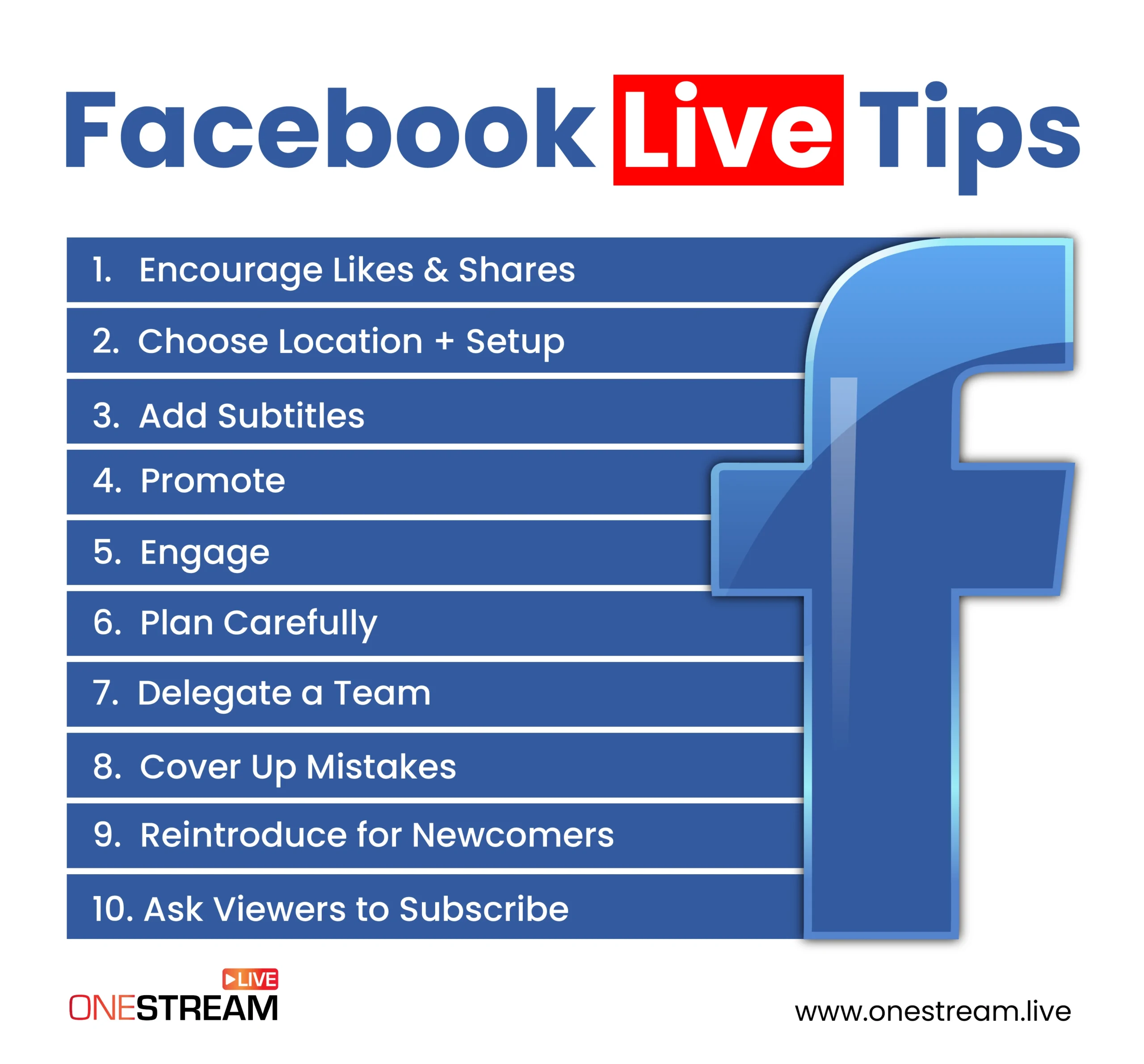
1. Plan Your Content
The best Facebook Live strategy starts before the camera ever rolls. Too many streams die because the host is winging it, hoping energy will cover for lack of preparation. It doesn’t. Viewers can smell chaos, and they click away fast.
Start by scripting a spine, not a script. Write down the three points you must hit, then build in room for improvisation.
If you’re launching a product, draft the story arc: what it is, why it matters, and how people can act on it. If you’re hosting a Q&A, prepare fallback questions so you’re not left hanging if the chat goes silent.
OneStream Live can turn this prep into structure. Use its event scheduling feature to map out your session in advance. You’ll generate your Facebook stream key automatically, lock in your start time, and even trigger event announcements so your followers know when to tune in.
2. Choose/Set-Up Broadcasting Location & Tech
One of the deadliest habits in live video is treating your broadcast space like an afterthought. But the moment a viewer sees a messy background, hears crackling audio, or spots low lighting, you lose authority. These are small cracks where trust leaks out.
Why setup matters
- Facebook gives live videos preferential placement in the News Feed while they’re happening vs post-broadcast versions.
- Viewers watch live videos 3× longer than regular ones, meaning technical failures cost not just views but engagement momentum.
- Additionally, live video content tends to generate 10 times more comments than on-demand videos.
Setup checklist
- Lighting: Use a soft, diffused key light and a fill (or bounce) to soften shadows. Avoid overhead lighting that casts unflattering shadows.
- Sound: Pick a directional mic (e.g., cardioid) and test for background hums. Use a pop filter or windscreen if necessary.
- Background & framing: Keep your background consistent and uncluttered. Use depth (foreground, mid, background) so it doesn’t feel flat.
- Redundancy: Always have a backup (camera, cable, mic) at arms length.
- Encoding setup: If you’re encoding via OneStream Live, make sure your Facebook stream key is correctly input, and validate bitrate & resolution before going live.
- Use Facebook Live Producer if available to manage alternate scenes, monitor bandwidth, and swap sources mid-stream without breaking the flow.
3. Promote Your Facebook Live Broadcast
Up to 35% of registrations can arrive in the final 48 hours and on the day, so timely reminders can materially boost live attendance, as supported by Contrast’s data. You can build the sharpest Facebook live stream in the world, but if no one shows up, it’s dead air. Building a loyal audience is essential for long‑term Facebook Live success, which is why some creators invest in ways to build a real Facebook following and expand their reach. Promotion is essential.
Facebook Live tips for promotion
- Announce early and often: Drop a teaser post at least 48 hours before. Repeat 24 hours later with a graphic that includes date, time, and topic.
- Use email, not just social: Inboxes cut through the algorithm. A brief reminder with a clear CTA, such as “Click here to watch live,” is still effective.
- Use OneStream Live’s event announcements: This feature lets you schedule notifications across Facebook (Pages, Groups, Profiles), YouTube, and LinkedIn. You can choose to announce immediately, 30 minutes before, 1 hour before, or at a custom time. That means your audience doesn’t just stumble across your stream, they expect it to be there.
4. Engage with Your Audience
A broadcast should be treated like a conversation, not a monologue. Viewers want to be seen when they’re viewing your Facebook live stream.
Ignoring the chat is like ignoring a raised hand in a small room, and I really think that the quickest way to sink your Facebook Live video is to treat it like a lecture.
Practical Facebook Live tips for engagement
- Use names: Call viewers out directly (“Great question, Maria”). Recognition feels personal and keeps people talking.
- Icebreaker questions: Start with something easy: “Where are you watching from?” or “How often do you use Facebook Live Producer?”
- Reintroduce strategically: New people join throughout the broadcast. Loop them in without boring those already present.
- Create small hooks: Polls, giveaways, or even simple yes/no prompts (“Should we demo the feature now?”) spark quick responses.
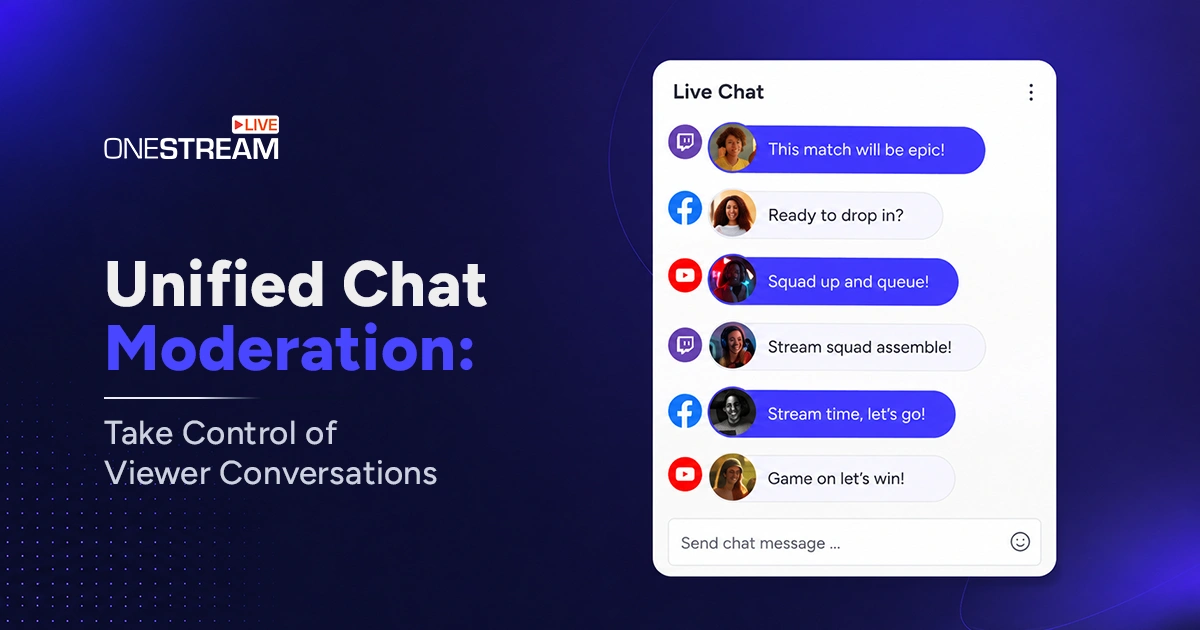
Monitoring comments across platforms can feel like juggling knives. That’s where OneStream Live’s Unified Chat becomes critical.
It pulls comments from Facebook, YouTube, Instagram, and others into one screen, so you don’t have to tab-hop mid-sentence. Respond once, and your answer posts everywhere.
5. Keep Reintroducing Yourself
You need to understand one very critical fact: your audience doesn’t arrive all at once. They trickle in, distracted, often mid-scroll. That means if you only introduce yourself and your topic once, you’re leaving half your viewers confused about who you are and why they should care about your Facebook live stream.
How to reintroduce without sounding repetitive
- Time it naturally: Every 5–7 minutes, drop a one-line reintroduction: “If you’re just joining, I’m Alex, and today we’re showing how to do Facebook Live for product launches.”
- Frame for newcomers: Use “for those just joining us…” to catch them up while moving the flow forward.
- Tie it back to the hook: Don’t just repeat your name. Restate the value (“Stick around because I’ll demo the Facebook live camera setup in five minutes”).
If you’re multistreaming, late arrivals multiply across platforms. With OneStream Live Studio, you can preset lower-third overlays that flash your name and topic, or use Studio backgrounds that visually remind new viewers who you are. It’s a subtle but professional way to keep reintroducing yourself without halting your momentum.
6. Don’t Worry About Mistakes
A survey by Stackla found that 90% of consumers say authenticity is important when choosing brands they support. So, if you’re chasing flawless delivery on a Facebook Live video, you’re setting yourself up for stress. And ironically, a flat performance.
What makes live video magnetic is its unpredictability. Minor slip-ups, pauses, or even a background interruption remind viewers they’re watching something real.
How to turn mistakes into moments
- Acknowledge, don’t panic: A glitch is a chance to smile and move forward. A quick “Looks like my mic’s testing me today” keeps viewers with you.
- Keep pace: Don’t stop the flow to over-explain. Viewers forgive small hiccups but not dead air.
- Use humor: A light joke is often the best reset. It shows confidence, not insecurity.
Some mistakes can be prevented with better tools. OneStream Live allows you to run pre-recorded content “as live,” ensuring technical stability, while still giving you the freedom to engage in real time via chat.
So even if your internet drops, the audience sees a steady stream instead of chaos. It’s the balance between live authenticity and professional reliability.
7. Encourage Viewers to Like & Share
The Facebook algorithm isn’t sentimental, it rewards signals. On Facebook, likes, comments, and shares are what push a Facebook live stream higher into News Feeds.
Facebook confirms that active interactions (comments, shares, reactions) carry more weight than passive signals like clicks or watch time. Without them, your broadcast stays buried, no matter how sharp your delivery is.
Practical Facebook Live tips to boost interactions
- Prompt early: Don’t wait until the end. Within the first five minutes, remind viewers: “Hit share so your friends can jump in live.”
- Frame the benefit: Instead of “Please like this,” tie it to value: “If this demo helps, give it a like so I know to create more.”
- Use incentives: Small giveaways or shout-outs for people who share the stream create momentum.
8. Ask Viewers to Subscribe to Notifications
Even if your audience enjoys your Facebook live video, there’s no guarantee they’ll remember to show up next time. Facebook’s default algorithm doesn’t always surface your broadcasts to followers unless they actively subscribe to alerts. That’s why one of the most overlooked Facebook Live Tips is teaching people how to turn on notifications.
How to guide your viewers
- Show them how: Mid-stream, pause to say, “Click the arrow on this Facebook live stream and select ‘Turn On Notifications.’”
- Reinforce with overlays: If you’re using OneStream Live Studio, add a lower-third graphic prompting viewers to subscribe. Visual cues stick.
- Remind at the close: End every broadcast with a call to action, such as ‘subscribe now’ so they never miss your next Facebook Live session.
When you schedule events through OneStream Live, followers can RSVP directly from the event post. That action automatically boosts notifications when the stream starts and essentially pre-builds your audience. Pairing scheduled events with in-stream reminders increases the likelihood that your next Facebook Live session will launch to a full room.
For audiences you already have contact details for, an SMS RSVP service adds a second confirmation step that does not depend on platform notifications firing.
9. Have a Dedicated Team Mate to Respond to Comments
According to the Sprout Social Index, 76% of consumers value brands that respond quickly, and most expect replies within 24 hours or sooner. Engagement isn’t limited to only talking, listening is also very important.
A good host can’t realistically track every reaction while presenting. Comments stack up, and valuable questions get lost in the feed. That’s why one of the most underrated Facebook Live best practices is having a teammate focused on chat.
How to structure your team
- Assign a moderator: While you focus on delivery, a teammate can answer FAQs, drop links (like your Facebook live stream link), and flag high-value questions for you to address.
- Divide roles: One handles questions, another tracks technical feedback (“audio is low”), leaving you free to stay present.
- Use tools to scale: OneStream Live’s Unified Chat consolidates comments from FB Live, YouTube, and Instagram into a single feed. You can also add teammates directly to your account with role-based permissions, so each person has a defined responsibility. This ensures you don’t miss anything, whether you’re streaming from a Facebook live computer setup or mobile.
10. Add Subtitles to Your Facebook Live Videos
A surprising number of viewers never hear your voice. They’re at work, commuting, or simply scrolling with sound off.
Verizon Media/Publicis Media found 80% of consumers are more likely to watch an entire video when captions are available, and 69% watch without sound. That’s why adding subtitles is one of the core Facebook Live tips for keeping your content accessible and engaging.
How to implement captions
- Live captions: Use Facebook’s auto-captioning tool or upload SRT files for pre-recorded content that you play live on Facebook.
- Consistency: Make sure captions are synchronized, accurate, and not blocking key visuals. Sloppy captions can frustrate viewers more than no captions at all.
- OneStream Live advantage: If you’re broadcasting through OneStream Live, you can upload pre-recorded streams with SRT files. That means your Facebook live videos remain accessible even if they’re streamed across multiple platforms simultaneously.
Read the Ultimate Debate on Open Captions vs Closed Captions
Subtitles keep silent viewers hooked, extend your reach to global audiences, and show that you’ve thought beyond the basics of FB Live. Among the simplest tips for Facebook Live, this one delivers a disproportionate impact.
You Can Do This!
What these tips for Facebook Live give you is a framework. Plan your arc. Stage your background. Reintroduce yourself often. Laugh off the mistakes. Add captions so your Facebook Live videos speak even when muted. And above all, treat engagement like the main act, not an afterthought.
With OneStream Live, the logistics no longer need to weigh you down. Schedule sessions in advance, push out announcements across platforms, drop your Facebook live stream link in multiple destinations at once, and lean on Unified Chat so your team isn’t scrambling to keep up!
FAQs About Facebook Live
To go live on Facebook from desktop, open Facebook Live Producer, connect your camera and mic, or paste your Facebook stream key in a tool like OneStream Live. From there, you can preview, add descriptions, and start broadcasting.
Yes. If you have permission from the group admin, you can go live on Facebook directly inside a group. Many creators use this for private communities or exclusive events.
Once you start streaming, copy the Facebook Live stream link from the browser address bar or event page. You can share it across email and chats.
Open the Facebook app, tap the “Live” option in the post composer, and grant camera and microphone access. If you need advanced controls, you can also connect through OneStream Live and retrieve your Facebook stream key for mobile use.
On desktop, Facebook Live Producer includes a “Share Screen” feature. If you’re multistreaming, OneStream Live Studio allows you to integrate your screen share alongside overlays and branding elements for a polished look.
Some streams are public and can be viewed via a Facebook Live stream link without logging in. However, interactive features like commenting will only be available if you’re signed in.
OneStream Live is a cloud-based live streaming solution to create, schedule, and multistream professional-looking live streams across 45+ social media platforms and the web simultaneously. For content-related queries and feedback, write to us at [email protected]. You’re also welcome to Write for Us!