Enterprise video streaming carries a different kind of risk. A creator who drops offline reschedules and moves on. A company that drops offline does it in front of four hundred employees, a room of investors, or a paying audience that will not sit through a second attempt.
A backup stream key is the simplest protection against that. It gives your broadcast a second route into the platform, and the handover happens on its own.
- A backup stream key is a second server URL and key that takes over automatically if your primary stream disconnects.
- It only protects you when the backup runs from a second encoder on a separate connection, since two feeds that share one router or computer fail together.
- Start both encoders at the same resolution and frame rate before you go live, so the backup is ready to take over cleanly.
- The switch only goes one way, so test the failover privately before any broadcast you cannot repeat.
- OneStream Live keeps your primary and backup keys side by side and monitors both feeds in the Signals panel.

When Enterprise Video Streaming Fails in Public
Companies keep putting more into video. MarketsandMarkets values the enterprise video market at USD 25.8 billion in 2025 and expects it to pass USD 42 billion by 2031. A growing share of that budget goes into corporate video streaming.
A live broadcast fails in front of everyone. GameStop’s 2024 annual shareholder meeting was held online, and the hosting provider’s servers crashed under the traffic. The meeting was adjourned without any business conducted and had to reconvene days later.
Audiences do not wait around for a fix. In a Kaltura survey of more than 1,500 event organizers and attendees, more than two-thirds said technical glitches could make them walk out of an event.
Some failures sit with the platform. The part you control is the path from your encoder to the ingest server, and that is the path a backup stream key protects.
What is a Backup Stream Key?
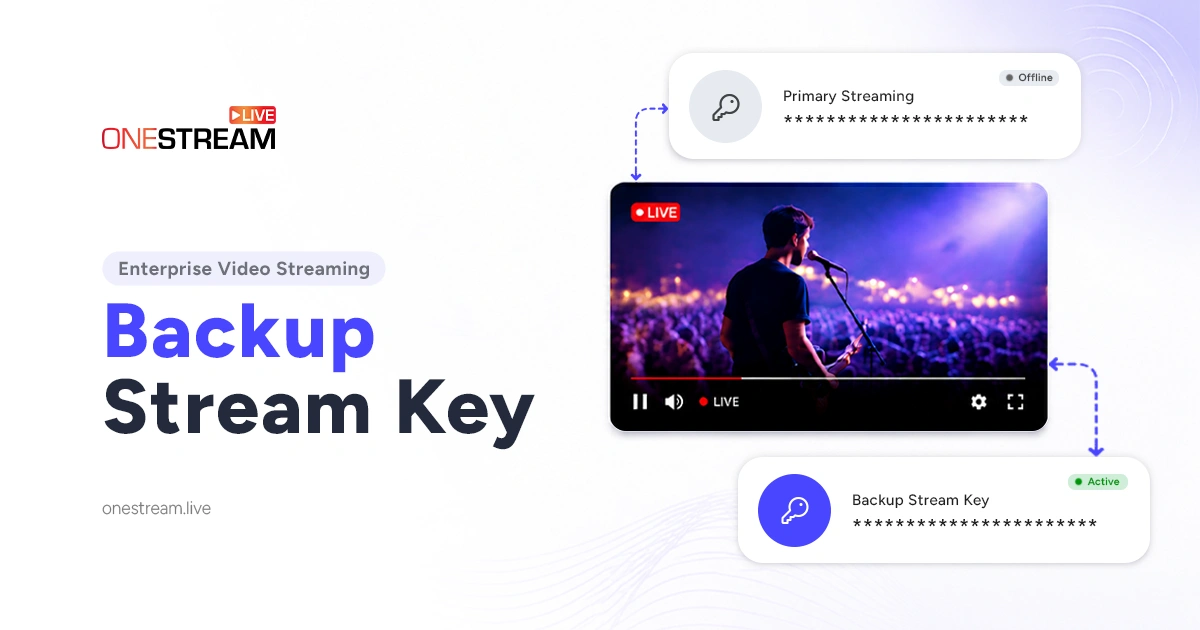
A backup stream key is a second server URL and key that runs beside your primary one. You send the same broadcast to both, ideally from a second encoder on a separate connection, so a second feed is ready if the first one drops.
Some teams call it a secondary stream key or a live stream backup key. The names vary but the job doesn’t.
How the Fallback Works
Only the primary feed reaches your audience. If its connection fails for any reason, the backup takes over automatically, and the broadcast carries on with minimal interruption.
The switch only goes one way. If the backup fails too, OneStream Live will not return to the primary on its own.
Keep both feeds in sync for the cleanest handover. Two feeds at the same resolution, bitrate, and frame rate switch far more smoothly than two that disagree.
What Takes a Corporate Video Stream Offline
Most broadcasts do not end with anything dramatic. Two everyday problems cause the trouble again and again: the internet connection drops, or the encoder stops working.
The connection is the first. Cisco ThousandEyes counted 2,110 network outages worldwide in March 2025 alone. Any one of them can land in the middle of a town hall.
The encoder is the second. A software update, a full disk, or an application crash ends a stream as surely as a deadline.
A backup stream key covers both, but only when the backup travels its own path. That is why the second encoder and the separate connection come first. Two feeds that share one router or one computer go down together.
How to Set Up a Backup Stream Key in OneStream Live
Three steps. Two happen in OneStream Live and one happens in your encoder.
1
Open Encoder Stream
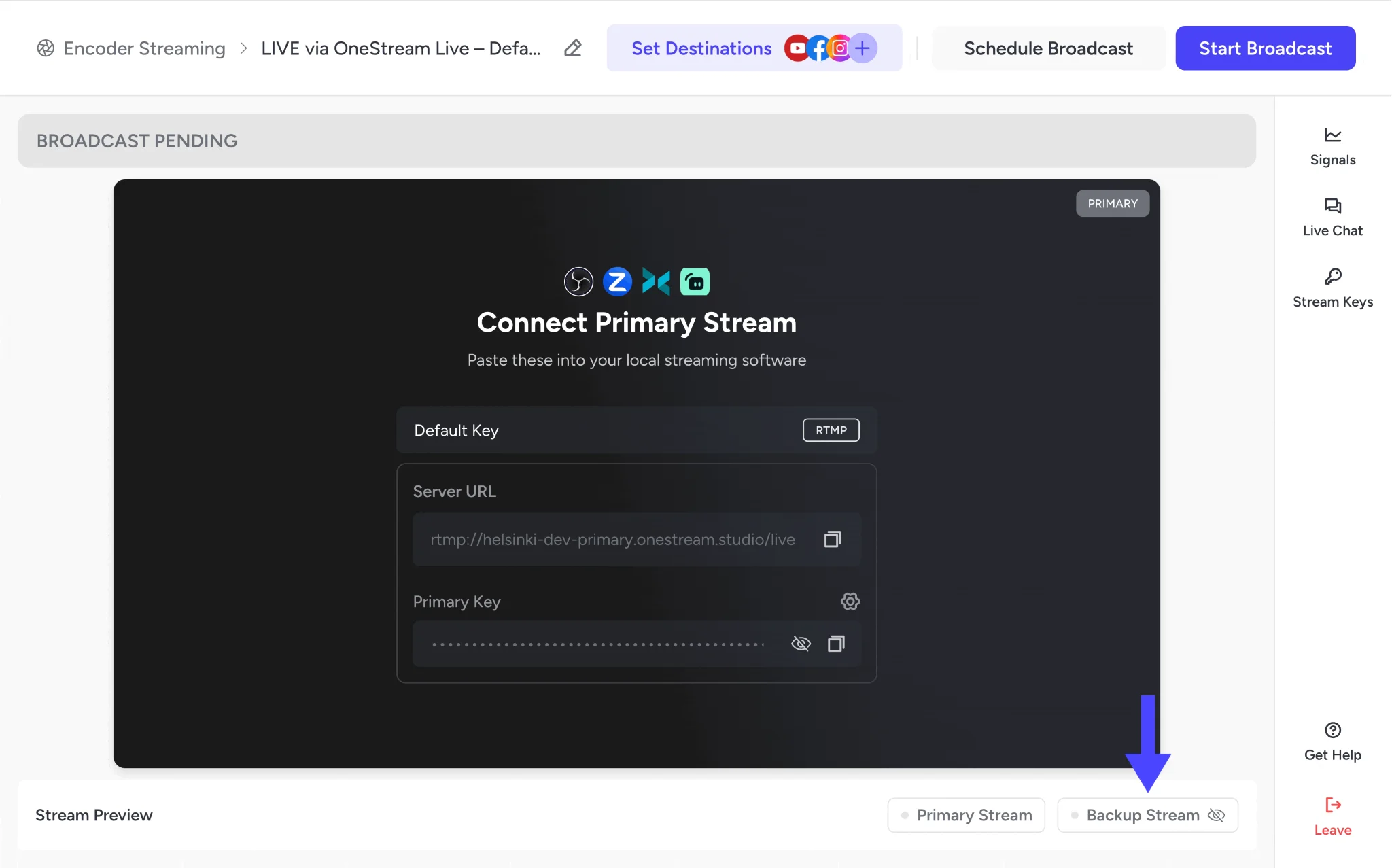
Log in to OneStream Live and click Encoder Stream on your dashboard. The page opens with your primary Server URL and Primary Key ready to copy.
2
Copy the Backup Key
In the Signals panel on the right, click Show Backup Key. Copy the backup Server URL and Backup Stream Key that appear.
You can also open Stream Keys in the right rail and expand Advanced Settings. The Backup Server URL, Backup Stream Key, and Combined Backup URL sit together there.
The backup has its own server URL, so copy that one rather than the primary.
3
Paste Each Key Into Its Own Encoder
Paste the primary Server URL and Primary Key into your main encoder, such as OBS Studio. Paste the backup Server URL and Backup Stream Key into a second encoder, such as XSplit, ideally on a separate connection.
Start both encoders, since the backup can only take over if it is already running. The Signals panel shows each feed as it arrives. Keep both at the same resolution, or OneStream Live flags a mismatch.
On the Mobile App
Follow these three simple steps to get your backup stream key on the OneStream Live mobile app.
1
Tap Encoder Streaming on your mobile dashboard.
2
Below the stream preview, tap Backup Stream.
3
Copy the Backup Key and URL into your second encoder, then start both encoders.
Download the Mobile App


Rules for a Reliable Backup Streaming Setup
Give the backup its own path. A second encoder on a separate connection, such as a laptop on a mobile hotspot, covers both a dropped line and a crashed encoder.
Match the two feeds. Use the same resolution and frame rate in both encoders, since OneStream Live flags a resolution mismatch in the Signals panel. Matching the bitrate as well keeps the picture quality steady when the switch happens.
Leave room in the upload. Keep each feed’s bitrate at or below about 75 percent of its connection’s upload speed. The spare capacity absorbs the dips every connection has, so the feed does not stall.
Update both keys together. Regenerating a stream key or changing its protocol resets the primary and the backup at once, so paste the new details into both encoders before your next broadcast.
Test the Fallback Before You Need It
Run a test before any broadcast you cannot repeat. Start both encoders and check that the Signals panel shows the primary and backup feeds arriving.
Go live privately, to a test channel or a stream only your team can see. Then stop the primary encoder or pull its network cable. Watch the backup take over, and note how long the handover takes and how it looks to viewers.
End the test once you have your answer. The switch only goes one way, so start the real broadcast fresh rather than carrying on from a session that has already failed over.
Back Up Every Enterprise Broadcast
Enterprise video streaming rarely gets a second chance. A town hall, an investor call, or a product launch happens once, in front of the people who count.
A backup stream key gives each of those broadcasts a second feed ready to take over. Add it, connect a second encoder, and test it before the day arrives.
Enterprise video streaming solutions like OneStream Live keep the backup in the same place you already go live. Your primary and backup keys sit side by side, the Signals panel watches both feeds, and the broadcast reaches 45+ destinations at once. It is the kind of safeguard an enterprise video platform should come with.
See how a backup stream key fits your next town hall, investor call, or launch.
Frequently Asked Questions
What is a backup stream key?
A backup stream key is a second server URL and key that runs alongside your primary one. You send the same broadcast to both, ideally from a second encoder, and OneStream Live switches to the backup automatically if the primary connection fails.
Do I need a backup stream key for every broadcast?
No. In enterprise live streaming, it earns its place on anything you cannot repeat, such as town halls, investor calls, product launches, paid events, and large training sessions. A routine weekly stream rarely justifies running a second encoder.
What happens if the backup stream also fails?
OneStream Live will not switch back to the primary on its own. That is why the backup needs its own connection and encoder, so a single fault cannot take down both feeds.
Can I use OBS Studio with a backup stream key?
Yes. OBS sends one stream at a time, so use it for the primary feed and run the backup from a second encoder such as XSplit. OneStream Live handles the switch between them.
Will viewers notice when the stream switches over?
Very little, provided both feeds stay in sync. Use the same resolution and frame rate in both encoders, and the handover happens with minimal interruption.
OneStream Live is a cloud-based live streaming solution to create, schedule, and multistream professional-looking live streams across 45+ social media platforms and the web simultaneously. For content-related queries and feedback, write to us at [email protected]. If you have a story to share about your live streaming experience with OneStream Live, we would be glad to feature it. You’re also welcome to Write for Us!