Your stream has your logo, your colors, and your name on the player. Then you send out the link and it says somebody else’s brand. A custom domain fixes that last part. Instead of pointing people at a hosted page with a random string on the end, you send them to live.yourbrand.com. The page is the same page. The address is yours, and the whole custom domain setup takes about five minutes.
- A custom domain puts your stream page on your own address, like live.yourbrand.com.
- All you need is a domain, login access to your domain provider, and a OneStream Live account.
- Entri detects your provider on its own and adds the DNS records for you after a one-time login.
- If Entri cannot connect, manual setup takes one CNAME record you copy straight from your dashboard.
- Set up your custom domain with OneStream Live and send out a link your audience actually recognizes.

What is a Custom Domain?
Every stream page on OneStream Live comes with a hosted link that works the moment you create it. It looks something like app.onestream.live/hosted/ followed by a string of random letters. It does the job, but it tells viewers nothing about who is on the other end.
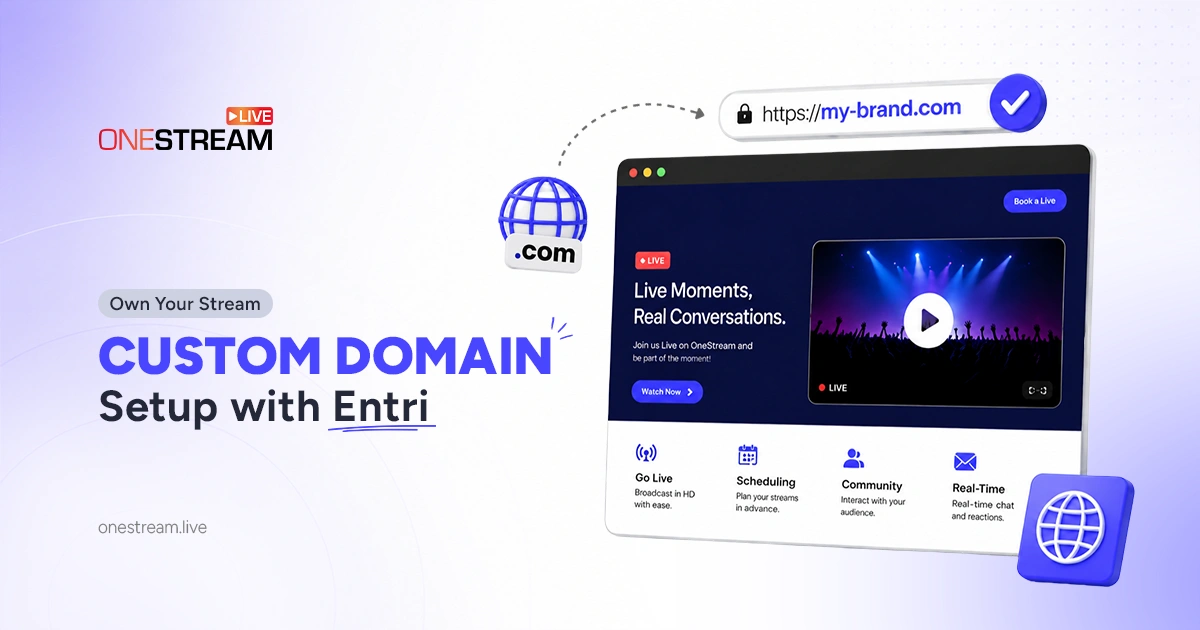
A custom domain swaps that link for an address you own. Your domain is the name you already bought, like yourbrand.com. A subdomain is the word you add in front of it, like live or stream, and together they make live.yourbrand.com.
Most people go with a subdomain rather than their main domain. Your homepage keeps running exactly as it does now, and the stream gets its own address right next to it. Viewers see one brand across both.
What a Custom Domain Actually Changes
A custom domain is your own web address pointed at your stream page. Everything on the page stays exactly where it was, so the player, the chat, the event schedule, and your branding all carry over untouched.
The only thing that changes is the address bar. A streaming custom domain does not rebuild anything, it just puts your name in front of the content you already made.
That sounds small until you watch how people treat links. A URL they recognize gets clicked. One they do not recognize gets a pause, and some of those never turn into a view at all.
Why Branded Live Streaming is Worth the Setup
People are careful with links now, and they should be. A hosted page URL looks like it came out of a tool. A custom URL for live stream pages looks like it came from a company, and that difference shows up in your click rate.
There is a business reason too. When you host live streams on your own website address, the traffic stays on property you control instead of a platform that pushes your audience toward someone else’s video the second yours ends.
Sales teams, churches, and event organizers usually notice first. Sending live.yourbrand.com to a client list reads differently than sending a link nobody can identify.
What You Need Before You Start
Three things. A domain you already own, and login access to wherever you bought it, so Hostinger, GoDaddy, Namecheap, or whoever else, and a OneStream Live account.
You do not need a developer and you will not touch any code. Entri handles the DNS part, which is the step that usually stops people halfway.
Pick your subdomain first if you can. Most people go with live, stream, or watch. It takes a second to decide now and saves you redoing the DNS step later.
Do not have a OneStream Live account yet? Create one now and follow along. The steps below take less time than reading about them.
How to Set Up a Custom Domain in OneStream Live
The whole thing happens inside your OneStream Live dashboard, and Entri takes care of the DNS work for you. Five steps get you from a blank website to a live page on your own address.
1
Create Your Custom Website
Log in to OneStream Live and open Custom Websites in the left sidebar, under Destinations. You will see the websites you have already built and how many slots your plan gives you.
Click New Website. Name it, pick your layout, and you have a working branded streaming website before you have done anything technical.
2
Open the Access Tab
Open the website you just created and look at the tabs running down the right side. Webpage, Player, Chat, Analytics, Access. Click Access.
This is where you decide who gets to see the page. Your hosted page link sits near the top, and just under it there is a card that says Add a subdomain. Click Get Started.
3
Enter Your Domain Details
Step 1 of 2 asks for two things. Your existing domain goes in the first box, so yourbrand.com. The subdomain goes in the second, and live is the usual pick.
OneStream Live builds the finished address as you type, something like https://live.yourbrand.com. Read it once before you move on, because this is the link you will be sending to everybody. Click Next.
4
Configure DNS with Entri
Step 2 of 2 offers Automatic and Manual. Automatic is the one you want. Click Configure with Entri.
A window opens and Entri has already worked out where your domain lives. It shows your full address and names your provider, so there is nothing to pick. Click the Continue button with your provider’s name on it, then log in with your normal details. That login is one-time permission, and Entri uses it to write the DNS records so you do not have to.
Head back to OneStream Live and click Done. DNS changes take a little while to spread across the internet, so do not panic if the new address is quiet for a bit.
5
Publish the Page
New pages start hidden and only admins can see them. The Publish button sits at the top of the Access tab, and one click puts the page live.
Turn on Password Protection if the stream is for a private or paying audience. Leave it off for anything you want people to find on their own.
If Entri Cannot Connect to Your Provider
Entri covers most providers, but not every account setup. Social logins and Passkey 2FA are the common snag. If that is you, click Connect a different way under the Continue button.
Set up manually is the first option there. You can also close the window and open the Manual tab in OneStream Live. Pick your DNS provider from the list and click the DNS Settings link to open the right page at your provider. Add a CNAME record there using the Host and Destination values OneStream Live shows you. Each field has a copy button, so there is nothing to retype.
Save it, come back, tick I have updated my DNS records, and click Done. The Done button stays greyed out until that box is ticked.
Not the account owner? The Send login link to admin option emails a setup link to whoever manages the domain, which helps when IT owns it and you do not. Change provider is there too, for the rare time Entri detects the wrong one.
That is the whole setup. Put your stream on your own address and send out a link people actually recognize.
Your Domain and Your Existing Site Can Work Together
A stream page does not have to be the only home for your broadcast. You can embed a live stream on website pages you already run, so the video plays on your homepage or a landing page instead of somewhere separate.
Plenty of people do both. The custom domain is what you send out in emails and posts, and the embed catches whoever lands on the main site first.
Keep an Eye on Bandwidth
The Custom Websites dashboard tracks bandwidth month by month and resets at the start of each new one. It counts both stream players and custom websites, so the number climbs as your audience grows.
Worth a look before anything big. A product launch or a conference can burn through more traffic in one afternoon than a normal month of weekly streams.
Make the Link Yours
The whole custom domain setup is a five minute job, and most of that is waiting for a login screen to load. There is no code, no support ticket, and nothing to maintain afterward.
What you get back is every future stream going out on an address you own. Your audience sees your name before they see anything else, and the traffic lands on a page you control instead of a platform’s.
If you already have a domain sitting there, you have everything you need. Open Custom Websites in your OneStream Live dashboard and set it up before your next stream.
Frequently Asked Questions
What is a custom domain for live streaming?
A custom domain lets you host your live streams on your own web address instead of a link supplied by a third-party platform. Viewers see something like live.yourbrand.com rather than a generic hosted page URL.
Why should businesses use a custom domain for live streaming?
It improves brand recall, gives viewers a link they recognize before they click, and keeps traffic on an address the business controls.
How do I set up a custom domain for my live stream?
You connect your domain provider account to your streaming platform and add the DNS records that point the domain at your stream page. Tools like Entri handle those records automatically after a one-time login.
Can I use my existing website domain for live streaming?
Yes. Most people add a subdomain such as live or stream to a domain they already own, which leaves the main website untouched.
Does a custom domain improve live stream SEO?
Hosting streams on your own domain keeps the traffic and the page under your brand, which gives you more control over how that page is indexed and linked.
OneStream Live is a cloud-based live streaming solution to create, schedule, and multistream professional-looking live streams across 45+ social media platforms and the web simultaneously. For content-related queries and feedback, write to us at [email protected]. If you have a story to share about your live streaming experience with OneStream Live, we would be glad to feature it. You’re also welcome to Write for Us!