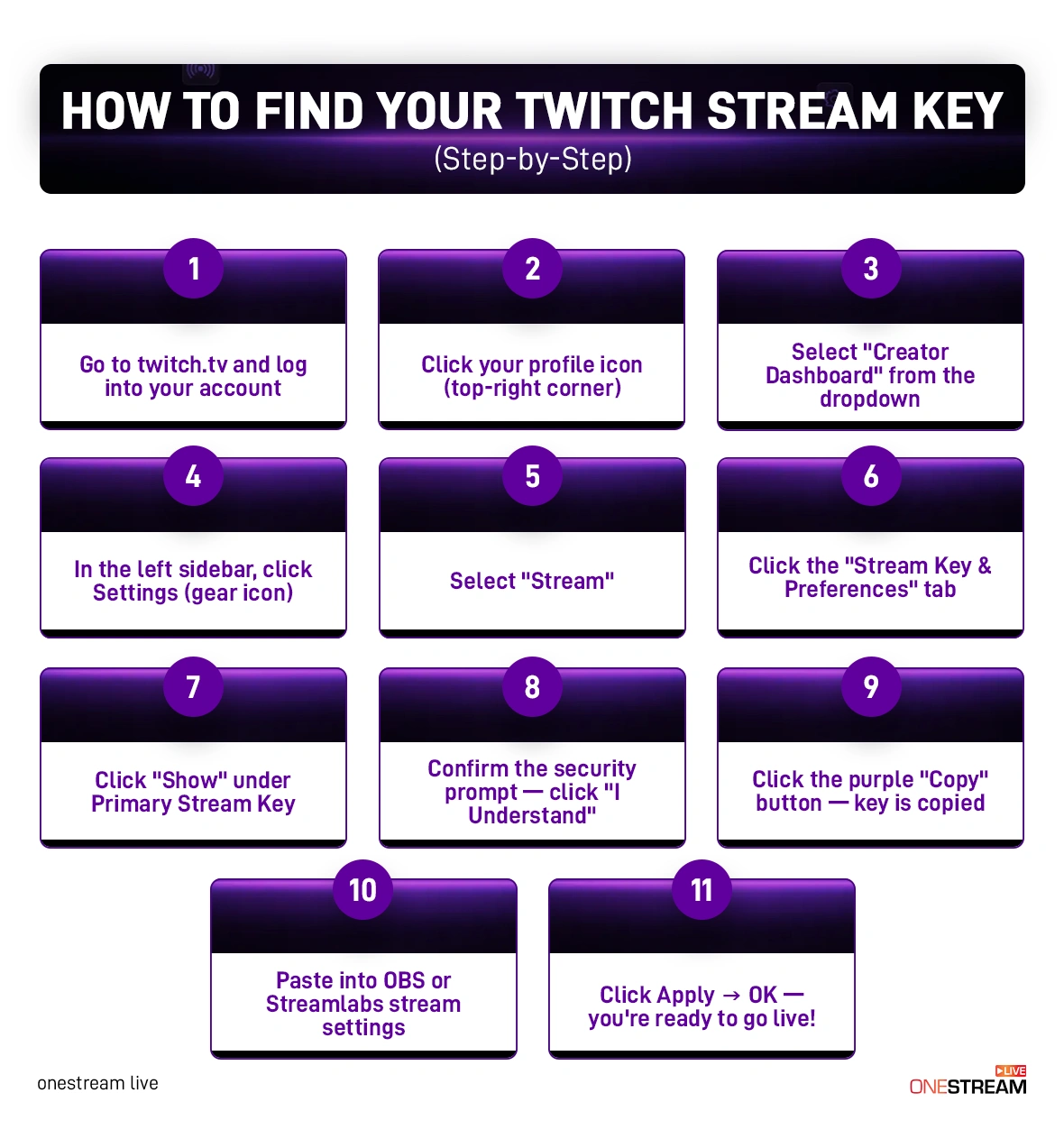
Log in to your Twitch account, open the creator dashboard, go to settings, then stream, and copy your stream key. A Twitch stream key is a small piece of text that sits inside a menu most new streamers have never visited. Most broadcasting tools now let you connect your Twitch account directly, but you may occasionally still need to enter your stream key manually to set up your broadcast.
Twitch is currently home to over 6.9 million broadcasters and over 2 million average concurrent viewers. So if you’re in the millions who are already streaming on the platform or just getting started, you need to know how to find your Twitch stream key. In this guide, we’ll cover everything, from finding it to configuring it on broadcasting tools like OBS and Streamlabs.
Key Takeaways:
Your Twitch stream key lives under Creator Dashboard > Settings > Stream > Stream Key & Preferences — not in your general account settings.
The Twitch mobile app does not show your stream key — you must use a mobile browser in desktop mode to access it.
Treat your stream key like a password — if it’s ever exposed publicly, reset it immediately from the same Settings page.
Once your Twitch setup is solid, tools like OneStream Live let you stream to 45+ platforms simultaneously without repeating the setup for each one.
What Is a Twitch Stream Key?
A stream key for Twitch is basically a unique alphanumeric code that allows your streaming software to communicate with Twitch. Think of it as a Twitch stream code. Without it, your streaming software has no way of knowing which account to stream to. Every Twitch account gets one stream key when you sign up on the platform.
First things first, create your Twitch account and then follow the steps below to find the Twitch stream key location.
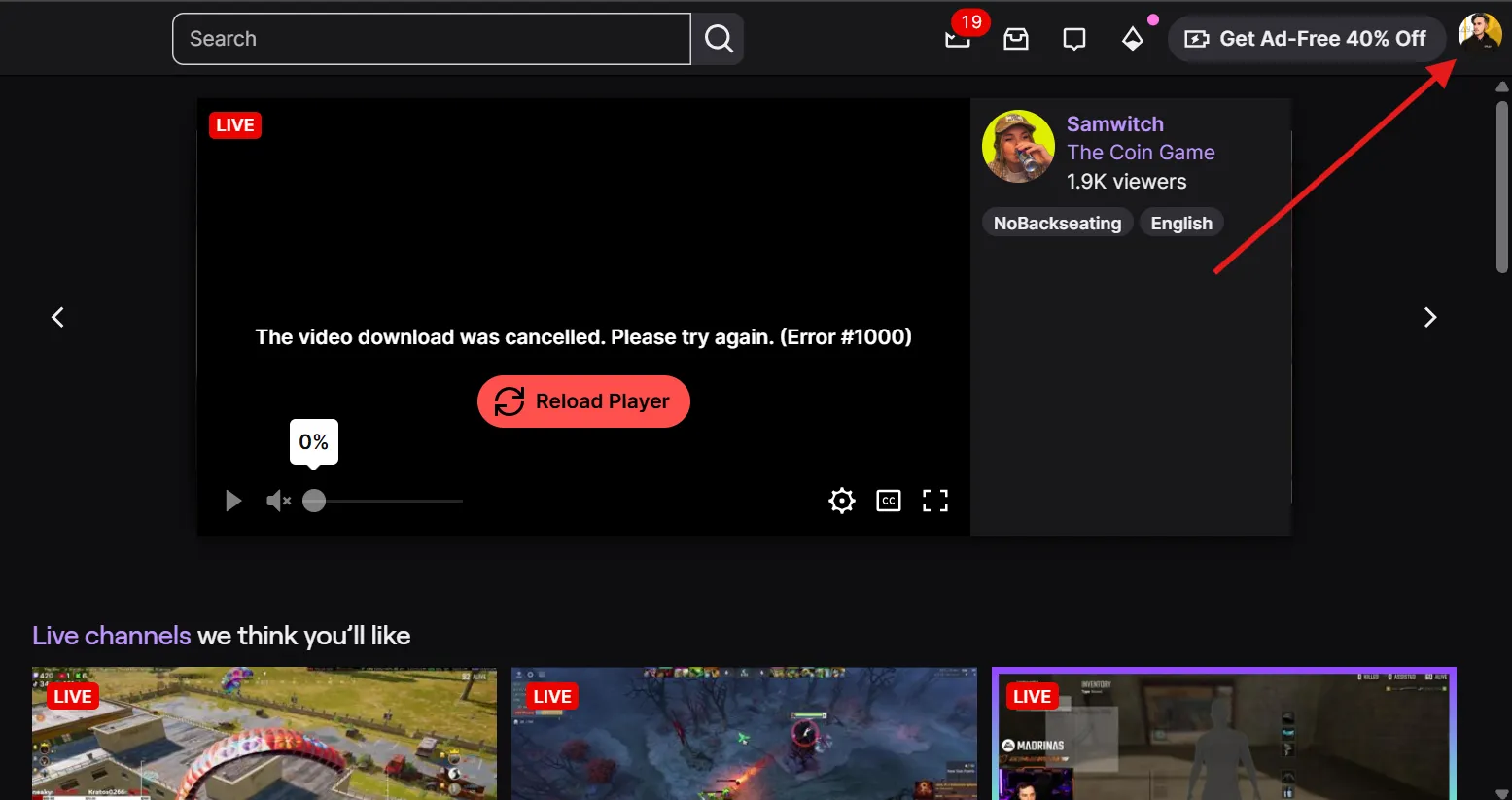
Once you’re logged in, click on your profile from the top right like this:
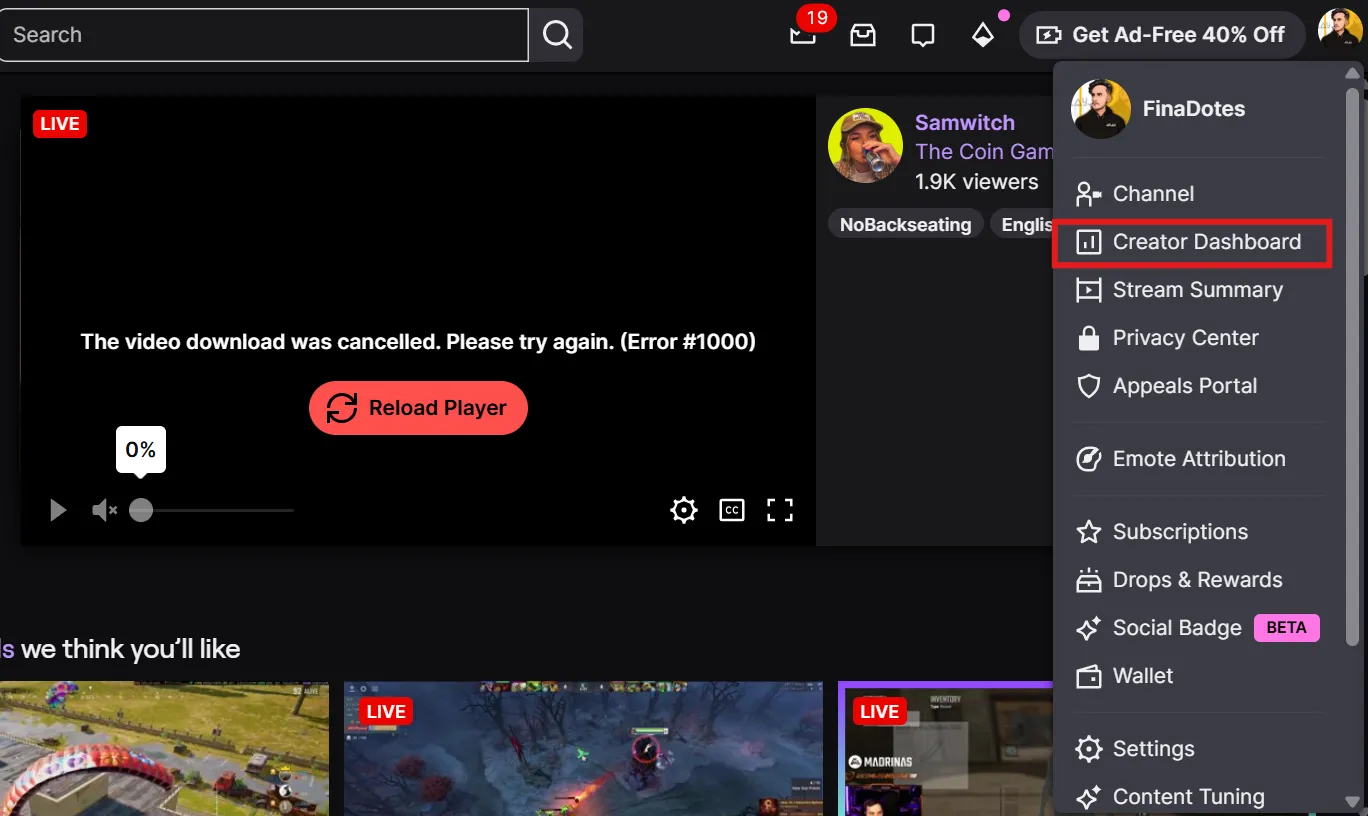
2. Then, from the drop-down menu, select “Creator Dashboard”:
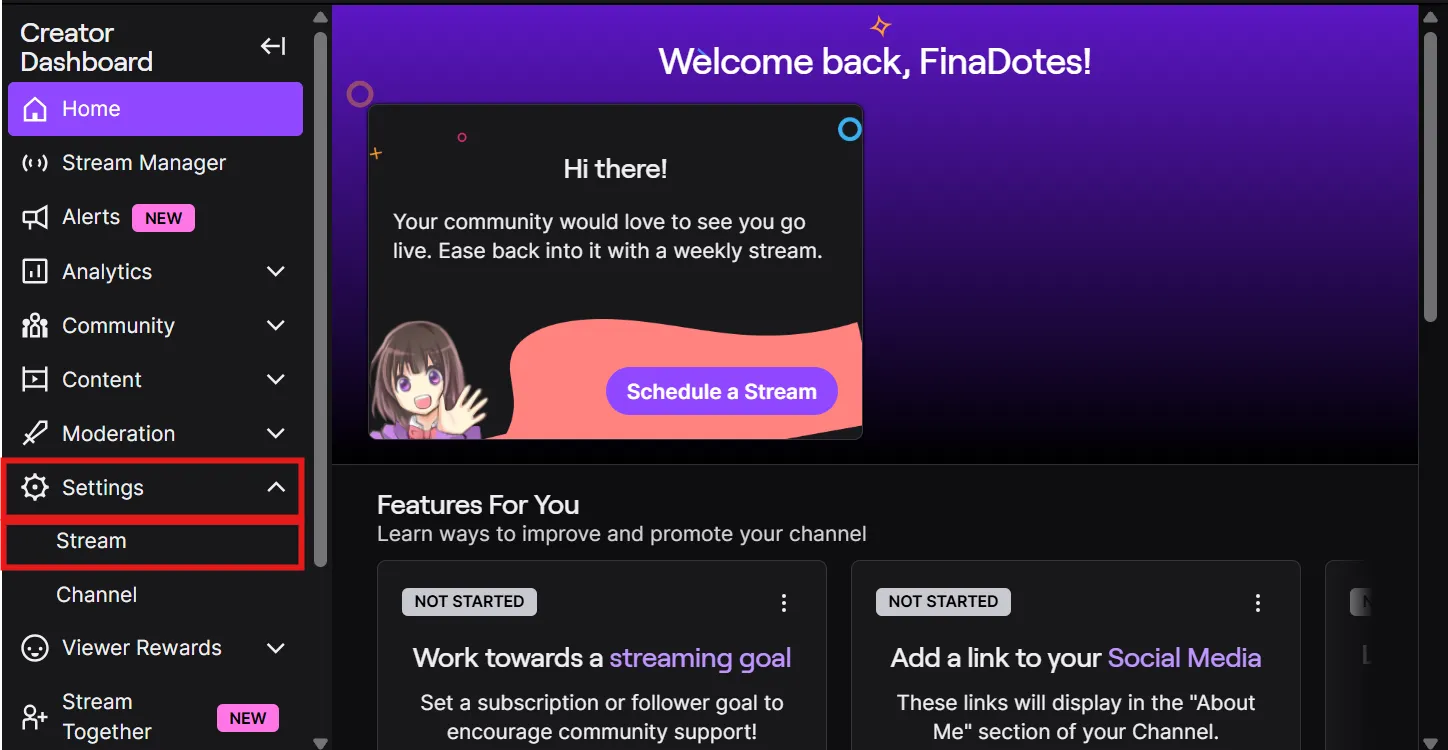
3. Then, from the left sidebar options, click on “settings” to expand the options and then click on “Stream” like this:
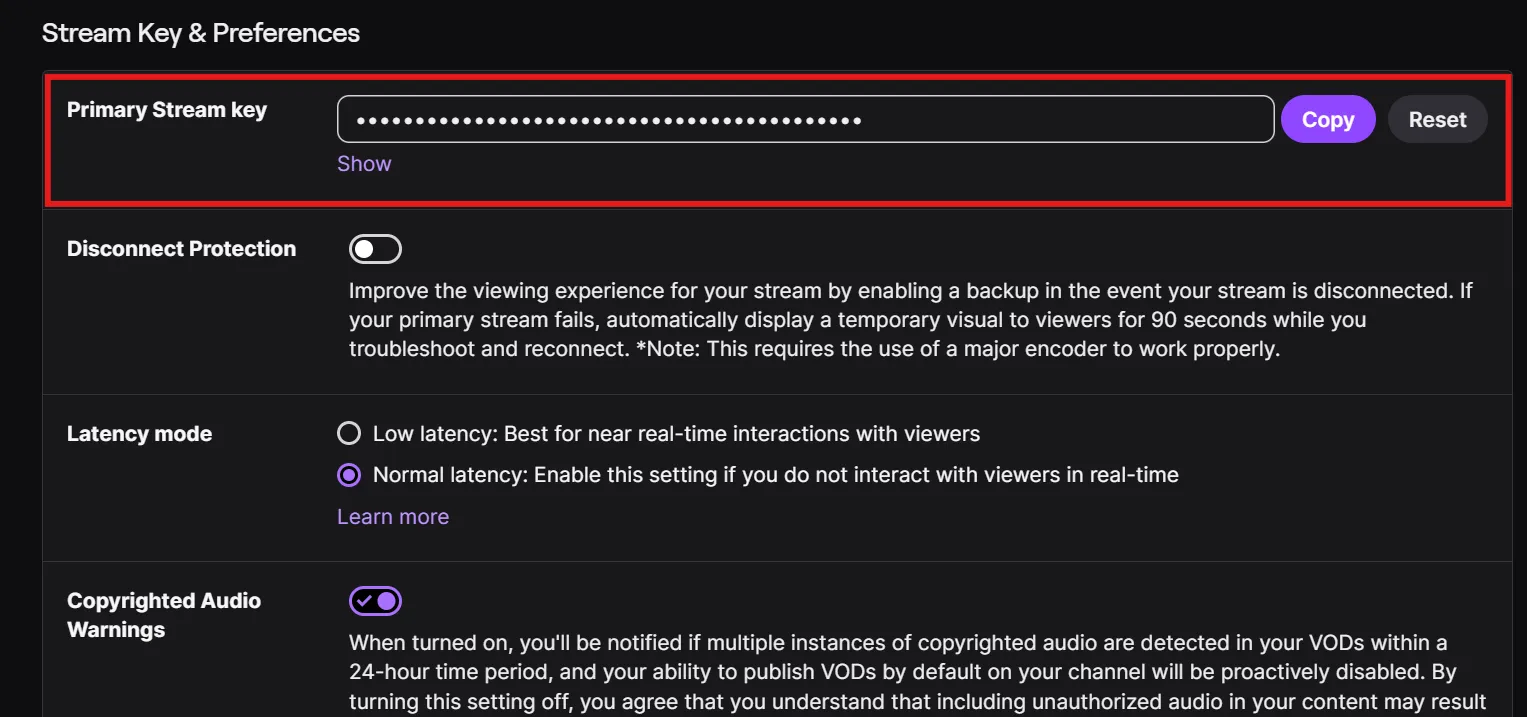
4. Then under the “Stream Key & Preferences,” you’ll see “Primary Stream Key” and your stream key right next to it:
5. Click on the button “Show” and accept the “I Understand” warning about sharing your stream key.
6. That’s it, your stream key will now be visible and ready to be pasted into your streaming software.
How to Add Your Stream Key In OBS Studio
Most who go live on Twitch from PC use OBS (widely used streaming software worldwide), and connecting it to Twitch is straightforward. Here are easy steps to connect your Twitch stream key in OBS:
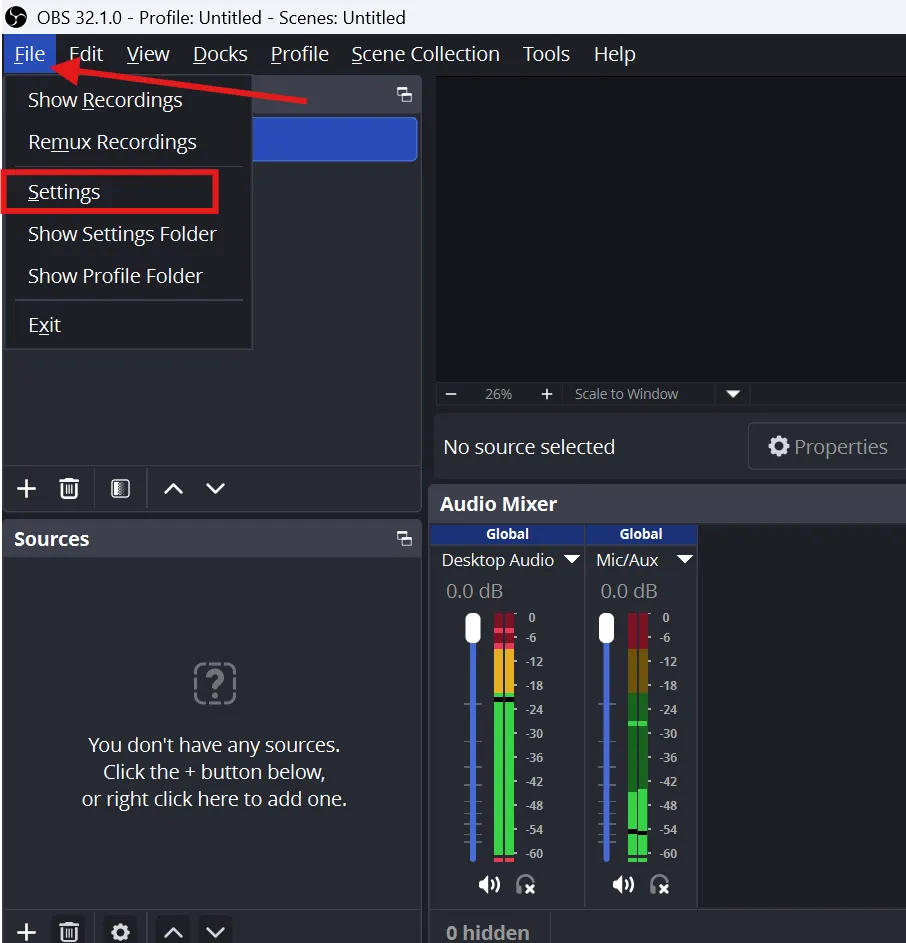
Launch OBS Studio and click on “File” then “Settings”:
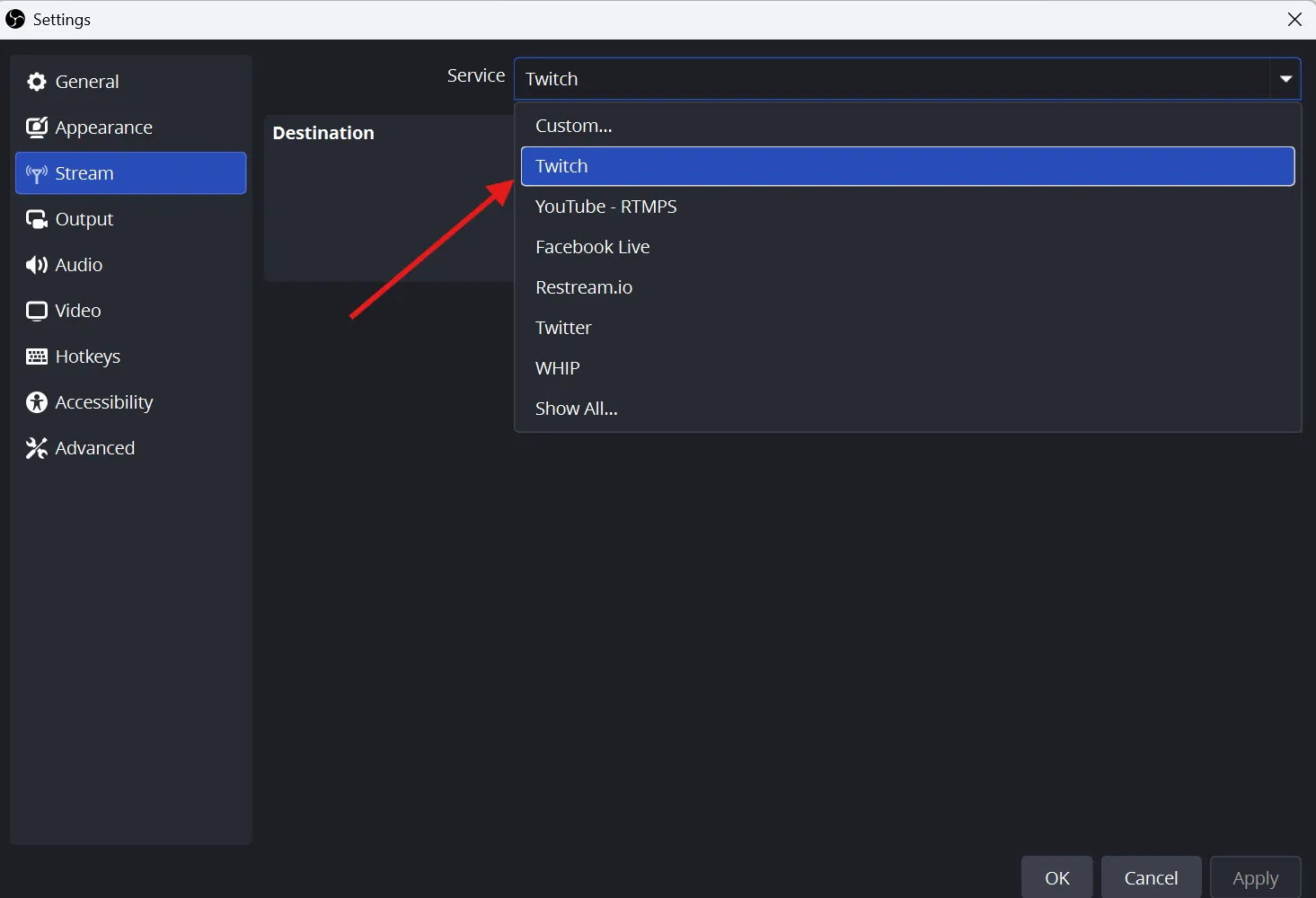
2. Then click on “Stream” and select Twitch from the “Service” dropdown list:
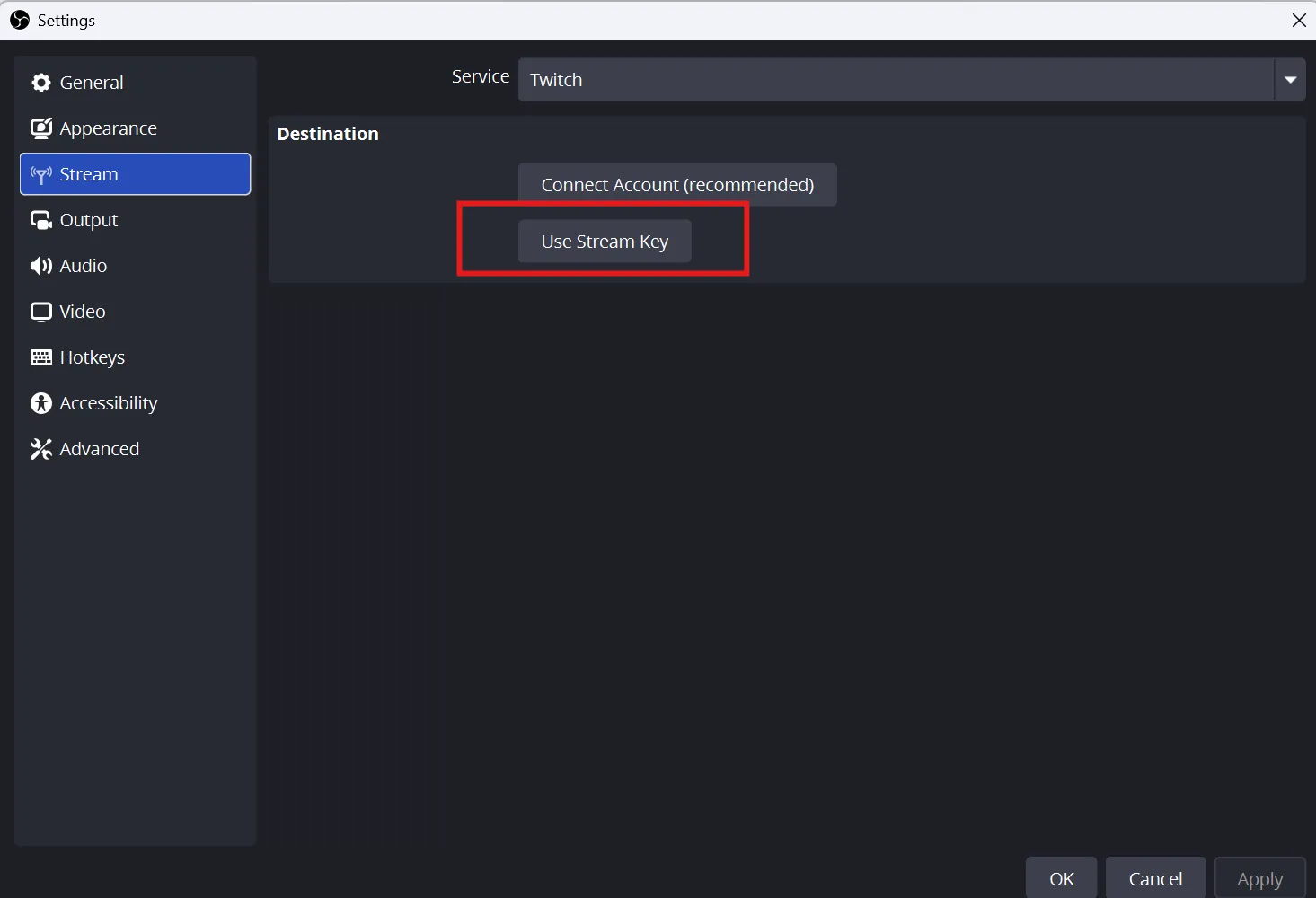
3. Then, under the “Destination” options, select the “Use Stream Key” option:
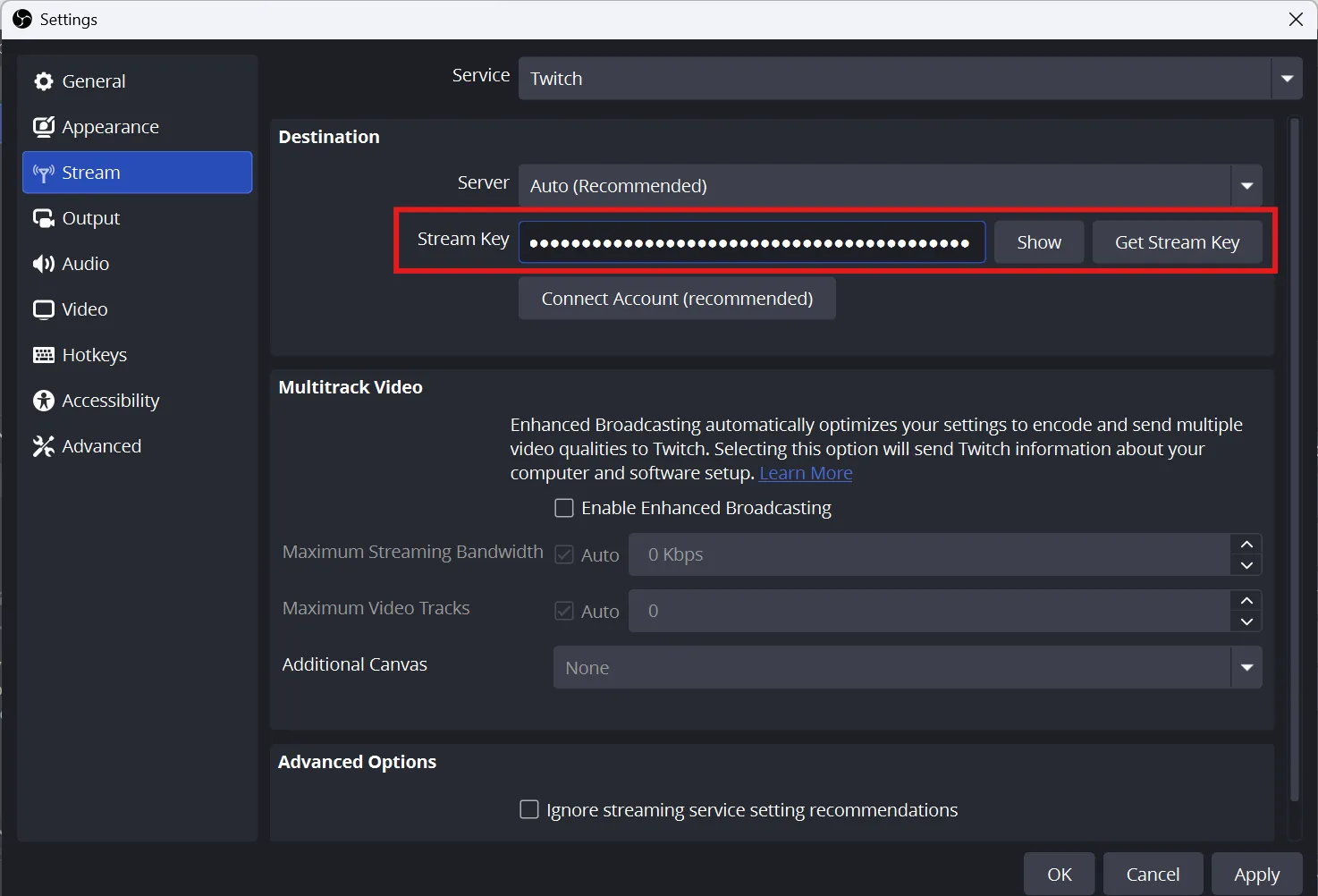
4. Then paste your stream key into the box like this:
5. Click “apply,” and that’s it, your OBS will now send a stream to your Twitch channel.
Most new users on the platform try to find the stream key using the Twitch mobile app. However, the short answer is: you can’t find your stream key inside the Twitch mobile app because it doesn’t include the “Creator Dashboard Settings”.
While you can’t get the key from the app, there is a workaround you can follow on your Android/iOS device to find the key. Here’s the process;
Open Chrome (Android) or Safari (iOS) and navigate to twitch.tv.
Request the desktopversion of the site. On iOS, tap the AAicon in the address bar and select “Request Desktop Website.” On Android, tap the three-dot menu in the top-right corner and check “Desktop site.”
Log in to your Twitch account as normal.
From there, follow the exact same steps as the desktop guide above: profile icon > Creator Dashboard > Settings > Stream > Stream Key & Preferences > Show > Copy.
Common Mistakes & Troubleshooting
There are some common problems related to Twitch stream key streamers run into. Here’s what to do when you find yourself dealing with one:
Stream Not Connecting in OBS or Streamlabs
This is usually what most streamers face. There isn’t always a complicated technical error behind it. It’s just a copy-paste problem; you might have ignored a single invisible space at the start or end of the key. This isn’t spotted just by looking at it.
The Fix:
Just go back to Twitch “Creator Dashboard”, reveal your stream key again, re-copy and paste it fresh.
Stream Key Not Working After a Password Reset
Sometimes we’re forced to change the account password after any suspicious activity. While changing a password is something normal, most streamers don’t know that it silently invalidates your existing stream key. It means the current pasted key in the streaming software won’t work anymore.
The Fix:
You’ll have to copy the fresh key from the Creator Dashboard after the Twitch password reset.
Accidentally Shared Stream Key Publicly
The “oops” moment happens to streamers all the time. Sometimes they share the screen they were not supposed to share. However, now the whole Discord server or your Twitch chat knows something they weren’t supposed to know. Your Twitch stream key is a good example of this; if it falls into the wrong hands, they can stream on your channel without your consent. This will result in a negative impact on your audience and on your channel.
The Fix:
Head into the “Creator Dashboard” and click on the ” reset ” button right next to your stream key. This will give you a fresh one and invalidate the previous one.
Finding your Twitch stream key takes less than two minutes when you know where to look. It’s a simple path: Creator Dashboard > Settings > Stream > Stream Key and Preferences > Show. However, streaming tools like OBS and Streamlabs only allow you to add one stream key at a time, limiting your reach to a single platform.
That’s why smart streamers follow a different workaround: they push their stream from OBS or Streamlabs to a multistreaming solution like OneStream Live. OneStream Live connects to over 45+ platforms with just a few taps, eliminating the hurdle to paste the stream key for each platform. Use OneStream Live to go live on Twitch and anywhere else your audience might be!
Frequently Asked Questions
What is a Twitch stream key?
A Twitch stream key is a unique code that connects your streaming software to your Twitch channel so you can go live.
Where can I find my Twitch stream key?
You can find your Twitch stream key in your Twitch Creator Dashboard under Settings> Stream.
Is it safe to share my Twitch stream key with others?
No, you should never share your Twitch stream key because anyone with access to it can stream on your channel.
What should I do if my Twitch stream key is exposed?
If your Twitch stream key is exposed, reset it immediately in your Twitch stream settings.
Do I need a stream key every time I go live on Twitch?
Yes, your streaming software needs your Twitch stream key to send your live video feed to your channel.
OneStream Live is a cloud-based live streaming solution to create, schedule, and multistream professional-looking live streams across 45+ social media platforms and the web simultaneously. For content-related queries and feedback, write to us at [email protected]. You’re also welcome to Write for Us!
We use cookies to enhance your browsing experience, serve personalized content, and analyze our traffic. By clicking "Accept All", you consent to our use of cookies.
Cookie Preferences
Strictly NecessaryRequired
Essential for the website to function properly.
Functional
Enable enhanced functionality and personalization.
Analytics
Help us understand how visitors interact with our website.