TikTok live streaming has become one of the fastest ways to grow your audience, connect with followers, and build a community in real time. While many creators go live directly from their phones, streaming from a computer using OBS Studio offers much more control, better production quality, and advanced features. In this guide, you’ll learn how to stream on TikTok with OBS and configure the correct OBS TikTok settings to start your live broadcast successfully.
To stream to TikTok from a PC using OBS, you’ll need a TikTok stream key and server URL. However, not every account has access to this feature, so before setting up OBS, you’ll need to make sure your account is eligible.
Key Takeaways:
Learn how to stream on TikTok with OBS using your TikTok stream key and server URL.
Your account usually needs 1,000 followers and age 18+ to access TikTok LIVE streaming.
Connect OBS to TikTok by adding the Server URL and Stream Key in OBS stream settings.
Use 1080 × 1920 vertical resolution in OBS for the best TikTok live stream format.
Multistream your broadcast to platforms like YouTube, Twitch, Facebook, and more using OneStream Live.
TikTok Stream Key Requirements
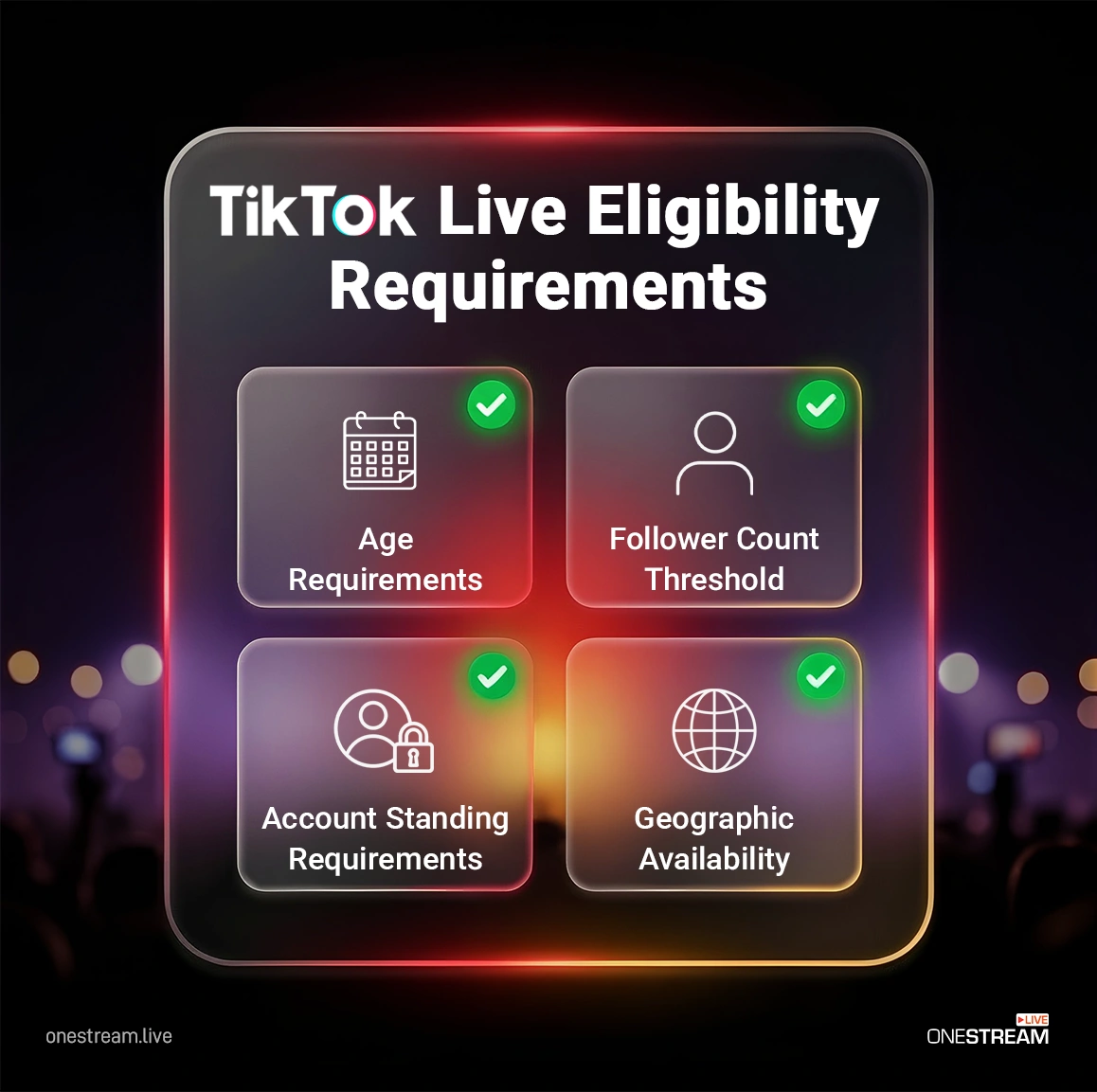
Before TikTok provides access to the RTMP server URL and stream key, your account must meet certain requirements. Not all accounts automatically have this feature, and it can depend on your region and account type.
To access a TikTok stream key and URL, your account typically needs to meet the following conditions:
You must already have permission to go live on TikTok.
Some users may need special approval or agency access to use external streaming tools.
These are the basic TikTok stream key requirements before you can stream to TikTok from OBS.
If you haven’t unlocked TikTok Live yet, check out our guide on How to Get Live Access on TikTok in 2026to learn the requirements and steps to enable live streaming on your account.
To stream from OBS to TikTok, you first need your TikTok Server URL and Stream Key.
Let’s look at how to retrieve them.
How to Get TikTok Stream Key
Below is a quick overview of how to get your TikTok stream key and server URL.
If you want a more detailed walkthrough, check out our full guide on How to Find TikTok Stream Key, where we explain each step in depth.
For now, here’s the simplified process.
Desktop Method
1. Log into TikTok on desktop.
2. Click Go LIVE.
3. Open LIVE Producer (livecenter.tiktok.com/producer).
4. Enter your stream title and category.
5. Click Save & Go LIVE to generate your streaming credentials.
6. Copy the Server URL and Stream Key.
Important
Not all accounts have stream key access.
Some accounts must use other streaming options instead.
In some cases, TikTok allows you to retrieve your stream key directly from the mobile app.
Follow these steps:
1. Open TikTok → tap + → swipe to LIVE.
2. Look for Cast to PC, Live Studio, or Connect to PC (wording varies depending on your region or account).
3. Tap the option.
4. TikTok will display your Server URL and Stream Key.
5. Copy these credentials.
You will see your TikTok stream key and server URL, which you’ll need to enter in OBS later.
You can copy them to a text file, send them to your computer, or write them down so you can paste them into OBS.
If You Don’t See the Option
If the Cast to PC / Connect to PC option does not appear in the mobile app, you won’t be able to retrieve your stream key from mobile.
Since we are streaming to TikTok from OBS, you’ll need to generate the Server URL and Stream Key using TikTok LIVE Producer (Live Center) on desktop.
How To Stream On TikTok with OBS
Once you have your TikTok Server URL and Stream Key, you can start setting up OBS to send your live broadcast to TikTok.
To stream from OBS to TikTok, you’ll need:
The TikTok app on your phone (optional for managing your live session)
OBS Studio installed on your computer
Your TikTok Server URL and Stream Key
These credentials allow OBS to connect directly to TikTok’s streaming servers and send your live video feed.
Next, we’ll walk through how to connect OBS to TikTok and configure your stream.
How to Connect OBS to TikTok Using Stream Key
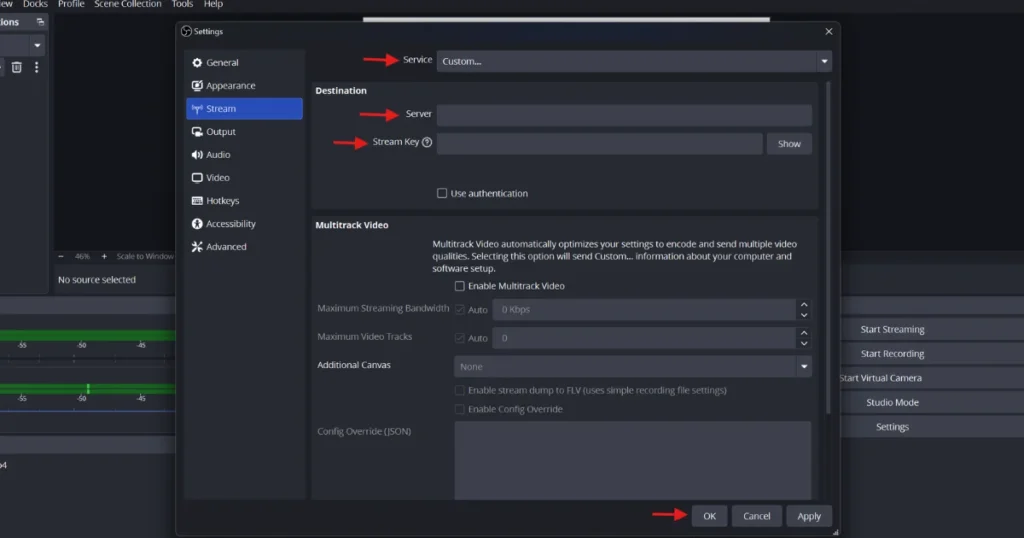
Once you have your TikTok stream key, you can connect OBS to TikTok.
Follow these steps to configure OBS TikTok settings.
1
Launch OBS Studio.
2
Click File, then click Settings.
3
From the panel on the left, click Stream.
4
Set Stream Type to Custom streaming server.
5
Paste the Server URL and Stream Key you copied from TikTok into the respective fields.
6
Click OK.
Now set up your scenes and sources in OBS for your live stream.
When everything is ready, click Start Streaming.
Your OBS TikTok live stream will now be sent directly to TikTok.
Recommended OBS TikTok Settings
Because TikTok is a mobile-first platform, it’s best to stream in vertical (portrait) format.
You can configure this in OBS:
Go to Settings → Video.
Change both:
Base (Canvas) Resolution
Output (Scaled) Resolution
Set them to:
1080 × 1920
This vertical resolution works best for TikTok live streams and ensures your content displays correctly for mobile viewers.
How to Stream on TikTok and Other Platforms Using OneStream Live
While TikTok is a powerful platform, many creators grow faster by streaming to multiple platforms at once.
Instead of limiting your broadcast to one platform, you can multistream to services like YouTube, Twitch, Facebook, X (Twitter) and more using OneStream Live. This allows you to stream OBS to TikTok and other platforms simultaneously.
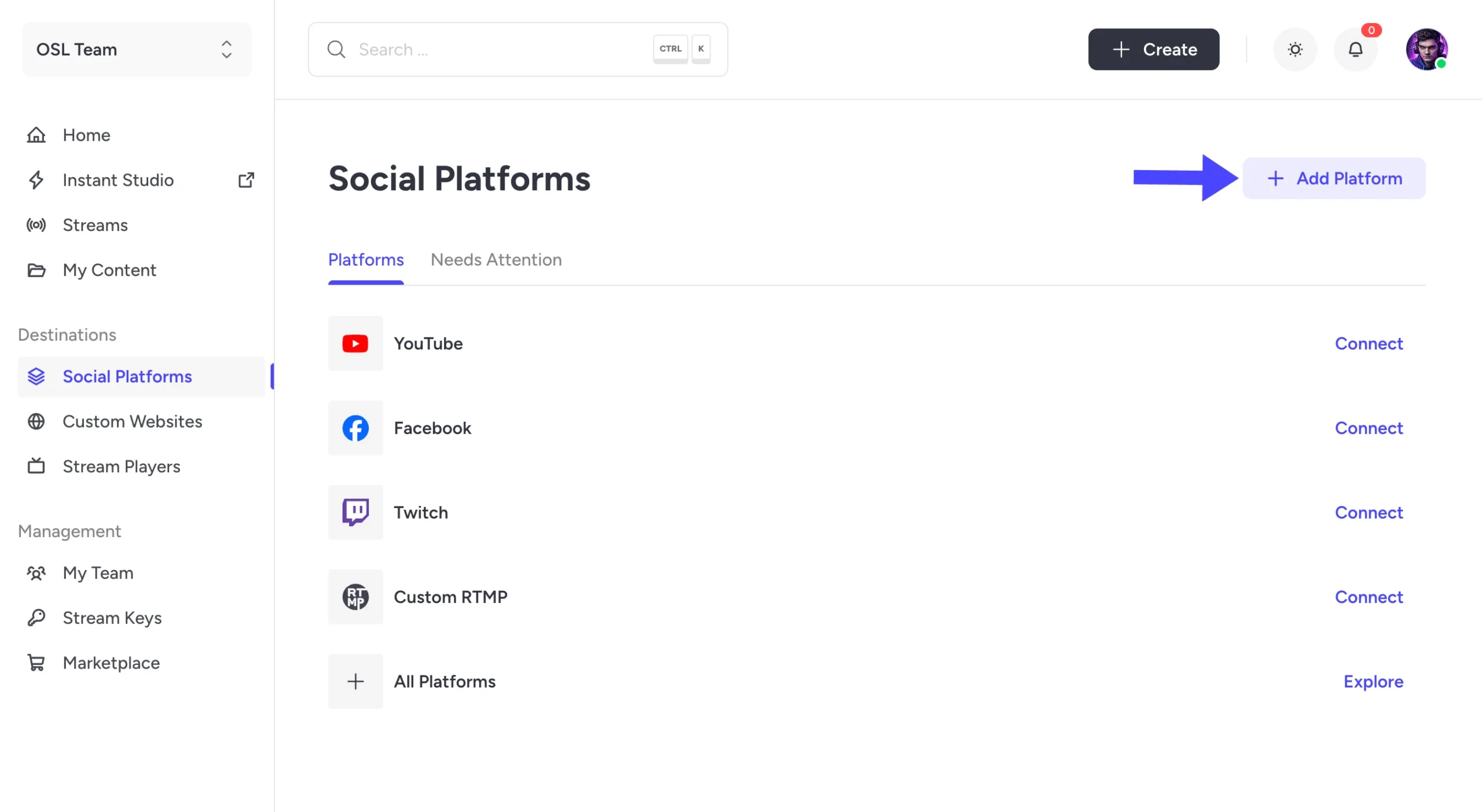
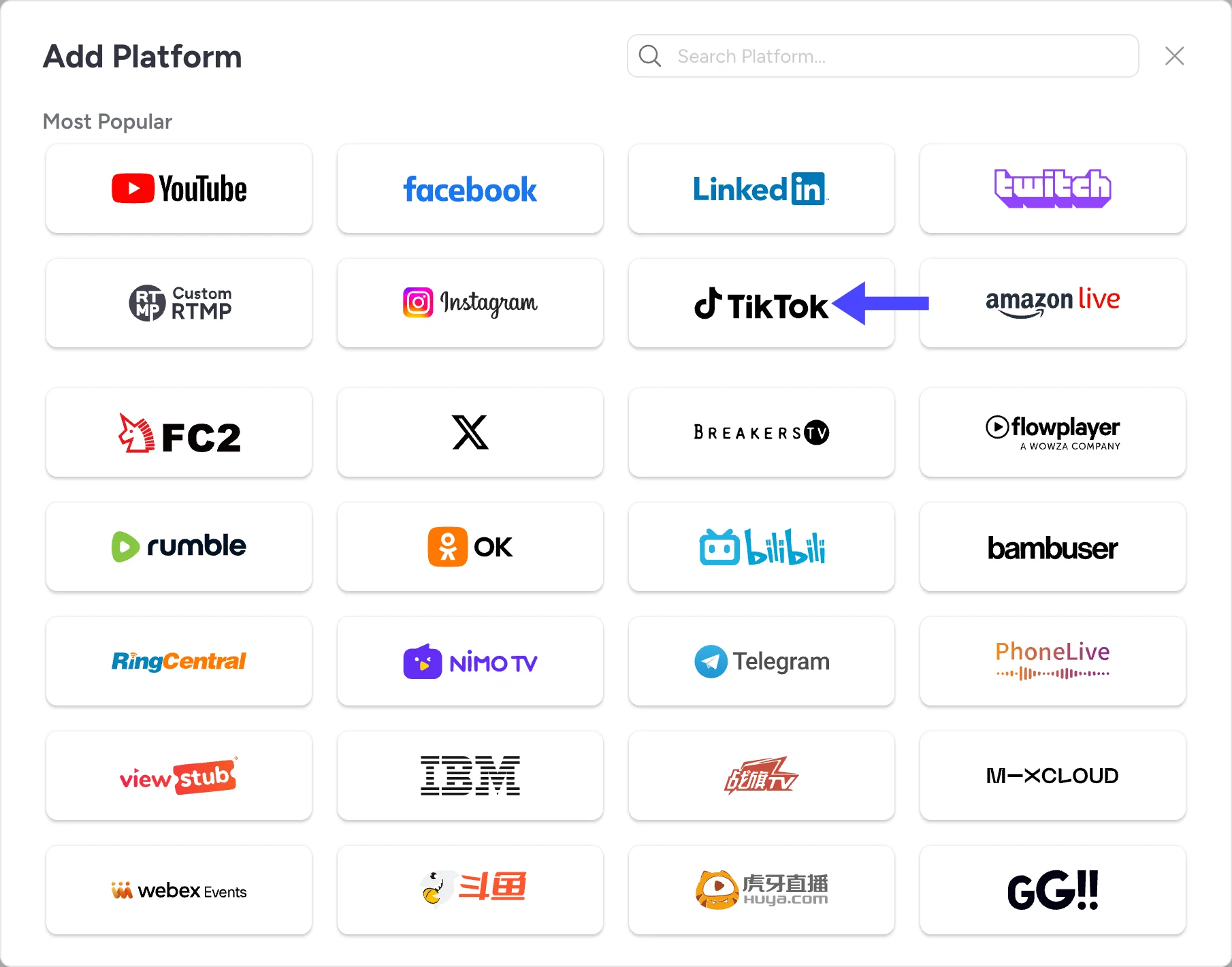
From the dashboard, go to Destinations and click Social Platforms. Click Add Platform.
3
Select TikTok.
4
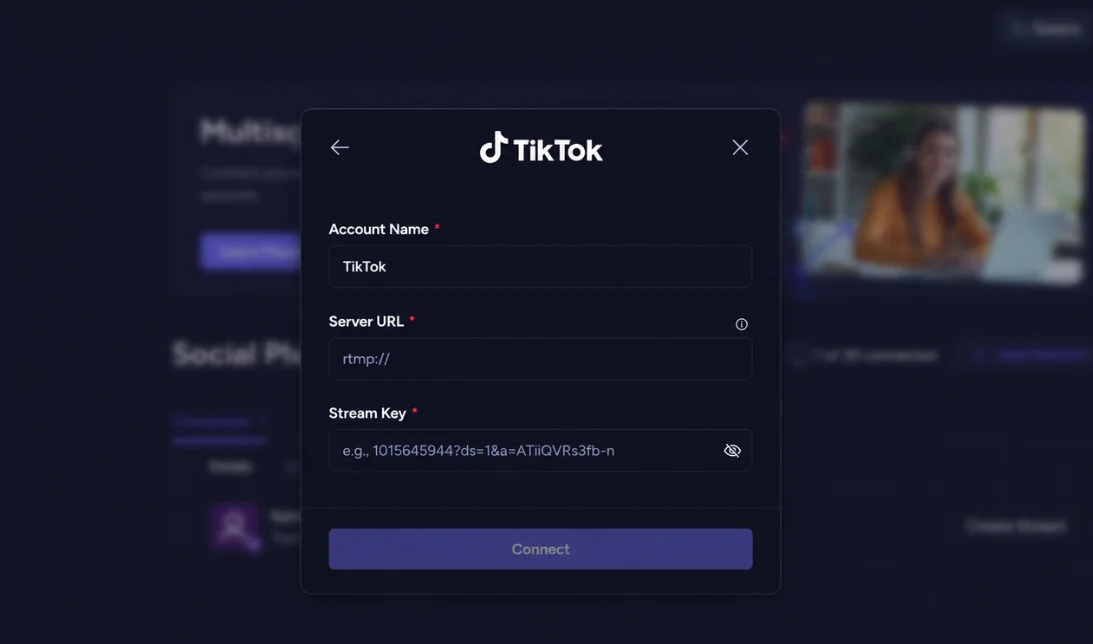
Give your connection a name.
5
Paste the Server URL and Stream Key from TikTok.
6
Click Connect.
Your TikTok account will appear in the Destinations section.
Streaming Options with OneStream Live
You now have two main streaming options.
Real-Time Live Streaming
You can stream instantly using:
OBS Studio
OneStream Live Studio
Simply paste your OneStream stream key into OBS and start broadcasting. OneStream will distribute your live stream to TikTok and other selected platforms simultaneously.
Pre-Recorded Streaming
You can also schedule pre-recorded streams.
This allows you to:
Upload a video
Schedule it to go live later
Stream even when you are not at your computer
This is useful for consistent content scheduling.
Conclusion
Now you have learned how to stream on TikTok with OBS in detail. By setting up OBS correctly and using your TikTok stream key and server URL, you can create more professional live broadcasts with custom scenes, overlays, and better production quality.
To get started, make sure your account meets TikTok’s LIVE requirements, retrieve your stream key, connect OBS to TikTok, and configure the recommended vertical streaming settings.
Once everything is set up, you can go live on TikTok with better visuals, overlays, and full control over your stream.
And if you want to expand your reach even further, tools like OneStream Live allow you to broadcast to multiple platforms at the same time.
Frequently Asked Questions
Can I stream on TikTok using OBS?
Yes, you can stream on TikTok using OBS by setting up an RTMP server and connecting it with your TikTok account.
What do I need to stream on TikTok with OBS?
You’ll need OBS software, a TikTok account, an RTMP URL and stream key from TikTok, and a stable internet connection.
How do I get the RTMP stream key for TikTok?
You can get the RTMP stream key by enabling TikTok’s live stream feature and navigating to the streaming settings in the app.
How to find TikTok stream key on mobile?
Simply open the TikTok app, tap the “+” button, and swipe to the LIVE tab. If eligible, look for “Cast to PC” or “Connect to PC”. Tap it to see your TikTok server URL and stream key. Copy both and use them in your streaming software.
What are the optimal OBS settings for TikTok streaming?
The optimal settings for TikTok streaming in OBS include setting the video resolution to 720p and the bitrate to around 2500–4000 kbps.
Can I add overlays and effects while streaming on TikTok with OBS?
Yes, OBS allows you to add custom overlays, transitions, and effects to enhance your TikTok stream.
OneStream Live is a cloud-based live streaming solution to create, schedule, and multistream professional-looking live streams across 45+ social media platforms and the web simultaneously. For content-related queries and feedback, write to us at [email protected]. You’re also welcome to Write for Us!
We use cookies to enhance your browsing experience, serve personalized content, and analyze our traffic. By clicking "Accept All", you consent to our use of cookies.
Cookie Preferences
Strictly NecessaryRequired
Essential for the website to function properly.
Functional
Enable enhanced functionality and personalization.
Analytics
Help us understand how visitors interact with our website.