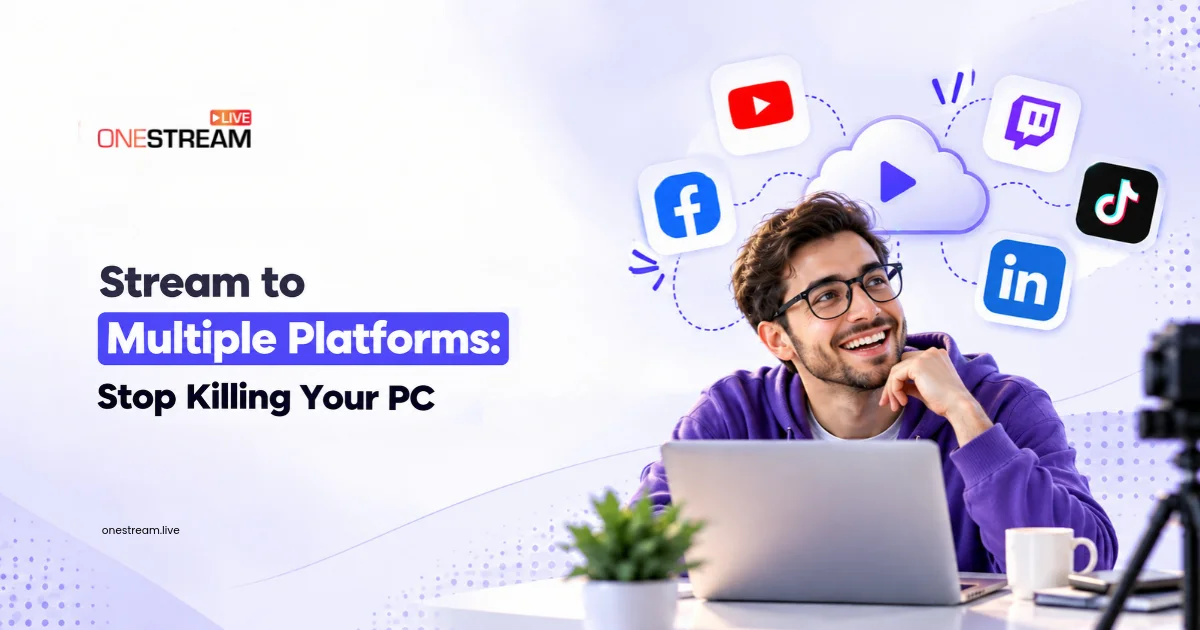
Ever tried to stream to multiple platforms at once and heard your laptop fan scream like a jet engine? You hit Go Live on YouTube, Twitch, and LinkedIn. Then frames drop, chat lags, and the whole show starts to stutter.
That’s not a talent problem. It’s a setup problem. When your own computer sends a separate copy of your stream to every platform, it pays for each one in processing power and upload speed.
The fix doesn’t involve a new PC. You’ll learn why local multistreaming breaks, how the cloud fixes it, where you can go live, and how to live stream to multiple platforms with OneStream Live without cooking your hardware.
Key Takeaways:
- The easiest way to stream to multiple platforms is to send one stream to a cloud service that copies it to every destination.
- Local multistreaming makes your computer upload a separate stream for each platform, which drains bandwidth and often adds CPU load.
- YouTube recommends an upload speed of 1.5 to 2 times the combined bitrate of every stream you send.
- OneStream Live sends one upload to 45+ platforms, any custom destination, and your own website at the same time.
- Prerecorded streaming lets you go live on several platforms on a schedule, even when you’re away from your desk.

What Does It Mean to Stream to Multiple Platforms?
To stream to multiple platforms means broadcasting one live video to several destinations at the same time, such as YouTube, Twitch, Facebook, and LinkedIn. You can do it two ways: your computer sends a separate stream to each platform, or you send one stream to a cloud service that distributes copies for you.
People also call this multistreaming or simulcasting. YouTube uses its own term, simulstreaming, and explains it on its Stream across platforms help page.
Both methods put you everywhere. The difference is who does the heavy lifting: your PC or a server. For the bigger picture, see how OneStream Live’s multistreaming service handles it.
Spoiler: only one of those options leaves your PC in one piece.
Why Multi Platform Streaming From Your PC Hurts Performance
Multi platform streaming from your own PC hurts performance because every extra destination adds another upload, and often more encoding work. Your hardware and home internet were sized for one stream, not three.
Here’s what that looks like on stream:
- Your CPU or GPU works overtime, so fans spin up and your game or app slows down.
- Your upload maxes out, so the encoder starts dropping frames to keep up.
- Anyone else on your connection, like a video call in the next room, can push you over the edge.
The Upload Math: How Much Bandwidth Do You Need?
Upload speed is usually the first thing to break. For 1080p at 60fps with H.264, YouTube’s live encoder settings list 6 Mbps as the minimum bitrate and 17 Mbps as the recommended setting.
YouTube also advises adding up the bitrates of every stream you send, then keeping your upload speed at 1.5 to 2 times that total. Here’s how it plays out at the 6 Mbps minimum:
- One stream: 6 Mbps needs 9 to 12 Mbps of upload.
- Three local streams: 18 Mbps combined needs 27 to 36 Mbps of upload.
- Three streams through the cloud: still one 6 Mbps upload, so 9 to 12 Mbps covers it.
Can OBS Stream to Multiple Platforms?
Yes, OBS Studio can stream to multiple platforms with a free community plugin such as Aitum Multistream, which adds extra outputs. The catch is that each output adds upload bandwidth and can add encoding work, which is exactly the load you’re trying to avoid.
Some streamers sidestep that by running OBS on a rented Windows VPS in a data center, where the upload pipe is measured in gigabits - it works, but you pay monthly for a machine with a decent GPU, and you still need a clean feed from your desk to that server.
The lighter path is to keep OBS for your scenes and send one stream to OneStream Live with Encoder Streaming. You keep your favorite setup, and OneStream Live sends it to every platform for you.
Cloud vs Local: The Best Way to Stream to Multiple Platforms
The best way to stream to multiple platforms for most creators is cloud multistreaming. You upload one stream, cloud servers send it to every destination, and your CPU and bandwidth stay at single stream levels.
YouTube points the same way. Its help center recommends cloud service encoders when your computer is older or tends to slow down, or when you plan to stream to more than two channels.
Behind that single upload sits serious engineering, which is why organizations often expand their internal resources by collaborating with a nearshore software development company to handle features like real-time transcoding without bloating their payroll. For you, all that matters is that the pipes work.
| Feature | Local multistreaming | Cloud multistreaming |
|---|---|---|
| Uploads from your PC | One per platform | One in total |
| CPU load | Often rises with each output | Stays at one stream |
| Upload for 3 platforms at 6 Mbps | 27 to 36 Mbps | 9 to 12 Mbps |
| Setup | Plugins plus a stream key per platform | Connect accounts once |
| Best for | Powerful PCs, one or two destinations | Most creators, three or more destinations |
How to Live Stream on Multiple Platforms for Free
You can live stream on multiple platforms for free in two ways. Free OBS plugins cost you CPU and upload instead of money. Free multistreaming platforms cost nothing upfront but come with limits.
OneStream Live, for example, is free to start, and the free plan lets you multistream to 2 platforms at once. That’s plenty to test your setup before you commit. If you’re brand new to all this, our multistreaming starter guide walks you through your first stream.
What to Look for in Multistreaming Software
Good software to stream to multiple platforms should take load off your PC, not just add destinations. Before you pick one, check for:
- A cloud relay, so you upload once no matter how many platforms you add
- Enough destinations, including custom RTMP for platforms that aren’t built in
- Portrait streaming for TikTok and Instagram
- Prerecorded and scheduled streams
- A way to stream to your own website
- Stream health monitoring and SRT support, the hallmarks of the most stable multistreaming service
The best multistreaming service for you is the one that ticks these boxes for the platforms you actually use. Pricing for multi streaming software usually scales with destinations and features, so compare each plan’s caps, not just the headline price.
Where Can You Stream to Multiple Platforms at Once?
With a cloud tool like OneStream Live, you can stream to multiple platforms at once across 45+ platforms. That covers the big social networks, plus gaming, business, and regional sites most creators never think to try.
Here’s what’s on the list:
- Social platforms: YouTube, Facebook, LinkedIn, X, Instagram, TikTok, Twitch, Kick, Rumble, Telegram, Dailymotion, and Amazon Live
- Gaming platforms: Steam, Soop, Picarto, Bilibili, Huya, DouYu, and Nimo TV
- Professional platforms: Vimeo, Wowza, IBM Video Streaming, Dacast, Bambuser, RingCentral, and Webex Events
- Custom RTMP: any platform that gives you a server URL and a stream key
And that’s just a start. OneStream Live supports many more, so browse the full list of supported platforms and integrations before you plan your lineup.
Plan for Vertical Platforms
TikTok and Instagram audiences watch in portrait. If those apps are on your list, switch Studio to portrait mode so your stream fills the screen instead of floating in a thin horizontal strip.
Add Your Own Website as a Destination
Social platforms control your reach. Your website doesn’t. With Custom Websites, you can stream to a branded page on your own subdomain, and Stream Players let you embed the live player on any site you already run.
That’s an audience no algorithm can take away. Now let’s put it all together.
How to Stream to Multiple Platforms With OneStream Live
To stream to multiple platforms with OneStream Live, connect your channels once, pick how you want to go live, choose your destinations, and press Go Live. OneStream Live’s servers handle every copy, so your PC only sends one stream.
1
Log in: Sign in to your OneStream Live account. New here? You can sign up for free.
2
Connect your platforms: Open Social Platforms in your dashboard and link your channels, or add a custom RTMP destination with its server URL and stream key.
3
Choose how you go live: Use Studio, Encoder Streaming, or a prerecorded video. Each one is covered below.
4
Pick your destinations: Select every platform you want, and switch on a Stream Player or Custom Website if your site should get the stream too.
5
Brand your stream: In Studio, add your logo, banners, overlays, tickers, intros and outros so every platform sees the same polished show. Pre-recorded streams can carry your branding too.
6
Go live or schedule: In Studio, click Go Live or Schedule Broadcast. With an encoder, start streaming from your software. A pre-recorded video goes live at the time you schedule.
Stream on Multiple Platforms at the Same Time With Studio or Your Encoder
Pick the real time option that fits how you work:
- OneStream Live Studio: A browser based studio with no encoder needed, room for up to 16 guests, and portrait mode for vertical platforms.
- Encoder Streaming: Keep OBS, vMix, or Wirecast for your scenes. Paste your stream key and server URL, and send one stream over RTMP, RTMPS, or SRT. The Signals panel shows your bitrate, signal strength, resolution and frame rate live, so you can spot problems before your viewers do.
Stream Live to Multiple Platforms on Autopilot
You don’t have to be on camera to stream live to multiple platforms. With prerecorded streaming, you upload a video, schedule it up to 60 days ahead, and OneStream Live broadcasts it as live.
Queue playlists, loop videos for viewers in other time zones, or run a 24-hour stream on YouTube, included on Enterprise and available as an add-on on other paid plans. Your best content keeps working while you sleep.
Conclusion: Let the Cloud Carry the Load
Your PC was built to run one great stream, not to copy it three times. When you stream to multiple platforms locally, every new destination taxes your upload and often your CPU. Send one stream to the cloud instead, and that cost stays flat whether you add one platform or five.
Pick cloud streaming software that uploads once, connect the platforms where your audience already watches, and run a quick test before you go public. That’s how to stream multiple platforms with a quieter laptop and a steadier show.
Frequently Asked Questions
Does multistreaming use more CPU?
Multistreaming uses more CPU when your computer encodes a separate output for each platform, which local multiple output setups in OBS often require. A cloud multistreaming service like OneStream Live changes that: your computer encodes one stream and the cloud copies it to every destination. YouTube suggests cloud encoders for older computers that tend to slow down.
Does multistreaming use more bandwidth?
Multistreaming uses more bandwidth when you upload a separate stream to each platform, because the target bitrates add up. YouTube’s own guidance is to total the bitrates and keep upload speed at 1.5 to 2 times that figure. A cloud service needs only one upload, so your bandwidth stays at single stream levels.
Is it better to stream to multiple platforms?
Streaming to multiple platforms is better when your audience is spread across apps, because one broadcast reaches each community where it already watches. The downsides are more chats to manage and more settings to track. Start with two platforms where you already have followers, then add more once your workflow is stable.
How much does multistreaming software cost?
Multistreaming software ranges from free plans to paid monthly tiers, and the price usually scales with the number of destinations and features. OneStream Live is free to start with 2 destinations, and paid plans go beyond 45 platforms. Check whether a plan caps destinations, resolution or streaming hours before you commit, since those limits matter more than the headline price.
What is the difference between RTMP and SRT?
RTMP is a protocol built on TCP that most platforms accept for ingest, while SRT is an open source protocol built on UDP, with encryption and packet loss recovery built in. RTMP works well on stable connections; SRT holds up better on unreliable networks such as cellular or long distance links. OneStream Live’s Encoder Streaming accepts both, plus RTMPS.
OneStream Live is a cloud-based live streaming solution to create, schedule, and multistream professional-looking live streams across 45+ social media platforms and the web simultaneously. For content-related queries and feedback, write to us at [email protected]. If you have a story to share about your live streaming experience with OneStream Live, we would be glad to feature it. You're also welcome to Write for Us!