You want to start a podcast. But the moment you Google what is RSS, you’re sucked into a black hole of tech jargon, XML files, and diagrams that look like they belong in a NASA control room. Pair that with YouTube’s shiny new podcast tools, and suddenly this feels less like creative freedom and more like a trapdoor into Geeksville.
Here’s the secret: you don’t need to know how RSS works, or even care. It’s the plumbing under the internet—silent, invisible, and absolutely essential.
Get it set up once, and every podcast episode you release will magically beam itself onto Spotify, Apple, YouTube, and anywhere else listeners hang out. You do the talking; RSS does the schlepping.
This guide will walk you through the whole thing. From RSS feeds (what they are, why they matter) to YouTube’s podcasting playground, I am going to help you so you can launch your show without needing a PhD in computer science.
Let’s start with the big question: what is RSS, and why does it still run the podcasting universe in 2025?
What Is an RSS Feed?
RSS (Really Simple Syndication) is a web feed format that websites, blogs, and podcast platforms use to distribute content updates automatically to subscribers. In plain English, an RSS feed is like a content delivery pipeline: it’s a special XML file containing a stream of a website’s or podcast’s latest posts or episodes, along with metadata (titles, descriptions, dates, etc.).
Users or apps subscribe to this feed to get new content delivered without having to manually check the site. For example, when a blog publishes a new article or a podcaster uploads a new episode, the RSS feed updates, and subscribers see the new content in their feed reader or podcast app. This means no more refreshing websites, the content comes to you automatically.
What Is the Purpose of RSS Feeds in Podcasting?
In podcasting, RSS feeds are absolutely crucial. They are the backbone of how podcasts are distributed on the internet.
Here’s how it works in a podcast context:
When you create a podcast and host it on a podcast hosting platform (like Buzzsprout, Anchor/Spotify for Podcasters, Libsyn, etc.), that platform generates an RSS feed URL for your show. This feed contains all your podcast’s episodes and details – every title, description, audio file URL, cover image, and so on. You then submit this RSS feed to directories and apps such as Apple Podcasts, Spotify, Google (YouTube Music), etc.
Those podcast apps use RSS to pull your episodes automatically. Whenever you publish a new episode, your hosting platform updates the RSS feed file; the apps detect the update and list the new episode for your subscribers.
In short, the purpose of RSS feeds is to let you publish once and have your content update everywhere. Without RSS, a podcaster would have to upload their episode separately to every platform – which would be a nightmare.
For listeners, RSS feeds mean they can use their favorite podcast app to follow many shows at once. The app checks each subscribed feed and uses RSS to fetch new episodes automatically, so listeners never miss a new release.
How Do You Use RSS Feeds?
If you’re new, you might be asking how to use RSS in practical terms. Don’t worry, you don’t need to know any coding or technical details to use RSS feeds.
Here are two perspectives on using RSS:
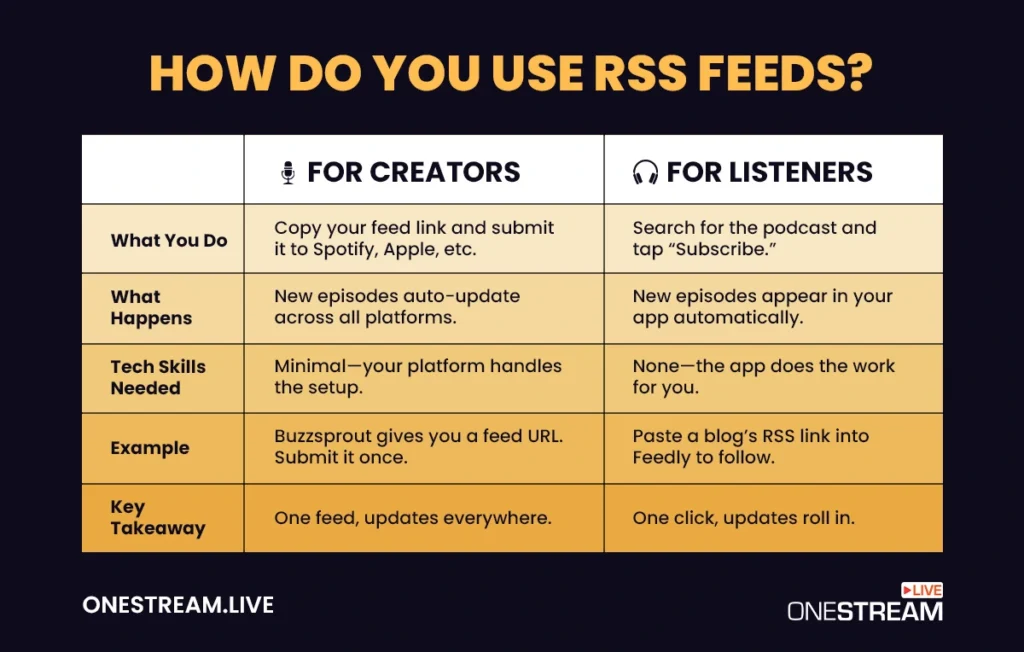
1. For Content Creators (Podcasters/Bloggers)
Using RSS is usually as simple as choosing a platform that auto-generates the feed. For instance, when you start a podcast using a hosting service, it will provide your show’s RSS feed URL (usually instantly or once you publish your first episode).
Your job is just to copy that URL and submit it to various podcast directories (Apple Podcasts, Spotify, etc.) one time. After that, every time you upload a new episode on your host, the RSS feed updates and all subscribers across all platforms get the new episode.
In other words, how to use RSS as a creator boils down to: get your feed URL and let it do its thing. Some modern hosts even handle directory submissions for you, so it can be very hands-off.
2. For Listeners/Users
Using RSS is often as easy as clicking a subscribe button. Traditional RSS readers (for blogs/news) and podcast apps have subscribe or “add feed” options.
For example, if you love a niche blog, you might copy its RSS link and paste it into an RSS reader app like Feedly. Or if you’re a podcast listener using an app that isn’t listing a particular podcast, you can usually add it by pasting the RSS feed URL.
But truth be told, in 2025, most users don’t manually copy RSS links. They just search for the show in their podcast app, and the app itself is managing the RSS behind the scenes.
Example: Imagine you have a podcast about travel. You host it on Buzzsprout, which gives you https://yourpodcast.buzzsprout.com/feed.xml (for example).
You take that once and submit it to Apple, Spotify, etc. Now, whenever you release a new episode, everyone on Spotify, Apple, Google (YouTube Music), and dozens of other apps gets it automatically within minutes.
Do You Need an RSS Feed to Start a Podcast on YouTube?
No, starting a podcast on YouTube does not strictly require an RSS feed. YouTube historically has been a separate ecosystem from traditional podcast apps.
However, in 2025, YouTube has introduced new YouTube podcast features that blend the worlds of video and RSS-based audio podcasts. There are two main ways to get your podcast on YouTube:
1. Upload videos or audiograms directly to YouTube
This is the classic approach. You create your content (audio-only or video) and upload it to your channel.
You then organize those uploads into a podcast playlist (YouTube now lets you designate a playlist as an official podcast). This method doesn’t require any RSS feed; it’s straightforward and great for beginners with zero tech skills. You just use YouTube like any other creator.
The upside is full control over titles, thumbnails, and the YouTube algorithm can surface your content. The downside is that those episodes live only on YouTube unless you separately distribute them via a podcast host for other platforms.
2. Use an RSS feed integration (advanced but convenient if you have one)
Recently, YouTube announced support for ingesting audio podcasts via RSS feeds. This means if you already have a podcast hosted elsewhere with an RSS feed, you can submit that feed in YouTube Studio, and YouTube will automatically create video versions of your audio episodes (with your cover art as a static image) and list them on your channel.
Essentially, YouTube becomes another distribution outlet reading from your RSS feed, just like Spotify or Apple Podcasts. This is incredibly useful for podcasters who started outside YouTube and want to upload podcasts to YouTube in bulk without manually uploading dozens of files.
The benefit is reaching YouTube’s enormous audience with minimal extra work. The caveat: to use this, you need to already have an RSS feed (so it’s more for established podcasters, not absolute beginners), and you must verify ownership via email.
Also, YouTube has some restrictions (for example, no third-party ads in the content you ingest via RSS).
So, which route to take?
If you’re a beginner starting fresh and focusing on YouTube, you do not need to worry about RSS at the start. You can create content and upload directly.
If you later decide to expand to Spotify/Apple, you can generate an RSS by moving to a host at that point. On the other hand, if you already run a podcast elsewhere, by all means use the RSS ingestion to save time and reach YouTube’s audience. It opens your show to potentially 2.7 billion YouTube users, which is huge.
How to Start a Podcast on YouTube in 2025 (Step-by-Step)
If you’re looking to launch a podcast and use YouTube’s massive audience, 2025 is a fantastic time to do it. Starting a podcast on YouTube can be approached in two ways: creating video podcasts or using YouTube’s new audio podcast features.
Here’s a step-by-step overview of both approaches:
Option 1: Video Podcast (Classic Approach)
Record Your Podcast – This could be audio-only or you might film yourself and your co-hosts with cameras (Zoom interviews, OneStream Live Studio recordings, etc.). Many popular shows are now video podcasts, where viewers can watch the discussion.
If you only have an audio recording, you can still turn it into a video by adding a static image or waveform animation.
Create a YouTube Channel (if you haven’t already) – This will be the home for your podcast on YouTube. It’s free; you just need a Google account. Choose a channel name that reflects your podcast brand. Read Helpdesk on How to Create a YouTube Channel
Upload Episodes to YouTube – For each episode, upload the video file to YouTube. If it’s audio-only, your video might just be your podcast cover art displayed while the audio plays – that’s perfectly fine (YouTube is actually the #1 platform for podcast listening in the U.S. now, even for audio-only shows!).
When uploading, include a descriptive title (e.g., “Episode 1: Understanding Tech Trends”), a detailed description with keywords, and relevant tags like “podcast.”
Create a Podcast Playlist – YouTube has a podcast feature where you can designate a playlist as an official podcast. Once you’ve uploaded your first episode, add it to a new playlist specifically for the podcast.
Name the playlist after your show. In YouTube Studio, mark that playlist as a podcast (there’s an option to do so).
This tells YouTube that this playlist is a podcast series, which can make it discoverable on YouTube’s podcast section and YouTube Music.
Promote and Optimize – Treat it like any YouTube content. Create an eye-catching thumbnail (perhaps your podcast logo or a photo of the hosts/guests), and engage with comments.
Consistency is key: upload episodes on a regular schedule if possible (weekly, bi-weekly, etc.), so viewers know when to expect new content.
Option 2: YouTube’s RSS Integration (New in 2025)
YouTube now offers the ability to upload podcast to YouTube via an RSS feed – ideal for creators who already have an audio podcast hosted elsewhere. Here’s how it works:
- Have Your Podcast RSS Feed Ready – This would be provided by your podcast host. It’s the same feed you’d submit to Apple or Spotify.
- Go to YouTube Studio – In the left menu, you’ll see a section for “Podcasts”. Click it.
- Create a New Podcast – You’ll have the option to create a new podcast and “Submit RSS feed”. Paste your feed URL.
- Verify and Submit – YouTube will verify that you own the podcast (usually by sending a code to the email associated with the feed). Once verified, you agree to some terms (notably, YouTube doesn’t allow third-party ads in the audio, etc.). Then YouTube will start pulling in your episodes.
- YouTube Creates Videos Automatically – Here’s the cool part: YouTube will automatically generate a static image video for each episode in your RSS feed. It uses your show’s cover art as the image.
So if you have 50 episodes already, you could suddenly see your channel populate with 50 videos (they may be set to private initially). Once they’re imported, you can make them public.
New episodes will auto-upload to YouTube whenever you release them via RSS. This means no extra manual work whenever you publish a podcast episode – YouTube becomes just another distribution outlet fed by RSS. - Manage and Grow – All your episodes will be in a YouTube playlist (your podcast page). You can organize or edit details as needed.
Your subscribers on YouTube will start seeing your podcast episodes, and they’ll also appear in the YouTube Music app under Podcasts for audio listeners.
To directly address the question, “Are YouTube podcasts free?” – absolutely. It costs nothing to upload or submit your podcast to YouTube, and it costs nothing for viewers/listeners to access them (YouTube may show ads, as usual, but there’s no paywall for podcasts).
In fact, YouTube recently made podcast listening free in the YouTube Music mobile app (you don’t need a Premium subscription to play podcast audio in the background). This move underscores how serious YouTube is about podcasts.
How Do I Create a Podcast on YouTube?
To create a podcast on YouTube using YouTube’s built-in features, you’ll use the Podcast management function in YouTube Studio. Don’t worry, you don’t need any special account or payment. It’s part of the standard YouTube interface.
Here’s a quick guide:
- Open YouTube Studio – Log in to your YouTube account and go to the YouTube Studio dashboard.
- Navigate to Podcasts – In the left sidebar, click on “Content” and then the “Podcasts” tab (YouTube might roll out this section widely by 2025 if you don’t see it yet, it’s coming to all creators).
If the Podcasts tab is not directly visible, you can also click the “Create” button (the same one you use to upload a video) – there may be an option for “New podcast”. - Create New Podcast – You’ll be prompted to enter a title and description for your podcast. This is essentially creating an empty podcast playlist shell.
For example, Title: “Tech Junction Show (Podcast)”, Description: “A weekly podcast about tech news and trends, hosted by Jane Doe. New episodes every Monday.”
Choose the visibility (public if you want people to find it immediately, or private/unlisted if you’re setting things up first). - Add Episodes – If you already have episodes uploaded as videos, you can add them to this podcast. If not, you can start uploading videos and designate them to this podcast.
When you upload a video, there’s now an option to mark it as part of a podcast (you can select the podcast playlist during or after upload). - Submit RSS Feed (optional) – As covered above, if you have an existing RSS feed, you can connect it. In the Podcast details page there’s an “Add RSS feed” option.
This step is only if you’re bringing in outside episodes automatically. If you plan to manually upload each episode’s video, you don’t need to attach an RSS feed. - Check Your Podcast Page – Once your podcast is set up, YouTube generates a dedicated podcast page/URL for it, which viewers can see on YouTube and YouTube Music. It will list all episodes (videos in the playlist) in order.
This page is what you can share with people as the “YouTube home” of your show.
Also, keep in mind channel aesthetics: even for podcasts, your channel should have a nice banner, a clear avatar (usually your podcast logo), and perhaps a channel trailer or intro video. This helps in converting casual visitors into subscribers.
Treat your YouTube podcast setup with the same professionalism as you would on Spotify or Apple. Write compelling episode descriptions, use keywords (like “tech podcast 2025, gadget news,” etc.), and add timestamps for topics in the video description if possible (YouTube users appreciate that).
Can I Have an Audio-Only Podcast on YouTube?
Yes, you can absolutely have an audio podcast on YouTube. In fact, many podcasters do this. YouTube’s new RSS feed ingestion feature is specifically designed for audio-first podcasts.
It creates those static image videos for each episode, meaning you don’t have to produce actual video footage. If you prefer not to appear on camera or deal with video editing, you can still tap into YouTube’s audience with audio content.
Here are a few pointers for audio-only podcasts on YouTube:
Use Good Cover Art: Since there won’t be motion video, your podcast cover image or a simple branded background will be shown throughout the episode. Make sure it’s high quality and visually appealing. Some creators add the episode title or waveform animation over the image to make it a bit more engaging – optional but nice to have.
Use YouTube’s Captions: YouTube can auto-generate captions (subtitles) even for audio content. This is great for accessibility.
It also means your podcast dialogue becomes text-searchable on YouTube (which could help in discovery if someone searches for a topic you discussed).Be Mindful of Length: There is effectively no length limit for YouTube podcasts. You could have a 2-hour audio episode, and it’ll play fine.
But remember, on YouTube many users might stumble upon your content while browsing. Long static videos can still do well (many people treat them like background audio).
Just make sure the content is engaging enough to hold attention without visuals. Some podcasters break out shorter highlight clips (with or without video) in addition to full episodes to attract new listeners who might not commit to a full 90-minute show initially.Promotion and Interaction: Encourage listeners on YouTube to subscribe to your channel or hit the Like button if they enjoyed the episode. These signals help your audio podcast gain visibility in the algorithm.
Also, keep an eye on comments. Viewers might leave feedback or questions. Engaging there can build a community around your podcast.
How can OneStream Live Help in Starting a Podcast on YouTube?
OneStream Live is primarily known as a live streaming broadcasting service that’s cloud-based and very user-friendly. While it’s not a traditional podcast hosting platform (it doesn’t generate an RSS feed for you), it offers a suite of tools that can simplify content creation and distribution, especially for video podcasts.
Here are a few ways OneStream Live can help a budding podcaster on YouTube:
Multistreaming:
If you want to stream your podcast live to YouTube and other sites simultaneously, OneStream Live makes multistreaming easy. You don’t need to be a tech wizard fiddling with stream keys on multiple sites; OneStream Live’s dashboard lets you pick destinations and go live everywhere at once.Pre-recorded Streaming:
Suppose you have an episode recorded but you want to premiere it live (maybe to simulate a live event or reach people at a specific time). OneStream Live pioneered pre-recorded live streaming.You can upload your recorded video and schedule it to stream to YouTube (and Facebook, etc.) as if it were live. Your audience can watch together and chat, while you, the creator, can also join the live chat without worrying about performing live. It’s a very polished way to release content and engage the community.
Studio for Recording:
OneStream Live Studio allows recording with guests in a web browser. This is perfect for interview-style podcasts.You can record the session and then either stream it live or save it for editing and later upload. The studio has features like screen sharing, adding logos/overlays, and even a teleprompter (imagine being able to glance at notes or a script while maintaining eye contact, nifty for solo monologues).
Hosted Live Page and Embed Player:
If down the line you want a dedicated webpage for your live podcast episodes (say you don’t have your own website), OneStream Live can generate a hosted live page for you.It’s a customizable webpage where your live stream plays, complete with a chat widget and your branding. You could share that with folks who maybe aren’t on YouTube.
Similarly, their embed player lets you embed your live stream on any website. So if you have a blog (for example, onestream.live/blog could embed a live session discussing new features), it’s a nice way to integrate your YouTube live content elsewhere.
Team Management & Collaboration:
As you grow, you might have a team (co-hosts, producers). OneStream Live has team management features to allow multiple members to manage streams. This might be advanced for a beginner, but it shows the platform is scalable if your podcast project turns into a larger production.
FAQs - What is RSS and How to Start a Podcast on YouTube?
No, you do not need an RSS feed to start a YouTube podcast. You can upload content directly to YouTube without ever touching RSS.
YouTube acts as a self-contained platform, viewers will find and follow you on YouTube itself. The new podcast features on YouTube (like the Podcast playlists and YouTube Music integration) don’t demand that you provide an RSS feed if you’re uploading videos manually.
Yes. If you want your podcast to appear on Apple Podcasts, Spotify (outside of YouTube), Google Podcasts, and other traditional podcast platforms, you will need an RSS feed. The RSS feed is the common thread those services use to pull your episodes.
Not much, actually. A podcast app is essentially a specialized RSS reader for audio content.
Traditional RSS readers aggregate text content (articles) and usually display text and images. Podcast apps aggregate audio content by reading RSS feeds that contain media files.
The underlying technology is the same (RSS), but the user experience is tailored. Podcast apps download or stream audio and provide playback features, while RSS news readers present text for reading. Both let you subscribe/unsubscribe to feeds with ease.
Yes, creating and hosting a podcast on YouTube is completely free. YouTube doesn’t charge you to upload videos, and there’s no special fee for using the podcast designation.
As long as you have a Google account and an internet connection, you can upload unlimited content (within YouTube’s standard limits) at no cost.
Yes, but it works the same way as YouTube monetization for any content. There isn’t a separate program just for podcasts – you’ll be under the YouTube Partner Program (YPP) if eligible, which allows ads on your videos, channel memberships, etc.
To qualify, you need to meet the standard criteria (currently 1,000 subscribers and 4,000 watch hours in the past 12 months, or some combination involving YouTube Shorts metrics). Once in YPP, your podcast videos can earn ad revenue just like any other video.
Websites: look for the RSS icon or a link that says “RSS”. It might be buried in the footer or sidebar. If not visible, some tips: adding "/feed" to the end of a WordPress site URL often gives the feed (e.g., example.com/feed).
Podcasts: on Apple Podcasts or other directories, sometimes they provide a “copy RSS” option. On a podcast’s official website or hosting page, they usually mention the RSS feed link.
If all else fails, a quick web search like “Podcast Name RSS feed” often surfaces it. There are also browser extensions that can detect feeds on a page. Once you have the URL (it often ends in .xml or just has “feed” in it), you can use it in any RSS-compatible app.
Yes, you can create a podcast on YouTube without video by uploading your audio file with a static image or simple background. Many creators do this by pairing their podcast audio with their cover art, making it easy to share episodes on YouTube even without recording video.
Conclusion: Start Your YouTube Podcast Journey Today
Starting a podcast on YouTube in 2025 is a smart move, you’re tapping into the world’s largest video platform and a massive audience that increasingly uses YouTube for podcasts. The myth that you need to be tech-savvy to podcast has been busted.
And the best part is, it’s all very accessible now with user-friendly software and platforms doing the heavy lifting (from YouTube’s own tools to third-party solutions like OneStream Live that require minimal technical know-how).
So brew yourself a cup of coffee, jot down that outline for episode one, and get started. Now, the mic is yours and the camera’s rolling – go create your podcast and have fun with it!
Good luck, and happy podcasting on YouTube!

OneStream Live is a cloud-based live streaming solution to create, schedule, and multistream professional-looking live streams across 45+ social media platforms and the web simultaneously. For content-related queries and feedback, write to us at [email protected]. You’re also welcome to Write for Us!