![How to Find TikTok Stream Key in 2025 [Easy Guide]](https://onestream.live/wp-content/uploads/2025/08/How-to-Find-TikTok-Stream-Key-in-2025.webp)

Finding your TikTok stream key in 2025 is the key (pun intended) to professional live streaming on TikTok using your PC or third-party tools. While going live from the TikTok mobile app is straightforward, streaming from a computer (using OBS, OneStream Live, etc.) requires a special code: the stream key, along with a server URL.
In this comprehensive guide, we’ll explain how to get a stream key from TikTok step by step, highlight the requirements, and show you how to use it (with OneStream Live’s help) to tone up your TikTok live streams.
Let’s dive in!
Learn how to get TikTok stream key in 2025 for desktop and mobile.
Check TikTok stream key requirements before going live.
Step-by-step guide to find TikTok server URL and stream key.
Use OneStream Live to stream or multistream to TikTok and 45+ platforms.
What Is a TikTok Stream Key?
A TikTok stream key is a unique identifier (a string of letters and numbers) that allows you to broadcast live video to your TikTok account using external streaming software or platforms. In essence, it’s like a password that links your live streaming tool (such as OBS Studio or OneStream Live) to TikTok’s live servers.
Along with the stream key, TikTok also provides a TikTok server URL (an RTMP address). Together, these two pieces of information enable your encoder or streaming platform to know where to send your video feed on TikTok.
If you’re streaming directly from the TikTok mobile app, you don’t need to worry about any stream key as the app handles everything internally. However, if you want to stream from a desktop or broadcast content beyond your phone’s camera (for example, streaming gameplay, using a higher-quality camera, or adding overlays), you’ll need the stream key for TikTok to connect your software to your TikTok account.
TikTok Stream Key Requirements (Who Can Go Live via Stream Key?)
Before you can find or use a stream key, you need to make sure your TikTok account is eligible for live streaming with external software. TikTok restricts this feature to accounts that meet certain criteria.
Here are the main requirements as of 2025:
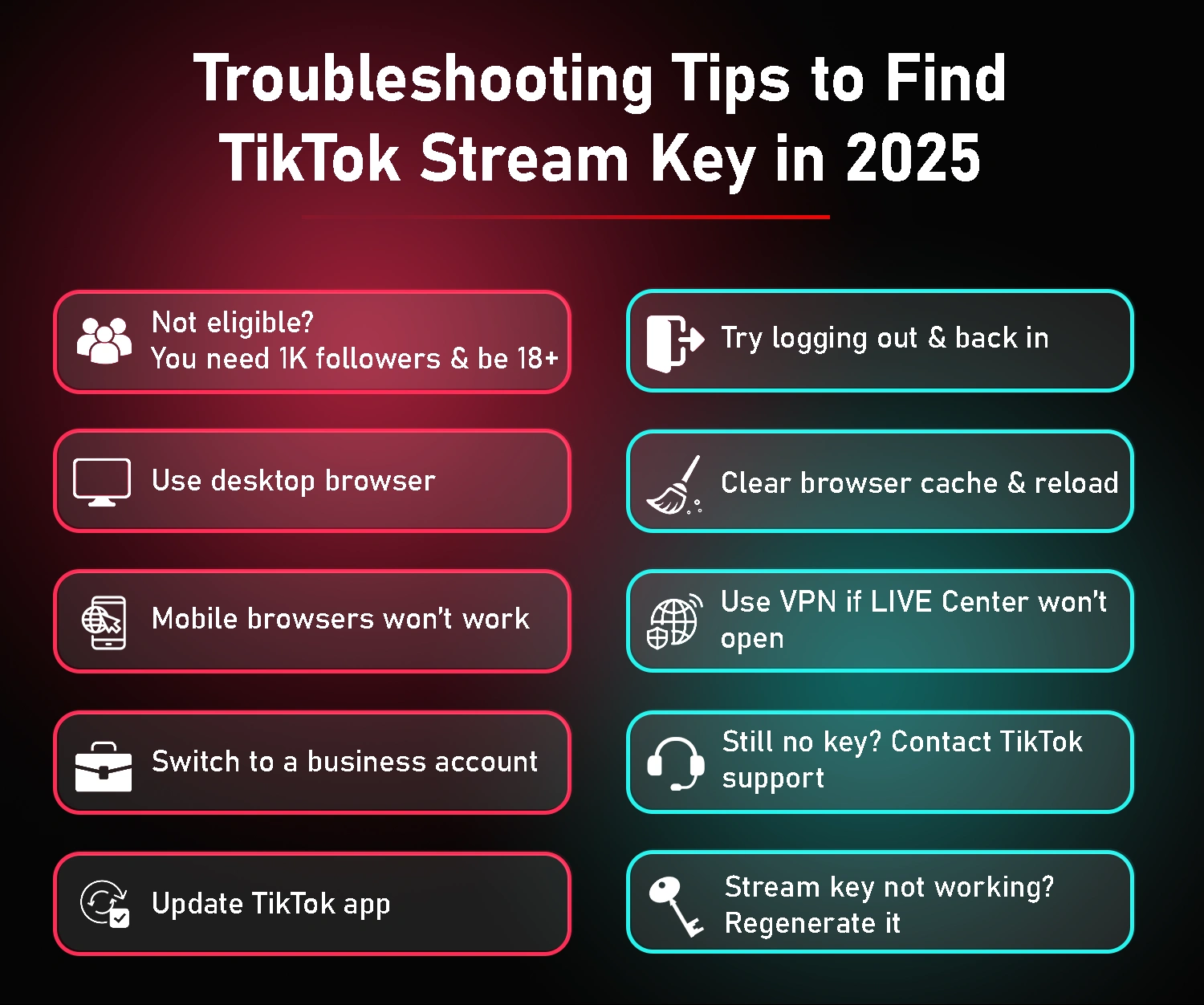
Minimum Follower Count: Your account must have at least 1,000 followers to unlock the ability to go Live. (This follower threshold may vary by region, and TikTok can adjust it, but 1,000 is the general rule in most places.)
Age Requirement: You must be at least 18 years old to start a LIVE on TikTok. (Also, only 18+ users can send/receive gifts during lives, which is more of a monetization note.)
Good Account Standing: Your account should be in good standing with TikTok’s community guidelines. If you have any recent violations or penalties, TikTok may restrict your live streaming access.
Availability of Live Feature: TikTok’s live streaming (especially via stream key) has been rolled out gradually. Even if you meet the above criteria, the feature might not be available in all regions or for all account types yet. As of late 2024, TikTok expanded access to more users, and in 2025, most eligible accounts can use it. Just keep in mind that LIVE and gifting features aren’t available everywhere as TikTok might restrict some countries or regions.
How to Find Your TikTok Stream Key on Desktop (TikTok LIVE Studio via Browser)
Many creators ask, “Where is my TikTok stream key?” The easiest way to find it is through TikTok’s desktop website using the TikTok Live Producer (sometimes informally called TikTok LIVE Studio in browser).
Follow these step-by-step instructions to locate your stream key on TikTok using a computer:
1: Log in to TikTok: Go to tiktok.com, sign in, and look for the Go LIVE button in the left sidebar. If it’s missing, your account may not have live access yet.
2: Open Live Producer: Click Go LIVE to access TikTok’s streaming dashboard at livecenter.tiktok.com/producer
3: Set up a test stream: Choose a category, add a title, and click Save & Go LIVE. This won’t notify followers, it just generates your stream credentials.
4: Locate Server URL & Stream Key: On the dashboard, scroll to Stream Settings to see your TikTok server URL and stream key.
5: Copy your details: Click Copy for both the server URL and stream key. Keep them safe and never share them.
6: Keep the dashboard open: Leave this tab open to preview your stream, monitor viewers, and end the live when you’re done.
That’s it, you have found your stream key and server URL in TikTok! 🎉 Now you can paste these into whatever broadcasting tool you’re using (more on that soon).
Remember that for stream key on TikTok, the platform often generates a new key each time you set up a new stream session for security purposes. This means you should fetch a fresh key every time you plan to go live from a desktop.
How to Find TikTok Stream Key on Mobile?
What if you primarily use TikTok on your phone? Can you find or apply for a stream key through the TikTok mobile app?
TikTok’s mobile app itself doesn’t directly show a stream key unless you access a special option. However, there is a way to retrieve the key using the app, which essentially directs you to stream from a PC.
Here’s how:
Check eligibility: You need 1,000+ followers and Live access to get a stream key.
Open TikTok app: Tap the “+” button and swipe to the LIVE tab.
Find “Cast to PC/Mac” option: May also appear as “Connect to PC” or “Live Studio”.
Tap to view credentials: Your TikTok server URL and stream key will appear.
Copy the details: Save them securely as you’ll need both for your streaming software.
Set up on your PC: Open OneStream Live or another encoder, paste the server URL and stream key, then start streaming.
Note: If you only stream directly from your phone’s camera, you don’t need a stream key.
Streaming to TikTok with OneStream Live (Step-by-Step)
OneStream Live is an all-in-one cloud-based streaming solution that allows you to multistream and schedule live videos to over 45+ platforms (TikTok included). If you have your stream key from TikTok in hand, OneStream Live makes it super simple to go live on TikTok.
Here’s how to set it up:
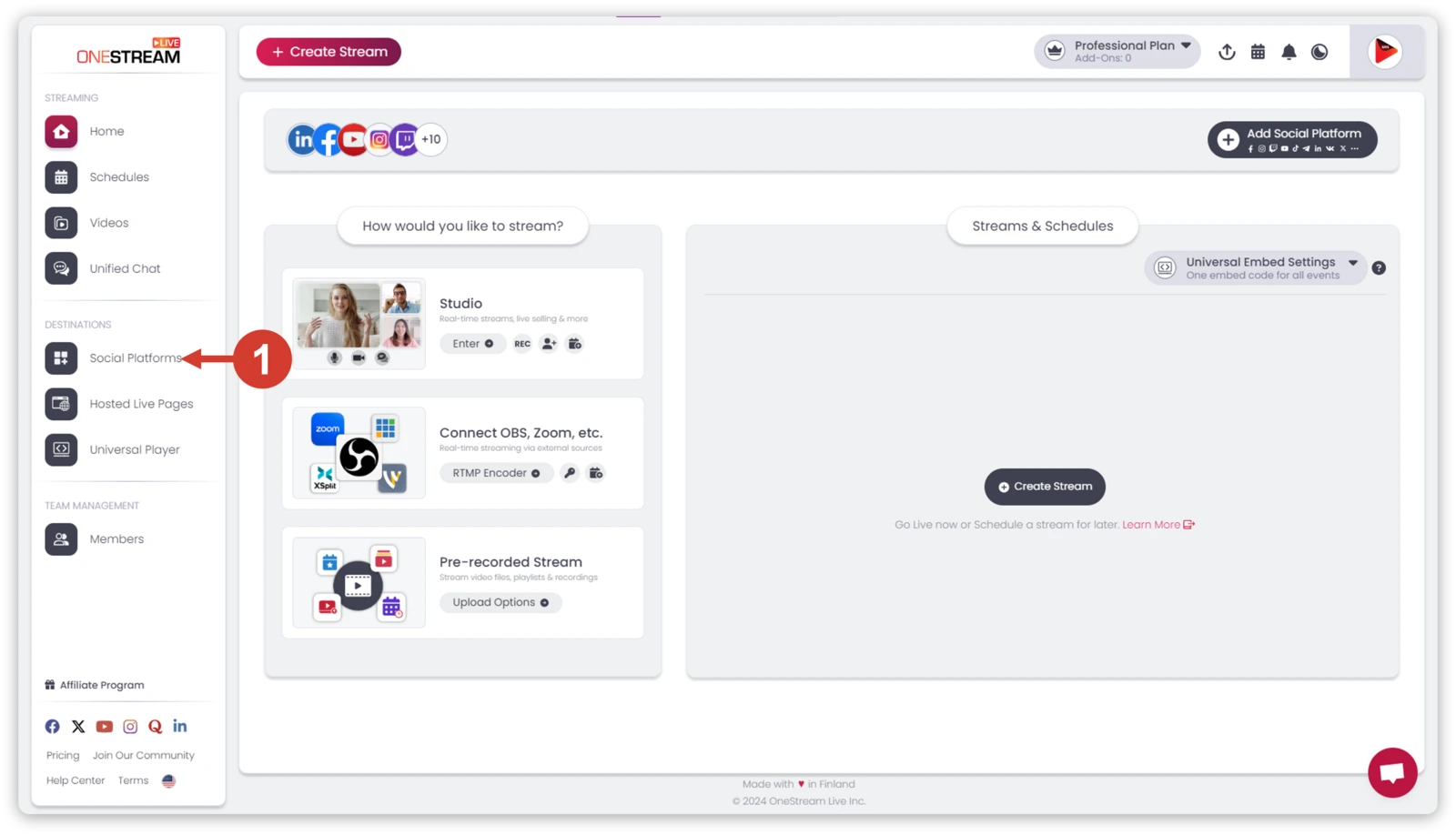
1. From OneStream Live homepage, click Social Platforms, then select Add Social Platform and Connect.
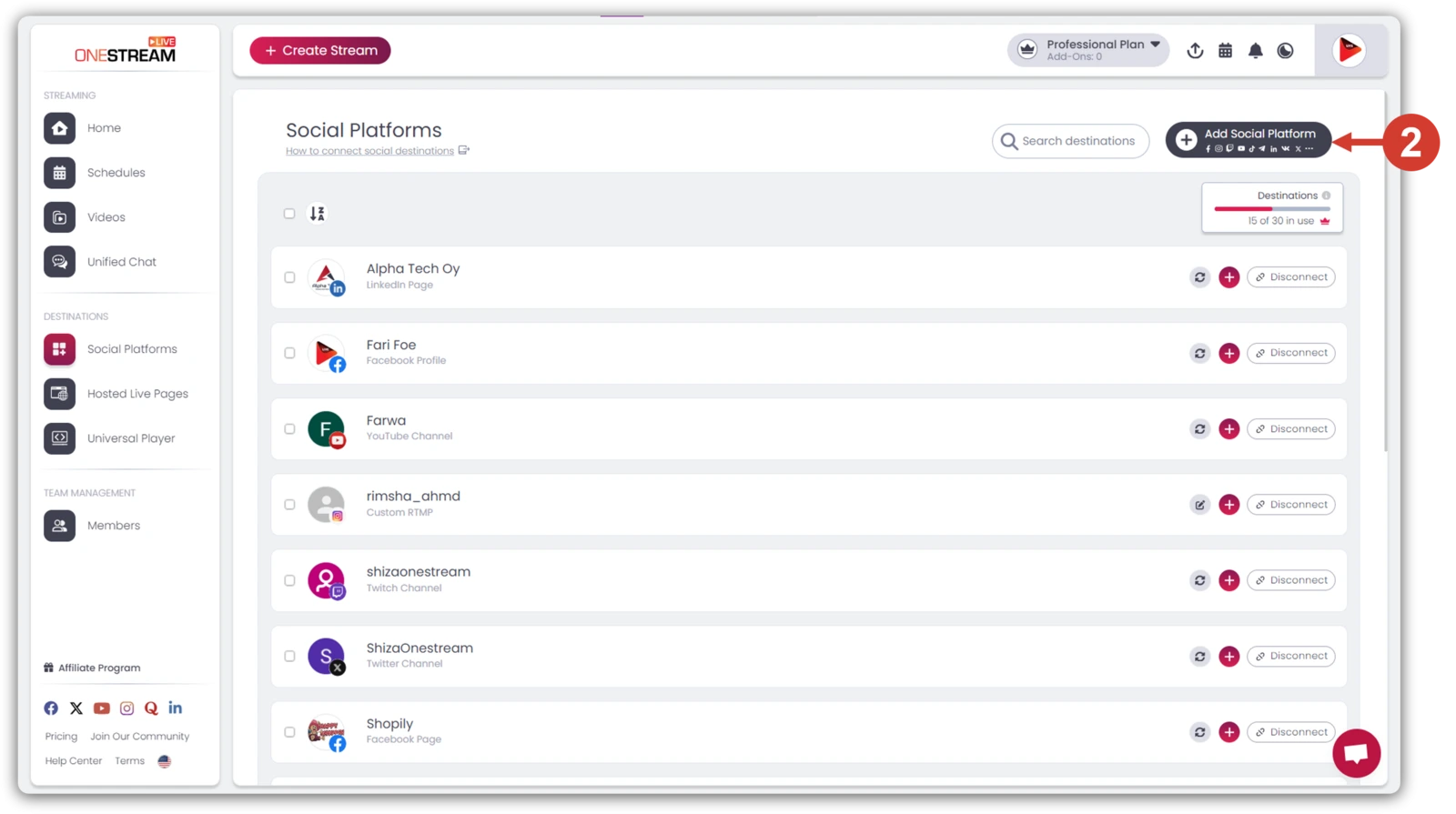
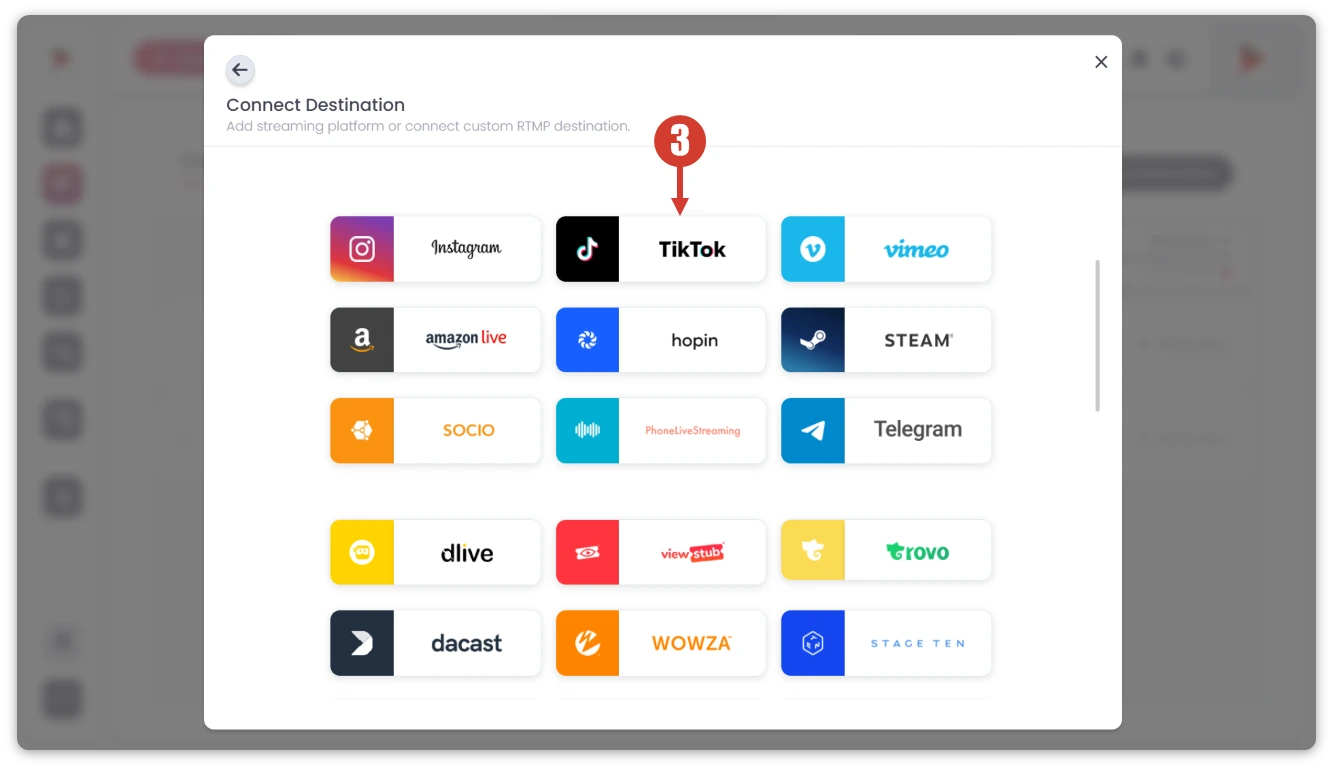
2. Click TikTok button.
3. Give your social account a name of your choice.
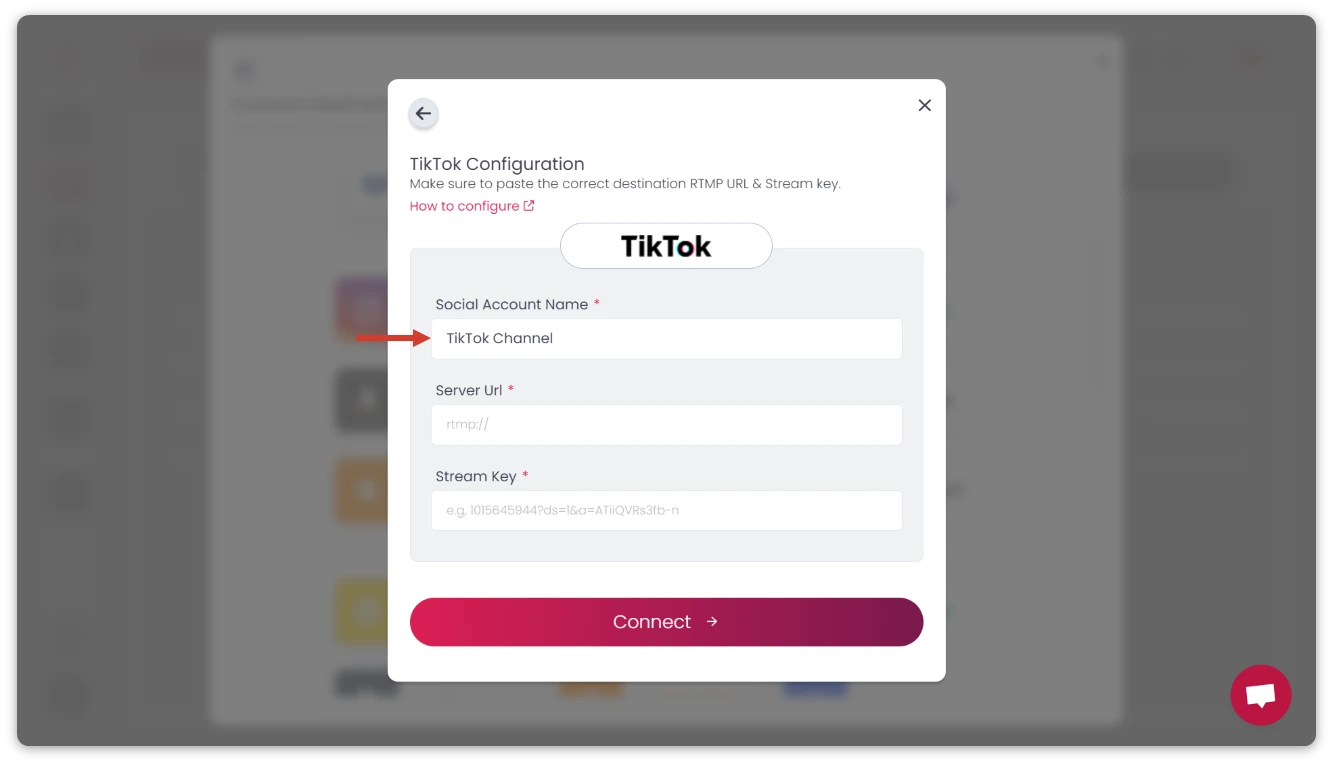
4. Paste the Server URL and Stream Key copied from TikTok in their respective fields.
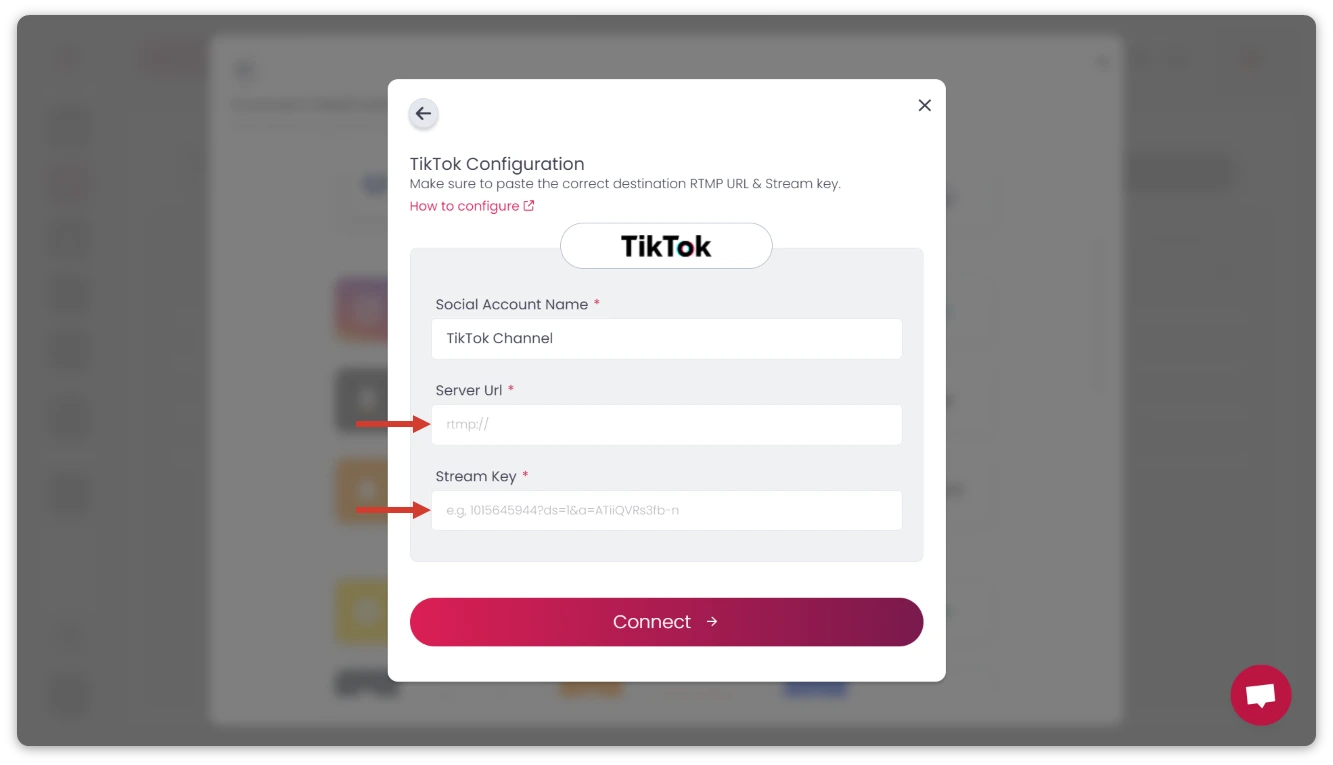
5. Click Connect.
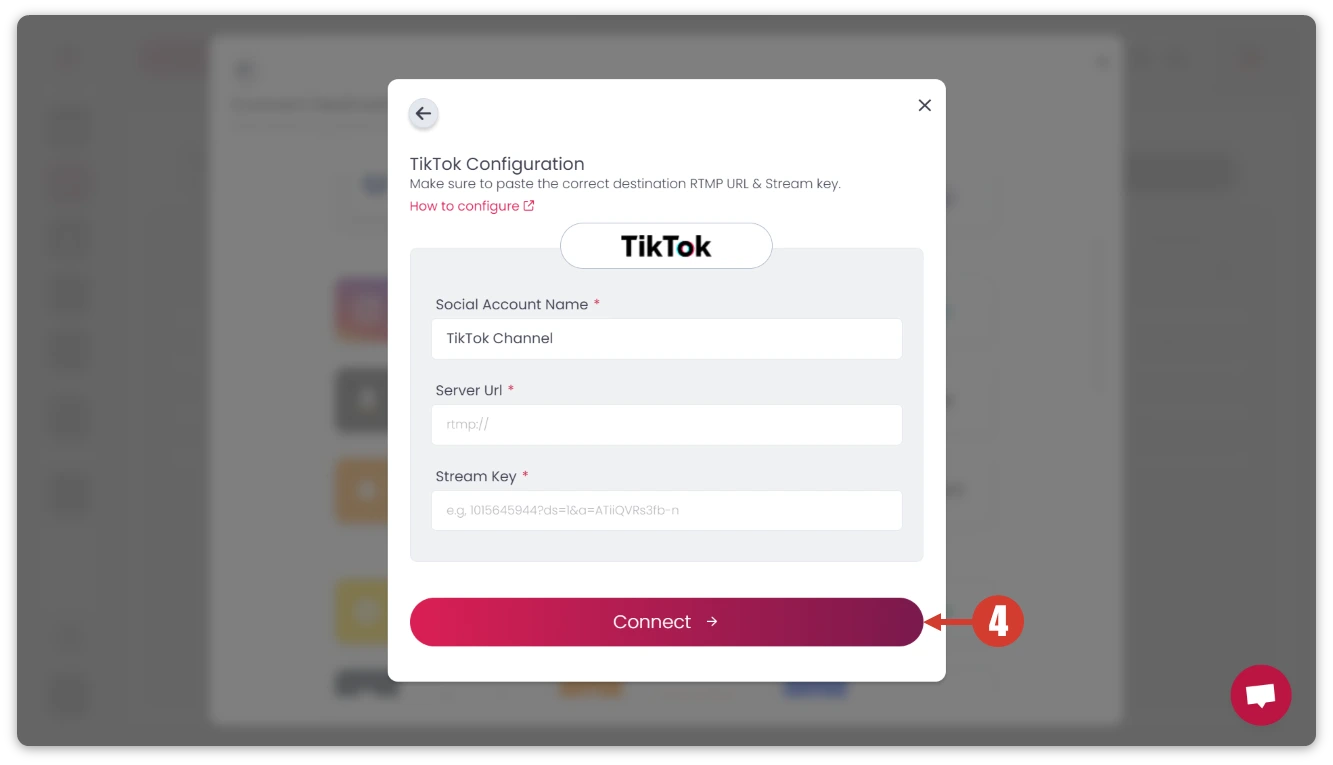
The connected TikTok account will appear under the Destinations section.
Now you have a TikTok destination linked to OneStream Live. You have two main ways to use it:
Real-time Live: Use OneStream’s Live Studio or an external encoder to go live immediately. In OneStream Live Studio, you can select TikTok (and any other platforms you want) as output destinations and start the broadcast. OneStream Live will push your live feed to TikTok using the key you provided.
Pre-recorded Streaming: OneStream Live is famous for letting you schedule pre-recorded streams as live broadcasts. You can upload a video and schedule it to go live on TikTok at a future time, even if you’re not at your computer.

FAQS about TikTok's Stream Key
You can get your TikTok stream key in 2025 by enabling LIVE Studio or third-party streaming in your TikTok account settings under the “LIVE” tab.
Yes, your TikTok stream key is typically not permanent. TikTok often generates a new stream key each time you start a new Live session or if you log out.
Always retrieve the fresh key from TikTok’s interface right before you stream. Do not try to recycle a key from a past session; it likely won’t work.
You can unlock live streaming access on TikTok in 2025 by meeting the eligibility requirements, such as being at least 18 years old and having 1,000+ followers.
Open the TikTok app, tap the “+” button, and swipe to the LIVE tab. If eligible, look for “Cast to PC” or “Connect to PC”. Tap it to see your TikTok server URL and stream key. Copy both and use them in your streaming software.
Officially, TikTok’s policy requires roughly 1000 followers for Live access. Some users have found workarounds through third-party platforms (for instance, certain streaming services or agencies that have special arrangements can apply on your behalf or grant temporary access).
However, these methods are not guaranteed and can change as TikTok updates its rules. The safest bet is to reach the follower requirement or use the LIVE Studio application process mentioned above.
Be cautious of any tool promising to bypass TikTok’s rules. Never share your account login or personal info in pursuit of a shortcut.
Closing Thoughts
By following this guide, you now know how to find TikTok stream key information and use it for your live streaming strategy. In 2025, TikTok Live is a booming space for content creators and with a stream key in hand, you can stand out by streaming high-quality content that goes beyond what a phone can do.
And with platforms like OneStream Live making it easy to multistream and schedule content, you have a powerful streaming software to grow your audience. Just remember to abide by TikTok’s community rules, keep your stream key secure, and engage with your viewers in real-time for maximum impact.
Happy streaming!
OneStream Live is a cloud-based live streaming solution to create, schedule, and multistream professional-looking live streams across 45+ social media platforms and the web simultaneously. For content-related queries and feedback, write to us at [email protected]. You’re also welcome to Write for Us!