
Live streaming has become a global phenomenon, with over one-quarter of all internet users tuning in to live streams weekly. But if you’re using a Chromebook – those lightweight, web-centric laptops – you might wonder: can you stream on a Chromebook?
The good news is YES, you absolutely can. In fact, thanks to cloud-powered tools like OneStream Live, even a modest Chromebook can transform into a capable live broadcasting station.
In this comprehensive guide, we’ll explore streaming on Chromebook step by step. I’ll cover what you need, which software to use, and how to go live on platforms like Twitch, YouTube, Facebook, and Instagram – all while highlighting why OneStream Live is the best choice for the job. And by the end of this guide, I am hoping that you’ll be ready to stream on Chromebook confidently and professionally!
Can You Stream on a Chromebook?
It’s a fair question – historically, Chromebooks weren’t known for heavy-duty tasks like live video encoding. Traditional streaming software (like OBS or Streamlabs) is built for Windows or Mac and expects powerful hardware, which Chromebook streaming lacks.
In fact, the makers of OBS Studio note that ChromeOS is so locked-down and low-power that they have no interest in officially supporting it. Chromebooks typically use efficient but modest processors and integrated graphics (shared with the CPU), which means they’re not ideal for graphics-intensive jobs like gaming + streaming simultaneously.
However, that doesn’t mean streaming is off-limits for Chromebook users. On the contrary, you can absolutely live stream from a Chromebook – you just need to approach it differently.
Rather than running bulky desktop apps, you’ll use browser-based streaming software or cloud services. Platforms like OneStream Live handle the heavy lifting (video encoding, processing) on their cloud servers, so your Chromebook’s limited hardware isn’t a bottleneck.
What Do You Need to Live Stream from a Chromebook?
One great thing about streaming today is that you don’t need an elaborate studio—you can go live with just a few essentials. When using a Chromebook, here’s what you should have in place before hitting that “Go Live” button:
- A Stable Internet Connection:
Chromebooks are web-first devices, so a reliable internet connection is your lifeline for streaming. For smooth video, aim for at least an upload speed of 5 Mbps (more if streaming in HD).
If possible, use Ethernet via an adapter or position yourself close to the Wi-Fi router for a strong signal. (Pro tip: Close other heavy tabs/apps to let your network focus on the stream). - Streaming Accounts on Your Platforms of Choice:
Decide where you want to stream – Twitch, YouTube, Facebook, LinkedIn, Instagram, etc. Set up accounts on those platforms (if you haven’t already) and make sure your accounts are enabled for live streaming. - A Webcam and Microphone:
Chromebooks usually come with a basic built-in webcam and mic, which are okay for casual use. But if you want a more professional look and sound, consider plugging in external gear.
A 1080p USB webcam can greatly improve video quality, and a USB headset or standalone microphone will ensure your voice is clear. - Optional: Capture Card (for console or camera input):
Want to stream gameplay from a console (PlayStation, Xbox, Switch) or use a DSLR camera for video input? With a Chromebook, you can!
You’ll just need an HDMI capture card that converts the HDMI output of your device into USB input for your Chromebook. - A Streaming Software (OneStream Live):
Finally, you’ll need the software piece – a way to capture your video/audio and send it to your streaming platform. I strongly recommend OneStream Live as the best streaming software for Chromebook users (detailed in the next section).
It’s a web-based studio that runs right in your Chrome browser, meaning no downloads, no compatibility issues, and no burden on your Chromebook’s CPU. All you do is log in, set up your stream, and OneStream’s cloud servers do the rest.
That’s really it! A Chromebook with internet, your accounts, some decent A/V gear, and a cloud streaming app – you’re ready to roll.
Now, let’s focus on that critical piece: the software. Which live streaming app should you use on Chromebook, and why is OneStream Live a top choice?
What’s the Best Streaming Software for Chromebook?
When choosing streaming software for Chromebook, the key is to play to Chromebook’s strengths. You want something that works directly in the browser, is easy on resources, and ideally provides all the professional features you’d get from desktop software.
The goal is to avoid hacks or complex setups (like forcing OBS to run in Linux mode, which is possible but notoriously finicky and unsupported). Instead, opt for a cloud-based solution.
Several popular live streaming studios fit this description but what makes OneStream Live the best streaming software for Chromebook? Here are some reasons OneStream Live is the top choice:
1. Completely Browser-Based & Cloud-Powered
OneStream Live runs entirely in your Chrome browser. There’s nothing to download, which means no compatibility issues with ChromeOS.
This also solves the hardware limitation problem – OneStream Live’s cloud servers handle the video encoding and processing. Your Chromebook is essentially a controller, sending your camera feed to OneStream Live, which then broadcasts it out.
2. Ease of Use (Beginner-Friendly)
OneStream Live’s interface is very intuitive – crucial if you’re new to streaming or new to Chromebooks. You don’t need technical expertise or prior experience to get a stream going.
The OneStream Live web dashboard guides you to connect your social accounts, schedule or create a live stream, and then it’s a matter of a few clicks to start broadcasting. It’s as simple as using a web app – because it is a web app. This ease-of-use means streaming on Chromebook isn’t a convoluted process; it’s actually straightforward and fun.
3. Rock-Solid Stability and Support
OneStream Live is a professional-grade platform trusted by businesses and creators, so stability is a priority. The backend infrastructure is robust, ensuring smooth, uninterrupted streams with minimal latency or glitches.
Even if your Chromebook isn’t heavy-duty, OneStream Live’s cloud keeps the stream stable. Plus, they have 24/7 live chat support in case you run into any trouble – a nice safety net especially if you’re streaming an important event.
4. Multistreaming to 45+ Platforms
Perhaps OneStream Live’s biggest ace up its sleeve is multistreaming. With a single stream from your Chromebook, OneStream Live can broadcast you to over 45 social media platforms and the web simultaneously.
That means you can go live on YouTube, Facebook, Twitch, LinkedIn, Twitter (X), Instagram, TikTok, and many more all at once – something that would be nearly impossible to do directly from a Chromebook without a service like this. Even better, OneStream Live aggregates the viewer comments from various platforms into one unified chat interface for you, so you can interact with everyone without juggling multiple windows.
5. Professional Live Studio Features
Don’t let the simplicity fool you – OneStream Live Studio is loaded with advanced features that even experienced streamers will appreciate. You can invite guests (up to 16 guests and feature multiple on screen) to have talk-show style streams or interviews.
You can share your screen or share media (videos, slides, etc.) easily for presentations and tutorials. The Studio supports multi-camera setups, so if you have more than one webcam (or an external camera plus your built-in one), you can switch angles or show two views at once.
There’s a built-in teleprompter for scripted broadcasts – perfect for webinars or news-style segments where you want to read from a script smoothly. You also get a suite of branding tools: you can add your own logo overlay, custom backgrounds, lower-third banners, and even ticker text to give your stream a polished, branded look.
These are features you’d normally find in high-end software – here they’re available right in the browser, on your Chromebook. And since OneStream Live is cloud-based, adding these elements doesn’t slow down your local device. The ability to produce a fully branded, multi-camera, guest-enabled show from a Chromebook is a game-changer.
6. Unique Capabilities (Pre-Recorded Streams, 24/7 broadcasts, etc.)
OneStream Live pioneered pre-recorded streaming, which means you can broadcast a recorded video as if it’s live. This sidesteps any performance issues since your Chromebook isn’t encoding video in real-time – the video is already encoded.
OneStream Live lets you schedule streams up to 60 days in advance and even set them to repeat or loop. You can create playlists of videos to run one after another as a continuous broadcast.
In fact, you could run a 24/7 live stream on YouTube or your website using a looping playlist – something no other Chromebook-friendly tool easily supports. Additionally, OneStream Live integrates with cloud storage (Google Drive, Dropbox, etc.), so you can pull videos straight from the cloud for streaming, sparing your Chromebook’s local storage.
In summary, while there are a few live streaming software for Chromebook out there, OneStream Live is the top recommendation.
It hits the sweet spot for both beginners (easy, no install, free plan available) and advanced users (feature-rich, multi-platform, integrations with encoders). With OneStream Live, your Chromebook becomes a window to a powerful streaming backend that can rival the output of a traditional streaming rig. Now, let’s walk through exactly how to stream on a Chromebook using OneStream Live, step by step.

How to Stream on a Chromebook (Step-by-Step Guide)
So you’ve got your Chromebook ready, and you’ve chosen OneStream Live as your streaming software. Excellent choice!
Now it’s time to actually go live. Follow these steps to set up and start your stream:
- Sign Up & Log In:
Go to OneStream Live on your Chromebook’s Chrome browser. Click Sign Up for Free (you can even use Google login). Once in, the dashboard gives you an easy setup flow. - Connect Streaming Destinations:
In the dashboard, click Add Social Platform to link Twitch, YouTube, Facebook, Instagram, and 45+ platforms. - Set Up Camera & Mic:
Grant Chrome camera/mic permissions. Plug in your external webcam or mic if needed and select them in OneStream Studio for higher-quality streams. - Create Your Stream:
Choose between Go Live in real time or scheduling a pre-recorded stream. Enter OneStream Live Studio for real-time streaming and preview your feed. - Customize Your Stream:
Add a catchy title, upload overlays/logos, invite guests with shareable links, and select layouts.
- Select Destinations:
Toggle on all platforms you want to stream to (Twitch, YouTube, Facebook, Instagram). Multistreaming is easy—even on the free plan.
- Go Live!
Hit Go Live. OneStream Live broadcasts your stream to all selected platforms simultaneously. Engage your audience like a pro. - Switch Scenes & Share Media:
Show your screen, play intro videos, or add music for a TV-quality stream—all within OneStream Studio.
- End & Repurpose:
Click End Stream when done. Download the recording to edit highlights for TikTok, Instagram Reels, or YouTube Shorts.
Pro Tips for Successful Chromebook Streaming
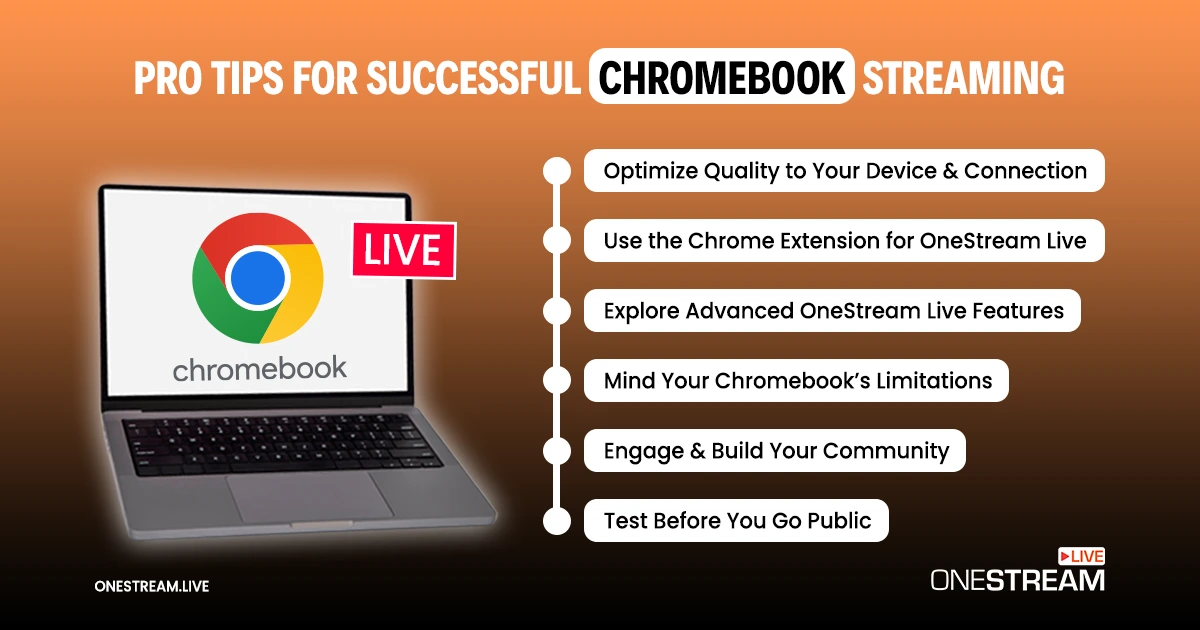
1. Test Before You Go Public
Especially for your first stream, do a trial run. OneStream Live lets you create an unlisted YouTube stream or a private Facebook stream that only you can see.
Try a short 1-2 minute broadcast to ensure your mic, camera, and internet are working well. This dress rehearsal can reveal any adjustments needed (maybe the lighting is off, or the audio is too low, etc.) so you can fix them before the real show.
2. Optimize Quality to Your Device and Connection
OneStream Live will handle a lot automatically, but you have some control. If you notice any performance issues (e.g., your Chromebook’s fan is loud, or the video is stuttering), consider streaming at a slightly lower resolution or bitrate.
For instance, instead of 1080p, use 720p which is still HD but lighter on bandwidth and CPU. Video bitrate – the amount of data per second in the stream – can usually be adjusted in settings.
A bitrate around 2500-4000 Kbps is usually good for 720p. Higher bitrates and resolution (1080p, 60fps, etc.) need a stronger connection and device. Many Chromebook streams do perfectly fine at 720p, and viewers on mobile won’t even tell the difference.
3. Mind Your Chromebook’s Limitations
While OneStream Live offloads heavy tasks, your Chromebook is still handling the Chrome browser and your webcam feed. Close any unnecessary tabs or apps during your stream to free up RAM and CPU.
If your Chromebook is an older model with very limited RAM (say 4GB or less), try not to overload it – just keep the streaming tab open and perhaps one monitoring tab. Also, Chromebooks often have limited storage; if you record your stream, ensure you have space or use cloud storage options that OneStream Live provides.
Keep your device plugged into power. Streaming can drain the battery relatively fast.
4. Use the Chrome Extension for OneStream Live
OneStream Live even offers a Chrome browser extension for their Studio. This can simplify going live – it provides quick access to the Studio and might optimize the experience for Chrome.
It’s free and available on the Chrome Web Store. With it, you can launch OneStream Live Studio from any page.
FAQ: Common Questions About Streaming on Chromebook
Yes, you can stream on a Chromebook using OneStream Live, which allows streaming to multiple platforms without needing high-end hardware.
You can stream your screen on a Chromebook by using OneStream Live’s screen-sharing feature, which allows for direct streaming to your chosen platform.
Yes, by using OneStream Live, you can stream to TikTok from a Chromebook with the RTMP URL and Stream Key.
While not as powerful as traditional PCs, Chromebooks are perfect for cloud-based streaming on platforms like OneStream Live, offering simplicity and portability.
Yes, with OneStream Live, you can stream to multiple platforms simultaneously from a Chromebook, reaching a wider audience with ease.
No, with OneStream Live, you don’t need any extra software. Everything is handled through the browser, making it easy to stream directly from your Chromebook.
Wrapping Up
In the past, creators might have written off Chromebooks for live video production, but today you’ve seen that’s an outdated notion. From going live on Twitch or YouTube, to even tackling the tricky Instagram Live on Chromebook, there’s a solution at your fingertips.
So, if you’ve been hesitant to jump into streaming because you only have a Chromebook, hesitate no more. You don’t need a tricked-out gaming PC or complex software.
With OneStream Live, your Chromebook is more than capable of delivering amazing live content. It’s all about working smarter, using the cloud, and tapping into the incredible tools now available for creators.
OneStream Live is a cloud-based live streaming solution to create, schedule, and multistream professional-looking live streams across 45+ social media platforms and the web simultaneously. For content-related queries and feedback, write to us at [email protected]. You’re also welcome to Write for Us!