
ISO recording (isolated recording) is the secret weapon streamers use to capture pristine content. If you rely on local recording, you control quality but risk crashes, storage limits, and missed tracks. If you rely on cloud recording, you gain convenience but often lose the ability to keep separate audio and video files.
Isolated recording solves this by capturing each speaker, camera, and audio source as its own track while recording a live stream. For streamers, podcasters, and teams using OneStream Live, this means cleaner edits, true ISO audio, and fewer reshoots. This guide explains how local and cloud recordings differ, where each falls short, and why isolated tracks are now a baseline requirement, not an advanced feature.
1. Local vs. Cloud Recording – Which Should You Choose?
i. Local Recording
So, what is local recording? In plain terms, it means saving your live stream directly to your own device (your hard drive or memory card) as you broadcast.
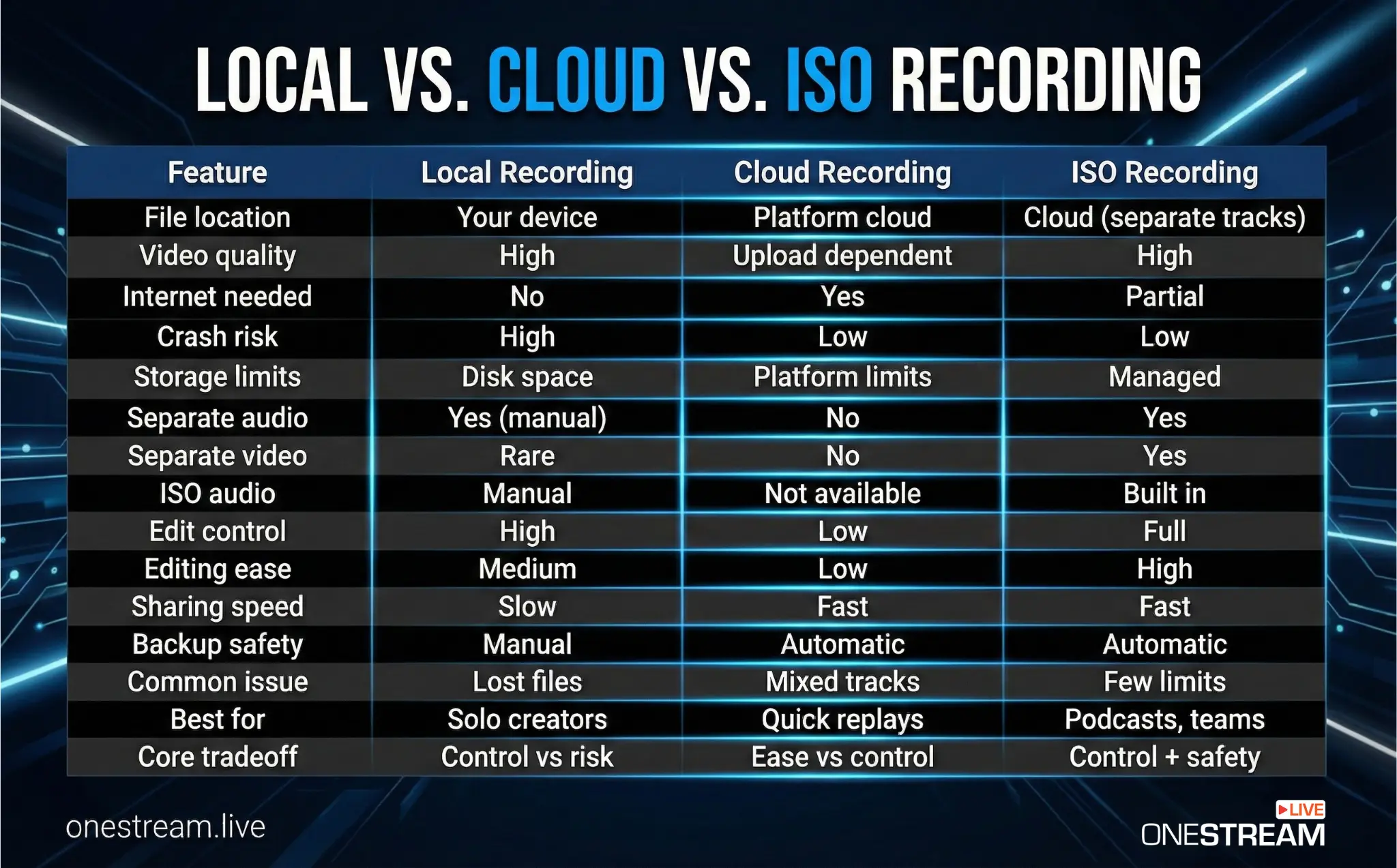
The big advantage: quality isn’t limited by your internet speed, and you’re not at the mercy of any platform’s storage limits. A local recording happens offline on your computer or camera, so you retain the raw, uncompressed files.
The downside is you need enough disk space, and if your computer crashes mid-stream, the recording could be at risk.
ii. Cloud Recording
By contrast, cloud recording means the stream is saved on a remote server or platform’s cloud (for example, Zoom’s cloud or OneStream Live’s cloud storage).
The benefits are convenience and safety: the file is instantly backed up online, easy to share via a link, and won’t eat up your local storage. Cloud recording often comes with extra features like automatic transcripts or processing.
However, it has its drawbacks: platforms impose limits (one university noted that Zoom cloud recordings max out at 500 MB and auto-delete after 120 days), and quality can be constrained by your upload bandwidth. If your internet is unstable, a cloud recording might drop in quality or have hiccups, whereas a local copy would have captured everything your system saw.
A great example of the trade-off is Zoom cloud recording vs. local recording. Zoom’s cloud recordings are handy for quick sharing and even include searchable transcripts, but they merge all participants’ audio into one file.
In fact, Zoom’s ability to record separate audio tracks for each participant is only available with local recording. Many podcasters prefer to record Zoom calls locally because they can get each person’s audio on its own track (by enabling that in Zoom’s settings), which is essential for editing and mixing.
On the other hand, Zoom cloud recordings can’t do that: one user lamented that after using cloud record, they got “only ONE mixed audio file” when they “really need them (separate files) for mixing purposes.” Local recording gave him the separate tracks he needed, at the cost of manual file handling.
In short, local recording is ideal when you need the highest quality or multiple separate tracks, whereas cloud recording is about convenience and backup. Many savvy streamers will use both if possible: record locally for your highest-quality master, and use the cloud as a secondary backup or for easy sharing.
2. What is ISO Recording, Really?
ISO recording is the practice of capturing each video or audio source as a separate recording (i.e., isolated tracks for each participant or camera). Unlike a standard all-in-one recording, it preserves individual tracks for every speaker or angle, giving you maximum flexibility to edit and mix content after the live stream.
In other words, an ISO (isolated) recording setup records each person and each camera feed as its own file. One professional mixer describes this as recording each input separately so you can “tweak switch timing or apply different edits to each of your cameras’ footage” later on.
This is sometimes called multitrack recording or “isolated feeds.”
Fun fact: The term “ISO” literally stands for “isolated.” Some audio engineers prefer not to use the shorthand “ISO” because it can also refer to other things, like ISO camera settings or ISO disk images. But in streaming, “ISO recording” has become the popular lingo for isolated tracks.
Why is ISO Recording Important?
Isolated tracks are a game-changer for editing and post-production. With a mixed recording, what’s done is done as all voices and visuals are baked into one file. With ISO recordings, you have separate control of each element.
For podcasters, having ISO audio for each guest means no more crosstalk or background noise ruining the whole show. If one person’s dog barks or a child cries, you can mute that on their track without affecting the others. If one speaker is too quiet, you can boost just their audio.
It’s audio editing heaven. No wonder creators get frustrated when they’re stuck with a single audio file. One Zoom user on the official forums complained that Zoom’s cloud combined his audio when he specifically needed individual tracks for mixing. ISO recording is the cure for that headache.
The same goes for video. If you have two camera angles or a multi-guest talk show, a typical recording might only save the program output (the switched view or gallery view).
In contrast, ISO recording saves each camera feed or each guest’s video independently. That means in post-production, you can swap angles, cut to a speaker who wasn’t on the main feed, zoom in on a separate file, etc.
3. Can Zoom Record Separate Tracks?
Can Zoom record separate audio tracks?
Technically, Zoom can record separate tracks, but with major caveats. By default, a Zoom recording (whether local or cloud) will give you a single combined video and a single audio mix of the meeting.
If you’re the host and want separate audio tracks for each participant, you must use local recording and enable the “Record a separate audio file for each participant” setting in your Zoom desktop client. This will produce multiple audio files (one per person) when you save the meeting.
However, even with that setting, Zoom still does not separate the video tracks. You’ll get one video file (usually the gallery view or active speaker view) and not one per person.
For many streamers and podcasters, that’s a deal-breaker. There is no one-click option in Zoom to record each participant’s video feed separately. Achieving multi-track video with Zoom requires workarounds.
One approach is a third-party tool called ZoomISO (available via Zoom’s App Marketplace), which can output each participant’s video as a separate feed. But setting up ZoomISO is not plug-and-play, as it’s a fairly technical solution.
You need to run ZoomISO on a macOS system, then use additional software (like OBS or vMix) or hardware to capture those individual outputs and record them. Essentially, you’re juggling multiple tools (and often multiple computers) just to get the separate files.
Another workaround some creators use is asking each Zoom guest to record a local video and send the file later, which is also a logistical headache, especially if you have many participants.
So, can Zoom record separate video tracks out-of-the-box?
No, Zoom wasn’t built with that in mind. It’s primarily a conferencing tool, and its recording feature is basic.
For separate audio tracks, Zoom can do it, but only via local recording on the host’s computer (Zoom’s own support confirms that “the ability to record separate audio files for each participant is only available for local recordings”). If you hit “Record to Cloud,” Zoom will not give you individual audio files; you’ll just get one mixed audio file and maybe a transcript or chat log. This limitation has tripped up many content creators expecting more from Zoom’s cloud service.
Rather than juggling complicated workarounds or risking a one-track recording, many streamers are now opting for platforms that have ISO recording built-in. This is where OneStream Live Studio comes into play as a better solution.
Why OneStream Live is the Best Solution
OneStream Live Studio makes session recording dead simple. You just hit record during a live event, and it captures the full cloud-based stream automatically, ready for download or multistream repurposing.
Unlike Zoom, where cloud recordings mix everything into one file and true isolated tracks demand clunky local setups on every guest’s machine, OneStream Live keeps it browser-based: guests join via link with zero software installs, while you get a clean, high-quality composite recording on the backend.

OneStream Live Studio: Cloud Recording and More for Streamers
OneStream Live Studio is a browser-based all-in-one streaming studio designed for creators. It packs multicam switching, multi-guest support, and effortless cloud recording into a single workflow.
It delivers the convenience of cloud streaming with reliable HD captures, no software installs required for you or guests. Here’s what OneStream Studio actually brings to the table:
- Cloud recording for full sessions – Hit record during your live event, and OneStream Live automatically saves the complete composite stream (video + audio) to the cloud. You get a single high-quality file ready for download, sharing, or repurposing.
- Multi-camera support – Add up to 4 camera angles or sources from your side (webcam, DSLR via RTMP, screen share, external cam) and switch between them live.
- Guest flexibility – Invite up to 16 guests via a simple link—they appear on-screen with full layout control. OneStream Live records the mixed session (all participants together) for instant playback, skipping Zoom’s compression pitfalls. Audio stays clear even with overlaps, and you can repurpose the full file without third-party hacks.
- Cloud storage integration – Connect Google Drive, Dropbox, and more to upload and stream your recordings or pre-recorded content directly.
- HD quality and reliability – Recordings hit solid HD (up to your input res/bitrate) without brutal compression, built for creators over casual calls. Cloud hosting means your full stream is archived safely; even if local hardware fails, you can stream it back via OneStream Live or export it worry-free.
In short, OneStream Live Studio nails cloud-native recording with multi-guest and multicam ease. You get pro session captures (full composite, high bitrate) plus seamless management. Podcasters grab clean audio mixes, marketers/educators host slick multi-guest shows, and broadcasters switch angles with a session safety net.
Try OneStream Live Studio’s recording workflow today, and you’ll see why streamers ditch clunky setups.

Frequently Asked Questions
ISO Recording captures a raw, isolated video file for every single guest feed, completely separate from the final broadcast layout. Unlike standard local recording, which burns all graphics and guests into one mixed file, OneStream Live’s recording preserves clean, individual sources for professional post-production editing in tools like Adobe Premiere or DaVinci Resolve.
Professional streamers should utilize a hybrid redundancy workflow rather than choosing one. Local recording offers the highest bitrate quality directly to a hard drive but risks data loss during hardware crashes. Cloud recording provides a secure safety net on servers, ensuring that even if an internet connection fails, the OneStream Live session remains saved and accessible.
Zoom allows for separate audio tracks, but its native cloud recording capabilities merge video feeds into a single “Active Speaker” or “Gallery View” file.
ISO audio is critical because it isolates every speaker onto a unique track, preventing cross-talk from ruining an entire episode. If a guest coughs while the host is speaking, an editor can mute that specific track without silencing the host. This level of granular control is impossible with standard “mixed” recording formats used by basic streaming tools.
Yes, enabling ISO recording significantly increases storage usage because the system saves multiple high-definition files instead of a single stream. For example, a one-hour session with four guests generates five separate video files.
However, this storage investment is essential for content marketers who plan to repurpose high-quality clips for vertical video platforms like TikTok or Instagram Reels.
OneStream Live is a cloud-based live streaming solution to create, schedule, and multistream professional-looking live streams across 45+ social media platforms and the web simultaneously. For content-related queries and feedback, write to us at [email protected]. You’re also welcome to Write for Us!