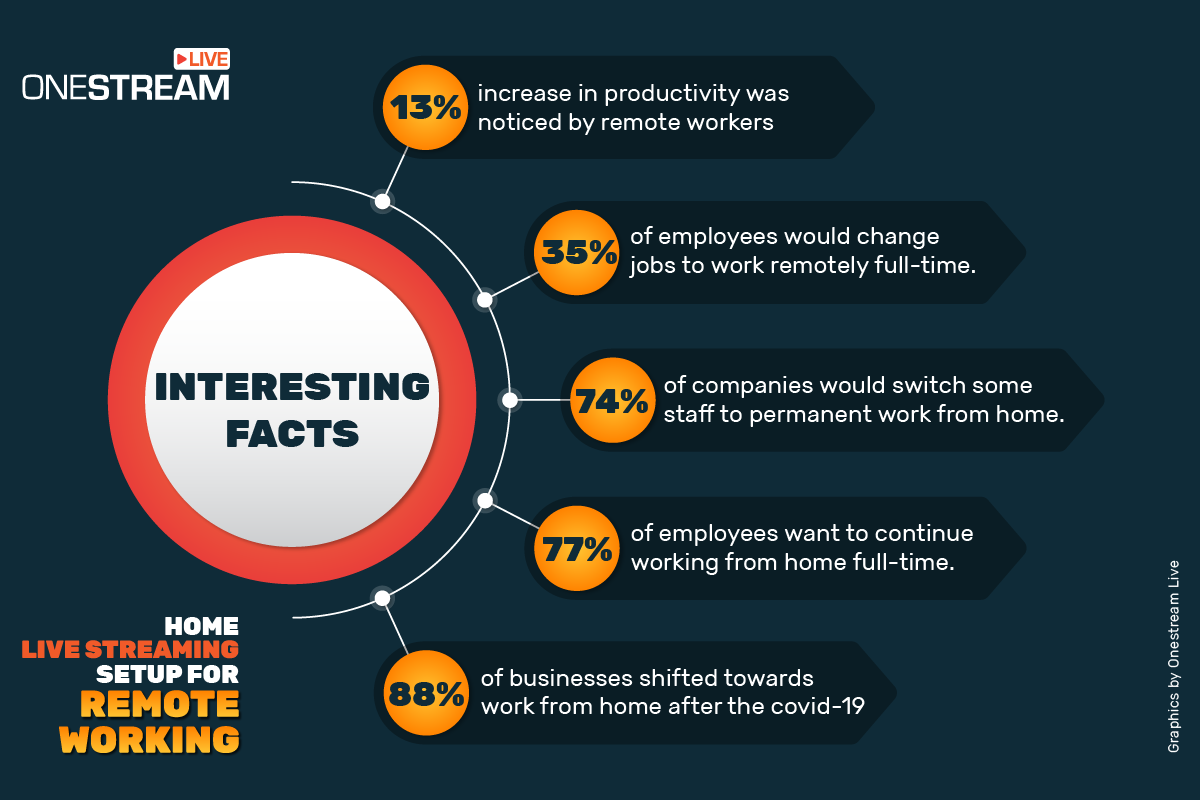
Looking back, the COVID-19 lockdown changed the work order of businesses. The shift to remote working is no longer a social distancing protocol, but has become a sustainable business model. For many, this work operation model proves to be more productive and offers flexibility.
Initially, companies faced challenges, but over time, many discovered that remote setups are more beneficial. In fact, studies have shown that 61% of remote workers experience more productivity as compared to traditional workspaces.
Moreover, findings from the same survey stated that remote setups deliver superior business outcomes while benefiting the planet and improving work-life balance.
But what about employee engagement and real-time human connection? In a remote setup, spontaneous interactions and collaboration become a real challenge.
This challenge calls for a working environment that imitates the office setting. Live streaming makes this possible, but only if you have the right tools in place beforehand.
Proper live streaming equipment setup in home offices enables businesses to host remote meetings and events that replicate the dynamic energy of face-to-face interactions. This setup helps preserve an organization’s culture and supports long-term success.
But how do you actually pull off a live streaming setup? This guide will walk you through the essential guidelines for professional remote work streaming. We will cover everything from video and audio setup to lighting, backgrounds, and streaming software.
What Do You Need to Set Up Home Live Streaming in 2025?
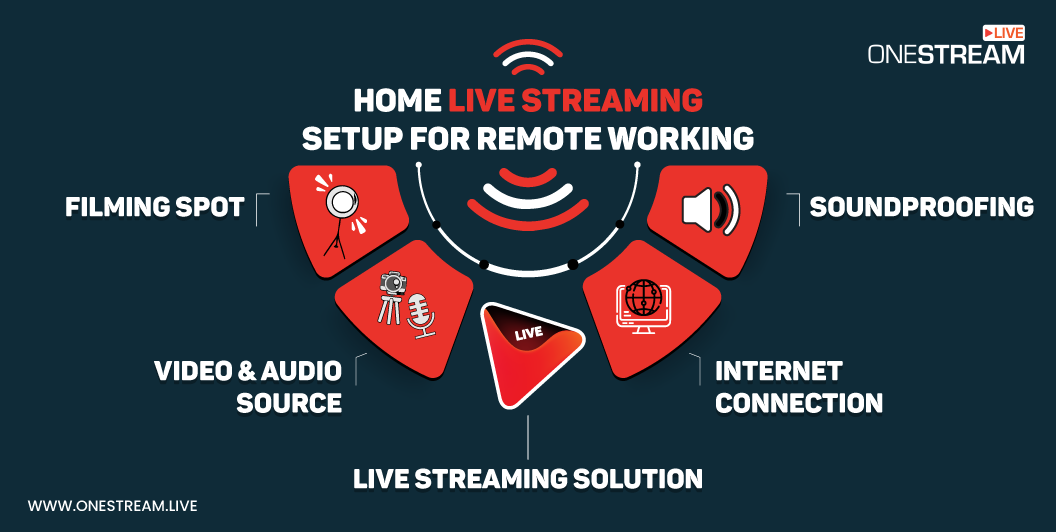
Here’s a list of all the tools and techniques that are required to stream. Before we plunge into them and learn, let’s see what they are:
- Video Source
- Audio Source
- The Filming Spot
- Soundproofing
- Internet Connection
- Live Streaming Solution
What are the Preferred Video Requirements for Remote Working?
Technically speaking, a smartphone or laptop/computer camera can be used for basic video purposes, but they are not specifically designed for live streaming. However, if you are still considering a smartphone, we recommend investing in a tripod to achieve steady footage.
For those seeking an upgraded setting, a live webcam setup, DSLR, PTZ cameras, or camcorder can offer a more professional touch. However, these options vary according to the budget plans and nature of the work.
Webcams for Remote Broadcasts
Webcams are user-friendly, USB-powered devices that connect directly to your computer. Moreover, they’re perfect for indoor streaming, video conferences, webinars, and online gaming.
They usually come with tripod-ready mounts or clips for easy attachment to your laptop or computer, offering the best camera setup for streaming.
In addition to their convenience, high-quality webcams can produce excellent video output, and many include features like lenses, image sensors, microphones, face recognition, digital zoom, and background replacement.
These capabilities enhance visual and audio clarity and, in return, create a more professional and engaging experience for employees.
Some of the best webcams for remote work include:
- Elgato Facecam
- Logitech Streamcam
- Logitech Brio
- Logitech C922 HD Pro
- Mevo Plus
- Razer Kiyo Pro
- Dell UltraSharp WB702
Hesitant to invest in a live streaming camera setup? Then forget about expensive DSLR or mirrorless cameras. For less than $100, the Logitech C920 is the best option for a home office webcam setup, offering crisp 1080p video.
Pro Tip: No fancy studio? That’s no longer a problem. Create a professional and multi-view stream by connecting your smartphones, tablets, DSLRs, webcams, or camcorders to the OneStream Live studio.
Read more: Budget Streaming Setup: Start Streaming on a Small Investment (2025)
What Are the Best Audio Choices for Remote Work Streaming?
Struggling with poor audio quality during a remote meeting or professional presentation? Tired of repeating yourself because of unclear sound? Then it’s time to invest in high-quality audio sources for live streaming.
Most laptops and webcams include built-in microphones that work adequately for basic calls. However, it’s just not going to cut it when it comes to live streaming. The audio becomes too muffled and basic to make a professional impact.
So, if you want to take your setup beyond the basics, invest in a quality microphone. It can dramatically improve audio clarity and ensure every participant hears you without strain.
Microphones for Virtual Work Broadcasting
Most commonly, live streamers use condenser microphones, lavalier microphones (which clip onto clothing), and USB microphones. However, for stationary streaming, condenser microphones paired with a tabletop stand are best suited for your setup.
Meanwhile, for dynamic and sit-and-chat streaming setups, lapel microphones are a great option.
Some of the most preferred microphones for professional live streaming include:
- Shure MV7 Podcast Microphone – includes an integrated touch panel for mic controls
- Blue Yeti X – with zero-latency monitoring, smart knob controls, and blue voice
- HyperX SoloCast – consist of a tap-to-mute sensor and sound nearly identical to QuadCast
- Blue Yeti Nano – with 48kHz sample rate, zero-latency monitoring, mute, and headphone volume controls
- HyperX Quadcast S – with built-in shock-mount
Need to manage multiple audio sources? These include your voice, background noise, and the sounds of virtual meetings. During a professional broadcast or conference call, balancing them without the audio mixer can be tricky.
Audio Mixer for Remote Working
An audio mixer lets you manage multiple audio and video sources during a live stream. You can connect and switch between more than one input with ease. It also allows you to adjust or remix the sound without disrupting the viewer’s experience.
There are two types of mixers for controlling and managing the audio during a livestream.
Analog – This mixer has a simple interface with physical knobs and dials. You can easily control the input and adjust the sound during your live stream.
Digital mixers: They are much easier to use than analog mixers. They offer app-based controls that let you access multiple audio channels and set up your sound easily.
Unlike analog mixers, which require manual adjustments for each channel, digital mixers offer preset options. They feature intuitive interfaces and even remote control capabilities from smartphones or tablets.
Pro Tip: Have you ever watched a video or live stream where it sounded like it was echoing? That’s audio reverb. Try moving the microphone closer to you or the sound source. Also, try using a smaller space if possible, and this will help reduce the number of surfaces that sound can bounce off.
Make sure your streaming mic and camera are stable. You must run a test stream before going live to ensure that the sound is perfect and the video is not blurry. This allows you to monitor the equipment you are using for remote online streaming.
Read More: Checklist for Professional Live Streaming
What Is the Perfect Filming Spot for Remote Working?
Poor lighting can make you appear unclear or shadowed on camera. This may distract participants, reduce engagement, and create a less professional impression. Therefore, the room or spot you will build into a live streaming setup must have a proper lightning setup.
The key is balance. Lighting should never be too dim, leaving your features lost in shadows, nor too bright, which can create glare or wash out your presence.
LED lights are the preferred solution for professional live streaming. It offers precise control over brightness and color temperature. Through proper settings, you can achieve a warm, inviting tone or a cool, clinical clarity, depending on your needs.
Read More: Video Lighting: Everything You Need to Know While Live Streaming.
A few things must be taken into consideration while adjusting the lighting for a streaming camera setup:
- Key Light– This light will highlight the main object. Choose a site that gets direct natural light or set up webcam lighting by placing LED lights behind your camera.
- Background: Your background will set the tone for your live stream. Add a backlight that supplies light to the subject and helps get rid of the shadows.
You can also use a green screen, add a digital background, or color the wall behind you in a tone that elegantly exhibits your live stream.
The best-looking background for a live stream is a nicely lit, well-composed natural background.
When setting up your live stream, ensure that your background reflects the context of your live stream. For business live streams, a well-organized, professional background enhances authority and keeps viewers focused on your content. If you are talking about gaming, a technical background will best suit you.
Pro Tip: Use OneStream Live Studio to make your every virtual meeting, webinar, or remote presentation stand out with customized virtual backgrounds. Reinforce your professional identity with logos, banners, and tickers during a livestream.
Read More: A Beginner’s Guide to Live Streaming
What Are the Essential Soundproofing Practices for Remote Setup?
Are kids too loud during streams? Thin walls causing noisy interruptions? You can easily solve this problem by soundproofing your room. For example, acoustic foam panels can be mounted on walls to absorb ambient noise and minimize echoes.
Alternatively, thick blankets or duvets, such as Fleece blankets, work well for soundproofing the walls.
If your room has windows, it is advisable to cover them with dense and heavy curtains to further reduce outside noise.
Proper soundproofing not only minimizes external distractions but also enhances audio clarity and quality. All these soundproofing practices encourage a professional remote working setup.
What are the Ideal Internet Requirements for Remote Working Setups?
A reliable internet connection with strong bandwidth is a prerequisite for online streams. And it is safer to use a wired connection rather than WI-FI for livestreaming, especially during an important meeting or collaboration.
Pro Tip: Always have a backup in case of any technical crisis.
Internet speed plays an important role in a smooth streaming experience. It is advisable to maintain a speed of at least 30 Mbps. By doing so, these measures prevent buffering, lag, and interruptions, ensuring high-quality video is delivered to your audience.
Even after taking all the necessary precautions, internet fluctuations can still disrupt virtual meetings or presentations. Employees working from home or different locations may experience lag, dropped calls, or missed content. In return, it can affect productivity and engagement.
Pro Tip: Use OneStream Live to mitigate this risk. Adaptive bitrate streaming (ABR) automatically adjusts video quality according to each participant’s internet speed and device. Regardless of the situation, on high-speed WiFi or mobile data, the remote meetings still stream smoothly without buffering.
Why Remote Video Streaming Needs a Professional Solution?
Live streaming has considerable potential. You cannot ignore it. In fact, its total market value is projected to reach $345.13 billion by 2030. So, it’s the right time to invest in live streaming software to reap the maximum benefits of online broadcasts and enhance your remote working.
With these opportunities in mind, OneStream Live emerges as the ideal choice, offering all the virtual features that standard platforms often lack.
Almost every social platform today allows users to go live, but OneStream Live gives you an edge. OneStream Live is an all-in-one, cloud-based live streaming solution with a suite of tools tailored for professional-grade streaming.
Let’s read about OnStream Live’s advanced features so the advantages become clear.
Hosted Live Pages for Team-Only Streams
OneStream Live gives you access to personalized landing pages without the need for coding or separate hosting. They’re your team’s exclusive channel on the web.
You get a unique URL (which can even be on your own domain), and you can stream content there in real time. Only people with the link are able to access it, and you can optionally lock it down further.
This makes it an excellent solution for company meetings, training sessions, or private events, as no third-party social network is involved. Employees can join without creating an account or downloading an app. The stream stays private and anonymous.
To complete the experience, the pages are fully customizable with your branding, interactive chat boxes, and other engaging elements.
Interactive & Collaborative Live Studio
Struggling with engagements in one-way streams? OneStream Live addresses this issue, and its built-in Live Studio allows you to host the stream with multiple presenters and guests.
The studio also features real-time screen sharing and unified chat to ensure everyone stays engaged during meetings or training sessions. This drives employee engagement across your organization. For added interactivity, you can highlight key comments to draw attention to them.
Moreover, guest authentication and chat moderation make your virtual office meetings secure, private, and fully under your control.
Team Management
When it’s showtime, teamwork is needed.OneStream Live makes it easy for remote working team members to collaborate without any chaos. Add colleagues with defined roles for setup, moderation, and streaming.
Role-based access avoids overlap and confusion. Multiple collaborators can manage the same event within one account, keeping streams structured and professional.
Stream from Anywhere
OneStream Live broadcasts are as flexible as a remote work setup. You can stream via the web studio on your laptop or use any RTMP encoder like OBS if you have a fancy setup.
And if you have team members out in the field, or you want to have an instant meeting with remote employees, just fire up a private live stream from the OneStream Live mobile app (available on iOS and Android). The mobile app supports both real-time streaming and uploading pre-recorded videos to stream later.
Accessibility and Reach
OneStream Live enhances understanding by adding captions to pre-recorded content. Just upload an SRT file, and your stream becomes more accessible and engaging.
This supports team members in noisy spaces and makes sessions accessible to everyone.
Cloud Integration
Connect OneStream Live with Dropbox, Google Drive, OneDrive, Frame.io, Pcloud, Zoom recordings, or Box. Files can be fetched directly, so teams avoid manual uploads or switching devices. This speeds up preparation and keeps workflows aligned with company storage tools.
Scheduling and Notifications
Set up live sessions in advance and push automatic reminders to participants. Notifications help raise attendance and make sure no one misses critical updates.
24/7 Support for Remote Working
Access round-the-clock technical help. This ensures business-critical events such as client demos or team-wide meetings run without interruption.
Final Thoughts
Pandemic or not, the truth is that remote work is here to stay. Numerous businesses have realized that permanent remote work is the future and have switched to this new norm.
Remote teams can have the best of both worlds: the benefits of an office-like environment, and the flexibility to work from anywhere. And this balance is achieved through livestreaming.
However, professional remote video streaming is more than a stable internet connection. It demands careful preparation of both physical and virtual setups to ensure seamless, high-quality broadcasts.
While you take care of the physical settings, OneStream Live provides the software to manage the virtual setup effortlessly. Sign up for free and start streaming your professional meetings, training sessions, and events today.

FAQs About Remote Working
Equipment needed to stream includes a suitable live webcam setup, a microphone, good lighting, soundproofing solutions, a stable internet connection, and professional streaming software.
A minimum upload speed of 30 Mbps is recommended for stable, high-quality streams.
Yes, streaming software such as OneStream Live helps you manage your broadcast.
Use a high-quality webcam lighting setup or virtual backgrounds for a professional on-camera appearance.
Yes, it allows real-time communication, presentations, and interactive sessions with teams or clients.
OneStream Live is a cloud-based live streaming solution to create, schedule, and multistream professional-looking live streams across 45+ social media platforms and the web simultaneously. For content-related queries and feedback, write to us at [email protected]. You’re also welcome to Write for Us!