
Your stream looks sharp on your screen. So why do viewers see blocky faces, smeared motion, and a spinning buffer wheel? If you’ve ever asked what is bitrate and why it matters, this is usually where the answer starts.
Bitrate (sometimes written bit rate) decides how much detail your video can carry every second. Set it too low and your picture falls apart the moment you move. Set it too high and your internet connection can’t keep up.
This guide fixes both problems. You’ll learn what bitrate means in plain English, how it shapes video quality, and the settings YouTube and Twitch recommend right now. Then you’ll set it up in OBS step by step, so your next stream looks as good for viewers as it does for you.
Key Takeaways:
- Bitrate is the amount of video data sent every second, measured in kbps or Mbps, and it decides how much detail your stream can show.
- A higher bitrate improves quality only until it nears your upload speed. Past that point, streams buffer and drop frames.
- YouTube’s live encoder guide recommends 14 Mbps for 1080p at 30 fps with H.264, while standard Twitch streams top out at 6,000 kbps.
- Use constant bitrate (CBR) for live streams and variable bitrate (VBR) for recorded uploads.
- Keep your video bitrate at about 75% of your upload speed or less, then run a test stream before you go live.

What Is Bitrate? The Bitrate Meaning in Plain English
Bitrate is the amount of data a video or audio stream uses every second, measured in bits per second. The bitrate meaning is simple: more bits per second give your encoder room for more detail, color, and smooth motion, while fewer bits force it to throw information away.
How Bitrate Is Measured
You’ll see bitrate written in a few units:
- bps: bits per second
- kbps: kilobits per second, or 1,000 bits per second
- Mbps: megabits per second, or 1,000 kbps
- Gbps: gigabits per second, or 1,000 Mbps
So 6,000 kbps and 6 Mbps are the same bitrate. Encoders like OBS ask for kbps, while platforms like YouTube often list Mbps.
What Is the Bitrate of a System?
It refers to the rate at which data is transmitted or processed within a system, typically measured in bits per second (bps). In the context of video, audio, or any digital transmission, the bitrate of a system determines how much data is being sent or received every second, directly impacting the quality and performance of media playback or streaming. For a network, the maximum possible bitrate is its bandwidth, while a video’s bitrate is how much of that capacity the stream actually uses.
What Is Video Bitrate?
Video bitrate is the data budget for each second of your video. Your encoder, such as OBS Studio, compresses your camera feed down to that budget before it leaves your computer.
That is also the clearest answer to what does bitrate mean for a live stream. Every frame, color change, and movement has to fit inside that budget. Fast motion eats it up quickly, which is why gaming streams need more bitrate than a webcam chat.
Mbps vs MBps: Don’t Mix Them Up
Mbps with a lowercase b means megabits per second. MBps with a capital B means megabytes per second. One byte is 8 bits, so 1 MBps equals 8 Mbps.
Internet speed tests and streaming bitrates use megabits. File sizes and download managers usually show megabytes. Mix them up and your math will be off by a factor of eight.
How Does Bitrate Affect Video Quality?
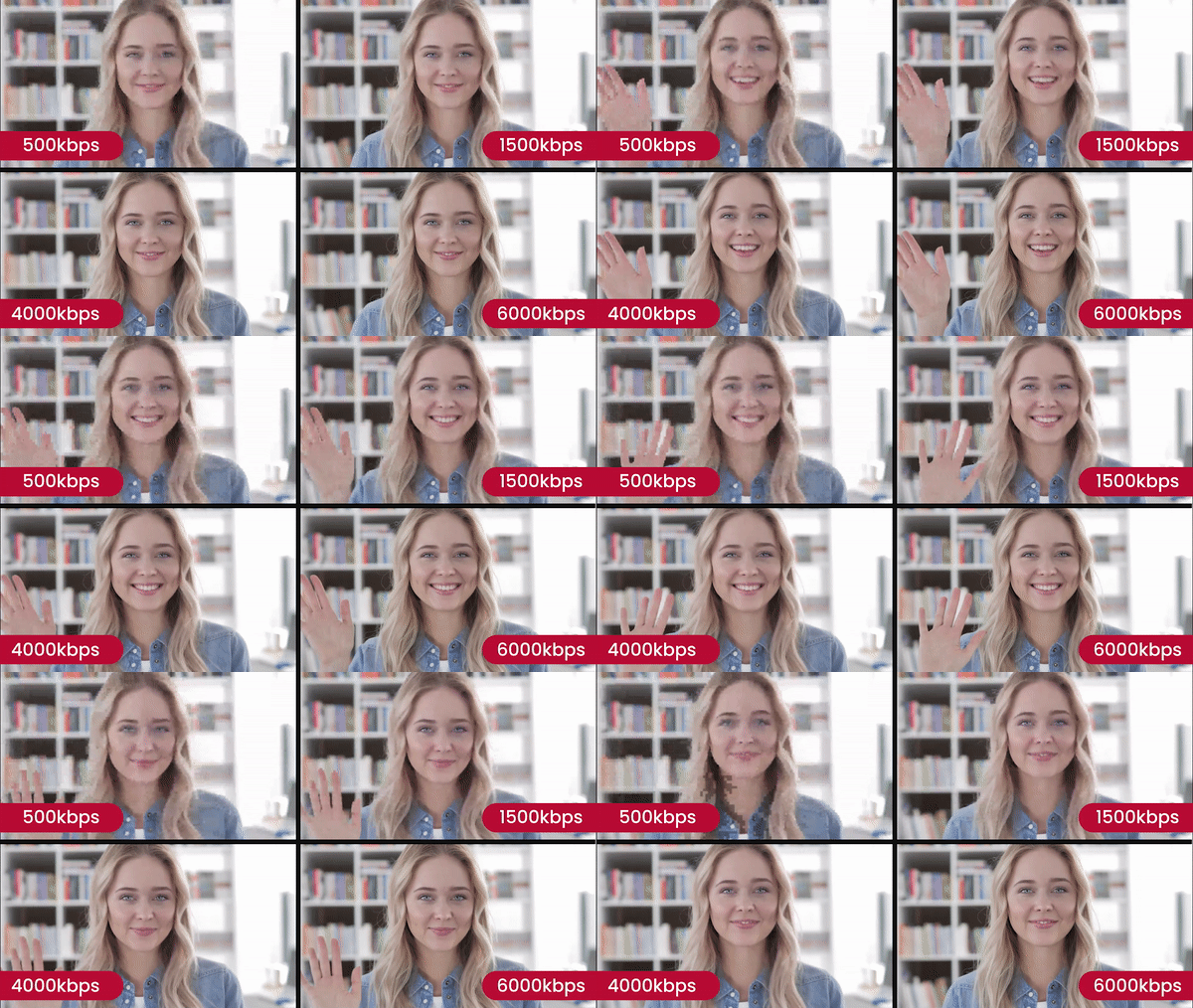
Bitrate affects video quality by deciding how much detail survives compression. When the bitrate is too low, you get blocky squares, smeared motion, and muddy dark scenes.
Bitrate also sets your file size and your bandwidth needs. A higher bitrate means bigger recordings and a heavier load on your upload connection.
Is a Higher Bitrate Better?
A higher bitrate is better only up to a point. Once your bitrate gets close to your upload speed, your connection can’t keep up, and viewers see buffering and dropped frames instead of a sharper picture. Aim for the highest bitrate your connection can sustain, not the biggest number in the menu.
Bitrate vs Resolution vs Frame Rate
Bitrate, resolution, and frame rate work as a team, but each one controls something different.
| Setting | What it controls | Example | Too low looks like |
|---|---|---|---|
| Bitrate | Data per second | 6,000 kbps | Blocky, smeared picture |
| Resolution | Pixels in each frame | 1920 x 1080 (1080p) | Soft image with less detail |
| Frame rate | Frames per second | 30 or 60 fps | Choppy motion |
Raise resolution or frame rate and you need more bitrate to fill the extra pixels and frames. That’s why a 4K stream with a starved bitrate can look worse than a 1080p stream with a healthy one. Learn more in our guide to Understanding Frame Rates & FPS.
Pro Tips
CBR vs VBR vs Adaptive Bitrate: Which Should You Use?
Use constant bitrate (CBR) for live streams and variable bitrate (VBR) for recorded uploads. Adaptive bitrate (ABR) happens on the viewer’s side, where the platform serves each person a version their connection can handle.
| Type | How it works | Best for | Watch out for |
|---|---|---|---|
| CBR | Sends the same bitrate every second | Live streaming | Spends data even on simple scenes |
| VBR | Gives complex scenes more bits and simple scenes fewer | Recorded uploads and exports | Spikes can overload a live connection |
| ABR | Creates several versions; the player switches between them | Delivery to viewers | Needs transcoding on the platform’s servers |
YouTube’s live encoder guide asks for CBR because steady data is easier to deliver in real time. VBR usually gives you better quality for the file size, which makes it great for exports, but its spikes are a problem on a live connection.
What Is Adaptive Bitrate Streaming?
Adaptive bitrate streaming makes several copies of your stream at different bitrates and resolutions. The viewer’s player switches between them as their internet speeds up or slows down, so people keep watching instead of staring at a buffer wheel.
You usually don’t set this up yourself. YouTube automatically transcodes your live stream into several formats for different devices and networks. If you embed your broadcast on your own website, OneStream Live’s embed player has an adaptive bitrate option you can switch on from your dashboard. Read more in Adaptive Bitrate Streaming via OneStream Live.
What Bitrate Should I Stream At?
Stream at the bitrate your platform recommends for your resolution and frame rate, as long as it stays at or below about 75% of your upload speed. For 1080p at 60 fps, that means up to 6,000 kbps on a standard Twitch stream and around 17 Mbps on YouTube with H.264.
How to Find the Best Bitrate for Streaming
Follow these steps to find the best bitrate for streaming on your setup:
- Test your upload speed: Run a speed test on the same device and network you’ll stream from. YouTube recommends this before you choose your settings.
- Leave headroom: Keep your video bitrate at about 75% of your upload speed or less, and leave extra room on a shared or wireless connection. OneStream Live’s free bitrate calculator builds in a 25% margin for you.
- Choose resolution and frame rate: Use 30 fps for talking-head shows and 60 fps for gaming and sports. If your upload is tight, drop to 720p before you starve 1080p of bitrate.
- Match your platform’s range: Use the table below for YouTube and Twitch.
- Run a test stream: Include real movement and audio, then watch it on another device. Here’s how to run a Twitch test stream before your first broadcast.
Recommended Bitrate for 1080p, 1440p, and 4K
These are the current numbers from YouTube’s live encoder guide and Twitch's help center and blog.
| Resolution and frame rate | YouTube (H.264, recommended) | Twitch |
|---|---|---|
| 720p at 30 fps | 8 Mbps | Up to 6,000 kbps |
| 720p at 60 fps | 8 Mbps | Up to 6,000 kbps |
| 1080p at 30 fps | 14 Mbps | Up to 6,000 kbps |
| 1080p at 60 fps | 17 Mbps | Up to 6,000 kbps |
| 1440p at 30 fps | 21 Mbps | Up to 9 Mbps with Enhanced Broadcasting |
| 1440p at 60 fps | 34 Mbps | Up to 9 Mbps with Enhanced Broadcasting |
| 4K at 30 fps | 42 Mbps | Not offered |
| 4K at 60 fps | 50 Mbps | Not offered |
YouTube’s numbers are for H.264. With AV1 or H.265 (HEVC), YouTube recommends less, such as 12 Mbps instead of 17 Mbps for 1080p at 60 fps. It also lists minimums, like 6 Mbps for 1080p at 60 fps, for creators with limited upload speed.
YouTube Bitrate Settings
YouTube bitrate settings have climbed. The current live encoder guide recommends 14 Mbps for 1080p at 30 fps with H.264, well above the 4,000 to 6,000 kbps range many older guides still quote. YouTube also asks for:
- CBR rate control
- A keyframe interval of 2 seconds, never more than 4
- AAC or MP3 audio at 128 kbps for stereo
- RTMPS, the encrypted version of RTMP, as the recommended protocol
Don’t panic if your upload can’t reach 14 Mbps. YouTube transcodes every stream for its viewers, so a steady stream at a lower bitrate beats an unstable one at the recommended number.
Twitch Bitrate Settings, Including 2K
Twitch bitrate settings now follow two tracks. On a standard stream, Twitch’s Guide to Broadcast Health asks you to stay at a maximum of 6,000 kbps, and to lower your bitrate by 200 to 500 kbps if frames start dropping.
The second track is new. On June 17, 2026, Twitch launched 2K (1440p) streaming for Partners and Affiliates through Enhanced Broadcasting, at up to 9 Mbps. 2K streams use HEVC, which delivers higher quality at lower bitrates than the AVC (H.264) codec used for 1080p and below. Twitch also provides server-side transcode support for Partners and select Affiliates who stream in 2K, which eases the load on their computers.
How to Set Your Bitrate in OBS
Setting your OBS bitrate takes about a minute. Use the same steps whether you stream to one platform or send your feed to a multistreaming service.
OBS Bitrate Settings Step by Step
Open OBS Studio and follow these steps:
- Open Output settings: Go to Settings, then Output, and switch Output Mode to Advanced.
- Pick CBR: On the Streaming tab, set Rate Control to CBR.
- Enter your bitrate: Type your number into the Bitrate field in kbps, such as 6000 for Twitch at 1080p.
- Set keyframes: Set Keyframe Interval to 2 seconds.
- Set audio bitrate: On the Audio tab, set your audio bitrate to 128 kbps for stereo.
- Test it: Click Apply, start a test stream, and watch the stats for dropped frames.
If dropped frames climb, lower your bitrate by 500 to 1,000 kbps and test again.
How to Keep Your Bitrate Steady When You Multistream
Multistreaming keeps the same bitrate when you send one stream to a cloud service that copies it for every platform. Your upload connection only carries a single stream, no matter how many destinations you add.
Sending separate streams from your own computer is a different story. Three platforms at 6,000 kbps each need 18,000 kbps of upload, plus headroom. That’s where most home setups start dropping frames.
With OneStream Live’s external encoder streaming, you connect OBS, Zoom, vMix, or any other encoder with a stream key over RTMP, RTMPS, SRT, or WHIP. You upload one stream, and OneStream Live delivers it to all your destinations.
One rule keeps every platform happy: pick a bitrate that fits your strictest destination. If Twitch is on your list, 6,000 kbps at 1080p stays inside its standard limit and still meets YouTube’s 6 Mbps minimum for 1080p at 60 fps. You can multistream to the destinations you choose from 45+ integrations, and the Free plan streams to 2 destinations.
Find Your Bitrate Sweet Spot
Bitrate is your stream’s data budget. Give it enough room and your video stays sharp. Push it past what your upload speed can handle and everything stutters.
Now that you know what is bitrate and how it connects to resolution, frame rate, and upload speed, the setup gets simple. Test your upload, keep your bitrate at about 75% of it or less, and use CBR with a 2-second keyframe interval. Then match your platform’s range and run a test stream before every big broadcast. For a quick reference, see our recommended video settings.
Once your number is dialed in, send that one stream everywhere your audience watches.
Frequently Asked Questions
What Is Bitrate in Streaming?
Bitrate in streaming is the amount of video and audio data your encoder sends to a platform every second, usually measured in kbps or Mbps. For 1080p at 60 fps, that means up to 6,000 kbps on a standard Twitch stream or 17 Mbps on YouTube with H.264. Your bitrate must stay below your upload speed, or the stream buffers.
What Is a Good Bitrate for 1080p?
A good bitrate for 1080p depends on your platform and frame rate. Standard Twitch streams top out at 6,000 kbps, a common setting for 1080p at 60 fps. YouTube’s live encoder guide recommends 14 Mbps at 30 fps and 17 Mbps at 60 fps with H.264, or 10 and 12 Mbps with AV1 or HEVC.
Is 6000 Bitrate Too High?
A 6,000 kbps bitrate is not too high for most streamers. It is the maximum for standard Twitch streams and matches YouTube’s minimum for 1080p at 60 fps with H.264. It only becomes too high when your upload speed can’t sustain it, which causes buffering and dropped frames.
Does Multistreaming Need a Higher Bitrate?
Multistreaming doesn’t need a higher bitrate if you use a cloud service. With OneStream Live, your encoder sends one stream at your chosen bitrate, and OneStream Live delivers it to all your destinations, so your upload load stays the same. Sending separate streams from your own computer multiplies the upload speed you need instead.
What Is the Bitrate for 4K?
The bitrate for 4K live streams is far higher than for HD. YouTube recommends 42 Mbps for 4K at 30 fps and 50 Mbps at 60 fps with H.264, or 30 and 35 Mbps with AV1 or HEVC. You need a fast, stable upload connection, and Twitch currently tops out at 2K (1440p).
OneStream Live is a cloud-based live streaming solution to create, schedule, and multistream professional-looking live streams across 45+ social media platforms and the web simultaneously. For content-related queries and feedback, write to us at [email protected]. If you have a story to share about your live streaming experience with OneStream Live, we would be glad to feature it. You're also welcome to Write for Us!