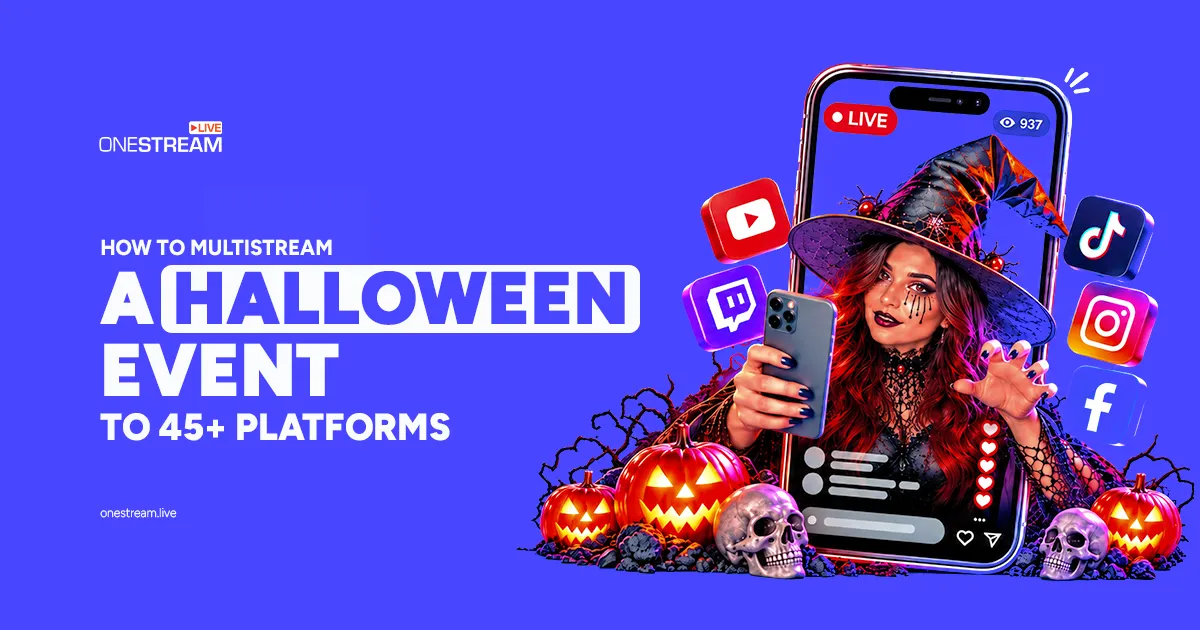
Your Halloween event is planned, the decorations are up, and then the real question hits: which platform do you stream it on? Your friends watch on Facebook, your community hangs out on YouTube, and your younger fans live on TikTok and Twitch. Picking one means leaving everyone else out.
You don’t have to pick. The simplest way to live stream an event like a costume contest, a haunted house tour, or a virtual Halloween party is to plan it once, set it up once, and multistream it from one platform. Every audience watches live, at the same time, from wherever they already are.
This guide walks you through the gear, the setup, the tools, and the spooky ideas that keep people watching until the final scream.
- The easiest way to live stream an event on several platforms is cloud multistreaming: you upload one stream, and the service sends it to every destination.
- A stable Halloween live stream needs a camera, a microphone, basic lighting, a wired Ethernet connection, and at least 10 Mbps of upload speed.
- OneStream Live sends one broadcast to 45+ destinations, including YouTube Live, Facebook Live, Twitch, LinkedIn Live, TikTok Live, and Kick.
- Live Studio, Pre Recorded Streaming, Encoder Streaming, Custom Websites, and Stream Players cover every kind of Halloween event, from a solo stream to a branded party page.

Why Multistream Your Halloween Event?
Multistreaming lets you broadcast one Halloween event to every platform your audience uses, at the same moment. Instead of running separate streams or choosing a single channel, you reach all of your viewers with one setup.
That matters because live streaming events only works when people actually show up. Your audience is already split across apps, and very few people will download a new one just for your party.
For instance, a local bakery hosting a live pumpkin decorating contest. Its regulars follow it on Facebook, its younger customers watch on TikTok, and its baking tutorials live on YouTube. If the bakery streams only on Facebook, everyone on TikTok and YouTube misses the contest. If it multistreams, all three groups watch, vote, and comment at the same time, from the same broadcast.
There are three ways to handle it:
- Stream to one platform: Simple, but everyone outside that app misses the event.
- Use an OBS multistream plugin: Your computer sends a separate stream to each platform, so every new destination eats more of your upload speed.
- Use cloud multistreaming: You send one stream from OneStream Live, and the cloud copies it to every platform. Ten destinations cost your connection the same as one.
For a Halloween event on four, six, or ten platforms, cloud multistreaming wins. You run one rehearsal, one run of show, and one broadcast, and your stream is far less likely to freeze.
What Do You Need to Live Stream a Halloween Event?
You don’t need a production crew. Here’s the checklist for live streaming for events at home, in a venue, or in a decorated garage:
- Camera: A webcam works for a solo host. Add a phone or second camera to show the crowd, the stage, or the haunted hallway.
- Microphone: Viewers forgive a soft picture, but they leave when the audio is bad. A USB or lapel mic beats any built in laptop mic.
- Lighting: Start with one soft light on your face, then add colored lights in orange, purple, or green behind you for the spooky mood.
- Internet: Aim for at least 10 Mbps of upload speed and plug in with Ethernet. WiFi drops are the most common reason live streams stutter.
- Software: Use OneStream Live in your browser for the simplest setup
- A run of show: Write a simple timeline: intro, welcome, costume parade, trivia, winner reveal, outro.
- A rehearsal: Do a private test stream a day before. Check audio, lighting, and every overlay.
Read More: Live Streaming Checklist for Professional Streams
How to Live Stream an Event to Multiple Platforms: Step by Step
The whole setup takes minutes, and you do it once.
Step 1: Choose Your Destinations
Start with where your audience already watches, then add the rest.
- YouTube Live: Best for global reach and replays that keep getting views after Halloween.
- Facebook Live: Great for local communities, family, and Facebook Groups.
- Twitch: Ideal for interactive, chat heavy streams like horror game nights or trivia.
- LinkedIn Live: Useful for company Halloween parties and team events.
- TikTok Live: Perfect for younger viewers who discover streams on the go.
- Kick: A growing option for gaming and creator communities.
You don’t have to stop there. OneStream Live supports 45+ destinations, so you can add niche platforms or your own website later.
Step 2: Connect Your Platforms in OneStream Live
This is where one stream becomes many.
- Create your free account at OneStream Live and open the dashboard.
- Connect each social account you picked in Step 1. You only do this once, and your connections stay saved for future events.
- Create a new stream and select every destination you want to go live on.
- Add your title and description for each platform, like “Live Halloween Costume Contest: Vote for Your Favorite!”
Because OneStream Live is cloud based, your computer sends one stream, and the platform handles the rest.
Read More: How to Connect Social Platforms with OneStream Live?
Step 3: Pick How You Go Live
Decide how you want to send your stream. You can go live from live studio, use an external encoder you already know, or live stream a prerecorded video. Each option works with multistreaming, so choose the one that feels easiest for you. The next section shows what each one offers for Halloween.
Step 4: Schedule and Promote Your Halloween Stream
A great stream with no audience is just a rehearsal. Schedule your live stream early so every platform can notify your followers.
- Schedule the stream in OneStream Live at least a week ahead so followers can set reminders.
- Post a countdown on Instagram Stories, TikTok, and X three days, one day, and one hour before you go live.
- Tease the program: “Costume contest at 8 PM, ghost stories at 9 PM, winner at 10 PM.”
- Invite your guests and share the run of show with any cohosts.
What OneStream Live Offers for Multistreaming
OneStream Live puts five live streaming services for events in one place, so you can pick the one that fits your Halloween plans.
|
Product |
What it does |
Best for |
|---|---|---|
Live Studio |
Go live from your browser |
Parties, contests, and guest panels |
Prerecorded Streaming |
Stream a video you already made |
Premieres and replays |
External Encoder |
Go live from OBS or any encoder |
Creators with an existing setup |
Custom Websites |
Create and stream on your own Halloween event page |
Private or branded events |
Stream Player |
Embed your stream on your website |
Brands with an existing site |
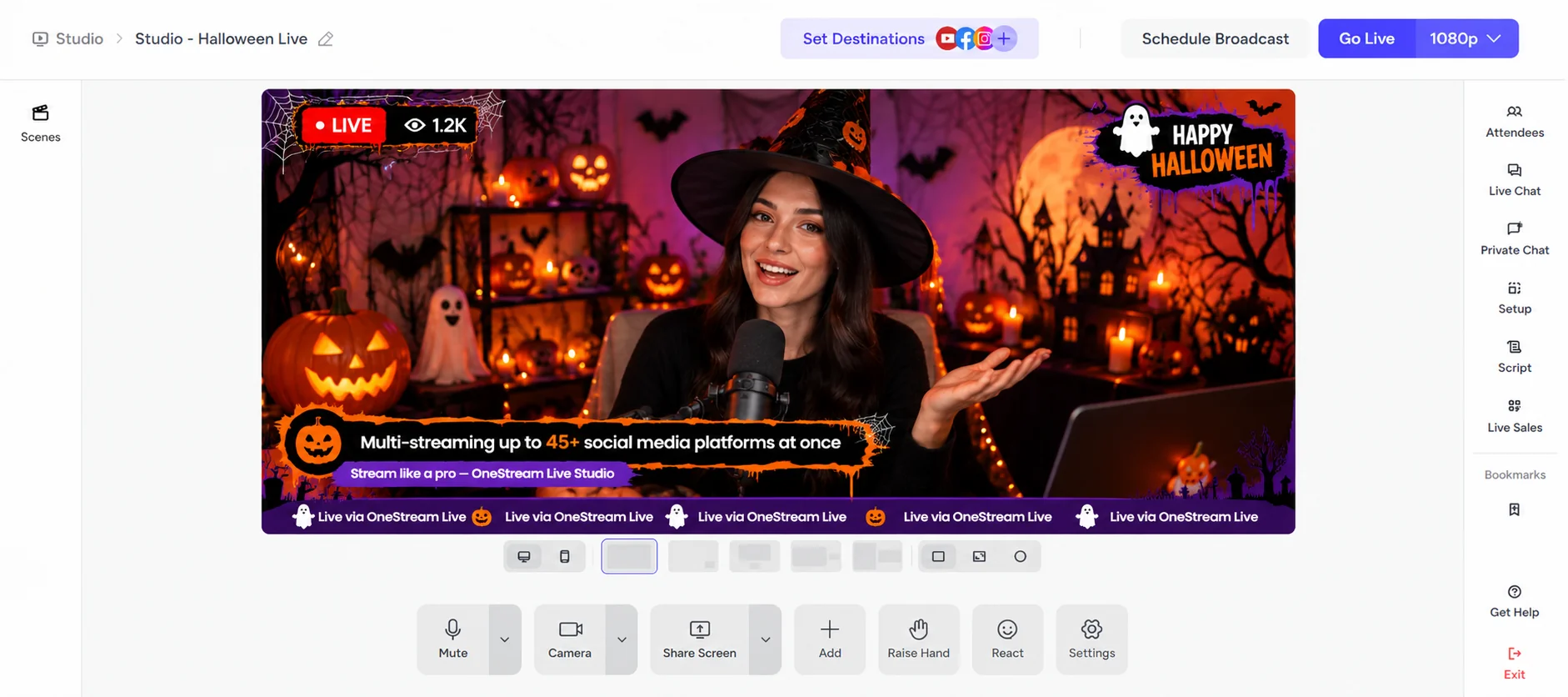
Live Studio: Host Your Halloween Event from Your Browser
Open Live Studio in your browser and go live with no downloads. Here’s what it offers for Halloween:
- Multiple cameras: Show every side of the event, from the costume runway to the candy table.
- Virtual backgrounds: Turn any room into a graveyard or haunted castle in one click.
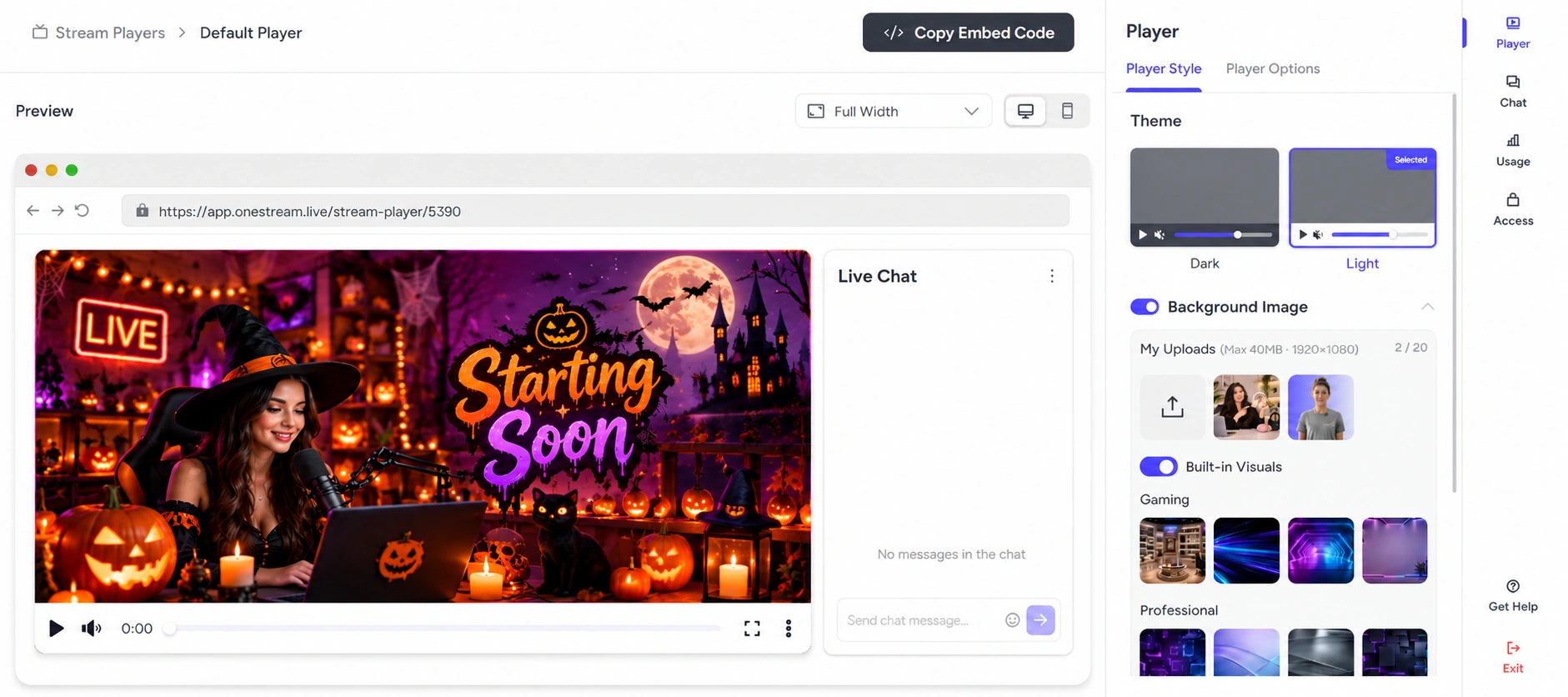
- Halloween overlays: Add spooky frames, a “Starting Soon” screen, and a countdown intro.
- Teleprompter: Keep your script, contest rules, and trivia questions on screen.
- Guests: Invite up to 16 guests on screen for costume reveals and ghost stories.
- Unified Chat: Reply to viewers from every platform in one feed.
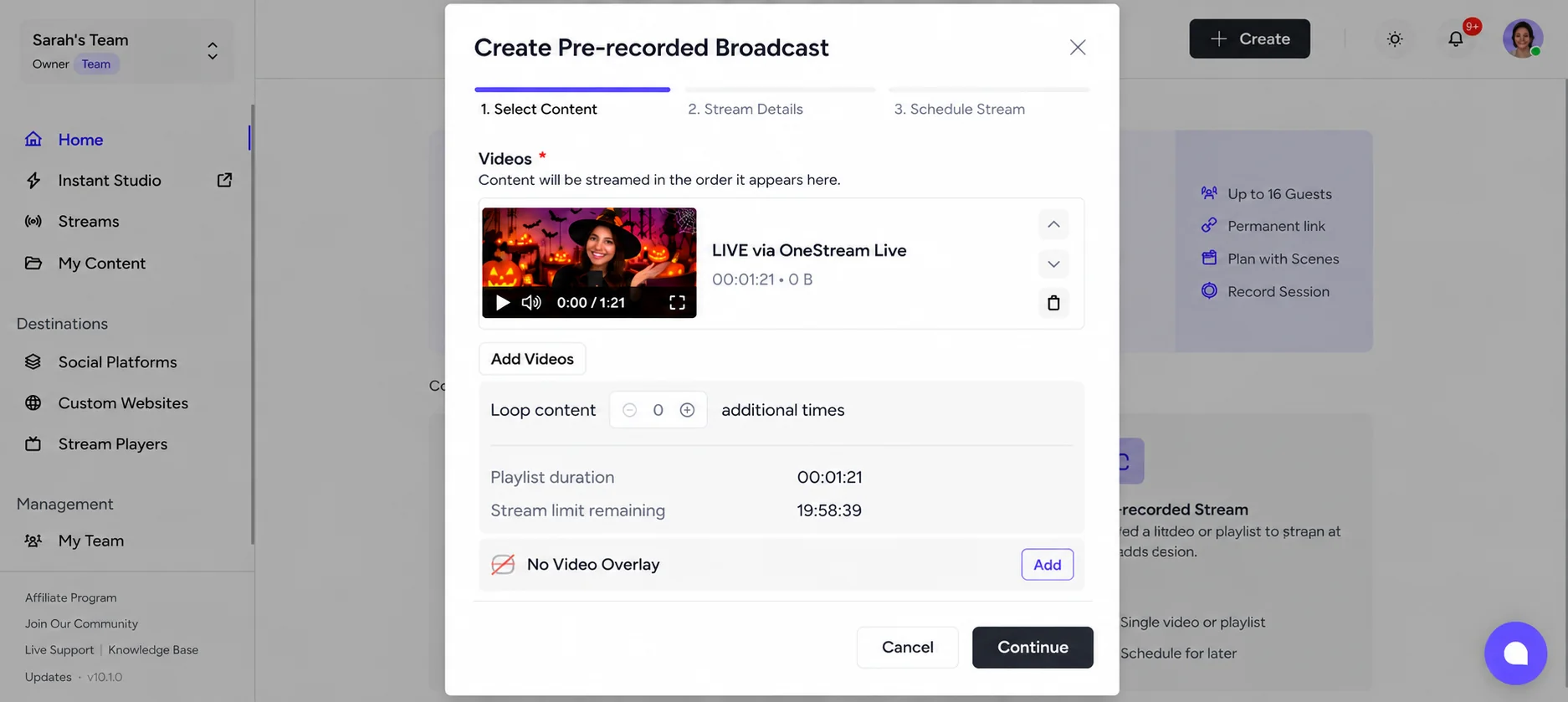
Pre Recorded Streaming: Premiere or Replay Your Halloween Event
Upload a finished video and schedule it to stream automatically. Here’s what it offers for Halloween:
- Playlist streaming: Play several videos back to back, like a haunted tour and a costume recap.
- Loop videos: Keep a Halloween ambience stream running all night.
- 24/7 Streaming: Live stream your event on YouTube 24/7
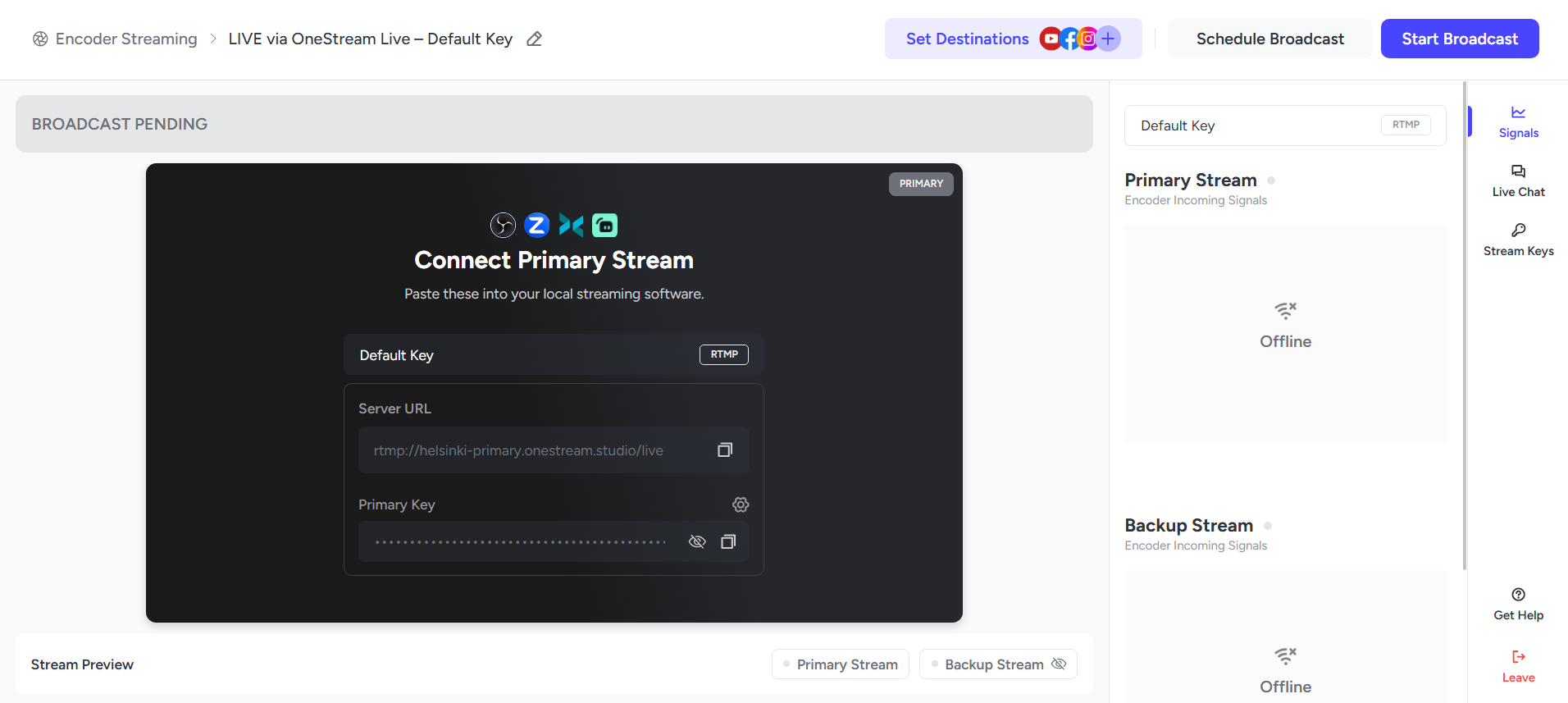
Encoder Streaming: Go Live from Any Encoder
Connect any encoder, from OBS Studio to venue hardware, using RTMP, RTMPS, or SRT. Here’s how to multistream:
- Copy your stream key from your OneStream Live dashboard.
- Paste it into your encoder under Settings, then Stream.
- Click Start Streaming. OneStream Live sends your stream to every connected platform.
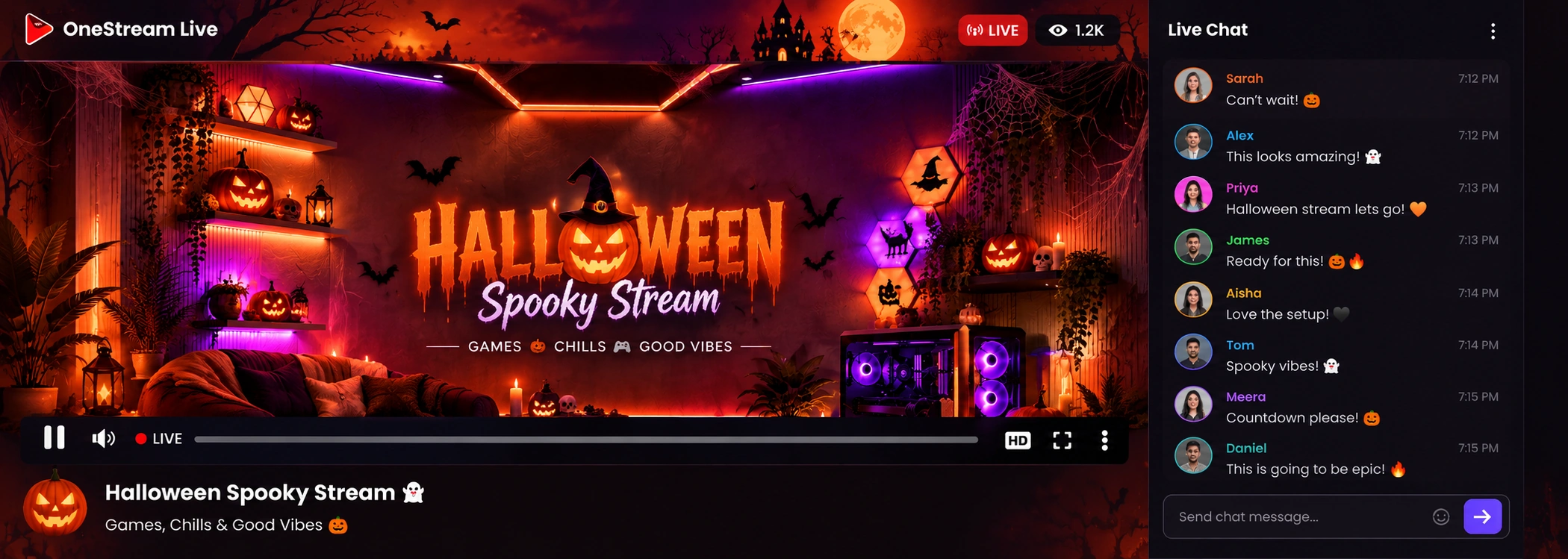
Custom Websites: Create a Halloween Themed Event Page
Build your own event page and live stream on it, with no code. Here’s what it offers for Halloween:
- Halloween theme: Add spooky colors, a background image, and your event details.
- Password protection: Keep private parties and paid events for invited guests only.
- Your own domain: Send guests to a link with your name on it.
- Live chat: Let website viewers join the fun.
Stream Players: Embed Your Halloween Stream on Your Website
Already have a website? Embed your stream there so visitors watch without leaving your site. Here’s what it offers for Halloween:
- Embed anywhere: Put your stream on your homepage, blog, or event page.
- Custom player: Match the player to your Halloween branding.
- Live chat and access control: Talk with viewers and choose who can watch.
7 Halloween Live Stream Ideas That Keep Viewers Watching
The best Halloween live stream ideas hook viewers in the first five seconds, then give them a reason to comment every few minutes. Pair one visual idea with two or three interactive ones, and your Halloween virtual events will hold people from the countdown to the final scare.
1. Kick Off with a Spooky Countdown
Open with a Halloween stream overlay of pumpkins, cobwebs, or glowing fog, plus a countdown timer before you appear on camera. OneStream Live Studio has Halloween overlays, backgrounds, and intros ready to go, so you can set this up in minutes.
A countdown builds suspense and tells early arrivals the show is about to start, so they stick around.
2. Turn Any Room into a Haunted Set
No decorations? Swap your living room for a misty graveyard, a candlelit castle, or a pumpkin patch with Halloween virtual backgrounds. Sit in even lighting and avoid clothes that match the background for the cleanest look.
A themed set makes a simple stream feel like a real event, even if you’re hosting from your sofa.
3. Let Viewers Judge a Costume Contest
Bring contestants on screen one by one and let viewers vote in chat. Save the winner reveal for the end of the stream.
Voting turns viewers into judges, and a final reveal gives everyone a reason to stay until the last minute.
4. Race the Clock with a DIY Costume Challenge
Give guests ten minutes to build a costume from household items, live on camera. Ask viewers to share virtual Halloween costume ideas in chat and pick one for each guest.
A ticking clock creates urgency, and viewers love seeing their suggestions come to life.
5. Test Their Nerve with Horror Trivia
Ask questions about classic horror, Halloween history, and spooky legends. Give viewers 30 seconds to answer in chat, then shout out the first correct name.
Quick rounds and live shoutouts keep the chat busy and reward people for playing along.
6. Turn Down the Lights for Ghost Stories
Dim the lights, light a candle, and invite guests to share their creepiest true stories. Let viewers request the next storyteller or vote for the scariest tale.
Storytelling slows the pace and pulls viewers in, giving your event a cozy, campfire feel.
7. Lead a Live Haunted House Tour
Walk viewers through a decorated home, venue, or local haunted attraction, using multiple cameras to switch between rooms and reactions.
Viewers feel like they’re exploring with you, and every new room is a fresh reason to keep watching.
Read More: Spooktacular Virtual Activities: How to Celebrate Halloween Online
Get Your Halloween Stream Ready
Here’s the short version. Pick the platforms where your audience already hangs out. Connect them once, then go live with Live Studio, Encoder Streaming, or Pre Recorded Streaming so one stream reaches everyone. Want your own home for the event? Build it with Custom Websites or embed it with Stream Players.
That’s really all it takes to live stream an event that feels big, even if you’re hosting from your living room.
Frequently Asked Questions
How do I live stream an event for free?
You can live stream an event for free by going live directly on YouTube, Facebook, Instagram, or Twitch, which don’t charge streamers, using a phone or the free OBS Studio software. To reach several platforms at the same time, multistreaming services offer free or entry plans with limits on destinations, resolution, or branding.
What is the best platform to live stream an event?
The best platform depends on where your audience already watches. YouTube suits global audiences, Facebook suits community and group events, Instagram suits mobile followers, and Twitch suits interactive, chat heavy streams. To avoid choosing, multistream the event: a platform like OneStream Live broadcasts one stream to 45+ destinations at the same time.
Can OBS stream to multiple platforms?
OBS Studio streams to one destination by default. To reach several platforms, add a multistream plugin, which sends a separate stream from your computer to each platform, or send a single stream from OBS to a cloud multistreaming platform that distributes it to every destination and keeps the load off your internet connection.
How can I multistream with limited bandwidth?
Use cloud multistreaming, where your computer uploads one stream and the service copies it to every platform, so extra destinations don’t add upload load. For a live Halloween event, plan for an upload speed of at least 10 Mbps and use a wired Ethernet connection instead of WiFi to keep the stream stable.
Can I play Halloween music or movies on my live stream?
Only if you have the rights. Streaming platforms can mute, block, or remove live streams that play copyrighted music or movies, and repeated claims can put your channel at risk. For a safe Halloween stream, use royalty free or licensed music and sound effects, and host a discussion or reaction show instead of rebroadcasting a film.
OneStream Live is a cloud-based live streaming solution to create, schedule, and multistream professional-looking live streams across 45+ social media platforms and the web simultaneously. For content-related queries and feedback, write to us at [email protected]. If you have a story to share about your live streaming experience with OneStream Live, we would be glad to feature it. You’re also welcome to Write for Us!