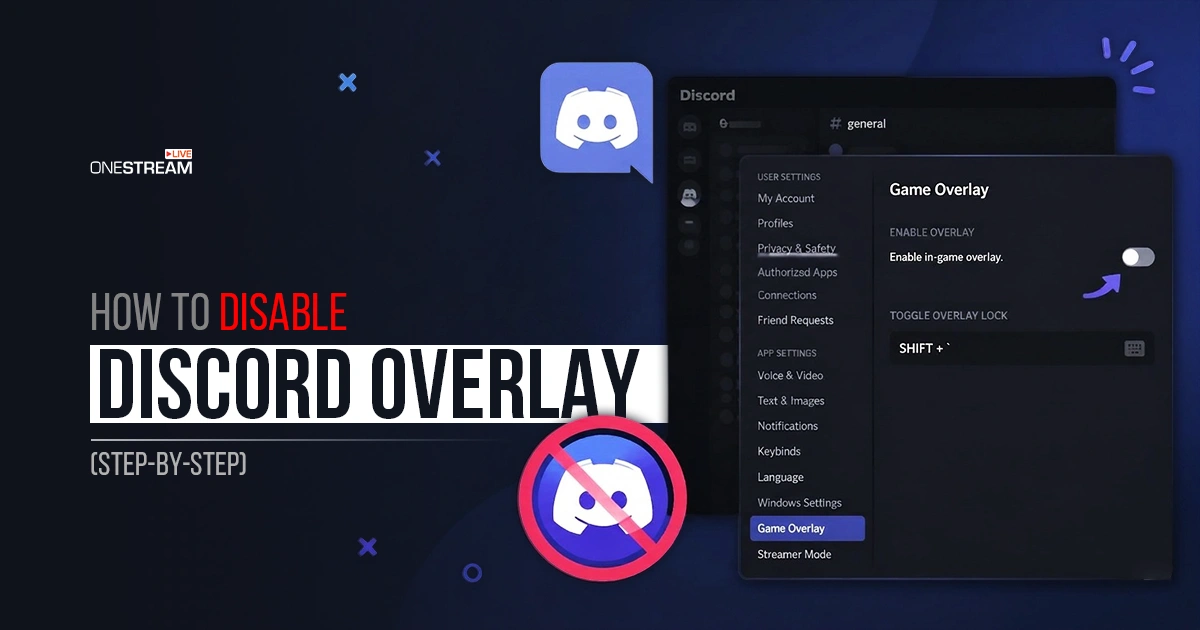
There are plenty of reasons you might want to switch off the Discord overlay. Maybe it blocks part of your screen, affects your frame rate in demanding games, or feels distracting during an intense match. Some players are happy to keep it on for most games but prefer it off in a few. We already covered how to turn it on. Now this guide covers exactly how to turn off Discord overlay for all games or for specific titles, in just a few clicks.
How to Turn Off Discord Overlay (For All Games)
This is the fastest way to get rid of Discord overlay for every game at once. Here is how to disable Discord overlay in a few exact steps.
Step 1: Open the Discord App
Click the Discord icon on your desktop or taskbar to launch the app.
Step 2: Open User Settings
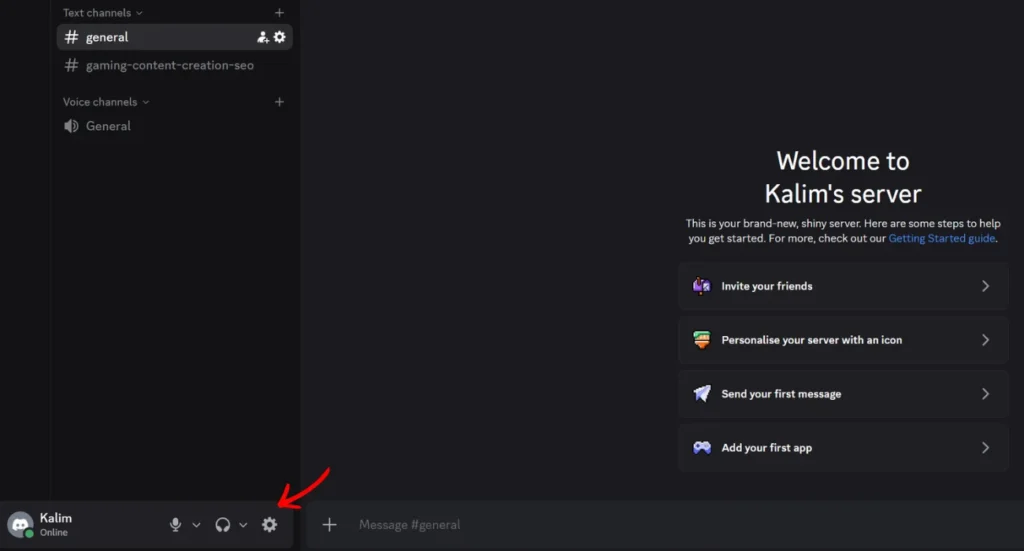
Look at the bottom-left corner of the Discord window. Click the gear icon (⚙️) sitting right next to your username.
Step 3: Go to Game Overlay
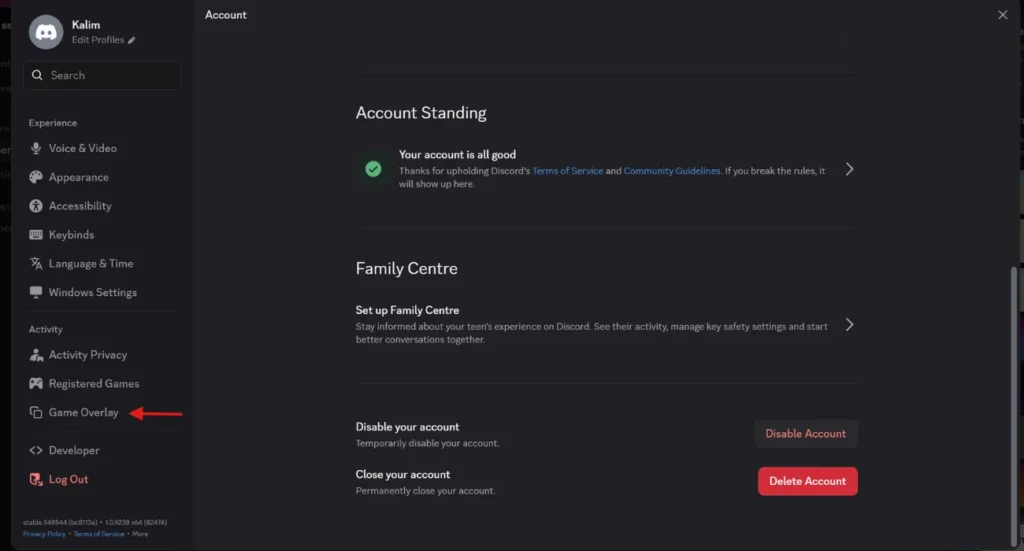
Inside User Settings, scroll down the left sidebar until you reach the Activity Settings section. Click on Game Overlay.
Step 4: Turn Off the Enable Overlay Toggle
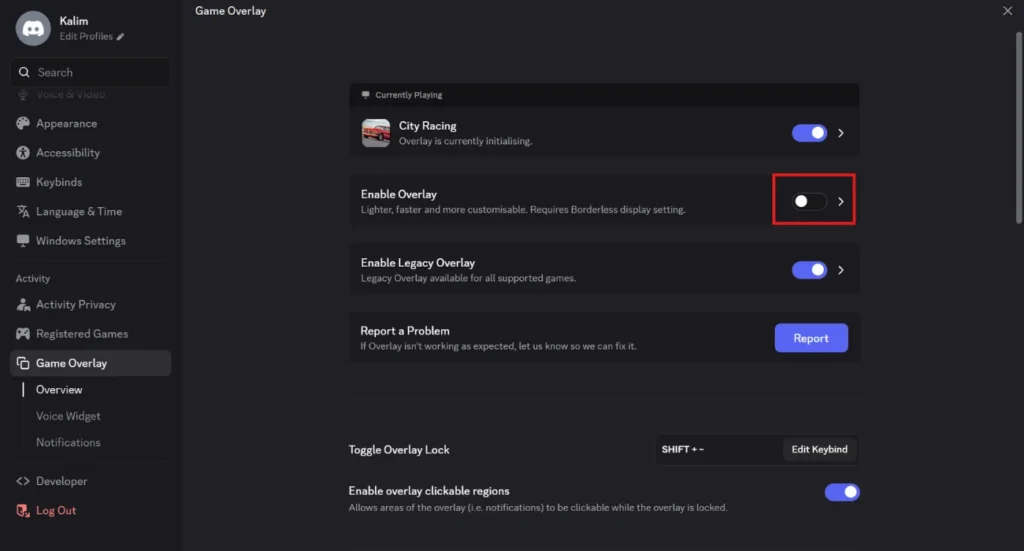
At the top of the right panel, you will see a toggle labeled “Enable Overlay.” Click it so the switch turns grey and the white circle slides to the left. When the toggle is filled and the circle sits on the right, the overlay is on. Grey with the circle on the left means it is off.
Step 5: Disable the Legacy Overlay Too
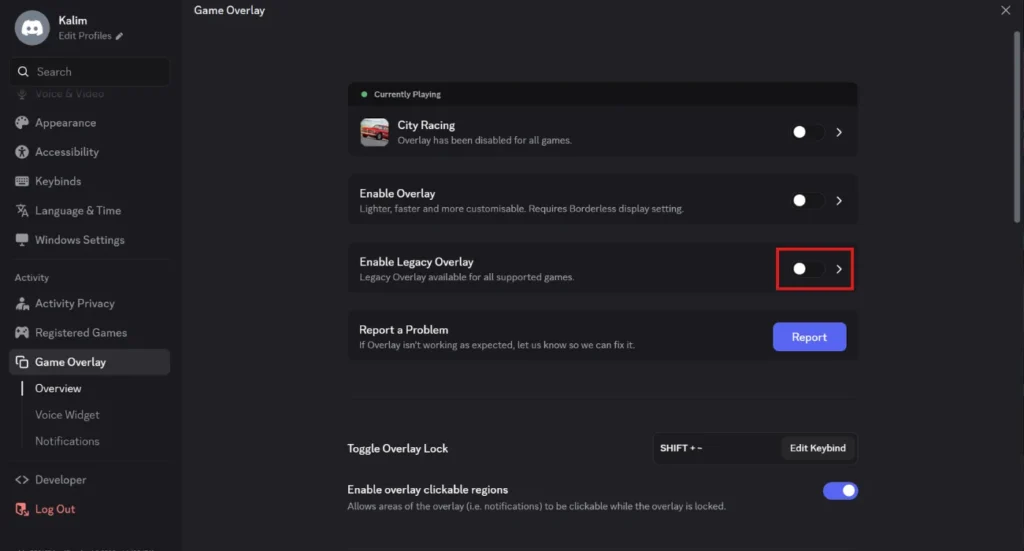
Just below the main toggle, check for a second toggle labeled “Enable Legacy Overlay.” If it is visible, turn that off as well. This makes sure neither version of the overlay is active during gameplay.
That is it. The change saves automatically. No restart is needed, and that is how to turn Discord overlay off for every game you play.
How to Turn Off Discord Overlay for Specific Games
If you do not want to turn off Discord overlay completely, you can disable it for individual games. This is useful when you want to keep the overlay for casual sessions but turn it off in competitive titles like Valorant or CS2.
Step 1: Open the Discord App
Open the Discord app on your desktop.
Step 2: Open User Settings
Click the gear icon in the bottom-left corner, right next to your username.
Step 3: Click on Registered Games
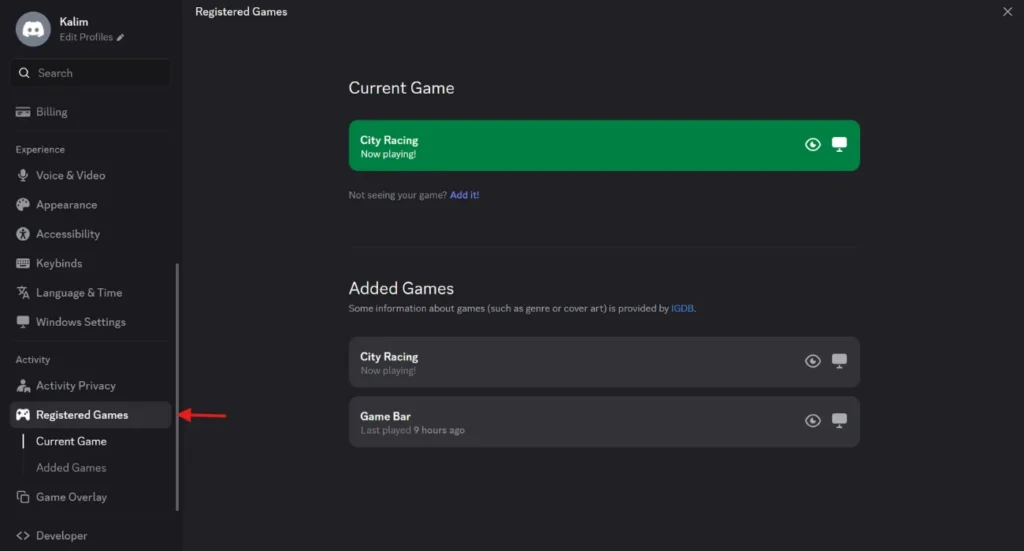
In the left sidebar under Activity Settings, click Registered Games. This section lists every game Discord has detected on your system.
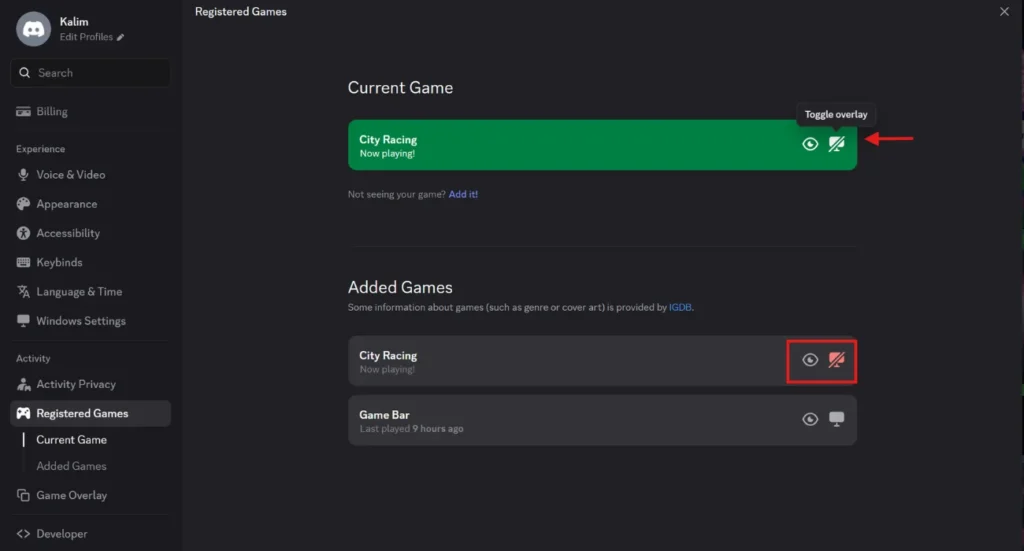
Step 4: Find the Game and Click the Monitor Icon
Look for the game you want to change. To the right of each game title, you will see a monitor-shaped icon. Click it. A red monitor icon with a slash through it means the overlay is now disabled for that game only. All your other games remain unaffected.
How to Disable Discord Overlay When a Game Is Not Listed
Sometimes the game you want is not in your Registered Games list. This happens often with Xbox Game Pass titles, Microsoft Store apps, and some launchers.
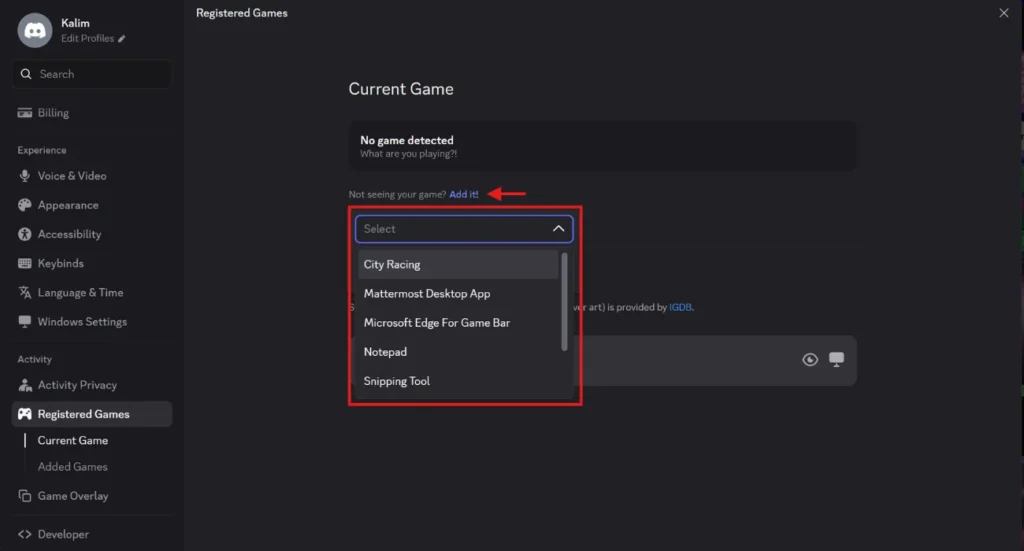
Launch the game first so it is running. Then go back to Registered Games and click the “Not seeing your game? Add it!” link below the list. Pick the game from the dropdown of active programs and click Add Game. Once it appears, click the monitor icon next to it to remove Discord overlay for that title.
Pro Tip: You can also stream pre-recorded gameplay as a live broadcast using OneStream Live, so your channel stays active even when you are away.
What Is the Discord Overlay Shortcut?
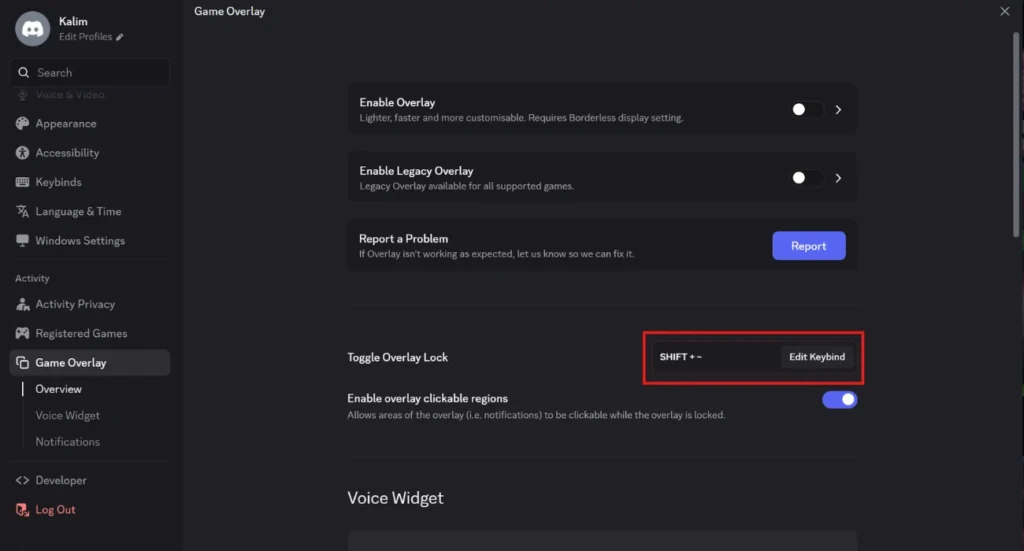
The default Discord overlay shortcut is Shift + ~ (Shift plus the tilde key, which sits just above the Tab key on most keyboards). Pressing this combination while in-game toggles the overlay lock on and off.
To change it, go to User Settings, click Game Overlay, and find the Toggle Overlay Lock field. Click Edit Keybind next to it, press your preferred key combination, then click Stop Recording to save it.
How to Open Discord Overlay In-Game
To open Discord overlay while playing, your game needs to run in windowed or borderless windowed mode. Make sure the overlay is enabled both for all games and for that specific game first.
Once you are in-game, press Shift + ~ to bring up the overlay widget panel on top of your screen. Press it again to lock the overlay and return full input back to the game.
Pro Tip: No matter how you set up the overlay, you can reach a bigger audience by streaming your gameplay to Twitch, Kick, YouTube, Facebook, and more at the same time using OneStream Live.
Conclusion
The Discord overlay is a useful feature, but it is not the right fit for everyone or every game. Now you know exactly how to turn off Discord overlay for all games at once, how to disable it for specific titles, how to add a game that is not listed, and how to use the overlay shortcut while you play.
If reaching more viewers is the goal, OneStream Live is a simple way to go live on multiple platforms at once and get your gameplay in front of a wider audience.
Yes, it can. Turning off the overlay frees up the resources Discord uses to render on top of your game. Players on mid-range systems often recover 5 to 10 FPS in demanding titles, and the bigger gain is smoother frame pacing with less stutter during fast-paced moments.
No. The overlay only controls what shows up on top of your game. Your account, servers, messages, and voice calls all keep working exactly as normal. You are only switching off the in-game display, nothing else.
The new overlay needs your game to run in borderless windowed or windowed mode to appear. True exclusive fullscreen can stop it from showing. If you want the overlay while playing, set your game to borderless windowed in its video settings.
Usually yes, but not always. Some anti-cheat systems, like Riot Vanguard in Valorant, have been linked to crashes or black screens when the overlay is active. If a protected game keeps crashing or acting strangely, turning off the overlay for that title is a common and safe fix.
No. The overlay is completely free and built into Discord. You do not need Nitro or any paid plan to enable it, disable it, or change its settings. Every step in this guide works on a standard free account.
OneStream Live is a cloud-based live streaming solution to create, schedule, and multistream professional-looking live streams across 45+ social media platforms and the web simultaneously. For content-related queries and feedback, write to us at [email protected]. You’re also welcome to Write for Us!
We use cookies to enhance your browsing experience, serve personalized content, and analyze our traffic. By clicking "Accept All", you consent to our use of cookies.
Cookie Preferences
Strictly NecessaryRequired
Essential for the website to function properly.
Functional
Enable enhanced functionality and personalization.
Analytics
Help us understand how visitors interact with our website.