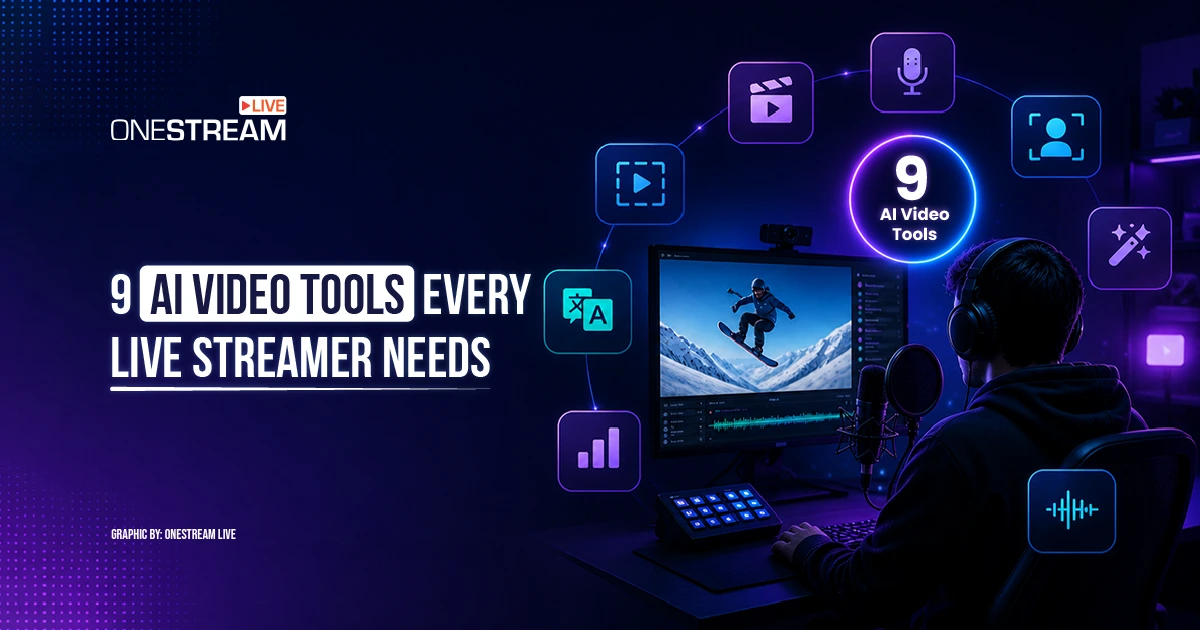
When you are livestreaming, you need to stay alert. One moment, you’re chatting with viewers. Next, you’re looking for ways to keep them interested. With so many people trying to grab your attention, most viewers won’t wait around for slow, boring, or low-effort content. That is why AI Video Tools have become so useful for live streamers in 2026. If you don’t hook viewers in the first few seconds, they’ll probably move on.
The right AI tools for video can help with these challenges. You can create custom clips, add real-time special effects, and quickly turn hours of streamed video into shareable snippets. That way, you don’t have to spend all night editing. Your creative process becomes faster, easier, and more flexible.
Platforms like OneStream make it easy to manage the technical side of livestreaming, while these tools simplify the creative work.
This guide covers all nine AI video tools livestreamers are using in 2026. You’ll learn how these tools can boost your content quality, keep your audience engaged, and help you get more out of every livestream with a smoother workflow.
Why Live Streamers Need AI Video Tools in 2026
Streamers and viewers have more ways than ever to watch live streams. Platforms like Twitch, TikTok Live, and YouTube Live make it easy to connect. Viewers want more than just a talking head. They expect to interact, see personality, and have something interesting on screen.
Traditional editing takes hours to set up, and adding special effects can be a hassle. Most streamers don’t have time to perfect every stream. That’s where artificial intelligence (AI) comes in. With AI, you can focus on streaming live instead of getting bogged down by technical details.
If you’re a streamer, the right tools can help you:
- Add visual effects to your stream in real time without complicated setups.
- Automatically improve your audio and video quality.
- Quickly create 1-2 minute videos from long-form live-stream footage
- Try new formats like face swaps or avatars, no tech degree required.
- You don’t need a technology degree to succeed as a streamer.
These tools are easy to use and help you grow your audience while saving time on the whole creation process.
Best AI Video Tools for More Engaging Live Streams in 2026
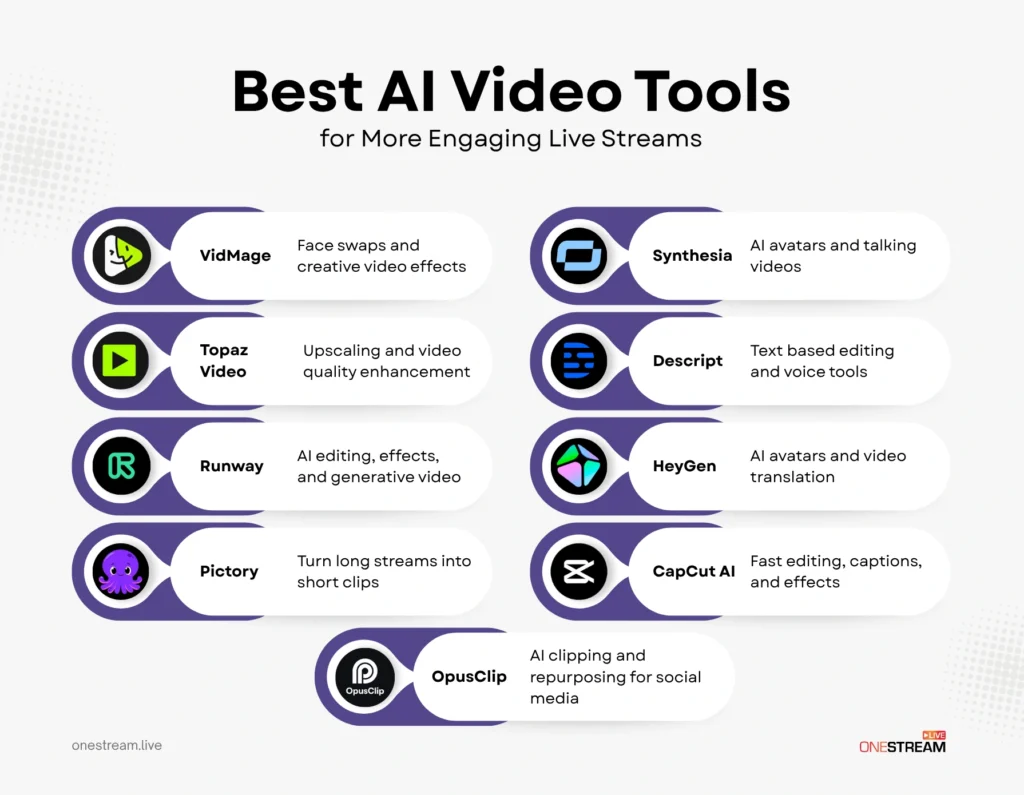
Live streaming does not stop when you hit “Go Live”. The right AI tools help you improve quality, add creative effects, localize content, and turn one broadcast into multiple clips without slowing down your workflow.
1. VidMage (AI Face Swap and Creative Video Effects)
VidMage makes your video content more fun to watch without adding extra steps or making things harder. With this software, you can swap faces in a video or GIF, and even during live video, using either a web-based workflow in your browser or a Mac client for more advanced features.
Key features:
- Face swapping options for multi-person scenes
- Real-time face swapping for video calls or live streaming with the Mac client
- Partial face editing, like changing eyes or mouth
- 4K output and batch processing for videos with multiple people
Pros:
- Budget-friendly compared to many similar tools ($0.0063 per second)
- Let’s you add multiple faces to a single video
- Gives you the option to process videos locally, so you can keep your data private
- No watermarks on your finished videos
Cons:
- Only offers face replacement, not a full artificial intelligence (AI) suite.
If you stream live, VidMage puts connecting with your viewers first, not just editing video clips. With VidMage, you can switch your character during a live stream, respond to comments with humor (like using funny GIFs), and keep several inside jokes going that your audience knows. These features make live streams feel more dynamic.
There are plenty of similar services, like DeepSwap and Reface. But VidMage gives you more flexibility and control over your video output, and it’s priced lower than both for longer videos.
2. Topaz Video (AI Upscaling and Enhancement)
Topaz Video is a great tool for improving video quality. It’s best for enhancing existing footage, rather than creating new videos.
Topaz Video uses several AI models to upscale footage, increase the frame rate (frames per second, or FPS), and remove noise from video. You can turn a jittery webcam stream into clean, sharp 4K video. This makes Topaz Video especially helpful if your streaming setup isn’t ideal.
Pros:
- Upscaling quality and recovering detail
- Creating smooth motion between frames and removing frame hopping
Cons:
- Long processing times, so it’s not suitable for livestreaming alone.
Most livestreamers use Topaz Video before or after a broadcast, not during. For example, you can clean up your recorded livestream footage or edit your clips before reposting them. If your camera’s video quality doesn’t match the lighting conditions, Topaz Video could be an ideal solution.
Topaz Video AI is available by subscription. Monthly plans start at $25 per month, and annual plans are up to $299 per year.
3. Runway ML (AI Video Editing and Effects)
Runway is an artificial intelligence (AI) video platform that combines editing tools with generative AI features. Its latest model, Gen-4.5, lets you create short video clips from text prompts. You can erase backgrounds and quickly add visual effects.
Pros:
- Easy to use and work with
- Video of the same quality as film
- A lot of creative ways to show who you are
Cons:
- The credit-based fee structure adds up quickly.
- Can lead to a lot of mistakes, which might mean that a lot of credits need to be used again.
Runway is best for making live events look or feel more creative. You can use Runway to make your own graphics, transitions, and intro videos. This helps you make your final product better and spend less time editing.
The standard plan is $12 per month and gives you 625 credits each month. That covers about 25 seconds of Gen-4.5 video. More complex edits use up credits faster.
4. Pictory (AI Video Summarization)
Pictory can take long videos or scripts and turn them into shorter, more consumable clips. It can also use a single recording to automatically find the highlights, add captions, and format the content for TikTok and YouTube Shorts.
Pros:
- Repurposes your content very quickly
- Requires minimal manual work
Cons:
- Output can feel templated
- Many users say the artificial intelligence voices sound synthetic.
If you create new content every week, tools like this can save you a lot of time. You can turn a full session into several short videos without having to cut each clip by hand. This helps you keep your posting volume up, even between full streams.
5. Synthesia (AI Avatars and Talking Videos)
Synthesia lets you create videos with avatars who speak in your audience’s language. You can make professional-quality training or business content in almost any language, with more than 160 accents available.
Pros:
- Supports a wide range of languages.
- Offers a professional look and plenty of ways to customize.
- Creates videos faster than most other programs.
Cons:
- It’s more expensive than most video creation tools available today.
- Sometimes, pronunciation isn’t accurate.
If live streaming is your main focus, Synthesia can help add structure and energy. You can use it for announcements, scripted segments, or even just to bring in different intonations.
Pricing starts at $199 per month, and you can try it free for up to 10 minutes.
6. Descript (AI Editing and Voice Tools)
Descript lets you edit audio by working with written text instead of using traditional editing methods. You can create voiceover tracks in your own voice with the Overdub feature, which is helpful if you need to fix mistakes without re-recording. Descript also includes automatic transcription and a built-in tool to remove filler words.
Pros:
- The editing process is easy to understand
- Good tools for transcribing and audio
- Simple to use
Cons:
- Takes a while to learn
- It can take a long time to train your voice for overdubbing
Descript is most useful after a live stream if you’re recording it. You can make your recordings better by getting rid of filler words and fixing transitions that don’t flow well.
7. HeyGen (AI Video Generation with Avatars)
HeyGen is a platform that lets you generate 3D talking avatars from text, complete with lip sync. You can choose from a variety of templates to quickly create videos using different types of media.
Pros:
- Excellent language support for a wide range of people around the world
- Quick ways to make videos, as well as the option to make several videos from one source
- Some users are impressed with how real the avatar characters look.
Cons:
- You can only get videos over the internet.
- You can’t process things locally.
HeyGen offers a live translation function to help you expand your live stream’s reach and create fully translated versions of your content. You can also use avatar technology to communicate in different languages without making multiple recordings.
Pricing starts at $29 per month for the basic service. Free plans are available, but you’re limited to one 3-minute video each month.
8. CapCut AI (AI-Powered Editing and Effects)
CapCut is a video editing program with AI features like background removal, auto captioning, and intelligent cutting. It combines traditional video editing tools with advanced technology. CapCut also includes AI-powered options for translating video content, generating music, and creating videos. Many people appreciate how easy it is to use, especially for beginners. Plus, you can use CapCut on your mobile device.
Pros:
- Capable free tier
- Extremely easy to use, making it perfect for beginner video editors
Cons:
- Watermarks appear on some exported videos
User-friendly for live streamers who want to create clips and share them with followers right after their streams
9. OpusClip (AI Clipping and Repurposing)
OpusClip helps streamers turn long livestreams into short, social media-ready clips. You can use it to create content for YouTube Shorts, TikTok, Instagram Reels, and other platforms without cutting every clip by hand.
OpusClip uses AI to find strong moments from long videos, add captions, reframe clips for vertical viewing, and prepare them for social posting. This makes it useful for streamers who want to stay active after the livestream ends.
Key features:
- AI clipping for long-form videos
- Animated captions
- AI reframe for vertical clips
- AI B-roll
- Audio enhancement
- Voice-over tools
- Free plan and paid creator tiers
Pros:
- Fast repurposing from long streams to short clips
- Strong built-in captions and reframing
Cons:
- Mainly useful after the stream
- Final clips still need a quick manual review before publishing
If your goal is to stay visible between full broadcasts, OpusClip can help you turn one long live session into several smaller assets quickly. That makes it easier to keep posting consistently without spending hours cutting each clip by hand.
How to Combine Different AI Video Tools for Maximum Engagement
When you use more than one tool for your content, you usually get better results. The main idea is to keep your process simple by combining a few different tools. Here’s what a typical setup might look like.
- Add Creative Elements: Use VidMage or Runway to include creative elements in your livestreams as they happen, while Invideo Agent can help enhance scenes with AI visual effects when more advanced creative control is needed.
- Enhance Video and Audio Quality: Use Topaz to improve the quality of your video and audio.
- Multistreaming: Use a multistreaming platform, such as OneStream, to reach more viewers at once.
- Repurpose Content: Use Pictory, Descript, or CapCut to turn your existing content into new formats.
When you combine the right tools for your needs, you can make your workflow smoother and keep your viewers engaged.
Wrapping Up
AI video technologies and software are now a must-have for anyone who wants to stay competitive in live streaming.
Streamers who’ve seen real growth usually aren’t working with the best equipment. Instead, they’re experimenting and adapting to new technology faster than most.
They’re also the ones creating engaging content without burning out.
The right technology and tools can make a big difference: you’ll be able to add more real-time effects to your videos, improve their quality, and turn one stream into lots of content.
When you use these tools with a live streaming platform like OneStream Live, you can scale your reach faster without adding complicated steps to your workflow and stream your polished content live across multiple platforms.
Frequently Asked Questions
AI Video Tools are software tools that use artificial intelligence to help with video creation, editing, captions, effects, quality improvement, clipping, translation, and repurposing. For live streamers, they can save time and make content look better without a full editing team.
AI Video Tools can help live streamers improve video quality, add captions, create short clips, remove filler words, add effects, and turn long streams into content for platforms like YouTube Shorts, TikTok, and Instagram Reels.
Yes, some tools can be used during a live stream, especially tools for effects, face swaps, avatars, or live translation. Other tools work better after the stream, such as AI clipping, editing, captions, and video enhancement.
Tools like OpusClip, Pictory, Descript, and CapCut are useful for repurposing live streams. They can help turn long videos into shorter clips, add captions, reframe videos for vertical platforms, and prepare content for social media.
OneStream Live is a cloud-based live streaming solution to create, schedule, and multistream professional-looking live streams across 45+ social media platforms and the web simultaneously. For content-related queries and feedback, write to us at [email protected]. You’re also welcome to Write for Us!