If you stream, you already know MKV is the safer format for recording. MP4 has to finalize the file when recording stops, so if OBS crashes or the power goes out before that, the whole video can end up corrupted. With MKV, you usually lose only the last few seconds, not the entire stream.
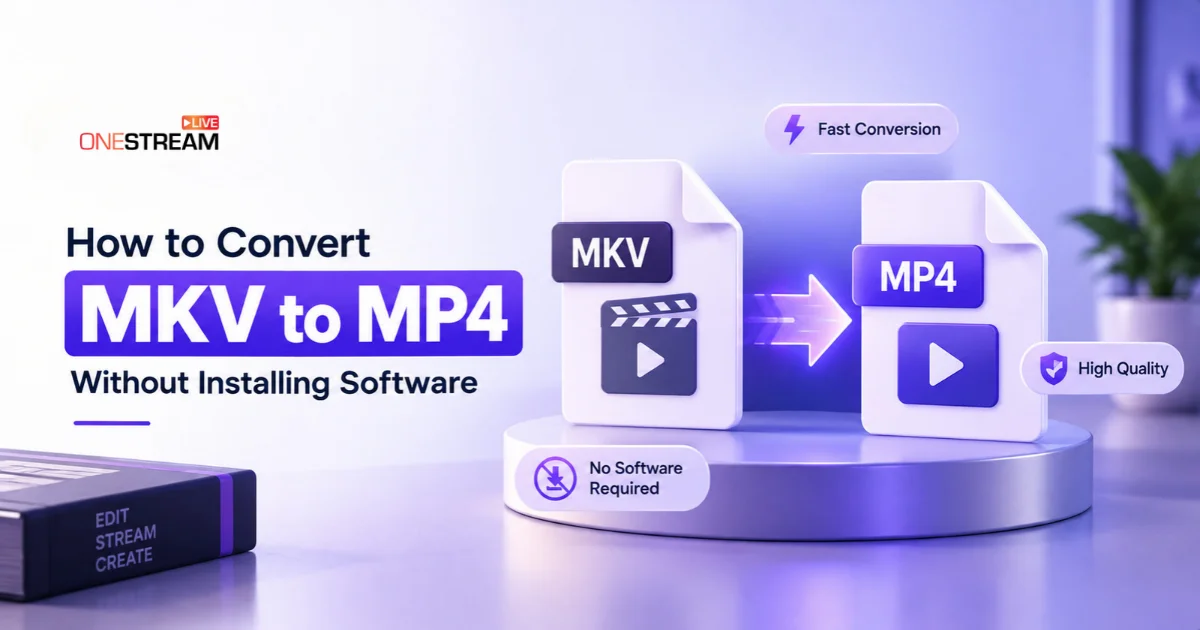
The trouble starts after you go offline. You try to upload the recording, edit it, or play it on your phone, and the file refuses to open. Installing a converter isn’t always possible on a work laptop or a Chromebook. The easier route is to convert MKV to MP4 inside your browser in just a few minutes.
- MKV is safer for recording because it survives a crash, but most apps, devices, and platforms expect MP4.
- You can convert MKV to MP4 in your browser without installing any software, on any device.
- Most OBS recordings already use H.264, so “Without reencoding” keeps the original quality.
- Choose H.264 if a platform still rejects the converted file.
- Once your file is in MP4, you can schedule it on OneStream Live as a pre-recorded stream across multiple platforms.

How to Convert MKV to MP4 in Your Browser
The whole process takes only a few minutes. Convertio’s mkv to mp4 converter turns your MKV recording into an MP4 file inside the browser, so you don’t have to install anything on your computer or phone. Here’s how to convert MKV to MP4 in four steps:
1
Upload your file. Open the converter and click Choose Files. If your recording is already in the cloud, pick it straight from Google Drive or Dropbox. Free uploads go up to 1 GB per file. For longer recordings, sign up for a premium plan to convert larger files.
2
Check the output format. MP4 is already selected. You can add more MKV files at this point to convert them together.
3
Pick your settings (optional). Click the gear icon and open the Codec option. Choose “Without reencoding” to keep the original video exactly as it is, or choose H.264 if a platform has already rejected your file.
4
Convert and download. Hit Convert. When it finishes, download the MP4 or save it back to Google Drive or Dropbox.
Why Your Recording is in MKV
MKV, short for Matroska, is an open video container that can hold video, several audio tracks, and subtitles in one file. OBS writes to it bit by bit, so if your stream crashes, you only lose the last few seconds instead of the whole recording.
MP4 is the format almost everything else expects. iPhones, QuickTime, most editing software, social platforms, and streaming tools all handle MP4 without complaint. That’s why MKV to MP4 conversion is usually the last step before you share or reuse a recording.
We’ve explained the full difference between the two formats in our guide on MKV vs MP4 for Pre-Recorded Streaming.
Benefits of Converting MKV to MP4 Online
A downloaded converter does the same job, but an online MKV to MP4 converter makes the whole process lighter. Here’s why:
- Nothing to install. You don’t need admin rights, storage space, or updates. This helps a lot on office laptops where installing software is blocked.
- Works on any device. It runs the same on Windows, Mac, Chromebook, Android, and iPhone, since everything happens in the browser.
- Your computer stays free. The conversion runs on cloud servers, not your machine, so you can keep editing, streaming, or working while it processes.
- No quality loss with the right setting. With “Without reencoding,” the video isn’t compressed again. Only the container changes, from MKV to MP4.
- Direct cloud imports. You can pull recordings from Google Drive or Dropbox and save them back there without filling up local storage.
- Batch conversion. Several stream recordings can be converted in one go instead of one by one.
Once your recording is in MP4 format, you can upload it to OneStream Live and schedule it as a pre-recorded stream across multiple platforms. If the file is already in Google Drive, you can import it from there, so the whole workflow happens without touching your desktop.
What If Your MP4 Still Doesn't Work?
Most conversions work on the first try, but a few issues can still come up:
- The platform still rejects the file. Convert it again and choose H.264 in the Codec option instead of “Without reencoding.” H.264 is the most widely supported video codec, so this fixes most upload errors.
- The video plays but has no sound. The audio format in your MKV may not be supported inside MP4. Converting again with H.264 selected re-processes the file into a standard MP4 that plays properly.
- The MP4 is much bigger than the original. This happens when the video gets re-encoded at a higher quality. Use “Without reencoding” if your file doesn’t need a codec change, or lower the quality setting.
Final Words
MKV keeps your recordings safe while you stream, and MP4 makes them easy to share, edit, and upload afterward. You don’t have to choose between the two. Record in MKV, then convert MKV to MP4 in your browser once the stream is over.
So the next time OBS hands you an MKV file, simply upload it to Convertio, convert it to MP4, and multistream it as a pre-recorded video on OneStream Live to reach your audience on all your social platforms at once.
Frequently Asked Questions
Does converting MKV to MP4 reduce video quality?
Not if you choose the “Without reencoding” option in Convertio’s Codec settings while converting. This option copies the video from your MKV file into the MP4 as it is, so only the file format changes and the quality stays exactly the same. If you choose H.264 instead, Convertio compresses the video again, which can cause a small quality drop, but with default settings it’s usually hard to notice.
Can I convert MKV to MP4 on my phone?
Yes. Open Convertio’s MKV to MP4 converter in your mobile browser, upload the file, and download the MP4. No app is required. On iPhone, the file saves to the Files app, and on Android it goes to your Downloads folder.
Is it safe to convert MKV files online?
Convertio deletes uploaded files right after conversion and removes converted files within 24 hours. If you want the file gone sooner, click the × next to it after downloading.
Why won't my MKV file play on my iPhone?
The iPhone’s Photos app and QuickTime don’t support the MKV container natively. Converting the file to MP4 lets it play on any Apple device.
Can I stream my converted MP4 as a pre-recorded video?
Yes. Upload the MP4 to OneStream Live, schedule it as a pre-recorded stream, and it will go live on multiple social platforms at the same time.
OneStream Live is a cloud-based live streaming solution to create, schedule, and multistream professional-looking live streams across 45+ social media platforms and the web simultaneously. For content-related queries and feedback, write to us at [email protected]. If you have a story to share about your live streaming experience with OneStream Live, we would be glad to feature it. You’re also welcome to Write for Us!