Old videos can be quite moving, but if they lack sound or narration, the message can seem distant or incomplete. People today sometimes require context to engage with old black-and-white reels, family videos, or news footage from the past. That’s where AI video editor tools like CapCut Web can help. With the help of this tool, you can transform quiet clips into a stunning narrative, using features such as text-to-speech, voice changers, and a powerful AI video editor. You don’t need any sophisticated tools or editing skills; all you need is your concept and an internet connection.
Let’s look at how AI can help you bring old pictures back to life, one voiceover at a time.
- Use AI voiceovers to revive silent old videos with narration.
Generate natural speech from text using CapCut Web’s AI tools.
Customize voices with tone, emotion, and style to match old footage.
Enhance old videos without needing editing skills.
Stream old videos to 45+ platforms using OneStream Live.
Why Revive Old Footage of Life?
Old videos aren’t just pictures; they let you see into the past. However, they don’t always have the same emotional impact without a voiceover or a clear present context. You can use AI tools to bring back the meaning of silent moments, give them a voice, and make new, powerful stories.
Bringing old films back to life can spark curiosity and encourage interaction among people, whether it’s for school projects, social media posts, or personal reminiscing.
- Preserve personal and cultural history: Add narration to family movies or cultural archives to tell stories to future generations in a fun and modern way.
- Make it accessible to today’s audience: People today expect clear sound and picture. AI voiceovers make things clearer, which makes it easier to understand and connect with historical footage.
- Boost engagement on social platforms: People adore learning through short, emotive stories with a nostalgic twist; therefore, narrated historical clips often go viral.
- Add educational value: You can create mini-documentaries or explainer videos that are ideal for classes, museums, or YouTube channels by combining AI voiceovers with images.
- Create meaningful content with minimal effort: You don’t need to hire voice actors or editors; AI solutions like CapCut Web enable you to do everything in one spot, for free.
Step-by-step: How to add narration to old historic footage using CapCut Web
With CapCut Web’s text to audio free online tool, it’s easier than ever to bring old pictures to life. Whether you’re restoring family videos or reimagining archival clips, you can instantly generate natural-sounding narration and sync it seamlessly with old footage, without needing a mic or studio. Here’s a step-by-step guide on how to accomplish it.
Step 1: Upload Your Text
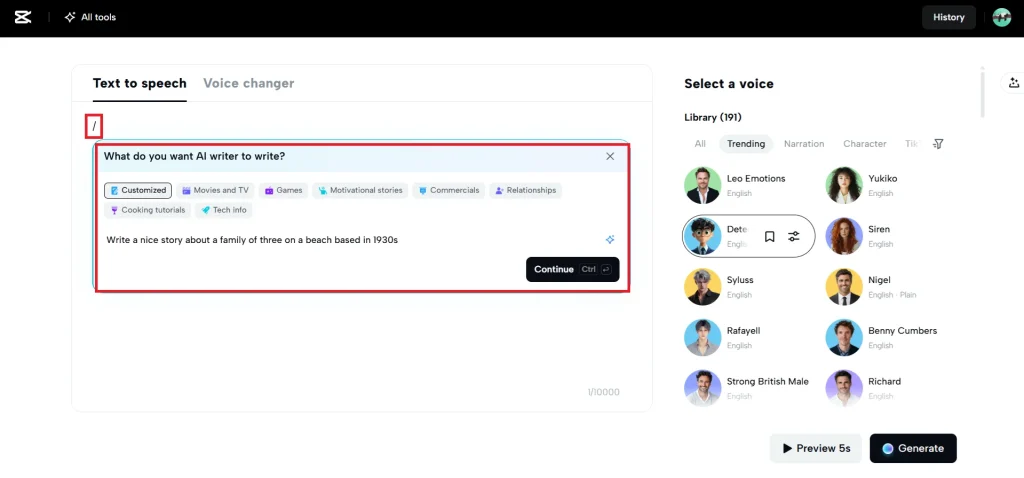
To begin, sign in to CapCut Web and go to the ”Text-to-Speech” area. You may either copy and paste your narration script into the input field or click the “/” icon to let AI help you make a script from a basic suggestion like “Write a nice story about a family of three on a beach, based in the 1930s.” When your prompt is complete, click “Continue” to proceed, and AI will draft the content for you.
Step 2: Choose a Natural-Sounding AI Voice and Fine-Tune It
CapCut Web offers a diverse range of AI voices, including male, female, child, cartoon character, warm, and dramatic tones. These voices are perfect for bringing your historical film to life.
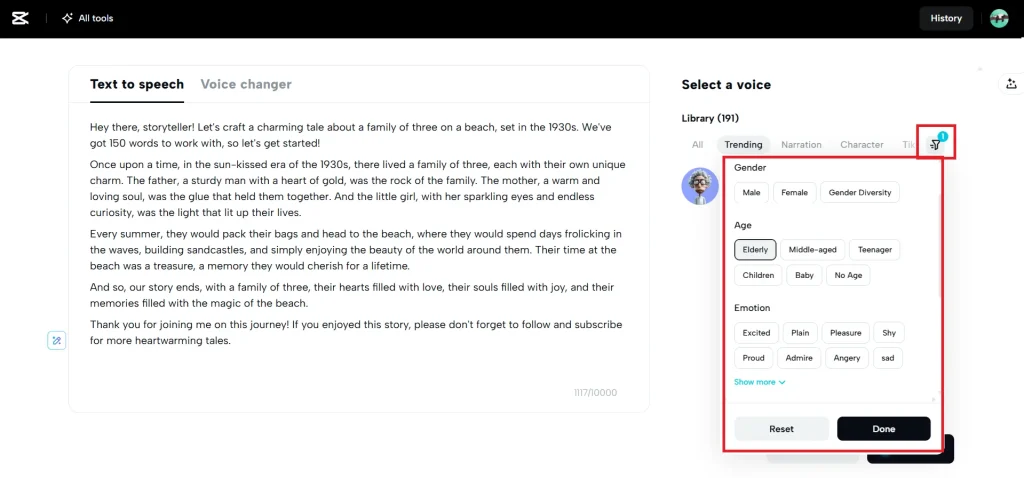
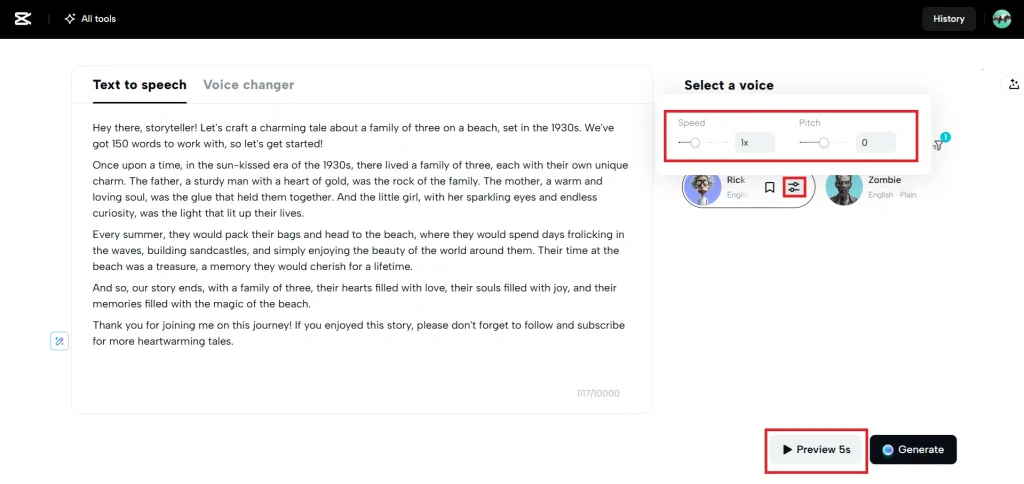
Once you’ve finished your script, go to the right panel and click on the voice filter button. This will allow you to explore possibilities based on gender, language, age, tone, accent, and emotion. Pick a voice that fits the mood of your vintage footage.
Once you’ve selected a voice, click “Done” to lock it in and prepare to see how it affects your images.
You can fine-tune the delivery of your voice once you’ve selected one that suits your historical story and footage. Just use simple sliders to change the speed and pitch.
You can change the tone of the narration to fit the time period or mood of your film, whether it’s a quiet, thoughtful story or a happier time.
Click “Preview 5s” to hear a small sample and make sure it fits the tone of your vintage clip exactly before you save it.
Step 3: Generate and Download Your Podcast Audio
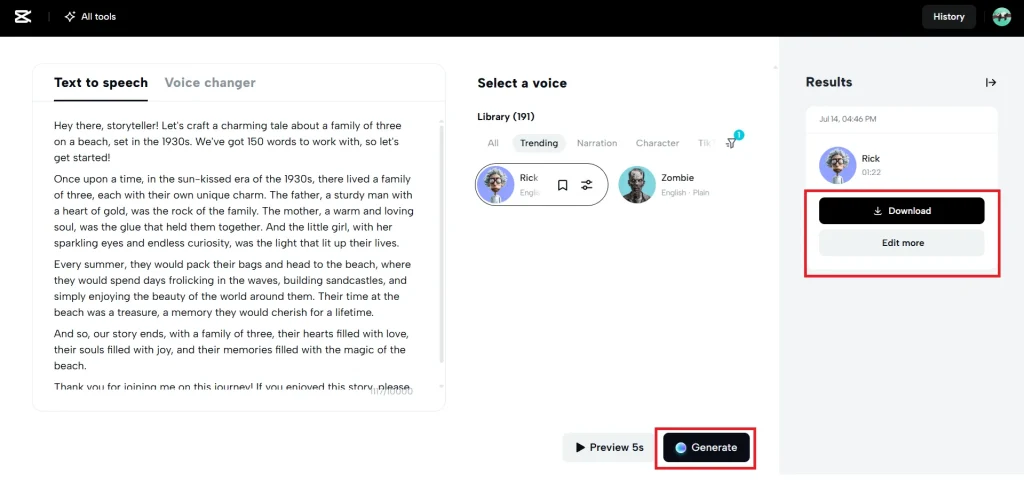
Click “Generate” to turn your narration script into a finished audio file once you’re happy with the voice and tone.
The AI makes your voiceover in only a few seconds and gives you two choices: “Download” or “Edit more.” If you want to add narration to old footage, choose “Audio only” to put the voice over the video, or “Audio with captions” to add subtitles for even more clarity.
Do you want to improve the visuals or add the audio right to your project? To activate the complete video editor and easily mix the narration with your historical video material, click “Edit more.”
Step 4: Upload Your Historical Footage and Enhance it with Visual Edits
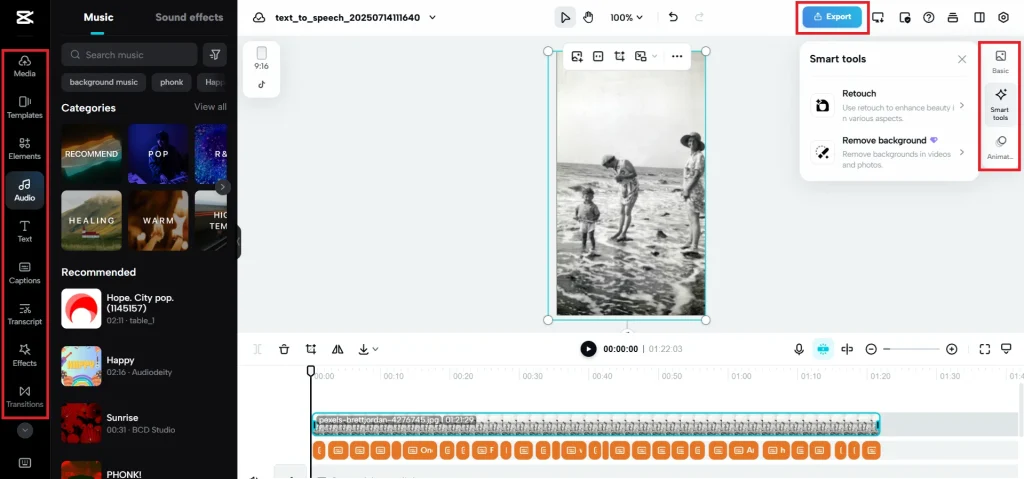
When you click “Edit more,” CapCut Web will instantly open its entire editing studio. The audio you create using AI will be ready to go, but the timeline will remain blank until you submit your video.
To import your old video, just click “Media” in the left column and then “Upload.” When your video shows up in the media library, drag it to the timeline. You can use the left and right panels to add text overlays, music, transitions, effects, elements, animations, background colors, smart AI tools, and more.
Make all the necessary changes until everything appears satisfactory, then click “Export” in the top-right corner to complete and download your narrated movie.
Enhance it Further with CapCut's Voice Changer
If you already have a voiceover recorded, CapCut Web’s built-in voice changer can instantly transform it to match the mood of your restored video.
Upload your audio and choose from the various available effects that suit your storytelling style. Whether you’re recreating a speech from a historical figure, dramatizing a family memory, or crafting an emotional tribute, the voice changer allows you to repurpose your narration without needing new recordings or professional voice actors.
It’s a powerful way to bring authenticity and flair to old footage with just a few clicks.
Let’s Share Your Video with Everyone Using OneStream Live
Now your old video is ready. You can share it as a live stream using OneStream Live. You can pick any pre-recorded video and stream it live on your favorite platforms.
Key Benefits of Using OneStream Live
- 24/7 Streaming on YouTube
Live stream your restored video on your YouTube channel 24/7. This helps you reach more people and get more views. - Live Streaming on 45+ Platforms at Once
Send your video to many social platforms at the same time. This includes Facebook, YouTube, Instagram and more, and even directly to your website. - Playlist-Based Streaming
Group your old videos into a playlist and stream them one after another. This helps your viewers stay longer and enjoy more of your content. - Looped Streaming for Long-Term Reach
You can set your video to play again and again in a loop. This keeps it online for a long time and brings in new viewers each time.
After you add voice and improve your video using CapCut Web the next step is to let others see it. OneStream Live helps you share that video in the best way. You can stream without going live yourself and reach more people across many platforms. The setup is simple and works right from your browser. No need to use extra tools or record anything again

Let's Conclude
It’s easier and more accessible than ever to bring old videos to life using AI video editor technologies like CapCut Web. You may add clear, natural narration using free text-to-speech. The voice changer is also quite useful because it enables you to add depth and character to your audio without having to record anything new.
These tools enable you to transform old movies into engaging stories that resonate with people today, whether you’re creating documentaries or preserving memories. You can do it all from your browser, with no special equipment needed.
After your video is ready you can use OneStream Live to share it across many platforms. This helps you reach more people, grow your audience, and get better results from your content.

OneStream Live is a cloud-based live streaming solution to create, schedule, and multistream professional-looking live streams across 45+ social media platforms and the web simultaneously. For content-related queries and feedback, write to us at [email protected]. You’re also welcome to Write for Us!