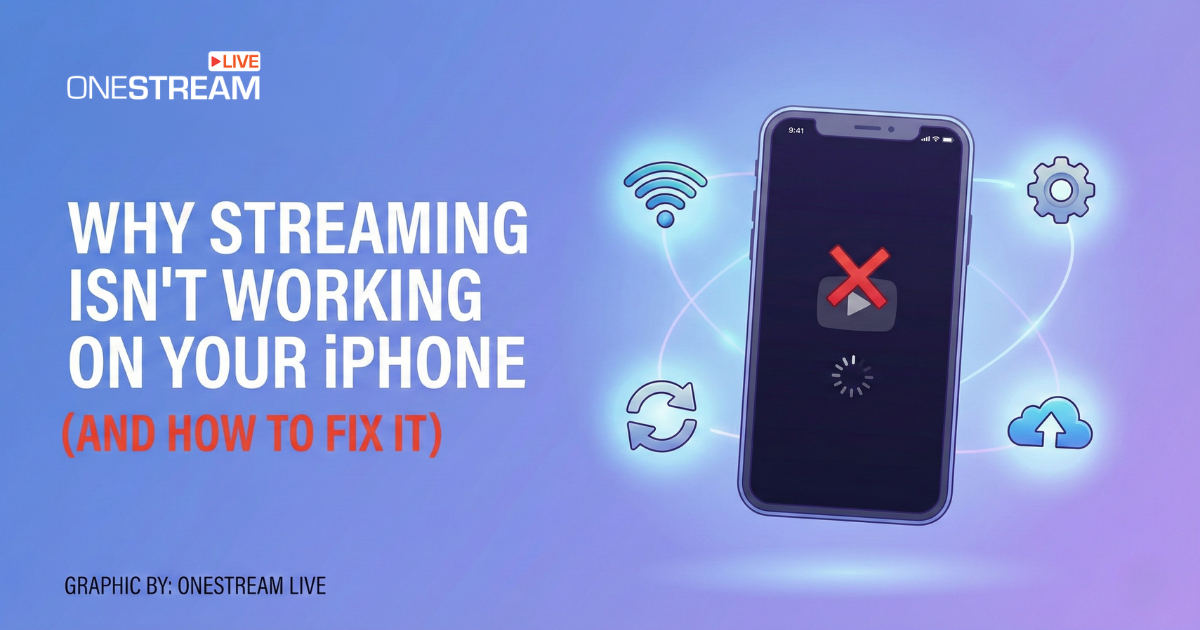

If streaming is not working on iPhone devices, the issue is rarely the app itself as it is usually a system conflict involving iOS thermal throttling, insufficient “System Data” storage, or HDCP handshake failures. So, if you are unable to live stream with iPhone cameras using OneStream Live or are facing AirPlay not working errors on your TV, the root cause is often a restricted permission setting rather than your Wi-Fi connection.
This guide details exactly how to diagnose these invisible hardware and software conflicts on iOS 18, providing the specific steps to clear cache, reset network stacks, and restore your ability to broadcast and watch video without interruption.
The Quick Diagnosis: Is it You, The App, or The Phone?
Before we tear apart your network settings, let’s triage the situation. iPhone streaming issues generally fall into two buckets: Consumption (you can’t watch YouTube/Netflix/Twitch) and Creation (you can’t broadcast via OneStream Live, Instagram, or TikTok).
Surprisingly, the root causes often overlap. Both require stable throughput, specific codec support, and verified digital handshakes (HDCP).
If you are seeing a “Playback Error” or a “Broadcast Failed” message, check these three vitals first:
- Upload vs. Download: You might have 500 Mbps download speed (great for watching), but 2 Mbps upload (fatal for streaming).
- Thermal State: Is your iPhone hot? iOS aggressively throttles the radio antenna when the device heats up, killing streams instantly to save the battery.
- Storage Pressure: This is the silent killer of mobile performance.
We often overlook the physical limitations of the device itself. Your iPhone needs “swap space”—virtual memory used when RAM is full—to process the intense data compression required for live video.
When iPhone storage is full, the operating system ruthlessly kills background processes, including the RTMP encoders needed to keep your stream alive. We will discuss how to manage this storage crisis in detail later, but for now, know that a full phone is a broadcasting brick.
Quick Fixes: Why is My AirPlay or Screen Mirroring Not Working?
For many OneStream Live users, monitoring a stream requires getting the video off the small iPhone screen and onto a larger monitor or TV. This is where AirPlay fails become a production nightmare.
If you are screaming at your television asking, “Why is my AirPlay not working?”, the culprit is usually HDCP (High-bandwidth Digital Content Protection).
1. The HDCP Handshake Failure
AirPlay is sending an encrypted signal that requires the TV to “shake hands” with the iPhone to prove it’s not a pirate recording device.
The Symptom: You see the video timeline moving on your iPhone, but the TV screen is black.
The Fix: This is rarely a software bug. It is a cable or port issue. If you are using a lightning-to-HDMI adapter, it must be Apple-certified. Cheap knockoffs lack the HDCP authorization chip. If you are wireless, ensure your TV’s firmware (Samsung Tizen, LG WebOS, or Roku OS) is updated. An outdated TV OS will fail the handshake.
2. “Why is Screen Mirroring Not Working?” (The Network Isolation Issue)
If your screen mirroring not working error persists despite a good connection, you are likely a victim of AP Isolation.
The Scenario: You are in a hotel, a co-working space, or using a corporate guest network.
The Technical Block: Enterprise networks often enable “Client Isolation,” which prevents devices on the same Wi-Fi network from talking to each other. Your iPhone can see the internet, and your Apple TV can see the internet, but they cannot see each other.
The Workaround: You cannot fix the network. You must bypass it. Use a travel router to create your own private subnet, or tether the TV directly to your iPhone’s hotspot (data permitting).
Read More: Live Video Streaming Apps For Mobile Phones
App-Specific Issues: YouTube, Twitch, and OneStream Live
When the native camera app works, but YouTube not working on iPhone becomes the headline of your day, you are dealing with an application-layer failure.
1. The Cache Corruption Loop
Apps like YouTube and Twitch cache massive amounts of data to speed up loading. Over time, this cache becomes corrupted. iOS is notoriously bad at letting users clear app cache without deleting the app entirely.
The Fix: Don’t just close the app. Offload it. Go to
Settings > General > iPhone Storage > [App Name] > Offload App. This deletes the binary but keeps your settings. Reinstalling it forces a clean handshake with the server.
2. The “Go Live” Permission Trap
If you are trying to live stream with iPhone using the OneStream Live mobile app or the studio, and the camera remains black, you likely denied a permission prompt months ago.
The Check: iOS 17 and later have added layers of privacy. Go to
Settings > Privacy & Security > Local Network. If the streaming app is toggled off here, it cannot communicate with local RTMP servers or other production gear, even if it has internet access.
For Creators: Why You Can't Broadcast Live from iPhone
This is the pivot because you’re here to create. Broadcasting is significantly more taxing on an iPhone than playback.
So, why does my iPhone stop live streaming? mid-broadcast, you are likely hitting one of three invisible walls: Bitrate Fluctuation, Throttling, or RTMP Blocks.
1. The Upload Speed Fallacy
Most domestic internet connections are asynchronous. You might have “Gigabit Internet,” but look closer. That’s 1000 Mbps down, but often only 35 Mbps up.
To stream 1080p video at 60fps, you need a stable upload of at least 6-8 Mbps. If your upload dips to 4 Mbps for even a second, the iPhone’s encoder panics.
2. Thermal Throttling: The iPhone’s Self-Defense
Broadcasting requires the iPhone to run the camera, screen, GPS, cellular modem, and video encoder simultaneously. This generates massive heat.
When the internal temperature hits a threshold, iOS cuts power to the screen (dimming it) and the cellular modem (throttling speed). Your stream doesn’t disconnect; it just degrades until viewers leave.
The Strategy:
- Remove the case. Cases trap heat.
- Keep it plugged in? No. Charging adds heat. If your battery is full, run off the battery. If you must charge, use a MagSafe cooler or a physical fan.
- Lower Screen Brightness. The screen is a major heat source.
3. The “Network Traffic” Prioritization
On crowded networks (like a concert or conference), cellular towers deprioritize upload traffic. Your requests to send video packets are queued behind hundreds of people trying to download Instagram stories.
This is where OneStream Live shines. Instead of relying on a fragile real-time upload from your phone in a crowded venue, record your content locally on the iPhone camera (which never buffers).
Then, upload it to OneStream Live’s scheduler. The platform will broadcast it as if it were live (“Pre-recorded Streaming”) ensuring perfect 1080p quality regardless of your current signal strength.

The "Storage" Factor: A Hidden Bottleneck
We touched on this earlier, but it deserves a deep dive because it is the most common reason for the “Why is everything failing?” support ticket.
Streaming apps, whether for watching or broadcasting, do not stream directly from the web to your screen. They stream to a buffer (a temporary file on your storage) and read from there. This ensures that a minor network dip doesn’t freeze the video.
However, when iPhone storage is full, iOS denies apps the permission to create these buffer files.
1. Why “0 KB Available” is a Myth
You might see “500 MB Available” in your settings and think you are safe. You aren’t. iOS reserves significant space for system operations. If you dip below 2GB of free space, the operating system enters a defensive mode. It stops caching data.
The Consequence: Without a cache, your streaming app has to play “live” from the network with zero margin for error. The slightest jitter causes a freeze.
2. How to Fix the Storage Crisis
- The “Phantom” Data: Check
Settings > General > iPhone Storage. Scroll to the bottom to “System Data” (formerly “Other”). If this is over 10GB, your phone is clogged with temporary logs. The only way to clear this reliably is a Backup and Restore via a computer (not iCloud). - Offload, Don’t Delete: Use the “Offload Unused Apps” feature. It’s a toggle in settings that automatically removes apps you haven’t touched in 30 days while keeping their data.
- HEIF/HEVC Formats: Ensure your camera is recording in High Efficiency formats, which use 50% less space than standard compatibility modes.
Advanced Troubleshooting (Network & Hardware)
If you have cleared storage, cooled the phone, and checked permissions, and you are still offline, we need to look at the network infrastructure.
1. The 5GHz vs. 2.4GHz Dilemma
For WiFi not working issues, the frequency matters.
- 2.4GHz: Better range, penetrates walls, but slower and crowded (microwaves and Bluetooth interfere here).
- 5GHz / 6GHz: Faster, less interference, but weak wall penetration.
- For Streaming: You must be on 5GHz. The jitter on 2.4GHz is often too high for RTMP streaming. If your router combines them into one SSID (name), separate them or force your iPhone to forget the 2.4GHz network.
2. DNS Resolution Failures
Sometimes, your iPhone is connected to Wi-Fi, but it can’t find the streaming server. This is a DNS (Phonebook of the Internet) failure. ISPs often have slow DNS servers.
The Fix: Change your DNS settings on the iPhone.
- Go to
Settings > Wi-Fi. - Tap the
iicon next to your network. - Scroll to
Configure DNSand switch toManual. - Add
1.1.1.1(Cloudflare) or8.8.8.8(Google). These are faster and more reliable for routing video traffic.
3. The “Lightning to HDMI” HDCP Block
If you are trying to connect iPhone to TV via a cable and getting a black screen, check the app developers’ restrictions. Apps like Netflix, Disney+, and even some pro broadcasting apps block HDMI out to prevent piracy. This is hard-coded.
The Workaround: Use a browser-based player instead of the app, or use AirPlay 2 compatible TVs which handle the encryption handshake digitally rather than physically.
Practical Methods to Restore Streaming on iPhone (The System Reset)
If you are still stuck, we need to perform a “System State” reset. This is not a factory reset; it’s a network hygiene procedure.
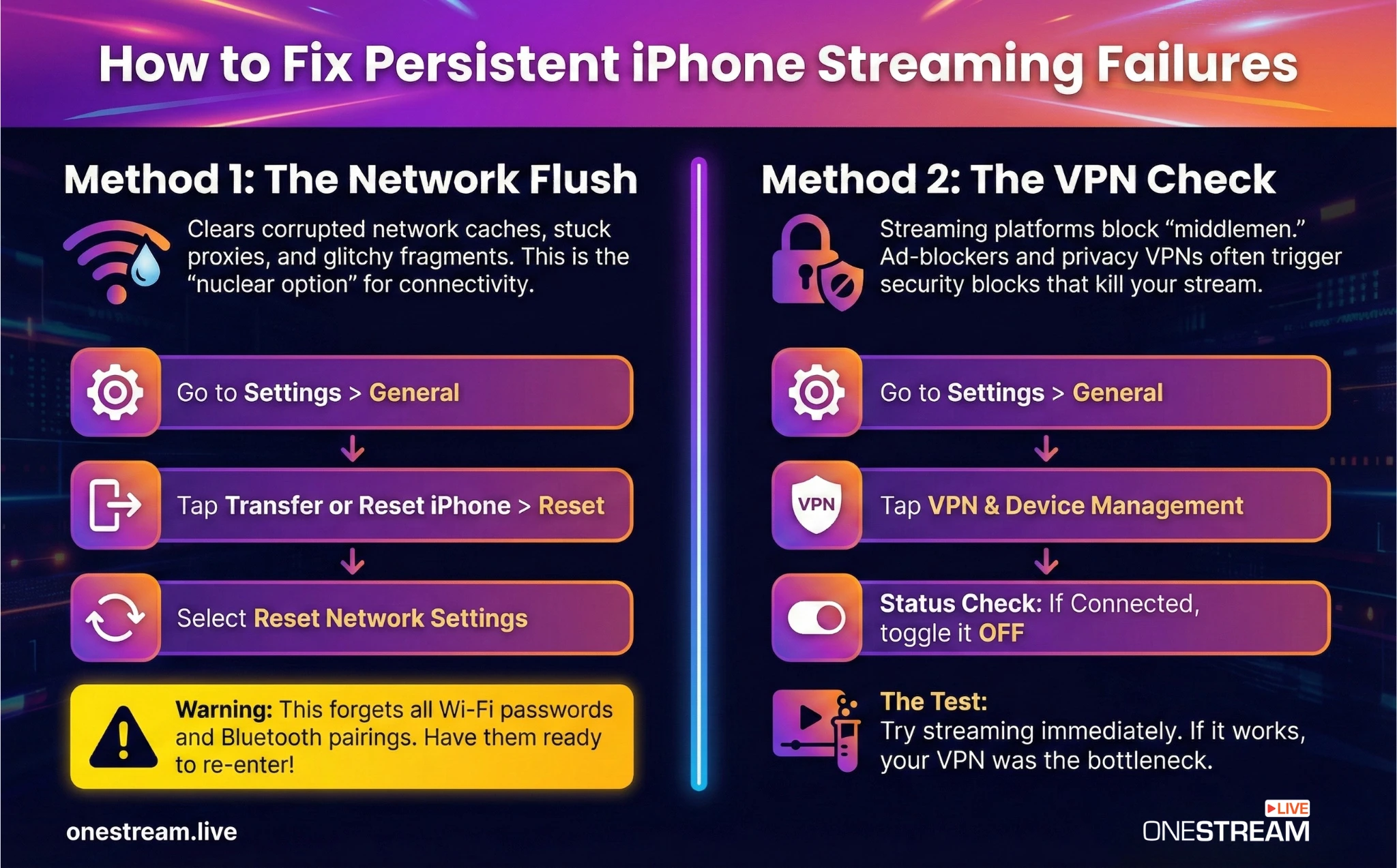
Method 1: The Network Settings Flush
This is the nuclear option for connectivity issues, but it works.
- Go to
Settings > General > Transfer or Reset iPhone > Reset. - Select Reset Network Settings. Warning: This forgets all known Wi-Fi passwords and Bluetooth pairings. However, it also clears corrupted network caches, proxy settings, and VPN fragments that might be silently blocking your stream.
Method 2: The VPN/Proxy Check
In 2025, many users run ad-blockers or privacy VPNs 24/7. These act as “middlemen” for your traffic. Streaming services hate middlemen. They often block known VPN IP addresses to enforce regional licensing.
The Test: Go to Settings > General > VPN & Device Management. If a VPN is “Connected,” turn it off. If your stream instantly works, your VPN is the bottleneck.
Final Words: Stabilizing Your Stream
The reality of mobile streaming is that the iPhone is a brilliant camera but a temperamental server. It prioritizes battery life and heat management over your need to broadcast at 1080p.
This is why professional content creators use OneStream Live. By offloading the processing power to the cloud, you remove the strain from your iPhone. You can upload high-quality files, schedule them, and let OneStream Live’s servers handle the heavy transcoding and distribution to YouTube, Twitch, Facebook, and LinkedIn simultaneously.
Your iPhone should be your lens, not your bottleneck. Fix the settings, clear the storage, check your upload speeds, but ultimately, choose a workflow that doesn’t rely on a single device’s fragile mood to keep you on air.
Ready to stop troubleshooting and start broadcasting? Explore how OneStream Live can take the technical weight off your shoulders, so you can focus on the content, not the connection.

FAQs
This is often a “Bonjour” protocol failure. Your router is blocking the multicast packets AirPlay needs to discover devices. Reboot your router. If that fails, toggle Bluetooth off and on—AirPlay uses Bluetooth for the initial proximity discovery before switching to Wi-Fi for data.
Check your “Low Data Mode” settings. Go to Settings > Cellular > Cellular Data Options. If “Low Data Mode” is on, iOS restricts high-bitrate video streaming to save your cap. Turn it to “Standard” or “Allow More Data on 5G”.
Smart TVs have their own software updates. If your iPhone is on iOS 17/18 but your TV hasn’t been updated since 2022, the AirPlay protocols won’t match. Manually update your TV firmware.
This is “Sample Rate Mismatch.” Your iPhone records audio at 48kHz, but some external microphones or older streaming platforms expect 44.1kHz. Over time, this small math error accumulates into a noticeable lip-sync delay. Use a streaming tool like OneStream Live that handles sample rate conversion in the cloud automatically.
OneStream Live is a cloud-based live streaming solution to create, schedule, and multistream professional-looking live streams across 45+ social media platforms and the web simultaneously. For content-related queries and feedback, write to us at [email protected]. You’re also welcome to Write for Us!