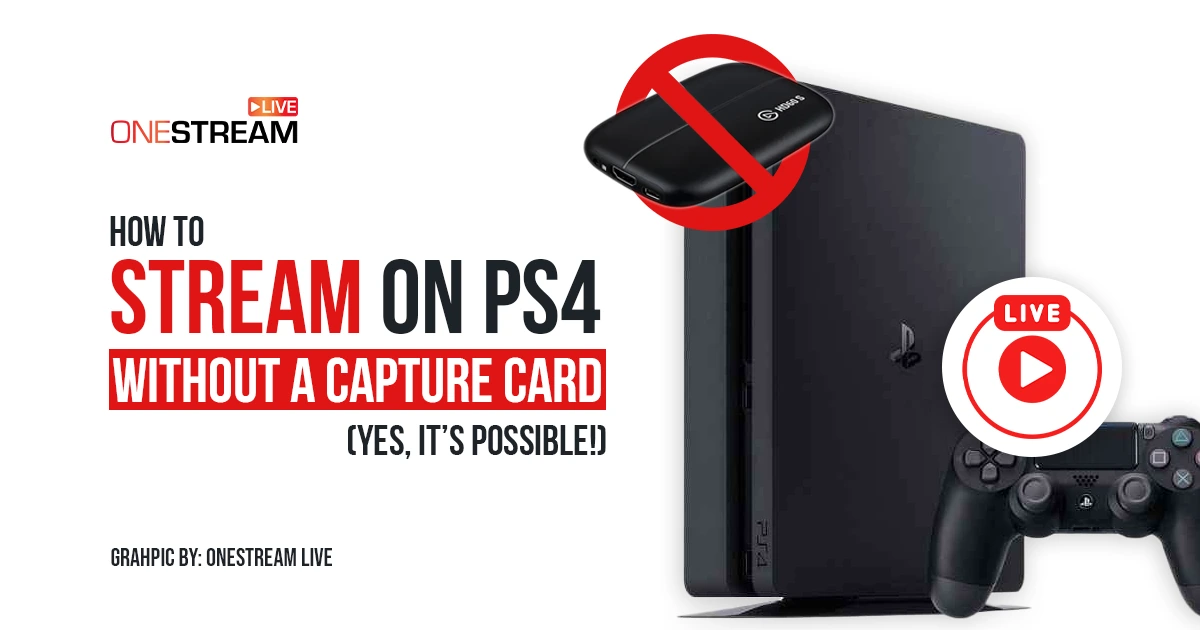
Ever felt like your gameplay deserves an audience? You hit insane headshots. You clear levels like a pro. But still not streaming because you don’t have a capture card? Don’t worry. You can stream on PS4 without buying any expensive gear. Your console already has what you need. You also have free tools to make it even better. Now is the time to share your skills with the world. In this guide you will learn step by step how to stream on PS4 and PS5 without a capture card. Let’s set up your PlayStation live stream today.
Use console features or Remote Play for easy setup
OBS lets you customize and upgrade your stream
Multistream to grow faster with OneStream Live
Can You Stream Without a Capture Card?
Yes, you can stream without a capture card. Modern PlayStation consoles have streaming tools built in. You can go live straight from a PS4 or PS5. Another option is to use your PC with free apps instead of a PS4 capture card. Sony’s Remote Play software lets you stream PlayStation games on PC with OBS Studio.
In short, you do not need a PlayStation 5 capture card or any card at all. Save money and use the methods below to start streaming now.
Method 1: How to Stream on PS4 Directly from the Console Without a PC
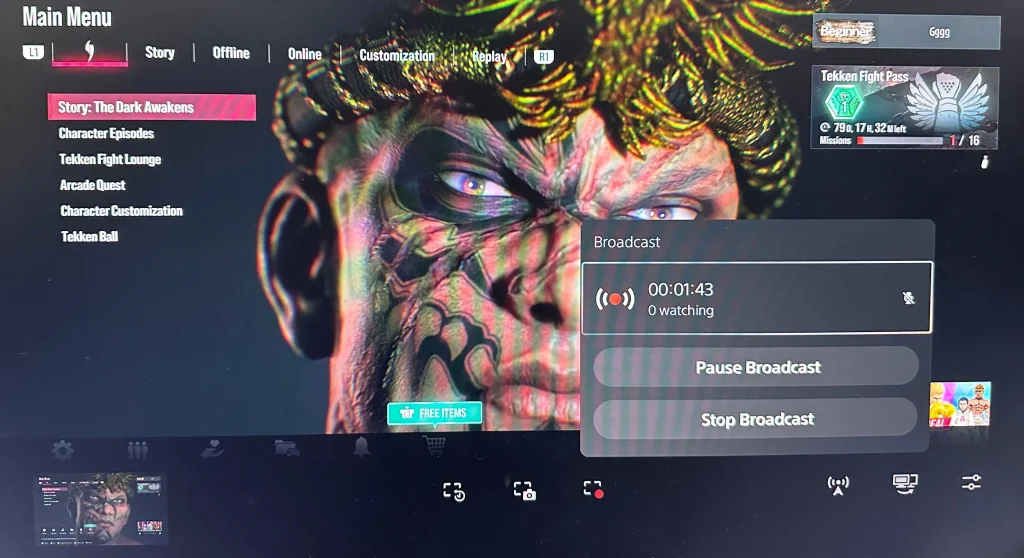
Your PS4 has a built-in streaming feature. This is the easiest way to broadcast, since it doesn’t require a PC or extra hardware. The PS4 can stream directly to platforms like Twitch or YouTube in just a few steps. (PS5 works similarly with its Create button menu.)
Follow these steps below to start a PlayStation streaming session straight from your console:
1. Link Your Accounts: On your PS4, go to Settings > Account Management > Link with Other Services. Connect your Twitch and/or YouTube account. (You only need to do this once.)
2. Start the Game: Launch the game you want to stream. Press the SHARE button on your PS4 controller.
3. Select “Broadcast Gameplay”: In the Share menu, choose Broadcast Gameplay. Pick Twitch or YouTube as your streaming service.
4. Adjust Stream Settings: Enter a title for your stream. Select your stream quality (720p or 1080p on PS4 Pro and PS5). You can also enable your mic or PS4 camera if available.
5. Go Live: Select Start Broadcasting. Your PlayStation will go live on the chosen platform. You are now streaming from your PS4 without a capture card!
This direct method is very straightforward. It’s perfect for quick streams to one platform at a time. The downside is you can’t customize the stream much (no overlays or multi-platform streaming).
Also, you are limited to Twitch or YouTube on PS4’s native system. But for many, this built-in PlayStation live stream feature is more than enough to start sharing gameplay.
Method 2: How to Stream on PS4 on OBS (No Capture Card Needed)
If you want more control over your stream (By adding overlays, alerts, and multiple platforms), use your PC with OBS Studio. You can stream PS4 to PC using Sony’s free Remote Play app, then capture that in OBS studio.
Here is how to stream PS4 on OBS without a capture card:
1. Install PS Remote Play on PC: Download the RemotePlay client for Windows or Mac. It is available from the official PlayStation site. Install and open the app.
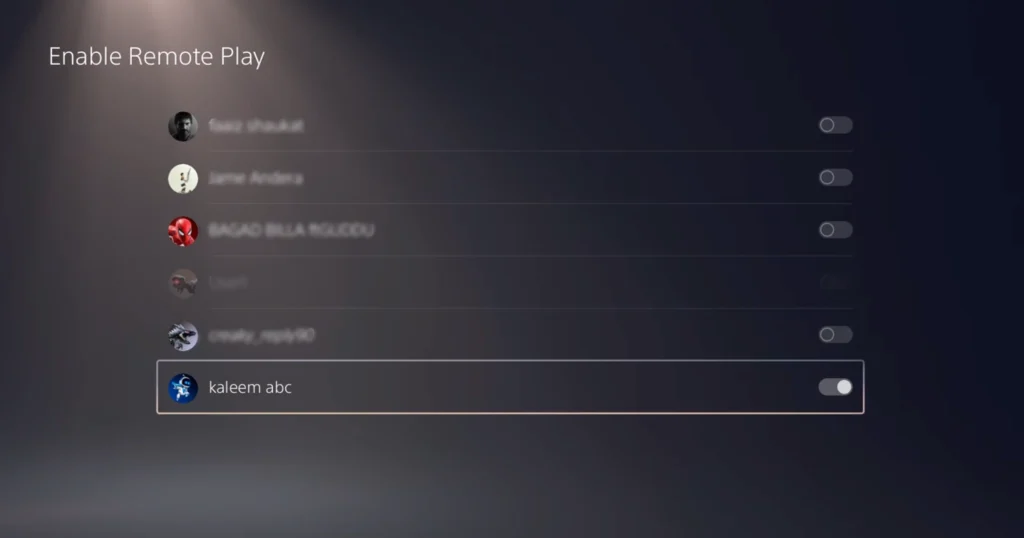
2. Enable Remote Play on PS4: On your PS4, go to Settings > Remote Play Connection Settings. Check Enable Remote Play. Make sure your PS4 is on or in rest mode.
3. Connect the Controller: You can connect your DualShock 4 controller to your PC via USB or Bluetooth. (Alternatively, keep it connected to the PS4 – Remote Play will still display the game).
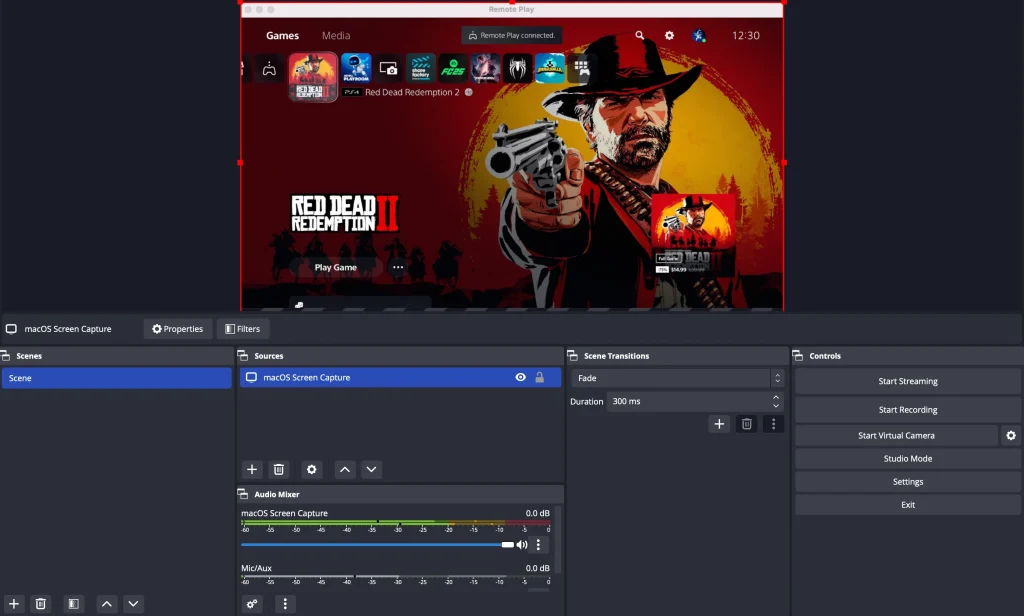
4. Launch Remote Play and Connect: Sign in with your PlayStation Network account in the PC app. Select your PS4 from the app to start remote play. Your PS4 screen will appear on your PC in the Remote Play window.
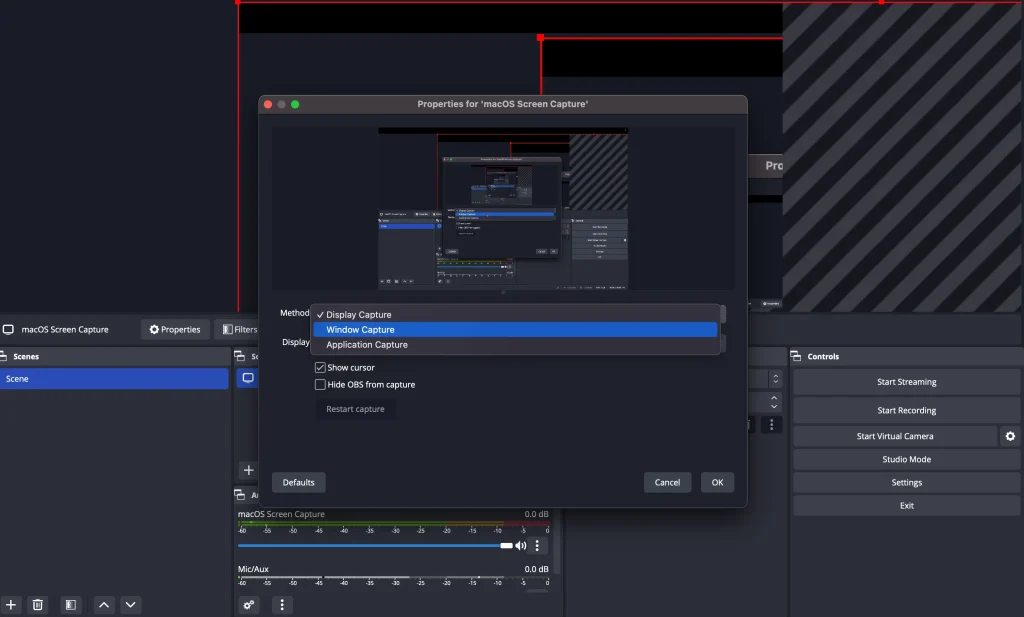
5. Open OBS Studio: In OBS, add a Window Capture source (or use Game Capture) and select the Remote Play window. This captures your PS4 gameplay on the PC. Resize or adjust the layout as needed.
6. Add Webcam/Audio (Optional): If you have a webcam or mic, add them in OBS as sources. You can overlay your face cam and add alerts or graphics just like any PC stream.
7. Start Streaming from OBS: Choose your streaming platform in OBS (e.g. set up your Twitch stream key in OBS settings). Click Start Streaming in OBS. Now you’re live, and OBS is broadcasting your PS4 gameplay captured via Remote Play.
Using this setup, you have essentially turned Remote Play into a PS4 screen share to PC. OBS considers your PS4 feed to be just another source. The quality is pretty good too – up to 720p on a standard PS4, or 1080p on a PS4 Pro and PS5. PlayStation streaming to PC via Remote Play is officially supported by Sony, so it’s stable and safe.
Pro Tip: Make sure your PS4 and PC are on a fast network. For best results, connect the PS4 via Ethernet. A stable connection will minimize Remote Play lag and keep your stream smooth.
What About HDMI? You might wonder how to connect PS4 to laptop with HDMI without capture card. The short answer: you can’t do it directly. Most laptop HDMI ports only output video, they don’t accept input.
In other words, your laptop can’t display the PS4’s HDMI signal without special hardware. To capture HDMI, you would need a USB capture device (which we’re trying to avoid). Remote Play is the solution, it sends video through your network instead of HDMI.
So don’t worry about HDMI cables at all. Just use the Remote Play software as described above. It’s the best way to stream PlayStation games on PC without a capture card.
How to Stream on PS4 to Multiple Platforms Using OneStream Live
By now, you know how to stream to one platform. Multistreaming lets you broadcast your PS4 gameplay to multiple platforms at once. OneStream Live is a streaming service that allows you to stream on 45+ platforms simultaneously. You can go live on Twitch, YouTube, Facebook, and more all at the same time and with the same gameplay feed.
You’ll still use OBS as we set up before. OneStream Live will act as the middle-man between OBS and your platforms.
Here is a quick overview of setting up OneStream Live with OBS:
Step 1: Sign Up on OneStream Live Go to the OneStream Live website and create a free account.
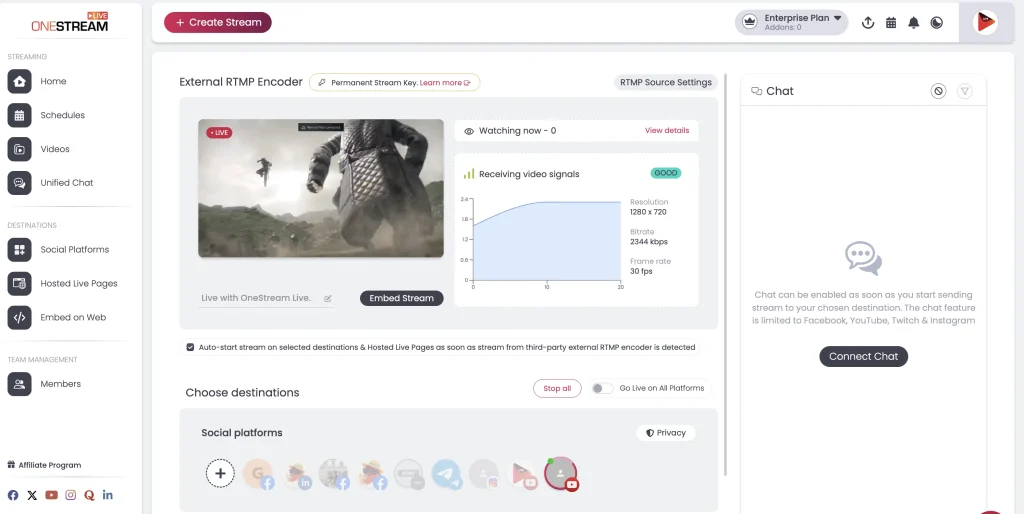
Step 2: Add Your Streaming Channels In the OneStream Live dashboard, click on Add social platforms and connect your accounts (Twitch, YouTube, Facebook, etc.). OneStream Live supports a ton of platforms. Log in to each through OneStream Live and authorize it.
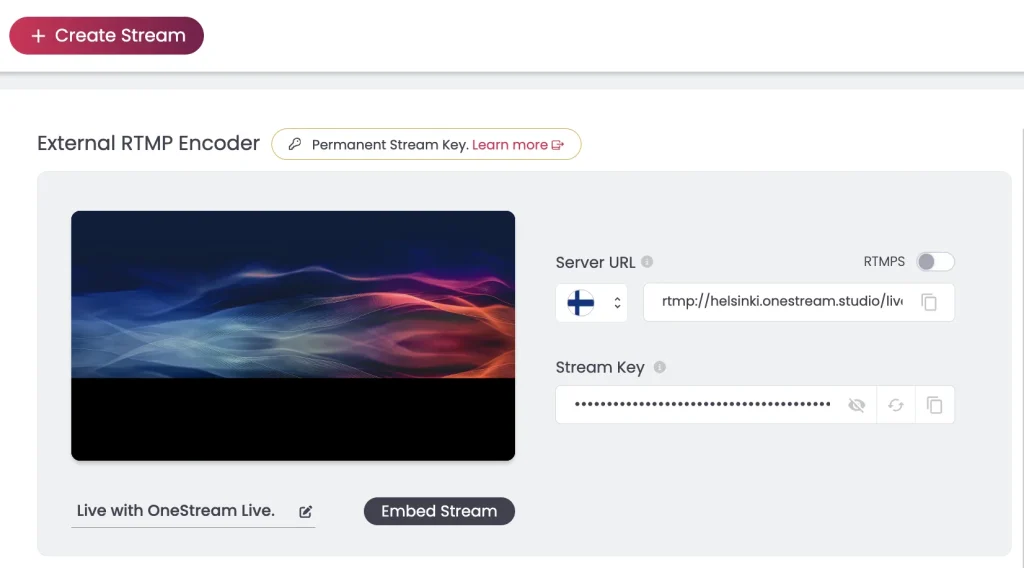
Step 3: Connect OBS to OneStream Live In the OneStream Live dashboard go to RTMP Encoder and select Connect OBS, etc, & go Live. OneStream Live will show you an RTMP Server URL and a Stream Key.
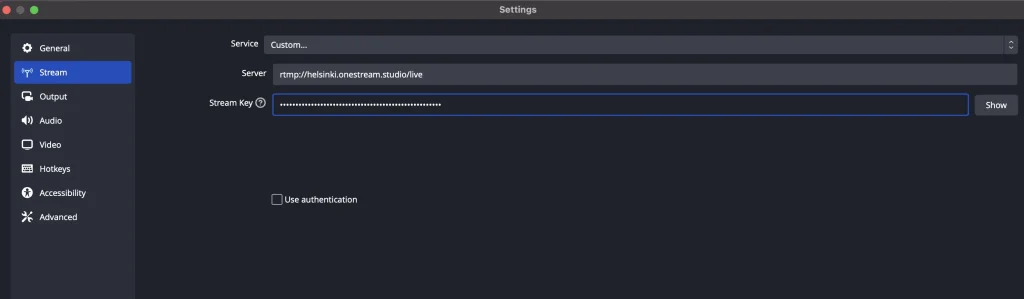
Open OBS and go to Settings > Stream. Choose Custom as the service. Paste the RTMP URL and Stream Key from OneStream Live. This connects OBS to OneStream.
Step 4: Go Live on All Platforms In OneStream Live, select all the platforms you want to broadcast to. Then start streaming from OBS. OneStream Live will receive your stream and simulcast it to every selected platform at once. Your gameplay is now live on every channel, and you didn’t need to do separate streams!
Why Use OneStream Live for PS4 Streaming?
First, it saves you effort. Rather than choosing one platform or doing separate streams, you do one setup and OneStream Live sends it everywhere. This means you can meet your viewers wherever they prefer to watch. Some fans like Twitch, others prefer YouTube or Facebook. Multistreaming covers all bases and grows a diverse audience.
Second, OneStream Live offers cool features for streamers: you get a unified chat (see all your platform chats in one window), and you can brand your stream with logos or overlays easily. It’s a powerful move for expanding your community without extra work.
OneStream Live makes multistreaming very newbie-friendly. Using OneStream Live, a streamer on PS4 can reach viewers on Twitch, YouTube, Facebook, and more simultaneously. This means more eyeballs on your content and faster community growth. And you achieved that without a capture card, using just OBS and Remote Play and OneStream Live.
What if you have a PS5? No problem, you can stream your PS5 without a capture card using the same ideas. The PS5 Remote Play works just like the PS4 version, and OBS will capture it the same way. Here’s a quick rundown:
Built-In Streaming
PS5 has a built-in broadcast feature too. Press the Create button on the DualSense controller and select Broadcast. You can go live on Twitch or YouTube directly from the console (after linking your accounts in Settings > Users and Accounts > Link with Other Services). This is the PS5’s equivalent of the PS4’s share button streaming.
OBS via Remote Play
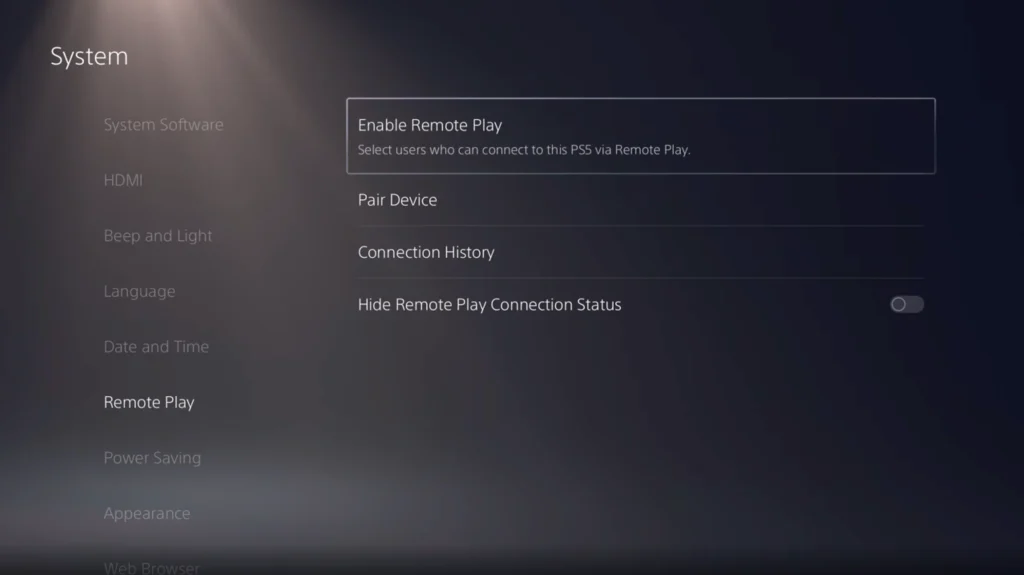
To use OBS, install the Remote Play app on PC and connect to your PS5 (you’ll enable Remote Play in PS5 settings under System > Remote Play). Once connected, capture the window in OBS exactly as with PS4. There’s no difference in OBS setup – the PS5 feed will show up in the Remote Play window on your PC. Add your overlays or webcam in OBS and start streaming.
The quality on PS5 Remote Play can go up to 1080p 60fps, similar to PS4 Pro. You still don’t need any PlayStation 5 capture card for this. I’ve found PS5 streaming via Remote Play to be very smooth. So whether you’re on PS4 or PS5, you can use OBS and Remote Play to stream without extra hardware.
Benefits of Streaming Your PS4 Games
These are some benefits that come when you start streaming your PS4 Gaming
Build a Community
You can turn your gaming sessions into social events. You get to chat and share your PS4 adventures with friends and followers in real time. This interaction helps you find people who love the same games and interests as you, building a loyal community around your content.
Potential to Grow and Earn
If you stream consistently and grow a sizable audience, there is potential to turn your hobby into rewards or even a good income. Many streaming platforms offer ways to monetize your channel. For example, when you meet certain follower/viewer criteria, you could become eligible for the Twitch Affiliate or Partner program, or you can join the YouTube Partner Program.
Streamers can earn money through ads, viewer subscriptions, donations, sponsorships, and even creating paid content or reviews.
Share Your Achievements
There is nothing like streaming that moment you finally beat a tough boss or achieve a high score. The broadcast feature of PlayStation and OneStream Live lets you share those epic wow moments instantly with your viewers. It turns solo accomplishments into shared victories.
Network and Collaborate
Live game streaming also puts you on the radar of other content creators. You can connect with fellow streamers for co-streams or shout-outs, which helps everyone gain viewers. These collaborations make live streaming more fun and you can expand your presence in the gaming community.
Improve Your Skills
Streaming keeps you motivated to play better. When you know others are watching, you will push yourself to perform at your best. Your audience might even give you tips or feedback in the live chat. In fact, many streamers say that having a live audience encourages them to continually improve their skills.
Build Your Personal Brand
Live streaming is not just about playing games; it is also a chance to establish your identity as a creator. Your personality, style, and consistency on stream become your personal brand.
Over time, people recognize you and remember you for what makes your channel unique. In fact, live streaming is an opportunity to build a brand and engage with fans in the gaming community.
A strong personal brand can open doors to bigger opportunities.
These are just some of the benefits of streaming your PS4 gameplay. So if you have been considering it, remember that hitting that “Go Live” button can bring a whole new level of fun and opportunity to your PS4 sessions.
Wrapping Up
You don’t need pricey gear to share your console adventures. How to stream on PS4 without a capture card comes down to smart use of the tools you already have. Use the PS4’s built-in broadcast for quick streams, or use Remote Play with OBS for a pro setup. If you want to grow faster, take advantage of OneStream Live to multistream and reach every platform.
Now it’s your turn, so set up your PlayStation stream and start having fun with it. Happy streaming, and see you online!
FAQs About How to Stream on PS4 and PS5 Without a Capture Card
Check your internet, update the console, and verify your Twitch/YouTube accounts (2FA is required).
OneStream Live is a cloud-based live streaming solution to create, schedule, and multistream professional-looking live streams across 45+ social media platforms and the web simultaneously. For content-related queries and feedback, write to us at [email protected]. You’re also welcome to Write for Us!
Kalim is a Digital Content Writer at OneStream Live, dedicated to creating SEO-optimized content. When he's not writing, you can find him lost in his passion for music and singing.