
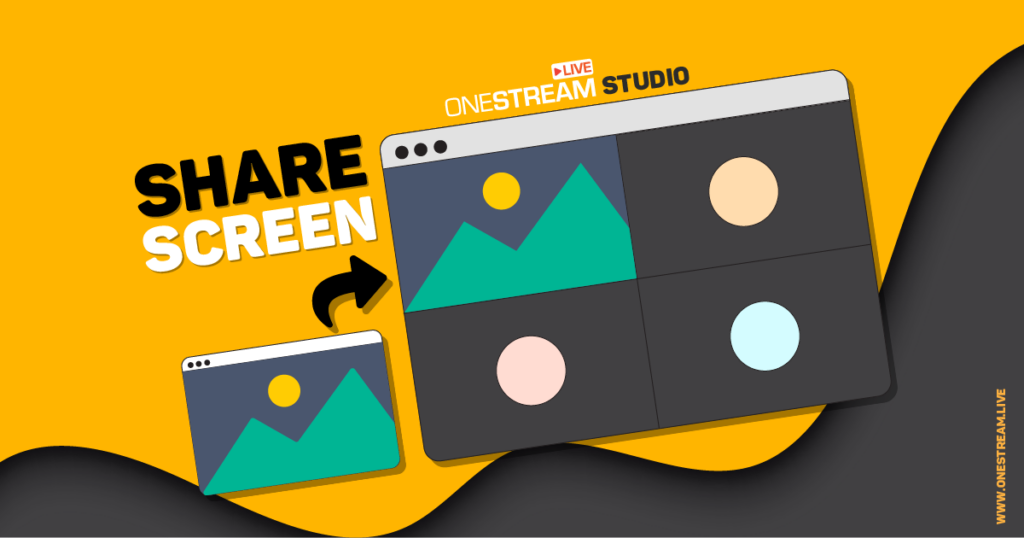
Screen share is one of the most powerful features for live streaming. It allows you to be interactive with your content. You can discuss and display what’s on the screen to better understand your audience. With OneStream Studio, you can share an image, a webpage, a video, or your entire presentation with other participants. Screen share is available on every OneStream Live plan, including the free plan.
Key Takeaways:
- Screen share lets you show your screen, a window or a single browser tab to your live audience in real time.
- In OneStream Studio, click Share Screen in the bottom control bar, confirm, and pick what to share. It works on every plan, including the free plan.
- You can share up to 3 screens in one session and switch between them on stage.
- Shared screens appear under Shared Media, where you can add them to the stage, remove them or reorder them.
- Every extra screen share uses your computer’s resources, so remove the ones you aren’t using.
What is Screen Share?
Screen sharing is a modern technology that allows you to share your content on your screen in real time with one device or more. So, it’s more than one person looking at your screen at the same time without having to actually send files across to them separately. And they don’t have to look at these files individually. Instead, you as the host, can present the information directly from your screen and show them what they want to see.
Who Can Benefit From Screen Sharing?
There are several use cases for screen sharing:
Businesses can share important documents, images, and videos for corporate presentations, meetings, and web conferences.
Marketers can conduct in-depth product demos through screen sharing while working with potential customers.
Teachers can share slides and notes with students for online instruction.
Gamers can put up their gameplay without any extra hardware and software.
Trainers can maintain control over remote training sessions, especially when offering support to geographically dispersed teams.
Motivational speakers can display short videos and pictorial presentations to make their speeches fun and engaging.
Reaction video streamers can share clips and react in real time.
How to Screen Share using OneStream Studio?
Screen share takes a few clicks in OneStream Studio. Follow the steps below.
1
Start a Studio session
Log in to OneStream Live and open Studio. New to Studio? Our OneStream Studio walkthrough shows you around.
2
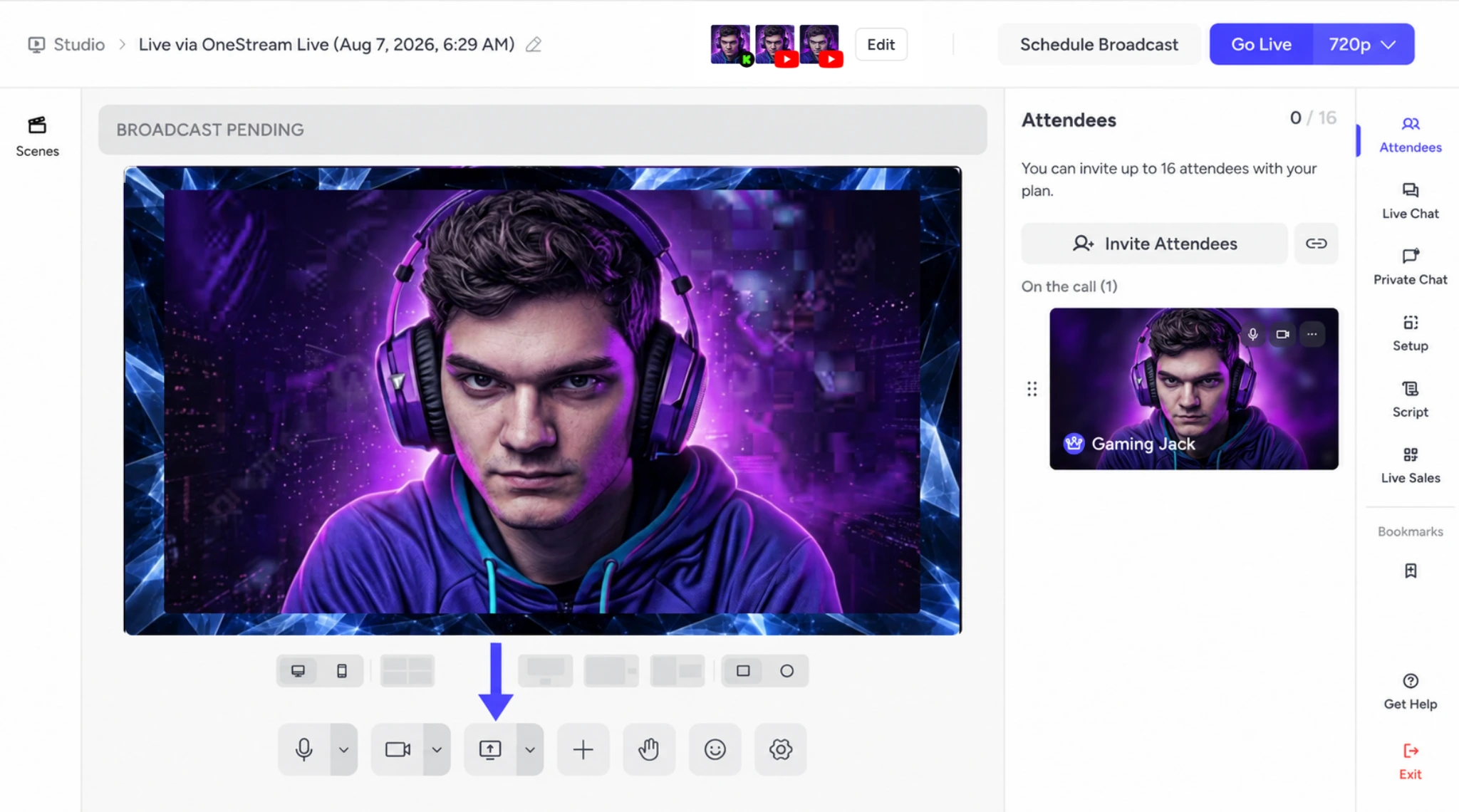
Click Share Screen
Click Share Screen in the bottom control bar. A pop-up confirms that you’re about to share your screen with all participants. Click Share Screen to continue.
Click to Enlarge
3
Choose what to share
Your browser asks what to share. Pick your entire screen, a single window or one browser tab, then confirm.
4
Arrange it on stage
Your screen appears on the stage. Use the layout buttons below the stage to show it on its own or side by side with your camera.
5
Stop sharing
When you’re done, click Stop Sharing in the control bar.
How to Share Multiple Screens
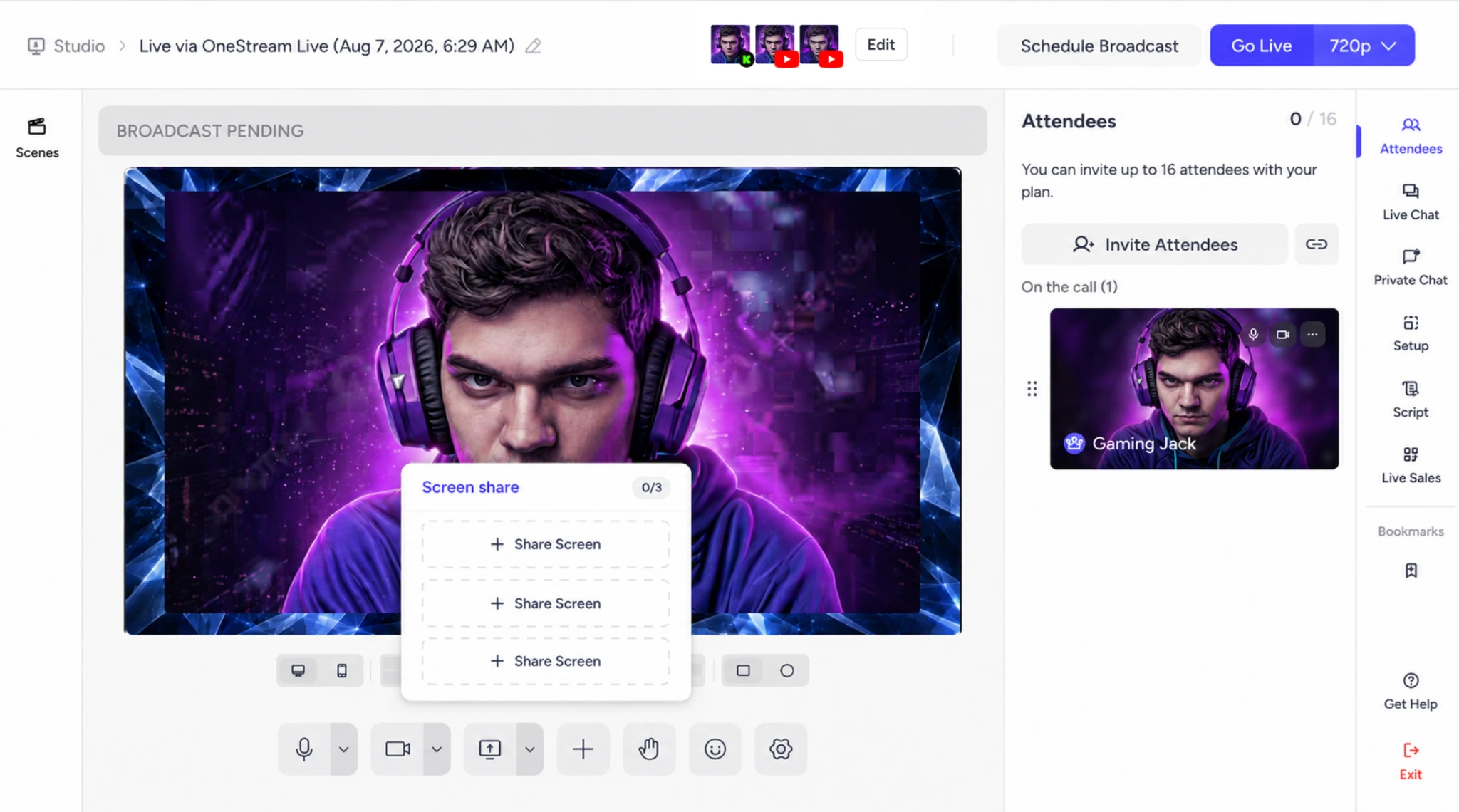
Studio lets you share up to 3 screens in one session. It’s handy for switching between slides, a demo and a browser window without stopping and starting again.
1
Click the arrow next to Share Screen to open the Screen share panel. The counter shows how many screens you’re sharing, out of 3.
Click to Enlarge
2
Click + Share Screen to add another one.
3
Studio shows a performance warning, because every screen share uses your computer’s resources. Tick “I’m sure my device can handle screen sharing” and click Add Screen Share.
4
To switch, hover over a screen in the panel and click Show to put it on stage, or the bin icon to remove it.
Manage Shared Screens
Every screen you share also appears under Shared Media in the Attendees panel. From there you can:
- Hover and click Add to stage to show a screen to your viewers.
- Click Remove to stop sharing a screen you no longer need.
- Drag the handle beside each screen to change its order.
Screens kept off stage still capture your screen in the background. If you aren’t using one, remove it to keep your stream smooth.
Want to share files instead of your whole screen?
You don’t always need screen share. Click Add in the bottom control bar to put files on stage directly:- Image: slides, product shots or sponsor graphics
- Video: clips or a pre-made presentation
- Audio: music or sound clips
- Extra Cameras and RTMP Source: a second camera angle or an outside feed
Wrap Up
Screen sharing is a dynamic solution to sharing your content. It promotes productive remote work by replacing file sharing with screen sharing. It’s more like delivering a shared experience without being in the same room. So, you can deliver your content in a more dynamic and exciting way to make an impact. And since describing a visual process in words might be inefficient, screen sharing adds clarity to such processes, making remote collaboration much easier.
Want to make your shared screens look polished? Learn how to add overlays and bring in guests to present with you.
Create your live stream with OneStream Studio, the all-in-one live streaming solution, and screen share your content with your audience to make a lasting impact.
Frequently Asked Questions
Is screen share free in OneStream Studio?
Yes. Screen share is included on every OneStream Live plan, including the free plan.
How many screens can I share at once?
Up to 3 per Studio session. The Screen share panel shows how many you’re using.
Can I share just one browser tab instead of my whole screen?
Yes. When your browser asks what to share, pick a single tab, a window or your entire screen.
Can I switch between shared screens during a live stream?
Yes. Hover over a screen in the Screen share panel and click Show, or click Add to stage under Shared Media.
Can I screen share to multiple platforms at once?
Yes. Whatever you share in OneStream Studio goes out to every platform you choose, such as YouTube, Facebook and LinkedIn, all at the same time. It’s the easiest way to run one demo or presentation for audiences on several platforms.
OneStream Live is a cloud-based live streaming solution to create, schedule, and multistream professional-looking live streams across 45+ social media platforms and the web simultaneously. For content-related queries and feedback, write to us at [email protected]. You’re also welcome to Write for Us!