
When you miss a moment in a live stream, you usually go back to see it again. This was not possible on Twitch for a long time because the platform did not offer any rewind option during live streams. Viewers kept asking for this feature and now Twitch has finally added it. In this guide, we explain how to rewind a Twitch stream and what limitations apply. Streamers and viewers will learn how the new rewind feature works, who can use it, and how to enable it. We also cover mobile workarounds and tips so live streamers never lose audience engagement.
- Twitch Stream Rewind is available to Turbo and Channel subscribers on enabled streams.
- Streamers must enable VODs and set up publishing to activate the rewind feature.
- Rewind lets viewers go back 2 minutes and manually scrub further to catch missed moments.
- Mobile support for rewind is not available, but you can use VODs as a workaround.
- OneStream Live allows multistreaming and scheduled replays for more flexibility.
- Twitch rewind helps viewers and streamers catch key moments and enhance engagement.
What Is Twitch’s Stream Rewind Feature?
Twitch’s Stream Rewind is a newly introduced DVR-like feature that lets viewers go back in a Twitch stream without leaving the live player. It allows pausing or scrolling back during a live broadcast. Viewers can click a rewind button on the stream, which instantly jumps the video back about two minutes. They can then drag a seek bar to scrub further back to catch earlier moments (as far back as the stream’s saved buffer).
This means you no longer have to rely on waiting for the VOD or using third-party tools to replay missed moments. Notably, the live chat continues in real-time even if the video is rewound, so you stay connected with the ongoing chat while reviewing what you missed. In short, Twitch rewind finally gives viewers some control to replay highlights during a live stream, and it is a quality-of-life improvement many have wanted for years.
Can You Rewind a Live on Twitch Stream?
Yes, you can now rewind a live Twitch stream, but only under specific conditions. Historically, Twitch did not offer any built-in rewind or DVR capability for live streams.
By contrast, competitors like YouTube have long offered free DVR rewind for live videos. Twitch’s new Stream Rewind feature closes this gap, but initially, it’s limited to certain users. Only Channel Subscribers or Twitch Turbo subscribers can use the rewind tool on streams where it’s enabled.
This subscriber-first approach is by design. Twitch wanted to prevent abuse of the feature to skip ads, since paying users typically don’t see ads.
Twitch has essentially put the rewind feature behind a paywall at launch. If you are a standard (non-subbed) viewer, you currently cannot rewind live streams until Twitch expands access. The company has stated it plans to roll out Stream Rewind to all viewers in the future. For now, can you rewind on Twitch? The answer is yes if you are a sub or Turbo user watching an enabled channel.
Read More: How to Set Up Donations on Twitch?
Who Can Enable and Use Stream Rewind on Twitch?
The rewind capability isn’t available on every channel by default. Only Twitch Affiliate and Partner streamers can enable Stream Rewind on their channels. If a streamer is not at least an Affiliate, their viewers won’t have a rewind option. Even for Affiliates/Partners, there are requirements: the streamer must have VOD (Video on Demand) storage enabled.
Twitch specifies that Stream Rewind is automatically available for Partners and Affiliates who store past broadcasts and always publish VODs in their settings. In fact, if both “Store past broadcasts” and “Always publish VODs” are enabled in a channel’s VOD Settings, the rewind feature usually turns on by itself.
Streamers who meet these criteria will allow any eligible viewer (subscribers/Turbo) to rewind their live stream. On the viewer side, who can use it depends on the channel’s ad settings:
- If the streamer allows ads for subscribers (no ad-free viewing), then only Turbo users can rewind (channel subs cannot).
- If the streamer has sub-only VOD archives, then only their channel subscribers can rewind (Turbo users cannot).
- If neither restriction is in place (or both are), then both channel subs and Turbo users on that channel can use rewind.
In summary, only Affiliates/Partners can have rewind on their streams, and only paying viewers (subs or Turbo) get to use it during this initial roll-out. This approach addresses long-standing viewer demand while protecting Twitch’s advertising model.
How to Enable Stream Rewind on Your Twitch Channel (For Streamers)
If you are a Twitch live streamer with Affiliate or Partner status, here is how to go back in a Twitch stream by enabling the rewind feature for your viewers. You need to adjust a few settings in your Twitch Creator Dashboard:
1. Enable VOD Storage: In your Creator Dashboard, go to Settings > Stream > VOD Settings. Turn on the option “Store past broadcasts.” This ensures Twitch saves your streams as VODs (for the usual 14–60 day period).
2. Enable Auto Publishing: Still in VOD Settings, toggle on “Always publish VODs.” This makes your past broadcasts available to viewers automatically (rather than hidden).
3. Activate Stream Rewind: Under Always Publish VODs, look for the Stream Rewind toggle (available to Affiliates/Partners), make sure it’s switched on. In many cases, if the above two settings are on, Stream Rewind will already be active by default.
4. Save and Apply: Changes will apply from your next live stream onward.
Once these are set, your channel’s subscribers (or Turbo users) will have a rewind button when watching you live. Keep in mind that if you turn off VOD storage or publishing, the rewind feature will disable itself.
Also note that not all content categories support rewind. For example, Twitch’s DJ category and certain DJ Program streams do not allow VODs at all, so rewind is unavailable there (you cannot publish those streams as VOD).
Also Read: How to Become a Twitch Affiliate
How to Rewind a Twitch Stream on Desktop (Viewer Guide)
Using the rewind feature as a viewer is straightforward on desktop (web). If you are a Channel Subscriber or Turbo user on an enabled channel, you’ll notice a new rewind button on the video player. Here’s how to use it:
1. Click the Rewind Button: This is a circular arrow icon in the bottom right of the live player. Clicking it will instantly rewind the Twitch stream by 2 minutes.
2. Scrub the Timeline: After hitting rewind, a timeline bar appears on the video. You can drag the slider further left to go back more than 2 minutes, potentially to any earlier point in the broadcast, as far back as it’s been going (since you joined). This manual scrubbing lets you review an earlier segment in detail.
3. Watch the Replay Segment: While you are rewinding, you are essentially watching a delayed portion of the stream. You can pause, play, or scrub within that buffered segment freely. Meanwhile, live chat will continue updating in real time so you might see chat reactions to things before you have rewatched them, something to be aware of.
4. Return to Live: To jump back to the live broadcast, you can click the “Live” button or simply fast-forward the slider all the way to the right or refresh the page. This will sync you back to the current live moment.
Why You Should Rewind a Twitch Stream
Here are a few key benefits of being able to rewind a Twitch stream:
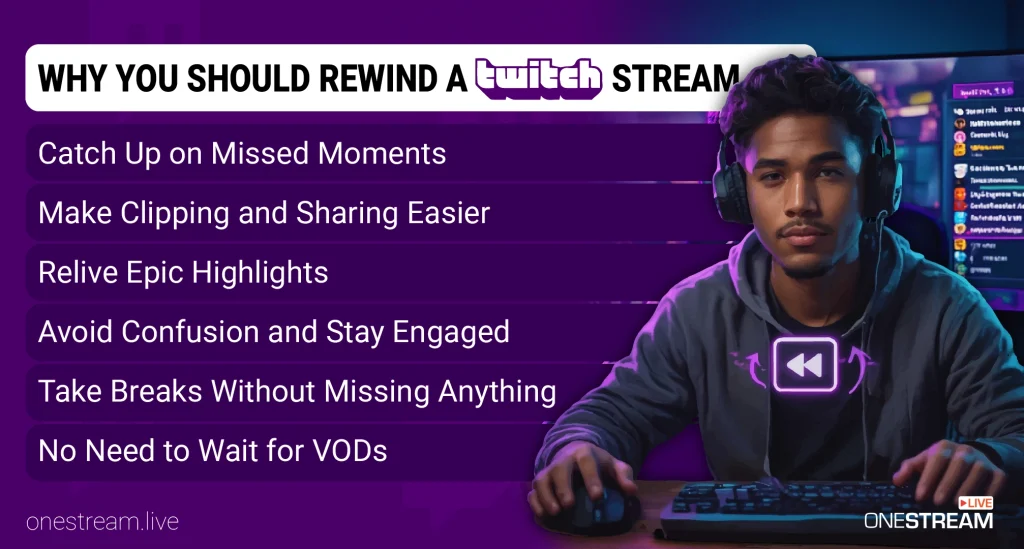
Catch Up on Missed Moments
Live streams don’t wait for anyone. If you join a stream late or look away for a minute, you could miss key moments. A rewind feature lets you go back in the Twitch stream to catch those exciting highlights you would have otherwise missed.
Avoid Confusion and Stay Engaged
Rewinding can help you understand context that you missed. Maybe the streamer made a joke or reference and you didn’t see what led to it. By going back, you can avoid confusion and get the full context, which keeps you more engaged.
Make Clipping and Sharing Easier
Twitch has a built-in Clip feature for capturing moments, but timing a clip perfectly can be tricky if you can’t rewind. By rewinding a stream, you get a second chance to capture the exact segment you want. This makes it much easier to create a Twitch clip of an epic play or a hilarious fail.
Relive Epic Highlights
Sometimes a moment on stream is so good that you want to see it twice. Rewinding lets you replay epic highlights on the spot. Did the streamer pull off an unbelievable move in a game? With a rewind, you can watch that play again immediately. It’s like having an instant replay during a live stream.
Take Breaks Without Missing Anything
A rewind function doubles as a pause button. If you need a quick break during a long stream, you can step away. Later, you can rewind to see what you missed. This way, you enjoy streams on your own schedule.
No Need to Wait for VODs
Before rewind existed, if you missed something in a stream, you often had to wait for the VOD after the stream ended. Twitch VODs are recordings of past broadcasts that you can watch later. Waiting for a VOD can be inconvenient, and you might accidentally see spoilers in the meantime. With a rewind feature, you don’t need to wait for the VOD to see what you missed. You can instantly replay the portion of the stream during the live broadcast.
Read More: What are Twitch Bits?
How to Rewind a Twitch Stream on Mobile
Currently, Twitch Rewind is not available on the mobile app or mobile site for live streams. Twitch has stated that mobile support is planned but not yet implemented. So, how to rewind live Twitch on your phone or tablet? For now, viewers have to use a workaround involving the VOD system:
1. Open the Streamer’s Profile: In the Twitch app, tap the streamer’s name or avatar to visit their channel page.
2. Go to Videos: Navigate to the “Videos” tab on their profile. If the streamer has VODs enabled (and is currently live), you should see an entry for the ongoing live stream, often labeled as “Recent Broadcast” with the stream’s title.
3. Start the Live VOD: Tap the current live broadcast video. This will play the stream from the beginning as a VOD recording, even while the stream is still happening.
4. Rewind Within the VOD: Use the standard video playback slider on this VOD to watch the Twitch stream from the beginning or scrub to any point earlier in the broadcast.
5. Catch Up or Return Live: Keep watching the VOD if you want to see the entire stream in order. If you want to jump back to the actual live stream at any time, simply exit the VOD and go back to the live player.
This method allows mobile users to watch a Twitch VOD while live streaming is ongoing, which is a handy loophole to simulate rewinding. Do note that the VOD you are watching will only be as up-to-date as when you opened it.
It won’t automatically keep playing new live content beyond what was recorded when you started the VOD. To get more recent footage, you might have to exit and reopen the VOD again after some time.
How to Watch a Twitch Stream from the Beginning (If You Joined Late)
What if you arrive at a stream halfway through but want to see it from the start? With Twitch’s new rewind (if you have access), you could drag the seek bar all the way to the beginning of the stream. But if you are not eligible for that feature or the streamer is not an Affiliate/Partner, there’s another method.
You can watch a Twitch stream from the beginning by manually accessing the ongoing broadcast’s VOD, similar to the mobile trick above. On a web browser, go to the streamer’s channel and click on their “Videos” section. There, find the current live broadcast under Recent Broadcasts. Click it, and you will load the recorded portion of the stream from the star. This lets you watch the stream on delay. You can seek to any past moment, including the very beginning.
Twitch Rewind Extensions and Alternatives
Before Twitch implemented its own rewind, the community created Twitch rewind extensions to fill the gap. One popular solution was a Chrome extension called Twitch DVR Player. This extension replaces the default Twitch player with one that allows DVR functionality, which means you could pause and rewind live streams even when Twitch didn’t natively support it.
By installing such a browser extension, viewers could get a slider to scroll back during any live stream. While useful, these third-party tools had drawbacks: they might break when Twitch updates its player, and they aren’t officially supported by Twitch.
Another alternative to catch up on missed moments is Twitch’s Clip feature. If you missed something that happened in the last 90 seconds, you can click the Clip button (the clapperboard icon) on the stream. This will create a clip of the recent content up to 90 seconds.
Finally, the standard approach if you missed a lot is to watch the Twitch replay (the saved VOD) after the stream. Twitch stats show viewers collectively watched over 20.8 billion hours of content on the platform in a year, and much of that includes VOD viewing. These replays are a reliable way to see anything you couldn’t during the live broadcast, although not in real time.
OneStream Live – Expand Your Streaming Reach and Never Miss a Viewer
While Twitch’s rewind feature helps keep viewers engaged, it still has limitations on who can use it and on which devices. As a streamer, you want to make sure your audience can watch your content on their terms. OneStream Live is a platform that can help you bridge those gaps. It allows you to multistream your content to multiple platforms simultaneously, including Twitch, YouTube, Facebook, and more.
Why is that useful in this context? Because platforms like YouTube have DVR rewind available to all viewers by default. With OneStream Live, you could stream to Twitch and YouTube at the same time. This means if a viewer on Twitch can’t rewind (say they’re not a sub), they have the option to watch on YouTube where they can pause and rewind freely. You instantly broaden your reach and ensure no viewer misses out due to platform limitations.
You can use pre-recorded streaming to broadcast a recorded video as “live” at a scheduled time. This is like giving your community a second chance to catch a stream from the beginning. If your audience spans multiple time zones, you might do a re-run of a big stream later in the day via OneStream Live, so those who missed it can watch it as if it’s live. Unlike Twitch’s built-in rerun, OneStream’s scheduling can multistream that content to all your channels.
OneStream Live also helps you keep recordings of your streams in the cloud and manage them. This makes it easy to edit highlights or share full replays on other platforms. Given that Twitch VODs expire after 2–8 weeks, having your own archive is valuable.
Read More: Best Streaming Setup for Twitch Gamers Using OneStream Live
Conclusion
So, now we have all the details about how to rewind a Twitch stream.
Twitch has finally added a rewind feature, and it helps viewers catch moments they missed during a live stream. The feature still has a few limits because it only works on some channels and only for subscribers or Turbo users. Still, it is a helpful step for both viewers and streamers.
You can also use OneStream Live to stream on more platforms, so your audience has more ways to watch your content and more ways to go back if they miss anything. It is an easy way to keep every viewer connected.

FAQs: How to rewind a Twitch stream?
You can’t fully rewind most Twitch livestreams, but you can scrub back a few minutes if the streamer has DVR enabled.
Open the streamer’s profile on the mobile app, tap Videos, and you’ll find their past broadcasts if they’ve chosen to save them.
Only when the creator has the DVR turned on, or in other scenarios we have discussed in the blog, and even then, it’s limited to a short playback window.
Not usually, since Twitch doesn’t offer full restart-from-the-top playback during a live session.
Yes, viewers can scroll back during a Twitch stream using the Stream Rewind feature, but only if they are Turbo or Channel subscribers on an enabled channel.
OneStream Live is a cloud-based live streaming solution to create, schedule, and multistream professional-looking live streams across 45+ social media platforms and the web simultaneously. For content-related queries and feedback, write to us at [email protected]. You’re also welcome to Write for Us!