Viewers decide in a few seconds whether to stay on a stream or scroll past it, and the easiest way to make them stay is to add overlays. A plain camera feed gives them nothing to hold on to. A logo, a name tag and a short line telling them what the show is about gives them a reason to stay.
That is the job of stream overlays. They make a broadcast look polished, show your brand on every frame, and carry the messages you want people to act on.
The good news is that you do not need design software or a powerful computer to add overlays. In OneStream Studio, you can add overlays to your live stream in a few clicks, straight from your browser, and save the whole look for your next show.
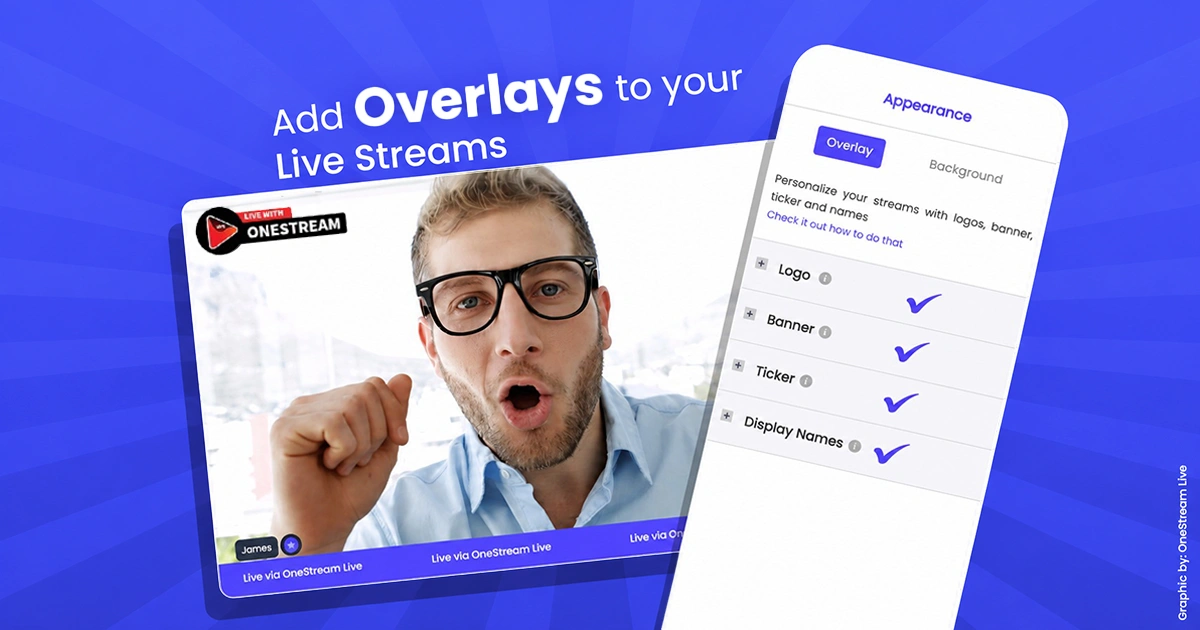
- Overlays are the graphic layer on top of your video, such as logos, banners, tickers, name tags and QR codes, and they tell new viewers who you are in seconds.
- In OneStream Studio, you add overlays from the Setup panel in your browser. Everything renders in the cloud, so there is nothing to install and no powerful PC needed.
- Instant Overlay puts ready-made graphics like Welcome, Q & A, Breaking News and Like & Subscribe on screen in one click while you are live.
- Save your overlays, banners and tickers in a Setup and load the whole look again next time.
- Keep overlays to around 20% of the screen and make sure the text is readable on a phone.

What Are Stream Overlays?
Stream overlays are the graphics that sit on top of your raw video feed. They add context, branding and calls to action without interrupting what is happening on screen.
Common overlays include:
- Logos that brand every frame of your broadcast
- Banners for key messages and announcements
- Scrolling tickers for reminders, links and updates
- Name tags that introduce you and your guests
- Instant graphics for moments like a Q & A or breaking news
- QR codes that send viewers to a page with one scan
- On-screen comments that put a viewer’s message in front of everyone
New to some of these terms? Our live streaming glossary covers the basics.
Why Overlays Matter for Your Live Stream
Overlays give new viewers instant context. Someone landing halfway through your stream can see who you are, who your guest is and what the show is about without waiting for you to repeat it.
They also build recognition. When the same logo, colors and fonts appear on every broadcast, viewers start to know your stream before they hear a word.
Keep these rules in mind when you add overlays:
- Guide attention, do not compete for it. Every overlay should point viewers toward something useful.
- Cover no more than about 20% of the screen. People come for the content, so overlays should support it, not bury it.
- Design for phones. Much of your audience watches on mobile, so text needs to stay readable on a small screen.
- Give every element a purpose. If a graphic does not inform, brand or prompt an action, leave it out.
- Stay on brand. Use the same colors and fonts everywhere so your stream looks like one show, not a collection of templates.
How to Add Overlays in OneStream Live Studio
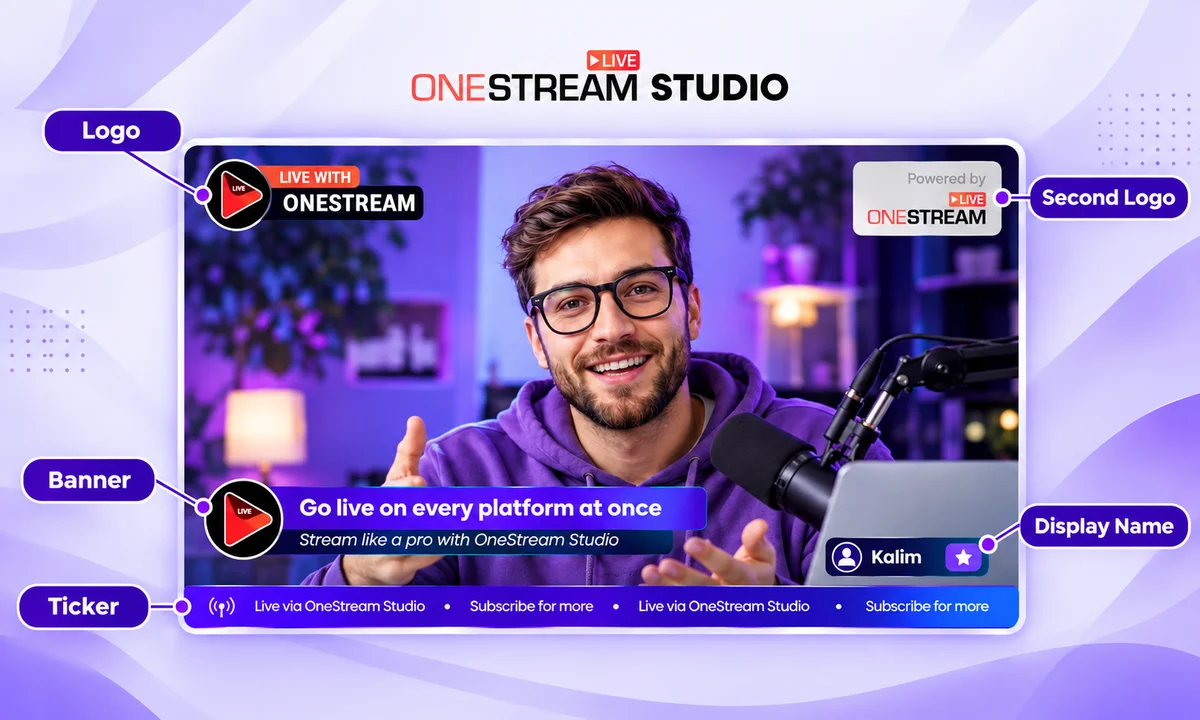
OneStream Live Studio keeps every on-screen element in one place, the Setup panel. Unlike OBS, which draws graphics on your own computer, Studio renders everything in the cloud, so a laptop handles a fully branded stream as easily as a gaming PC.
Follow the steps below to add overlays to your live stream.
1
Open Setup
Log in to OneStream Live, start a Studio session and click Setup in the right sidebar. The dropdown at the top shows which Setup is loaded, and you can choose New Setup to build a separate look for each show. New to Studio? Our OneStream Studio walkthrough shows you around.
2
Set Your Colors and Fonts
On the Design tab, set your brand color and font. Then choose a style preset, such as Minimal, Retro, Glow or Futuristic, to change how name tags and on-screen text look. You can also choose whether guest names and titles appear on screen.
3
Add Your Logo
Open the Media tab and expand Branding. Your primary logo sits in the top left corner, and you can add a secondary logo for a sponsor or partner. Logos take PNG, JPG or WebP files up to 20MB, and a transparent PNG looks cleanest.
4
Add Overlays
Below Branding, expand Overlays. Pick one from the built-in library, or upload your own designs. You can also set a stage background here, from your own image or the built-in visuals.
5
Add Banners and Tickers
Open the Banners tab to add on-screen messages, like your topic or a “Subscribe” reminder, and group them into folders so they are easy to find mid-show. The Tickers tab adds a scrolling line of text for links, offers or social handles.
6
Preview and Go Live
The stage shows exactly what viewers will see. Switch to vertical view to check your overlays fit on mobile, then click Set Destinations, choose your platforms and go live. Your overlays appear on every platform at once.
How to Add Overlays While You Are Live
Some overlays are planned. Others are needed the moment something happens. Studio gives you a few ways to put graphics on screen without stopping the stream.
Use Instant Overlay
In the Scenes panel on the left, open Instant Overlay for ready-made graphics you can drop on screen in one click. Welcome, Q & A, Breaking News and Like & Subscribe are all there, so you can open the floor to questions or push a subscribe reminder without preparing anything.
Add Images and Videos From the Add Menu
Click Add in the bottom control bar to bring extra media into the broadcast. You can add images and videos, which is handy for a sponsor slide, a product shot or a short clip.
Put a Viewer Comment on Screen
Open Live Chat in the right sidebar, where comments from your connected platforms arrive together. Pin a comment to show it on screen, or queue several and bring them up one at a time as you answer them.
Show a QR Code
Open the QR Codes tab beside Live Sales, add the link you want viewers to reach, and OneStream Live generates the code for you. Show it as an Instant QR Overlay for a quick scan, or as a Promo QR Card when you are pushing a deal. Selling products?
Live Sales puts shoppable cards on screen with a title, price and QR code.
Save Your Overlays as a Setup
Everything you added in the Setup panel, from colors and logos to overlays, banners and tickers, is saved to the Setup you have open. There is no separate save button.
That means you build your look once. Next time, pick the Setup from the dropdown and your whole branded stream loads in one click. Star the one you use most to keep it at the top of the list.
Run more than one kind of show? Our guide on how to create and save multiple Setups in OneStream Studio shows you how to build one for each.
Stream Overlay Ideas to Try
Trends in stream graphics move quickly, and what looked fresh a few years ago can now make a stream feel dated. Here are four styles streamers are using right now.
Immersive HUDs
These overlays borrow the look of game interfaces like Dota 2, Valorant and Call of Duty. Subtle motion and game-style frames make gaming streams feel part of the action and keep viewers watching longer.
Mobile-First Minimalism
Oversized graphics crowd a phone screen and push viewers away. Minimal overlays with lots of space and short, clear text work far better for mobile audiences. The Minimal style preset in Studio is a good starting point.
Retro Pixel Art
Pixel art suits far more than gaming. You will see it on coding streams, art and animation streams, and creative shows of every kind. Pair it with the Retro style preset so your name tags match.
Chrome and Liquid Metal
Glossy reflections and metallic textures give a stream a premium look and add depth without cluttering the frame. The Glow and Futuristic presets carry the same feel through to your on-screen text.
How to Make Your Own Overlays
You do not need to be a designer to create custom overlays. You can start from ready-made stream overlays, or build your own with the tools below.
Canva
Canva is one of the most popular tools for making stream graphics. Start from a template or design your own, then download it as a PNG with a transparent background and upload it to Studio.
VistaCreate
VistaCreate, formerly known as Crello, is a strong alternative to Canva. It has thousands of templates, many of them free, and both free and paid plans.
Adobe Express
Adobe Express gives you professional-looking templates and assets without having to learn Photoshop. It is the best pick if you want a polished result fast.
Building your first overlay from scratch? Our walkthrough on how to design a professional live stream overlay covers canvas sizes, colors and export settings.
Using AI to Generate Overlays
AI image tools are the fastest route for anyone who wants a custom look without learning design software. Midjourney, Adobe Firefly and ChatGPT’s image generation can all create backgrounds, patterns and frames from a single prompt.
Take the image into Canva or Adobe Express, clear out the center so your video shows through, and export it as a transparent PNG. Then upload it to the Overlays section in Studio.
How to Add Overlays in OBS
OBS Studio gives you full control over your layout, from static graphics to animated alerts and a BRB screen.
Follow the steps below to add an overlay in OBS.
1
Open OBS and select your scene in the Scenes panel.
2
In the Sources panel, click + and choose Image for a static overlay or Media Source for an animated one.
3
Select your file and click OK.
4
Resize and position the overlay in the preview window.
For animated overlays, use a WebM file and tick Loop so it keeps playing through the stream. GIFs can lose quality, and MP4 files do not support transparency.
One thing to keep in mind. OBS draws every graphic on your own computer, so heavy overlays can slow down an older machine. If you already work in OBS, you can still send its output into OneStream Live through Encoder Streaming and multistream from there.
How to Add Overlays to Twitch
Twitch does not have a built-in overlay editor. Overlays are part of the video you send, so you add them in the tool you stream from.
The simplest way is to build your overlays in OneStream Studio and add Twitch as a destination. Your branded stream goes to Twitch and your other platforms at the same time, which is the whole point of multistreaming.
For interactive elements, many streamers also use Twitch Extensions. These add things like polls, leaderboards and mini-games to your channel to keep viewers involved.
Wrapping Up
You can spend hours wrestling with OBS plugins, or you can open OneStream Studio and have a branded stream ready in minutes. Add your logo, upload your overlays, load your banners and tickers, and save it all as a Setup you can reuse every time you go live.
Whether you are a gamer, a brand or an event organizer, adding overlays is the quickest way to make your stream look like a show worth staying for.
Frequently Asked Questions
How do I add an overlay in a live stream?
Upload the overlay image or video to your streaming software and position it on top of your stream. In OneStream Studio, open Setup, go to the Media tab and add your files under Branding and Overlays.
What do streamers use for overlays?
Streamers typically use custom graphics or pre-designed templates. These can include logos, animations, alerts and social media handles, often made in tools like Canva or Adobe Express.
How do I import a stream overlay?
Select the “Add Media” or “Import” option in your streaming software, then choose the overlay file, such as a PNG or GIF. In OneStream Studio, you upload it from the Media tab of the Setup panel.
What file format is best for stream overlays?
A PNG with a transparent background works best for static overlays, because it sits on your video without a box around it. For animated overlays in OBS, use WebM.
Can I change overlays while I am live?
Yes. In OneStream Studio you can bring up an Instant Overlay, show a banner or ticker, pin a comment or switch to a different Setup without stopping the broadcast.
OneStream Live is a cloud-based live streaming solution to create, schedule, and multistream professional-looking live streams across 45+ social media platforms and the web simultaneously. For content-related queries and feedback, write to us at [email protected]. If you have a story to share about your live streaming experience with OneStream Live, we would be glad to feature it. You’re also welcome to Write for Us!