What Is Live Sales? OneStream Live Introducing New Feature

Introducing Live Sales feature by OneStream Live
In this Article:
Share the article:

Live Sales just made its entrance inside OneStream Live Studio, and it’s changing how you sell products through live streaming.

No more dropping a link in the chat and hoping someone scrolls back to find it. No more losing a sale because a viewer gave up searching for the product page. That’s a thing of the past now. Live Sales puts your product, your price, and a scannable QR code right on your screen while you’re live streaming, taking the hassle out of live shopping for good.

Coming up, you’ll learn what Live Sales is, everything it offers for live selling, and get a full walkthrough so you can start using it on your very next broadcast.

Key Takeaways:

  • Live Sales is a OneStream Live Studio feature that lets you display products, links, and pricing on screen during a livestream.
  • It includes four tools: product cards, instant QR codes, promo QR codes, and compare at pricing.
  • You can save up to 8 product cards and QR codes, but only 1 displays on screen at a time.
  • Viewers scan a QR code on screen to go straight to your product page, no searching for links in the chat.
  • You can swap what’s live mid stream without pausing your broadcast.

What Is Live Sales?

You’re mid stream, showing off a product you’re genuinely excited about, and someone types “where do I buy this?” in the chat. You paste the link. Three more messages fly by before they even scroll up to find it. By the time they do, they’ve moved on, or worse, closed the tab entirely.

That gap between “I want this” and “I bought this” is where most sales quietly fall apart. Live Sales aims to close this gap. 

So, what exactly is Live Sales?

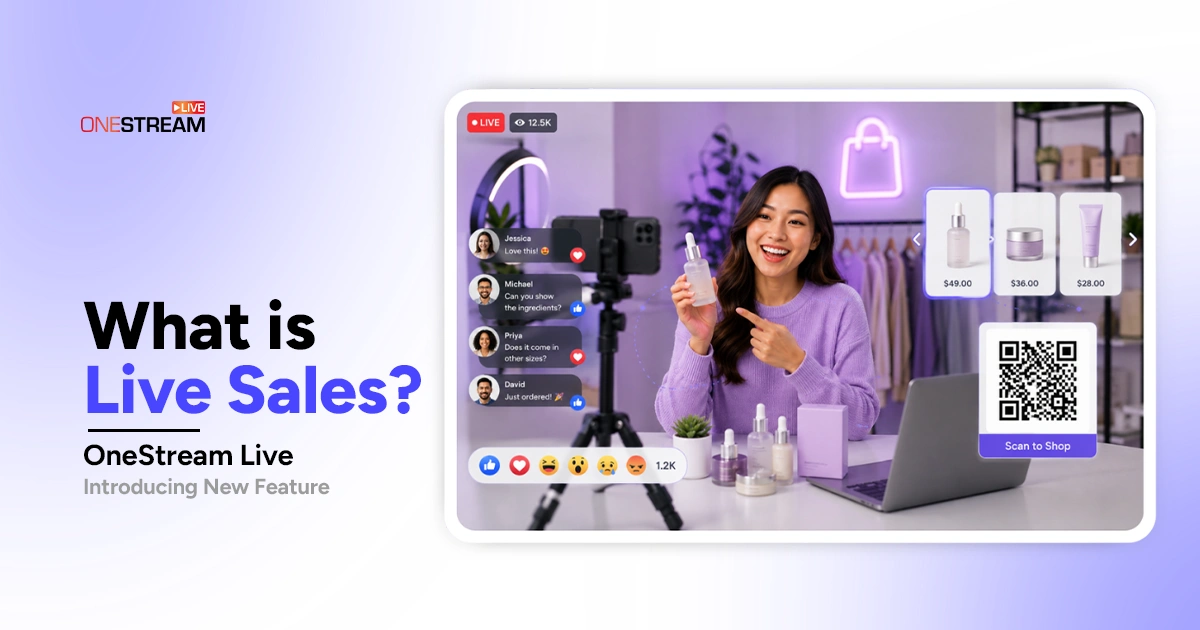
Live Sales is a feature inside OneStream Live Studio built to make selling products during a livestream easier than ever. It brings live commerce, live video shopping, and livestream ecommerce directly into your broadcast, letting you display products, links, and pricing on your live video alongside a scannable QR code.

At its heart, the idea is simple: make live stream shopping as seamless as possible. Hunting for a link buried in a description or a fast moving chat feels like work. Pointing a phone camera at something already sitting on screen does not.

Here’s what Live Sales includes for live stream selling:

Product Cards: Display your product with a title, description, price, image, and a link to buy.

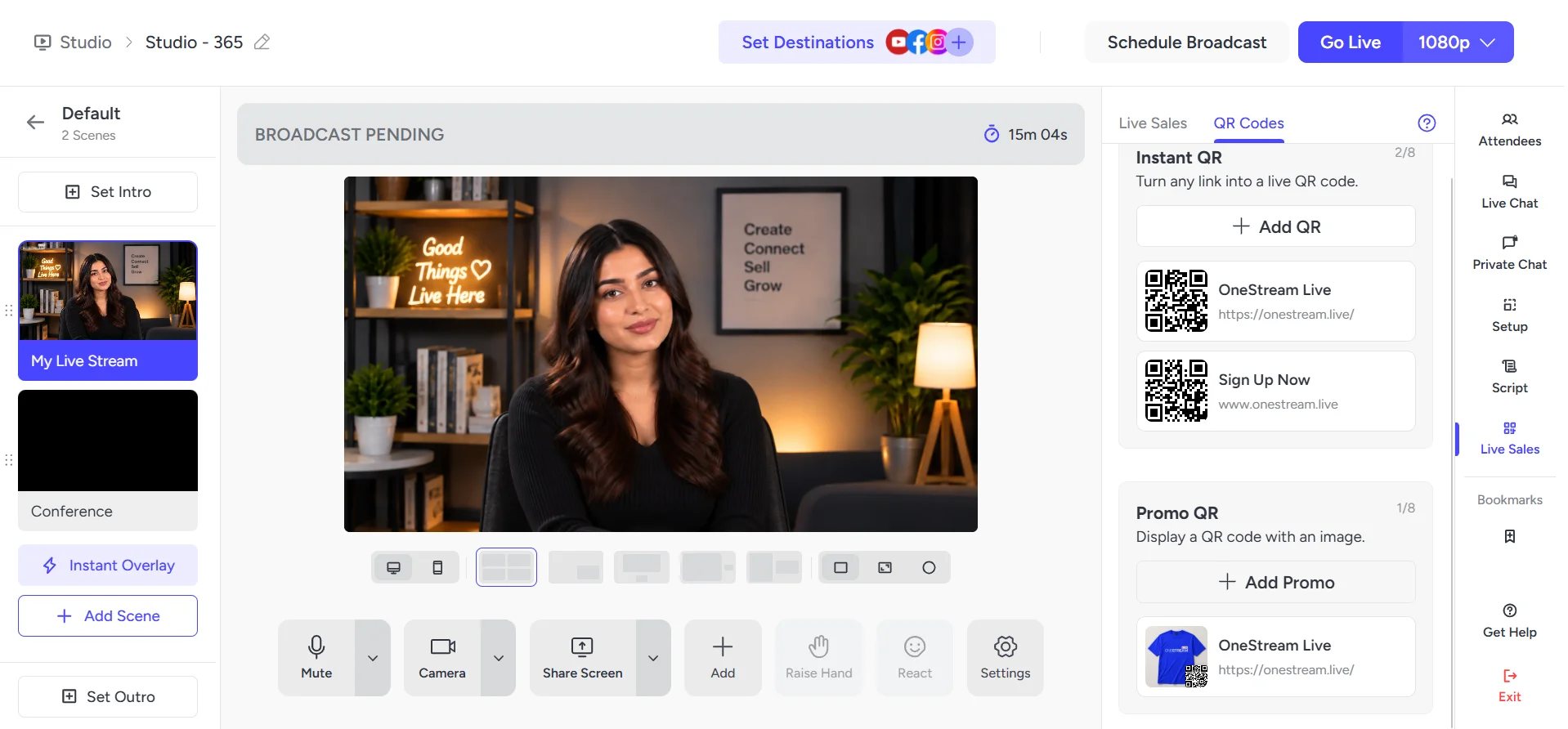
Instant QR Codes: Create QR codes instantly and display them while streaming. A simple QR code shows up on screen without any image or product details.

Promo QR Codes: Display up to 6 images with one QR code. You can also add a title and description.

Compare at Pricing: Shows the original price next to the discounted price, making it easy for viewers to see exactly how much they’re saving.

You can save up to 8 product cards and QR codes at once. Only 1 displays on screen at a time, and you can swap what’s live without pausing your broadcast.

Want to see the full setup? Read: How to Use Live Sales in OneStream Live Studio?

How to Use Live Sales: A Step by Step Process

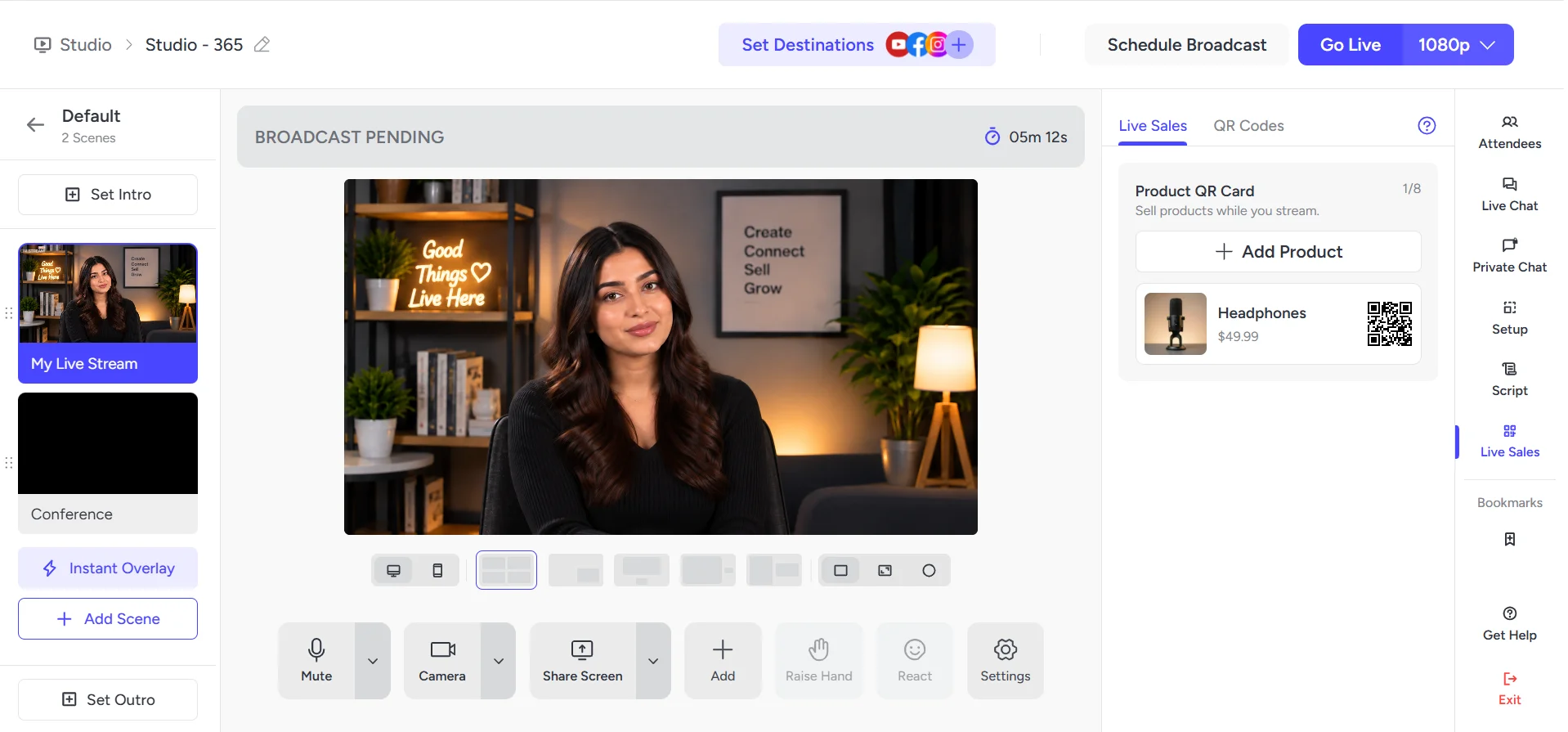
Log in to OneStream Live and create a Studio session. Then select Live Sales from the right side studio panel.

1

How To Create A Product Card

In the Live Sales tab, under the Product QR Card, click Add Product.

2

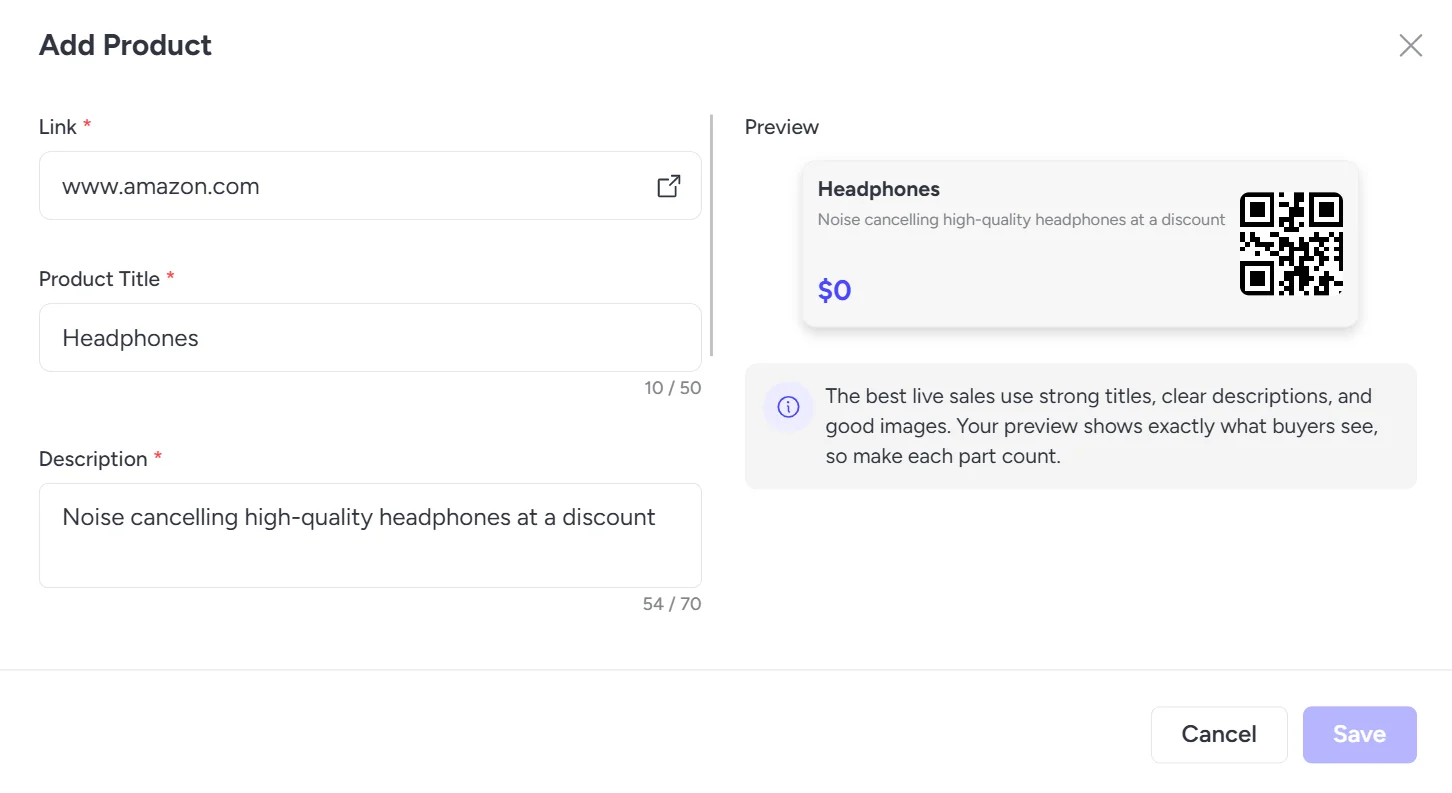
Enter the URL, Product Title, and Product Description.

3

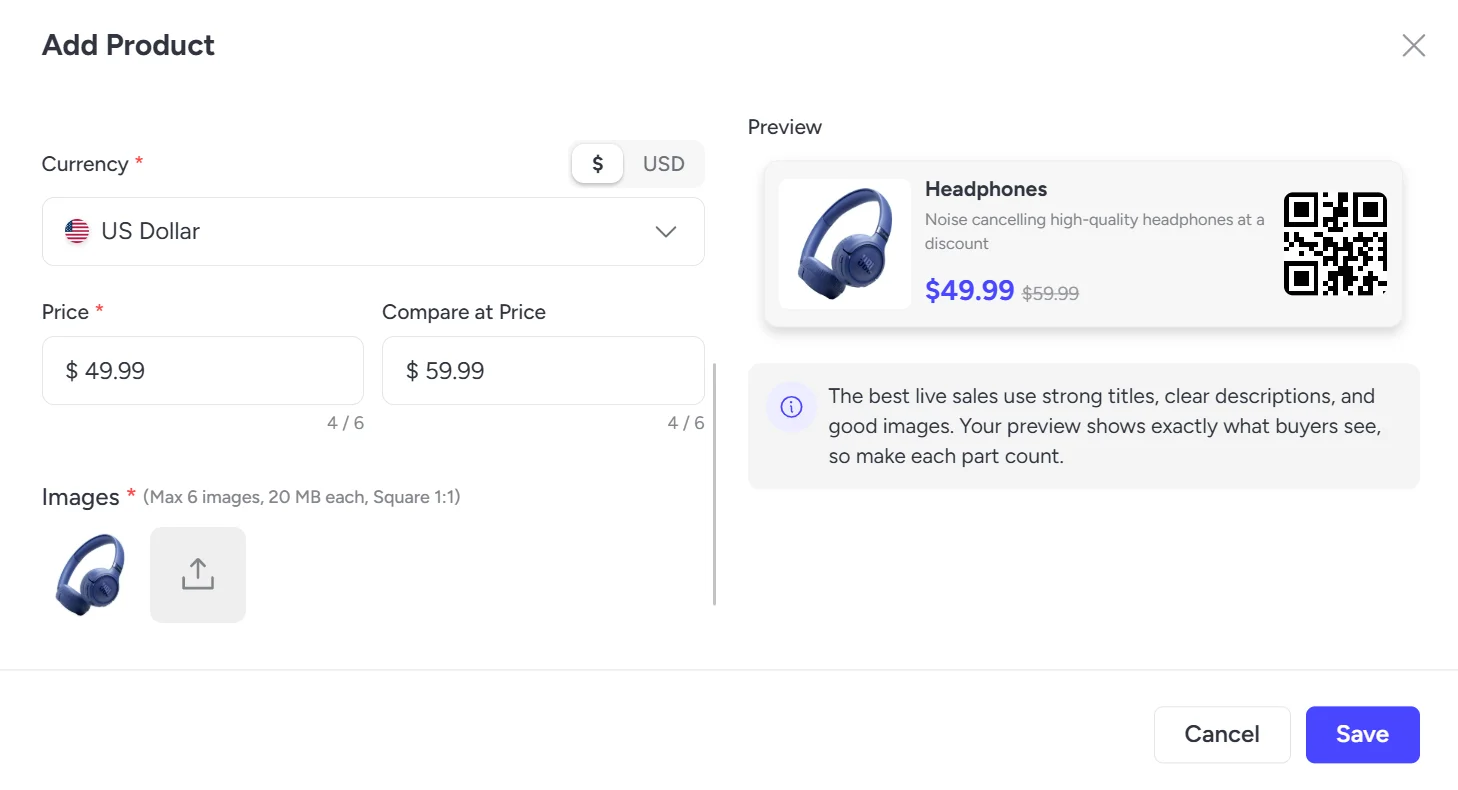
Select your currency, enter the Product Price and a higher Compare at Price, upload up to 6 product images, review the Preview, and click Save.

4

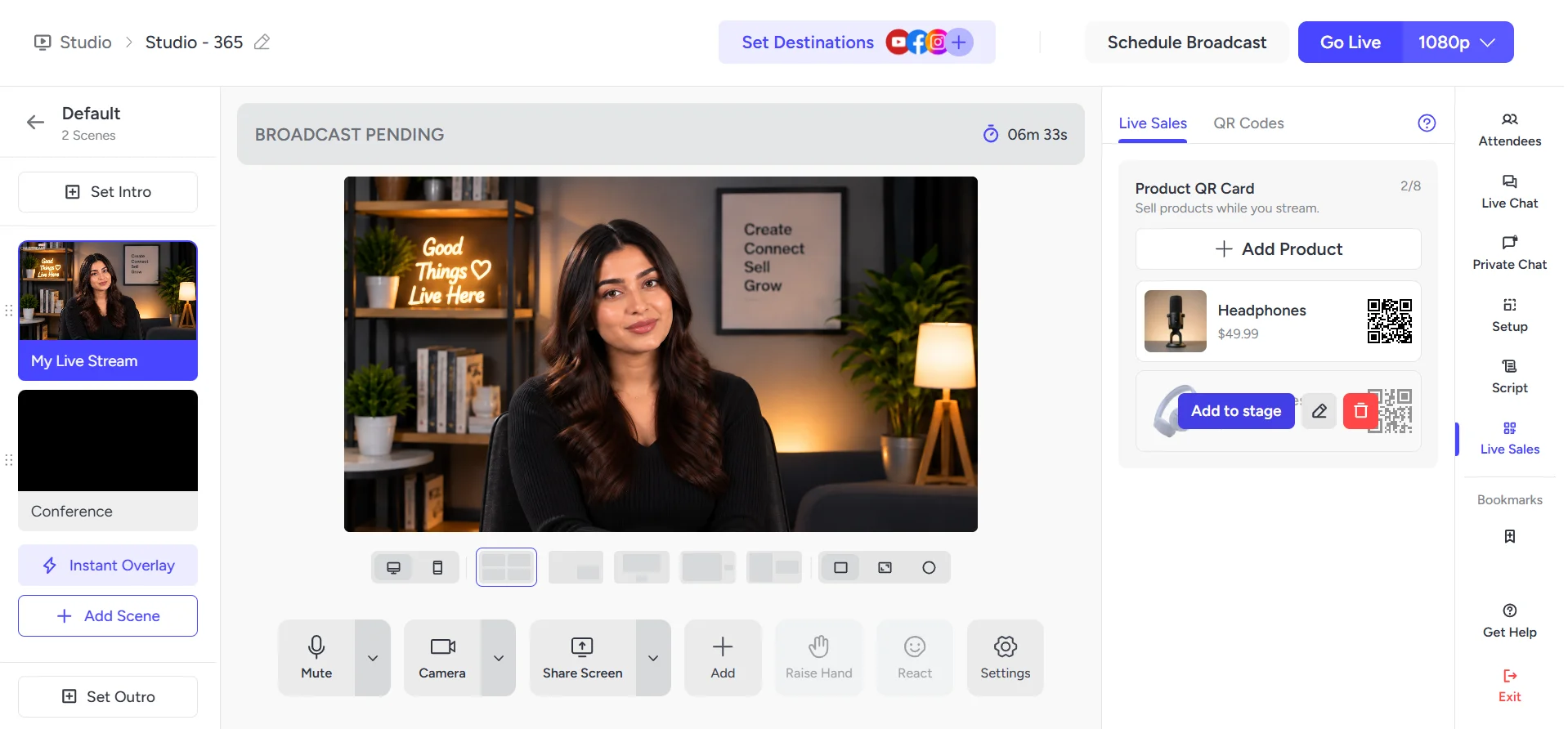
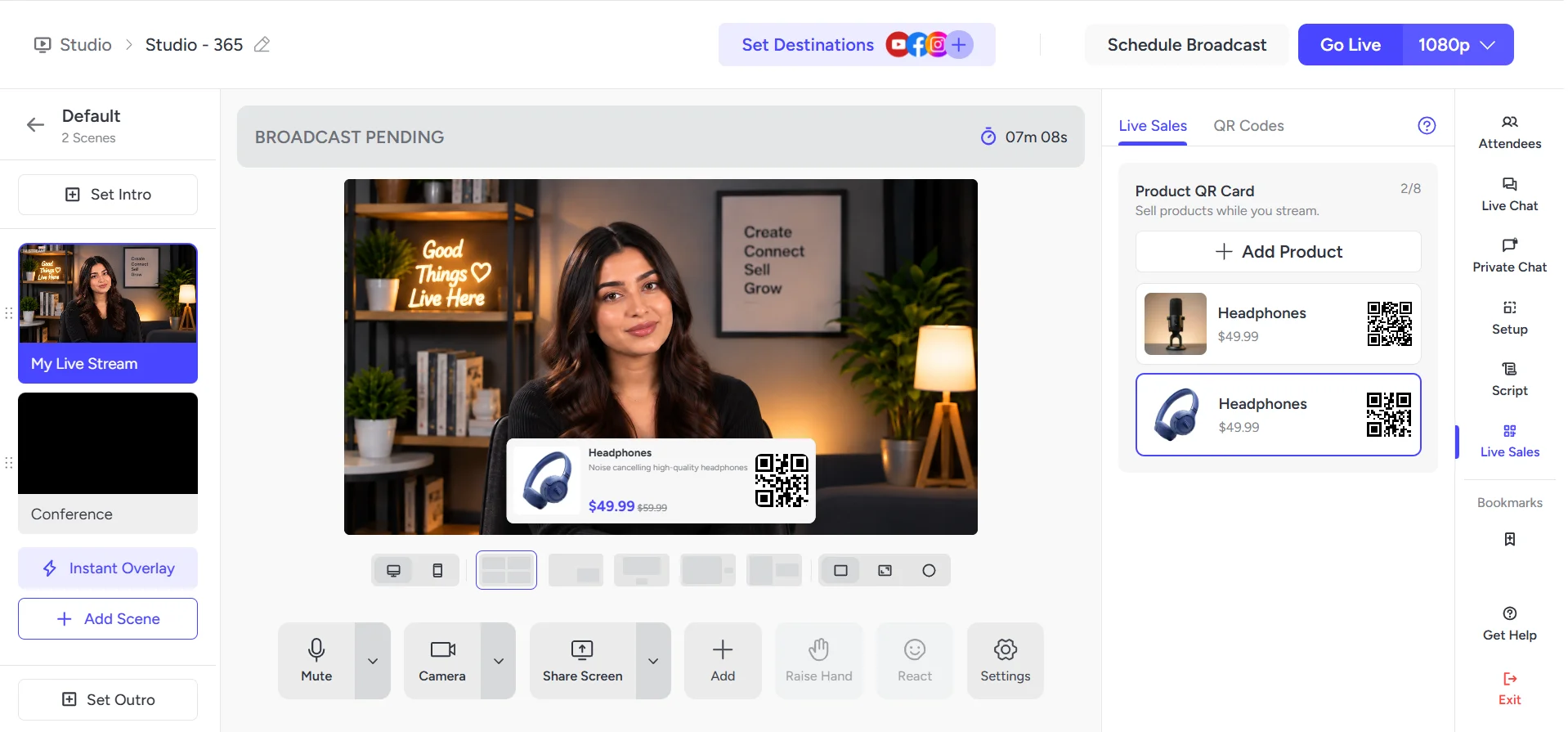
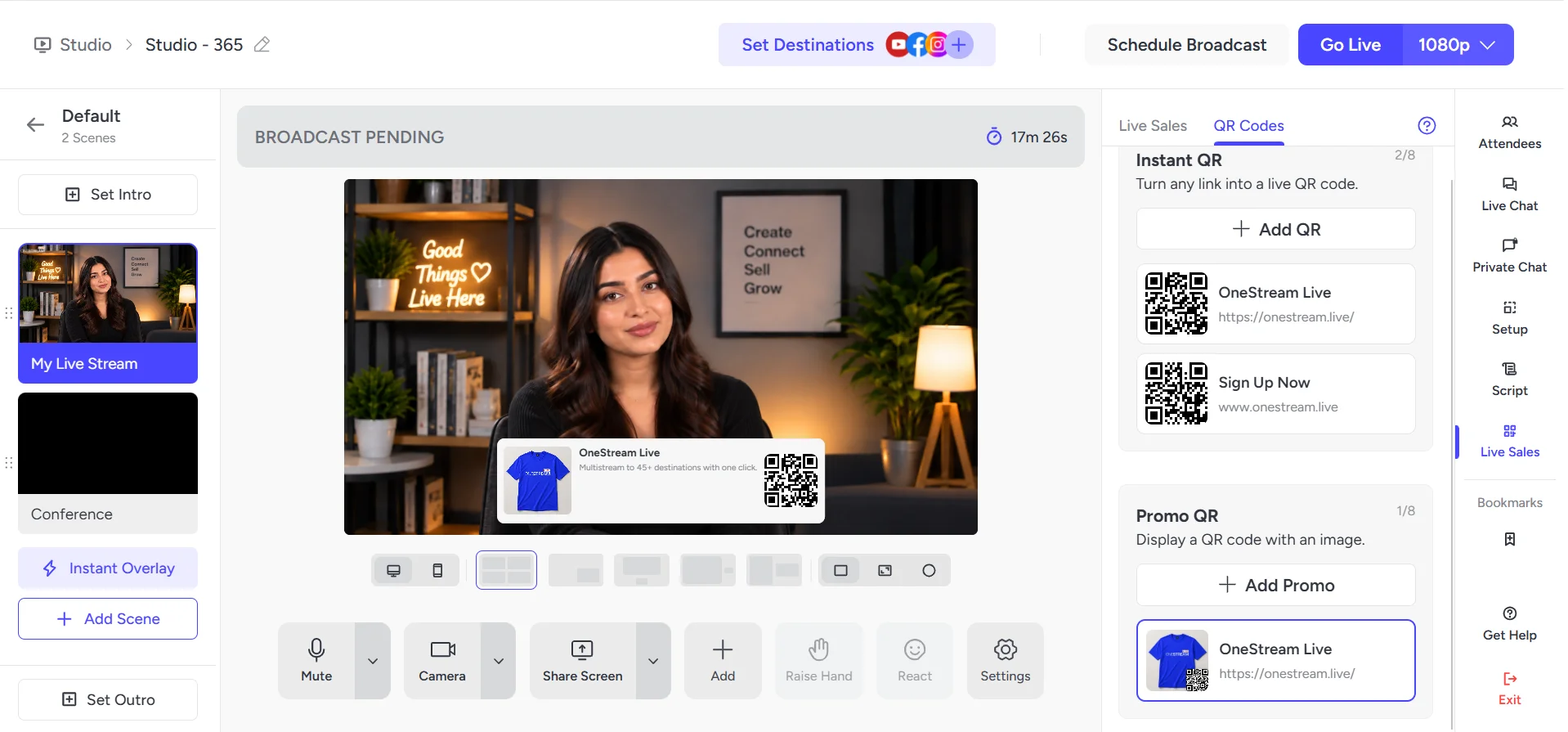
Click Add to Stage to bring the product card on screen.

5

The product card will appear on your screen as shown below.


1

How to Add An Instant QR Code

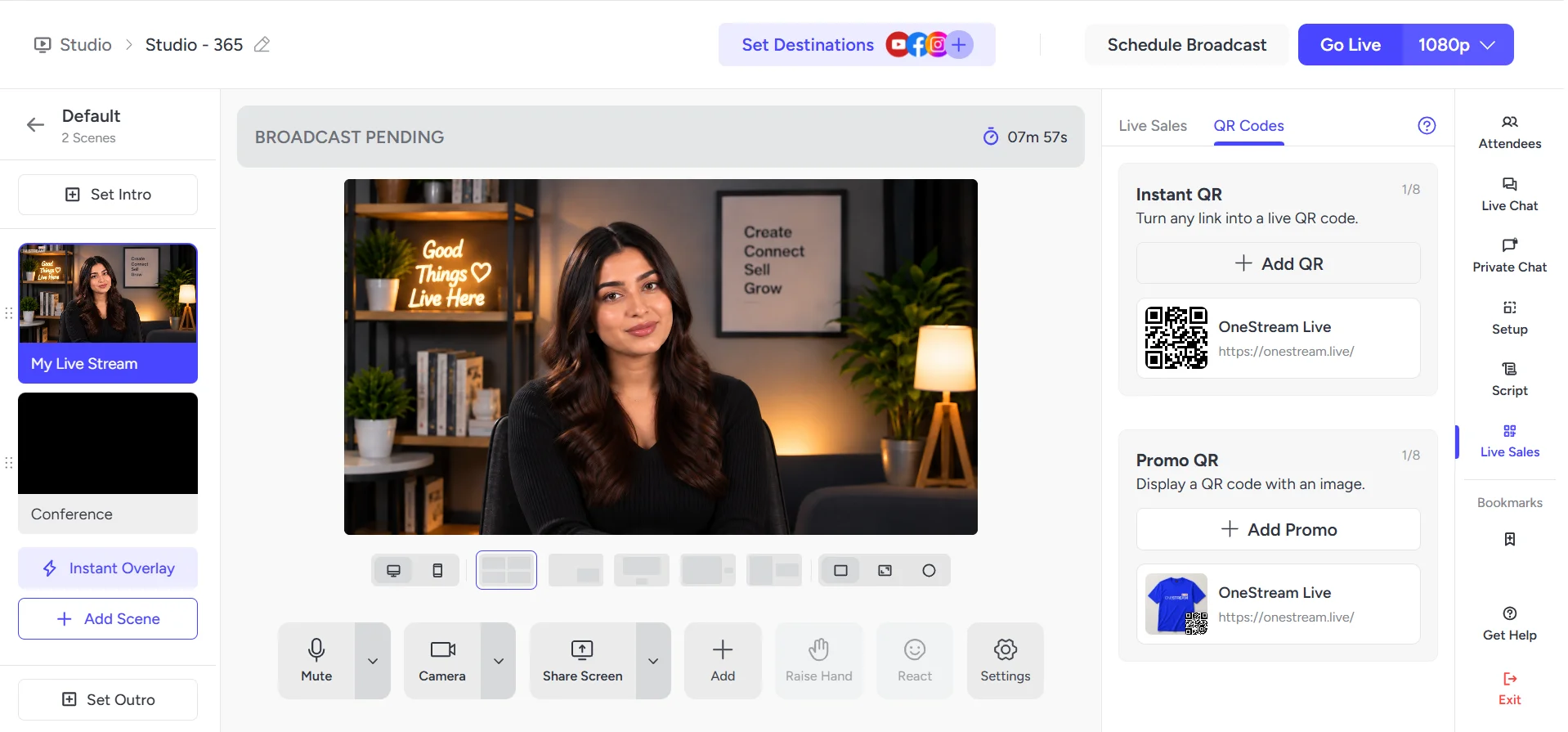
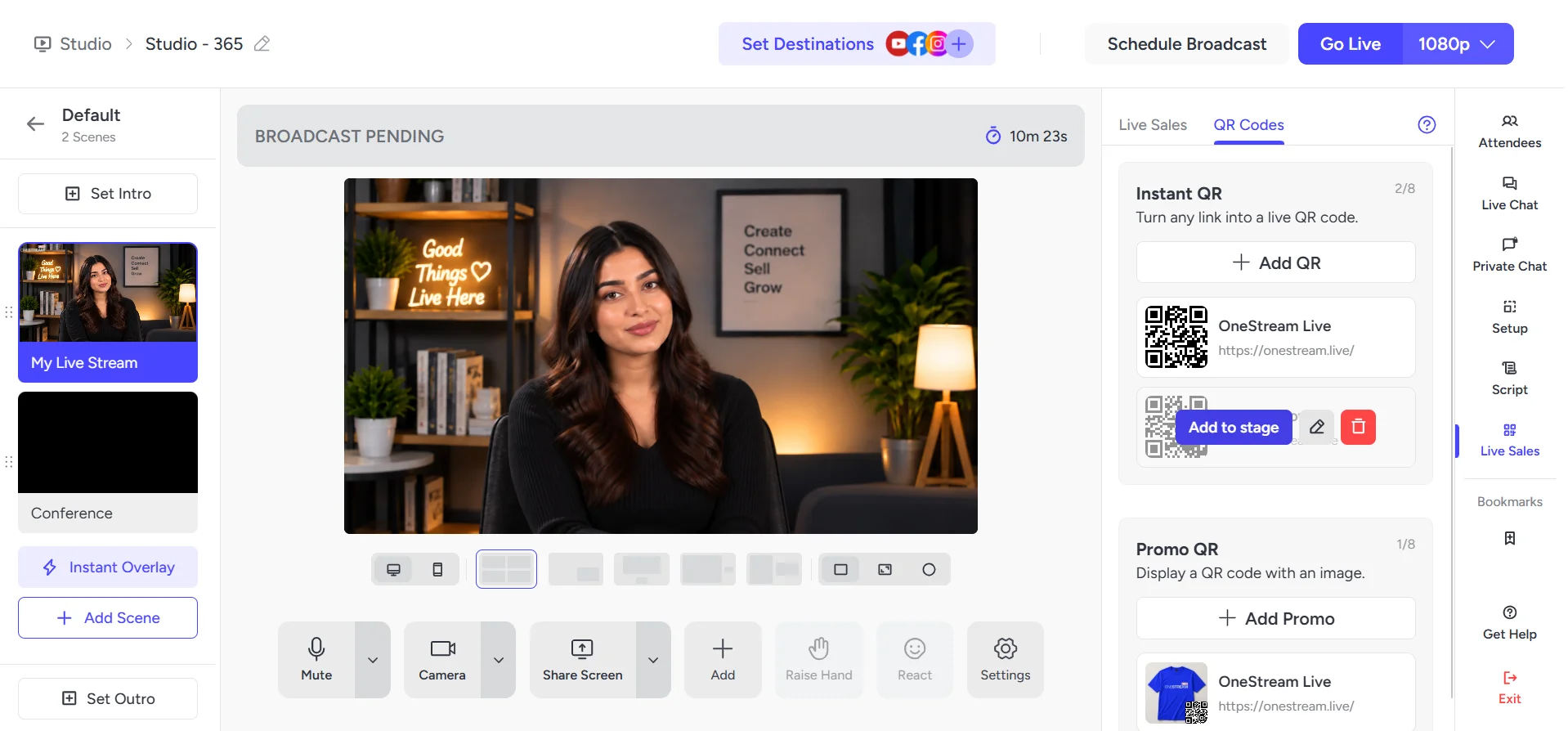
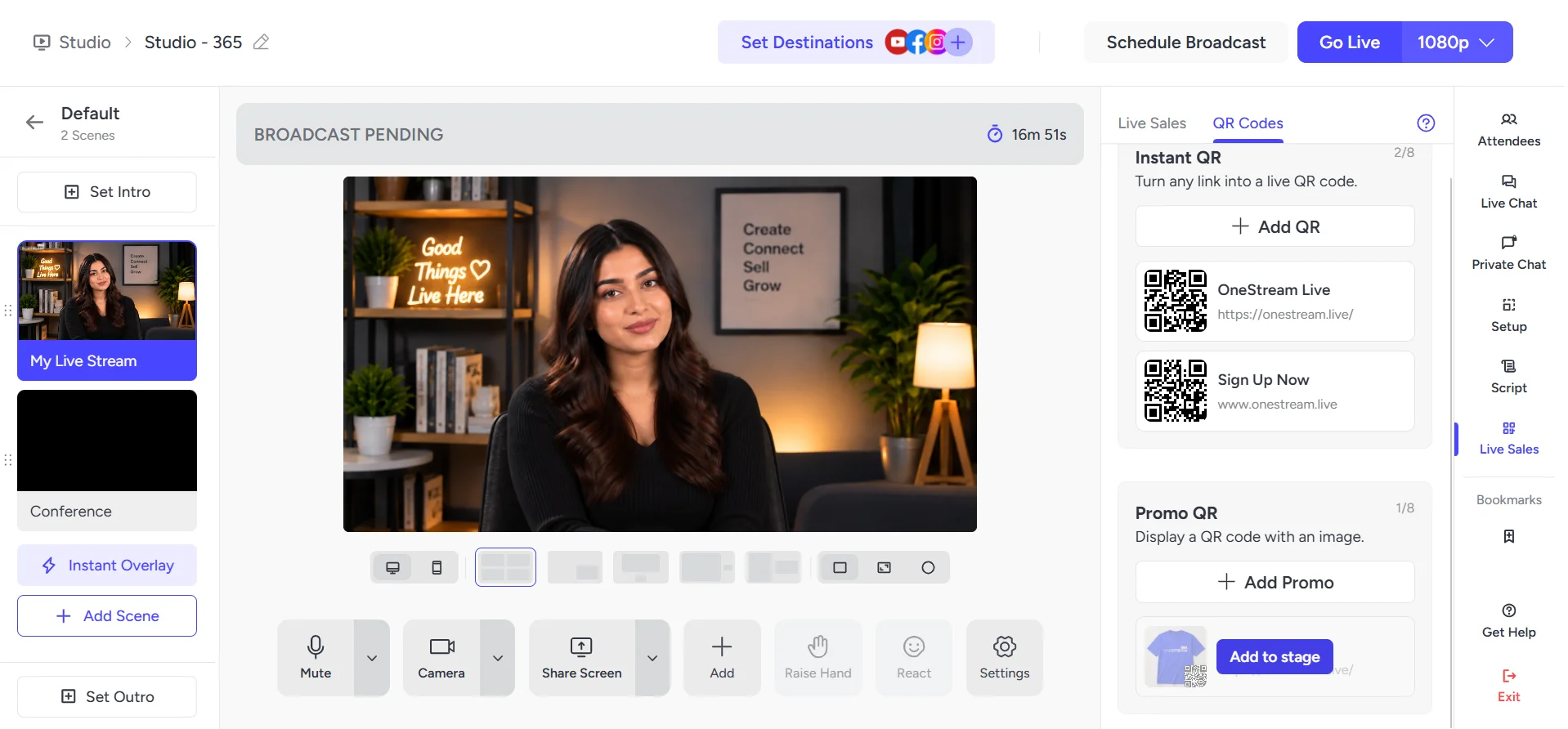
Go to the QR Code tab, select Instant QR, and click Add QR.

2

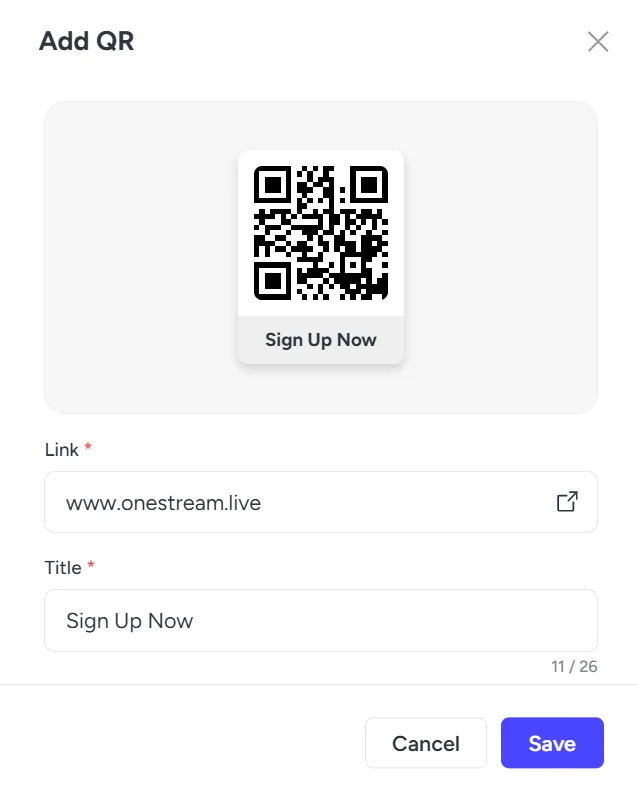
Enter the URL you want to share and add a title.

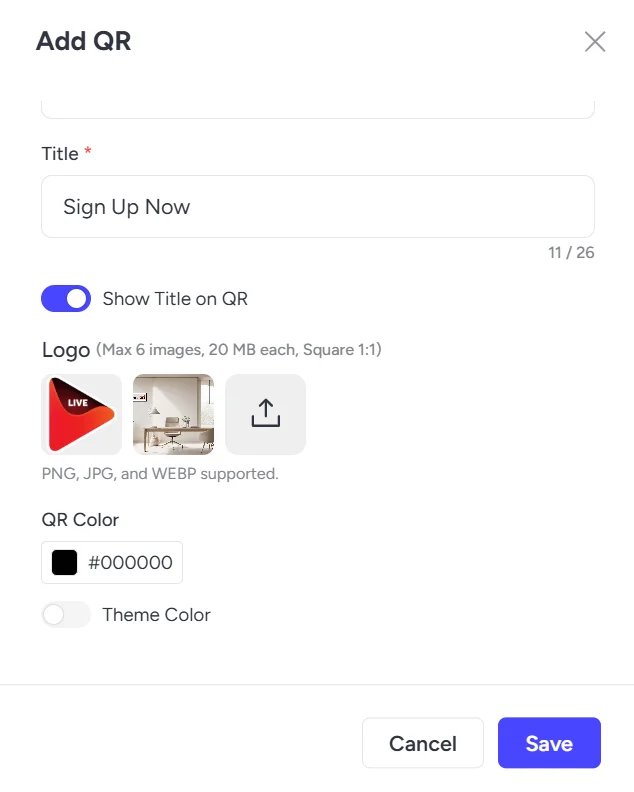
3

Turn on Show Title on QR, upload your logo, select your preferred QR color, enable the Theme Color toggle if desired, and click Save.

4

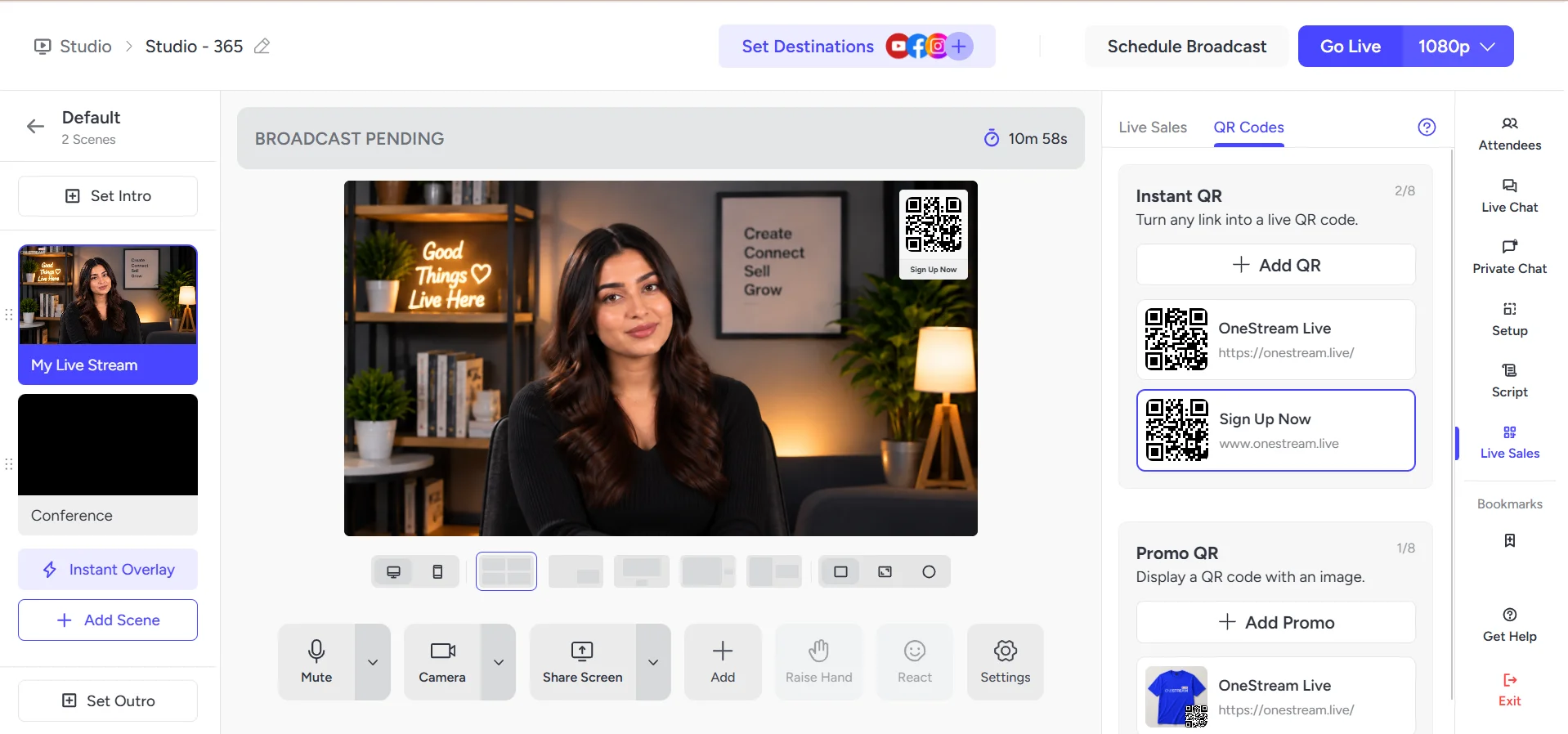
Click Add to Stage to bring the QR Code on screen.

5

The QR code will appear on your screen as shown below.

1

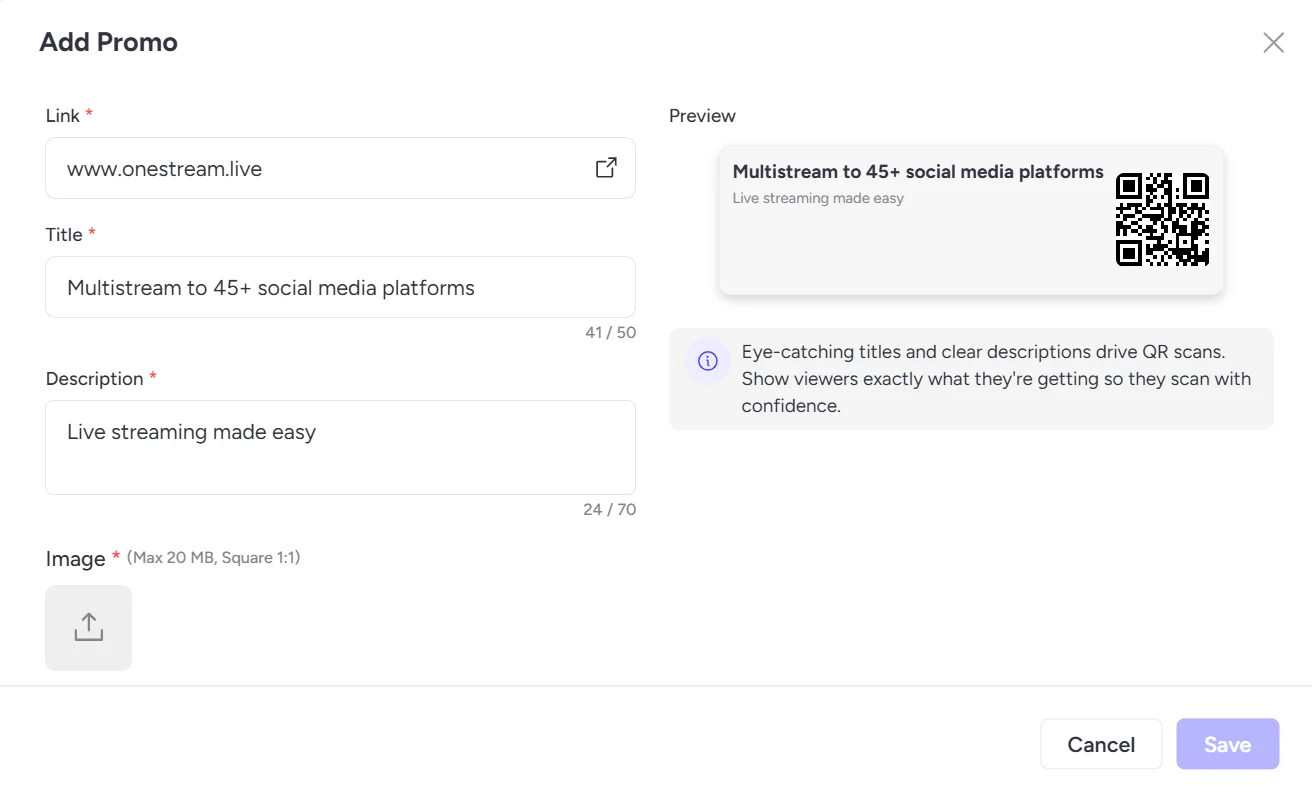
How to Add Promo QR Code

Go to the QR Codes tab and under Promo QR, click Add Promo.

2

Add Link, add a title and description, upload your product images, and click Save.

3

Click Add to Stage to bring the Promo QR on screen.

4

The Promo QR will appear on your screen as shown below.

Final Words

Selling during a live stream shouldn’t turn into a second job on top of live streaming itself. Between watching chat, keeping the energy up, and running the show, the last thing you need is to also play link concierge every few minutes. Live Sales removes that juggling act entirely and makes online selling feel effortless instead of exhausting. 

OneStream Live works as a live selling platform and a live commerce platform in one, giving creators and businesses the tools to showcase products, build trust in the moment, and close sales without ever breaking their flow.

Give it a try on your next broadcast. Build a product card or QR code, add it to stage, and see how different selling feels when nobody has to go hunting for the link. Your viewers stay in the moment, your sales stop slipping through the cracks, and you get to stay focused on what you do best: putting on a great show.

Frequently Asked Questions

How does a live sale actually differ from a normal online store?

A storefront waits for buyers to browse on their own schedule. A live sale puts a host in front of the product in real time, answers questions as they come up, and closes the sale on the spot instead of hoping a visitor comes back later.

Most sellers start wherever their audience already is, since the comment activity and reach are built in. From there, a lot of sellers begin multistreaming the same broadcast to several platforms at once, so one live sale reaches every audience instead of just one.

Live selling is presenting and selling products in real time during a livestream instead of through a static product page. To start, you need a camera or phone, decent lighting, a way to take payment, and stock within reach so you can show whatever a viewer asks about.

Create your product card or QR code in OneStream Live Studio, add it to the stage, and display it during your broadcast. Since OneStream can stream to Facebook Live at the same time as other platforms, viewers there can scan the QR code and go straight to your product page.

 A single platform’s native tools work fine if you’re only selling in one place. Dedicated software like OneStream Live matters more once you’re selling across several platforms at the same time and want one set of product cards and QR codes to manage instead of juggling each platform separately.

OneStream Live is a cloud-based live streaming solution to create, schedule, and multistream professional-looking live streams across 45+ social media platforms and the web simultaneously. For content-related queries and feedback, write to us at [email protected]. If you have a story to share about your live streaming experience with OneStream Live, we would be glad to feature it. You’re also welcome to Write for Us!

Related Articles

Join 2,000+ subscribers

Stay in the loop with everything you need to know.

We care about your data in our privacy policy

Expand your industry knowledge

Expand your knowledge

Explore industry trends, tips, and stories that fuel growth.