
Lost a recording to a crash? This MKV vs MP4 guide explains why OBS creators should record in MKV, then remux to MP4 for uploads.
Learn the exact workflow pros use to avoid corruption and publish safely in 2026.
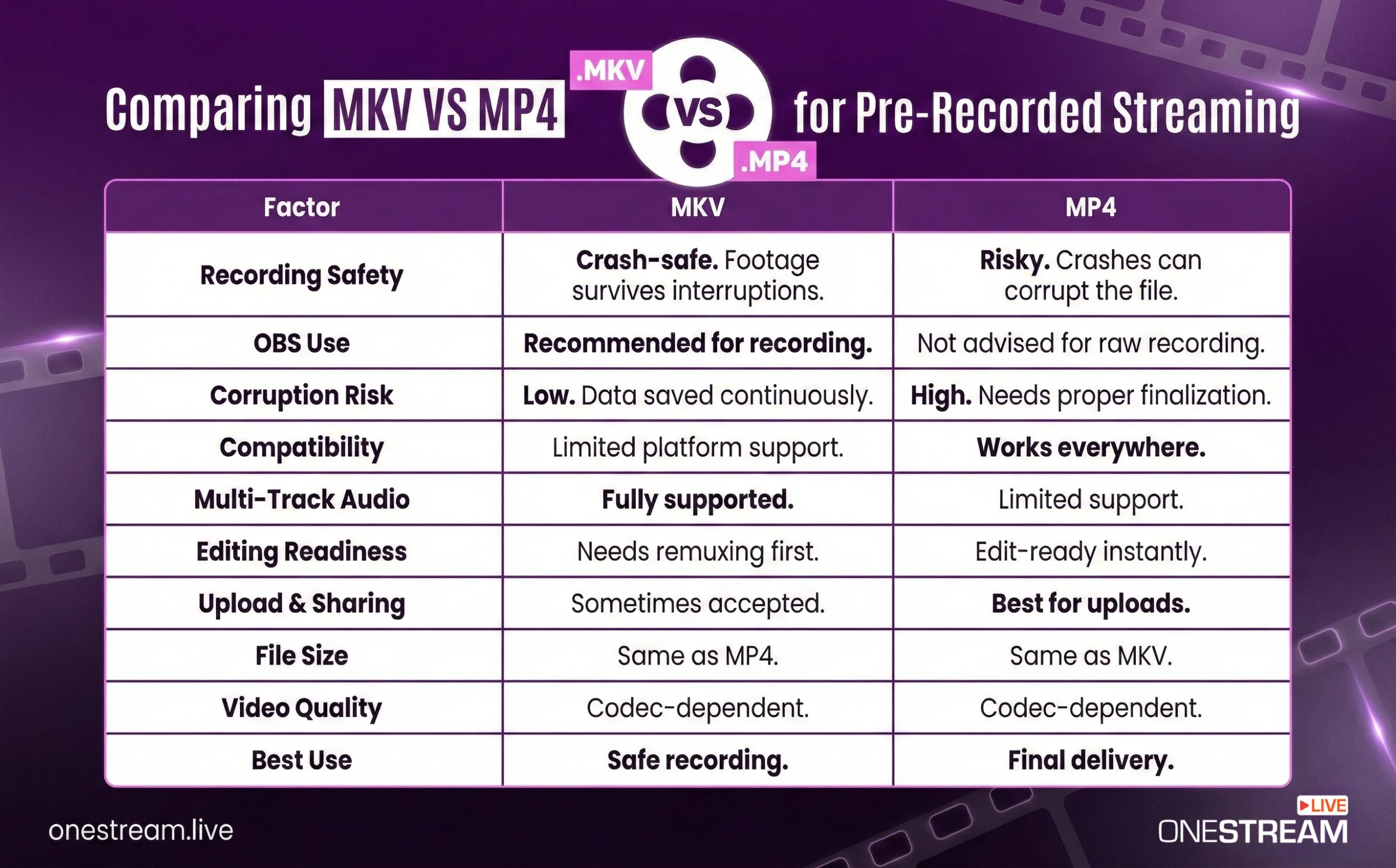
- MP4 recordings can be completely corrupted if OBS or your PC crashes before finalizing the file (the critical metadata or moov atom is written last). Many creators have lost entire sessions due to this issue.
- MKV is a safer recording format for OBS. It’s more fault-tolerant – if something goes wrong, you still have the footage up to the crash. Only the last few seconds are typically lost with MKV, whereas an unfinalized MP4 becomes unreadable.
- Best workflow: Record in MKV, then remux to MP4 for editing or sharing. OBS Studio can automatically remux MKV to MP4 after recording (no quality loss, just repackaging). This gives you MP4’s compatibility without risking your footage.
Why MP4 Recordings Often Get Corrupted
In the MP4 container format, crucial indexing information (the moov atom) is only written after the recording stops. This means if OBS or any other recording software cannot properly finish the recording (e.g., due to a crash, power loss, or full disk), the moov box isn’t saved – rendering the entire MP4 unusable. As an OBS developer bluntly warns: recording directly to MP4 “greatly increases risk of losing all your footage” in such scenarios.
Because MP4 must be finalized to be playable, an interrupted MP4 cannot normally be recovered. One forum admin explains that if the file didn’t finalize, “it’s toast” – you can’t repair an MP4 with a missing moov atom.
The OBS community has seen countless “heartbroken posts” from users who recorded in MP4 and suffered a crash: “Now my recording is broken. What can I do?” The only answer in those cases is “it’s gone” when the format was MP4. In short, with standard MP4, you either get all of it or you get nothing, which is a risky bet for long recordings.
Common failure points include:
- OBS or the PC crashes
- a BSOD,
- The program hangs or runs out of disk space mid-recording.
Any of these can prevent the MP4 from finalizing. Unlike sequential image or audio saving, an MP4 video won’t even play partially without its final index.
As one OBS forum moderator summarizes: “If something bad happens, the mp4 will be broken beyond repair, so don’t complain if that happens.” It’s a painful lesson many creators learn only after losing footage.
Creators have shared real horror stories about this MP4 fragility. For example, one YouTuber recounted that he used to record in MP4 “till I lost a 44-minute file” after a system blue-screen crash.
Another user on Reddit wrote, “For someone who has had MP4 become unusable after a computer crash, you should ALWAYS use MKV. Trust me, losing part 8 of a series that you cannot redo is heartbreaking.”
These experiences highlight why relying on MP4 alone for recording can be a huge gamble.
Why MKV is Safer for Recording (Fault-Tolerant Design)
In contrast to MP4, MKV (Matroska) is designed to be fault-tolerant and does not require finalizing the way MP4 does. If a recording is interrupted, the MKV file is already playable up to the point of the interruption (you won’t lose everything prior).
An OBS expert compares it to analog: “MKV…works more like an analog tape in that if something goes wrong, you still have everything up to that point.” In technical terms, MKV (and FLV) store video/audio in a way that can start or stop at any frame, rather than needing a finalized index at the end. This means MKV files “survive crashes” far better.
Practically, if OBS crashes or your PC loses power while recording to MKV, you should find an intact MKV file in your output folder when you reboot. At most, you might lose the last few seconds that weren’t buffered to disk.
Unlike MP4, there is no need for complex repair tools or desperate recovery attempts as the video data up to the crash is already there. One OBS forum helper notes that with MKV, “You should only lose the last few seconds of the recording” in a crash scenario.
Many creators, therefore, use MKV as insurance against OBS hiccups. As another streamer put it, “MKV is way more fault tolerant” – it has never failed him even when other formats did.
It’s worth mentioning that OBS Studio itself, in recent updates, has recognized the importance of this reliability. Newer versions (OBS 30.2 and above) introduced a “Hybrid MP4” mode, which uses internal fragmentation to mimic MKV’s crash resilience while still producing an MP4.
This hybrid approach periodically writes MP4 metadata so that an interrupted file remains playable up to the last fragment, solving the classic moov-atom problem. However, if you’re not on the absolute latest OBS or prefer proven methods, recording in MKV remains the safest choice. Even OBS’s own staff and docs have long recommended recording to MKV (or FLV) to avoid unrecoverable files.
MKV vs MP4 - Ultimate Comparison
The Best Practice: Record in MKV, Then Remux to MP4
Because of MKV’s safety net and MP4’s compatibility, the widely recommended workflow is to record in MKV and then convert (remux) the recording to MP4.
Remuxing simply repackages the video/audio streams from one container to another without re-encoding, so there’s no quality loss and it’s very fast. In fact, OBS can do this for you automatically:
“The general advice is to always record to .mkv and let OBS remux to .mp4 after recording” by enabling the “Automatically remux to MP4” option in Settings. With that setting on, OBS will seamlessly produce an MP4 copy of your recording once you stop the session, giving you the benefits of MKV during recording and an easy-to-use MP4 for editing or sharing afterward.
Even if you don’t use the auto-remux feature, you can manually convert MKV to MP4 in OBS or other tools. OBS Studio has a built-in Remux Recording option (found under the File menu) that lets you select an MKV file and convert it to MP4 in seconds.
Many creators attest that a multi-gigabyte MKV can be remuxed to MP4 in a matter of seconds to a minute. For example, one user reports OBS remuxes a 11 GB, hour-long MKV to MP4 in 15–20 seconds on a SATA SSD (even faster on NVMe storage). The resulting MP4 contains “the exact same data in a different container”, so you’re not sacrificing quality by doing this.
By incorporating this step into your workflow, you essentially get the best of both worlds: a crash-proof recording phase and a widely-compatible output. As one OBS veteran put it: “Not worth another chance of losing footage.” He records everything in MKV and remuxes afterward rather than risk an MP4 straight from OBS.
Given how easy OBS makes the MKV→MP4 conversion, there’s little reason not to use MKV for primary recording. Even Adobe Premiere, DaVinci Resolve, and other editors are increasingly able to import MKV files directly, but if yours doesn’t, remuxing is the solution.
Tips for Uploading or Streaming Your Recordings
If you plan to upload or stream your OBS recordings (for example, scheduling a pre-recorded live stream on OneStream Live), you might wonder which format to use. The good news is that OneStream Live supports all the common recording containers. You can upload MP4, MOV, or M4V files for pre-recorded streaming.
This means if you followed the best practice above, you can use the remuxed MP4 file for pre-recorded streaming. OneStream Live’s servers will accept either format, so you won’t need an extra conversion step outside of OBS.
Do keep in mind that some social platforms and players prefer MP4, so using the remuxed MP4 might be more straightforward for compatibility. But internally, the content is identical either way.
In fact, OneStream Live’s own blog notes that MKV files usually remain usable after interruptions, while MP4 files often become unusable if not closed properly – echoing the earlier points.
If you encounter any issues with an MKV, you can always convert it to MP4 (OBS, HandBrake, or other tools will do this quickly) with no quality loss.
Read Helpdesk Article: How to Encode Video to Correct Format Using HandBrake?
Finally, when using OneStream Live (or any platform) to broadcast your videos, it’s critical to ensure your recording is complete and intact. Always verify that OBS saved the file correctly before uploading.
If OBS ever crashes or shows “stopping recording” for too long, double-check the output folder for an MKV file. Because MKV is robust, you’ll likely find your video there (perhaps missing only the last moments). You can then safely use it in OneStream Live.
By following these practices: recording in MKV, remuxing to MP4 when needed, and using OneStream Live’s support for multiple formats, you can avoid the nightmare of lost footage and ensure your content makes it to the audience as planned.

FAQs
Because MP4 files require a “finalization” step to be playable. If your PC crashes, power cuts out, or OBS freezes before that step happens, the file becomes unreadable garbage.
No, not if you use the Remux method. “Remuxing” (found in OBS under File > Remux Recordings) simply copies the video and audio data from the MKV container to an MP4 container without touching the quality. It takes seconds.
If you use a video editor to “Export” as MP4, you will lose quality because the computer has to compress the pixels again. Always remux first!
Because MP4 files require a “finalization” step to be playable. If your PC crashes, power cuts out, or OBS freezes before that step happens, the file becomes unreadable garbage.
They are roughly the same size if they use the same codec (like H.264). Both MKV and MP4 are just “containers” (like boxes).
If you put the same H.264 video stream inside both boxes, the weight (file size) is nearly identical. MP4 might be slightly smaller (megabytes, not gigabytes) due to less metadata overhead.
Generally, no. Most streaming platforms (YouTube, Twitch, and OneStream Live) require MP4 or MOV files. MKV is an open-source format that many web players cannot decode.
If you have an MKV recording, use the Remux feature in OBS or a tool like HandBrake to swap the container to MP4 before uploading to your OneStream Live dashboard for scheduling.
OneStream Live is a cloud-based live streaming solution to create, schedule, and multistream professional-looking live streams across 45+ social media platforms and the web simultaneously. For content-related queries and feedback, write to us at [email protected]. You’re also welcome to Write for Us!