If you have ever tried to stream your PS5 gameplay on Discord, you probably hit a wall pretty fast. Discord works great for PC games, but PS5? Not so much. Across gaming communities, many players keep asking the same question. Is it possible to stream PS5 gameplay on Discord? The short answer is yes, and I will walk you through the exact steps to make it work without any hassle. While Sony has added Discord voice chat support on PlayStation 5, native PlayStation Discord streaming for video still isn’t available. That is why many people think it cannot be done. In this guide, you will learn how to stream PS5 to Discord using PS Remote Play with no capture card required. All you need is a PS5, a PC, and a stable internet connection. Let’s get started.
You can stream PS5 gameplay to Discord even though native video streaming is not available on the console
PS Remote Play is the simplest way to screenshare PS5 gameplay through a PC
No capture card or paid tools are required to get started
Discord streaming works best for private and invite only gaming sessions
A stable internet connection helps ensure smooth video and audio quality
Multistreaming tools like OneStream Live allow you to share PS5 gameplay on multiple platforms at once
What You Need to Stream PS5 to Discord
Before you begin, make sure you have the following ready:
PlayStation 5 console: Updated to the latest system software.
A PC or Mac: This method requires a computer to bridge the PS5 and Discord.
High-speed Internet: A stable network is essential for smooth streaming. Sony recommends at least 5 Mbps upload/download (15 Mbps for best performance).
PS Remote Play app: Download and install the free Remote Play application on your PC/Mac.
Discord account on PC: Use the Discord desktop app for streaming (or Discord in a web browser).
DualSense controller (optional): Connect a PS5 controller to your PC via USB or Bluetooth. This lets you control the PS5 through Remote Play without interrupting the stream.
How to Stream PS5 to Discord (Step-by-Step)
Follow these steps to start your PS5 Discord stream. This will effectively screenshare PS5 to Discord using your PC:
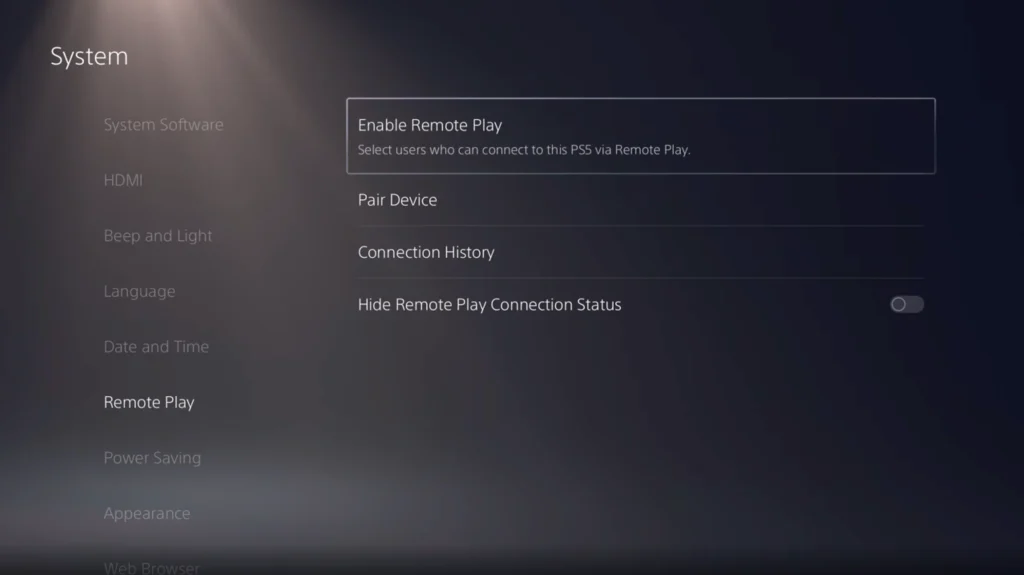
Step 1: Enable Remote Play on Your PS5
On your PS5, go to Settings (gear icon) > System > Remote Play. Toggle Enable Remote Play to On.
Make sure it’s enabled for the user profile you plan to use.
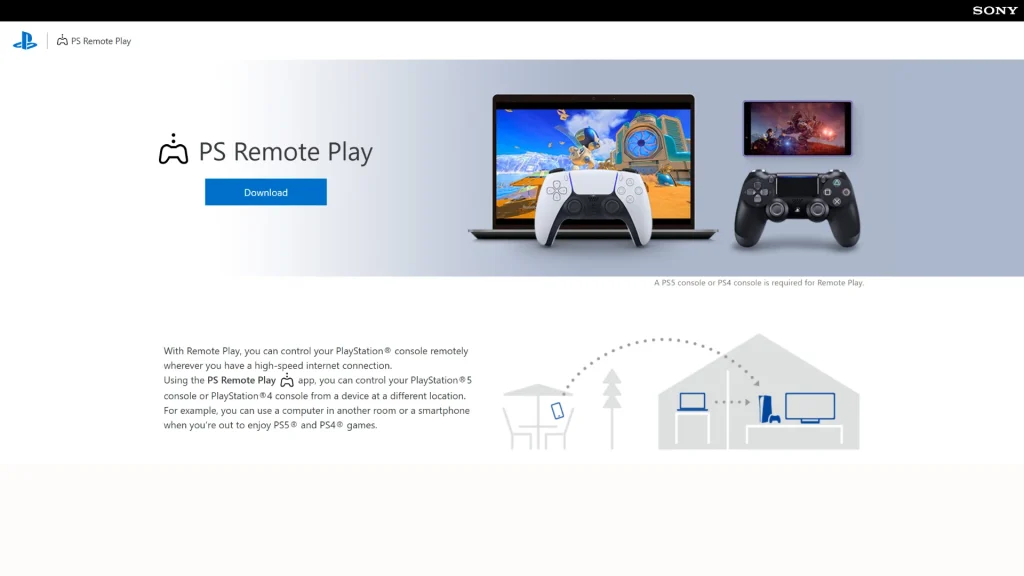
Step 2: Download and Install PS Remote Play on Your PC
On your computer, visit the official PS Remote Play website. Download the app for Windows or Mac, then install it by following the on-screen instructions.
Step 3: Connect Your PS5 Controller to the PC
Connect your DualSense controller to your PC using a USB cable or Bluetooth.
Important: Use a controller connected to the PC, not one directly paired with the PS5. Using a controller connected to the console can disconnect the Remote Play session.
Step 4: Launch PS Remote Play and Sign In
Open the PS Remote Play app on your PC. Sign in using the same PlayStation Network account linked to your PS5.
Make sure your PS5 is turned on or in Rest Mode with Remote Play enabled in power settings.
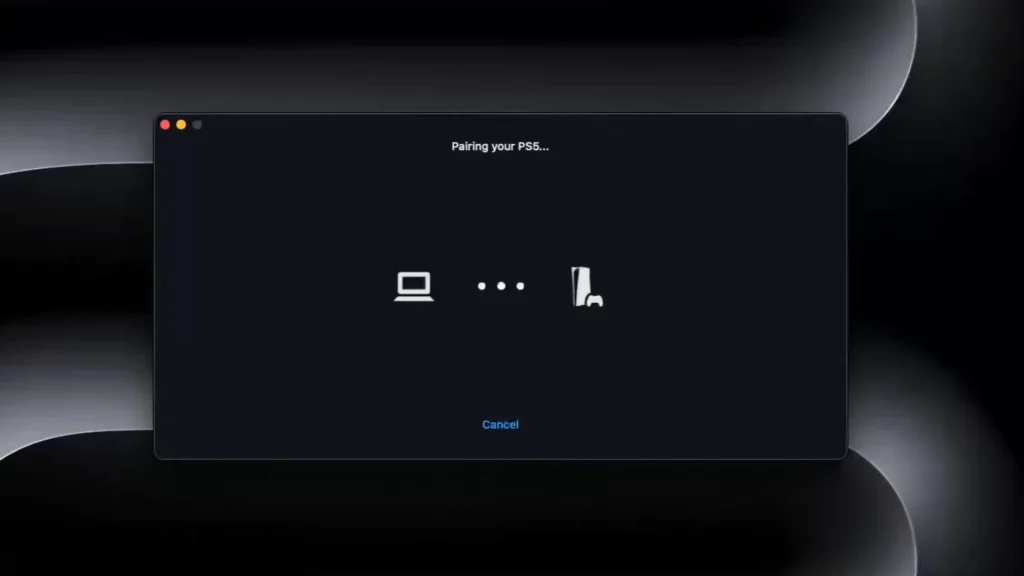
Step 5: Connect to Your PS5 through Remote Play
The app will search for your console and connect over the network.
Once connected, you’ll see your PS5 home screen streaming in the Remote Play window on your PC.
If it doesn’t connect, make sure your PS5 and PC are on the same network, and Remote Play is enabled.
Step 6: Open Discord and Join a Voice Channel
Launch Discord on your PC and enter a voice channel in your server where you want to stream. You need to be in a voice chat to share your screen. Make sure you have streaming permission in that channel. Joining a voice channel in Discord to prepare for streaming. Once connected to the voice channel, you’re ready to start the screen share.
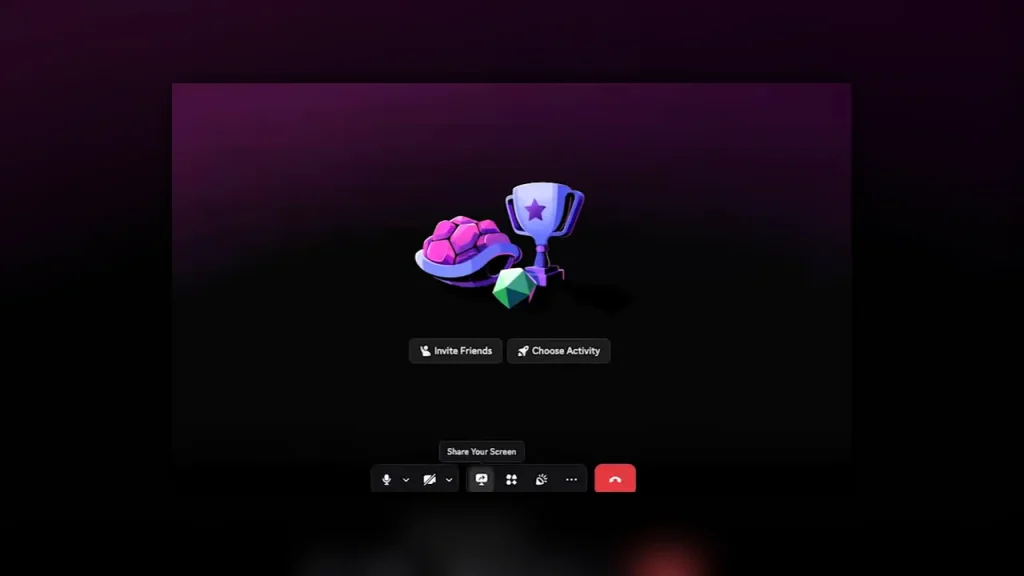
Step 7: Start Screen Sharing in Discord
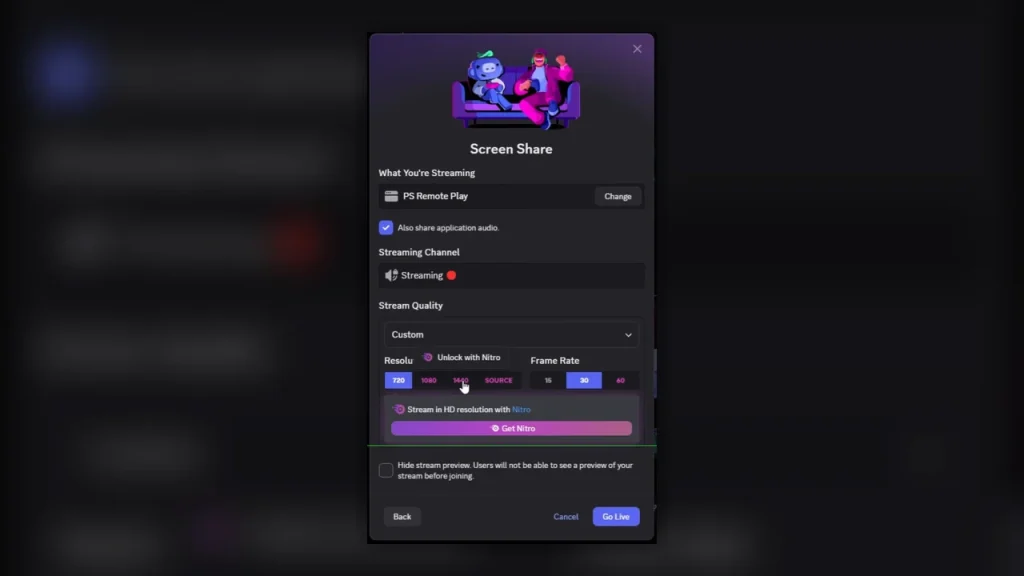
In Discord, click Share Your Screen from the voice status panel. A screen share window will pop up. Select the PS Remote Play application from the list of open windows (or choose the entire screen where Remote Play is running).
Discord’s screen share window: select the Remote Play app, then click Go Live to start streaming. After selecting the window, hit Go Live. Discord will now broadcast your PS5 gameplay to everyone in the voice channel.
Step 8: Enjoy the Stream and Talk With Friends
Your PS5 is now streaming to Discord! Others in the channel can see the game and hear the game audio. Discord will capture the Remote Play app’s sound so your friends get the game’s audio. If you want to chat while playing, make sure that your Discord microphone is unmuted (use a headset on your PC for voice). You are now effectively sharing your PS5 screen on Discord in real time.
Can You Stream PS5 on Discord without Remote Play?
You might wonder if there’s a way to stream PS5 to Discord without using a PC and Remote Play. Currently, PS5 Discord streaming isn’t possible directly on the console – there’s no native Discord app that streams video. Without Remote Play, your options require additional tools or workarounds:
Capture Card Method: Connect a game capture device (like an Elgato HD60) between your PS5 and PC. This hardware captures the PS5’s HDMI output. You can then stream the captured video via OBS or Discord on your PC. This bypasses Remote Play but requires extra hardware and setup.
Use PS5’s Broadcast and Share: As a workaround, you could broadcast from PS5 to another platform (such as YouTube or Twitch, even in unlisted/private mode). Then, on your PC, open that stream (for example, in a browser) and use Discord’s screen share to stream the video to your friends. This method is free but a bit cumbersome, and it may add some delay.
In summary, can you stream PS5 on Discord without Remote Play? Technically, yes, but it’s not straightforward. The Remote Play method is by far the easiest and cheapest solution for most users. Until Sony introduces official Discord streaming on PS5, using a PC will remain the go-to method.
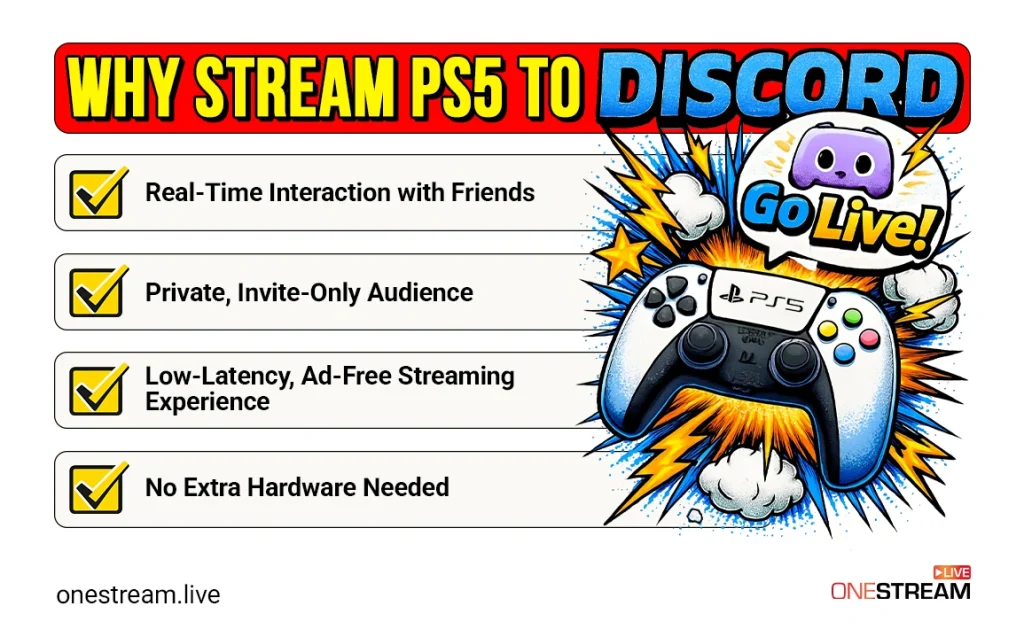
Streaming your PS5 to Discord lets you share epic moments with your community. Here are some key benefits of PS5 Discord streaming:
Real-Time Interaction with Friends
Discord is hugely popular among gamers (over 200 million users worldwide). Chances are your friends are on Discord. By streaming your PS5 gameplay there, friends can watch and react with almost no delay. It feels like hanging out together while you play and everyone can cheer, laugh, or give live feedback as the action happens.
Private, Invite-Only Audience
When you stream on Discord from PS5, you control who watches. You choose a server voice channel, and only invited members can join. This means a comfortable, invite-only streaming session without the pressure of a public audience. Discord supports up to 50 viewers in a voice channel stream, which is plenty for a close-knit group or gaming community. You can keep the experience friendly and focused on just your friends.
Low-Latency, Ad-Free Streaming Experience
Discord offers a smooth, low-latency streaming experience with no ads or platform algorithms. This means your friends see your gameplay almost instantly, without interruptions or distractions. Unlike public streaming platforms, there is no pressure to perform for views or deal with ads; in short, it is simply about enjoying the game together in real time.
No Extra Hardware Needed
Unlike traditional console streaming that might require a capture card or third-party services, streaming PS5 to Discord needs no extra hardware. You use Sony’s official Remote Play app and Discord, and both are free. If you have a PS5, a computer, and internet, you have everything necessary. This makes Discord PS5 streaming accessible to anyone without buying new gear.
Tips for a Smooth PS5 Discord Stream
To make sure the best experience when you stream on Discord from PS5, keep these tips in mind:
Use a wired connection: Internet speed is a major factor here, so connect both your PS5 and PC to the internet via Ethernet if possible. Wired connections reduce lag and improve stream stability.
Optimize Remote Play quality: In the Remote Play app settings, you can adjust the resolution and frame rate. If your network is struggling, try 720p. If you have fast internet, 1080p at 60 fps can make the stream look smooth (PS5 Remote Play supports up to 1080p).
Check Discord stream quality: Free Discord users can stream up to 720p at 30 fps. Nitro subscribers unlock higher resolutions (1080p60 or even 4K). If you want a sharper stream and have Discord Nitro, take advantage of those settings. Otherwise, 720p is the default cap.
Monitor audio and chat: Ensure the game audio is audible on the stream. Discord usually shares application audio on Windows. Also, use a headset so you can talk on Discord without echo. Do a quick check with a friend to confirm they can see and hear everything properly.
Close background apps: For the smoothest performance, close any unnecessary programs on your PC during streaming. This frees up network and CPU resources for Remote Play and Discord.
By following these tips, your PS5 Discord screen share session will run as smoothly as possible, with minimal lag or quality drops.
Stream to Multiple Platforms with OneStream Live
Discord streaming is perfect for sharing gameplay with a private group. But if you want to reach a larger audience on other platforms (like Twitch, YouTube, or Facebook) at the same time, OneStream Live is the best option, and you can multistream your content to 45+ social media platforms simultaneously. You can go live on multiple channels or even schedule pre-recorded gaming videos to stream later. It’s an all-in-one platform designed for gamers, creators, and businesses.
OneStream Live is easy to use and even offers a free plan to get started. This means you can test it out without any cost. With OneStream, you can stream your PS5 gameplay (captured via your PC) not just to Discord, but also to YouTube, Twitch, Facebook, and more, all at once. It’s a powerful way to expand your audience beyond Discord while still engaging your community.
If you’d like to explore that option, check out our step-by-step guide on multistreaming PS5 gameplay using OneStream Live. It walks through the process in a simple and beginner-friendly way. Read more here.
Now that you know how to stream your PS5 to Discord, you’re all set. Jump into your favorite game, invite your friends, and enjoy sharing those moments live. Happy gaming and streaming!
A capture card is not required but is recommended for better video quality and minimal lag.
OneStream Live is a cloud-based live streaming solution to create, schedule, and multistream professional-looking live streams across 45+ social media platforms and the web simultaneously. For content-related queries and feedback, write to us at [email protected]. You’re also welcome to Write for Us!
Kalim is a Digital Content Writer at OneStream Live, dedicated to creating SEO-optimized content. When he's not writing, you can find him lost in his passion for music and singing.