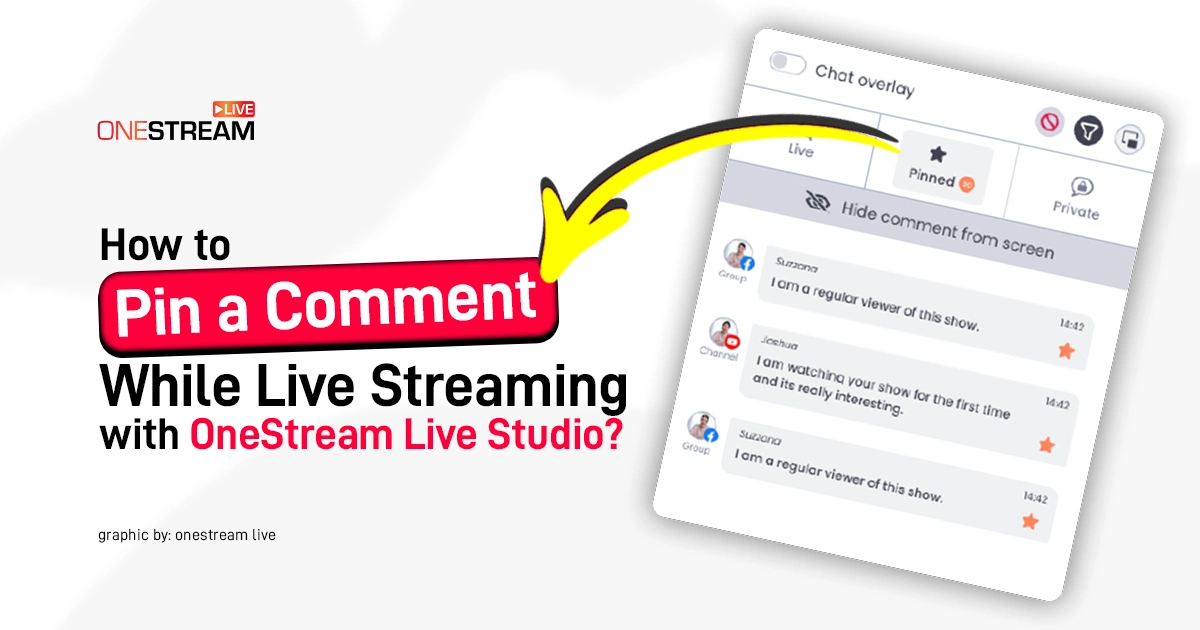

To pin a comment while live streaming in OneStream Live Studio, open the Chat panel during your live session, hover over the desired message, and click the star icon to pin it. You can also display the pinned comment as a banner directly on your live video. This feature works for Facebook Pages, YouTube, Instagram, and Twitch stream chats.
That’s the short answer. Now let’s talk about why it matters.
Most live streams are noisy. Comments fly by. Good questions disappear. Promotions get buried. And the host keeps repeating, “Drop your question again.” Painful.
If you are serious about professional live streaming, you don’t let important messages drown. You pin them.
This guide is for OneStream Live users who want control over their live chat during streaming
What is a Pinned Comment
A pinned comment is a chat message you keep fixed near the top so viewers can see it even while new messages arrive. Unlike a normal chat message, it stays visible until it is replaced or removed by the host or moderator.
Pin chat message while streaming is the platform or studio control that lets you select a specific message and keep it highlighted. Unlike a video caption, it can be changed mid-stream without stopping the broadcast.
Why Pinning a Comment is Important
Most live chats behave like a firehose: people arrive mid-stream, ask the same question, miss the link, and someone re-types it like it is 2014. A live stream comment pin feature is simply a way to keep one message above the flood so latecomers see it.
There’s also a hard performance reason to take chat seriously. Meta has publicly said that live videos on Facebook, on average, get six times as many interactions as regular videos. That is the environment you are managing when you go live.
The skeptical part: pinning is power. And power gets weird. A 2025 research paper by Yunhee Shim and Shagun Jhaver describes the “Pin of Shame,” where creators pin norm-violating comments to spotlight them, turning a moderation tool into public shaming. It can “work,” but it can also escalate dogpiling and harassment if you do it casually.
How to Pin a Comment While Live Streaming in OneStream Live Studio
OneStream Live’s approach is simple: it treats pinning as a show control, not just a chat trick. In OneStream Live Studio, you can pin messages for quick access and also display pinned comment on live stream as a banner, meaning the message becomes part of the on-screen production.
First, confirm you are operating inside Stream Chat. OneStream Live notes that Studio Chat (and the pin feature) is currently available for Facebook Page, Instagram, YouTube, and Twitch, and that pinning is available for Stream Chat, not Private Chat.
Now the actual steps. If your primary query is how to pin a comment on live stream, this is the clickable path inside Studio.
1. Pin comment during live stream
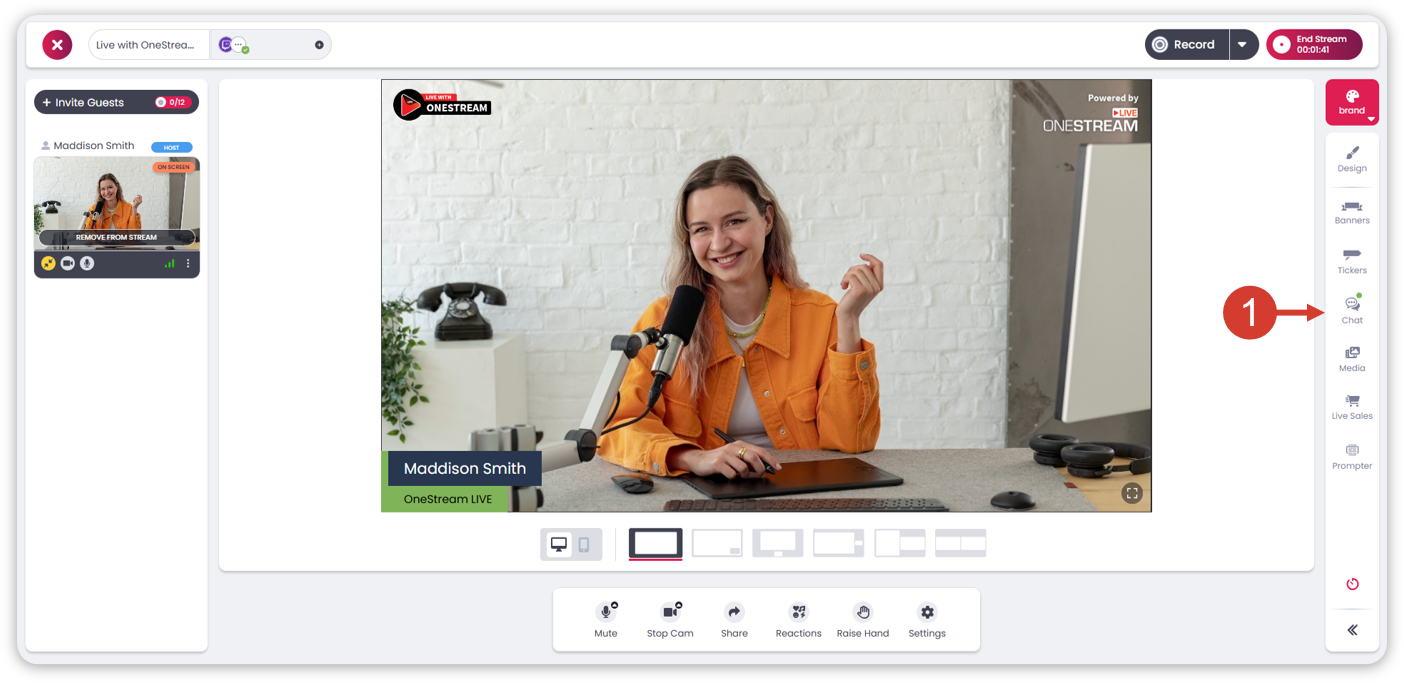
1. While your OneStream Live Studio session is live, click Chat on the right sidebar.
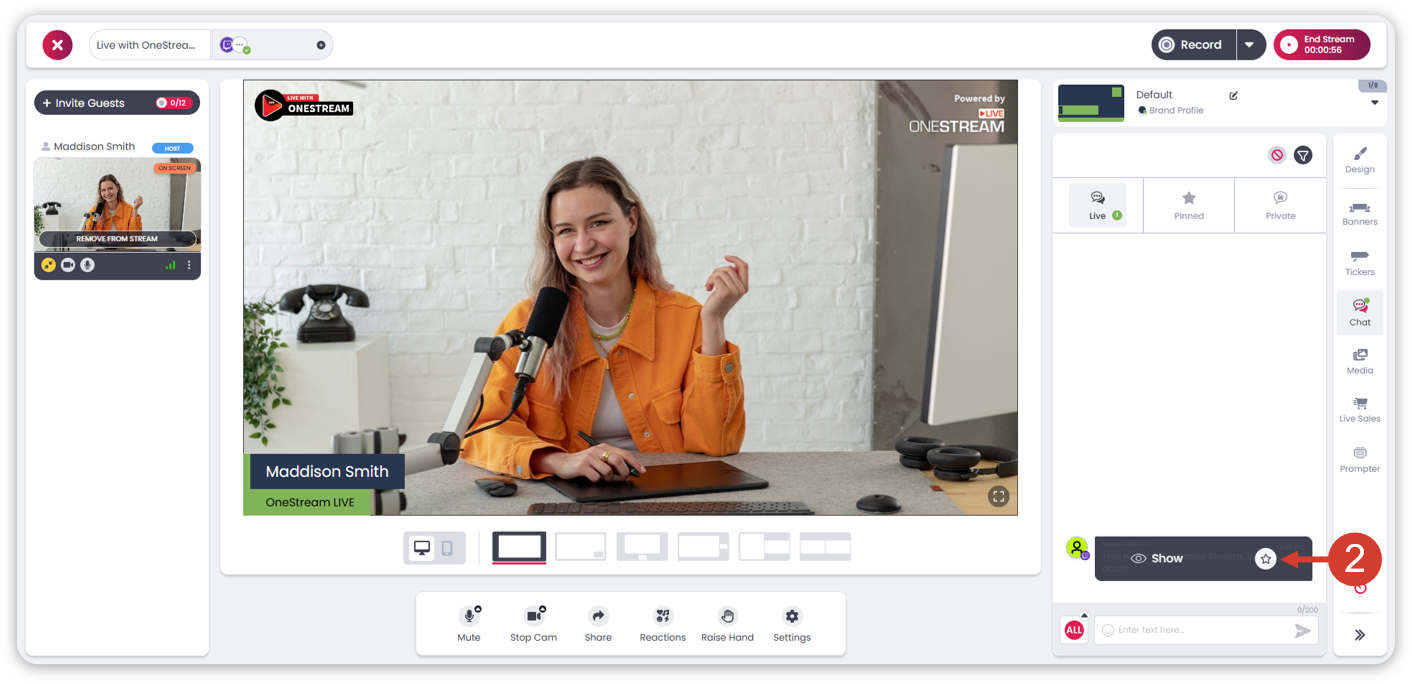
2. In the chat panel, hover the message you want to keep and click the star icon.
3. Open the Pinned section to confirm it is saved there.
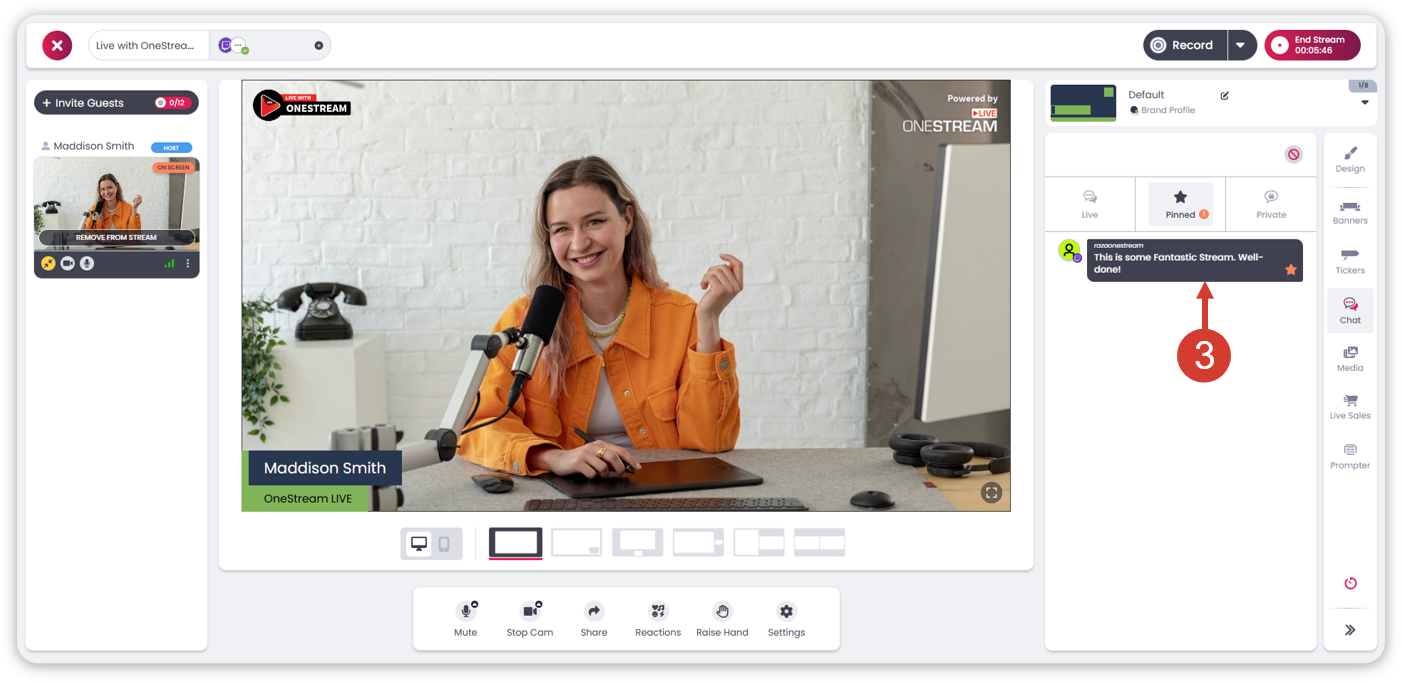
That’s the core move: How to Pin a Comment in OneStream Live Studio is “Chat → hover → star.”
2. Display the pinned comment as an on-screen banner
This is also how you pin comment on live video so it is visible in the broadcast itself.
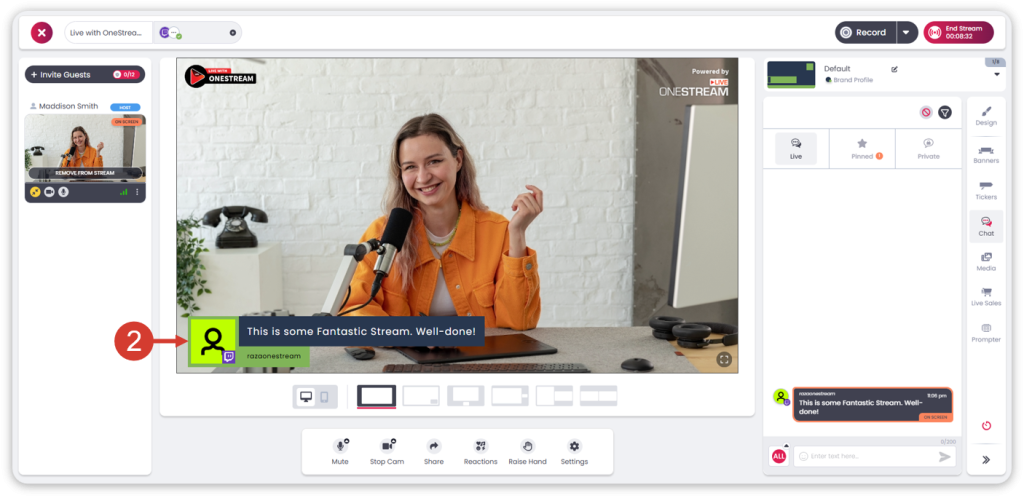
1. Hover the comment and click Show to set it as a banner.
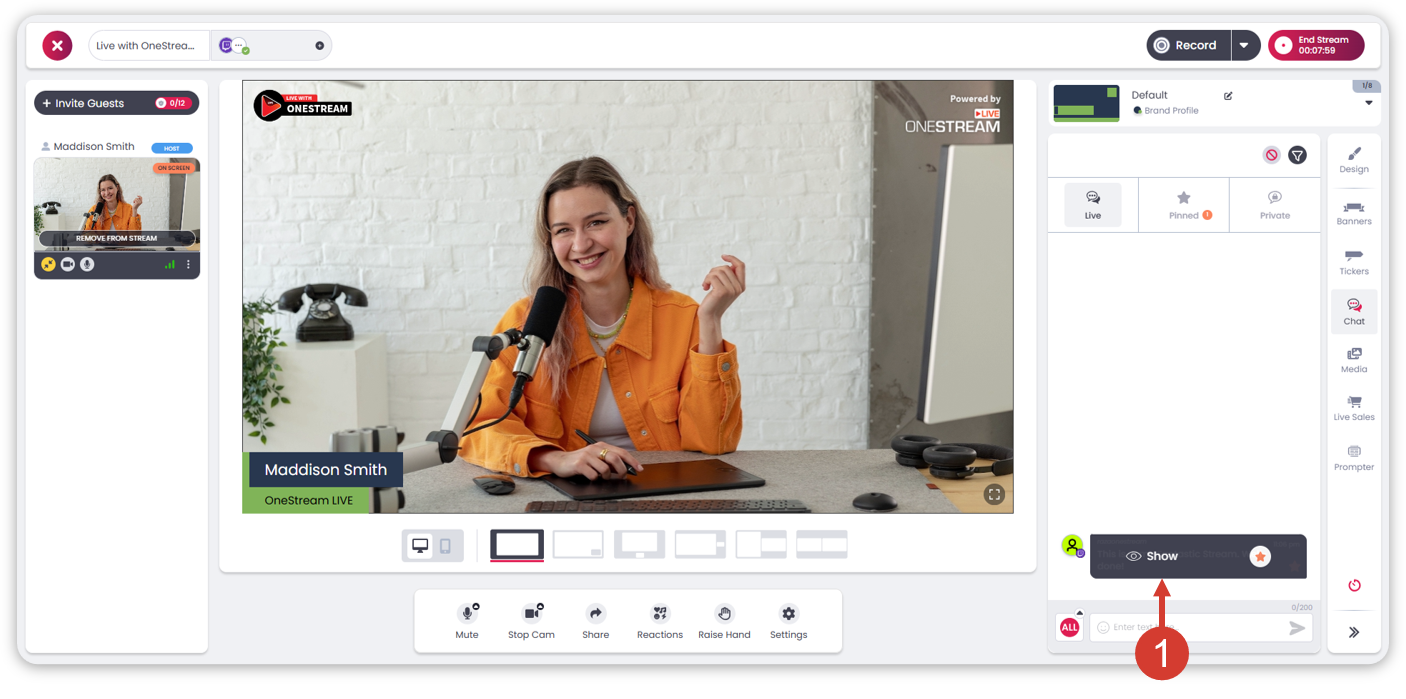
2. The comment appears on the stream as a banner overlay.
3. When it has done its job, hover again and click Hide to remove the banner.
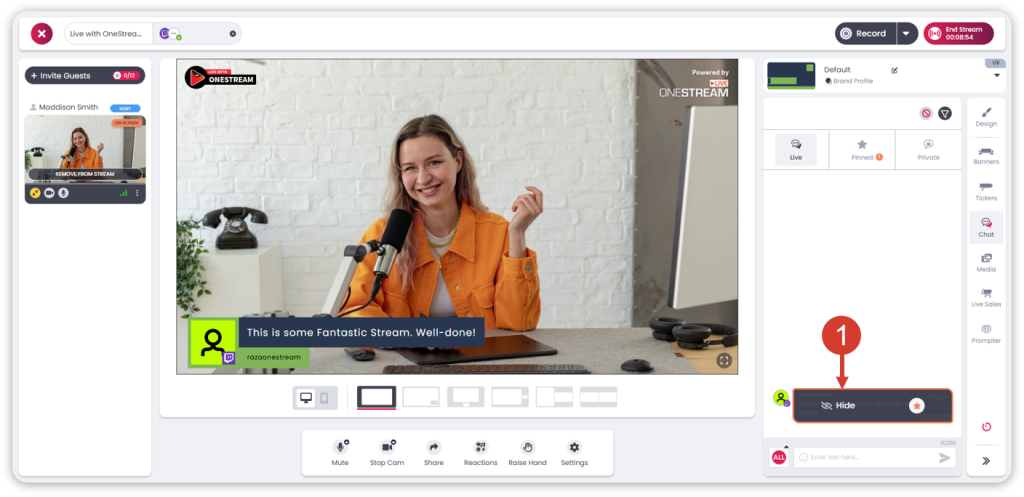
This is the difference between “pinned comment” (helpful to the operator) and “highlight comment in live stream” (helpful to the audience).
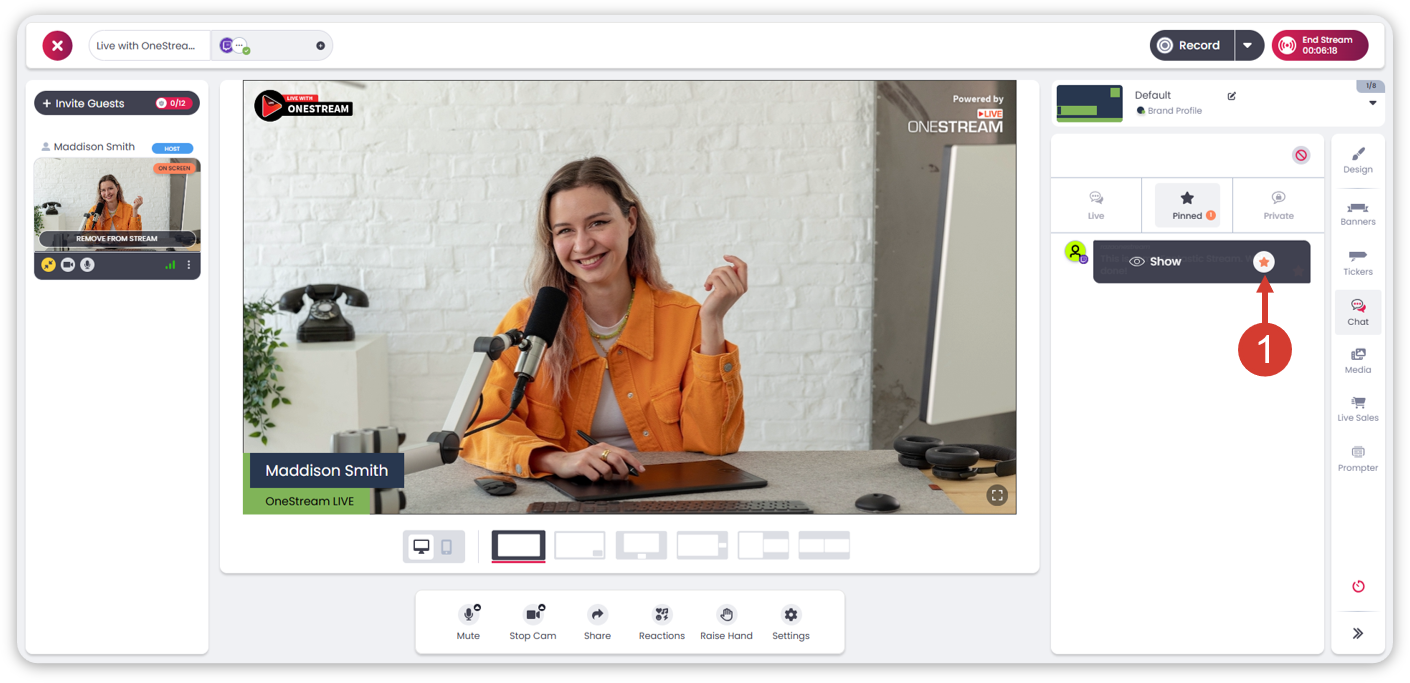
3. Unpin
To remove a pinned comment, hover the message and click the star again.
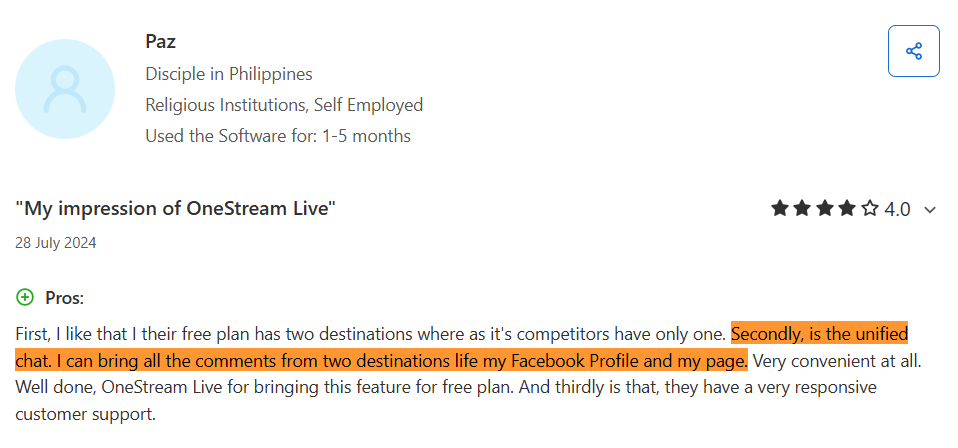
A verified OneStream Live reviewer’s thoughts on the Unified Live Chat on Capterra:
How Pinning Works on TikTok Live, Instagram Live, YouTube, Facebook, and Twitch
OneStream Live is where you produce. The platforms are where you distribute. The pin controls differ, and that matters if you are trying to keep your call-to-action consistent.
1. Pin a comment on TikTok Live
On TikTok LIVE, creators and moderators can manage comments, including pinning comments to the top of the LIVE chat. TikTok’s help center lists “Pin this comment” as an option in LIVE chat controls and says pinned comments are kept at the top for a brief period of time. People often summarize this as “TikTok pin comments,” but the official control is inside LIVE chat moderation.
2. How to pin a comment on Instagram Live
If you want to pin comment on Instagram, the Live version is straightforward. Instagram’s help content says that during a live broadcast you can tap a comment and then tap Pin comment so viewers can see it more easily.
Can you pin your own comment on Instagram? Instagram also lets you add a comment during the broadcast, so you can post the line you want and then pin it.
For non-live posts, Instagram has also moved toward letting people pin their own comments. The Verge reported in September 2025 that Instagram now lets users pin their own comments to keep creator context from being buried.
3. YouTube live chat pin feature
YouTube’s Live Chat help page says you can pin your own message or a viewer’s message, pinned messages show below Super Chat, only one message can be pinned at a time, and only the channel owner can pin and unpin.
4. Facebook Live pinned comment
Meta’s Business Help Center documents pinned comments for live video: you can pin a comment to the top of the chat during a live video, and only one comment can be pinned at a time (pinning a new one replaces the previous one).
5. Twitch pinned chat
Twitch’s own Chat Commands page lists /pin to “amplify high value chat messages,” and notes you can also pin directly from chat. Twitch has also run paid pinned-message formats like Hype Chat, where viewers purchase messages that get pinned to the top of chat.
A Practical Pinned Comment Playbook for OneStream Live Users
Pinning is not a decoration. Done well, it is a small operating system for your live chat during streaming.
1. What to pin
- A good pinned message is built for someone who joined late. In practice, the best “sticky note” formats are:
- A single CTA, one line that tells people what to do next.
- A rules line, one line that keeps questions readable.
- A time anchor, one line that orients people inside the stream.
2. Rotate on purpose
TikTok’s own wording is blunt: pinned comments in LIVE are “for a brief period of time.” Treat that as a design hint while using OneStream Live Studio Chat as well.
Rotate pins when the segment changes, because what viewers need at minute 2 is not what they need at minute 42.
3. Use the banner when you need everyone to see it
If you are multistreaming, a platform-native pin only reaches that platform. In OneStream Live Studio you can set a pinned message as a banner and make it part of the video output, so every destination sees the same instruction.
4. Delegate the job
A common failure mode is the host trying to present, watch chat, and manage pins at the same time. OneStream Live’s Team Management feature exists so you can give trusted teammates access to run parts of the workflow without handing over social account credentials.
5. Don’t use pinning as public punishment
Research suggests some creators use pins to punish and educate inappropriate commenters. But it is a tactic with a risk profile: pin the worst comment in the wrong room, and you can light the fuse on a mob.
6. Quick troubleshooting
If pinning is not working in OneStream Live Studio, the causes are usually plain:
- You are looking at Private Chat, not Stream Chat.
- Your destination is not one of the currently supported Studio chat platforms (Facebook Page, Instagram, YouTube, Twitch).
- You pinned the message, but forgot to click Show to display it as a banner on the live stream.
By using OneStream Live Studio to pin key messages during your broadcast, you can improve audience retention and interaction, keeping your content vibrant and engaging. With features like this, your live streams can deliver value far beyond just entertainment. Don’t miss out on this simple yet powerful tool to enhance your broadcasts!

Frequently Asked Questions
Pinning a comment in OneStream Live Studio is easy. During your live stream, open the chat window, hover over the comment you want to pin, and click the star icon. This will pin it to the top of the chat for better visibility
Yes, you can pin your own comment on OneStream Live Studio. Just like any other comment, hover over it and click the star to pin it. It’s a great way to emphasize important messages or promote your own content
Pinning comments on platforms like Facebook and YouTube allows you to highlight critical messages, such as promotions, shoutouts, or important updates. This ensures that these comments are visible to your viewers, helping to guide the conversation.
OneStream Live Studio allows you to pin one comment at a time. To change the pinned comment, simply unpin the current one and pin a new one. This keeps the chat organized and ensures important messages remain at the forefront
To remove a pinned comment, hover over the comment again and click on the star. This will unpin it, allowing you to pin a different message or remove the pinned content entirely.
It works for Instagram, YouTube, Facebook Page, and Twitch via Stream Chat inside OneStream Live Studio. TikTok native pinning is separate.
No. The feature is currently limited to Stream Chat.
OneStream Live is a cloud-based live streaming solution to create, schedule, and multistream professional-looking live streams across 45+ social media platforms and the web simultaneously. For content-related queries and feedback, write to us at [email protected]. You’re also welcome to Write for Us!